Page 280 of 508
![KIA Sorento 2014 3.G Owners Manual 4 189
Features of your vehicle
Folder RandomPress the key Set [ F.RDM]
through the
TUNE
knob or
key to randomly play songs within the
current folder.
❈ Press F.RDM again to turn off.
Folder Repe](/manual-img/2/2957/w960_2957-279.png "KIA Sorento 2014 3.G Owners Manual 4 189
Features of your vehicle
Folder RandomPress the key Set [ F.RDM]
through the
TUNE
knob or
key to randomly play songs within the
current folder.
❈ Press F.RDM again to turn off.
Folder Repe")
4 189
Features of your vehicle
Folder RandomPress the key Set [ F.RDM]
through the
TUNE
knob or
key to randomly play songs within the
current folder.
❈ Press F.RDM again to turn off.
Folder RepeatPress the key Set [ F.RPT]
through the
TUNE
knob or
key to repeat songs within the cur-
rent folder.
❈ Press F.RPT again to turn off.
All RandomPress the key Set [ A.RDM]
through the
TUNE
knob or key
to randomly play all songs within the
CD.
❈ Press A.RDM again to turn off.
InformationPress the key Set [ Info]
through the
TUNE
knob or
key to display information of the cur-
rent song. ❈
Press the key to turn off
info display.
Copy
Press the key Set [
Copy] through the
TUNE
knob
or key.
This is used to copy the current
song into My Music. You can play
the copied Music in My Music
mode.
❈ If another key is pressed while
copying is in progress, a pop up
asking you whether to cancel
copying is displayed.
❈ If another media is connected or
inserted (USB, CD, iPod, AUX)
while copying is in progress, copy-
ing is canceled.
❈ Music will not be played while
copying is in progress.
MENU : iPodIn iPod mode, press the key to
set the Repeat, Album Random, All
Random, Information and Search fea-
tures.RepeatPress the key Set [ RPT]
through the
TUNE
knob or
key to repeat the current song.
❈ Press RPT again to turn repeat off.
All RandomPress the key Set [ RDM]
through the TUNEknob or
key.
Plays all songs within the currently
playing category in random order.
❈ Press RDM again to turn off.
2
MENU
1 RPT
MENU
MENU
6
MENUMENU
5
MENU
4
MENU
3
MENU
2 RDM
MENU
XM(FL) CAN(ENG) 4b(AUDIO).qxp 1/23/2013 3:42 PM Page 189
Page 281 of 508
Features of your vehicle190
4InformationPress the key Set [ Info]
through the TUNE knob or
key.
Displays information of the current
song.
❈ Press the key to turn off
info display.SearchPress the key Set [ Search]
through the
TUNE
knob or
key.
Displays iPod category list.
❈ Searching iPod category is
key pressed, move to parent cate-
gory.
MENU
4
MENU
MENU
3
MENU
XM(FL) CAN(ENG) 4b(AUDIO).qxp 1/23/2013 3:42 PM Page 190
Page 282 of 508
4 191
Features of your vehicle
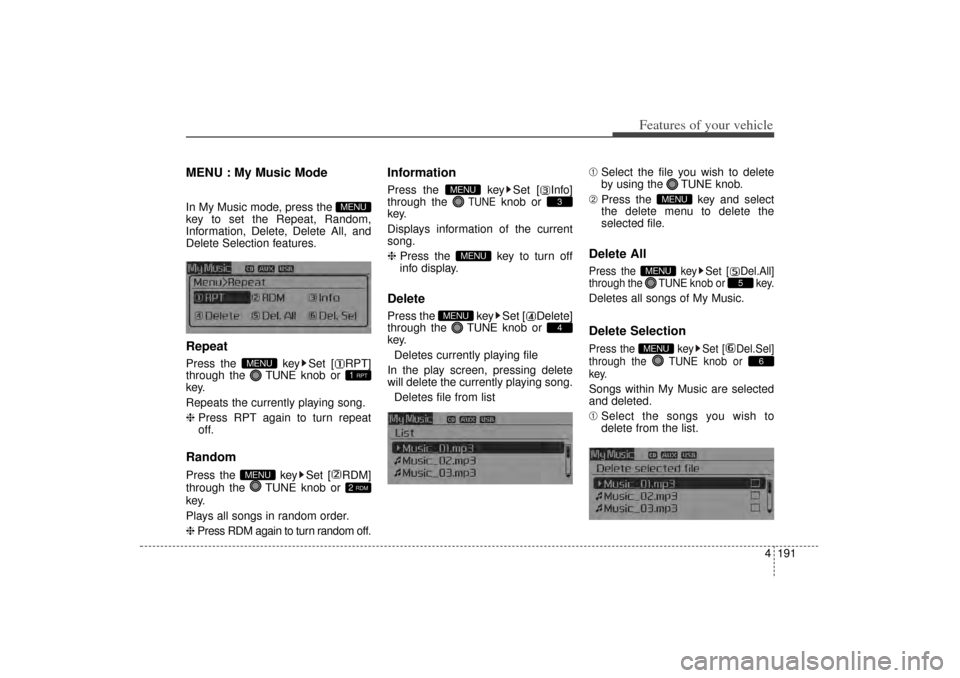
MENU : My Music Mode In My Music mode, press the
key to set the Repeat, Random,
Information, Delete, Delete All, and
Delete Selection features.RepeatPress the key Set [ RPT]
through the TUNEknob or
key.
Repeats the currently playing song.
❈ Press RPT again to turn repeat
off.RandomPress the key Set [ RDM]
through the TUNE knob or
key.
Plays all songs in random order.
❈ Press RDM again to turn random off.
InformationPress the key Set [ Info]
through the
TUNE
knob or
key.
Displays information of the current
song.
❈ Press the key to turn off
info display.
DeletePress the key Set [ Delete]
through the TUNEknob or
key.
Deletes currently playing file
In the play screen, pressing delete
will delete the currently playing song. Deletes file from list ➀
Select the file you wish to delete
by using the TUNE knob.
➁ Press the key and select
the delete menu to delete the
selected file.
Delete AllPress the key Set [ Del.All]
through the TUNEknob or key.Deletes all songs of My Music.Delete SelectionPress the key Set [ Del.Sel]
through the TUNEknob or
key.Songs within My Music are selected
and deleted.
➀ Select the songs you wish to
delete from the list.
6
MENU
5
MENU
MENU
4
MENU
MENU
3
MENU
2 RDM
MENU
1 RPT
MENU
MENU
XM(FL) CAN(ENG) 4b(AUDIO).qxp 1/23/2013 3:42 PM Page 191
Page 283 of 508
Features of your vehicle192
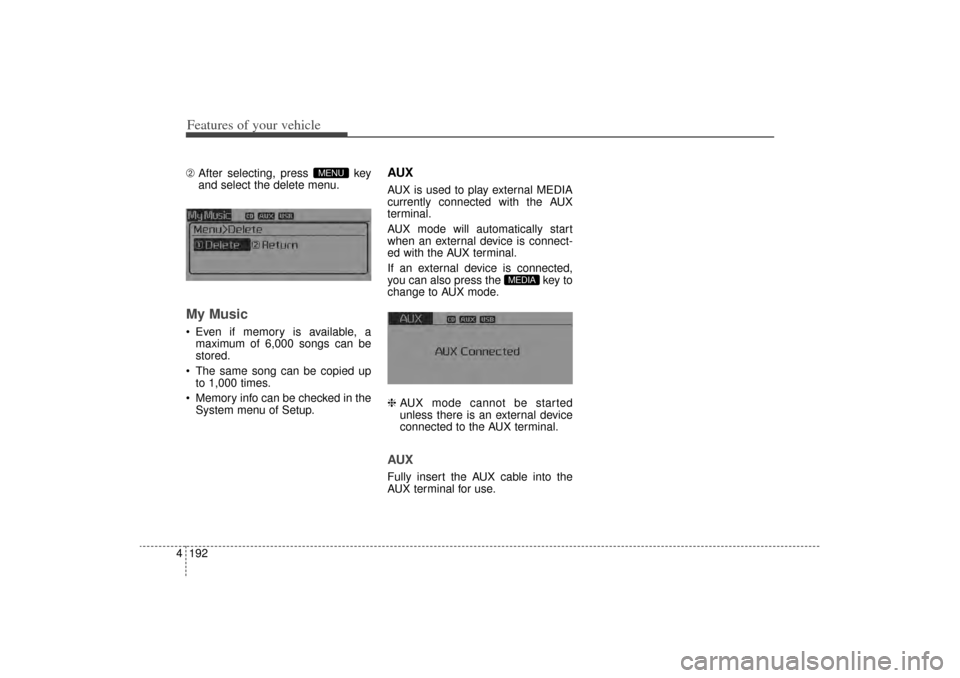
4➁ After selecting, press key
and select the delete menu.My Music Even if memory is available, a
maximum of 6,000 songs can be
stored.
The same song can be copied up to 1,000 times.
Memory info can be checked in the System menu of Setup.
AUXAUX is used to play external MEDIA
currently connected with the AUX
terminal.
AUX mode will automatically start
when an external device is connect-
ed with the AUX terminal.
If an external device is connected,
you can also press the key to
change to AUX mode.
❈ AUX mode cannot be started
unless there is an external device
connected to the AUX terminal.AUXFully insert the AUX cable into the
AUX terminal for use.
MEDIA
MENU
XM(FL) CAN(ENG) 4b(AUDIO).qxp 1/23/2013 3:42 PM Page 192
Page 284 of 508

4 193
Features of your vehicle
Bluetooth
®Wireless Technology
AUDIO
What is
Bluetooth
®Wireless
Technology
?
Bluetooth
®Wireless Technology is a
wireless technology that allows mul-
tiple devices to be connected in a
short range, low-powered devices
like hands-free, stereo headset, wire-
less remote controller, etc. For more
information, visit
the
Bluetooth
®
Wireless Technology
website at
www
.Bluetooth.com
Before using
Bluetooth
®
Wireless
Technology audio features
Bluetooth
®
Wireless Technology
audio may not be supported
depending on the compatibility of
your
Bluetooth
®Wireless Technology
mobile phone.
In order to use Bluetooth
®Wireless
Technology audio, you must first
pair and connect the Bluetooth
®
Wireless Technology mobile phone.
Bluetooth
®
Wireless Technology
audio can be used only when the
[Audio Streaming] of Phone is
turned .
❈ Setting
Bluetooth
®Wireless Technology
Audio Streaming : Press the
key Select [Phone] through the tune
knob or key Select [Audio
Streaming] through the TUNE
knob Set
/
Starting
Bluetooth
®Wireless
Technology Audio
Press the key to change the
mode in order of
CD➟ USB➟ AUX➟My Music➟ BT
Audio.
If BT Audio is selected,
Bluetooth
®
Wireless Technology audio will start
playing.
❈ Audio may not automatically start
playing in some mobile phones.
Using the
Bluetooth
®Wireless
Technology audio features
Play / Stop
Press the TUNE knob to play and
pause the current song.
Previous / Next song
Press or to play
previous or next song.
❈ The previous song / next song /
play / pause functions may not be
supported in some mobile phones.
SEEK
TRACK
SEEK
TRACK
MEDIA
Off
On3
SETUP
On
XM(FL) CAN(ENG) 4b(AUDIO).qxp 1/23/2013 3:42 PM Page 193
Page 285 of 508
Features of your vehicle194
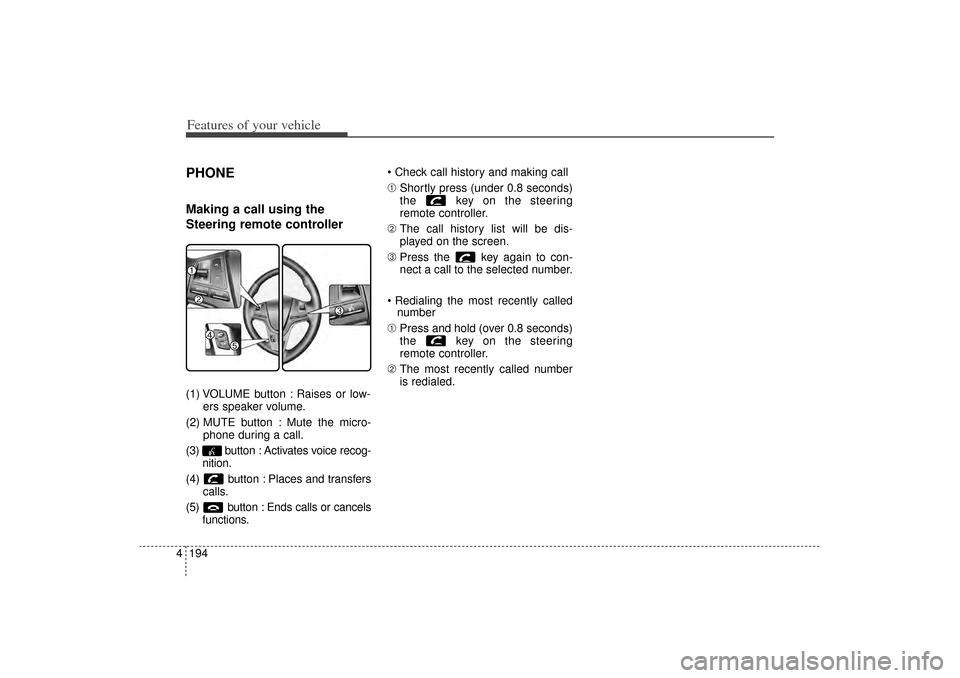
4PHONEMaking a call using the
Steering remote controller(1) VOLUME button : Raises or low-
ers speaker volume.
(2) MUTE button : Mute the micro- phone during a call.
(3) button : Activates voice recog- nition.
(4) button : Places and transfers calls.
(5) button : Ends calls or cancels functions. Check call history and making call
➀
Shortly press (under 0.8 seconds)
the key on the steering
remote controller.
➁ The call history list will be dis-
played on the screen.
\b Press the key again to con-
nect a call to the selected number.
Redialing the most recently called number
➀ Press and hold (over 0.8 seconds)
the key on the steering
remote controller.
➁ The most recently called number
is redialed.
XM(FL) CAN(ENG) 4b(AUDIO).qxp 1/23/2013 3:43 PM Page 194
Page 286 of 508
4 195
Features of your vehicle
Bluetooth
®Wireless Technology
Pairing a Bluetooth
®
Wireless
Technology wireless technolo-
gy Device
What is Bluetooth
®
Wireless
Technology Pairing?
Pairing refers to the process of syn-
chronizing your
Bluetooth
®
Wireless
Technology phone or device with the
car audio system for connection.
Pairing is necessary to connect and
use the
Bluetooth
®
Wireless
Technology feature.
Pairing Key / Key
on the Steering Remote
ControllerWhen No Devices have been
Paired1. Press the key or the key on the steering remote con-
troller. The following screen is dis-
played.
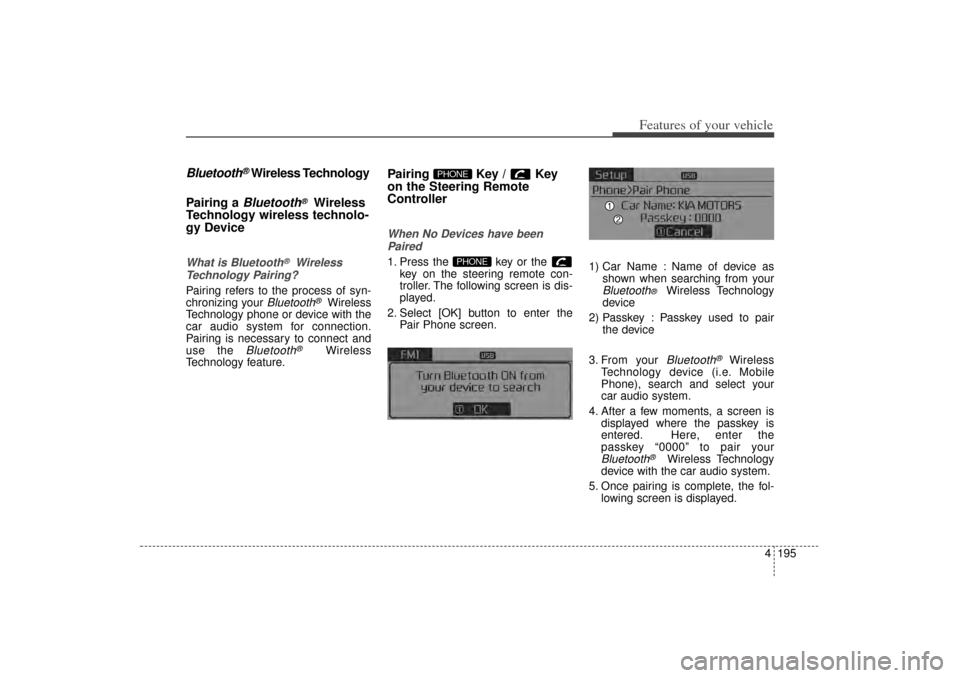
2. Select [OK] button to enter the Pair Phone screen. 1) Car Name : Name of device as
shown when searching from your
Bluetooth
®
Wireless Technology
device
2) Passkey : Passkey used to pair the device
3. From your Bluetooth
®
Wireless
Technology device (i.e. Mobile
Phone), search and select your
car audio system.
4. After a few moments, a screen is displayed where the passkey is
entered. Here, enter the
passkey “0000” to pair your
Bluetooth
®
Wireless Technology
device with the car audio system.
5. Once pairing is complete, the fol- lowing screen is displayed.
PHONE
PHONE
XM(FL) CAN(ENG) 4b(AUDIO).qxp 1/23/2013 3:43 PM Page 195
Page 287 of 508
Features of your vehicle196
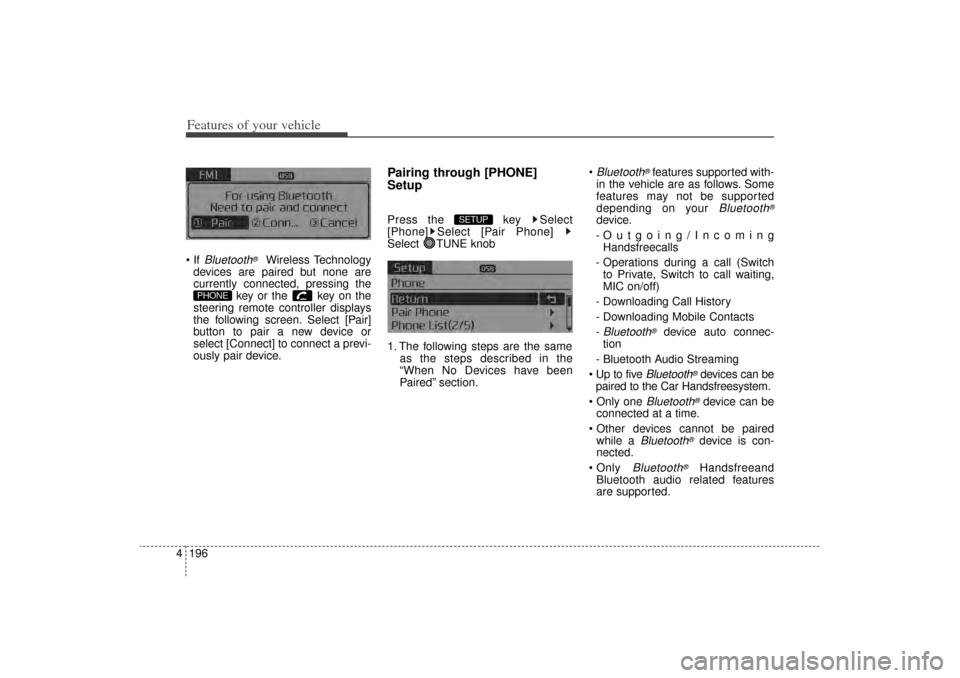
4 If
Bluetooth
®
Wireless Technology
devices are paired but none are
currently connected, pressing the key or the key on the
steering remote controller displays
the following screen. Select [Pair]
button to pair a new device or
select [Connect] to connect a previ-
ously pair device.
Pairing through [PHONE]
SetupPress the key Select
[Phone] Select [Pair Phone]
Select TUNE knob
1. The following steps are the same as the steps described in the
“When No Devices have been
Paired” section.
Bluetooth
®features supported with-
in the vehicle are as follows. Some
features may not be supported
depending on your
Bluetooth
®
device.
-Outgoing/Incoming Handsfreecalls
- Operations during a call (Switch to Private, Switch to call waiting,
MIC on/off)
- Downloading Call History
- Downloading Mobile Contacts
-Bluetooth
®
device auto connec-
tion
- Bluetooth Audio Streaming
Up to five
Bluetooth
®devices can be
paired to the Car Handsfreesystem.
Only one
Bluetooth
®device can be
connected at a time.
Other devices cannot be paired while a
Bluetooth
®device is con-
nected.
Only
Bluetooth
®
Handsfreeand
Bluetooth audio related features
are supported.
SETUP
PHONE
XM(FL) CAN(ENG) 4b(AUDIO).qxp 1/23/2013 3:43 PM Page 196
![KIA Sorento 2014 3.G Owners Manual Features of your vehicle190
4InformationPress the key Set [ Info]
through the TUNE knob or
key.
Displays information of the current
song.
❈ Press the key to turn off
info display.SearchPress th](/manual-img/2/2957/w960_2957-280.png "KIA Sorento 2014 3.G Owners Manual Features of your vehicle190
4InformationPress the key Set [ Info]
through the TUNE knob or
key.
Displays information of the current
song.
❈ Press the key to turn off
info display.SearchPress th")