Page 230 of 446
4161
Features of your vehicle
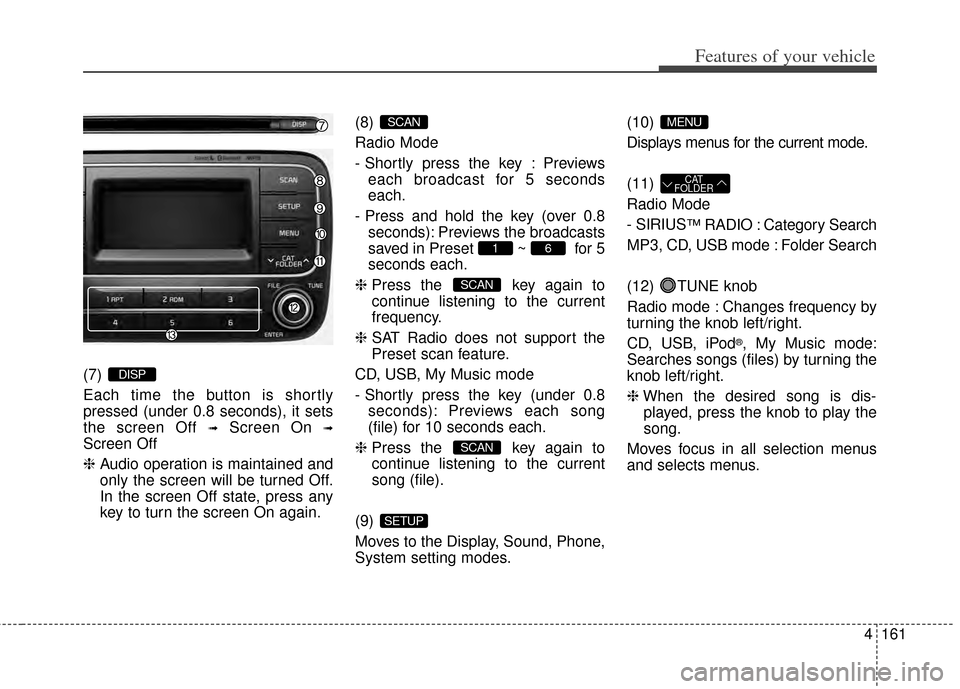
(7)
Each time the button is shortly
pressed (under 0.8 seconds), it sets
the screen Off
➟Screen On ➟
Screen Off
❈Audio operation is maintained and
only the screen will be turned Off.
In the screen Off state, press any
key to turn the screen On again. (8)
Radio Mode
-
Shortly press the key : Previews
each broadcast for 5 seconds
each.
- Press and hold the key (over 0.8 seconds): Previews the broadcasts
saved in Preset ~ for 5
seconds each.
❈ Press the key again to
continue listening to the current
frequency.
❈ SAT Radio does not support the
Preset scan feature.
CD, USB, My Music mode
- Shortly press the key (under 0.8 seconds): Previews each song
(file) for 10 seconds each.
❈ Press the key again to
continue listening to the current
song (file).
(9)
Moves to the Display, Sound, Phone,
System setting modes. (10)
Displays menus for the current mode.
(11)
Radio Mode
- SIRIUS
™RADIO : Category Search
MP3, CD, USB mode : Folder Search
(12) TUNE knob
Radio mode : Changes frequency by
turning the knob left/right.
CD, USB, iPod
®, My Music mode:
Searches songs (files) by turning the
knob left/right.
❈ When the desired song is dis-
played, press the knob to play the
song.
Moves focus in all selection menus
and selects menus.
CAT
FOLDER
MENU
SETUP
SCAN
SCAN
61
SCAN
DISP
Page 231 of 446
Features of your vehicle
162
4
(13) ~ (Preset)
Radio Mode: Saves frequencies
(channels) or receives saved fre-
quencies (channels)
CD, USB, iPod
®, My Music mode
- : Repeat
- : Random
In the Radio, Media, Setup, and
Menu pop up screen, the number
menu is selected.
(14)
Changes to FM/AM mode.
Each time the key is pressed, the
mode is changed in order of FM1
➟
FM2 ➟ AM.
(15)
Changes to SIRIUS
™Satellite Radio
mode.
Each time the key is pressed, the
mode is changed in order of SAT1
➟
SAT2 ➟ SAT3.
SAT
FM/AM
2
1
61
Page 232 of 446
4163
Features of your vehicle
SETUP
Display Settings
Press the key Select [Display]
through TUNE knob or key
Select menu through TUNE knob
Mode Pop up
[Mode Pop up] Changes /
selection mode
or key to display the mode
change pop up screen.
Text Scroll
[Text Scroll] Set /
Maintains scroll
: Scrolls only one (1) time.
Media Display
When playing an MP3 file, select the
desired display info from ‘Folder/File’
or ‘Album/Artist/Song’.
Off
On
OffOn
MEDIA
RADIO
OffOn
1
SETUP
Page 246 of 446
4177
Features of your vehicle
\b After selecting, press key
and select the delete menu.
My Music
Even if memory is available, a
maximum of 6,000 songs can be
stored.
The same song can be copied up to 1,000 times.
Memory info can be checked in the System menu of Setup.
AUX
AUX is used to play external MEDIA
currently connected with the AUX
terminal.
AUX mode will automatically start
when an external device is connect-
ed with the AUX terminal.
If an external device is connected,
you can also press the key to
change to AUX mode.
❈ AUX mode cannot be started
unless there is an external device
connected to the AUX terminal.
AUX
Fully insert the AUX cable into the
AUX terminal for use.
MEDIA
MENU
Page 250 of 446

4181
Features of your vehicle
3. From your Bluetooth®Wireless
Technology device (i.e. Mobile
Phone), search and select your
car audio system.
4. After a few moments, a screen is displayed where the passkey is
entered. Here, enter the passkey
“0000” to pair your
Bluetooth®
Wireless Technology device with
the car audio system.
5. Once pairing is complete, the fol- lowing screen is displayed.
Some phones (i.e., iPhone, Android
and Blackberry phones) may offer an
option to allow acceptance of all
future
Bluetooth®connection
requests by default." and "Visit
http://www.kia.com/#/bluetooth for
additional information on pairing your
Bluetooth-enabled mobile phone, and
to view a phone compatibility list.
Bluetooth®Wireless Technology
devices are paired but none are
currently connected, pressing the key or the key on the
steering wheel displays the follow-
ing screen. Select [Pair] button to
pair a new device or select
[Connect] to connect a previously
paired device.
Pairing through [PHONE] Setup
Press the key Select
[Phone] Select [Pair Phone]
Select TUNE knob 1. The following steps are the same
as those described in the section
"When No Devices have been
Paired" on the previous page.
Bluetooth®Wireless Technology fea-
tures supported within the vehicle are
as follows. Some features may not be
supported depending on your
Bluetooth®Wireless Technology
device.
- Outgoing/Incoming Handsfree calls
- Operations during a call (Switch to Private, Switch to call waiting, MIC
on/off)
- Downloading Call History
- Downloading Mobile Contacts
-
Bluetooth®Wireless Technology
device auto connection
- Bluetooth Audio Streaming
Bluetooth®Wireless
Technology devices can be paired to
the Car Handsfree system.
one
Bluetooth®Wireless
Technology device can be connected
at a time.
SETUP
PHONE
Page 255 of 446
Features of your vehicle
186
4
displayed, most Audio and SETUP
mode features are disabled. Only
the call volume will operate.
properly displayed in some mobile
phones.
mobile phone, the call mode will
automatically revert to Private
mode.Favorites
Press the key Select
[Favorites]
1) Saved favorite contact : Connects call upon selection
2) To add favorite : Downloaded con- tacts be saved as favorite.
save Favorite, contacts should be downloaded.
be automatically updated if the con-
tact has been updated in the
phone. To update Favorites, delete
the Favorite and create a new
Favorite.
Call History
Press the key Select [Call
History]
A list of incoming, outgoing and
missed calls is displayed.
call history list in some mobile
phones.
will not be saved in the call history
list.
possible when there is no call histo-
ry stored or a
Bluetooth®Wireless
Technology phone is not connected.
calls are stored in Call History.
time information are not saved.
PHONE PHONE
Page 258 of 446

4189
Features of your vehicle
To learn more about whether yourmobile phone supports contacts
downloads, refer to your mobile
phone user’s manual.
The contacts for only the connected phone can be downloadedDownloading Contacts
Press the key Select
[Phone] Select [Contacts Download]
As the contacts are downloaded
from the mobile phone, a download
progress bar is displayed.
Upon downloading phone contacts,the previous corresponding data is
deleted.
This feature may not be supported in some mobile phones.
while contacts are being down-
loaded.
Auto Download (Contacts)
Press the key Select
[Phone] Select [Auto Download]
This feature is used to automatically
download mobile contacts entries
once a
Bluetooth®Wireless
Technology phone is connected.
download mobile contacts entries
every time the phone is connected.
The download time may differ
depending on the number of saved
contacts entries and the communi-
cation state.
Before downloading contacts, first check to see that your mobile
phone supports the contacts
download feature.
SETUP SETUP
Page 270 of 446
Driving your vehicle
25
Be sure the exhaust system
does not leak.
The exhaust system should be
checked whenever the vehicle is
raised to change the oil or for any
other purpose. If you
hear a change in the sound of the
exhaust or if you drive over some-
thing that strikes the underneath side
of the vehicle, have the exhaust sys-
tem checked as soon as possible by
an authorized Kia dealer.
WARNING - Engineexhaust
Do not inhale exhaust fumes or
leave your engine running in an
enclosed area for a prolonged
time.
Exhaust fumes contain carbon
monoxide, a colorless, odorless
gas that can cause uncon-
sciousness and death by
asphyxiation.
WARNING- Open trunk
Do not drive with the trunk
open.
Poisonous exhaust gases can
enter the passenger compart-
ment. If you must drive with the
trunk open proceed as follows:
1.Close all windows.
2.Open side vents.
3.Set the air intake control at
"Fresh", the air flow control at
"Floor" or "Face" and the fan
at the highest speed.

![KIA Cerato 2014 2.G Owners Manual 4163
Features of your vehicle
SETUP
Display Settings
Press the key Select [Display]
through TUNE knob or key
Select menu through TUNE knob
Mode Pop up
[Mode Pop up] Changes /
selection mode
or k](/manual-img/2/2951/w960_2951-231.png "KIA Cerato 2014 2.G Owners Manual 4163
Features of your vehicle
SETUP
Display Settings
Press the key Select [Display]
through TUNE knob or key
Select menu through TUNE knob
Mode Pop up
[Mode Pop up] Changes /
selection mode
or k")


