2014 KIA CEED audio
[x] Cancel search: audioPage 861 of 1206

4 177
Features of your vehicle
(Continued) Turn on the car ignition before using this device. Do not operatethe audio system for long periods of time with the ignition turned off
as such operations may lead to battery discharge.
Do not subject the device to severe shock or impact. Direct
pressure onto the front side ofthe monitor may cause damage to the LCD or touch screen.
When cleaning the device, make sure to turn off the device anduse a dry and smooth cloth.Never use tough materials, chem- ical cloths, or solvents (alcohol,
benzene, thinners, etc.) as suchmaterials may damage the devicepanel or cause colour/qualitydeterioration
Do not place beverages close to the audio system. Spilling bever-ages may lead to system mal-function.
(Continued)(Continued) In case of product malfunction, please contact your place of pur-chase or After Service centre.
Placing the audio system within an electromagnetic environmentmay result in noise interference.
JD RHD 4b(172~).QXP 4/29/2013 11:49 AM Page 177
Page 862 of 1206

Features of your vehicle
178
4
Caring for disc
If the temperature inside the car is too
high, open the car windows to ventilate
before using the system.
It is illegal to copy and use MP3/WMA files without permission. Use CDs that
are created only by lawful means.
Do not apply volatile agents, such as benzene and thinner, normal cleaners
and magnetic sprays made for ana-
logue disc onto CDs.
To prevent the disc surface from get- ting damaged, hold CDs by the edges
or the centre hole only.
Clean the disc surface with a piece of soft cloth before playback (wipe it fromthe centre to the outside edge).
Do not damage the disc surface or attach pieces of sticky tape or paper.
Make certain only CDs are inserted into the CD player (Do not insert morethan one CD at a time).
Keep CDs in their cases after use to protect them from scratches or dirt.
Depending on the type of CD-R/CD- RW CDs, certain CDs may not operate
normally according to manufacturingcompanies or making and recording
methods. In such circumstances, con-
tinued use may cause malfunctions to
your audio system.✽✽ NOTICE - Playing an
Incompatible Copy
Protected Audio CD
Some copy protected CDs, which do not comply with international audio CDstandards (Red Book), may not play on
your car audio. Please note that inabili-
ties to properly play a copy protectedCD may indicate that the CD is defec-
tive, not the CD player.
NOTE:
Order of playing files (folders) :
1. Song playing order : to sequen- tially. 2. Folder playing order :❋
If no song file is contained in the
folder, that folder is not displayed.
JD RHD 4b(172~).QXP 4/29/2013 11:49 AM Page 178
Page 863 of 1206

4 179
Features of your vehicle
USING YOUR USB DEVICE
To use an external USB device,make sure the device is not connect-
ed when starting up the vehicle.
Connect the device after starting up.
If you start the engine when the USB device is connected, it may damage
the USB device. (USB flashdrives
are very sensitive to electric shock.)
If the engine is started up or turned off whilst the external USB device is
connected, the external USB device
may not work.
It may not play inauthentic MP3 or WMA files.
1) It can only play MP3 files with the compression rate between
8Kbps~320Kbps.
2) It can only play WMA music files with the compression rate
between 8Kbps~320Kbps.
Take precautions for static electricity when connecting or disconnecting the
external USB device.
An encrypted MP3 PLAYER is not recognizable. Depending on the condition of the
external USB device, the connected
external USB device can be unrec-
ognizable.
When the formatted byte/sector set- ting of External USB device is noteither 512BYTE or 2048BYTE, then
the device will not be recognized.
Use only a USB device formatted to FAT 12/16/32.
USB devices without USB I/F authentica-
tion may not be recognizable.
Make sure the USB connection termi- nal does not come in contact with the
human body or other objects.
If you repeatedly connect or discon- nect the USB device in a short peri-
od of time, it may break the device.
You may hear a strange noise when connecting or disconnecting a USB
device.
If you disconnect the external USB device during playback in USB mode,
the external USB device can be dam-
aged or may malfunction. Therefore,
disconnect the external USB device
when the audio is turned off or in
another mode. (e.g, Radio, CD)
Depending on the type and capacity ofthe external USB device or the type of
the files stored in the device, there is a
difference in the time taken for recogni-
tion of the device.
Do not use the USB device for purposes other than playing music files.
Playing videos through the USB is not supported.
Use of USB accessories such as rechargers or heaters using USB I/F
may lower performance or cause
trouble.
If you use devices such as a USB hub purchased separately, the vehi-
cle’s audio system may not recog-
nize the USB device. In that case,
connect the USB device directly to
the multimedia terminal of the vehi-
cle.
If the USB device is divided by logi- cal drives, only the music files on the
highest-priority drive are recognized
by car audio.
Devices such as MP3 Player/ Cellular phone/Digital camera can be
unrecognizable by standard USB I/F
can be unrecognizable.
(Continued)
JD RHD 4b(172~).QXP 4/29/2013 11:49 AM Page 179
Page 866 of 1206

Features of your vehicle
182
4
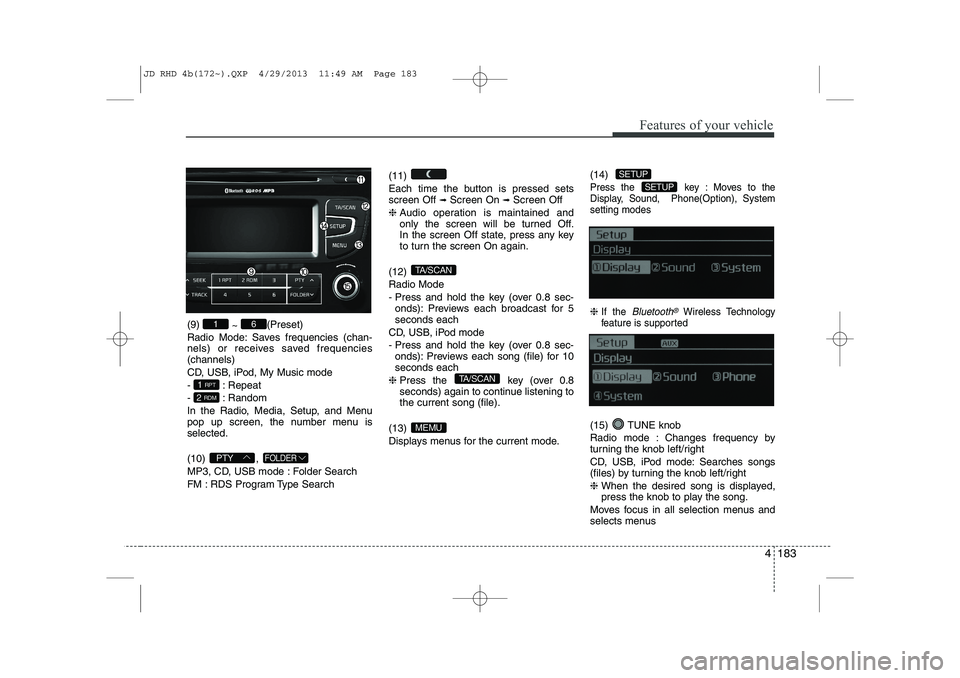
SYSTEM CONTROLLERS AND FUNCTIONS ❈ Display and settings may differ
depending on the selected audio.
Audio Head Unit (1) (EJECT) Ejects the disc. (2)
Changes to FM/AM mode.
Each time the key is pressed,the mode is changed in order of FM1 ➟
FM2 ➟FMA
➟ AM ➟AMA.
❈ In Setup>Display, the radio pop up
screen will be displayed when [Mode
Pop up] is turned .When the pop up screen is displayed,
use the TUNE knob or keys
~ to select the desired mode.
(3)
Changes to CD, USB MP3, iPod, BT
MP3, AUX modes.
Each time the key is pressed, the mode
is changed in order of CD, USB, iPod,
AUX, My Music, BT Audio. ❈ In Setup>Display, the media pop up
screen will be displayed when [Mode
Pop up] is turned .
When the pop up screen is displayed,
use the TUNE knob or keys
~ to select the desired mode.
(4)
Operates Phone Screen❈ When a phone is not connected, the
connection screen is displayed.
(5) ,
Radio Mode : Automatically searches for
broadcast frequencies.
CD, USB, iPod, My Music modes
- Shortly press the key (under 0.8 seconds): Moves to next or previous song (file)
- Press and hold the key (over 0.8 seconds): Rewinds or fast-forwards the current song.
(6) / knob
Power Knob: Turns power On/Off by
pressing the knob
Volume Knob: Sets volume by turning
the knob left/right (7)
Changes to FM mode.
Each time the key is pressed, the mode is changed in order of FM1
➟ FM2➟ FMA.
(8)
Changes to AM mode.
Each time the key is pressed, the mode is changed in order of AM ➟
AMA.AM
FM
TRACKSEEK
PHONE
51
On
MEDIA
61
On
RADIO
JD RHD 4b(172~).QXP 4/29/2013 11:49 AM Page 182
Page 867 of 1206
4 183
Features of your vehicle
(9) ~ (Preset)
Radio Mode: Saves frequencies (chan-
nels) or receives saved frequencies(channels)
CD, USB, iPod, My Music mode
- : Repeat
- : Random
In the Radio, Media, Setup, and Menu
pop up screen, the number menu isselected. (10) ,
MP3, CD, USB mode : Folder Search
FM : RDS Program Type Search (11)
Each time the button is pressed sets screen Off
➟
Screen On ➟Screen Off
❈ Audio operation is maintained and
only the screen will be turned Off.
In the screen Off state, press any key
to turn the screen On again.
(12) Radio Mode
- Press and hold the key (over 0.8 sec- onds): Previews each broadcast for 5 seconds each
CD, USB, iPod mode
- Press and hold the key (over 0.8 sec- onds): Previews each song (file) for 10 seconds each
❈ Press the key (over 0.8
seconds) again to continue listening tothe current song (file).
(13)
Displays menus for the current mode. (14)
Press the key : Moves to the
Display, Sound, Phone(Option), Systemsetting modes
❈
If the Bluetooth®Wireless Technology
feature is supported
(15) TUNE knob
Radio mode : Changes frequency by
turning the knob left/right
CD, USB, iPod mode: Searches songs
(files) by turning the knob left/right ❈ When the desired song is displayed,
press the knob to play the song.
Moves focus in all selection menus and
selects menus
SETUP
SETUP
MEMU
TA/SCAN
TA/SCAN
FOLDERPTY
2 RDM
1 RPT
61
JD RHD 4b(172~).QXP 4/29/2013 11:49 AM Page 183
Page 869 of 1206
![KIA CEED 2014 Owners Manual 4 185
Features of your vehicle
Audio Settings
This menu allows you to set the ‘Bass,
Middle, Treble’ and the Sound Fader and
Balance.
Select [Audio Settings] Select menu through
TUNE knobTu r](/manual-img/2/57942/w960_57942-868.png "KIA CEED 2014 Owners Manual 4 185
Features of your vehicle
Audio Settings
This menu allows you to set the ‘Bass,
Middle, Treble’ and the Sound Fader and
Balance.
Select [Audio Settings] Select menu through
TUNE knobTu r")
4 185
Features of your vehicle
Audio Settings
This menu allows you to set the ‘Bass,
Middle, Treble’ and the Sound Fader and
Balance.
Select [Audio Settings] Select menu through
TUNE knobTu r n
TUNE knobleft/right to set
Bass, Middle, Treble : Selects the sound tone.
Fader, Balance : Moves the sound fader and balance.
Default : Restores default settings. ❈ Return : Whilst adjusting values, re-
pressing the TUNE knob will
restore the parent menu. Power Bass
This is a sound system feature that pro-
vides live bass.
Select [Power Bass] Set
/
through TUNE knob
Speed Dependent Volume Control
This feature is used to automatically con-
trol the volume level according to the
speed of the vehicle.
Select [SDVC] Set in 4 levels [Off/
Low/Mid/High] of
TUNEknob Volume Dialogue
Adjusts voice recognition volume.
Select [Volume Dialogue] Set vol- ume of
TUNEknobOffOn
JD RHD 4b(172~).QXP 4/29/2013 11:49 AM Page 185
Page 872 of 1206
![KIA CEED 2014 Owners Manual Features of your vehicle
188
4
Delete
Select [Phone List] Select mobile
phone through TUNE knob Select[Delete]
➀ Select the desired mobile phone.
➁ Delete the selected mobile phone.
➂ Deletion](/manual-img/2/57942/w960_57942-871.png "KIA CEED 2014 Owners Manual Features of your vehicle
188
4
Delete
Select [Phone List] Select mobile
phone through TUNE knob Select[Delete]
➀ Select the desired mobile phone.
➁ Delete the selected mobile phone.
➂ Deletion")
Features of your vehicle
188
4
Delete
Select [Phone List] Select mobile
phone through TUNE knob Select[Delete]
➀ Select the desired mobile phone.
➁ Delete the selected mobile phone.
➂ Deletion completion is displayed.
❈ When attempting to delete a currently
connected phone, the phone is firstdisconnected.
When you delete a mobile phone, lt's
phone book will also be erased.
For stable
Bluetooth®Wireless Technologycommunication, delete the mobile phonefrom the audio and also delete the audio
from your mobile phone
Phone book Download
This feature is used to download a phone
book and call histories into the audio sys-tem.
Select [Phone] Select [ History]
[ P.BOOK] through
TUNEknob
The download feature may not be support-
ed in some mobile phones.
If a different operation is performed whilst a phone book is being down-
loaded, downloading will be discontin-
ued. The phone book already down-
loaded will be saved.
When downloading a new phone book,
delete all previously saved phone book
before starting download.
Auto Download
When connecting a mobile phone, it is
possible to automatically download a
new phone book and Call Histories.
Select [Auto Download] Set / through TUNE knob
Audio Streaming
Songs (files) saved in your
Bluetooth®
Wireless Technology enabledmobile phone
can be played through the audio system.
Select [Audio Streaming] Set /
through TUNE knob
The Bluetooth®Wireless Technology
audio streaming feature may not be sup-
ported in some mobile phones.
Outgoing Volume
This is used to set the volume of your
voice as heard by the other party whilston a
Bluetooth®Wireless Technology
enabled handsfree call.
Select [Outgoing Volume] Set vol- ume through
TUNEknob
Off
On
Off
On
JD RHD 4b(172~).QXP 4/29/2013 11:49 AM Page 188
Page 873 of 1206

4 189
Features of your vehicle
Bluetooth®Wireless Technology
System Off
This feature is used when you do not wish to use the
Bluetooth®Wireless
Technologysystem.
Select [Bluetooth®Wireless Technology
System Off] Set through TUNE knob
❈ If a phone is already connected, dis- connect the currently connected phone
and turn the
Bluetooth®Wireless
Technologysystem off.
Using the
Bluetooth®Wireless
Technology System
To use
Bluetooth®Wireless Technologywhen the system is currently off, follow
these next steps.
Turning On
Bluetooth®Wireless
Technologythrough the Key
Press the key Screen Guidance
❈ Moves to the screen where Bluetooth®
Wireless Technology functions can be
used and displays guidance. Turning On
Bluetooth®Wireless
Technologythrough the Key
Press the key Select [Phone]
through TUNE knob or key
➀ A screen asking whether to turn onBluetooth®Wireless Technologywill be
displayed.
➁ On the screen, select to turn on
Bluetooth®Wireless Technologyand
display guidance.
❈ If the
Bluetooth®Wireless Technologysystem is turned on, the system will
automatically try to connect the mostrecently connected
Bluetooth®
Wireless Technologymobile phone.
Bluetooth®Wireless Technology con-
nection may become intermittently dis-
connected in some mobile phones. Follow
these next steps to try again.
1) Turn the Bluetooth®Wireless Technologyfunction within the mobile phone
ON/OFF and try to connect again.
2) Turn the mobile phone power ON/OFF and try to connect again.
3) Completely remove the mobile phone
battery, reboot, and then try to connectagain.
4) Reboot the audio system and try to con-
nect again
5) Delete all paired devices in your mobile phone and the audio system and pair
again for use.
YES
3
SETUP
SETUP
PHONE
PHONE
JD RHD 4b(172~).QXP 4/29/2013 11:49 AM Page 189