Page 267 of 542
4-56
Multimedia System
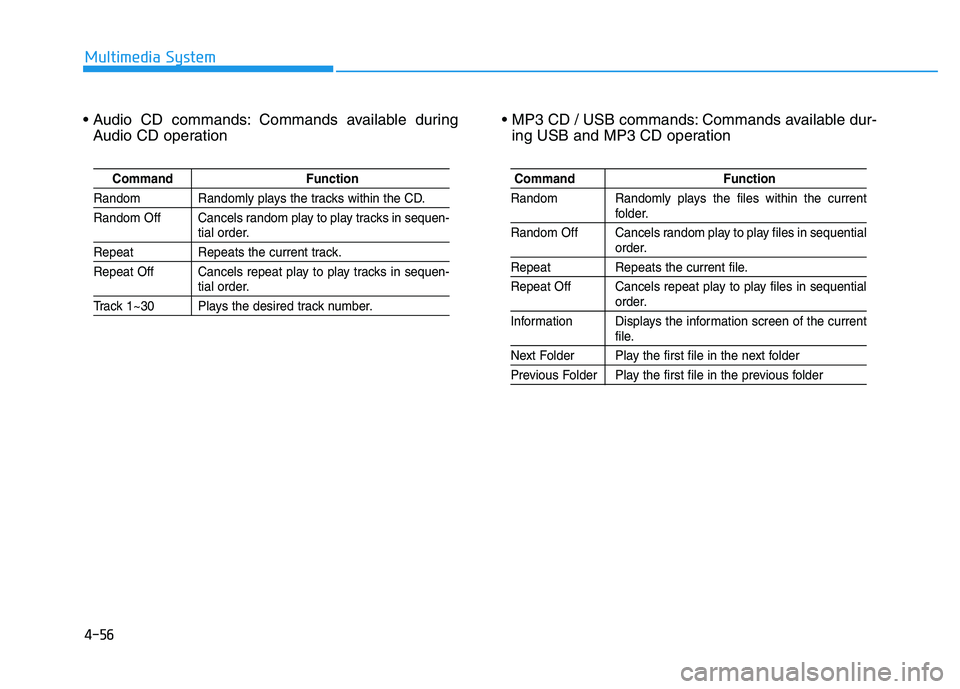
Commands available duringAudio CD operation Commands available dur-
ing USB and MP3 CD operation
Command Function
Random Randomly plays the tracks within the CD.
Random Off Cancels random play to play tracks in sequen-
tial order.
Repeat Repeats the current track.
Repeat Off Cancels repeat play to play tracks in sequen-
tial order.
Track 1~30 Plays the desired track number.
Command Function
Random Randomly plays the files within the current
folder.
Random Off Cancels random play to play files in sequential
order.
Repeat Repeats the current file.
Repeat Off Cancels repeat play to play files in sequential
order.
Information Displays the information screen of the current
file.
Next Folder Play the first file in the next folder
Previous Folder Play the first file in the previous folder
Page 272 of 542
4-61
Multimedia System
4
9.
10.
Displays the time/date/day. 11.
previews all receiv-able broadcasts for 5 seconds each
: previews each song (file) for 10seconds each. 12.
Converts to Setup mode.
13. TUNE knob
turn to change broad-
cast frequencies.
(CD/USB/iPod
®/My Music)
modes : turn to search tracks/chan-
nels/files.
14. DISC-IN LED
LED that indicates whether a disc is inserted.
15.
: Category Search
Search Folder
CAT
FOLDER
SETUP
SCAN
CLOCK
DISP
Page 274 of 542
4-63
Multimedia System
4
6.
- When pressed in the phone screen, displays call history screen
- When pressed in the dial screen, makes a call
- When pressed in the incoming call screen, answers the call
- When pressed during call waiting, switches to waiting call (Call
Waiting)
seconds)
- When pressed in the
Bluetooth®
Wireless Technology Handsfree
wait mode, redials the last call
- When pressed during a
Bluetooth®Wireless Technology
Handsfree call, switches call back
to mobile phone (Private)
- When pressed while calling on the mobile phone, switches call backto
Bluetooth®Wireless Technology
Handsfree (Operates only when
Bluetooth®Wireless Technology
Handsfree is connected) 7.
Page 275 of 542
4-64
Multimedia System
RRAA DDIIOO MM OODDEE
Basic Mode Screen
1. Mode Display
Displays currently operating mode.
2. Frequency
Displays the current frequency.
3. Preset
Displays current preset number [1] ~ [6].
4. Preset Display
Displays preset buttons.
5. Info
Displays broadcast information.
6. A.store
Automatically saves frequencies with
superior reception to Preset buttons.Switching to Radio Mode
Pressing the key will change
the operating mode in order of FM1
➟FM2➟AM➟XM1➟XM2➟XM3
If [Mode Pop up] is turned on within [Display], then pressing the
key will display the Radio
Pop-up Mode screen.
Turn the TUNE knob to move the
focus. Press the knob to select.
RADIO
SETUP
RADIO
Page 276 of 542

4-65
Multimedia System
4
Searching Radio Frequencies
Using Seek
Press the key to play the
previous/next frequency.
Using TUNE
Turn the TUNE knob to select the
desired frequency.
: Increases/decreased by200kHz
: Increases/decreased by 10kHz
Using Radio Mode
Selecting Presets/Saving
Presets
Press the button to display
the broadcast information for the fre-
quency saved to each button.
Press the ~ buttons to play the desired preset.
✽✽ NOTICE
While listening to a frequency you
want to save as a preset, press and
hold one of the ~ preset
buttons (over 0.8 seconds) to save
the current frequency to the selected
preset.
Auto Store
Press the button to automati-
cally save receivable frequencies to
Preset buttons.
✽✽ NOTICE
While Auto Store is operating, press-
ing the [Cancel] button again will
cancel Auto Store and restore the
previous frequency.
Scan
Press the key to preview fre-
quencies with superior reception for5 seconds each.
Press and hold the key (over
0.8 seconds) to preview presets for 5seconds each.
Once scan is complete, the previous frequency will be restored.
While Scan is operating, pressing
the key will cancel the scan
operation.
SCAN
SCAN
SCAN
A.Store
61
61
Preset
SEEK
TRACK
Page 278 of 542
4-67
Multimedia System
4
XXMM RR AA DDIIOOTT MMMM OODDEE
BBaassiicc MM ooddee SS ccrree eenn
1. Mode Display
Displays currently operating mode.
2. Channel Information
Displays the category, channel num-
ber, channel name, artist and title
information.
3. Preset
Displays currently playing preset
number [1] ~ [6].
4. Preset Display
Displays saved presets.
Page 279 of 542

4-68
Multimedia System
Using SEEK
Press the key to play the
previous/next channel. ❈If the “Category” icon is displayed, channels are changed within the
current category.
Using Tune
Turn the TUNE knob to select the desired channel.
SCAN
Press the key to scan all
channels with superior reception for5 seconds each.
Once scan is complete, the previous-
ly played channel will be restored.
During Scan, pressing the
key again will cancel the scan opera-
tion and restore the previously
played channel.
If the “Category” icon is displayed, channels are changed within the cur-
rent category.
Searching Categories
Select the category by using the
key and press the
TUNE knob to select.
Channels for the selected category
are played.
Selecting Presets/Saving Presets
Press the button to display
the broadcast information for the
channel saved to each button.
Press the ~ buttons to play the desired preset.
✽✽ NOTICE
While listening to a channel you
want to save as a preset, press and
hold one of the ~ preset
buttons (over 0.8 seconds) to save
the current channel to the selected
preset.
61
61
PresetCAT
FOLDER
SCAN
SCAN
SEEK
TRACK
Page 281 of 542
4-70
Multimedia System
MMEEDD IIAA MM OODDEE
Pressing the key will change
the operating mode in order ofCD
➟USB(iPod®)➟AUX➟My Music ➟
BT Audio.
If [Mode Pop up] is turned on within
[Display], then pressing the
key will display the Media
Pop-up Mode screen.
Turn the TUNE knob to move the
focus. Press the knob to select.
✽✽ NOTICE
The media mode pop up screen can
be displayed only when there are two
or more media modes turned on.
Title Icon
When a Bluetooth®Wireless
Technology, iPod®, USB, or AUX
device is connected or a CD is
inserted, the corresponding mode
icon will be displayed.
Icon Title
Bluetooth®Wireless Technology
CD
iPod®
USB
AUX
MEDIA
SETUP
MEDIA


![HYUNDAI TUCSON 2014 Owners Manual 4-70
Multimedia System
MMEEDD IIAA MM OODDEE
Pressing the key will change
the operating mode in order ofCD
➟USB(iPod®)➟AUX➟My Music ➟
BT Audio.
If [Mode Pop up] is turned on within
[Disp](/manual-img/35/56203/w960_56203-280.png "HYUNDAI TUCSON 2014 Owners Manual 4-70
Multimedia System
MMEEDD IIAA MM OODDEE
Pressing the key will change
the operating mode in order ofCD
➟USB(iPod®)➟AUX➟My Music ➟
BT Audio.
If [Mode Pop up] is turned on within
[Disp")