Page 1235 of 1534
Features of your vehicle
164
4
Phone List The names of up to 5 paired phones will
be displayed.
A [ ] is displayed in front of the currently
connected phone. Select the desired name to setup the
selected phone.
Connecting a phone
Select [Phone List] Select mobile phone
through TUNE knob Select [ConnectPhone] ➀ Select a mobile phone that is not cur- rently connected.
➁ Connect the selected mobile phone.
➂ Connection completion is displayed.
❈ If a phone is already connected, dis-connect the currently connected
phone and select a new phone to con-nect.
Disconnecting a connected phone
Select [Phone List] Select mobile phone through TUNE knob Select
[Disconnect Phone] ➀ Select the currently connected mobile
phone.
➁ Disconnect the selected mobile
phone.
➂ Disconnection completion is dis-
played.
EL(FL) UK 4B AUDIO.QXP 7/15/2013 10:20 AM Page 164
Page 1236 of 1534
![HYUNDAI IX35 2014 Owners Manual 4 165
Features of your vehicle
Changing connection sequence(Priority)
This is used to change the order (priori-
ty) of automatic connection for the paired
mobile phones.
Select [Phone List] Select](/manual-img/35/56237/w960_56237-1235.png "HYUNDAI IX35 2014 Owners Manual 4 165
Features of your vehicle
Changing connection sequence(Priority)
This is used to change the order (priori-
ty) of automatic connection for the paired
mobile phones.
Select [Phone List] Select")
4 165
Features of your vehicle
Changing connection sequence(Priority)
This is used to change the order (priori-
ty) of automatic connection for the paired
mobile phones.
Select [Phone List] Select [Priority]
through TUNE knob Select No. 1
Priority mobile phone ➀ Select [Priority].
➁ From the paired phones, select the
phone desired for No.1 priority.
➂ The changed priority sequence is dis-
played.
❈ Once the connection sequence (priori-
ty) is changed, the new no. 1 prioritymobile phone will be connected.
- when the no. 1 priority cannot be con- nected: Automatically attempts to con- nect the most recently connected
phone.
- Cases when the most recently con- nected phone cannot be connected:Attempts to connect in the order inwhich paired phones are listed.
- The connected phone will automati- cally be changed to No. 1 priority. Delete
Select [Phone List] Select mobile phone
through TUNE knob Select [Delete] ➀
Select the desired mobile phone.
➁ Delete the selected mobile phone.
➂ Deletion completion is displayed.
❈ When attempting to delete a currently
connected phone, the phone is firstdisconnected. Phone book Download
This feature is used to download phone
book and call histories into the audio sys-tem.
Select [Phone book Download] Select
through TUNE knob
CAUTION
The download feature may not be
supported in some mobilephones.
If a different operation is per- formed while phone book is beingdownloaded, downloading will be
discontinued. Phone book alreadydownloaded will be saved.
When downloading new phone book, delete all previously saved
phone book before starting down- load.
CAUTION
When you delete a mobile phone,
the mobile phone phone book willalso be erased.
For stable Bluetooth ®
Wireless
Technology communication, delete the mobile phone from the audio and also delete the audio
from your mobile phone.
EL(FL) UK 4B AUDIO.QXP 7/15/2013 10:20 AM Page 165
Page 1237 of 1534
![HYUNDAI IX35 2014 Owners Manual Features of your vehicle
166
4
Auto Download
When connecting a mobile phone, it is
possible to automatically download new
phone book and Call Histories.
Select [Auto Download] Set /
through TUNE k](/manual-img/35/56237/w960_56237-1236.png "HYUNDAI IX35 2014 Owners Manual Features of your vehicle
166
4
Auto Download
When connecting a mobile phone, it is
possible to automatically download new
phone book and Call Histories.
Select [Auto Download] Set /
through TUNE k")
Features of your vehicle
166
4
Auto Download
When connecting a mobile phone, it is
possible to automatically download new
phone book and Call Histories.
Select [Auto Download] Set /
through TUNE knob
Audio Streaming
Songs (files) saved in your
Bluetooth®
Wireless Technology enabled mobile
phone can be played through the audiosystem.
Select [Audio Streaming] Set / through TUNE knob Outgoing Volume
This is used to set the volume of your
voice as heard by the other party whileon a
Bluetooth®Wireless Technology
enabled handsfree call.
Select [Outgoing Volume] Set volume
through TUNE knob ❈ While on a call, the volume can be
changed by using the key.
Bluetooth®Wireless Technology
System Off
This feature is used when you do not wish to use the
Bluetooth®Wireless
Technology system.
Select [Bluetooth System Off] Set
through TUNE knob ❈ If a phone is already connected, dis- connect the currently connected
phone and turn the
Bluetooth®
Wireless Technology system off.
SEEK
TRACK
OffOn
OffOn
CAUTION
The Bluetooth ®
Wireless Technology
audio streaming feature may not be supported in some mobile phones.
EL(FL) UK 4B AUDIO.QXP 7/15/2013 10:20 AM Page 166
Page 1238 of 1534
4 167
Features of your vehicle
Using the Bluetooth®Wireless
Technology System
To use
Bluetooth®Wireless Technology
when the system is currently off, follow
these next steps.
Turning On
Bluetooth®Wireless
Technology through the Key
Press the key Screen Guidance ❈ Moves to the screen where
Bluetooth®
Wireless Technology functions can be
used and displays guidance. Turning On
Bluetooth®Wireless
Technology through the Key
Press the key Select [Phone] ➀ A screen asking whether to turn on
Bluetooth®Wireless Technology will be
displayed.
➁ On the screen, select to turn on
Bluetooth®Wireless Technology and
display guidance.
❈ If the
Bluetooth®Wireless Technology
system is turned on, the system will
automatically try to connect the mostrecently connected
Bluetooth®Wireless
Technology mobile phone. YES
SETUP
CLOCK
SETUP
CLOCK
PHONE
PHONE
CAUTION
Bluetooth ®
Wireless Technology con-
nection may become intermittently
disconnected in some mobilephones. Follow these next steps totry again.
1) Turn the Bluetooth ®
Wireless
Technology function within the mobile phone ON/OFF and try to connect again.
2) Turn the mobile phone power ON/OFF and try to connect again.
3) Completely remove the mobile phone battery, reboot, and thentry to connect again.
4) Reboot the audio system and try to connect again
5) Delete all paired devices in your mobile phone and the audio sys-tem and pair again for use.
EL(FL) UK 4B AUDIO.QXP 7/15/2013 10:20 AM Page 167
Page 1249 of 1534
Features of your vehicle
178
4
Bluetooth®Wireless
Technology AUDIO (if equipped) What is
Bluetooth®Wireless
Technology?
Bluetooth®Wireless Technology allows
devices to be connected in a short dis-
tance, including hands-free devices,
stereo headsets, wireless remote con-
trollers, etc. For more information, visitthe
Bluetooth®Wireless Technology
website at
www.Bluetooth.com
Before using Bluetooth®Wireless
Technology audio features
Bluetooth®Wireless Technology audio
may not be supported depending on
the compatibility of your
Bluetooth®
Wireless Technology mobile phone.
In order to use
Bluetooth®Wireless
Technology audio, you must first pairand connect the
Bluetooth®Wireless
Technology mobile phone. The
Bluetooth®word mark and logos
are registered trademarks owned by
Bluetooth®SIG, Inc. and any use of
such marks is under license. Other
trademarks and trade names are those
of their respective owners. A
Bluetooth®
enabled cell phone is required to useBluetooth®Wireless Technology
Bluetooth®Wireless Technology audio
can be used only when the [Audio
Streaming] of Phone is turned On.
❈ Setting
Bluetooth®Wireless Technology
Audio Streaming : Press the
key Select [Phone] through the tuneknob Select [Audio Streaming] through
the TUNE knob Set / Starting
Bluetooth®Wireless
Technology Audio Press the key to change the mode in order of CD ➟ USB ➟ AUX ➟
My Music ➟ BT Audio.
If BT Audio is selected,
Bluetooth®
Wireless Technology audio will start
playing.
❈ Audio may not automatically start play-
ing in some mobile phones.
Using the
Bluetooth®Wireless
Technology audio features
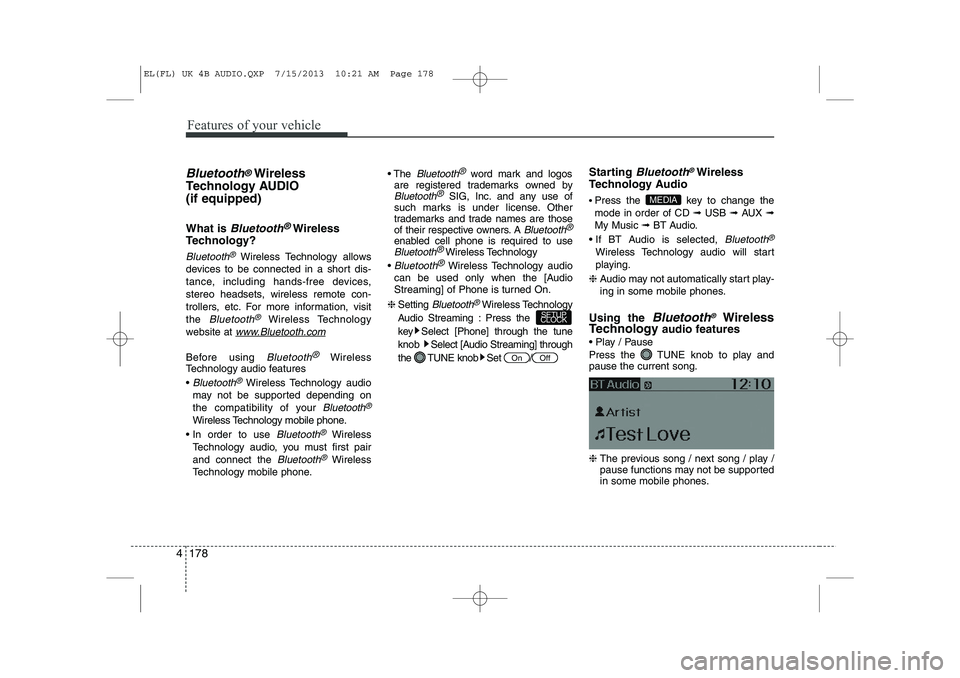
Play / Pause
Press the TUNE knob to play and pause the current song. ❈ The previous song / next song / play /
pause functions may not be supported
in some mobile phones.
MEDIA
OffOn
SETUP
CLOCK
EL(FL) UK 4B AUDIO.QXP 7/15/2013 10:21 AM Page 178
Page 1250 of 1534
4 179
Features of your vehicle
PHONE (if equipped)
Before using the
Bluetooth®Wireless
Technologyphone features
In order to use
Bluetooth®Wireless
Technology
phone, you must first pair
and connect the
Bluetooth®Wireless
Technology
mobile phone.
If the mobile phone is not paired or con- nected, it is not possible to enter Phone
mode. Once a phone is paired or con-nected, the guidance screen will be dis-
played.
If Priority is set upon vehicle ignition (IGN/ACC ON), the
Bluetooth®Wireless
Technology
phone will be automatically
connected. Even if you are outside, the
Bluetooth®Wireless Technologyphone will
be automatically connected once you are
in the vicinity of the vehicle. If you do not
want automatic
Bluetooth®Wireless
Technology
phone connection, set the
Bluetooth®Wireless Technologypower to
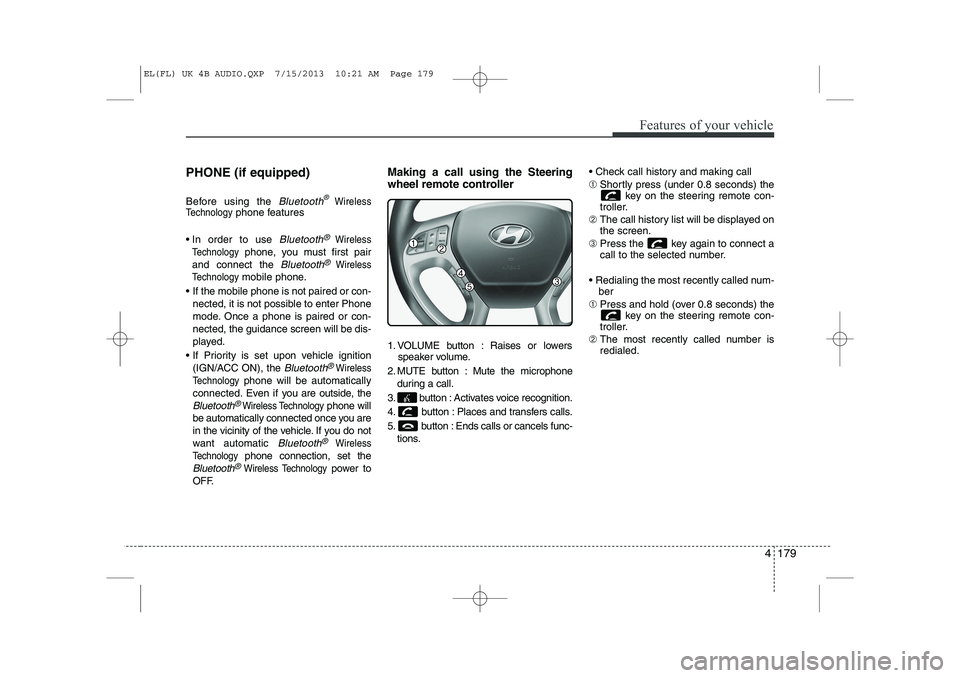
OFF. Making a call using the Steering
wheel remote controller
1. VOLUME button : Raises or lowers
speaker volume.
2. MUTE button : Mute the microphone during a call.
3. button : Activates voice recognition.
4. button : Places and transfers calls.
5. button : Ends calls or cancels func- tions. Check call history and making call ➀
Shortly press (under 0.8 seconds) the
key on the steering remote con-
troller.
➁ The call history list will be displayed on the screen.
➂ Press the key again to connect a
call to the selected number.
Redialing the most recently called num- ber
➀ Press and hold (over 0.8 seconds) the
key on the steering remote con-
troller.
➁ The most recently called number isredialed.
EL(FL) UK 4B AUDIO.QXP 7/15/2013 10:21 AM Page 179
Page 1251 of 1534
![HYUNDAI IX35 2014 Owners Manual Features of your vehicle
180
4
Phone MENU
Press the key to display three
menus (Call History, Phone Book, PhoneSetup).
Call history
Press the key Set [ History]
through the TUNE knob or key.](/manual-img/35/56237/w960_56237-1250.png "HYUNDAI IX35 2014 Owners Manual Features of your vehicle
180
4
Phone MENU
Press the key to display three
menus (Call History, Phone Book, PhoneSetup).
Call history
Press the key Set [ History]
through the TUNE knob or key.")
Features of your vehicle
180
4
Phone MENU
Press the key to display three
menus (Call History, Phone Book, PhoneSetup).
Call history
Press the key Set [ History]
through the TUNE knob or key.
The call history is displayed and can be
used to select a number and make a call.
If call history does not exist, a screen
asking whether to download call history
is displayed. (The download feature may
not be supported in some mobilephones) Phone Book
Press the key Set [ P. Book]
through the TUNE knob or key.
The phone book is displayed and can be
used to select a number and make a call. ❈
If more than one number is saved to
one contact, then a screen showing
the mobile phone number, Home and
office number is displayed. Select the
desired number to make the call.
❈ If phone book do not exist, a screen
asking whether to download phone
book is displayed. (The download fea-
ture may not be supported in somemobile phones) Phone Setup
Press the key Set [ Setup]
through the TUNE knob or key. The
Bluetooth®Wireless Technology
mobile phone setup screen is displayed.
For more information, refer to “PhoneSetup”.
3
PHONE2
RDMPHONE
1
RPTPHONE
PHONE
EL(FL) UK 4B AUDIO.QXP 7/15/2013 10:21 AM Page 180
Page 1252 of 1534
4 181
Features of your vehicle
✽✽NOTICE - USING THE
Bluetooth®Wireless Technology
CELLULAR PHONE
![HYUNDAI IX35 2014 Owners Manual Features of your vehicle
164
4
Phone List The names of up to 5 paired phones will
be displayed.
A [ ] is displayed in front of the currently
connected phone. Select the desired name to setup the
s](/manual-img/35/56237/w960_56237-1234.png "HYUNDAI IX35 2014 Owners Manual Features of your vehicle
164
4
Phone List The names of up to 5 paired phones will
be displayed.
A [ ] is displayed in front of the currently
connected phone. Select the desired name to setup the
s")