Page 1265 of 1534
Features of your vehicle
194
4
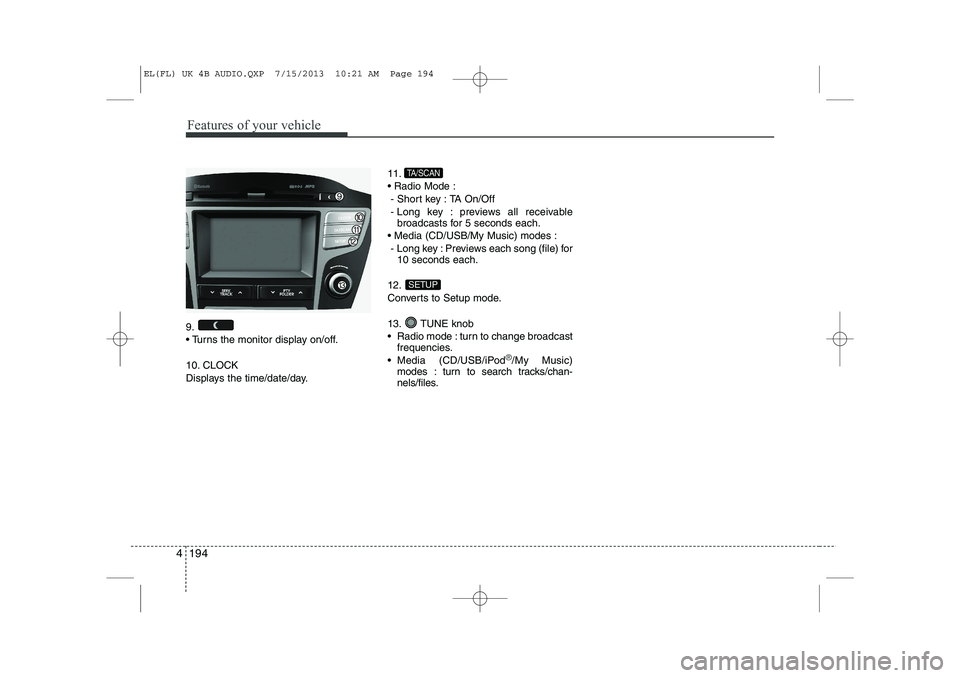
9.
Turns the monitor display on/off.
10. CLOCK
Displays the time/date/day. 11. Radio Mode :
- Short key : TA On/Off
- Long key : previews all receivable broadcasts for 5 seconds each.
Media (CD/USB/My Music) modes : - Long key : Previews each song (file) for 10 seconds each.
12.
Converts to Setup mode.
13. TUNE knob
Radio mode : turn to change broadcast frequencies.
Media (CD/USB/iPod
®/My Music)
modes : turn to search tracks/chan-
nels/files.
SETUP
TA/SCAN
EL(FL) UK 4B AUDIO.QXP 7/15/2013 10:21 AM Page 194
Page 1266 of 1534
4 195
Features of your vehicle
Radio Mode Basic Mode Screen
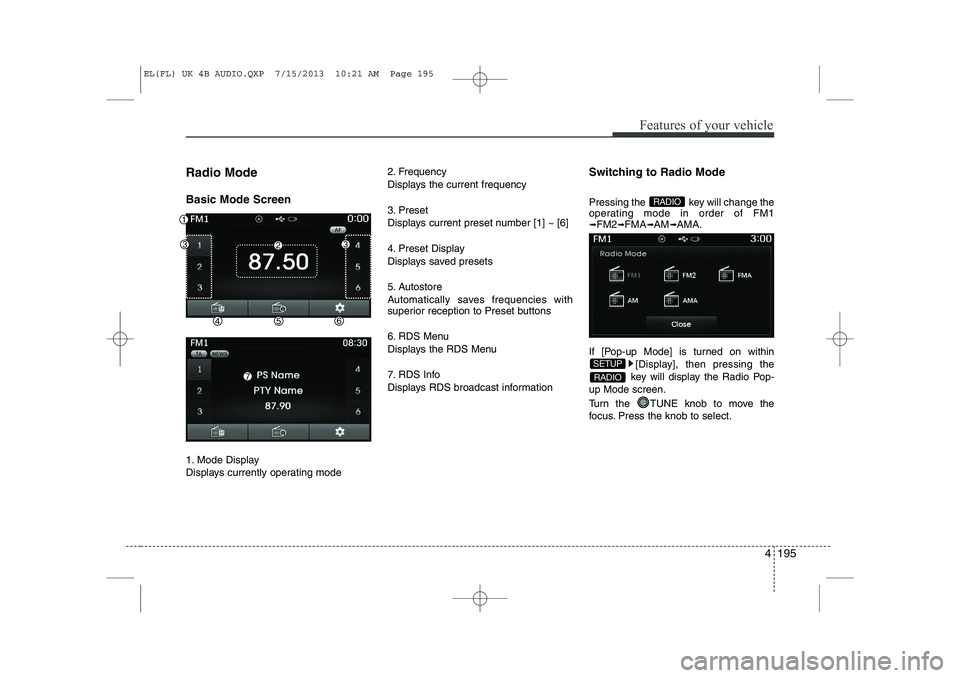
1. Mode Display
Displays currently operating mode2. Frequency
Displays the current frequency
3. Preset
Displays current preset number [1] ~ [6]
4. Preset Display
Displays saved presets
5. Autostore
Automatically saves frequencies with
superior reception to Preset buttons
6. RDS Menu
Displays the RDS Menu
7. RDS Info
Displays RDS broadcast information
Switching to Radio Mode
Pressing the key will change the
operating mode in order of FM1➟
FM2 ➟FMA ➟AM ➟AMA.
If [Pop-up Mode] is turned on within [Display], then pressing the
key will display the Radio Pop-
up Mode screen.
Turn the TUNE knob to move the
focus. Press the knob to select.
RADIO
SETUP
RADIO
EL(FL) UK 4B AUDIO.QXP 7/15/2013 10:21 AM Page 195
Page 1267 of 1534
Features of your vehicle
196
4
Searching Radio Frequencies
Using Seek
Press the key to play the pre-
vious/next frequency.
Using TUNE
Turn the TUNE knob to select the
desired frequency.
FM : Increases/decreased by 50kHz
AM : Increases/decreased by 9kHz Using Radio Mode
Selecting/Saving Presets
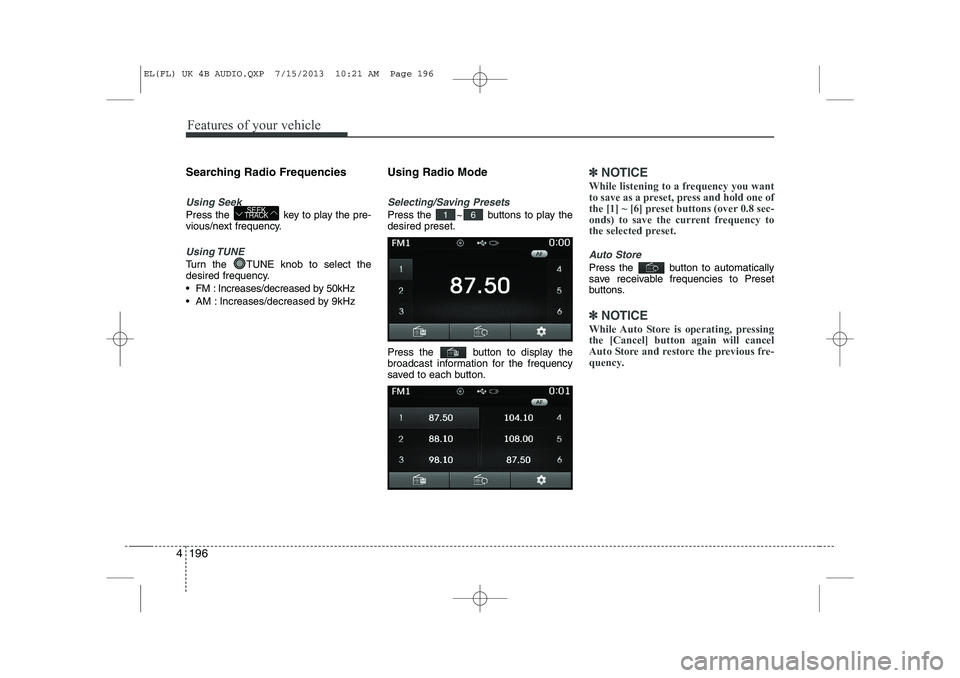
Press the ~ buttons to play the desired preset.
Press the button to display the
broadcast information for the frequency
saved to each button.
✽✽
NOTICE
While listening to a frequency you want
to save as a preset, press and hold one of
the [1] ~ [6] preset buttons (over 0.8 sec-
onds) to save the current frequency to
the selected preset.
Auto Store
Press the button to automatically
save receivable frequencies to Preset
buttons.
✽✽ NOTICE
While Auto Store is operating, pressing the [Cancel] button again will cancel
Auto Store and restore the previous fre-
quency.
61SEEK
TRACK
EL(FL) UK 4B AUDIO.QXP 7/15/2013 10:21 AM Page 196
Page 1268 of 1534
4 197
Features of your vehicle
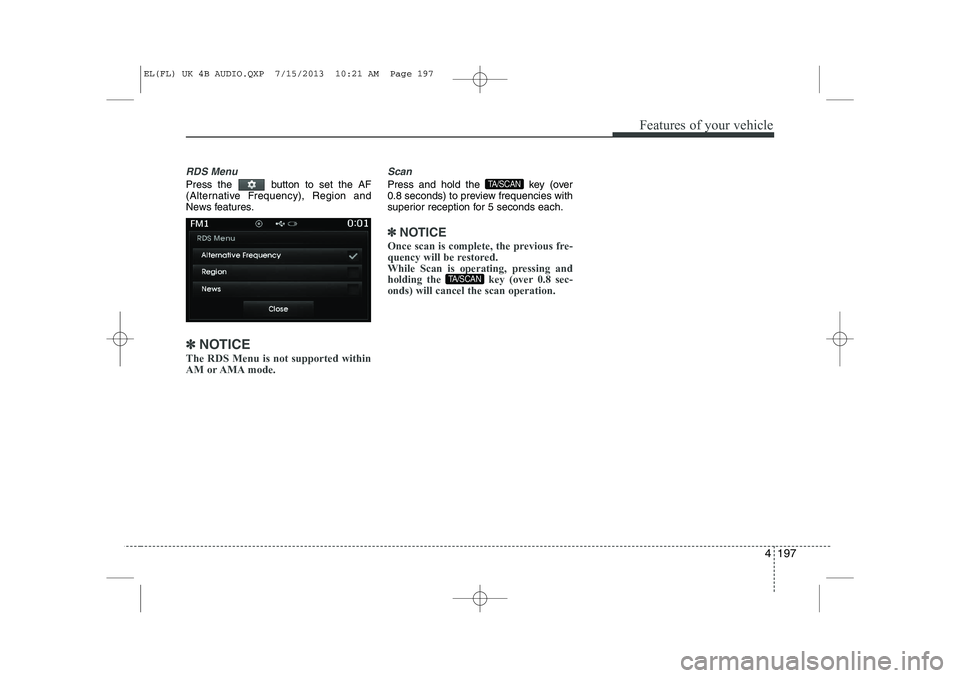
RDS Menu
Press the button to set the AF
(Alternative Frequency), Region and
News features.
✽✽NOTICE
The RDS Menu is not supported within
AM or AMA mode.
Scan
Press and hold the key (over
0.8 seconds) to preview frequencies with
superior reception for 5 seconds each.
✽✽ NOTICE
Once scan is complete, the previous fre-
quency will be restored.
While Scan is operating, pressing and
holding the key (over 0.8 sec-onds) will cancel the scan operation.
TA/SCAN
TA/SCAN
EL(FL) UK 4B AUDIO.QXP 7/15/2013 10:21 AM Page 197
Page 1269 of 1534
Features of your vehicle
198
4
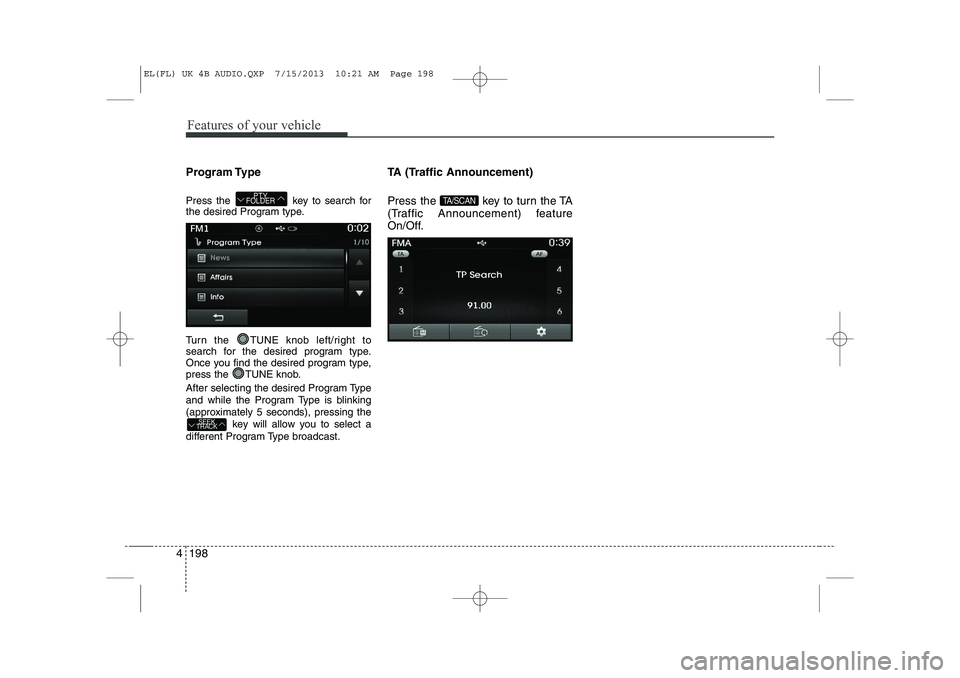
Program Type
Press the key to search for
the desired Program type.
Turn the TUNE knob left/right to
search for the desired program type.
Once you find the desired program type,
press the TUNE knob.
After selecting the desired Program Type
and while the Program Type is blinking
(approximately 5 seconds), pressing the
key will allow you to select a
different Program Type broadcast. TA (Traffic Announcement)
Press the key to turn the TA
(Traffic Announcement) feature
On/Off.
TA/SCAN
SEEK
TRACK
PTY
FOLDER
EL(FL) UK 4B AUDIO.QXP 7/15/2013 10:21 AM Page 198
Page 1273 of 1534
Features of your vehicle
202
4
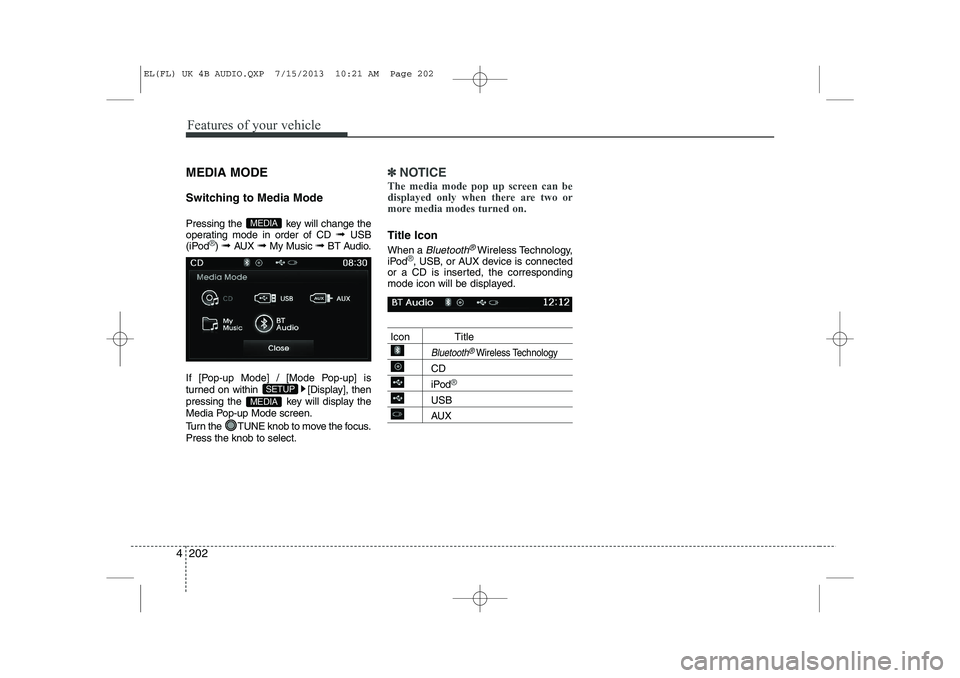
MEDIA MODE
Switching to Media Mode
Pressing the key will change the
operating mode in order of CD ➟ USB
(iPod
®) ➟ AUX ➟ My Music ➟BT Audio.
If [Pop-up Mode] / [Mode Pop-up] is
turned on within [Display], then
pressing the key will display the
Media Pop-up Mode screen.
Turn the TUNE knob to move the focus. Press the knob to select.
✽✽ NOTICE
The media mode pop up screen can be
displayed only when there are two or
more media modes turned on.
Title Icon When a
Bluetooth®Wireless Technology,
iPod®, USB, or AUX device is connected
or a CD is inserted, the corresponding
mode icon will be displayed.
Icon Title
Bluetooth®Wireless Technology
CD
iPod®
USB
AUX
MEDIA
SETUP
MEDIA
EL(FL) UK 4B AUDIO.QXP 7/15/2013 10:21 AM Page 202
Page 1276 of 1534
4 205
Features of your vehicle
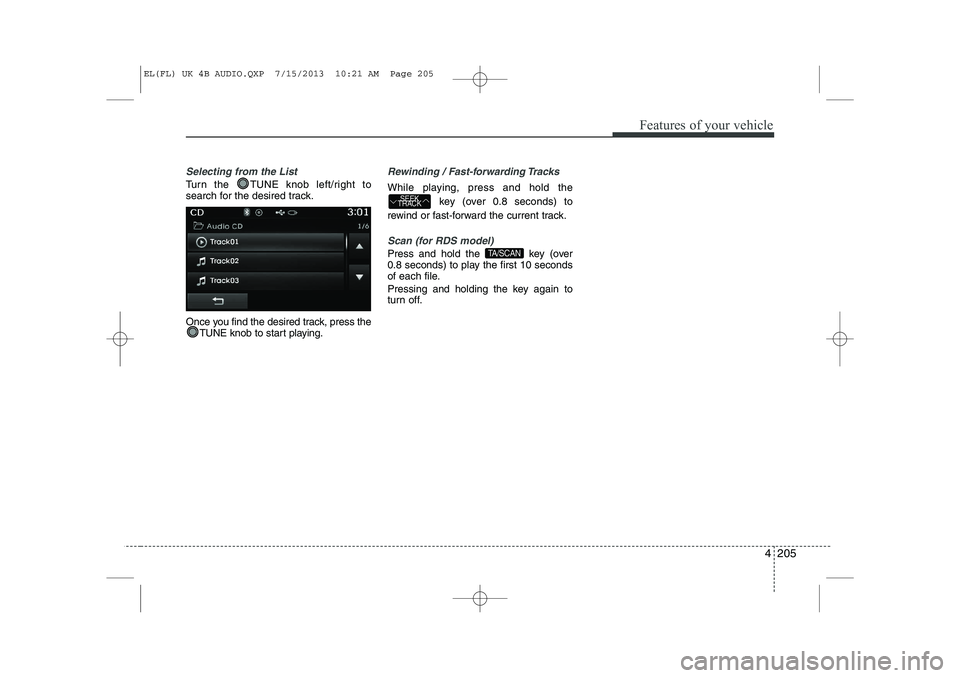
Selecting from the List
Turn the TUNE knob left/right to
search for the desired track.
Once you find the desired track, press theTUNE knob to start playing.
Rewinding / Fast-forwarding Tracks
While playing, press and hold the
key (over 0.8 seconds) to
rewind or fast-forward the current track.
Scan (for RDS model)
Press and hold the key (over
0.8 seconds) to play the first 10 seconds
of each file.
Pressing and holding the key again to
turn off.TA/SCAN
SEEK
TRACK
EL(FL) UK 4B AUDIO.QXP 7/15/2013 10:21 AM Page 205
Page 1279 of 1534
Features of your vehicle
208
4
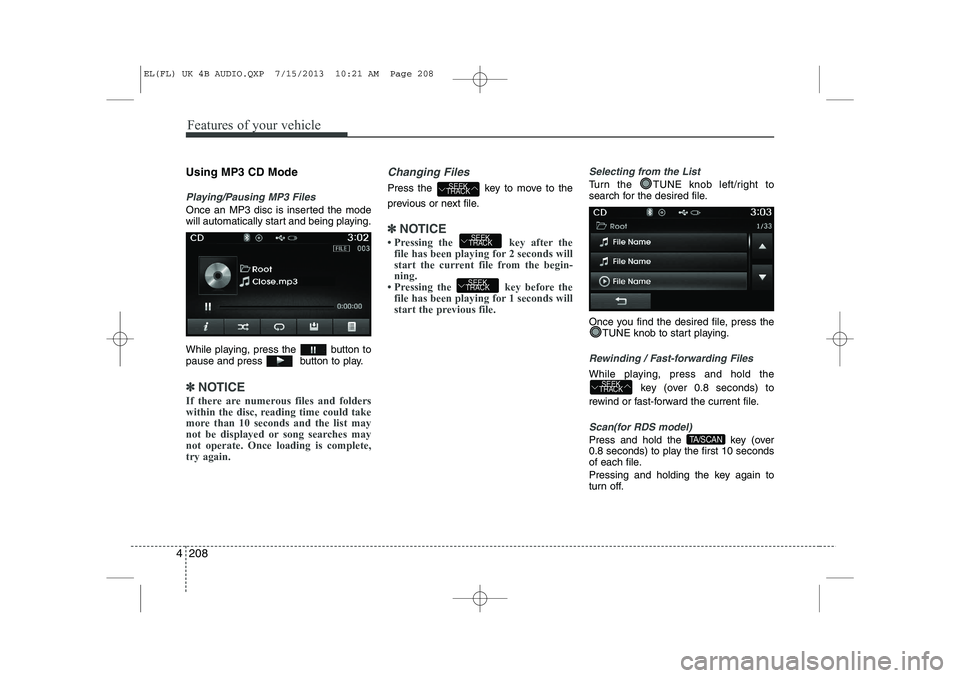
Using MP3 CD Mode
Playing/Pausing MP3 Files
Once an MP3 disc is inserted the mode
will automatically start and being playing.
While playing, press the button to
pause and press button to play.
✽✽
NOTICE
If there are numerous files and folders
within the disc, reading time could take
more than 10 seconds and the list may
not be displayed or song searches maynot operate. Once loading is complete,try again.
Changing Files
Press the key to move to the
previous or next file.
✽✽ NOTICE