Page 1247 of 1534
Features of your vehicle
176
4
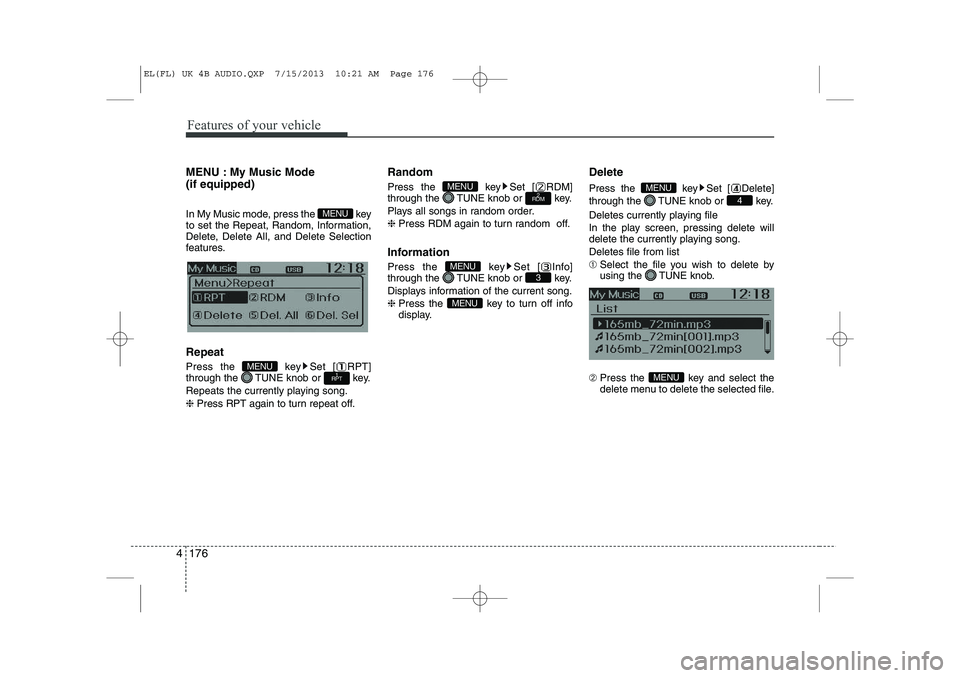
MENU : My Music Mode (if equipped)
In My Music mode, press the key
to set the Repeat, Random, Information,
Delete, Delete All, and Delete Selection
features. Repeat
Press the key Set [ RPT]
through the TUNE knob or key.
Repeats the currently playing song.❈ Press RPT again to turn repeat off. Random
Press the key Set [ RDM]
through the TUNE knob or key.
Plays all songs in random order.❈
Press RDM again to turn random off.
Information
Press the key Set [ Info]
through the TUNE knob or key.
Displays information of the current song.❈ Press the key to turn off info
display. Delete
Press the key Set [ Delete]
through the TUNE knob or key.
Deletes currently playing file
In the play screen, pressing delete will
delete the currently playing song. Deletes file from list➀
Select the file you wish to delete by
using the TUNE knob.
➁ Press the key and select the
delete menu to delete the selected file.
MENU
4
MENU
MENU
3MENU
2
RDMMENU
1
RPTMENU
MENU
EL(FL) UK 4B AUDIO.QXP 7/15/2013 10:21 AM Page 176
Page 1248 of 1534
4 177
Features of your vehicle
Delete All
Press the key Set [ Del.All]
through the TUNE knob or key. Deletes all songs of My Music. Delete Selection
Press the key Set [ Del.Sel]
through the TUNE knob or key. Songs within My Music are selected and deleted. ➀ Select the songs you wish to delete from the list. ➁
After selecting, press the key
and select the delete menu.
✽✽
NOTICE - Using the My
Music
Page 1249 of 1534
Features of your vehicle
178
4
Bluetooth®Wireless
Technology AUDIO (if equipped) What is
Bluetooth®Wireless
Technology?
Bluetooth®Wireless Technology allows
devices to be connected in a short dis-
tance, including hands-free devices,
stereo headsets, wireless remote con-
trollers, etc. For more information, visitthe
Bluetooth®Wireless Technology
website at
www.Bluetooth.com
Before using Bluetooth®Wireless
Technology audio features
Bluetooth®Wireless Technology audio
may not be supported depending on
the compatibility of your
Bluetooth®
Wireless Technology mobile phone.
In order to use
Bluetooth®Wireless
Technology audio, you must first pairand connect the
Bluetooth®Wireless
Technology mobile phone. The
Bluetooth®word mark and logos
are registered trademarks owned by
Bluetooth®SIG, Inc. and any use of
such marks is under license. Other
trademarks and trade names are those
of their respective owners. A
Bluetooth®
enabled cell phone is required to useBluetooth®Wireless Technology
Bluetooth®Wireless Technology audio
can be used only when the [Audio
Streaming] of Phone is turned On.
❈ Setting
Bluetooth®Wireless Technology
Audio Streaming : Press the
key Select [Phone] through the tuneknob Select [Audio Streaming] through
the TUNE knob Set / Starting
Bluetooth®Wireless
Technology Audio Press the key to change the mode in order of CD ➟ USB ➟ AUX ➟
My Music ➟ BT Audio.
If BT Audio is selected,
Bluetooth®
Wireless Technology audio will start
playing.
❈ Audio may not automatically start play-
ing in some mobile phones.
Using the
Bluetooth®Wireless
Technology audio features
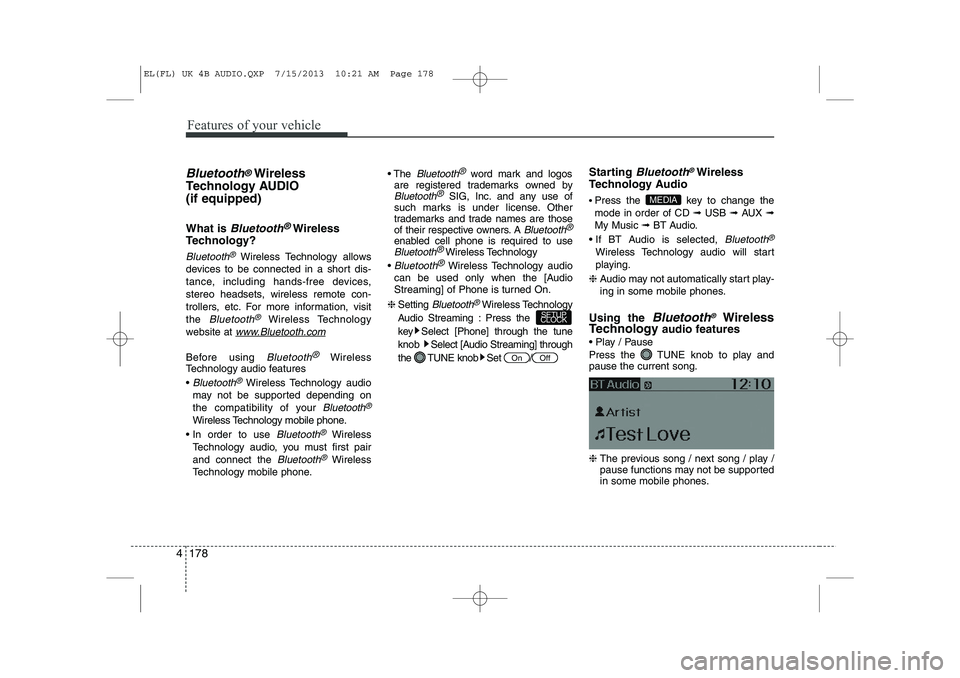
Play / Pause
Press the TUNE knob to play and pause the current song. ❈ The previous song / next song / play /
pause functions may not be supported
in some mobile phones.
MEDIA
OffOn
SETUP
CLOCK
EL(FL) UK 4B AUDIO.QXP 7/15/2013 10:21 AM Page 178
Page 1250 of 1534
4 179
Features of your vehicle
PHONE (if equipped)
Before using the
Bluetooth®Wireless
Technologyphone features
In order to use
Bluetooth®Wireless
Technology
phone, you must first pair
and connect the
Bluetooth®Wireless
Technology
mobile phone.
If the mobile phone is not paired or con- nected, it is not possible to enter Phone
mode. Once a phone is paired or con-nected, the guidance screen will be dis-
played.
If Priority is set upon vehicle ignition (IGN/ACC ON), the
Bluetooth®Wireless
Technology
phone will be automatically
connected. Even if you are outside, the
Bluetooth®Wireless Technologyphone will
be automatically connected once you are
in the vicinity of the vehicle. If you do not
want automatic
Bluetooth®Wireless
Technology
phone connection, set the
Bluetooth®Wireless Technologypower to
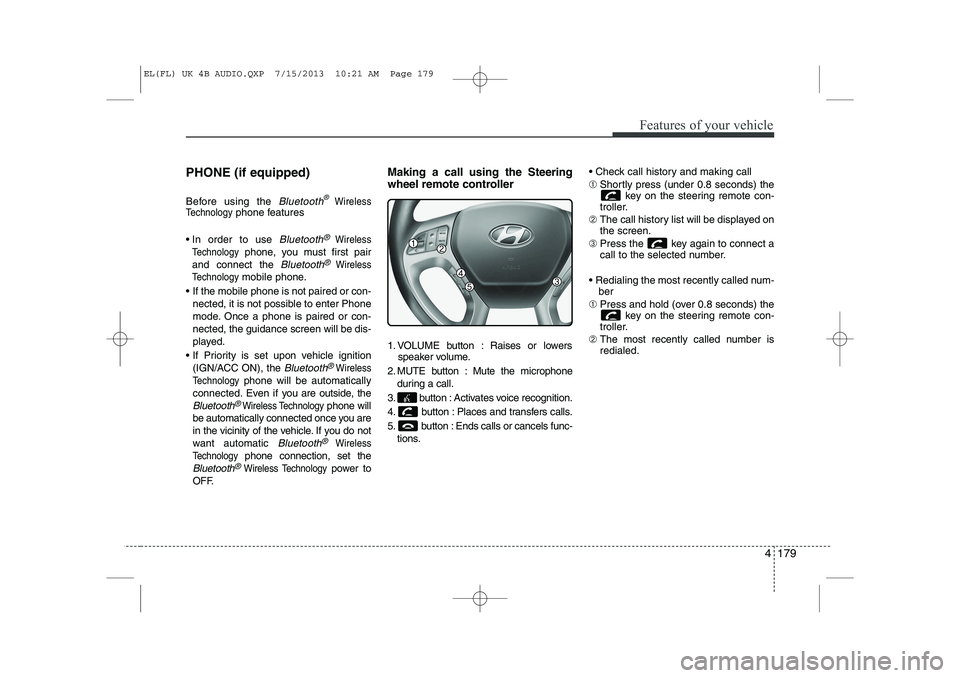
OFF. Making a call using the Steering
wheel remote controller
1. VOLUME button : Raises or lowers
speaker volume.
2. MUTE button : Mute the microphone during a call.
3. button : Activates voice recognition.
4. button : Places and transfers calls.
5. button : Ends calls or cancels func- tions. Check call history and making call ➀
Shortly press (under 0.8 seconds) the
key on the steering remote con-
troller.
➁ The call history list will be displayed on the screen.
➂ Press the key again to connect a
call to the selected number.
Redialing the most recently called num- ber
➀ Press and hold (over 0.8 seconds) the
key on the steering remote con-
troller.
➁ The most recently called number isredialed.
EL(FL) UK 4B AUDIO.QXP 7/15/2013 10:21 AM Page 179
Page 1251 of 1534
![HYUNDAI IX35 2014 Owners Manual Features of your vehicle
180
4
Phone MENU
Press the key to display three
menus (Call History, Phone Book, PhoneSetup).
Call history
Press the key Set [ History]
through the TUNE knob or key.](/manual-img/35/56237/w960_56237-1250.png "HYUNDAI IX35 2014 Owners Manual Features of your vehicle
180
4
Phone MENU
Press the key to display three
menus (Call History, Phone Book, PhoneSetup).
Call history
Press the key Set [ History]
through the TUNE knob or key.")
Features of your vehicle
180
4
Phone MENU
Press the key to display three
menus (Call History, Phone Book, PhoneSetup).
Call history
Press the key Set [ History]
through the TUNE knob or key.
The call history is displayed and can be
used to select a number and make a call.
If call history does not exist, a screen
asking whether to download call history
is displayed. (The download feature may
not be supported in some mobilephones) Phone Book
Press the key Set [ P. Book]
through the TUNE knob or key.
The phone book is displayed and can be
used to select a number and make a call. ❈
If more than one number is saved to
one contact, then a screen showing
the mobile phone number, Home and
office number is displayed. Select the
desired number to make the call.
❈ If phone book do not exist, a screen
asking whether to download phone
book is displayed. (The download fea-
ture may not be supported in somemobile phones) Phone Setup
Press the key Set [ Setup]
through the TUNE knob or key. The
Bluetooth®Wireless Technology
mobile phone setup screen is displayed.
For more information, refer to “PhoneSetup”.
3
PHONE2
RDMPHONE
1
RPTPHONE
PHONE
EL(FL) UK 4B AUDIO.QXP 7/15/2013 10:21 AM Page 180
Page 1255 of 1534
Features of your vehicle
184
4
VOICE COMMAND (if equipped)
Starting Voice Command
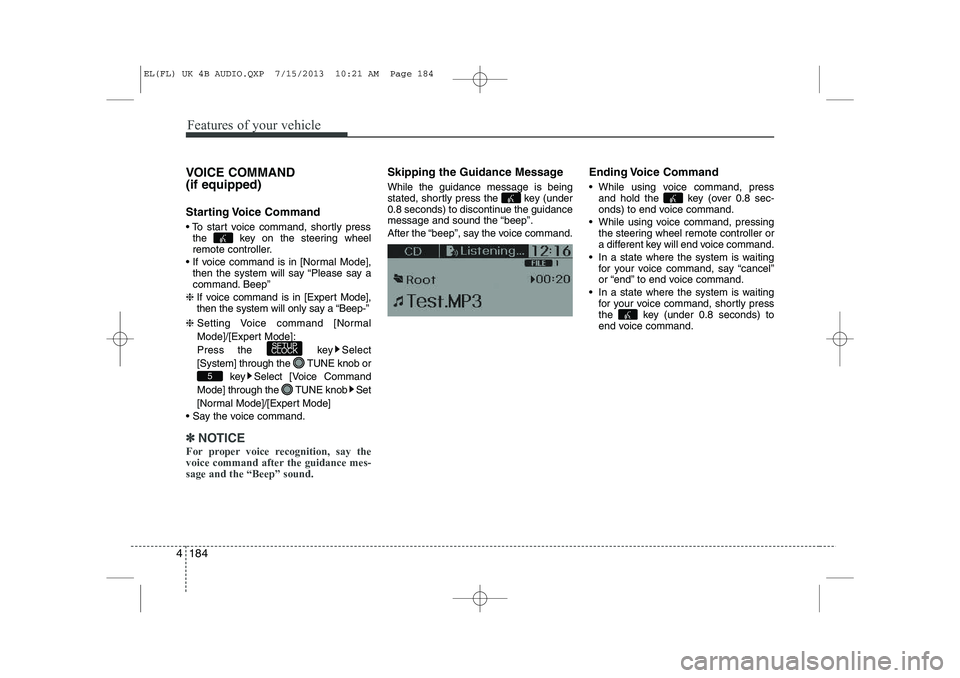
To start voice command, shortly press
the key on the steering wheel
remote controller.
If voice command is in [Normal Mode], then the system will say “Please say a
command. Beep”
❈ If voice command is in [Expert Mode],
then the system will only say a “Beep-”
❈ Setting Voice command [Normal
Mode]/[Expert Mode]:
Press the key Select
[System] through the TUNE knob or
key Select [Voice Command
Mode] through the TUNE knob Set
[Normal Mode]/[Expert Mode]
Say the voice command.
✽✽ NOTICE
For proper voice recognition, say the
voice command after the guidance mes-sage and the “Beep” sound.
Skipping the Guidance Message While the guidance message is being
stated, shortly press the key (under
0.8 seconds) to discontinue the guidance
message and sound the “beep”.
After the “beep”, say the voice command. Ending Voice Command
While using voice command, press
and hold the key (over 0.8 sec-
onds) to end voice command.
While using voice command, pressing the steering wheel remote controller or
a different key will end voice command.
In a state where the system is waiting for your voice command, say “cancel”
or “end” to end voice command.
In a state where the system is waiting for your voice command, shortly press
the key (under 0.8 seconds) to
end voice command.
5
SETUP
CLOCK
EL(FL) UK 4B AUDIO.QXP 7/15/2013 10:21 AM Page 184
Page 1256 of 1534
4 185
Features of your vehicle
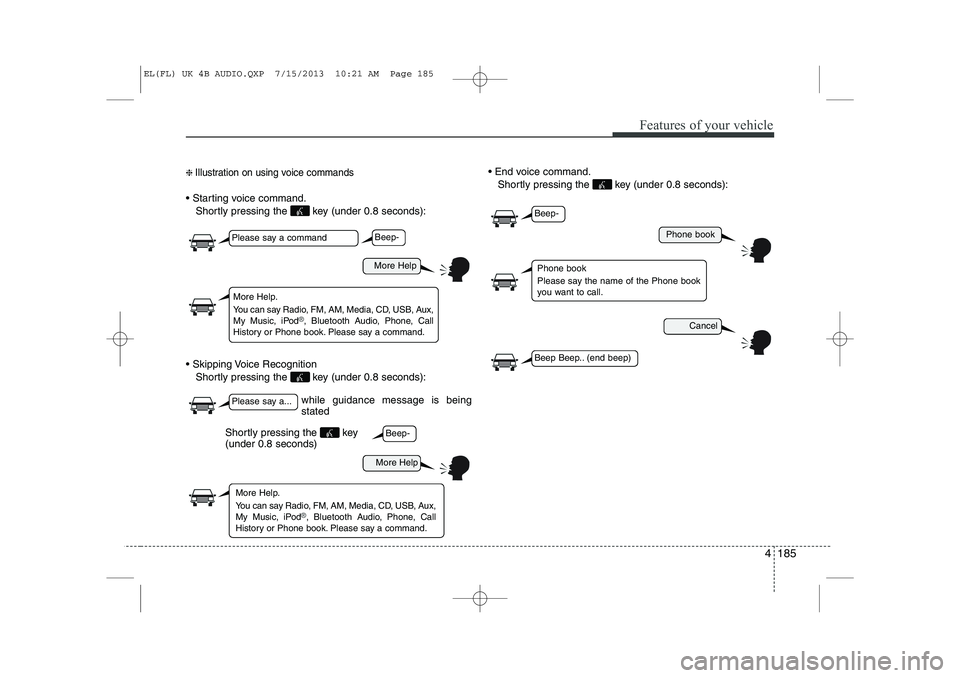
❈ Illustration on using voice commands
Starting voice command.
Shortly pressing the key (under 0.8 seconds):
Skipping Voice Recognition Shortly pressing the key (under 0.8 seconds): End voice command.
Shortly pressing the key (under 0.8 seconds):
while guidance message is being stated
More Help
Phone book
Cancel
More Help
Please say a command
Please say a...
More Help.
You can say Radio, FM, AM, Media, CD, USB, Aux,
My Music, iPod
®, Bluetooth A udio, Phone, Call
History or Phone book. Please say a command.
Phone book
Please say the name of the Phone book
you want to call.
More Help.
You can say Radio, FM, AM, Media, CD, USB, Aux,
My Music, iPod
®, Bluetooth A udio, Phone, Call
History or Phone book. Please say a command.
Beep-
Beep-
Beep-
Beep Beep.. (end beep)
Shortly pressing the key (under 0.8 seconds)
EL(FL) UK 4B AUDIO.QXP 7/15/2013 10:21 AM Page 185
Page 1264 of 1534
4 193
Features of your vehicle
SYSTEM CONTROLLERS AND FUNCTIONS ❈ Display and settings may differ
depending on the selected audio.
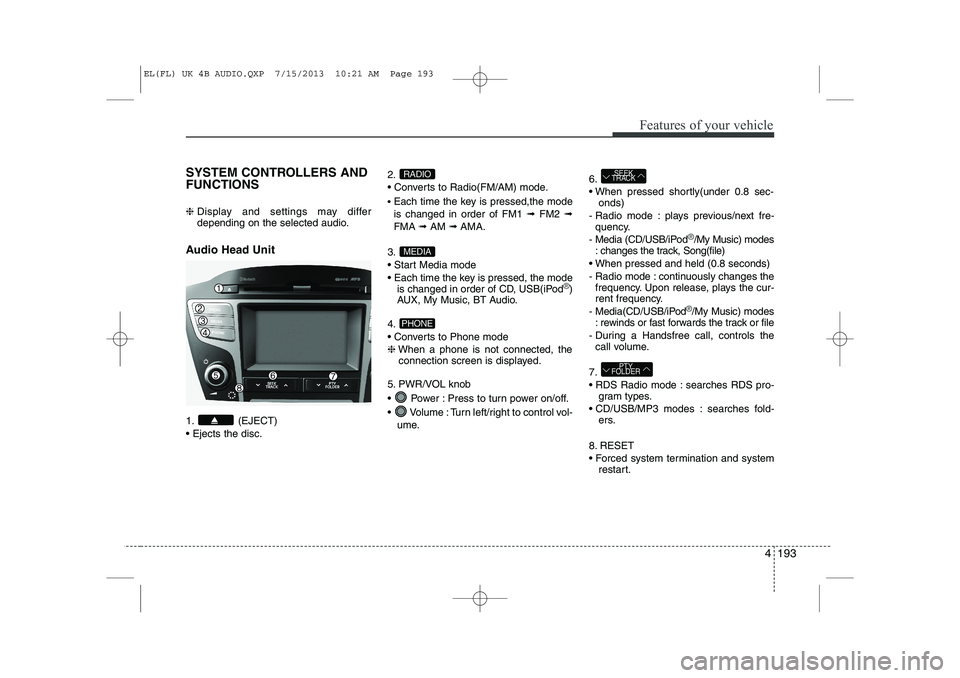
Audio Head Unit
1. (EJECT) Ejects the disc. 2.
Converts to Radio(FM/AM) mode.
Each time the key is pressed,the mode is changed in order of FM1 ➟FM2 ➟
FMA ➟AM ➟AMA.
3.
Start Media mode
Each time the key is pressed, the mode is changed in order of CD, USB(iPod
®)
AUX, My Music, BT Audio.
4.
Converts to Phone mode❈ When a phone is not connected, the
connection screen is displayed.
5. PWR/VOL knob
Power : Press to turn power on/off.
Volume : Turn left/right to control vol- ume. 6.
When pressed shortly(under 0.8 sec-
onds)
- Radio mode : plays previous/next fre- quency.
- Media (CD/USB/iPod
®/My Music) modes
: changes the track, Song(file)
When pressed and held (0.8 seconds)
- Radio mode : continuously changes the frequency. Upon release, plays the cur-
rent frequency.
- Media(CD/USB/iPod
®/My Music) modes
: rewinds or fast forwards the track or file
- During a Handsfree call, controls the call volume.
7.
RDS Radio mode : searches RDS pro- gram types.
CD/USB/MP3 modes : searches fold- ers.
8. RESET
Forced system termination and system restart.
PTY
FOLDER
SEEK
TRACK
PHONE
MEDIA
RADIO
EL(FL) UK 4B AUDIO.QXP 7/15/2013 10:21 AM Page 193
![HYUNDAI IX35 2014 Owners Manual 4 177
Features of your vehicle
Delete All
Press the key Set [ Del.All]
through the TUNE knob or key. Deletes all songs of My Music. Delete Selection
Press the key Set [ Del.Sel]
through the T](/manual-img/35/56237/w960_56237-1247.png "HYUNDAI IX35 2014 Owners Manual 4 177
Features of your vehicle
Delete All
Press the key Set [ Del.All]
through the TUNE knob or key. Deletes all songs of My Music. Delete Selection
Press the key Set [ Del.Sel]
through the T")