Page 1227 of 1534
Features of your vehicle
156
4
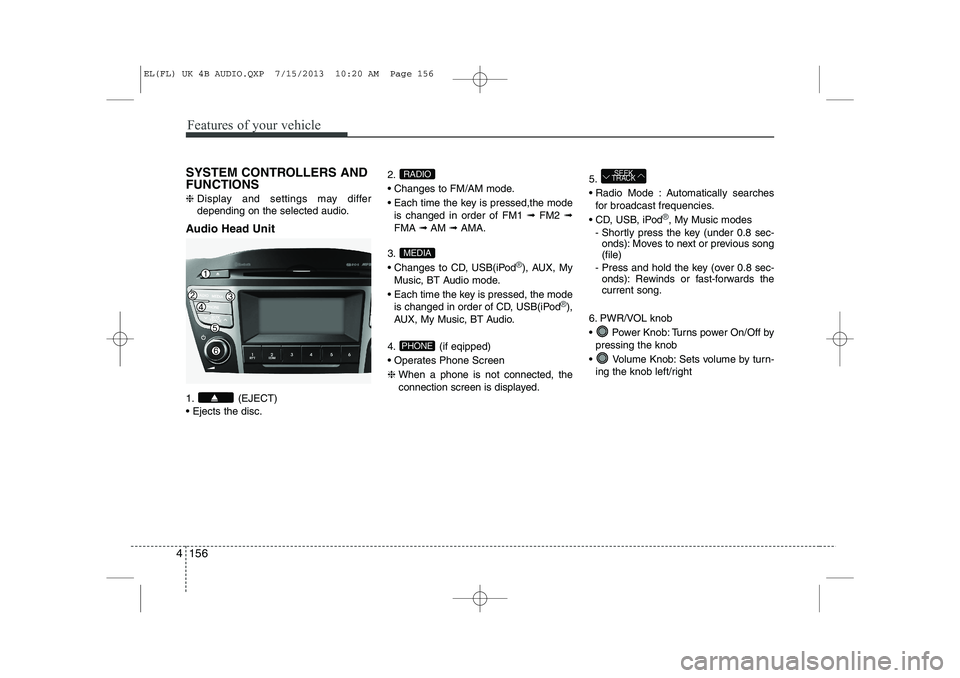
SYSTEM CONTROLLERS AND FUNCTIONS ❈ Display and settings may differ
depending on the selected audio.
Audio Head Unit
1. (EJECT) Ejects the disc. 2.
Changes to FM/AM mode.
Each time the key is pressed,the mode
is changed in order of FM1 ➟FM2 ➟
FMA ➟AM ➟AMA.
3.
Changes to CD, USB(iPod
®), AUX, My
Music, BT Audio mode.
Each time the key is pressed, the mode is changed in order of CD, USB(iPod
®),
AUX, My Music, BT Audio.
4. (if eqipped)
Operates Phone Screen❈ When a phone is not connected, the
connection screen is displayed. 5.
Radio Mode : Automatically searches
for broadcast frequencies.
CD, USB, iPod
®, My Music modes
- Shortly press the key (under 0.8 sec- onds): Moves to next or previous song (file)
- Press and hold the key (over 0.8 sec- onds): Rewinds or fast-forwards thecurrent song.
6. PWR/VOL knob
Power Knob: Turns power On/Off by pressing the knob
Volume Knob: Sets volume by turn- ing the knob left/right
SEEK
TRACK
PHONE
MEDIA
RADIO
EL(FL) UK 4B AUDIO.QXP 7/15/2013 10:20 AM Page 156
Page 1228 of 1534
4 157
Features of your vehicle
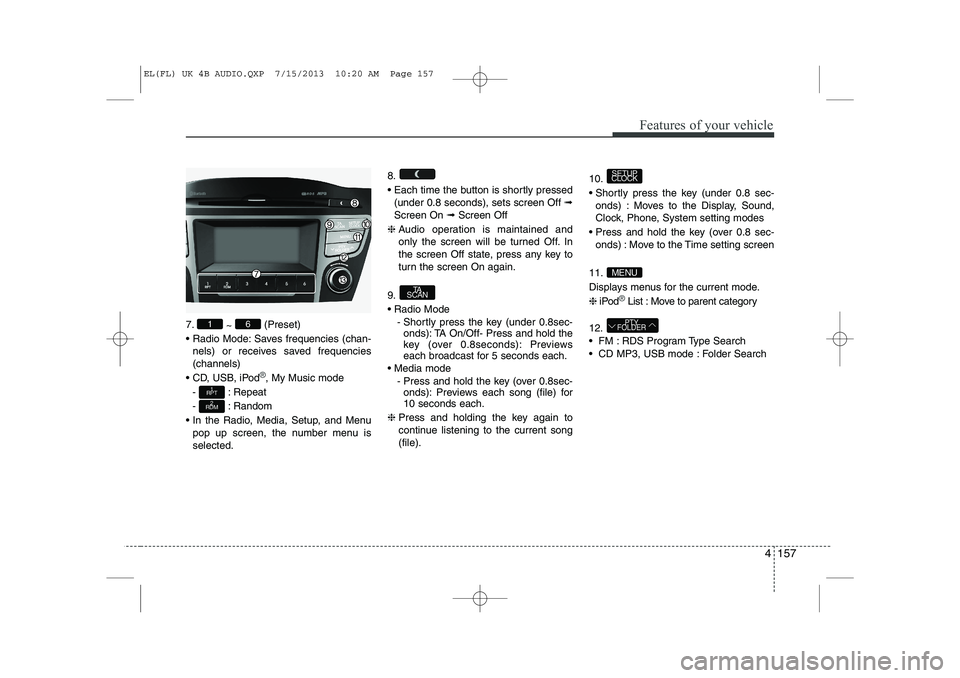
7.~ (Preset)
Radio Mode: Saves frequencies (chan- nels) or receives saved frequencies (channels)
CD, USB, iPod
®, My Music mode
- : Repeat
- : Random
In the Radio, Media, Setup, and Menu pop up screen, the number menu is selected. 8.
Each time the button is shortly pressed
(under 0.8 seconds), sets screen Off ➟
Screen On ➟Screen Off
❈ Audio operation is maintained and
only the screen will be turned Off. In
the screen Off state, press any key to
turn the screen On again.
9. Radio Mode - Shortly press the key (under 0.8sec-onds): TA On/Off- Press and hold the
key (over 0.8seconds): Previews
each broadcast for 5 seconds each.
Media mode - Press and hold the key (over 0.8sec-onds): Previews each song (file) for10 seconds each.
❈ Press and holding the key again to
continue listening to the current song(file). 10.
Shortly press the key (under 0.8 sec-
onds) : Moves to the Display, Sound,
Clock, Phone, System setting modes
Press and hold the key (over 0.8 sec- onds) : Move to the Time setting screen
11.
Displays menus for the current mode.❈ iPod
®List : Move to parent category
12.
FM : RDS Program Type Search
CD MP3, USB mode : Folder Search
PTY
FOLDER
MENU
SETUP
CLOCK
TA
SCAN
2
RDM
1
RPT
61
EL(FL) UK 4B AUDIO.QXP 7/15/2013 10:20 AM Page 157
Page 1229 of 1534
Features of your vehicle
158
4
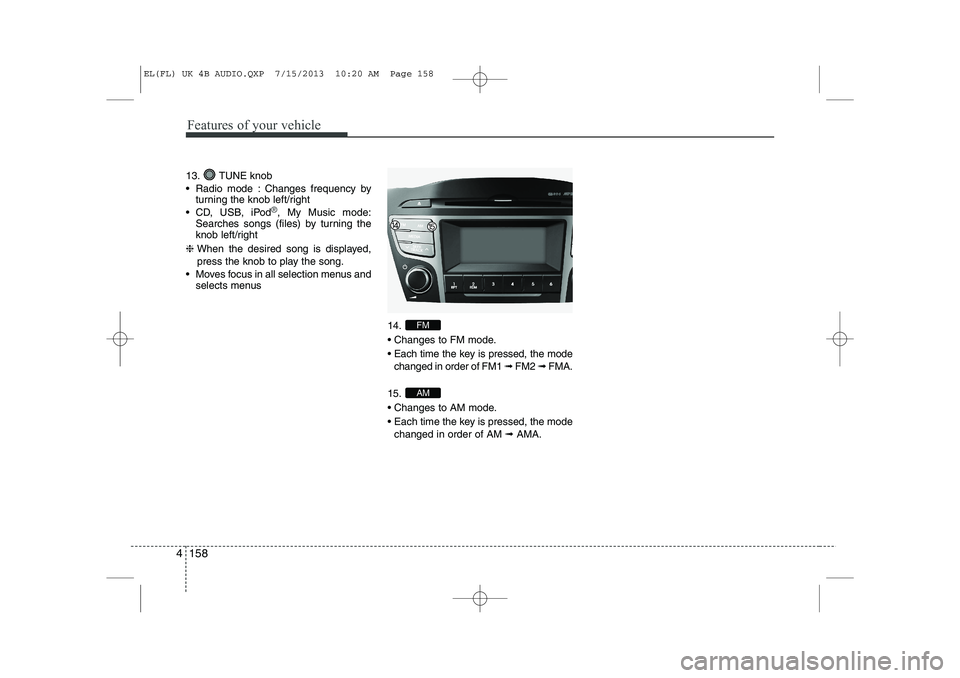
13. TUNE knob
Radio mode : Changes frequency by
turning the knob left/right
CD, USB, iPod
®, My Music mode:
Searches songs (files) by turning the
knob left/right
❈ When the desired song is displayed,
press the knob to play the song.
Moves focus in all selection menus and selects menus
14.
Changes to FM mode.
Each time the key is pressed, the modechanged in order of FM1 ➟ FM2 ➟ FMA.
15.
Changes to AM mode.
Each time the key is pressed, the mode changed in order of AM ➟AMA.
AM
FM
EL(FL) UK 4B AUDIO.QXP 7/15/2013 10:20 AM Page 158
Page 1230 of 1534
4 159
Features of your vehicle
SETUP
- AC100ELEE, AC110ELEE
Display Settings
Press the key Select [Display]
through TUNE knob or key
Select menu through TUNE knobMode Pop up
[Mode Pop up] Changes . selec- tion mode
During On state, press the or
key to display the mode
change pop up screen.
When the pop up screen is displayed, use the TUNE knob or keys
~ to select the desired mode.
Scroll text
[Scroll text] Set /
: Maintains scroll
: Scrolls only one (1) time.
Song Info
When playing an MP3 file, select the
desired display info from ‘Folder/File’ or
‘Album/Artist/Song’. Sound Settings
Press the key Select [Sound]
through TUNE knob or key
Select menu through TUNE knob
2
RDM
SETUP
CLOCK
Off
On
OffOn
6
1
MEDIA
RADIO
On
1
RPT
SETUP
CLOCK
EL(FL) UK 4B AUDIO.QXP 7/15/2013 10:20 AM Page 159
Page 1233 of 1534
Features of your vehicle
162
4
Time Format This function is used to set the 12/24
hour time format of the audio system.
Select [Time Format] Set 12Hr / 24Hr
through TUNE knob
Clock Display when Power is OFF
Select [Clock Disp.(Pwr Off) Set /
through TUNE knob
: Displays time/date on screen
: Turn off. Automatic RDS Time This option is used to automatically set
the time by synchronizing with RDS.
Select [Automatic RDS Time] Set
/ through TUNE
knob
: Turn on Automatic Time
: Turn off.
Off
On
Off
On
Off
On
Off
On
EL(FL) UK 4B AUDIO.QXP 7/15/2013 10:20 AM Page 162
Page 1234 of 1534
4 163
Features of your vehicle
Phone Setup (if eqipped)
Press the key Select [Phone] Pair Phone
Select [Pair Phone] Set through TUNE knob ➀
Search for device names as displayed
on your mobile phone and connect.
➁ Input the passkey displayed on the
screen. (Passkey : 0000)
❈ The device name and passkey will be
displayed on the screen for up to 3
minutes. If pairing is not completed
within the 3 minutes, the mobile phone
pairing process will automatically becanceled. ➂
Pairing completion is displayed.
❈ In some mobile phones, pairing will
automatically be followed by connec-tion.
❈ It is possible to pair up to five
Bluetooth®Wireless Technology
enabled mobile phones.
SETUP
CLOCKCAUTION
To pair a Bluetooth®Wireless
Technology enabled mobile phone, authentication and connection processes are first required. As aresult, you cannot pair your mobile
phone while driving the vehicle.First park your vehicle before use.
EL(FL) UK 4B AUDIO.QXP 7/15/2013 10:20 AM Page 163
Page 1235 of 1534
Features of your vehicle
164
4
Phone List The names of up to 5 paired phones will
be displayed.
A [ ] is displayed in front of the currently
connected phone. Select the desired name to setup the
selected phone.
Connecting a phone
Select [Phone List] Select mobile phone
through TUNE knob Select [ConnectPhone] ➀ Select a mobile phone that is not cur- rently connected.
➁ Connect the selected mobile phone.
➂ Connection completion is displayed.
❈ If a phone is already connected, dis-connect the currently connected
phone and select a new phone to con-nect.
Disconnecting a connected phone
Select [Phone List] Select mobile phone through TUNE knob Select
[Disconnect Phone] ➀ Select the currently connected mobile
phone.
➁ Disconnect the selected mobile
phone.
➂ Disconnection completion is dis-
played.
EL(FL) UK 4B AUDIO.QXP 7/15/2013 10:20 AM Page 164
Page 1236 of 1534
![HYUNDAI IX35 2014 Owners Manual 4 165
Features of your vehicle
Changing connection sequence(Priority)
This is used to change the order (priori-
ty) of automatic connection for the paired
mobile phones.
Select [Phone List] Select](/manual-img/35/56237/w960_56237-1235.png "HYUNDAI IX35 2014 Owners Manual 4 165
Features of your vehicle
Changing connection sequence(Priority)
This is used to change the order (priori-
ty) of automatic connection for the paired
mobile phones.
Select [Phone List] Select")
4 165
Features of your vehicle
Changing connection sequence(Priority)
This is used to change the order (priori-
ty) of automatic connection for the paired
mobile phones.
Select [Phone List] Select [Priority]
through TUNE knob Select No. 1
Priority mobile phone ➀ Select [Priority].
➁ From the paired phones, select the
phone desired for No.1 priority.
➂ The changed priority sequence is dis-
played.
❈ Once the connection sequence (priori-
ty) is changed, the new no. 1 prioritymobile phone will be connected.
- when the no. 1 priority cannot be con- nected: Automatically attempts to con- nect the most recently connected
phone.
- Cases when the most recently con- nected phone cannot be connected:Attempts to connect in the order inwhich paired phones are listed.
- The connected phone will automati- cally be changed to No. 1 priority. Delete
Select [Phone List] Select mobile phone
through TUNE knob Select [Delete] ➀
Select the desired mobile phone.
➁ Delete the selected mobile phone.
➂ Deletion completion is displayed.
❈ When attempting to delete a currently
connected phone, the phone is firstdisconnected. Phone book Download
This feature is used to download phone
book and call histories into the audio sys-tem.
Select [Phone book Download] Select
through TUNE knob
CAUTION
The download feature may not be
supported in some mobilephones.
If a different operation is per- formed while phone book is beingdownloaded, downloading will be
discontinued. Phone book alreadydownloaded will be saved.
When downloading new phone book, delete all previously saved
phone book before starting down- load.
CAUTION
When you delete a mobile phone,
the mobile phone phone book willalso be erased.
For stable Bluetooth ®
Wireless
Technology communication, delete the mobile phone from the audio and also delete the audio
from your mobile phone.
EL(FL) UK 4B AUDIO.QXP 7/15/2013 10:20 AM Page 165
![HYUNDAI IX35 2014 Owners Manual 4 159
Features of your vehicle
SETUP
- AC100ELEE, AC110ELEE
Display Settings
Press the key Select [Display]
through TUNE knob or key
Select menu through TUNE knobMode Pop up
[Mode Pop up] C](/manual-img/35/56237/w960_56237-1229.png "HYUNDAI IX35 2014 Owners Manual 4 159
Features of your vehicle
SETUP
- AC100ELEE, AC110ELEE
Display Settings
Press the key Select [Display]
through TUNE knob or key
Select menu through TUNE knobMode Pop up
[Mode Pop up] C")
![HYUNDAI IX35 2014 Owners Manual Features of your vehicle
162
4
Time Format This function is used to set the 12/24
hour time format of the audio system.
Select [Time Format] Set 12Hr / 24Hr
through TUNE knob
Clock Display when Po](/manual-img/35/56237/w960_56237-1232.png "HYUNDAI IX35 2014 Owners Manual Features of your vehicle
162
4
Time Format This function is used to set the 12/24
hour time format of the audio system.
Select [Time Format] Set 12Hr / 24Hr
through TUNE knob
Clock Display when Po")
![HYUNDAI IX35 2014 Owners Manual 4 163
Features of your vehicle
Phone Setup (if eqipped)
Press the key Select [Phone] Pair Phone
Select [Pair Phone] Set through TUNE knob ➀
Search for device names as displayed
on your mobile](/manual-img/35/56237/w960_56237-1233.png "HYUNDAI IX35 2014 Owners Manual 4 163
Features of your vehicle
Phone Setup (if eqipped)
Press the key Select [Phone] Pair Phone
Select [Pair Phone] Set through TUNE knob ➀
Search for device names as displayed
on your mobile")
![HYUNDAI IX35 2014 Owners Manual Features of your vehicle
164
4
Phone List The names of up to 5 paired phones will
be displayed.
A [ ] is displayed in front of the currently
connected phone. Select the desired name to setup the
s](/manual-img/35/56237/w960_56237-1234.png "HYUNDAI IX35 2014 Owners Manual Features of your vehicle
164
4
Phone List The names of up to 5 paired phones will
be displayed.
A [ ] is displayed in front of the currently
connected phone. Select the desired name to setup the
s")