Page 243 of 476
Features of your vehicle
158 4
Folder Search : MP3 CD, USB
Mode
While file is playing (Folder
Up) key
While file is playing (Folder
Down) key
❈If a folder is selected by pressing
the TUNE knob, the first file
within the selected folder will be
played.
❈In iPod mode, moves to the Parent
Folder.Searching Songs (File)
TUNE knob : Searches
for songs (files)
TUNE knob : Plays
selected song (file).
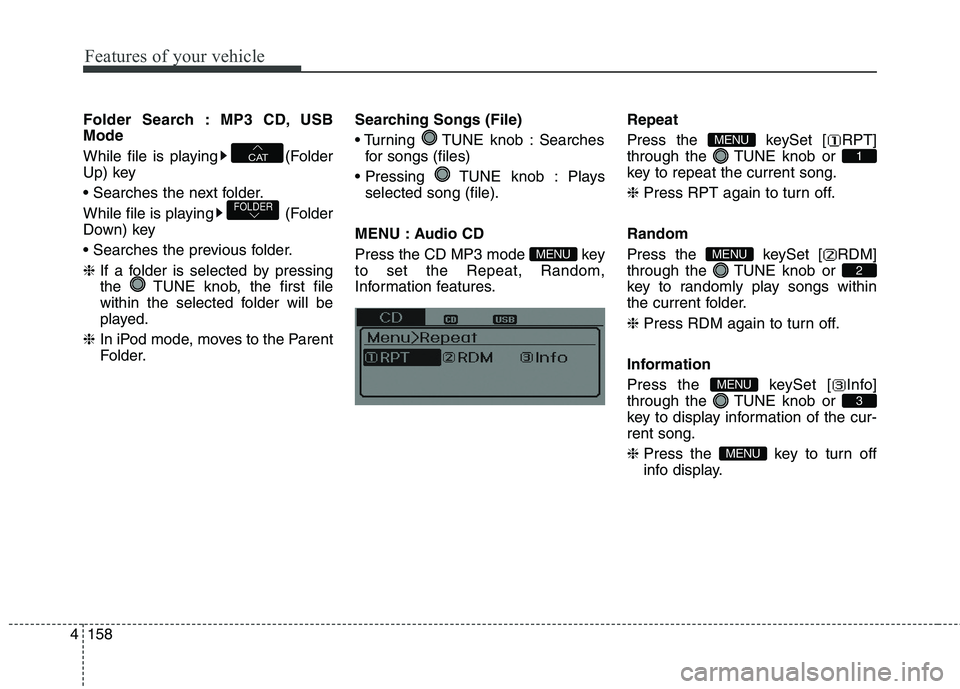
MENU : Audio CD
Press the CD MP3 mode key
to set the Repeat, Random,
Information features.Repeat
Press the keySet [ RPT]
through the TUNE knob or
key to repeat the current song.
❈Press RPT again to turn off.
Random
Press the keySet [ RDM]
through the TUNE knob or
key to randomly play songs within
the current folder.
❈Press RDM again to turn off.
Information
Press the keySet [ Info]
through the TUNE knob or
key to display information of the cur-
rent song.
❈Press the key to turn off
info display.
MENU
3
MENU
2
MENU
1
MENU
MENU
FOLDER
CAT
Page 244 of 476
4159
Features of your vehicle
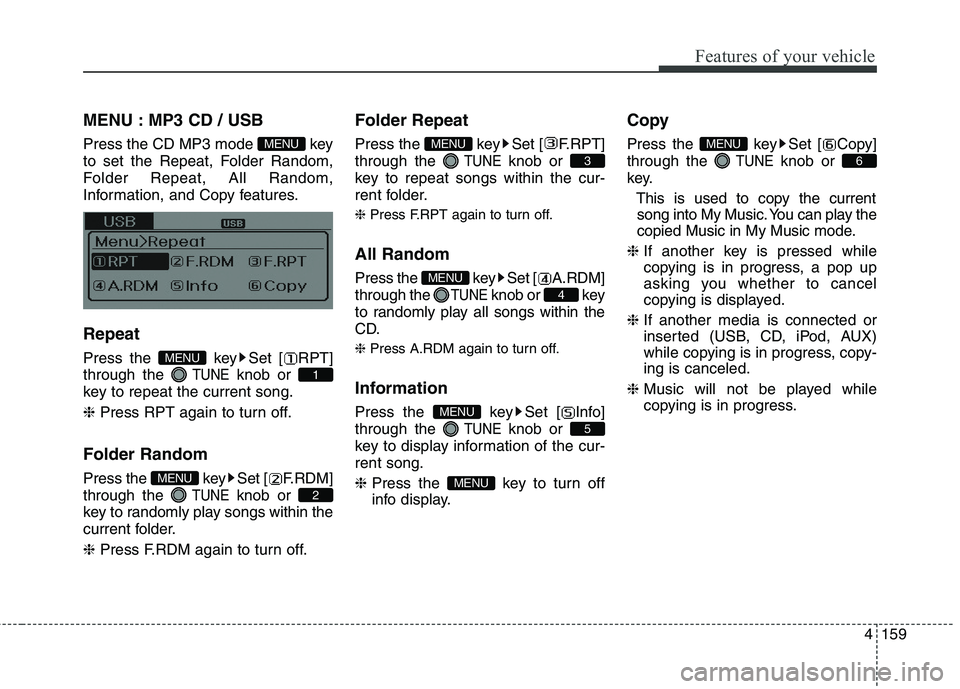
MENU : MP3 CD / USB
Press the CD MP3 mode key
to set the Repeat, Folder Random,
Folder Repeat, All Random,
Information, and Copy features.
Repeat
Press the key Set [ RPT]
through the
TUNEknob or
key to repeat the current song.
❈Press RPT again to turn off.
Folder Random
Press the key Set [ F.RDM]
through the
TUNEknob or
key to randomly play songs within the
current folder.
❈Press F.RDM again to turn off.
Folder Repeat
Press the key Set [ F.RPT]
through the
TUNEknob or
key to repeat songs within the cur-
rent folder.
❈ Press F.RPT again to turn off.
All Random
Press the key Set [ A.RDM]
through the
TUNEknob or key
to randomly play all songs within the
CD.
❈ Press A.RDM again to turn off.
Information
Press the key Set [ Info]
through the
TUNEknob or
key to display information of the cur-
rent song.
❈Press the key to turn off
info display.
Copy
Press the key Set [ Copy]
through the
TUNEknob or
key.
This is used to copy the current
song into My Music. You can play the
copied Music in My Music mode.
❈If another key is pressed while
copying is in progress, a pop up
asking you whether to cancel
copying is displayed.
❈If another media is connected or
inserted (USB, CD, iPod, AUX)
while copying is in progress, copy-
ing is canceled.
❈Music will not be played while
copying is in progress.6
MENU
MENU
5
MENU
4
MENU
3
MENU
2
MENU
1
MENU
MENU
Page 250 of 476

4165
Features of your vehicle
CAUTION IN USING
USB DEVICE
To use an external USB
device, make sure the device
is not connected when start-
ing up the vehicle. Connect
the device after starting up.
If you start the engine when
the USB device is connected, it
may damage the USB device.
(USB flashdrives are very sen-
sitive to electric shock.)
If the engine is started up or
turned off while the external
USB device is connected, the
external USB device may not
work.
The System may not play
inauthentic MP3 or WMA files.
1) It can only play MP3 files with
the compression rate
between 8Kbps~320Kbps.
2) It can only play WMA music
files with the compression
rate between
8Kbps~320Kbps.
(Continued)
(Continued)
Take precautions for static
electricity when connecting or
disconnecting the external
USB device.
An encrypted MP3 PLAYER is
not recognizable.
Depending on the condition of
the external USB device, the
connected external USB
device can be unrecognizable.
When the formatted byte/sec-
tor setting of External USB
device is not either 512BYTE
or 2048BYTE, then the device
will not be recognized.
Use only a USB device format-
ted to FAT 12/16/32.
USB devices without USB I/F
authentication may not be rec-
ognizable.
Make sure the USB connec-
tion terminal does not come in
contact with the human body
or other objects.
(Continued)(Continued)
If you repeatedly connect or
disconnect the USB device in
a short period of time, it may
break the device.
You may hear a strange noise
when connecting or discon-
necting a USB device.
If you disconnect the external
USB device during playback in
USB mode, the external USB
device can be damaged or
may malfunction. Therefore,
disconnect the external USB
device when the audio is
turned off or in another mode.
(e.g, Radio, XM or CD)
Depending on the type and
capacity of the external USB
device or the type of the files
stored in the device, there is a
difference in the time taken for
recognition of the device.
Do not use the USB device for
purposes other than playing
music files.
(Continued)
Page 251 of 476

Features of your vehicle
166 4
(Continued)
Playing videos through the
USB is not supported.
Use of USB accessories such
as rechargers or heaters
using USB I/F may lower per-
formance or cause trouble.
If you use devices such as a
USB hub purchased separate-
ly, the vehicle’s audio system
may not recognize the USB
device. In that case, connect
the USB device directly to the
multimedia terminal of the
vehicle.
If the USB device is divided by
logical drives, only the music
files on the highest-priority
drive are recognized by car
audio.
Devices such as MP3 Player/
Cellular phone/Digital camera
can be unrecognizable by
standard USB I/F can be
unrecognizable.
(Continued)(Continued)
Charging through the USB
may not be supported in some
mobile devices.
USB HDD or USB types liable
to connection failures due to
vehicle vibrations are not sup-
ported. (i-stick type)
Some non-standard USB
devices (METAL COVER TYPE
USB) can be unrecognizable.
Some USB flash memory read-
ers (such as CF, SD, micro SD,
etc.) or external-HDD type
devices can be unrecognizable.
Music files protected by DRM
(DIGITAL RIGHTS MANAGE-
MENT) are not recognizable.
The data in the USB memory
may be lost while using this
audio. Always back up impor-
tant data on a personal stor-
age device.
(Continued)(Continued)
Please avoid using USB mem-
ory products which can be
used as key chains or cellular
phone accessories as they
could cause damage to the
USB jack. Please make certain
only to use plug type connec-
tor products as shown below.
Page 252 of 476
4167
Features of your vehicle
✽ ✽
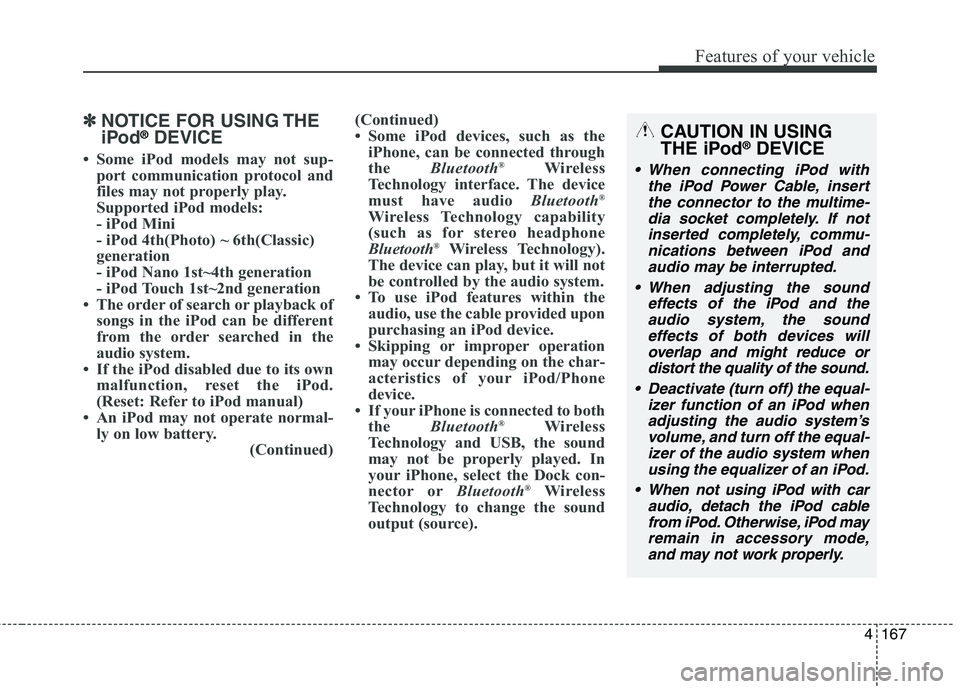
NOTICE FOR USING THE
iPod®DEVICE
• Some iPod models may not sup-
port communication protocol and
files may not properly play.
Supported iPod models:
- iPod Mini
- iPod 4th(Photo) ~ 6th(Classic)
generation
- iPod Nano 1st~4th generation
- iPod Touch 1st~2nd generation
• The order of search or playback of
songs in the iPod can be different
from the order searched in the
audio system.
• If the iPod disabled due to its own
malfunction, reset the iPod.
(Reset: Refer to iPod manual)
• An iPod may not operate normal-
ly on low battery.
(Continued)(Continued)
• Some iPod devices, such as the
iPhone, can be connected through
the Bluetooth®Wireless
Technology interface. The device
must have audio Bluetooth
®
Wireless Technology capability
(such as for stereo headphone
Bluetooth
®Wireless Technology).
The device can play, but it will not
be controlled by the audio system.
• To use iPod features within the
audio, use the cable provided upon
purchasing an iPod device.
• Skipping or improper operation
may occur depending on the char-
acteristics of your iPod/Phone
device.
• If your iPhone is connected to both
the Bluetooth
®Wireless
Technology and USB, the sound
may not be properly played. In
your iPhone, select the Dock con-
nector orBluetooth
®Wireless
Technology to change the sound
output (source).
CAUTION IN USING
THE iPod®DEVICE
When connecting iPod with
the iPod Power Cable, insert
the connector to the multime-
dia socket completely. If not
inserted completely, commu-
nications between iPod and
audio may be interrupted.
When adjusting the sound
effects of the iPod and the
audio system, the sound
effects of both devices will
overlap and might reduce or
distort the quality of the sound.
Deactivate (turn off) the equal-
izer function of an iPod when
adjusting the audio system’s
volume, and turn off the equal-
izer of the audio system when
using the equalizer of an iPod.
When not using iPod with car
audio, detach the iPod cable
from iPod. Otherwise, iPod may
remain in accessory mode,
and may not work properly.
Page 255 of 476
Features of your vehicle
170 4
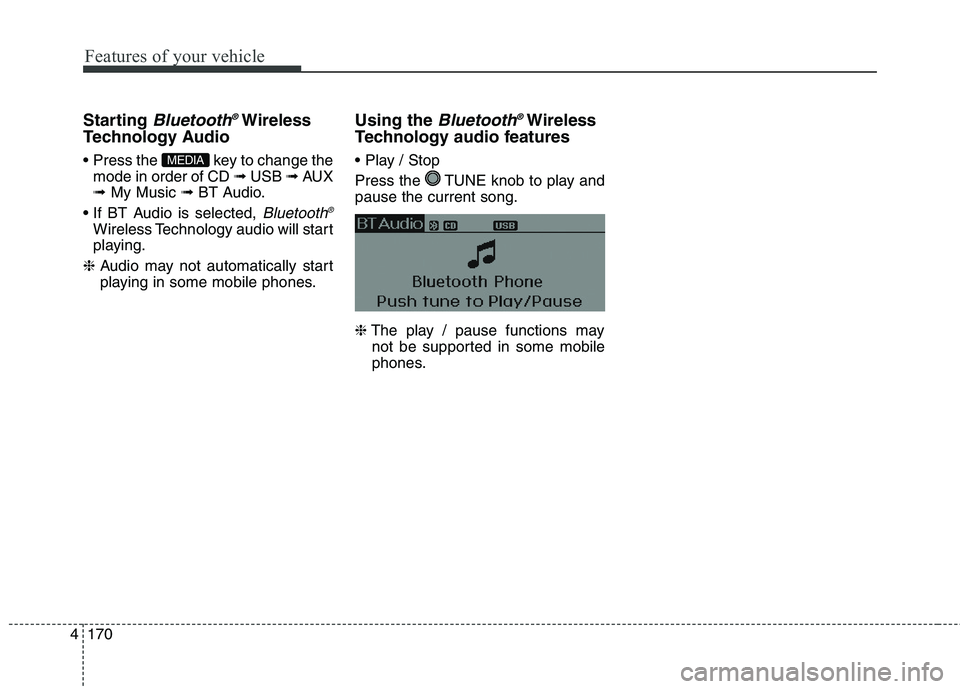
Starting Bluetooth®Wireless
Technology Audio
key to change the
mode in order of CD ➟ USB ➟ AUX
➟ My Music ➟ BT Audio.
Bluetooth®
Wireless Technology audio will start
playing.
❈Audio may not automatically start
playing in some mobile phones.
Using the Bluetooth®Wireless
Technology audio features
Press the TUNE knob to play and
pause the current song.
❈The play / pause functions may
not be supported in some mobile
phones.MEDIA
Page 262 of 476
4177
Features of your vehicle
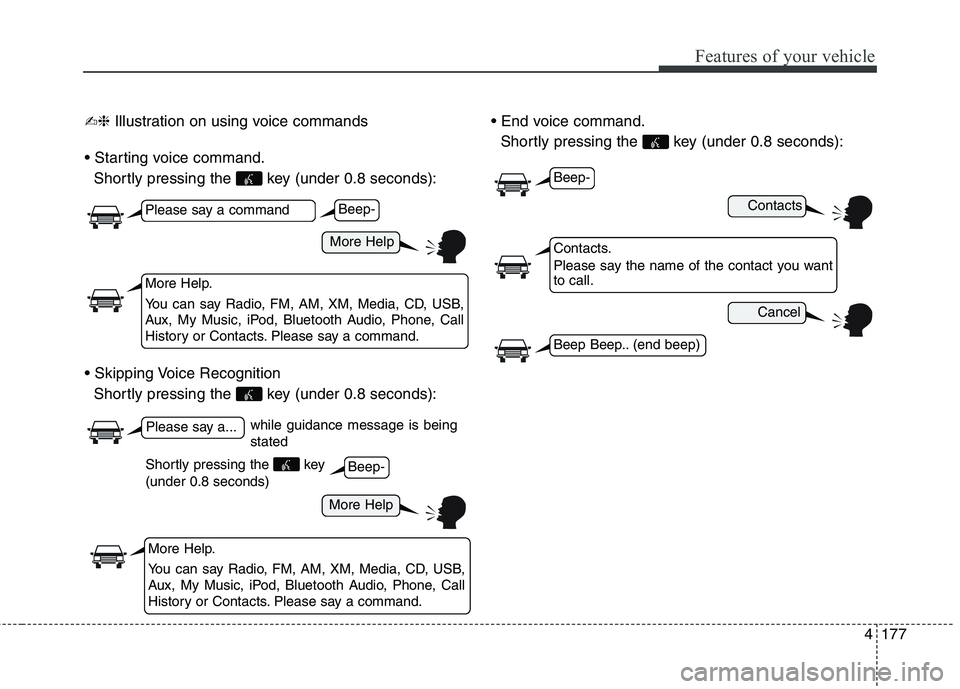
✍❈Illustration on using voice commands
Shortly pressing the key (under 0.8 seconds):
Shortly pressing the key (under 0.8 seconds):
Shortly pressing the key (under 0.8 seconds):
while guidance message is being
stated
More Help
Contacts
Cancel
More Help
Please say a command
Please say a...
More Help.
You can say Radio, FM, AM, XM, Media, CD, USB,
Aux, My Music, iPod, Bluetooth Audio, Phone, Call
History or Contacts. Please say a command.
Contacts.
Please say the name of the contact you want
to call.
More Help.
You can say Radio, FM, AM, XM, Media, CD, USB,
Aux, My Music, iPod, Bluetooth Audio, Phone, Call
History or Contacts. Please say a command.
Beep-
Beep-
Beep-
Beep Beep.. (end beep)
Shortly pressing the key
(under 0.8 seconds)
Page 264 of 476
4179
Features of your vehicle
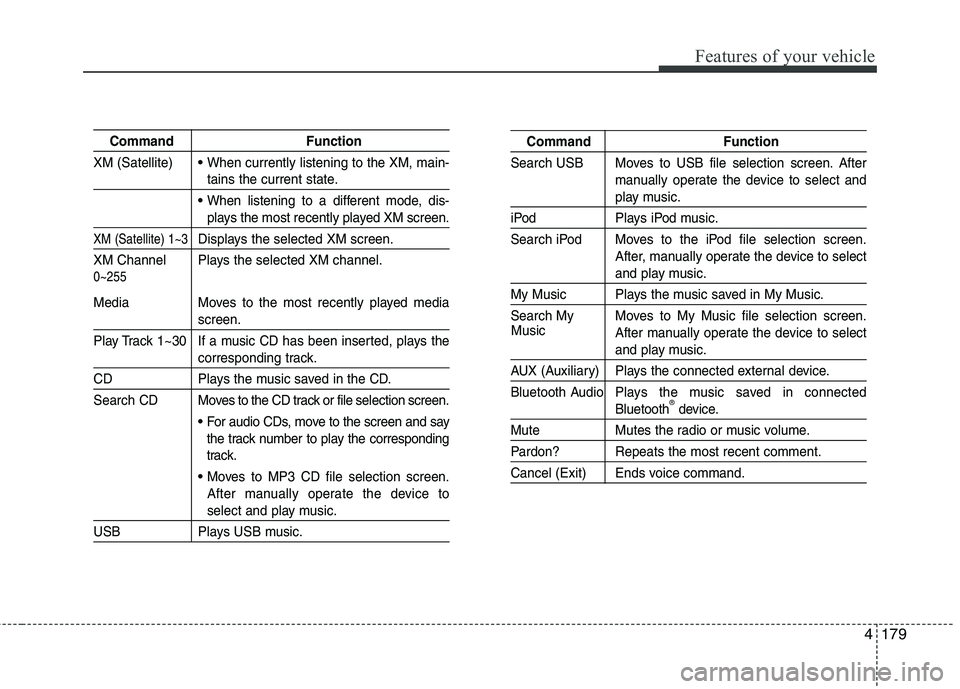
Command Function
XM (Satellite)
When currently listening to the XM, main-
tains the current state.
When listening to a different mode, dis-
plays the most recently played XM screen.
XM (Satellite) 1~3Displays the selected XM screen.
XM Channel Plays the selected XM channel.
Media Moves to the most recently played media
screen.
Play Track 1~30 If a music CD has been inserted, plays the
corresponding track.
CD Plays the music saved in the CD.
Search CD Moves to the CD track or file selection screen.
For audio CDs, move to the screen and say
the track number to play the corresponding
track.
Moves to MP3 CD file selection screen.
After manually operate the device to
select and play music.
USB Plays USB music.
Command Function
Search USB Moves to USB file selection screen. After
manually operate the device to select and
play music.
iPod Plays iPod music.
Search iPod Moves to the iPod file selection screen.
After, manually operate the device to select
and play music.
My Music Plays the music saved in My Music.
Search My Moves to My Music file selection screen.
After manually operate the device to select
and play music.
AUX (Auxiliary) Plays the connected external device.
Bluetooth Audio Plays the music saved in connected
Bluetooth®device.
Mute Mutes the radio or music volume.
Pardon? Repeats the most recent comment.
Cancel (Exit) Ends voice command.
0~255
Music