Page 28 of 327
27
Interface Settings
Clock Adjustment
System Setup
Clock AdjustmentHSETTINGS button
System Settings
Clock
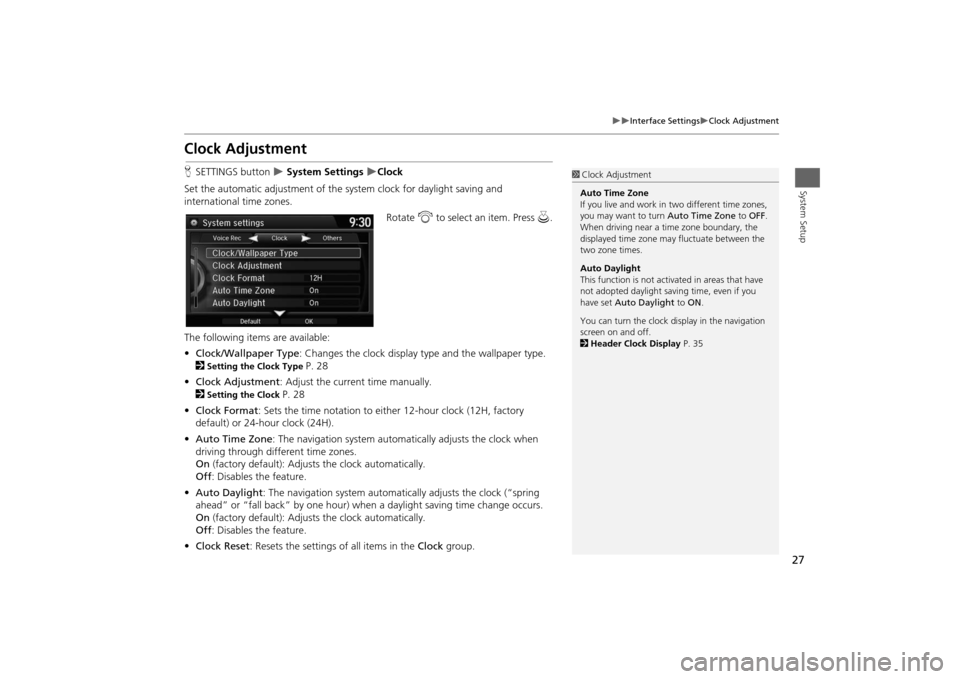
Set the automatic adjustment of the system clock for daylight saving and
international time zones.
Rotate i to select an item. Press u.
The following items are available:
•Clock/Wallpaper Type: Changes the clock display type and the wallpaper type.
2
Setting the Clock Type
P. 28
•Clock Adjustment: Adjust the current time manually.
2
Setting the Clock
P. 28
•Clock Format: Sets the time notation to either 12-hour clock (12H, factory
default) or 24-hour clock (24H).
•Auto Time Zone: The navigation system automatically adjusts the clock when
driving through different time zones.
On (factory default): Adjusts the clock automatically.
Off: Disables the feature.
•Auto Daylight: The navigation system automatically adjusts the clock (“spring
ahead” or “fall back” by one hour) when a daylight saving time change occurs.
On (factory default): Adjusts the clock automatically.
Off: Disables the feature.
•Clock Reset: Resets the settings of all items in the Clock group.
1Clock Adjustment
Auto Time Zone
If you live and work in two different time zones,
you may want to turn Auto Time Zone to OFF.
When driving near a time zone boundary, the
displayed time zone may fluctuate between the
two zone times.
Auto Daylight
This function is not activated in areas that have
not adopted daylight saving time, even if you
have set Auto Daylight to ON.
You can turn the clock display in the navigation
screen on and off.
2Header Clock Display P. 35
Page 29 of 327
28
Interface Settings
Clock Adjustment
System Setup
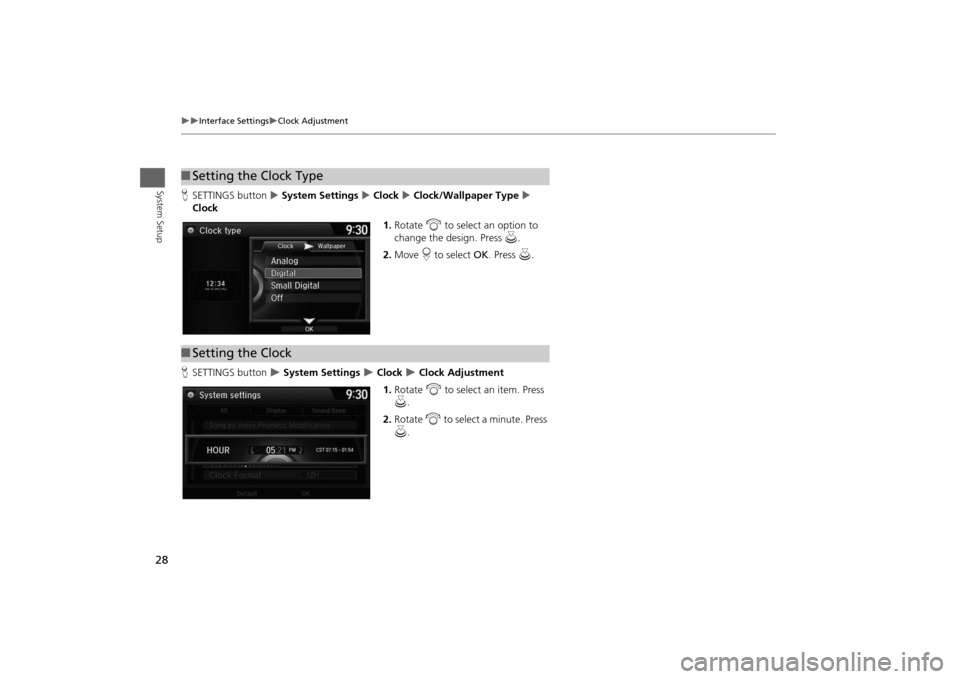
HSETTINGS button System Settings Clock Clock/Wallpaper Type
Clock
1.Rotate i to select an option to
change the design. Press u.
2.Move r to select OK. Press u.
HSETTINGS button
System Settings
Clock
Clock Adjustment
1.Rotate i to select an item. Press
u.
2.Rotate i to select a minute. Press
u.
■Setting the Clock Type■Setting the Clock
Page 30 of 327
29
Interface Settings
Wallpaper Settings
System Setup
Wallpaper SettingsSelect, delete, and import wallpaper pictures for display on the screen.
HSETTINGS button
System Settings
Clock
Clock/Wallpaper Type
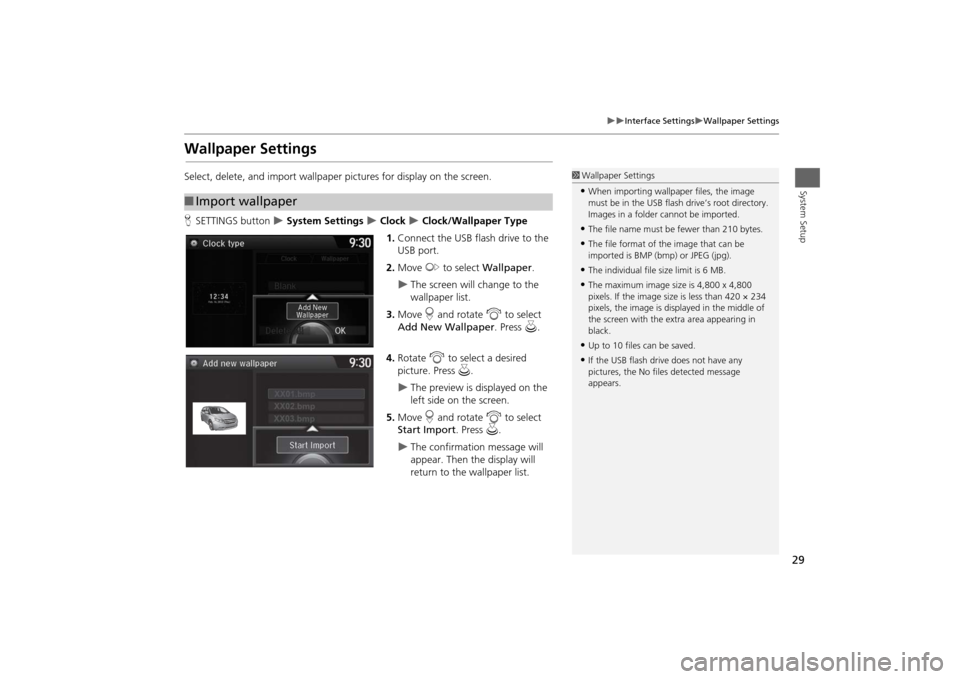
1.Connect the USB flash drive to the
USB port.
2.Move y to select Wallpaper.
The screen will change to the
wallpaper list.
3.Move r and rotate i to select
Add New Wallpaper. Press u.
4.Rotate i to select a desired
picture. Press u.
The preview is displayed on the
left side on the screen.
5.Move r and rotate i to select
Start Import. Press u.
The confirmation message will
appear. Then the display will
return to the wallpaper list.
■Import wallpaper
1Wallpaper Settings•When importing wallpaper files, the image
must be in the USB flash drive’s root directory.
Images in a folder cannot be imported.•The file name must be fewer than 210 bytes.•The file format of the image that can be
imported is BMP (bmp) or JPEG (jpg).•The individual file size limit is 6 MB.•The maximum image size is 4,800 x 4,800
pixels. If the image size is less than 420 × 234
pixels, the image is displayed in the middle of
the screen with the extra area appearing in
black.•Up to 10 files can be saved.•If the USB flash drive does not have any
pictures, the No files detected message
appears.
Page 31 of 327
30
Interface Settings
Wallpaper Settings
System Setup
HSETTINGS button
System Settings
Clock
Clock/Wallpaper Type
Wallpaper
1.Rotate i to select a desired
wallpaper. Press u.
The preview is displayed on the
left side on the screen.
The pop-up menu appears on
the screen.
2.Rotate i to select Set. Press u.
The display will return to the
wallpaper list.
■Select wallpaper
1Select wallpaper
From the pop-up menu, rotate to select Preview
and press to see a preview at full-size screen.
To go back to the previous screen, press to select
OK, or press the BACK button.
When the file size is large, it takes a while to be
previewed.
Page 32 of 327
31
Interface Settings
Wallpaper Settings
System Setup
HSETTINGS button
System Settings
Clock
Clock/Wallpaper Type
Wallpaper
1.Rotate i to select a previously
imported wallpaper that you want
to delete. Press u.
The preview is displayed on the
left side on the screen.
The pop-up menu appears on
the screen.
2.Rotate i to select Delete. Press
u.
The confirmation message will
appear.
3.Rotate i to select Yes. Press u.
The display will return to the
wallpaper list.
■Delete wallpaper
1Delete wallpaper
You cannot delete the factory default images.
Page 312 of 327

311
Voice Commands
Info Commands
Voice Commands
Info CommandsThe system accepts these commands on
any screen.
•Trip computer
• Traffic information
• Display clock
• Display wallpaperClimate Control CommandsThe system accepts these commands on
most screens.
•Climate control automatic
*1
•Climate control off
*1
•Air conditioner on
*1
•Air conditioner off
*1
•Climate control defrost on
*1
•Climate control defrost off
*1
•Rear defrost on
*1
•Rear defrost off
*1
•Climate control fresh air
• Climate contro l recirculate
• Climate control vent
• Climate control bi-level
• Climate control floor
• Climate control floor and defrost •
Climate control mode automatic
• Fan speed up
• Fan speed down
• Fan speed # (#: 1 to 7)
• Fan automatic
• Rear lock on
• Rear lock off
• Temperature # degrees (#: 57 to 87°F,
15 to 29°C)
• Driver temperature # degrees (#: 57 to
87°F, 15 to 29°C)
• Passenger temperature # degrees (#: 57
to 87°F, 15 to 29°C)
• Temperature up
• Temperature down
• Driver temperature up
• Driver temperature down
• Passenger temperature up
• Passenger temperature down
• Temperature max heat
• Temperature max cool
• Driver temperature max heat
• Driver temperature max cool
• Passenger temperature max heat
• Passenger temperature max cool
• Climate control sync on
*1
•Climate control sync off
*1
•Front climate control automatic
• Front climate control off •
Rear climate control automatic
• Rear climate control off
• Rear climate control vent
• Rear climate control bi-level
• Rear climate control floor
• Rear fan speed up
• Rear fan speed down
• Rear fan speed # (#: 1 to 5)
• Rear temperature # degrees (#: 57 to
87°F, 15 to 29°C)
• Rear temperature up
• Rear temperature down
• Rear temperature max heat
• Rear temperature max cool
*1: These commands toggle the function
on and off, so the command may not
match your intended action.
Page 327 of 327

326
Index
Index
Obtaining Update Data ........................... 297
USB Flash Drive
Connecting, Disconnecting.............. 177, 193
Playing .................................................... 193
Voice Commands List .............................. 313
USB Port .................................................... 137VVehicle
Correct Vehicle Position............................. 80
Off-road Tracking ...................................... 79
View (Navi Settings) ................................... 72
View Area Map........................................... 55
View Routes .............................................. 109
Voice
Map Menu .............................................. 114
Voice Commands
Basic Operation ........................................... 8
Help .......................................................... 15
Voice Commands List .............................. 308
Voice Control System ................................ 22
Voice Control Operation
Basic Operation ........................................... 5
Voice Portal ................................................. 5WWallpaper
Deleting, Importing, Setting ...................... 29
Waypoint
Adding .................................................... 124
Deleting, Ordering................................... 128
XXM® Radio
Playing .................................................... 153
Voice Commands List.............................. 312ZZAGAT
Displaying Review ................................... 101
Setting Destination ................................... 99
Zip Code ..................................................... 87