Page 3 of 212
Quick Reference Guide
2
Overview—Functions at a Glance
NavigationYou can select any place/landmark as a destination by using voice control or the touch screen. The navigation
system gives you turn-by-turn driving directions to your destination.
Store home addresses (P36)
Register
2 home addresses.
Store contacts (P31)
Store up to
200 contacts in 2 address books.
Enter destination (P56)
Select your destination using
11 methods.
Select route (P78)
Set route preferences and select one of
3 routes.
Track route (P80)
Follow your route in real-time with voice guidance. FM Traffic (P99)
View and avoid congesti on and traffic incidents.
Avoid certain areas (P102)
Set streets and areas to detour around.
Add waypoints (P103)
Add up to
4 “pit stops” along your route.
CR-V_KA-31T0A800.book 2 ページ 2011年7月4日 月曜日 午後1時56分
Page 9 of 212
8
Quick Reference GuideDuring Route Guidance
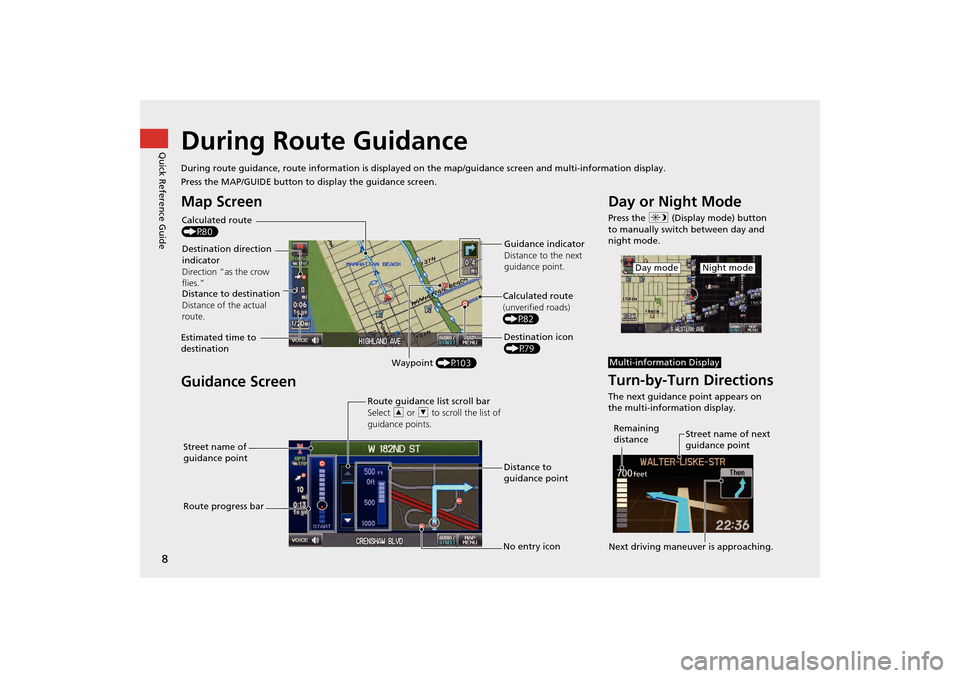
During route guidance, route information is displayed on the map/guidance screen and multi-information display.
Press the MAP/GUIDE button to display the guidance screen.
Map Screen
Guidance Screen
Calculated route
(P80)
Destination direction
indicator
Direction “as the crow
flies.” Guidance indicator
Distance to the next
guidance point.
Distance to destination
Distance of the actual
route.
Estimated time to
destination Waypoint (P103) Destination icon
(P79)
Calculated route
(unverified roads)
(P82)
Street name of
guidance point Route guidance list scroll bar
Select
R or U to scroll the list of
guidance points.
Route progress bar Distance to
guidance point
No entry icon
Day or Night Mode
Press the a (Display mode) button
to manually switch between day and
night mode.
Turn-by-Turn Directions
The next guidance point appears on
the multi-information display.
Night modeDay mode
Multi-information Display
Street name of next
guidance point
Remaining
distance
Next driving maneuver is approaching.
CR-V_KA-31T0A800.book 8 ページ 2011年7月4日 月曜日 午後1時56分
Page 44 of 212
43
Routing & GuidanceUnverified Area Routing
System SetupGuidance
(map/voice)There is no turn-by-turn map or
voice guidance.Voice guidance commands end
with the phrase “if possible” to
remind you to verify all traffic
restrictions.
My
Destination
(Direction
list) A direction list is typically not
available. However, depending on
your route, directions are provided
to help you reach the first available
verified road. A direction list is provided
showing unverified street names
in blue boxes and turn symbols in
pink.
Differences Off (factory default) On
CR-V_KA-31T0A800.book 43 ページ 2011年7月4日 月曜日 午後1時56分
Page 53 of 212
52
VehicleCorrect Vehicle Position
System Setup
Correct Vehicle Position
HINFO button Setup Other Vehicle
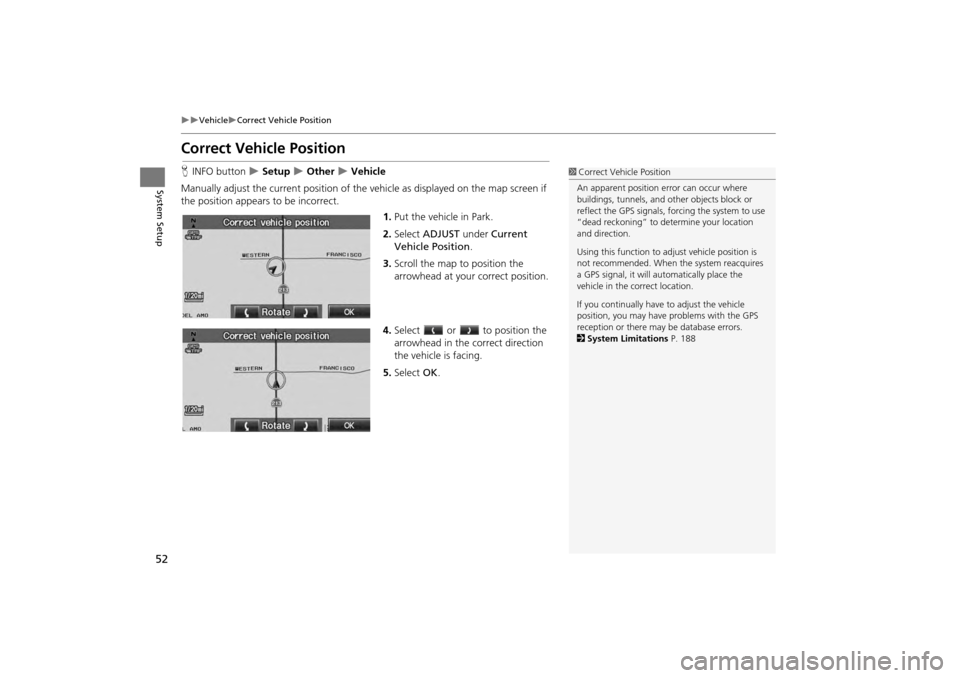
Manually adjust the current position of the vehicle as displayed on the map screen if
the position appear s to be incorrect.
1.Put the vehicle in Park.
2. Select ADJUST under Current
Vehicle Position .
3. Scroll the map to position the
arrowhead at your correct position.
4. Select or to position the
arrowhead in the correct direction
the vehicle is facing.
5. Select OK.1Correct Vehicle Position
An apparent position error can occur where
buildings, tunnels, and ot her objects block or
reflect the GPS signals, forcing the system to use
“dead reckoning” to determine your location
and direction.
Using this function to ad just vehicle position is
not recommended. When the system reacquires
a GPS signal, it will automatically place the
vehicle in the correct location.
If you continually have to adjust the vehicle
position, you may have problems with the GPS
reception or there may be database errors.
2 System Limitations P. 188
CR-V_KA-31T0A800.book 52 ページ 2011年7月4日 月曜日 午後1時56分
Page 62 of 212

61
Entering a DestinationAddress
Navigation
HDEST button Address Street
1.Enter the name of your destination
street.
Do not enter the street type
(e.g., street, road, avenue) or
direction (e.g., north, south,
east, west).
Select List to display a list of
streets.
2. Select your destination street from
the list.
A list of matching hits is
automatically displayed after
you enter several letters, with
the closest match at the top of
the list.
■Selecting a Street1 Selecting a Street
When entering the names of major freeways,
you can use the following abbreviations. For
interstates, use an “I ” (e.g., I-10). For U.S.
freeways, use “US” (e.g., US-18). For state
freeways, use the two-character state
designation (e.g., CA-101). For county roads, use
the appropriate desi gnation (e.g., G-2).
Using Voice Command (English only)
Say d “Street ” on the Find address by screen,
and the following screen is displayed:
•Say the name of your destination street, and
say the street number as a string of individual
numbers.
•Set the route to your destination.
2 Calculating the Route P. 77
Continued
CR-V_KA-31T0A800.book 61 ページ 2011年7月4日 月曜日 午後1時56分
Page 78 of 212

77
Navigation
Calculating the Route
This section describes how to calculate your route.1.Select Set as Dest.
The system calculates and
displays the route line on the
map screen.
2Route Line P. 82
The following items are available:
• Route Pref. : Changes the route preferences (calculating method).
2Changing the Route Preference P. 78
• View Routes : Displays three different routes.
2Viewing the Routes P. 78
• Destination Map : Displays a map of the destination.
2Calculating the Route on the Destination Map P. 79
2. Follow the route guidance to your
destination.
2 Driving to Your Destination P. 80
The system provides you with
pop-up messages if your route
passes through unverified areas,
avoid areas, or areas with traffic
restrictions.
1Calculating the Route
The current route prefer ences are displayed as
icons on the top right of the Calculate Route
screen. The straight line distance (as the crow
flies, not driving distan ce) and direction to the
destination are shown.
You cannot use voice commands while the
system is calculating the route.
Add to Address Book
You can add the destination address to the
address book.
2 Adding an Address Book Entry P. 32
Add to My Dest.
You can add the address to the destination list.
2 Editing My Destination P. 107
Call
You can place a telephone ca ll to the destination
phone number.
2 Bluetooth® HandsFreeLink® P. 148
CR-V_KA-31T0A800_02.fm 77 ページ 2011年7月4日 月曜日 午後2時32分
Page 82 of 212
81
Driving to Your DestinationViewing the Route
Navigation
The guidance screen offers an alternative way to view your route.
In single-screen mode, press the
MAP/GUIDE button to switch
between the map and guidance
screens.
In split-screen mode, press the
MAP/GUIDE button to switch
between the next guidance
direction and a list of guidance
directions.
■Guidance Screen1 Guidance Screen
A visual guide helps you check the guidance
screen.
2 Guidance Screen P. 8
Turn-by-Turn Directions
The next guidance point appears on the multi-
information display.
2 Turn-by-Turn Directions P. 8
You can turn this feat ure on or off using the
multi-information display. See the Owner’s
Manual for instructions.
CR-V_KA-31T0A800.book 81 ページ 2011年7月4日 月曜日 午後1時56分
Page 84 of 212

83
Driving to Your DestinationViewing the Route
Navigation
If you leave the calculated route, the system automatically recalculates a route to the
desired destination based on your current location and direction.
2Rerouting P. 41
If you leave all mapped (digit ized) roads, the system automa tically starts displaying a
series of dots (breadcrumbs) to track the path you are taking. If needed, you can
follow the dots back to the mapp ed road you originally left.
2Off-road Tracking P. 51
■Deviating From the Planned Route1 Deviating From the Planned Route
If Rerouting is set to Manual and you go off
route, the system wait s for you to manually
initiate recalculation. Select Recalc.
2 Rerouting P. 41
■Driving Off-road
1 Driving Off-road
A message “Not on a digi tized road” may appear
when you drive half a mi le away from a mapped
road.
Breadcrumbs may occasionally be displayed in
urban areas, such as large parking lots in
shopping malls, in new subdivisions where the
roads are not yet in the database, or in areas
where a GPS signal is unavailable, such as in a
parking garage.
Off-road tracking breadcrumbs are limited to
approximately 150 miles. Breadcrumbs at the
beginning of the trail are deleted if you exceed
that distance.
Breadcrumbs are displayed only at 1/20, 1/8, 1/4,
and 1/2 mile map scales.
CR-V_KA-31T0A800.book 83 ページ 2011年7月4日 月曜日 午後1時56分


