Page 88 of 212
87
Map MenuGuidance Menu
Navigation
Guidance Menu
HMAP MENU (on map) Guidance Menu
Display the guidance points and freeway ex its for your route, and set the display
mode for the map and guidance screens.
Select an item.
The following items are available:
• Directions : Displays a list of the guidance points.
2Directions P. 88
• Guidance Mode : Selects the guidance display mode.
2Guidance Mode P. 90
CR-V_KA-31T0A800.book 87 ページ 2011年7月4日 月曜日 午後1時56分
Page 89 of 212
88
Map MenuGuidance Menu
Navigation
HMAP MENU (on map) Guidance Menu Directions
Display a list of the guidance points on your route for your confirmation. Select R or U to scroll through the
list.
Press the MAP/GUIDE button to
return to the map screen.
■ Directions1 Directions
Guidance points with exit information are
indicated by a (freeway exit information)
icon. Select Exit Information to display the exit
information.
2 Freeway Exit Information P. 89
The route guidance inform ation is automatically
deleted when you reac h your destination.
CR-V_KA-31T0A800.book 88 ページ 2011年7月4日 月曜日 午後1時56分
Page 91 of 212
90
Map MenuGuidance Menu
Navigation
HMAP MENU (on map) Guidance Menu Guidance Mode
Select the display mode during route guidan ce: single-screen mode (default) or split-
screen mode.
Select an option.
The following options are available:
• Single Screen: Displays the map and guidance screens on separate screens.
■Guidance Mode1 Guidance Mode
The guidance mode can al so be selected from
the System Setup menu.
2 Routing & Guidance P. 40
Map screen
Press the
MAP/GUIDE
buttonGuidance screen
Press the
MAP/GUIDE
button
Press the
MAP/GUIDE
button
Directions list screen
CR-V_KA-31T0A800.book 90 ページ 2011年7月4日 月曜日 午後1時56分
Page 92 of 212
91
Map MenuGuidance Menu
Navigation
•Split Screen: Displays the map and guidance information simultaneously on the
map screen.1 Guidance Mode
Next guidance point
The next guidance point (the pop-up window) is
displayed on the map scre en as you approach a
guidance point in the single-screen mode.
The next guidance point is also displayed on the
multi-information display.
2 Turn-by-Turn Directions P. 8
Next guidance point
Press the
MAP/GUIDE
button
Press the
MAP/GUIDE
button
Guidance direction list
Press the
MAP/GUIDE
button Directions list screen
CR-V_KA-31T0A800.book 91 ページ 2011年7月4日 月曜日 午後1時56分
Page 98 of 212

97
Map MenuMap Legend
Navigation
■Traffic icon
Select the map orientation icon to change the map orientation.
TypeIcon display
control Icon
selectable Icon
searchable
Traffic speedYesNoNo
Traffic incident YesNoYes
■Map Orientation
1 Traffic Incident
When you use the joystick to position the cursor
(round red circle) over th e traffic incident icon,
you can view the summary of the incident.
When you press the ENTER button to select the
traffic incident icon, you can view a pop-up
message describing the incident in detail.
1 Map Orientation
d “Display Heading-up” (from map screen), d
“Display North-up” (from map screen)
The red arrow in the symbol always points North.
On scales greater than 1 mile, North-up mode is
always used.
Map orientation icon
North-up : Displays the map with
North always pointing up. Map orientation icon
Heading-up : Displays the map
so that the direction you are
traveling is always pointing up.
Select
Select
CR-V_KA-31T0A800.book 97 ページ 2011年7月4日 月曜日 午後1時56分
Page 146 of 212
145
Audio Remote ControlsSteering Wheel Controls
Audio
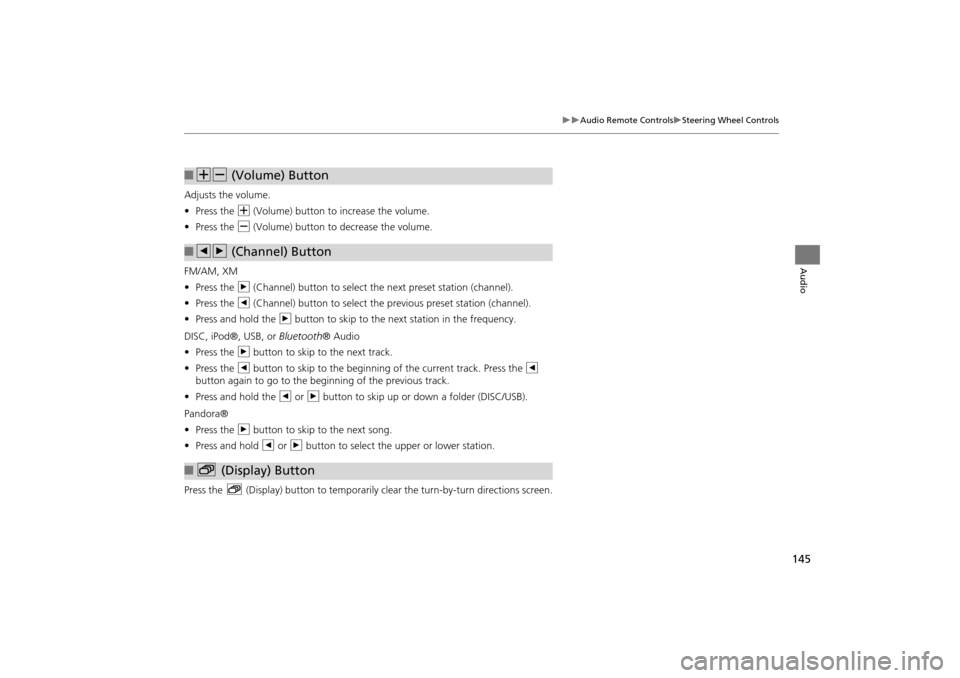
Adjusts the volume.
•Press the N (Volume) button to increase the volume.
• Press the B (Volume) button to decrease the volume.
FM/AM, XM
• Press the n (Channel) button to select the next preset station (channel).
• Press the b (Channel) button to select the previous preset station (channel).
• Press and hold the n button to skip to the next station in the frequency.
DISC, iPod®, USB, or Bluetooth® Audio
• Press the n button to skip to the next track.
• Press the b button to skip to the beginnin g of the current track. Press the b
button again to go to the beginning of the previous track.
• Press and hold the b or n button to skip up or down a folder (DISC/USB).
Pandora®
• Press the n button to skip to the next song.
• Press and hold b or n button to select the upper or lower station.
Press the b (Display) button to temporarily clear the turn-by-turn directions screen.
■NB (Volume) Button
■bn (Channel) Button
■b (Display) Button
CR-V_KA-31T0A800_03.fm 145 ページ 2011年7月4日 月曜日 午後2時13分
Page 210 of 212

209
Index
Index
D
Day ModeMap Color
.................................................. 26
Menu Color ................................................ 26Switching Display Mode ............................. 27
Delete this Phone ...................................... 153
DEST Button
Changing Route ....................................... 101
Entering a Destination ................................ 56
DEST Menu 1 ................................................ 56DEST Menu 2 ................................................ 56
Destination Map .......................................... 79
Detour ......................................................... 102Dial .............................................................. 161
Directions ...................................................... 88
Disc
Playing ...................................................... 125
Voice Commands List ............................... 202
Display Voice Command Tips ..................... 24
E
Edit Avoid Area ........................................... 44
Edit Speed Dial ........................................... 155
Edit Waypoint Search Area ........................ 46Emergency (Place Category) ...................... 67
Error Messages ........................................... 181
Disc Player ................................................ 182iPod® ........................................................ 183
Navigation System .................................... 181
Pandora® ................................................. 183USB Flash Drive ......................................... 184
Exit Info. ....................................................... 89
F
Favorite Subcategory ..................................69
Find Nearest... ............................................108
FM/AM Button .......................................6, 116FM/AM Radio
Playing
......................................................116
Voice Commands List ...............................201Folder ListDisc
...........................................................127
USB Flash Drive .........................................139
G
Go Home 1 ....................................................10
Go Home 1 PIN .............................................37
Go Home 2 ....................................................10Go Home 2 PIN .............................................37
Guidance Menu ............................................87
Directions ....................................................88Exit Info ....................................................... 89
Guidance Mode ..........................................90
Guidance Mode ............................................90Guidance Prompts .......................................23
H
Heading-up ...................................................97
Home Address 1 .....................................10, 36Home Address 2 .....................................10, 36
Honda Customer Services .........................190
I
Icon Option ...................................................93
Intersection .................................................. 74iPod®
Connecting, Disconnecting
............. 129, 136
Playing ...................................................... 129Voice Commands List .............................. 202
K
Keyboard Layout ......................................... 24
L
Language ..................................................... 29Leisure (Place Category) ............................. 67
Lodging (Place Category) ........................... 67
M
Map Color .................................................... 26Map Input
Editing Avoid Area
..................................... 45
Setting Destination .................................... 75Map Legend ............................................. 7, 94
Map Menu ................................................... 85
Map Screen .................................................. 80Icon .................................................. 7, 92, 96
Orientation ................................................. 97
Scale ........................................................... 95Map Update
Checking Version
..................................... 171
Obtaining Update Data ............................ 191Viewing Upda te Status ............................ 171
MAP/GUIDE Button ................................. 8, 90
Menu (DEST Menu 1) .................................. 56Menu (DEST Menu 2) .................................. 56
CR-V_KA-31T0A800.book 209 ページ 2011年7月4日 月曜日 午後1時56分


