Page 144 of 469
143
uuOperating the Switches Around the Steering Wheel uAdjusting the Steering Wheel
Controls
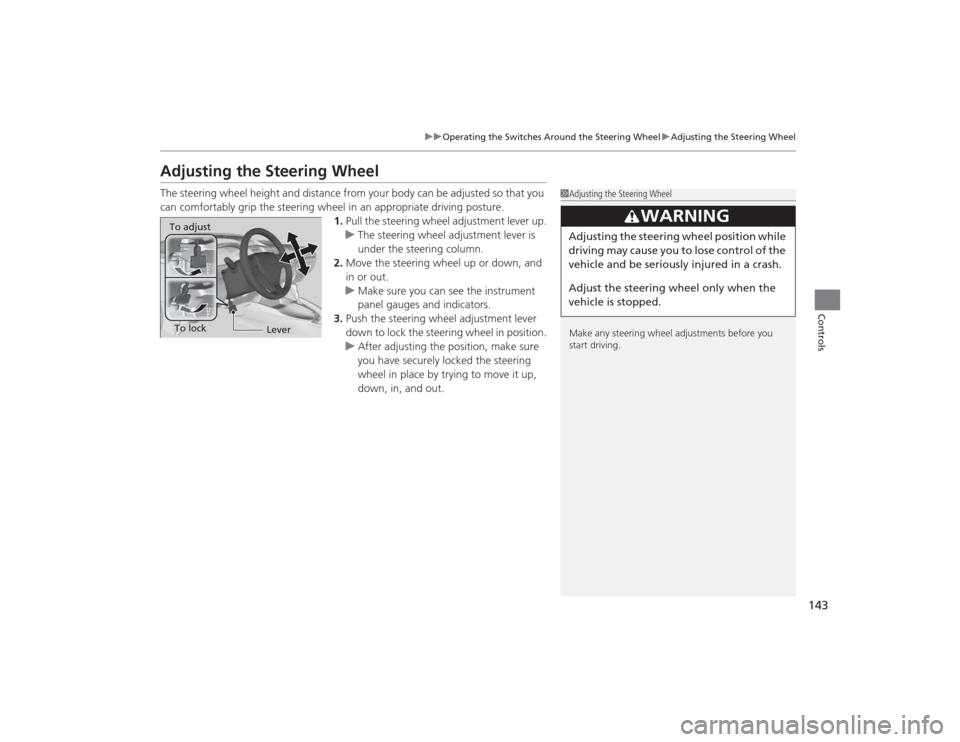
Adjusting the Steering WheelThe steering wheel height and distance from your body can be adjusted so that you
can comfortably grip the steering wheel in an appropriate driving posture.
1.Pull the steering wheel adjustment lever up.
u The steering wheel adjustment lever is
under the steering column.
2. Move the steering wheel up or down, and
in or out.
u Make sure you can see the instrument
panel gauges and indicators.
3. Push the steering wheel adjustment lever
down to lock the steering wheel in position.
u After adjusting the position, make sure
you have securely locked the steering
wheel in place by trying to move it up,
down, in, and out.
1Adjusting the Steering Wheel
Make any steering wheel adjustments before you
start driving.
3
WARNING
Adjusting the steering wheel po sition while
driving may cause you to lose control of the
vehicle and be seriously injured in a crash.
Adjust the steering wheel only when the
vehicle is stopped.
To adjustTo lock
Lever
Page 148 of 469
Continued
147
uuAdjusting the Seats uAdjusting the Seat Positions
Controls
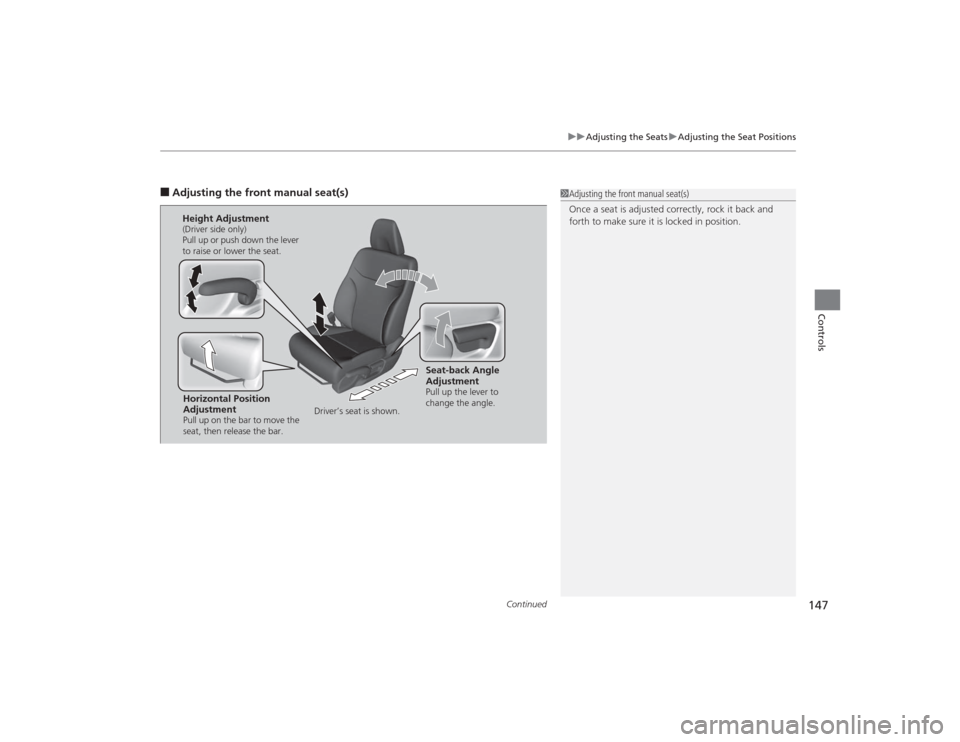
■Adjusting the front manual seat(s)
1Adjusting the front manual seat(s)
Once a seat is adjusted correctly, rock it back and
forth to make sure it is locked in position.
Horizontal Position
AdjustmentPull up on the bar to move the
seat, then release the bar.Height Adjustment(Driver side only)
Pull up or push down the lever
to raise or lower the seat.
Seat-back Angle
AdjustmentPull up the lever to
change the angle.
Driver’s seat is shown.
Page 151 of 469
uuAdjusting the Seats uAdjusting the Seat Positions
150Controls
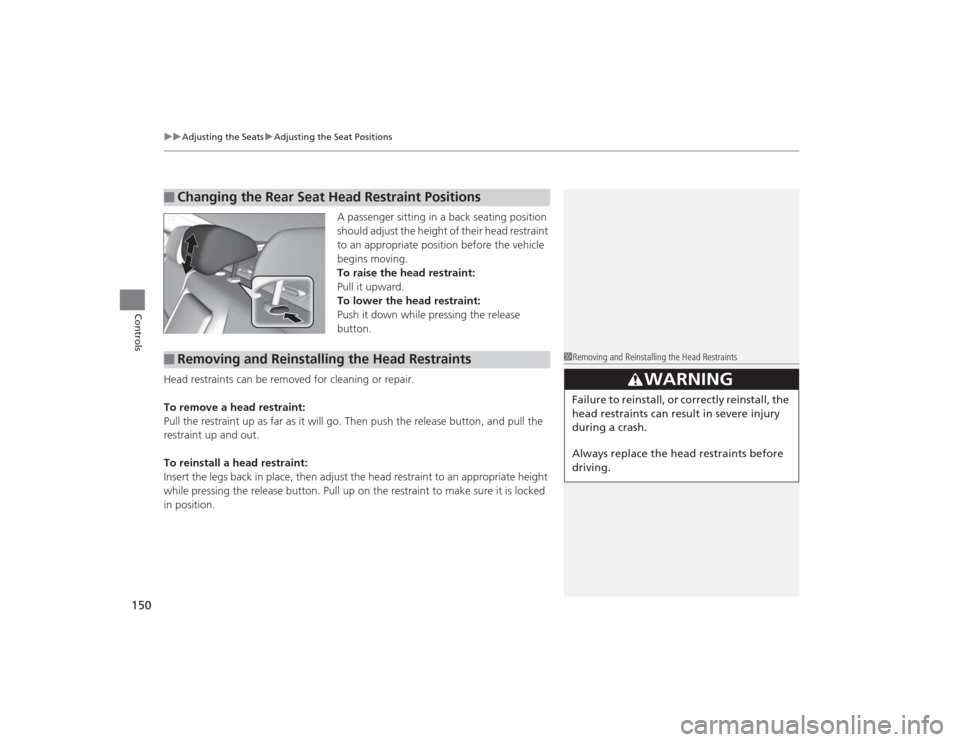
A passenger sitting in a back seating position
should adjust the height of their head restraint
to an appropriate position before the vehicle
begins moving.
To raise the head restraint:
Pull it upward.
To lower the head restraint:
Push it down while pressing the release
button.
Head restraints can be removed for cleaning or repair.
To remove a head restraint:
Pull the restraint up as far as it will go. Then push the release button, and pull the
restraint up and out.
To reinstall a head restraint:
Insert the legs back in place, then adjust the head restraint to an appropriate height
while pressing the release button. Pull up on the restraint to make sure it is locked
in position.
■
Changing the Rear Seat Head Restraint Positions
■
Removing and Reinstalling the Head Restraints
1 Removing and Reinstalling the Head Restraints
3
WARNING
Failure to reinstall, or correctly reinstall, the
head restraints can result in severe injury
during a crash.
Always replace the head restraints before
driving.
Page 153 of 469

152
uuAdjusting the Seats uRear Seats
Controls
Rear Seats
1. Remove the center shoulder belt from the
guide.
2. Pull the release lever in the trunk to release
the lock.
3. Fold the seat-back down.
If the rear head restraints get caught on the
front seat-backs, remove the head restraints.2 Removing and Reinstalling the Head
Restraints P. 150
■
Folding Down the Rear Seats
1Folding Down the Rear Seats
The rear seat-back(s
*) can be folded down to
accommodate bulkier items in the trunk.
Never drive with the seat-back folded down and the
trunk lid open. 2 Exhaust Gas Hazard P. 64
To lock a seat-back upright, push it backwards until it
locks.
When returning the seat-back to its original position,
push it firmly back. Also, make sure all rear shoulder
belts are positioned in front of the seat-back, and the
center shoulder belt is re-positioned in the guide.
Make sure that the folded seat-back does not press
against the front passenger seat, as this can cause the
weight sensors in the front passenger seat to work
improperly. 2 Passenger Airbag Off Indicator P. 50
Make sure all items in the trunk or items
extending through the opening into the rear
seats are properly secured. Loose items can fly
forward if you have to brake hard.
The front seat(s) must be far enough forward so they
do not interfere with the rear seats as they fold
down.
Guide
Center
Shoulder
BeltRelease
Lever
*
Release Lever* Not available on all models
Page 155 of 469
154Controls
Interior Lights/Interior Convenience ItemsInterior Lights
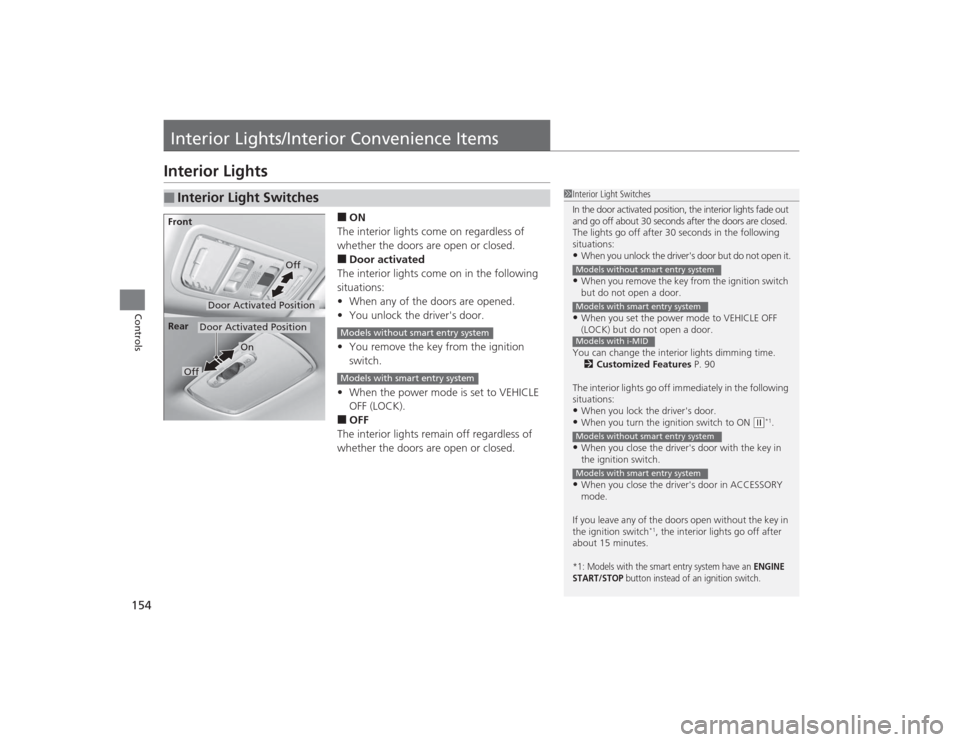
■ON
The interior lights come on regardless of
whether the doors are open or closed.■Door activated
The interior lights come on in the following
situations:
• When any of the doors are opened.
• You unlock the driver's door.
• You remove the key from the ignition
switch.
• When the power mode is set to VEHICLE
OFF (LOCK).■OFF
The interior lights remain off regardless of
whether the doors are open or closed.
■
Interior Light Switches
1 Interior Light Switches
In the door activated position, the interior lights fade out
and go off about 30 seconds after the doors are closed.
The lights go off after 30 seconds in the following
situations:•When you unlock the driver's door but do not open it.•When you remove the key from the ignition switch
but do not open a door.•When you set the power mode to VEHICLE OFF
(LOCK) but do not open a door.
You can change the interior lights dimming time. 2 Customized Features P. 90
The interior lights go off immediately in the following
situations:•When you lock the driver's door.•When you turn the ignition switch to ON
( w*1.
•When you close the driver's door with the key in
the ignition switch.•When you close the driver's door in ACCESSORY
mode.
If you leave any of the doors open without the key in
the ignition switch
*1, the interior lights go off after
about 15 minutes.
*1: Models with the smart entry system have an
ENGINE
START/STOP
button instead of an ignition switch.
Models without smart entry systemModels with smart entry systemModels with i-MIDModels without smart entry systemModels with smart entry system
Door Activated Position
Off
Front
Door Activated Position
On
Off
Rear
Models without smart entry systemModels with smart entry system
Page 200 of 469
199
uuAudio System Basic Operation uAudio/Information Screen
Continued
Features
■Phone
Shows the HFL information.2 Bluetooth ® HandsFreeLink ®
* P. 277
■Info
Shows the Trip Computer , Clock/Wallpaper , Voice Info , or System/Device
Information information.■Audio
Shows the current audio information.■Settings
Enters the customizing menu screen.2 Customized Features
* P. 233
■HondaLink Apps
Connects with your smartphone
*1 to play personalized music information, and social
media streams.
2 Smartphone Apps P. 222
*1: Available on specific phones only. Check handsfreelink.honda.com for compatible phones
and hondalink.com for feature details.* Not available on all models
Page 201 of 469
uuAudio System Basic Operation uAudio/Information Screen
200Features
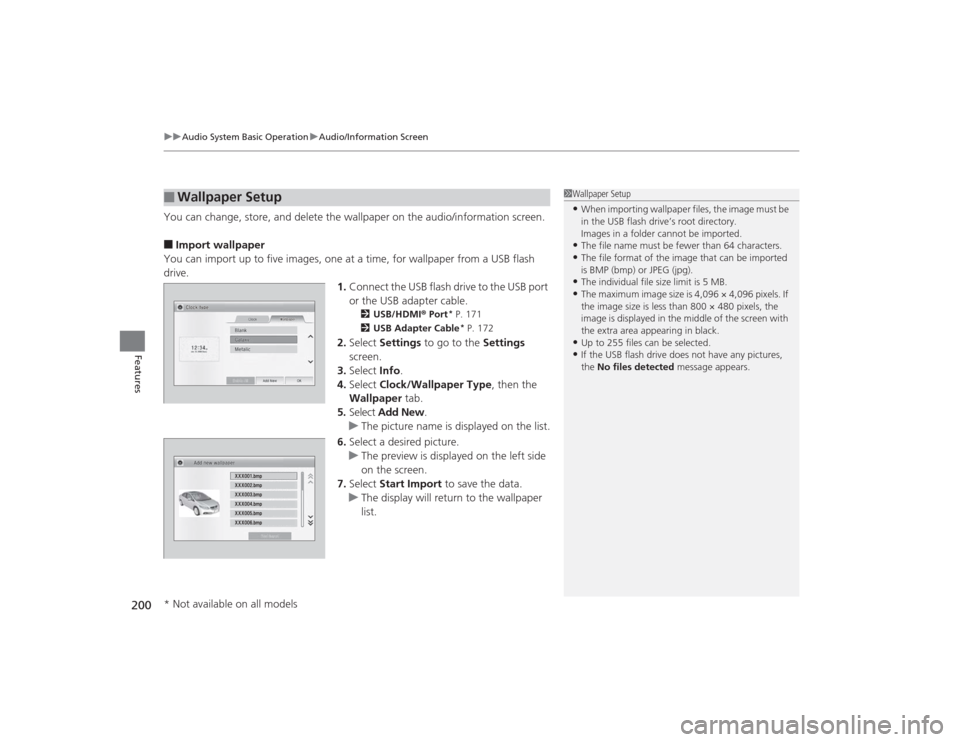
You can change, store, and delete the wallpaper on the audio/information screen.■Import wallpaper
You can import up to five images, one at a time, for wallpaper from a USB flash
drive. 1.Connect the USB flash drive to the USB port
or the USB adapter cable.
2 USB/HDMI® Port
* P. 171
2 USB Adapter Cable* P. 172
2.Select Settings to go to the Settings
screen.
3. Select Info.
4. Select Clock/Wallpaper Type , then the
Wallpaper tab.
5. Select Add New .
u The picture name is displayed on the list.
6. Select a desired picture.
u The preview is displayed on the left side
on the screen.
7. Select Start Import to save the data.
u The display will return to the wallpaper
list.
■
Wallpaper Setup
1Wallpaper Setup•When importing wallpaper files, the image must be
in the USB flash drive’s root directory.
Images in a folder cannot be imported.•The file name must be fewer than 64 characters.•The file format of the image that can be imported
is BMP (bmp) or JPEG (jpg).•The individual file size limit is 5 MB.•The maximum image size is 4,096 × 4,096 pixels. If
the image size is less than 800 × 480 pixels, the
image is displayed in the middle of the screen with
the extra area appearing in black.•Up to 255 files can be selected.•If the USB flash drive does not have any pictures,
the No files detected message appears.
* Not available on all models
Page 202 of 469
201
uuAudio System Basic Operation uAudio/Information Screen
Features
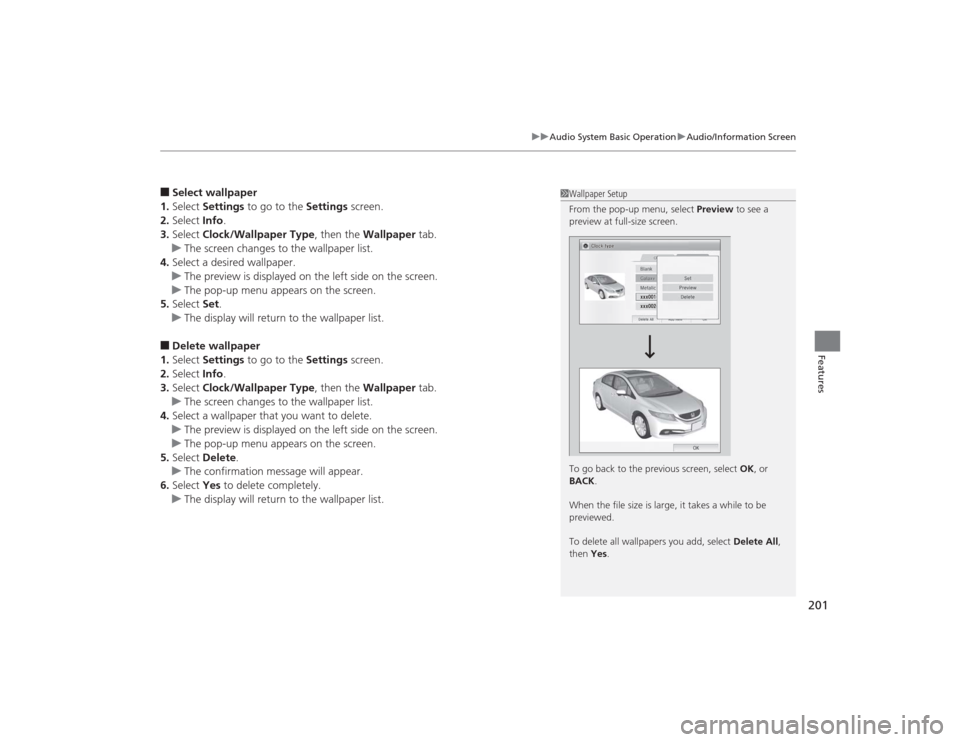
■Select wallpaper
1. Select Settings to go to the Settings screen.
2. Select Info.
3. Select Clock/Wallpaper Type , then the Wallpaper tab.
u The screen changes to the wallpaper list.
4. Select a desired wallpaper.
u The preview is displayed on the left side on the screen.
u The pop-up menu appears on the screen.
5. Select Set.
u The display will return to the wallpaper list.■Delete wallpaper
1. Select Settings to go to the Settings screen.
2. Select Info.
3. Select Clock/Wallpaper Type , then the Wallpaper tab.
u The screen changes to the wallpaper list.
4. Select a wallpaper that you want to delete.
u The preview is displayed on the left side on the screen.
u The pop-up menu appears on the screen.
5. Select Delete .
u The confirmation message will appear.
6. Select Yes to delete completely.
u The display will return to the wallpaper list.
1Wallpaper Setup
From the pop-up menu, select Preview to see a
preview at full-size screen.
To go back to the previous screen, select OK, or
BACK .
When the file size is large, it takes a while to be
previewed.
To delete all wallpapers you add, select Delete All,
then Yes .