2014 HONDA CIVIC buttons
[x] Cancel search: buttonsPage 171 of 469
170Features
Audio SystemAbout Your Audio SystemOn models with navigation system, see the Navigation System Manual for operation
of the audio system, Bluetooth®HandsFreeLink ®, and voice commands for these
features.
The audio system features AM/FM radio. It can also play CDs and WMA/MP3 files.
You can operate the audio system from the buttons and switches on the panel.
The audio system features AM/FM radio. It can also play audio CDs, WMA/MP3/AAC
files, iPod, iPhone, USB flash drives, and Bluetooth ® devices.
You can operate the audio system from the buttons and switches on the panel, or
the icons on the touchscreen interface
*.
1 About Your Audio System
Video CDs, DVDs, and 3-inch (8-cm) mini CDs are not
supported.
iPod, iPhone and iTunes are trademarks of Apple Inc.
State or local laws may limit the circumstances in
which you can launch or control your attached audio
device.
Models with information displayModels with i-MID
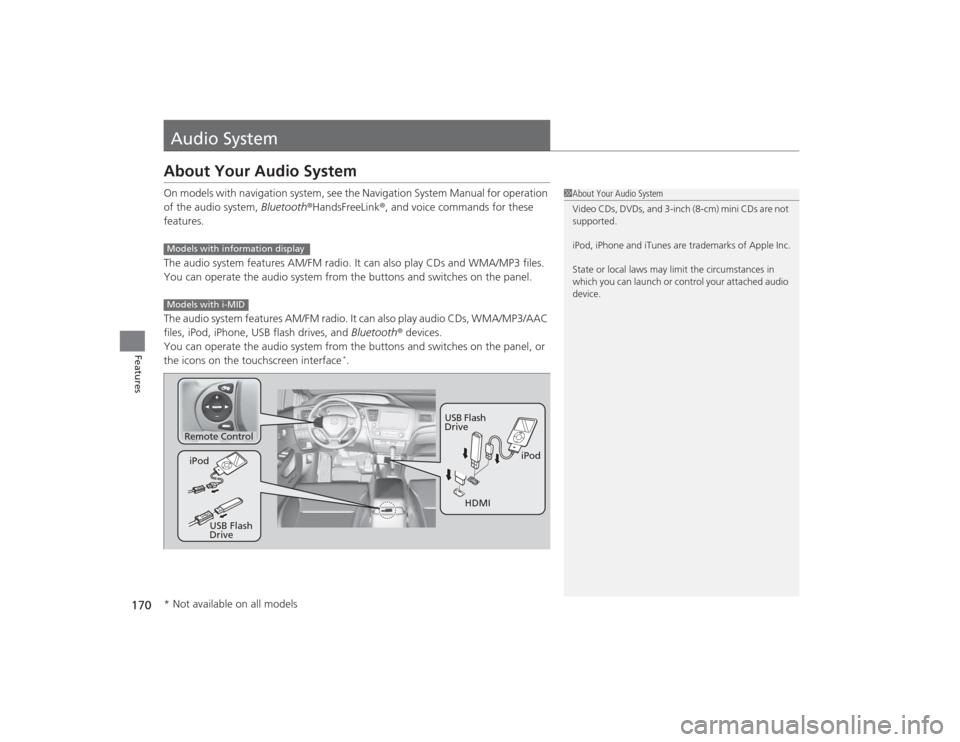
Remote Control
iPod
USB Flash
Drive
iPod
USB Flash
Drive HDMI
* Not available on all models
Page 173 of 469
172
uuAudio System uUSB Adapter Cable
*
Features
USB Adapter Cable
*
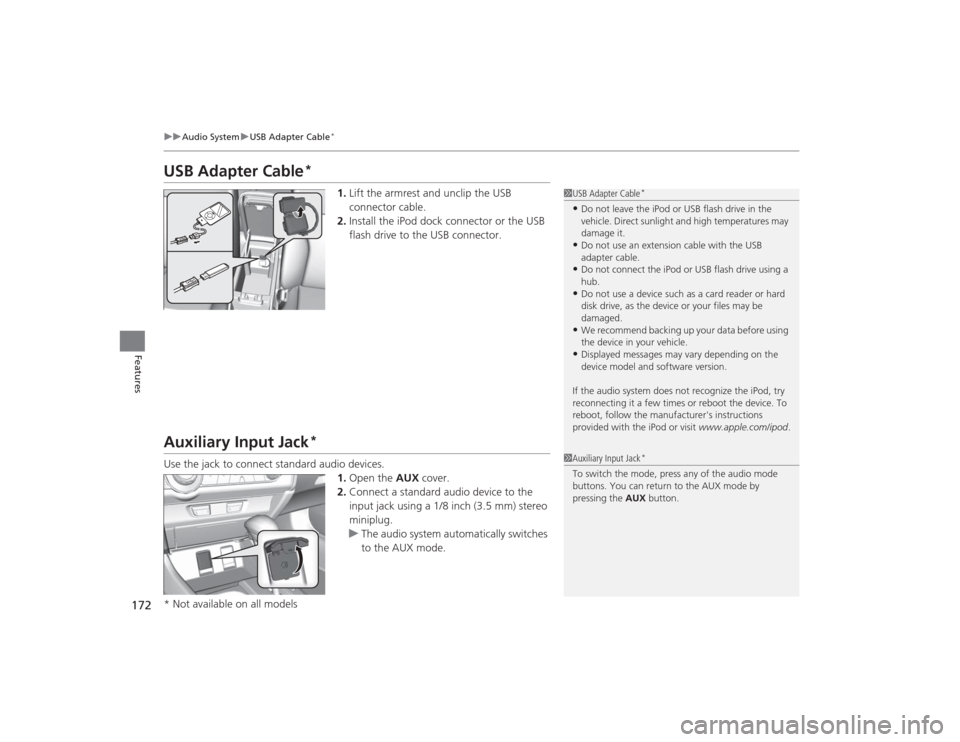
1. Lift the armrest and unclip the USB
connector cable.
2. Install the iPod dock connector or the USB
flash drive to the USB connector.
Auxiliary Input Jack
*
Use the jack to connect standard audio devices.
1.Open the AUX cover.
2. Connect a standard audio device to the
input jack using a 1/8 inch (3.5 mm) stereo
miniplug.
u The audio system automatically switches
to the AUX mode.
1USB Adapter Cable
*
•Do not leave the iPod or USB flash drive in the
vehicle. Direct sunlight and high temperatures may
damage it.•Do not use an extension cable with the USB
adapter cable.•Do not connect the iPod or USB flash drive using a
hub.•Do not use a device such as a card reader or hard
disk drive, as the device or your files may be
damaged.•We recommend backing up your data before using
the device in your vehicle.•Displayed messages may vary depending on the
device model and software version.
If the audio system does not recognize the iPod, try
reconnecting it a few times or reboot the device. To
reboot, follow the manufacturer's instructions
provided with the iPod or visit www.apple.com/ipod.
1Auxiliary Input Jack
*
To switch the mode, press any of the audio mode
buttons. You can return to the AUX mode by
pressing the AUX button.
* Not available on all models
Page 174 of 469
173
uuAudio System uAudio System Theft Protection
*
Features
Audio System Theft Protection
*
The audio system is disabled when it is disconnected from the power source, such as
when the battery is disconnected or goes dead. In certain conditions, the system
may display ENTER CODE
*1/Enter Code
*2. If this occurs, reactivate the audio
system.
■Reactivating the audio system
1. Turn the ignition switch to ON
(w
*3.
2. Turn on the audio system.
3. Press and hold the audio system power button for more than two seconds.
u The audio system is reactivated when the audio control unit establishes a
connection with the vehicle control unit. If the control unit fails to recognize
the audio unit, you must go to a dealer and have the audio unit checked.
■Entering the audio security code
ENTER CODE appears on the display when the power is reconnected.
1. Turn on the audio system.
2. Enter the audio security code using the preset buttons. If you enter an incorrect
digit, continue to the last digit, then try again. If you do not enter the code
correctly after 10 tries, leave the system for one hour before trying again, or visit
a dealer to have the system reset.*1: Models with one display
*2: Models with the display audio system
*3: Models with the smart entry system have an ENGINE START/STOP button instead of an
ignition switch.Models with i-MIDModels with information display* Not available on all models
Page 175 of 469
174
uuAudio System uAudio Remote Controls
*
Features
Audio Remote Controls
*
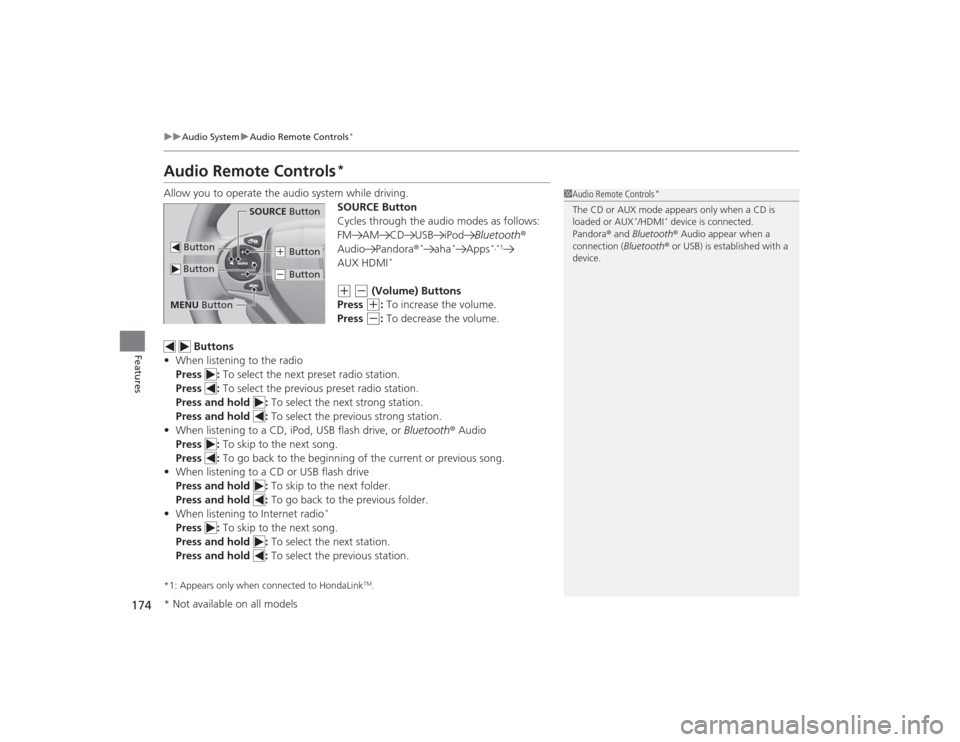
Allow you to operate the audio system while driving.
SOURCE Button
Cycles through the audio modes as follows:
FM AM CD USB iPodBluetooth®
Audio Pandora ®
*
aha
*
Apps
*,*1
AUX HDMI
*
(+
(-
(Volume) Buttons
Press (+
: To increase the volume.
Press
(-
: To decrease the volume.
Buttons
• When listening to the radio
Press : To select the next preset radio station.
Press : To select the previous preset radio station.
Press and hold : To select the next strong station.
Press and hold : To select the previous strong station.
• When listening to a CD, iPod, USB flash drive, or Bluetooth® Audio
Press : To skip to the next song.
Press : To go back to the beginning of the current or previous song.
• When listening to a CD or USB flash drive
Press and hold : To skip to the next folder.
Press and hold : To go back to the previous folder.
• When listening to Internet radio
*
Press : To skip to the next song.
Press and hold : To select the next station.
Press and hold : To select the previous station.*1: Appears only when connected to HondaLink
TM.
1Audio Remote Controls
*
The CD or AUX mode appears only when a CD is
loaded or AUX
*/HDMI
* device is connected.
Pandora ® and Bluetooth ® Audio appear when a
connection (Bluetooth ® or USB) is established with a
device.
Button
SOURCE Button
Button
(+ Button(- Button
MENU Button* Not available on all models
Page 178 of 469
177
uuAudio System Basic Operation uPlaying AM/FM Radio
Features
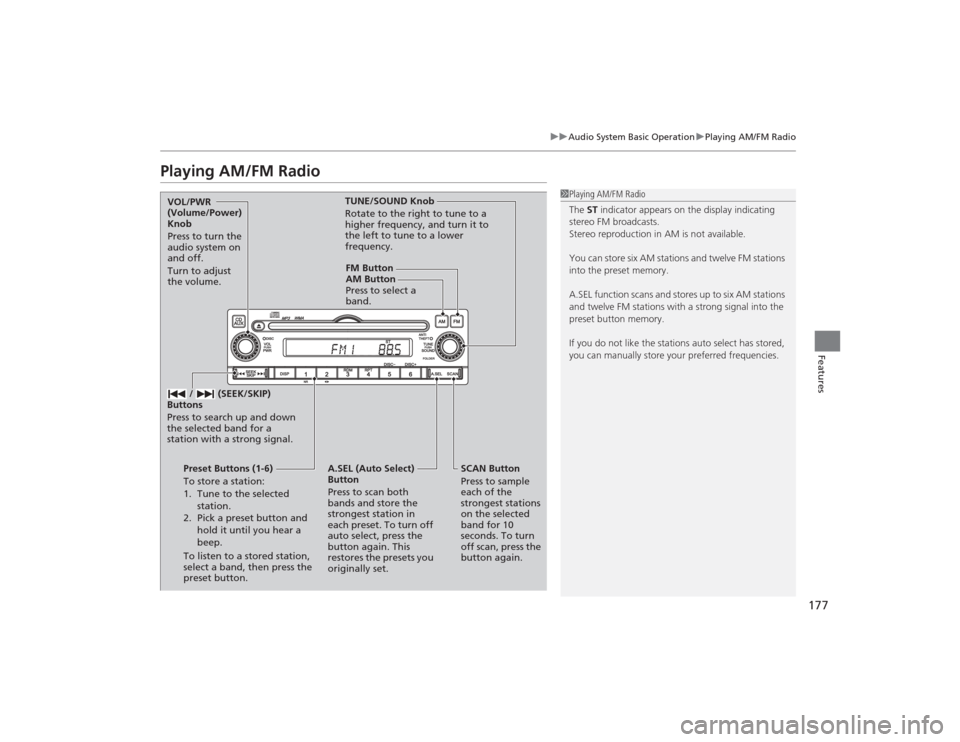
Playing AM/FM Radio
1Playing AM/FM Radio
The ST indicator appears on the display indicating
stereo FM broadcasts.
Stereo reproduction in AM is not available.
You can store six AM stations and twelve FM stations
into the preset memory.
A.SEL function scans and stores up to six AM stations
and twelve FM stations with a strong signal into the
preset button memory.
If you do not like the stations auto select has stored,
you can manually store your preferred frequencies.
FM Button
SCAN Button
Press to sample
each of the
strongest stations
on the selected
band for 10
seconds. To turn
off scan, press the
button again.
VOL/PWR
(Volume/Power)
Knob
Press to turn the
audio system on
and off.
Turn to adjust
the volume.
Preset Buttons (1-6)
To store a station:
1. Tune to the selected station.
2. Pick a preset button and hold it until you hear a
beep.
To listen to a stored station,
select a band, then press the
preset button. / (SEEK/SKIP)
Buttons
Press to search up and down
the selected band for a
station with a strong signal.
A.SEL (Auto Select)
Button
Press to scan both
bands and store the
strongest station in
each preset. To turn off
auto select, press the
button again. This
restores the presets you
originally set. TUNE/SOUND Knob
Rotate to the right to tune to a
higher frequency, and turn it to
the left to tune to a lower
frequency.
AM Button
Press to select a
band.
Page 179 of 469
178
uuAudio System Basic Operation uPlaying a CD
Features
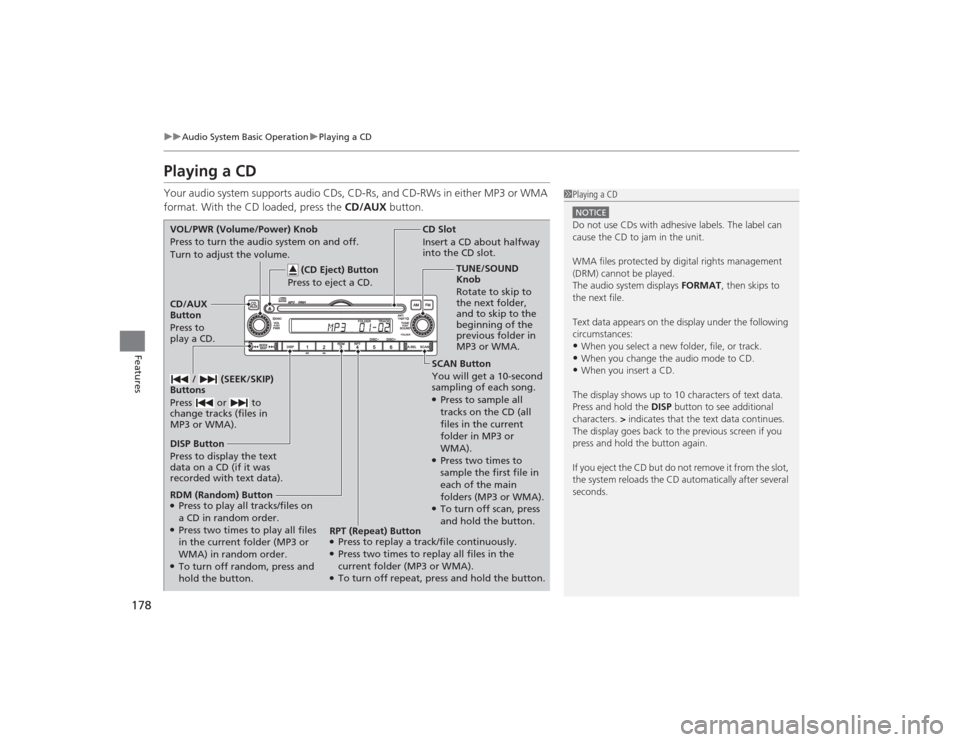
Playing a CDYour audio system supports audio CDs, CD-Rs, and CD-RWs in either MP3 or WMA
format. With the CD loaded, press the CD/AUX button.
1Playing a CDNOTICEDo not use CDs with adhesive labels. The label can
cause the CD to jam in the unit.
WMA files protected by digital rights management
(DRM) cannot be played.
The audio system displays FORMAT, then skips to
the next file.
Text data appears on the display under the following
circumstances:•When you select a new folder, file, or track.•When you change the audio mode to CD.•When you insert a CD.
The display shows up to 10 characters of text data.
Press and hold the DISP button to see additional
characters. > indicates that the text data continues.
The display goes back to the previous screen if you
press and hold the button again.
If you eject the CD but do not remove it from the slot,
the system reloads the CD automatically after several
seconds.
SCAN Button
You will get a 10-second
sampling of each song.●Press to sample all
tracks on the CD (all
files in the current
folder in MP3 or
WMA).●Press two times to
sample the first file in
each of the main
folders (MP3 or WMA).●To turn off scan, press
and hold the button.
CD Slot
Insert a CD about halfway
into the CD slot.
DISP Button
Press to display the text
data on a CD (if it was
recorded with text data). CD/AUX
Button
Press to
play a CD. (CD Eject) Button
Press to eject a CD.
VOL/PWR (Volume/Power) Knob
Press to turn the audio system on and off.
Turn to adjust the volume.
/ (SEEK/SKIP)
Buttons
Press or to
change tracks (files in
MP3 or WMA).RDM (Random) Button●Press to play all tracks/files on
a CD in random order.●Press two times to play all files
in the current folder (MP3 or
WMA) in random order.●To turn off random, press and
hold the button. TUNE/SOUND
Knob
Rotate to skip to
the next folder,
and to skip to the
beginning of the
previous folder in
MP3 or WMA.
RPT (Repeat) Button
●Press to replay a track/file continuously.●Press two times to replay all files in the
current folder (MP3 or WMA).●To turn off repeat, press and hold the button.
Page 182 of 469
181
uuAudio System Basic Operation uPlaying AM/FM Radio
Continued
Features
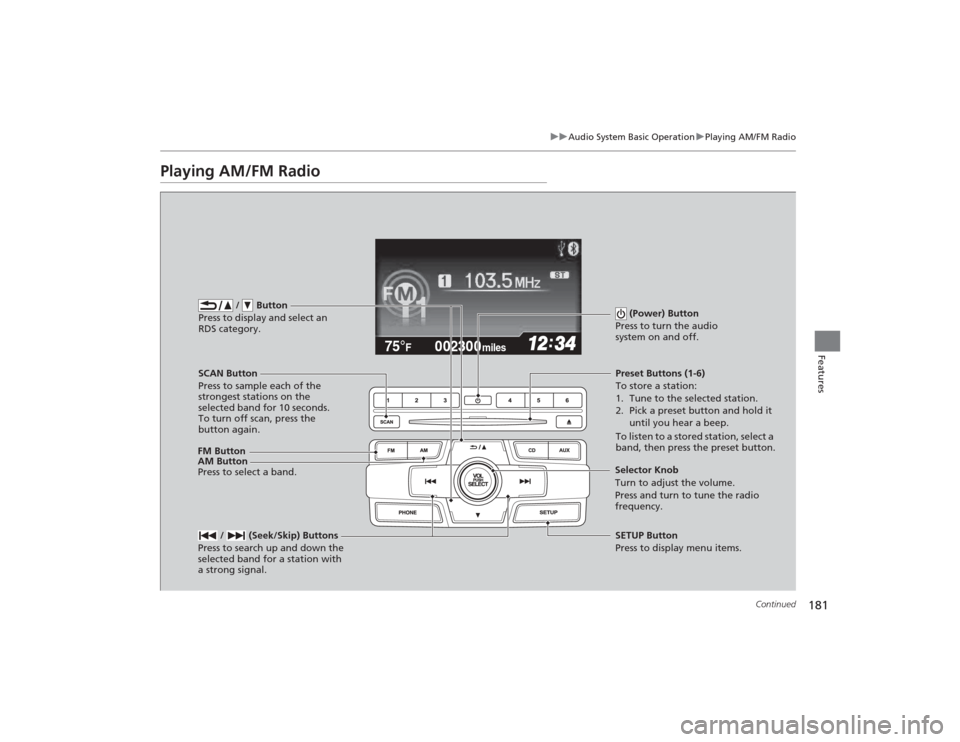
Playing AM/FM Radio
002300
75°
F miles
FM Button / Button
Press to display and select an
RDS category.SCAN Button
Press to sample each of the
strongest stations on the
selected band for 10 seconds.
To turn off scan, press the
button again. (Power) Button
Press to turn the audio
system on and off.
Preset Buttons (1-6)
To store a station:
1. Tune to the selected station.
2. Pick a preset button and hold it until you hear a beep.
To listen to a stored station, select a
band, then press the preset button.
/ (Seek/Skip) Buttons
Press to search up and down the
selected band for a station with
a strong signal.SETUP Button
Press to display menu items.
Selector Knob
Turn to adjust the volume.
Press and turn to tune the radio
frequency.
AM Button
Press to select a band.
Page 185 of 469
184
uuAudio System Basic Operation uPlaying a CD
Features
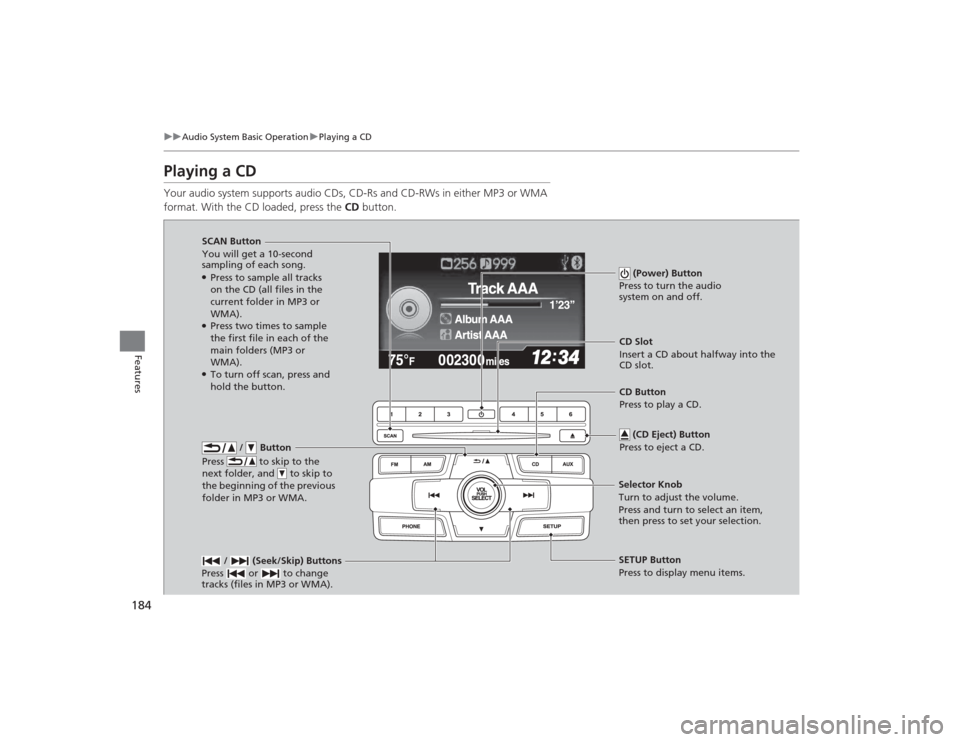
Playing a CDYour audio system supports audio CDs, CD-Rs and CD-RWs in either MP3 or WMA
format. With the CD loaded, press the CD button.
/ Button
Press to skip to the
next folder, and to skip to
the beginning of the previous
folder in MP3 or WMA.
SCAN Button
You will get a 10-second
sampling of each song.●Press to sample all tracks
on the CD (all files in the
current folder in MP3 or
WMA).●Press two times to sample
the first file in each of the
main folders (MP3 or
WMA).●To turn off scan, press and
hold the button. (Power) Button
Press to turn the audio
system on and off.
CD Slot
Insert a CD about halfway into the
CD slot.
/ (Seek/Skip) Buttons
Press or to change
tracks (files in MP3 or WMA).SETUP Button
Press to display menu items.
Selector Knob
Turn to adjust the volume.
Press and turn to select an item,
then press to set your selection. CD Button
Press to play a CD.
(CD Eject) Button
Press to eject a CD.