2014 HONDA CIVIC audio
[x] Cancel search: audioPage 278 of 469
277
Continued
Features
Bluetooth® HandsFreeLink ®
*
For models with the navigation system, see the Navigation System Manual for how
to operate the Bluetooth ® HandsFreeLink®.
Bluetooth ® HandsFreeLink ® (HFL) allows you to place and receive phone calls using
your vehicle’s audio system, without handling your cell phone.Using HFL■
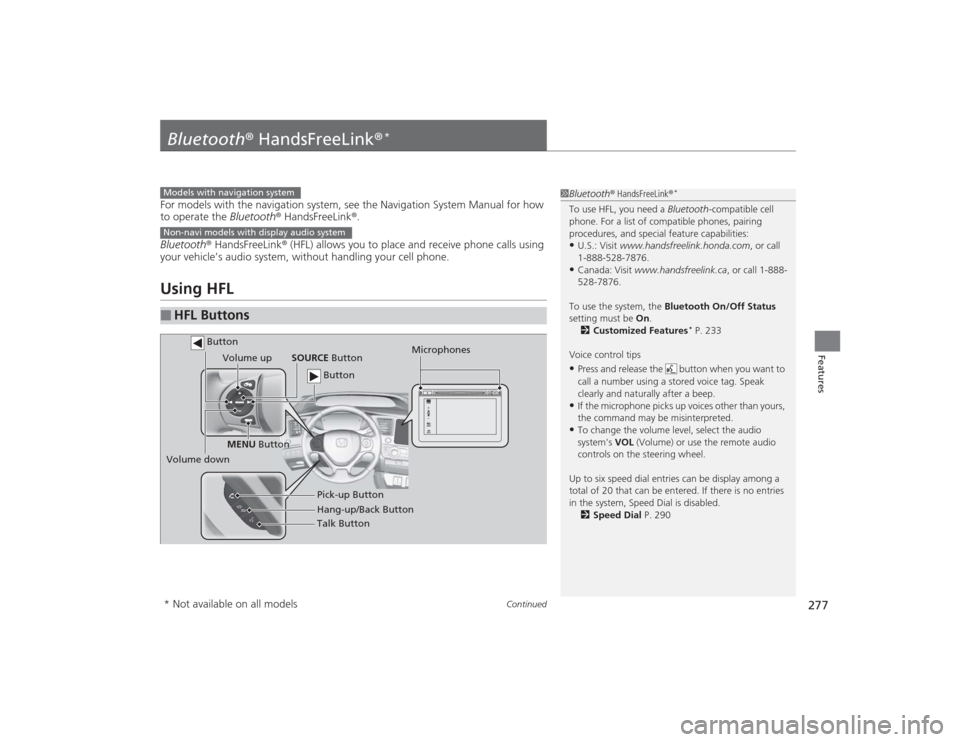
HFL Buttons
1 Bluetooth ® HandsFreeLink ®
*
To use HFL, you need a Bluetooth-compatible cell
phone. For a list of compatible phones, pairing
procedures, and special feature capabilities:•U.S.: Visit www.handsfreelink.honda.com , or call
1-888-528-7876.•Canada: Visit www.handsfreelink.ca , or call 1-888-
528-7876.
To use the system, the Bluetooth On/Off Status
setting must be On.
2 Customized Features
* P. 233
Voice control tips
•Press and release the button when you want to
call a number using a stored voice tag. Speak
clearly and naturally after a beep.•If the microphone picks up voices other than yours,
the command may be misinterpreted.•To change the volume level, select the audio
system's VOL (Volume) or use the remote audio
controls on the steering wheel.
Up to six speed dial entries can be display among a
total of 20 that can be entered. If there is no entries
in the system, Speed Dial is disabled. 2 Speed Dial P. 290
Models with navigation systemNon-navi models with display audio system
Talk Button
Volume up
Microphones
Hang-up/Back Button Pick-up Button
Volume down SOURCE
Button
MENU Button
Button Button
* Not available on all models
Page 279 of 469
uuBluetooth ® HandsFreeLink ®
*uUsing HFL
278Features
(Pick-up) button: Press to go directly to the Phone screen, or to answer an
incoming call.
(Hang-up/back) button: Press to end a call, go back to the previous
command, or cancel a command.
(Talk) button: Press to call a number with a stored voice tag.
MENU button: Press and hold to display Speed Dial, Call History , or Redial on
the Phone screen.
button: Press to select an item displayed on the Phone screen.
SOURCE button: Press to call a number listed in the selected item on the Phone
screen.
To go to the Phone menu screen:
1. Select Phone to switch the display to the Phone screen.
2. Select MENU .
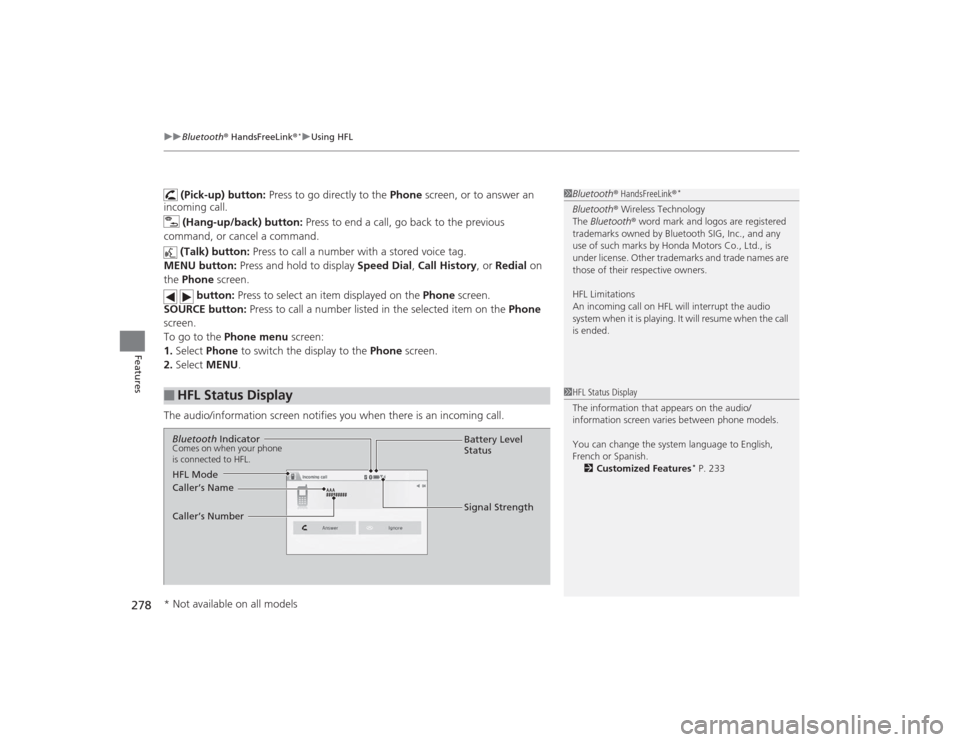
The audio/information screen notifies you when there is an incoming call.
■
HFL Status Display
1 Bluetooth ® HandsFreeLink ®
*
Bluetooth® Wireless Technology
The Bluetooth ® word mark and logos are registered
trademarks owned by Bluetooth SIG, Inc., and any
use of such marks by Honda Motors Co., Ltd., is
under license. Other trademarks and trade names are
those of their respective owners.
HFL Limitations
An incoming call on HFL will interrupt the audio
system when it is playing. It will resume when the call
is ended.1 HFL Status Display
The information that appears on the audio/
information screen varies between phone models.
You can change the system language to English,
French or Spanish.
2 Customized Features
* P. 233
Bluetooth IndicatorComes on when your phone
is connected to HFL.
Signal Strength
HFL Mode Battery Level
Status
Caller’s Name
Caller’s Number
* Not available on all models
Page 284 of 469
Continued
283
uuBluetooth ® HandsFreeLink ®
*uHFL Menus
Features
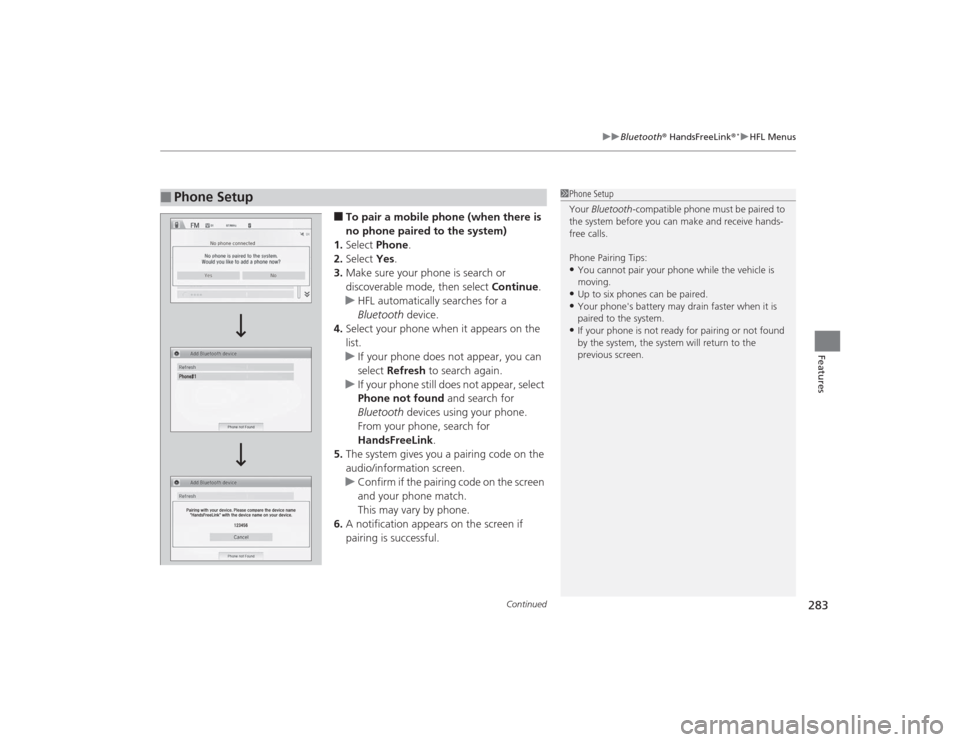
■To pair a mobile phone (when there is
no phone paired to the system)
1. Select Phone .
2. Select Yes.
3. Make sure your phone is search or
discoverable mode, then select Continue.
u HFL automatically searches for a
Bluetooth device.
4. Select your phone when it appears on the
list.
u If your phone does not appear, you can
select Refresh to search again.
u If your phone still does not appear, select
Phone not found and search for
Bluetooth devices using your phone.
From your phone, search for
HandsFreeLink .
5. The system gives you a pairing code on the
audio/information screen.
u Confirm if the pairing code on the screen
and your phone match.
This may vary by phone.
6. A notification appears on the screen if
pairing is successful.
■
Phone Setup
1Phone Setup
Your Bluetooth -compatible phone must be paired to
the system before you can make and receive hands-
free calls.
Phone Pairing Tips:•You cannot pair your phone while the vehicle is
moving.•Up to six phones can be paired.•Your phone's battery may drain faster when it is
paired to the system.•If your phone is not ready for pairing or not found
by the system, the system will return to the
previous screen.
Page 293 of 469
uuBluetooth ® HandsFreeLink ®
*uHFL Menus
292Features
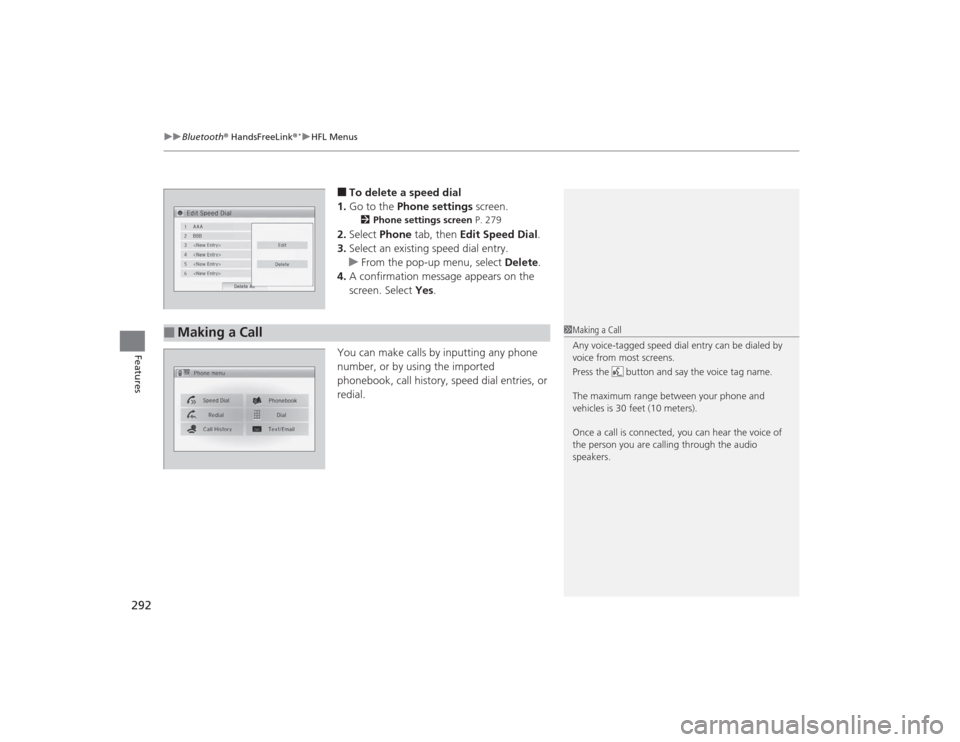
■To delete a speed dial
1. Go to the Phone settings screen.2Phone settings screen P. 279
2.Select Phone tab, then Edit Speed Dial .
3. Select an existing speed dial entry.
u From the pop-up menu, select Delete.
4. A confirmation message appears on the
screen. Select Yes.
You can make calls by inputting any phone
number, or by using the imported
phonebook, call history, speed dial entries, or
redial.
■
Making a Call
1 Making a Call
Any voice-tagged speed dial entry can be dialed by
voice from most screens.
Press the button and say the voice tag name.
The maximum range between your phone and
vehicles is 30 feet (10 meters).
Once a call is connected, you can hear the voice of
the person you are calling through the audio
speakers.
Page 332 of 469
331
uuWhen Driving uLaneWatch
TM*
Continued
Driving
LaneWatch
TM
*
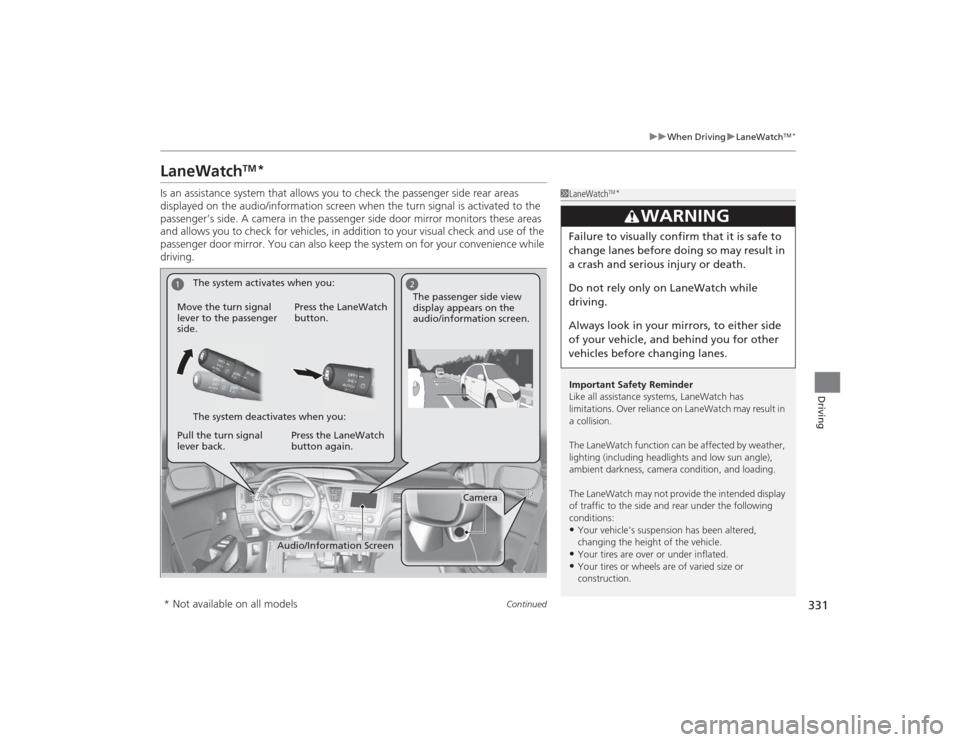
Is an assistance system that allows you to check the passenger side rear areas
displayed on the audio/information screen when the turn signal is activated to the
passenger’s side. A camera in the passenger side door mirror monitors these areas
and allows you to check for vehicles, in addition to your visual check and use of the
passenger door mirror. You can also keep the system on for your convenience while
driving.
1LaneWatch
TM*
Important Safety Reminder
Like all assistance systems, LaneWatch has
limitations. Over reliance on LaneWatch may result in
a collision.
The LaneWatch function can be af fected by weather,
lighting (including headlights and low sun angle),
ambient darkness, camera condition, and loading.
The LaneWatch may not provide the intended display
of traffic to the side and rear under the following
conditions:•Your vehicle’s suspension has been altered,
changing the height of the vehicle.•Your tires are over or under inflated.•Your tires or wheels are of varied size or
construction.
3
WARNING
Failure to visually confirm that it is safe to
change lanes before doing so may result in
a crash and serious injury or death.
Do not rely only on LaneWatch while
driving.
Always look in your mirrors, to either side
of your vehicle, and behind you for other
vehicles before changing lanes.
1
2
Camera
Audio/Information Screen
Move the turn signal
lever to the passenger
side.
Press the LaneWatch
button.
Pull the turn signal
lever back. Press the LaneWatch
button again. The passenger side view
display appears on the
audio/information screen.
The system activates when you:
The system deactivates when you:
* Not available on all models
Page 333 of 469
uuWhen Driving uLaneWatch
TM*
332Driving
■Customizing the LaneWatch settings
You can customize the following items using the audio/information screen.
• Show with Turn Signal: Selects whether LaneWatch monitor comes on when
you operate the turn signal light lever.
• Display Time after Turn Signal Off : Changes the length of time the LaneWatch
display stays on after you pull the turn signal lever back.
• Reference Lines : Selects whether the reference lines appear on the LaneWatch
monitor.
• Next Maneuver Pop up
*: Selects whether a turn direction screen of the
navigation system interrupts the LaneWatch display.
• Display : Allows for display adjustments of items, such as brightness, and tint.
This setting is part of the Audio setup group.
2Customized Features
* P. 233
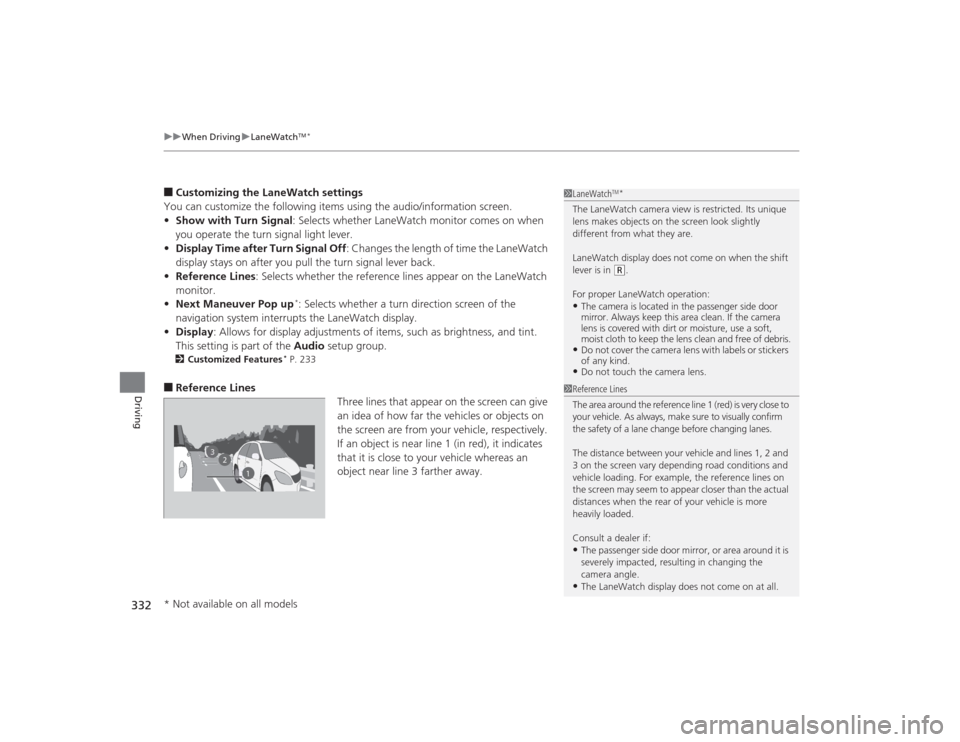
■Reference Lines
Three lines that appear on the screen can give
an idea of how far the vehicles or objects on
the screen are from your vehicle, respectively.
If an object is near line 1 (in red), it indicates
that it is close to your vehicle whereas an
object near line 3 farther away.
1LaneWatch
TM*
The LaneWatch camera view is restricted. Its unique
lens makes objects on the screen look slightly
different from what they are.
LaneWatch display does not come on when the shift
lever is in
(R.
For proper LaneWatch operation:
•The camera is located in the passenger side door
mirror. Always keep this area clean. If the camera
lens is covered with dirt or moisture, use a soft,
moist cloth to keep the lens clean and free of debris.•Do not cover the camera lens with labels or stickers
of any kind.•Do not touch the camera lens.
2
3
1
1 Reference Lines
The area around the reference line 1 (red) is very close to
your vehicle. As always, make sure to visually confirm
the safety of a lane change before changing lanes.
The distance between your vehicle and lines 1, 2 and
3 on the screen vary depending road conditions and
vehicle loading. For example, the reference lines on
the screen may seem to appear closer than the actual
distances when the rear of your vehicle is more
heavily loaded.
Consult a dealer if:•The passenger side door mirror, or area around it is
severely impacted, resulting in changing the
camera angle.•The LaneWatch display does not come on at all.
* Not available on all models
Page 343 of 469
342Driving
Rearview Camera
*
About Your Rearview CameraFor models with the navigation system, see the Navigation System Manual for the
rearview camera.
The i-MID can display your vehicle’s rear view.
The display automatically changes to a rear view when the shift lever is moved to (R
.
The audio/information screen can display your vehicle’s rear view. The display
automatically changes to the rear view when the shift lever is moved to
(R
.
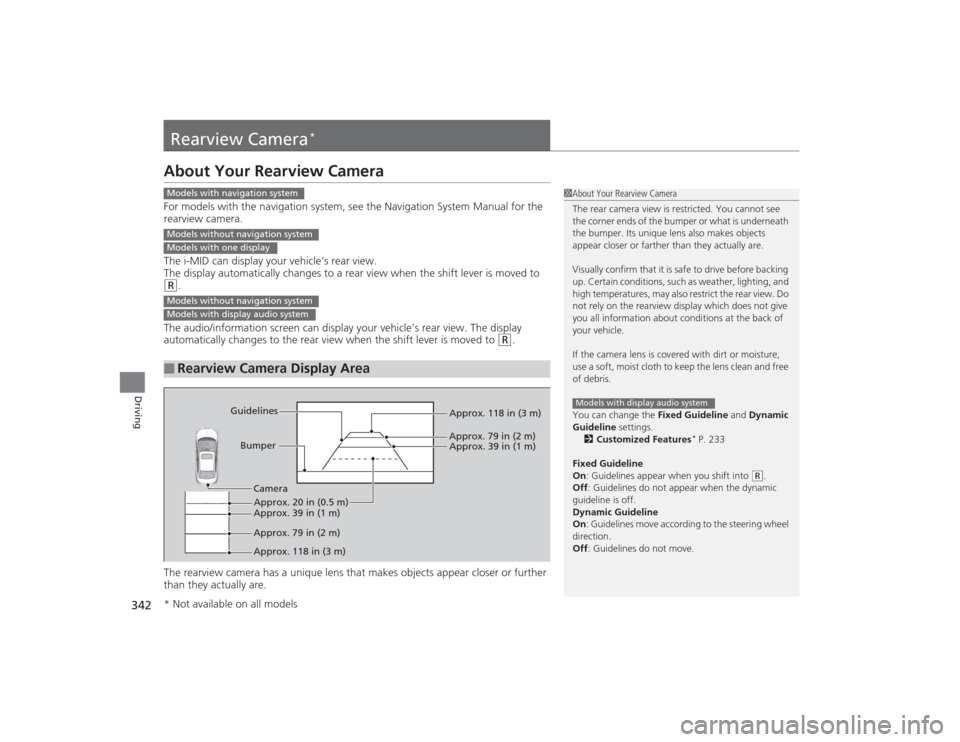
The rearview camera has a unique lens that makes objects appear closer or further
than they actually are.
■
Rearview Camera Display Area
1 About Your Rearview Camera
The rear camera view is restricted. You cannot see
the corner ends of the bumper or what is underneath
the bumper. Its unique lens also makes objects
appear closer or farther than they actually are.
Visually confirm that it is safe to drive before backing
up. Certain conditions, such as weather, lighting, and
high temperatures, may also restrict the rear view. Do
not rely on the rearview display which does not give
you all information about conditions at the back of
your vehicle.
If the camera lens is covered with dirt or moisture,
use a soft, moist cloth to keep the lens clean and free
of debris.
You can change the Fixed Guideline and Dynamic
Guideline settings.
2 Customized Features
* P. 233
Fixed Guideline
On : Guidelines appear when you shift into
(R.
Off : Guidelines do not appear when the dynamic
guideline is off.
Dynamic Guideline
On : Guidelines move according to the steering wheel
direction.
Off : Guidelines do not move.
Models with display audio system
Models with navigation systemModels without navigation systemModels with one displayModels without navigation systemModels with display audio system
Bumper
Guidelines
Approx. 118 in (3 m)
Approx. 79 in (2 m) Approx. 39 in (1 m)
Approx. 20 in (0.5 m)
Approx. 118 in (3 m) Approx. 79 in (2 m) Approx. 39 in (1 m)
Camera
* Not available on all models
Page 401 of 469
400Maintenance
BatteryChecking the Battery
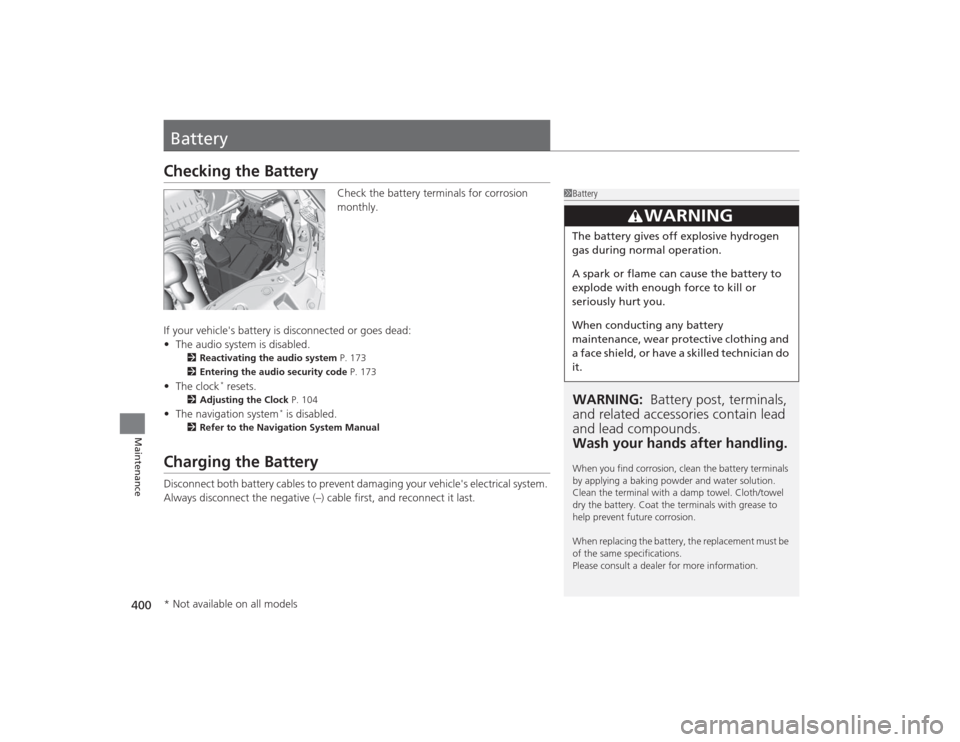
Check the battery terminals for corrosion
monthly.
If your vehicle's battery is disconnected or goes dead:
• The audio system is disabled.
2 Reactivating the audio system P. 173
2 Entering the audio security code P. 173
•The clock
* resets.
2 Adjusting the Clock P. 104
•The navigation system
* is disabled.
2 Refer to the Navigation System Manual
Charging the BatteryDisconnect both battery cables to prevent damaging your vehicle's electrical system.
Always disconnect the negative (–) cable first, and reconnect it last.
1BatteryWARNING: Battery post, terminals,
and related accessori es contain lead
and lead compounds.
Wash your hands after handling.When you find corrosion, clean the battery terminals
by applying a baking powder and water solution.
Clean the terminal with a damp towel. Cloth/towel
dry the battery. Coat the terminals with grease to
help prevent future corrosion.
When replacing the battery, the replacement must be
of the same specifications.
Please consult a dealer for more information.
3
WARNING
The battery gives off explosive hydrogen
gas during normal operation.
A spark or flame can cause the battery to
explode with enough force to kill or
seriously hurt you.
When conducting any battery
maintenance, wear protective clothing and
a face shield, or have a skilled technician do
it.
* Not available on all models