Page 230 of 469
229
uuAudio Error Messages uPandora ®
Features
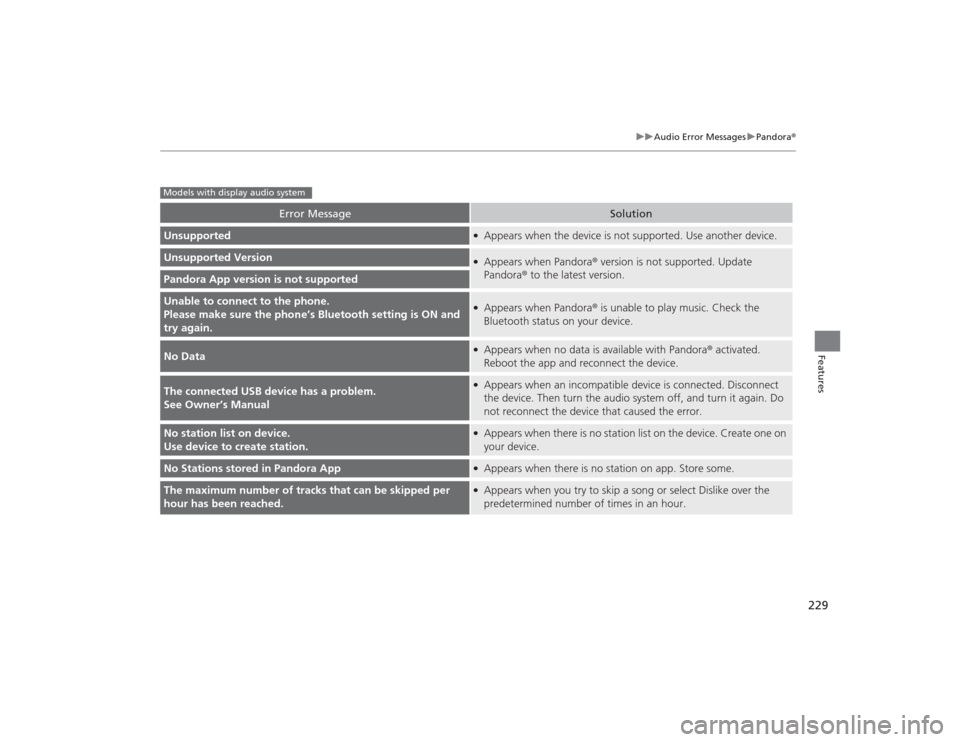
Error Message
Solution
Unsupported
●Appears when the device is not supported. Use another device.
Unsupported Version
●Appears when Pandora ® version is not supported. Update
Pandora ® to the latest version.
Pandora App version is not supportedUnable to connect to the phone.
Please make sure the phon e’s Bluetooth setting is ON and
try again.
●Appears when Pandora ® is unable to play music. Check the
Bluetooth status on your device.
No Data
●Appears when no data is available with Pandora ® activated.
Reboot the app and reconnect the device.
The connected USB device has a problem.
See Owner’s Manual
●Appears when an incompatible device is connected. Disconnect
the device. Then turn the audio system off, and turn it again. Do
not reconnect the device that caused the error.
No station list on device.
Use device to create station.
●Appears when there is no station list on the device. Create one on
your device.
No Stations stored in Pandora App
●Appears when there is no station on app. Store some.
The maximum number of tracks that can be skipped per
hour has been reached.
●Appears when you try to skip a song or select Dislike over the
predetermined number of times in an hour.
Models with display audio system
Page 231 of 469
230Features
General Information on the Audio SystemRecommended CDs•Use only high-quality CD-R or CD-RW discs labeled for audio use.
• Use only CD-R or CD-RW discs on which the recordings are closed.
• Play only standard round-shaped CDs.
• Some software files may not allow for audio play or text data display.
• Some versions of MP3 or WMA formats may be unsupported.
1Recommended CDs
A Dual-disc cannot play on this audio unit. If recorded
under certain conditions, a CD-R or CD-RW may not
play either.
■
CDs with MP3 or WMA filesThe CD packages or jackets should have one of these marks.
Page 232 of 469
231
uuGeneral Information on the Audio System uRecommended CDs
Features
■Protecting CDs
Follow these precautions when handling or storing CDs:
• Store a CD in its case when it is not being played.
• When wiping a CD, use a soft clean cloth from the center to the outside edge.
• Handle a CD by its edge. Never touch either surface.
• Never insert foreign objects into the CD player.
• Keep CDs out of direct sunlight and extreme heat.
• Do not place stabilizer rings or labels on the CD.
• Avoid fingerprints, liquids, and felt-tip pens on the CD.
1Protecting CDsNOTICEDo not insert a damaged CD. It may be stuck inside
and damage the audio unit.Examples:●Damaged CDsBubbled/
Wrinkled
With Label/
Sticker Using
Printer Label
Kit
Sealed With Plastic Ring
●Poor quality
CDs
Chipped/
Cracked Warped Burrs
●Small CDs
3-inch
(8-cm)
CD●Bubbled, wrinkled, labeled, and
excessively thick CDs
Page 233 of 469

232
uuGeneral Information on the Audio System uCompatible iPod and USB Flash Drives
Features
Compatible iPod and USB Flash Drives*1:Models with display audio system
• Use a recommended USB flash drive of 256 MB or higher.
• Some digital audio players may not be compatible.
• Some USB flash drives (e.g., a device with security lockout) may not work.
• Some software files may not allow for audio play or text data display.
• Some versions of MP3, WMA, or AAC formats may be unsupported.■
iPod and iPhone Model Compatibility
Model
iPod (5th generation)
iPod classic 80GB/160GB (launch in 2007)
iPod classic 120GB (launch in 2008)iPod classic 160GB (launch in 2009)
iPod nanoiPod touch
iPhone 3G/iPhone 3GS/iPhone 4/iPhone 4S/iPhone 5
*1
■
USB Flash DrivesModels with i-MID
1iPod and iPhone Model Compatibility
This system may not work with all software versions
of these devices.1USB Flash Drives
Files on the USB flash drive are played in their stored
order. This order may be different from the order
displayed on your PC or device.
Page 234 of 469
233
Continued
Features
Customized Features
*
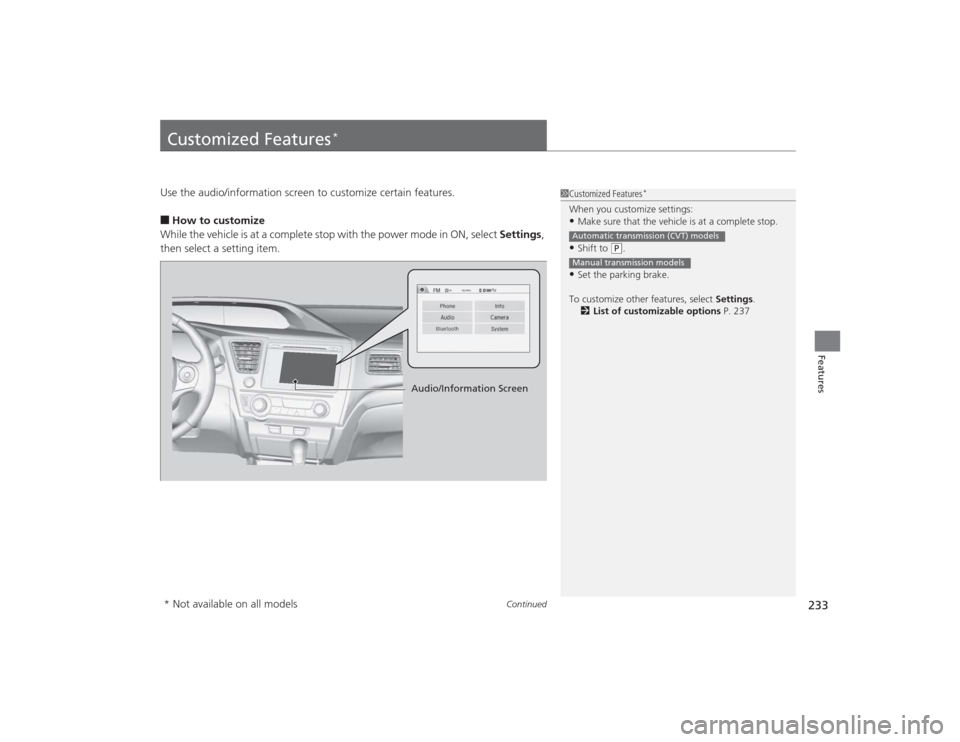
Use the audio/information screen to customize certain features.■How to customize
While the vehicle is at a complete stop with the power mode in ON, select Settings,
then select a setting item.
1 Customized Features
*
When you customize settings:•Make sure that the vehicle is at a complete stop.•Shift to
(P.
•Set the parking brake.
To customize other features, select Settings.
2 List of customizable options P. 237Automatic transmission (CVT) modelsManual transmission models
Audio/Information Screen
* Not available on all models
Page 236 of 469
235
uuCustomized Features
*u
Continued
Features
Color
Audio
Sound
Audio Source Pop-up
[Your selected media] Cover Art
*1
Display Adjustment
*1
Aspect Ratio Adjustment
*1
Change Bluetooth Audio Device
*1
Bluetooth Device List
*1
Default
Display
BrightnessContrastBlack Level
ColorTint
Clock FormatClock Adjustment
Clock/Wallpaper Type
Clock
Wallpaper
Sync Clock With Smartphone
*
Clock LocationClock Display
Info Screen Preference
Default
Info
Clock Reset
*
OtherClock
*1: May change depending on your currently
selected source.* Not available on all models
Page 238 of 469
237
uuCustomized Features
*u
Continued
Features
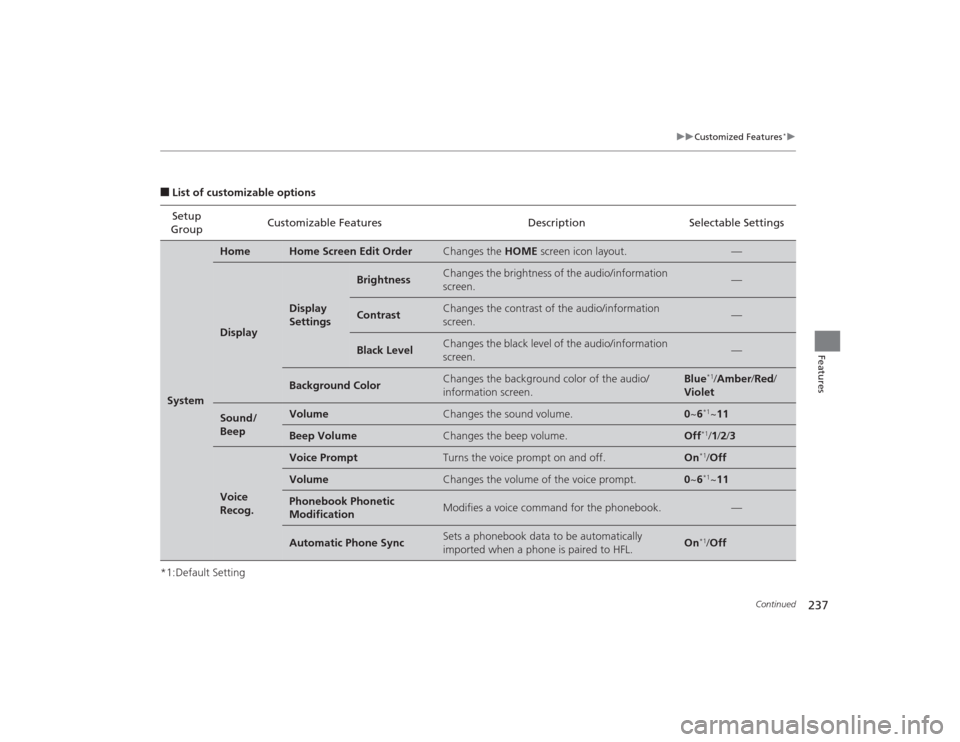
■List of customizable options
*1:Default Setting Setup
Group Customizable Features Description Selectable SettingsSystem
Home
Home Screen Edit Order
Changes the
HOME screen icon layout.
—
Display
Display
Settings
Brightness
Changes the brightness of the audio/information
screen.
—
Contrast
Changes the contrast of the audio/information
screen.
—
Black Level
Changes the black level of the audio/information
screen.
—
Background Color
Changes the background color of the audio/
information screen.
Blue
*1/Amber /Red/
Violet
Sound/
Beep
Volume
Changes the sound volume.
0 ~6
*1~11
Beep Volume
Changes the beep volume.
Off
*1/1 /2 /3
Voice
Recog.
Voice Prompt
Turns the voice prompt on and off.
On
*1/Off
Volume
Changes the volume of the voice prompt.
0 ~6
*1~11
Phonebook Phonetic
Modification
Modifies a voice command for the phonebook.
—
Automatic Phone Sync
Sets a phonebook data to be automatically
imported when a phone is paired to HFL.
On
*1/Off
Page 240 of 469
239
uuCustomized Features
*u
Continued
Features
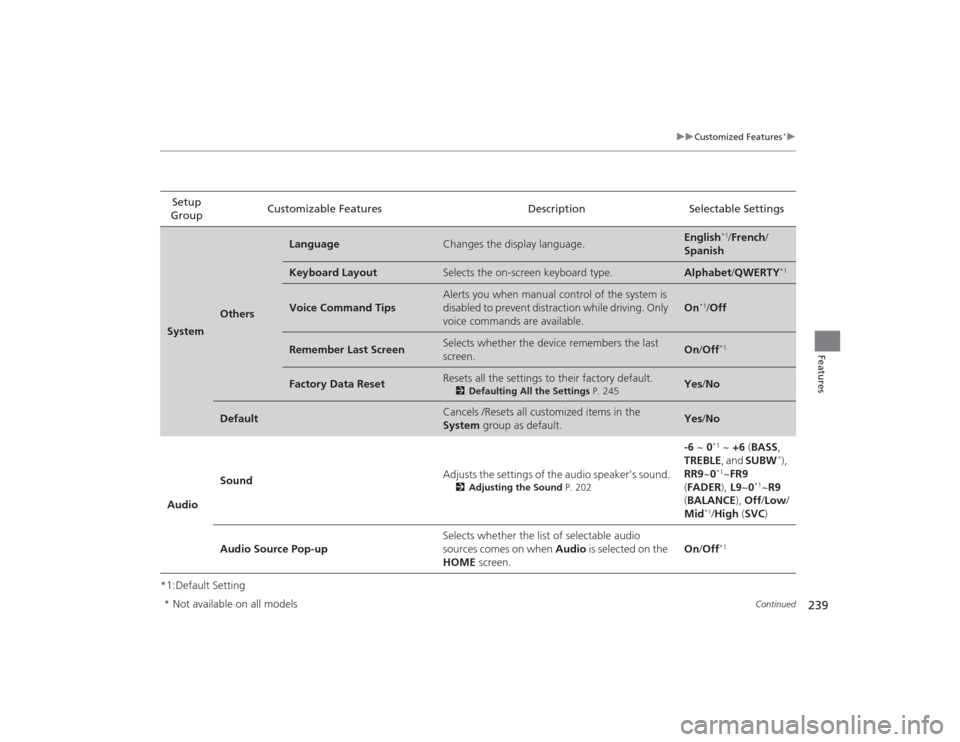
*1:Default SettingSetup
Group Customizable Features Description Selectable SettingsSystem
Others
Language
Changes the display language.
English
*1/
French /
Spanish
Keyboard Layout
Selects the on-screen keyboard type.
Alphabet /QWERTY
*1
Voice Command Tips
Alerts you when manual control of the system is
disabled to prevent distraction while driving. Only
voice commands are available.
On
*1/Off
Remember Last Screen
Selects whether the device remembers the last
screen.
On /Off
*1
Factory Data Reset
Resets all the settings to their factory default.
2 Defaulting All the Settings P. 245
Yes/No
Default
Cancels /Resets all customized items in the
System group as default.
Yes/No
Audio Sound
Adjusts the settings of the audio speaker’s sound.
2
Adjusting the Sound P. 202
-6 ~ 0
*1 ~ +6 (BASS,
TREBLE , and SUBW
*),
RR9 ~0
*1~FR9
( FADER ), L9~0
*1~R9
( BALANCE ), Off /Low /
Mid
*1/ High (SVC )
Audio Source Pop-up Selects whether the list of selectable audio
sources comes on when
Audio is selected on the
HOME screen. On
/Off*1
* Not available on all models

![HONDA CIVIC 2014 9.G Owners Manual 235
uuCustomized Features
*u
Continued
Features
Color
Audio
Sound
Audio Source Pop-up
[Your selected media] Cover Art
*1
Display Adjustment
*1
Aspect Ratio Adjustment
*1
Change Bluetooth Audio Device](/manual-img/13/5834/w960_5834-235.png "HONDA CIVIC 2014 9.G Owners Manual 235
uuCustomized Features
*u
Continued
Features
Color
Audio
Sound
Audio Source Pop-up
[Your selected media] Cover Art
*1
Display Adjustment
*1
Aspect Ratio Adjustment
*1
Change Bluetooth Audio Device")