Page 297 of 469
uuBluetooth ® HandsFreeLink ®
*uHFL Menus
296Features
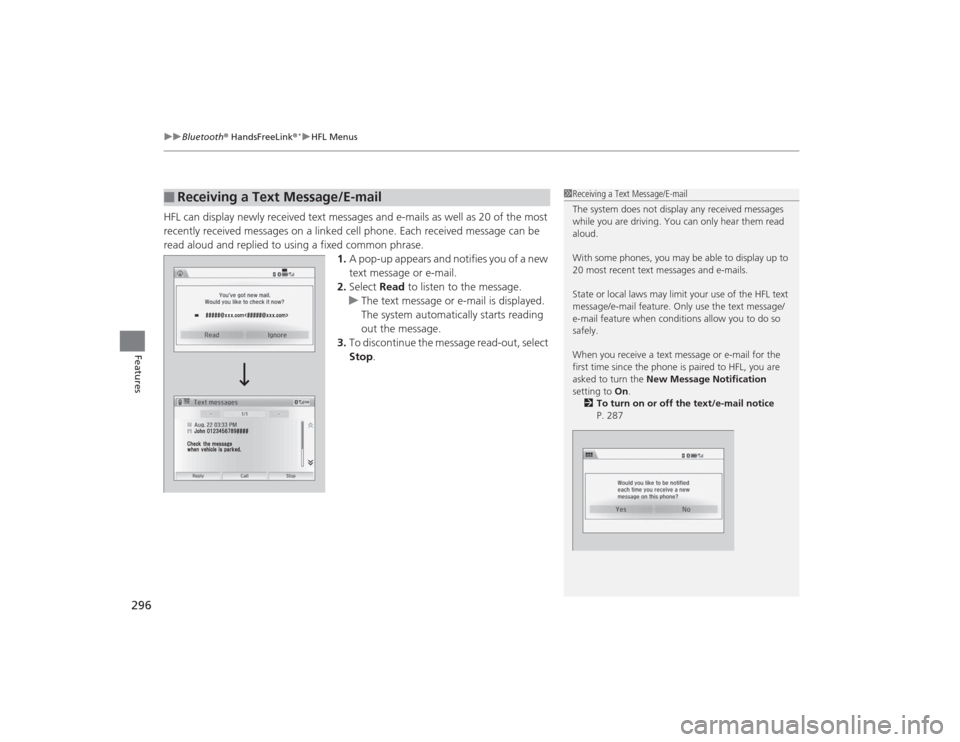
HFL can display newly received text messages and e-mails as well as 20 of the most
recently received messages on a linked cell phone. Each received message can be
read aloud and replied to using a fixed common phrase.
1.A pop-up appears and notifies you of a new
text message or e-mail.
2. Select Read to listen to the message.
u The text message or e-mail is displayed.
The system automatically starts reading
out the message.
3. To discontinue the message read-out, select
Stop .■
Receiving a Text Message/E-mail
1Receiving a Text Message/E-mail
The system does not display any received messages
while you are driving. You can only hear them read
aloud.
With some phones, you may be able to display up to
20 most recent text messages and e-mails.
State or local laws may limit your use of the HFL text
message/e-mail feature. Only use the text message/
e-mail feature when conditions allow you to do so
safely.
When you receive a text message or e-mail for the
first time since the phone is paired to HFL, you are
asked to turn the New Message Notification
setting to On.
2 To turn on or off the text/e-mail notice
P. 287
Page 298 of 469
Continued
297
uuBluetooth ® HandsFreeLink ®
*uHFL Menus
Features
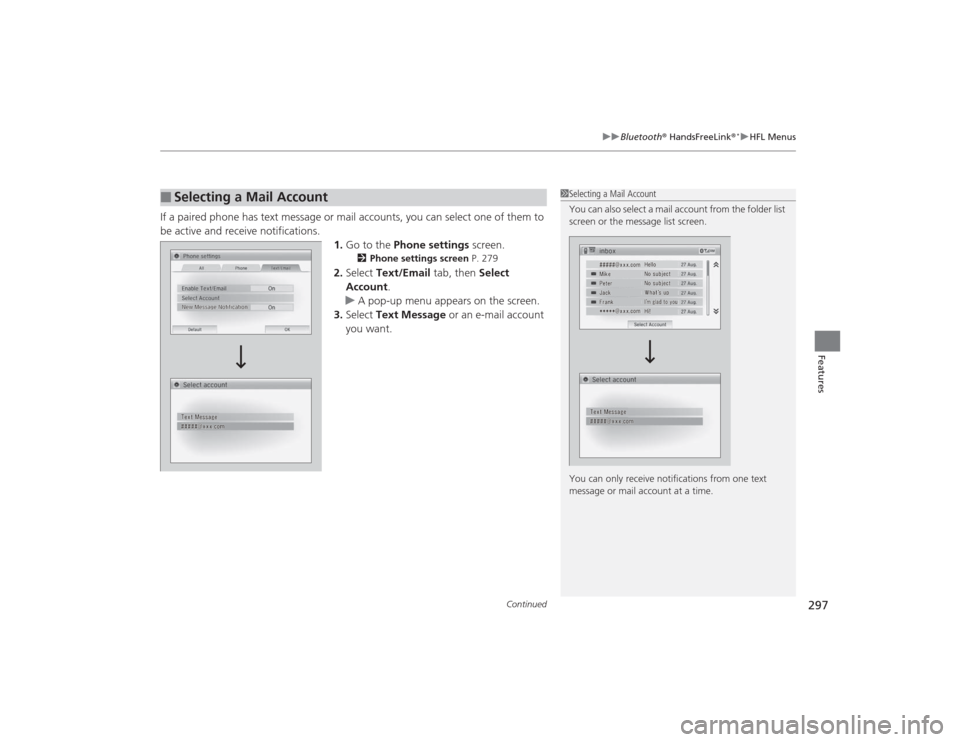
If a paired phone has text message or mail accounts, you can select one of them to
be active and receive notifications.
1.Go to the Phone settings screen.
2Phone settings screen P. 279
2.Select Text/Email tab, then Select
Account .
u A pop-up menu appears on the screen.
3. Select Text Message or an e-mail account
you want.
■
Selecting a Mail Account
1 Selecting a Mail Account
You can also select a mail account from the folder list
screen or the message list screen.
You can only receive notifications from one text
message or mail account at a time.
Page 299 of 469
uuBluetooth ® HandsFreeLink ®
*uHFL Menus
298Features
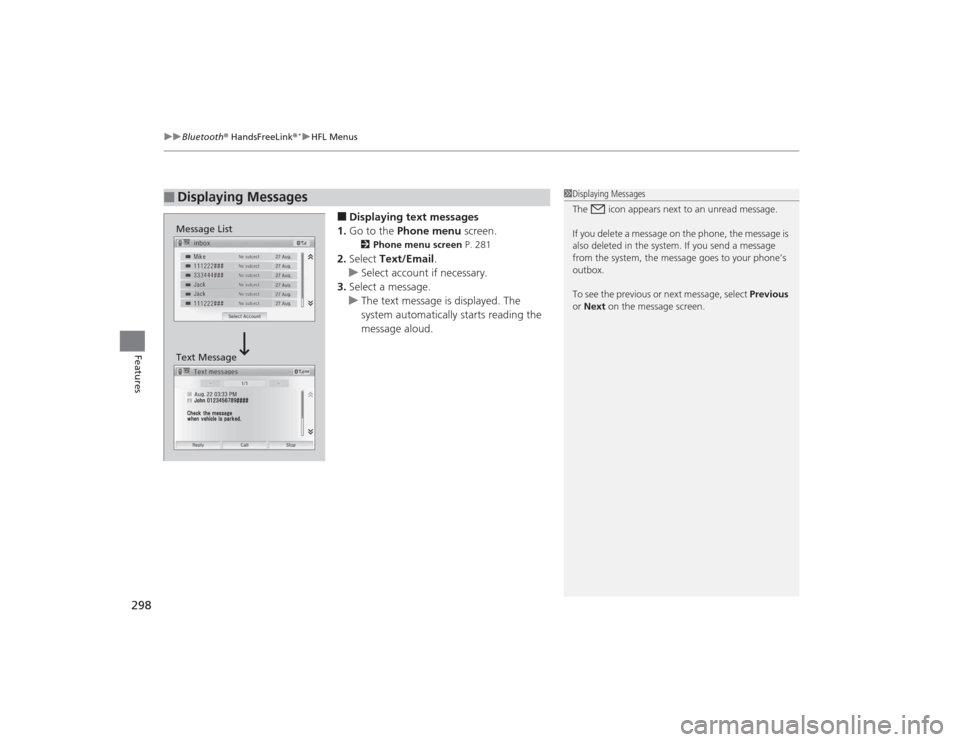
■Displaying text messages
1. Go to the Phone menu screen.2Phone menu screen P. 281
2.Select Text/Email .
u Select account if necessary.
3. Select a message.
u The text message is displayed. The
system automatically starts reading the
message aloud.
■
Displaying Messages
1Displaying Messages
The icon appears next to an unread message.
If you delete a message on the phone, the message is
also deleted in the system. If you send a message
from the system, the message goes to your phone’s
outbox.
To see the previous or next message, select Previous
or Next on the message screen.
Message List
Text Message
Page 300 of 469
299
uuBluetooth ® HandsFreeLink ®
*uHFL Menus
Continued
Features
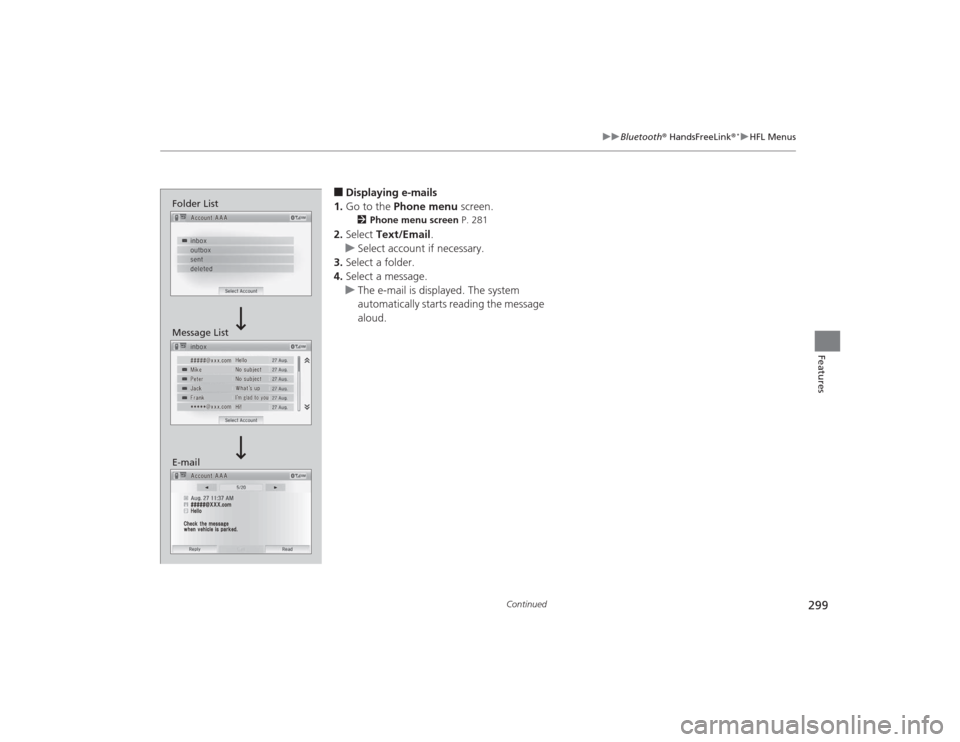
■Displaying e-mails
1. Go to the Phone menu screen.2Phone menu screen P. 281
2.Select Text/Email .
u Select account if necessary.
3. Select a folder.
4. Select a message.
u The e-mail is displayed. The system
automatically starts reading the message
aloud.
Folder List
Message List
E-mail
Page 301 of 469
uuBluetooth ® HandsFreeLink ®
*uHFL Menus
300Features
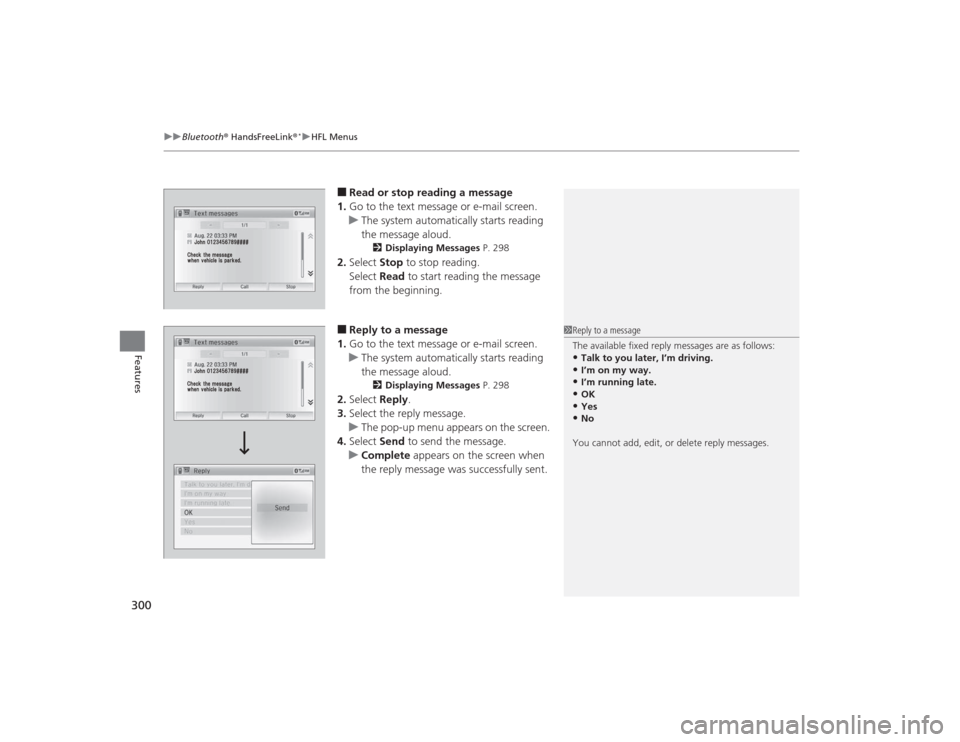
■Read or stop reading a message
1. Go to the text message or e-mail screen.
u The system automatically starts reading
the message aloud.
2 Displaying Messages P. 298
2.Select Stop to stop reading.
Select Read to start reading the message
from the beginning.■Reply to a message
1. Go to the text message or e-mail screen.
u The system automatically starts reading
the message aloud.
2 Displaying Messages P. 298
2.Select Reply.
3. Select the reply message.
u The pop-up menu appears on the screen.
4. Select Send to send the message.
u Complete appears on the screen when
the reply message was successfully sent.
1 Reply to a message
The available fixed reply messages are as follows:•Talk to you later, I’m driving.•I’m on my way.•I’m running late.•OK•Yes•No
You cannot add, edit, or delete reply messages.
Page 302 of 469
301
uuBluetooth ® HandsFreeLink ®
*uHFL Menus
Continued
Features
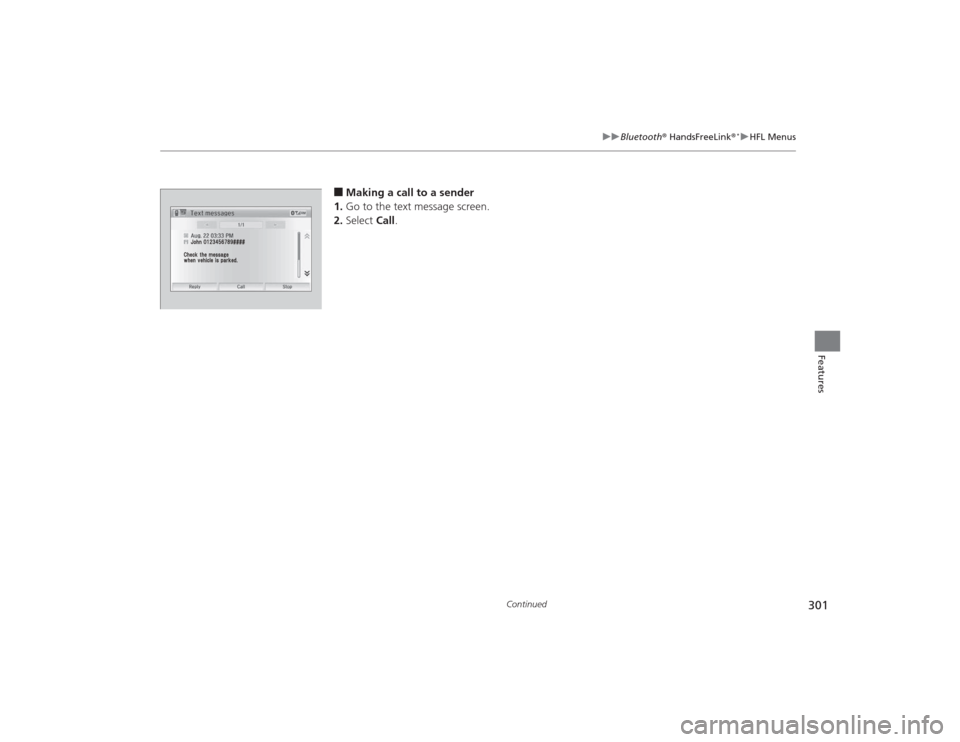
■Making a call to a sender
1. Go to the text message screen.
2. Select Call.
Page 303 of 469
uuBluetooth ® HandsFreeLink ®
*uHFL Menus
302Features
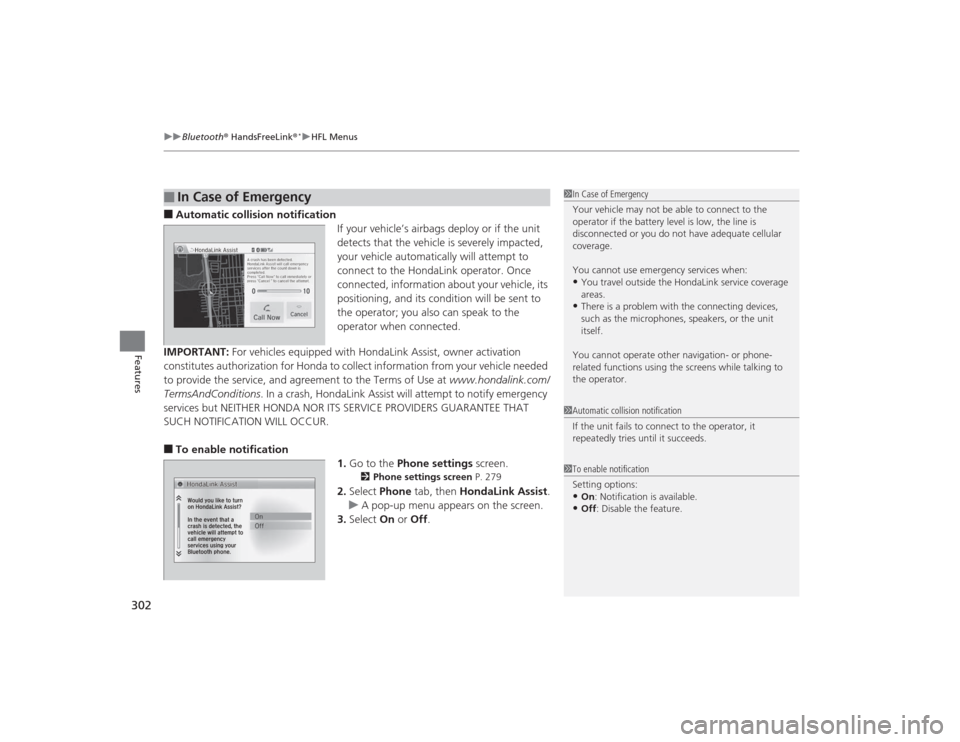
■Automatic collision notification
If your vehicle’s airbags deploy or if the unit
detects that the vehicle is severely impacted,
your vehicle automatically will attempt to
connect to the HondaLink operator. Once
connected, information about your vehicle, its
positioning, and its condition will be sent to
the operator; you also can speak to the
operator when connected.
IMPORTANT: For vehicles equipped with HondaLink Assist, owner activation
constitutes authorization for Honda to collect information from your vehicle needed
to provide the service, and agreement to the Terms of Use at www.hondalink.com/
TermsAndConditions . In a crash, HondaLink Assist will attempt to notify emergency
services but NEITHER HONDA NOR ITS SERVICE PROVIDERS GUARANTEE THAT
SUCH NOTIFICATION WILL OCCUR.■To enable notification 1.Go to the Phone settings screen.
2Phone settings screen P. 279
2.Select Phone tab, then HondaLink Assist .
u A pop-up menu appears on the screen.
3. Select On or Off .
■
In Case of Emergency
1In Case of Emergency
Your vehicle may not be able to connect to the
operator if the battery level is low, the line is
disconnected or you do not have adequate cellular
coverage.
You cannot use emergency services when:•You travel outside the HondaLink service coverage
areas.•There is a problem with the connecting devices,
such as the microphones, speakers, or the unit
itself.
You cannot operate other navigation- or phone-
related functions using the screens while talking to
the operator.
1 Automatic collision notification
If the unit fails to connect to the operator, it
repeatedly tries until it succeeds.1To enable notification
Setting options:•On : Notification is available.•Off : Disable the feature.
Page 450 of 469
449Information
Devices that Emit Radio WavesThe following products and systems on your vehicle emit radio waves when in
operation.
Each of the above complies with the appropriate requirements or the required
standards of FCC (Federal Communications Commission) and Industry Canada
Standard, described below:As required by the FCC:
This device complies with Part 15 of the FCC rules. Operation is
subject to the following two conditions: (1) This device may not
cause harmful interference, and (2) this device must accept any
interference received, including interference that may cause
undesired operation.
Changes or modifications not expressly approved by the party
responsible for compliance could void the user's authority to
operate the equipment.This device complies with Industry Canada Standard RSS-Gen/210/310. Operation is
subject to the following two conditions: (1) this device may not cause interference,
and (2) this device must accept any interference, including interference that may
cause undesired operation of the device.Audio SystemBluetooth ® AudioBluetooth® HandsFreeLink ®Immobilizer SystemRemote Transmitter