Page 210 of 441

209
uuAudio System Basic Operation uSmartphone Apps
Features
Smartphone Apps
You can connect a compatible smartphone to the system to enable integration
between the smartphone's appr oved apps and the vehicle. This allows you to
control the phone through the vehicle display. To check smart phone compatibility,
download the HondaLink app, and view connection instructions, visit
handsfreelink.honda.com . For the latest apps and feature details, check
hondalink.com .1Smartphone Apps
Park in a safe place be fore connecting your phone
and while operating the displayed apps.
Not all phones and apps ar e compatible with the
system. The system does not display all the available
apps on smartphone, and so me apps need to be
preinstalled. Ask a dealer for details.
You need to switch the Bluetooth connection to your
smartphone if another electr onic device is connected.
2 Changing the currently paired phone
P. 271
The following may vary by phone type:
•Connection methods.
•Apps that can be operated on the screen.•How to connect a smartphone to the system.
•Display response ti me/update time.
We do not support every app operation on the
display audio.
Ask the app provider fo r any questions on the
app’sfeatures.
MENU
Select to display the
menu on the app you
selected. (Not
available on all apps.) BACK
Select to go back to the previous display.
(Not available on all phones.)
HOME
Select to go back to
HOME
or to a previous
display. Microphones
14 CIVIC 2D_SI-31TS86210.book 209 ページ 2014年1月29日 水曜日 午後8時9分
Page 211 of 441
210
uuAudio System Basic Operation uSiri Eyes Free
Features
Siri Eyes Free
You can talk to Siri using the Talk button on the steering wheel when your iPhone is
paired to Bluetooth ® HandsFreeLink.
2Phone Setup P. 240
■Using Eyes Free
1Siri Eyes Free
Siri is a trademark of Apple Inc.
Check Apple Inc. website for features available for
Siri.
When operating the vehicle, only use Siri through the
Talk button.
1 Using Eyes Free
Some commands work only on specific phone
features or apps.
(Talk) button:
Press and hold until the display
changes as shown.
(Hang-up/back) button:
Press to deactivate Siri.
While in Eyes Free:
The display remains the same.
No feedback or commands
appear.
Appears
when Siri is
activated in
Eyes Free
14 CIVIC 2D_SI-31TS86210.book 210 ページ 2014年1月29日 水曜日 午後8時9分
Page 216 of 441

215
uuAudio Error Messages uPandora ®
Continued
Features
Error MessageSolution
The maximum number of stations that can be created is
100.
To create more, please dele te one or more previously
created stations.●Appears when the number of stations that can be created is
exceeded. Follow the message.
Unable to create new station. Please try again.
●Appears when the commanded operation is failed. Try again later.Unable to play Pandora. Please try again later.
Unable to save bookmark.
This Pandora station is currentl y not available. Please select
another station.●Appears when the station you select ed is not available. Change a
station, or try again later.
Unable to play Pandora. When stopped, log-in to Pandora.●Appears when you have not logged into Pandora ®. Follow the
message.
Unable to connect to Pandora . When stopped, check your
mobile phone.
●Appears when failed to connect. Check your device and try again.Unable to play Pandora. Please try again later.
Connect Retry
Models with display audio system
14 CIVIC 2D_SI-31TS86210.book 215 ページ 2014年1月29日 水曜日 午後8時9分
Page 217 of 441
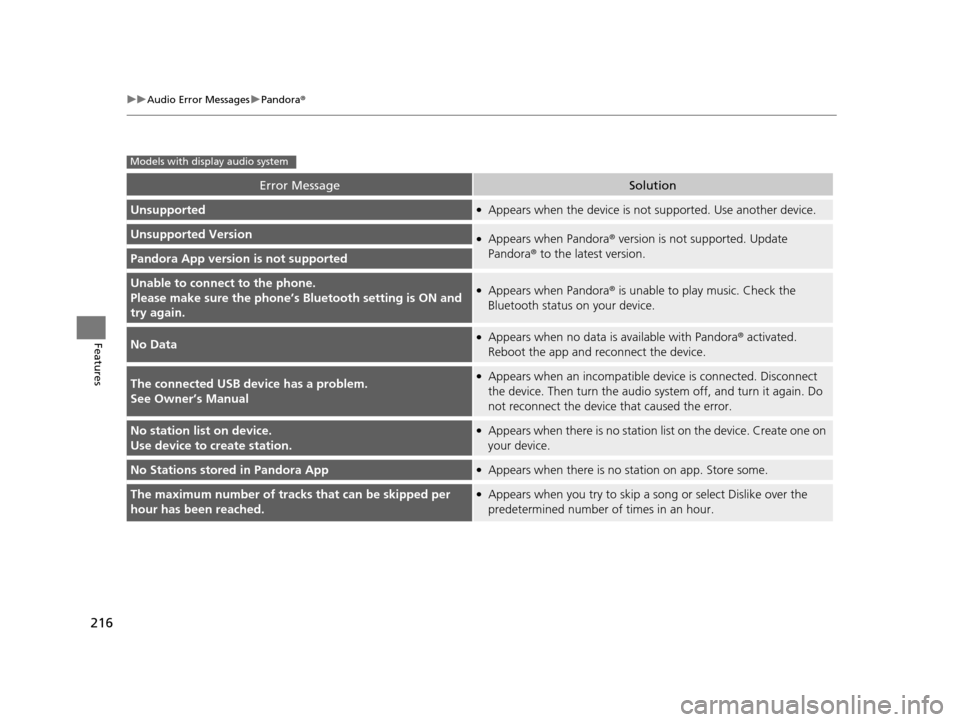
216
uuAudio Error Messages uPandora ®
Features
Error MessageSolution
Unsupported●Appears when the device is not supported. Use another device.
Unsupported Version●Appears when Pandora ® version is not supported. Update
Pandora ® to the latest version.
Pandora App version is not supported
Unable to connec t to the phone.
Please make sure th e phone’s Bluetooth setting is ON and
try again.●Appears when Pandora ® is unable to play music. Check the
Bluetooth status on your device.
No Data●Appears when no data is available with Pandora® activated.
Reboot the app and reconnect the device.
The connected USB device has a problem.
See Owner’s Manual●Appears when an incompatible de vice is connected. Disconnect
the device. Then turn th e audio system off, and turn it again. Do
not reconnect the device that caused the error.
No station list on device.
Use device to create station.●Appears when there is no station list on the device. Create one on
your device.
No Stations stored in Pandora App●Appears when there is no st ation on app. Store some.
The maximum number of tracks that can be skipped per
hour has been reached.●Appears when you try to skip a song or select Dislike over the
predetermined number of times in an hour.
Models with display audio system
14 CIVIC 2D_SI-31TS86210.book 216 ページ 2014年1月29日 水曜日 午後8時9分
Page 220 of 441

219
uuGeneral Information on the Audio System uCompatible iPod and USB Flash Drives
Features
Compatible iPod and USB Flash Drives
*1:Models with display audio system
• Use a recommended USB flash drive of 256 MB or higher.
• Some digital audio players may not be compatible.
• Some USB flash drives (e.g., a device with security lockout) may not work.
• Some software files may not allow for audio play or text data display.
• Some versions of MP3, WMA, or AAC formats may be unsupported.
■iPod and iPhone Model Compatibility
Model
iPod (5th generation)
iPod classic 80GB/160GB (launch in 2007)
iPod classic 120GB (launch in 2008)
iPod classic 160GB (launch in 2009)
iPod nano
iPod touch
iPhone 3G/iPhone 3GS/iPhone 4/iPhone 4S/iPhone 5*1
■USB Flash Drives
1iPod and iPhone Model Compatibility
This system may not work with all software versions
of these devices.
1USB Flash Drives
Files on the USB flash drive are played in their stored
order. This order may be different from the order
displayed on your PC or device.
14 CIVIC 2D_SI-31TS86210.book 219 ページ 2014年1月29日 水曜日 午後8時9分
Page 222 of 441
221
uuCustomized Features*u
Continued
Features
■Customization flow
Clock Format
Remember Last Screen
Factory Data Reset
Clock Adjustment
Select Settings .
Language
Default
Brightness
Contrast
Black Level
Clock
Wallpaper
Display
Home Screen Edit Order
Background Color
Volume
Sync Clock With Smartphone*Clock Location
Clock Display
Beep Volume
Keyboard Layout
Home
Sound/Beep
Display Settings
ClockClock/Wallpaper Type
System
Clock Reset*
Others
Phonebook Phonet ic Modification
Automatic Phone Sync
Voice Prompt
Volume
Voice Recog.
Voice Command Tips
* Not available on all models
14 CIVIC 2D_SI-31TS86210.book 221 ページ 2014年1月29日 水曜日 午後8時9分
Page 223 of 441
222
uuCustomized Features*u
Features
Color
AudioSound
Audio Source Pop-up
[Your selected media] Cover Art*1
Display Adjustment*1
Aspect Ratio Adjustment*1
Change Bluetooth Audio Device*1
Bluetooth Device List*1
Default
DisplayBrightness
Contrast
Black Level
Color
Tint
Clock Format
Clock Adjustment
Clock/Wallpaper TypeClock
Wallpaper
Sync Clock With Smartphone*
Clock Location
Clock Display
Info Screen Preference
Default
Info
Clock Reset*
Other
Clock
*1: May change depending on your currently
selected source.
* Not available on all models
14 CIVIC 2D_SI-31TS86210.book 222 ページ 2014年1月29日 水曜日 午後8時9分
Page 224 of 441
223
uuCustomized Features*u
Continued
Features
Ring Tone
Edit Speed Dial
Connect PhonePhone
Default
Automatic Phone Sync
Bluetooth Device List
Edit Pairing Code
Bluetooth Device List
Rear CameraFixed Guideline
Dynamic Guideline
Camera
Bluetooth On/Off Status
Default
Bluetooth
Default
HondaLink Assist
Enable Text/Email
Select Account
New Message Notification
LaneWatch*Show with Turn Signal
Display Time after Turn Signal Off
Reference Line
Default
Bluetooth
Phone
Text/Email
* Not available on all models
14 CIVIC 2D_SI-31TS86210.book 223 ページ 2014年1月29日 水曜日 午後8時9分


![HONDA CIVIC COUPE 2014 9.G Navigation Manual 222
uuCustomized Features*u
Features
Color
AudioSound
Audio Source Pop-up
[Your selected media] Cover Art*1
Display Adjustment*1
Aspect Ratio Adjustment*1
Change Bluetooth Audio Device*1
Bluetooth De](/manual-img/13/5859/w960_5859-222.png "HONDA CIVIC COUPE 2014 9.G Navigation Manual 222
uuCustomized Features*u
Features
Color
AudioSound
Audio Source Pop-up
[Your selected media] Cover Art*1
Display Adjustment*1
Aspect Ratio Adjustment*1
Change Bluetooth Audio Device*1
Bluetooth De")
