2014 FORD MUSTANG ABS
[x] Cancel search: ABSPage 322 of 461

Check every six months
Safety belts and seat latches for wear and function.
Safety warning lamps (brake, ABS, airbag, safety belt) for operation.
Washer spray and wiper operation. Clean or replace blades as
necessary.
Multi-point Inspection
In order to keep your vehicle running right, it is important to have
the systems on your vehicle checked regularly. This can help identify
potential issues and prevent major problems. Ford Motor Company
recommends the following multi-point inspection be performed at every
scheduled maintenance interval to help make sure your vehicle keeps
running great.
Multi-point Inspection
Accessory drive belt(s) Half-shaft dust boots
Battery performance Horn operation
Clutch operation (if equipped) Radiator, cooler, heater and A/C hoses
Engine air filter Suspension components for leaks or
damage
Exhaust system Steering and linkage
Exterior lamps and hazard
warning system operationTires (including spare) for wear and
proper pressure
**
Fluid levels*; fill if necessary Windshield for cracks, chips or pits
For oil and fluid leaks Washer spray and wiper operation
*Brake, coolant recovery reservoir, manual transmission, automatic
transmission and window washer.
**If your vehicle is equipped with a temporary mobility kit, check the tire
sealant expiration Use By date on the canister. Replace as needed.
Be sure to ask your dealership service advisor or technician about the
multi-point vehicle inspection. It is a comprehensive way to perform a
thorough inspection of your vehicle. It is your checklist that gives you
immediate feedback on the overall condition of your vehicle. You will
know what has been checked, what is okay, as well as those things that
may require future or immediate attention. The multi-point vehicle
inspection is one more way to keep your vehicle running great!
Scheduled Maintenance321
2014 05+ Mustang(197)
Owners Guide gf, 1st Printing, November 2012
USA(fus)
Page 339 of 461
The cellular profile, media device index, and development log remain in
the vehicle unless you delete them and are generally accessible only in
the vehicle when the cellular phone or media player is connected. If you
no longer plan to use the system or the vehicle, we recommend you
perform a Master Reset to erase all stored information.
System data cannot be accessed without special equipment and access to the
vehicle’s SYNC module. Ford Motor Company and Ford of Canada do not
access the system data for any purpose other than as described absent
consent, a court order, or where required by law enforcement, other
government authorities, or other third parties acting with lawful authority.
Other parties may seek to access the information independently of Ford
Motor Company and Ford of Canada. For further privacy information, see the
sections on 911 Assist®, Vehicle Health Report, and Traffic, Directions and
Information.
USING VOICE RECOGNITION
This system helps you control many features using voice commands.
This allows you to keep your hands on the wheel and focus on what is in
front of you.
Initiating a Voice Session
Push the voice icon; a tone sounds and Listening appears in the
display. Say any of the following:
Say: If you want to:
“Phone” Make calls.
“USB” Access the device connected to your USB
port.
“Bluetooth Audio” Stream audio from your phone.
“Line in” Access the device connected to the auxiliary
input jack.
“Cancel” Cancel the requested action.
“SYNC” Return to the main menu.
“Voice settings” Adjust the level of voice interaction and
feedback.
“Vehicle Health Report” Run a vehicle health report.
*
338SYNC®
2014 05+ Mustang(197)
Owners Guide gf, 1st Printing, November 2012
USA(fus)
Page 345 of 461
Receiving Calls
When receiving a call, you can:
•Answer the call by pressing the phone button.
•Reject the call by pressing and holding the phone button.
•Ignore the call by doing nothing.
Phone Options during an Active Call
During an active call, you have additional menu features which become
available such as putting a call on hold, joining calls, etc.
To access:
1. Press the PHONE hard button.
2. Select from the following options:
When you select: You can:
SendReceive an incoming call, make an outgoing
call or redial.
EndEnd or ignore a call.
Privacy Mode
*Switch a call from an active hands-free
environment to your cellular phone for a more
private conversation.
Hold Call
*Put an active call on hold.
Press OK when Place Call on Hold? appears.
Join Calls
*Join two separate calls.
Quick DialSave frequently called numbers for quick
access. You can select and save numbers from
the Phonebook or Call History tabs.
*This is a phone-dependent feature.
344SYNC®
2014 05+ Mustang(197)
Owners Guide gf, 1st Printing, November 2012
USA(fus)
Page 379 of 461
E.TUNE RPT:
•In radio or satellite radio mode, turn the control to advance in
individual increments up or down the frequency band to the desired
station.
•In MP3 mode, turn the control to advance to the next or previous
folder.
•In navigation mode, press this button to hear the last spoken
navigation guidance prompt.
F.DISP:Press this button to select a display mode: On, Status Bar Only,
and Off.
G.SOUND:
•Press this button to access the sound menu.
•Press while the sound menu is active to access the menu tabs of
Bass/Treble, Balance/Fade, SCV (Speed Compensated Volume), DSP
(Digital Signal Processing) and Visualizer.
H.SEEK:
•In radio and satellite radio mode, press the arrow buttons to find
previous or next available stations or channels within the currently
selected Category or Genre.
•In CD and DVD modes, press the arrow buttons to select the previous
or next track or chapter.
I.MEDIA:
•Press this button to access the media menu.
•Press while the media menu is active to access the available sources
of CD/DVD, Jukebox and User Device.
J.RADIO:
•Press this button to access the radio menu.
•Press while the radio menu is active to access the available sources of
AM, FM1, FM2, SAT1, SAT2, and SAT3.
K.VOL:Press and hold this button to turn the system off and on. Turn
the control to adjust the volume.
Note:If a navigation route is active when the navigation system is off,
the system resumes the route when you turn the system on.
L.Memory presets:
•Store your favorite radio stations. To store a radio station, tune to the
station, then press and hold a preset button until sound returns.
•In radio and satellite radio mode, press a button to access your saved
presets or channels.
378Navigation System (If Equipped)
2014 05+ Mustang(197)
Owners Guide gf, 1st Printing, November 2012
USA(fus)
Page 380 of 461

M.MENU:
•Press this button to access the system menu.
•Press while the system menu is active to access the menu tabs of
Display, Clock, Feedback Settings, System Settings and Valet Mode.
N.MAP:
•Press this button to access the navigation map.
•Press while the map display is active to center the map on the
current vehicle position. Press while the map display and route are
active to see the different map guidance views.
O.DEST:
•Press this button to access the destination entry menu.
•Press while the destination entry menu is active to show additional
destination entry techniques.
P.N AV:
•Press this button to access the navigation menu.
•Press while the navigation menu is active to access the navigation
menu tabs.
Q.CD and DVD slot:Insert a CD or DVD, label side up.
Navigation System (If Equipped)379
2014 05+ Mustang(197)
Owners Guide gf, 1st Printing, November 2012
USA(fus)
Page 382 of 461
A.Memory presets:
•Store your favorite radio stations. To store a radio station, tune to the
station, then press and hold a preset button until sound returns.
•In radio and satellite radio mode, press a button to access your saved
presets or channels.
B.CD and DVD slot:Insert a CD or DVD, label side up.
C.Eject:Press this button to eject a CD or DVD from the system.
D.TUNE RPT:
•In radio or satellite radio mode, turn the control to advance in
individual increments up or down the frequency band to the desired
station.
•In MP3 mode, turn the control to advance to the next or previous
folder.
•In navigation mode, press this button to hear the last spoken
navigation guidance prompt.
E.MAP:
•Press this button to access the navigation map.
•Press while the map display is active to center the map on the
current vehicle position. Press while the map display and route are
active to see the different map guidance views.
F.DEST:
•Press this button to access the destination entry menu.
•Press while the destination entry menu is active to show additional
destination entry techniques.
G.N AV:
•Press this button to access the navigation menu.
•Press while the navigation menu is active to access the navigation
menu tabs.
H.I (Information):Press this button to access features such as Where
am I?, SIRIUS® Travel Link™, Calendar, System Info and Help.
I.PHONE:Press this button to access the SYNC phone menu.
J.DISP:Press this button to select a display mode: On, Status Bar Only,
and Off.
K.SEEK:
•In radio and satellite radio mode, press the arrow buttons to find
previous or next available stations or channels within the currently
selected Category or Genre.
•In CD and DVD modes, press the arrow buttons to select the previous
or next track or chapter.
Navigation System (If Equipped)381
2014 05+ Mustang(197)
Owners Guide gf, 1st Printing, November 2012
USA(fus)
Page 383 of 461

L.MENU:
•Press this button to access the system menu.
•Press while the system menu is active to access the menu tabs of
Display, Clock, Feedback Settings, System Settings and Valet Mode.
M.SOUND:
•Press this button to access the sound menu.
•Press while the sound menu is active to access the menu tabs of
Bass/Treble, Balance/Fade, SCV (Speed Compensated Volume), DSP
(Digital Signal Processing) and Visualizer.
N.MEDIA:
•Press this button to access the media menu.
•Press while the media menu is active to access the available sources
of CD/DVD, Jukebox and User Device.
O.RADIO:
•Press this button to access the radio menu.
•Press while the radio menu is active to access the available sources of
AM, FM1, FM2, SAT1, SAT2, and SAT3.
P.VOL:Press and hold this button to turn the system off and on. Turn
the control to adjust the volume.
Note:If a navigation route is active when the navigation system is off,
the system resumes the route when you turn the system on.
DISPLAY MODE
You can choose to turn your screen on or off and if you would like to
view the status bars on the top and bottom of the screen. Press DISP to
see the options.
Display Mode Voice Commands
The following voice commands are available in display mode. If
you are not in display mode, press the voice button on the
steering wheel. When prompted, say “Display mode” and then
any of the following commands.
Display mode voice commands
“Display on”
“Display off”
“Status bar”
“Brighter”
“Dimmer”
“Day”
382Navigation System (If Equipped)
2014 05+ Mustang(197)
Owners Guide gf, 1st Printing, November 2012
USA(fus)
Page 393 of 461
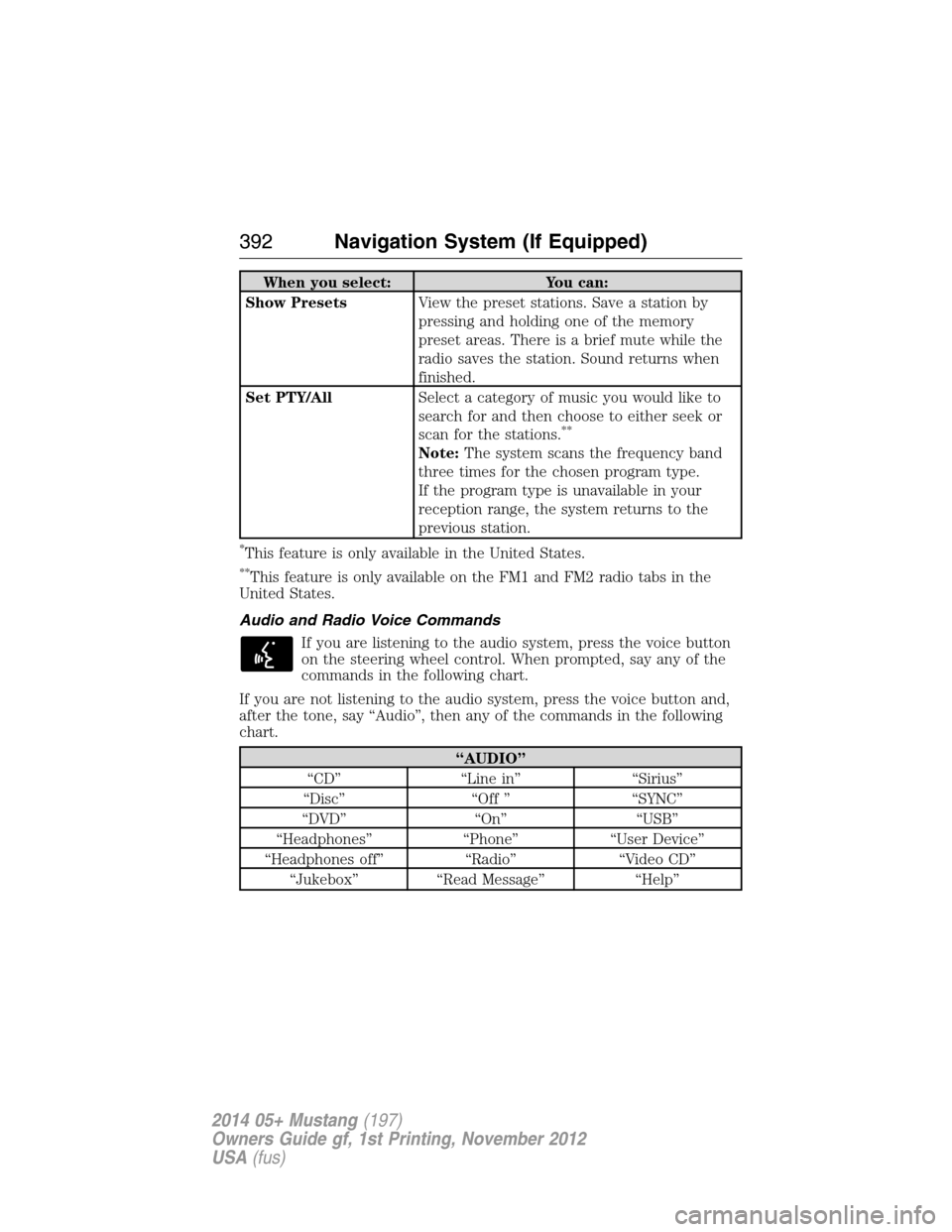
When you select: You can:
Show PresetsView the preset stations. Save a station by
pressing and holding one of the memory
preset areas. There is a brief mute while the
radio saves the station. Sound returns when
finished.
Set PTY/AllSelect a category of music you would like to
search for and then choose to either seek or
scan for the stations.
**
Note:The system scans the frequency band
three times for the chosen program type.
If the program type is unavailable in your
reception range, the system returns to the
previous station.
*This feature is only available in the United States.
**This feature is only available on the FM1 and FM2 radio tabs in the
United States.
Audio and Radio Voice Commands
If you are listening to the audio system, press the voice button
on the steering wheel control. When prompted, say any of the
commands in the following chart.
If you are not listening to the audio system, press the voice button and,
after the tone, say “Audio”, then any of the commands in the following
chart.
“AUDIO”
“CD” “Line in” “Sirius”
“Disc” “Off ” “SYNC”
“DVD” “On” “USB”
“Headphones” “Phone” “User Device”
“Headphones off” “Radio” “Video CD”
“Jukebox” “Read Message” “Help”
392Navigation System (If Equipped)
2014 05+ Mustang(197)
Owners Guide gf, 1st Printing, November 2012
USA(fus)