2014 FORD FUSION (AMERICAS) climate settings
[x] Cancel search: climate settingsPage 350 of 458
This system uses a four-corner strategy toprovide quick access to several vehiclefeatures and settings. The touchscreenprovides easy interaction with your cellularphone, multimedia, climate control andnavigation system. The corners display anyactive modes within those menus, such asphone status or the climate temperature.
Note:Some features are not available whileyour vehicle is moving.
Note:Your system is equipped with afeature that allows you to access andcontrol audio features for 30 minutes afteryou switch the ignition off (and no doorsopen).
PHONE
Press to select any of the following:
•Phone
•Quick Dial
•Phonebook
•History
•Messaging
•Settings
NAVIGATION
Press to select any of the following:
•My Home
•Favorites
•Previous Destinations
•Point of Interest
•Emergency
•Street Address
•Intersection
•City Center
•Map
•Edit Route Cancel Route
CLIMATE
Press to select any of the following:
•Driver Settings
•Recirculated Air
•Auto
•Dual
•Passenger Settings
•A/C
•Defrost
SETTINGS
Press to select any of the following:
•Clock
•Display
•Sound
•Vehicle
•Settings
•Help
HOME
Press to access your homescreen. Depending on yourvehicle’s option package and software,your screens may vary in appearance fromthe descriptions in this section. Yourfeatures may also be limited depending onyour market. Check with an authorizeddealer for availability.
INFORMATION
Press to select any of the following:
•Services
•Travel Link
•Alerts
•Calendar
•Apps
ENTERTAINMENT
Press to select any of the following:
•AM
•FM
•SIRIUS
347Fusion (CC7) , enUSAMyFord Touch™ (If Equipped)E142607 E142613 E142608
Page 351 of 458
•CD
•USB
•BT Stereo
•SD Card
•A/V In
Using the Touch-SensitiveControls on Your System
To turn a feature on and off, just touch thegraphic with your finger. To get the bestperformance from the touch-sensitivecontrols:
•Do not press hard on the controls. Theyare sensitive to light touch.
•Use your bare finger to touch the centerof a touch-control graphic. Touchingoff-center of the graphic may affectoperation of a nearby control.
•Make sure your hands are clean anddry.
•Since the touchscreen operates basedon the touch of a finger, you may havetrouble using it if you are wearinggloves.
•Keep metal and other conductivematerial away from the surface of thetouchscreen as this may causeelectronic interference (for example,inadvertently turning on a feature otherthan the one you meant to turn on).
Depending on your vehicle and optionpackage, you may also have these controlson your bezel:
•Power: Switch the media or climatefeatures off and on.
•VOL: Control the volume of playingmedia.
•Fan: Control the speed of the climatesystem fan.
•Seek and Tune buttons: Use as younormally would in media modes.
•Eject: Eject a CD from theentertainment system.
•SOURCE: Touch the word repeatedlyto see all available media modes. Thescreen does not change, but you seethe media change in the lower leftstatus bar.
•SOUND: Touch the word to access theSound menu where you can adjustsettings such as: Bass, Treble,Midrange, Balance and Fade, DSP(Digital Signal Processing), OccupancyMode and Speed CompensatedVolume. (Your vehicle may not haveall of these sound options.)
•Hazard flasher: Switch the hazardflashers off and on.
Cleaning the Touchscreen Display
Use a clean, soft cloth such as one usedfor cleaning glasses. If dirt or fingerprintsare still visible, apply a small amount ofalcohol to the cloth. Do not pour or sprayalcohol onto the display. Do not usedetergent or any type of solvent to cleanthe display.
Support
The SYNC support team is available tohelp you with any questions you are notable to answer on your own.
Monday-Saturday, 8:30am-9:00pm EST.
Sunday, 10:30am-7:30pm EST.
In the United States, call: 1-800-392-3673.
In Canada, call: 1-800-565-3673.
Times are subject to change due toholidays.
348Fusion (CC7) , enUSAMyFord Touch™ (If Equipped)
Page 356 of 458

Accessing a List of Available Commands
•If you use the touchscreen, press theSettings icon > Help > VoiceCommand List.
•If you use the steering wheel control,press the voice icon. After the tone,speak your command clearly.
Available voice commands
"Audio list of commands"
"Bluetooth audio list of commands"
"Browse list of commands"
"CD list of commands"
"Climate control list of commands"
"List of commands"
"Navigation list of commands" *
"Phone list of commands"
"Radio list of commands"
"SD card list of commands"
"Sirius satellite list of commands" **
"Travel link list of commands" *
"USB list of commands"
"Voice instructions list of commands"
"Voice settings list of commands"
"Help"
* This command is only available whenyour vehicle is equipped with thenavigation system, and the navigationsystem SD card is in the card slot.** This command is only available whenyou have an active SIRIUS satellite radiosubscription.
Voice Settings
Voice settings allow you to customize thelevel of system interaction, help andfeedback. The system defaults to standardinteraction that uses candidate lists andconfirmation prompts as these provide thehighest level of guidance and feedback.
•Interaction Mode: Novice modeprovides detailed interaction andguidance while the advanced modehas less audible interaction and moretone prompts.
•Confirmation Prompts: The systemuses these short questions to confirmyour voice request. If turned off, thesystem simply makes a best guess asto what you requested. The systemmay still occasionally ask you toconfirm settings.
•Phone and Media Candidate Lists:Candidate lists are lists of possibleresults from your voice commands. Thesystem creates these lists when it hasthe same confidence level of severaloptions based on your voice command.
To access these settings using thetouchscreen:
1.Press the Settings icon > Settings >then Voice Control.
2.Select from the following:
•Interaction Mode
•Confirmation Prompts
•Media Candidate Lists
•Phone Candidate Lists
•Voice Control Volume.
To access these settings using voicecommands:
1.Press the voice icon. Wait for theprompt "Please say a command".Another tone sounds to let you knowthe system is listening.
2.Say any of the following commands:
353Fusion (CC7) , enUSAMyFord Touch™ (If Equipped)
Page 360 of 458
Press the Settings icon >Vehicle > Rear View Camera,then select from the followingsettings:
•Rear Camera Delay
•Visual Park Aid Alert
•Guidelines.
You can find more information on the rearview camera in another chapter. See RearView Camera (page 175).
Enable Valet Mode
Valet mode allows you to lock the system.No information is accessible until thesystem is unlocked with the correct PIN.
1.Press the Settings icon > Vehicle >Enable Valet Mode.
2.When prompted, enter a four-digit PIN.
After you press Continue, the system locksuntil you enter the PIN again.
Note:If the system locks, and you need toreset the PIN, enter 3681 and the systemunlocks.
Settings
Access and adjust system settings, voicefeatures, as well as phone, navigation andwireless settings.
System
Press the Settings icon >Settings > System, then selectfrom the following:
System
Select to have the touchscreen display in English, Spanishor French.Language
Select to display units in kilometers or miles.Distance
Select to display units in Celsius or Fahrenheit.Temperature
Adjust the volume of voice prompts from the system.System Prompt Volume
Select to have the system beep to confirm choices madethrough the touchscreen.Touch Screen Button Beep
Select to have the system beep to confirm button choicesmade through the climate or audio system.Touch Panel Button Beep
Have the touchscreen keyboard display in QWERTY orABC format.Keyboard Layout
Install any downloaded applications or view the currentsoftware licenses.Install Applications
Select to restore factory defaults. This erases all personalsettings and personal data.Master Reset
357Fusion (CC7) , enUSAMyFord Touch™ (If Equipped)E142607 E142607 E142607
Page 399 of 458

Register for Vehicle Health Report and setyour report preferences atwww.SYNCMyRide.com. After registering,you can request a Vehicle Health Report(inside your vehicle). Return to youraccount at www.SYNCMyRide.com to viewyour report. You can also choose for SYNCto remind you automatically to run reportsat specific mileage intervals. Cellular phoneairtime usage may apply when reporting.
The system allows you to check yourvehicle’s overall health in the form of adiagnostic report card. The Vehicle HealthReport contains valuable information, suchas:
•Vehicle diagnostic information
•Scheduled maintenance
•Open recalls and Field Service Actions
•Items noted during vehicle inspectionsby your authorized dealer that still needservicing.
Making a Report
If you want to run a report byusing the touchscreen, touchApps > Vehicle Health Report.
To run a report by voicecommand, press the voicebutton on the steering wheeland, when prompted, say "Vehicle healthreport".
Vehicle Health Report Privacy Notice
When you create a Vehicle Health Report,Ford Motor Company may collect yourcellular phone number (to process yourreport request) and diagnostic informationabout your vehicle. Certain versions orupdates to Vehicle Health Report may alsocollect more vehicle information. Ford mayuse your vehicle information it collects forany purpose. If you do not want to discloseyour cellular phone number or vehicleinformation, do not run the feature or setup your Vehicle Health Report profile atwww.SYNCMyRide.com. Seewww.SYNCMyRide.com (Vehicle HealthReport Terms and Conditions, and PrivacyStatement) for more information.
CLIMATE
Touch the lower right corner on thetouchscreen to access your climate controlfeatures. Depending on your vehicle lineand option package, your climate screenmay look different from this screen.
Note:You can switch temperature unitsbetween Fahrenheit and Celsius. SeeSettings (page 354).
396Fusion (CC7) , enUSAMyFord Touch™ (If Equipped)E142608 E142599
Page 400 of 458
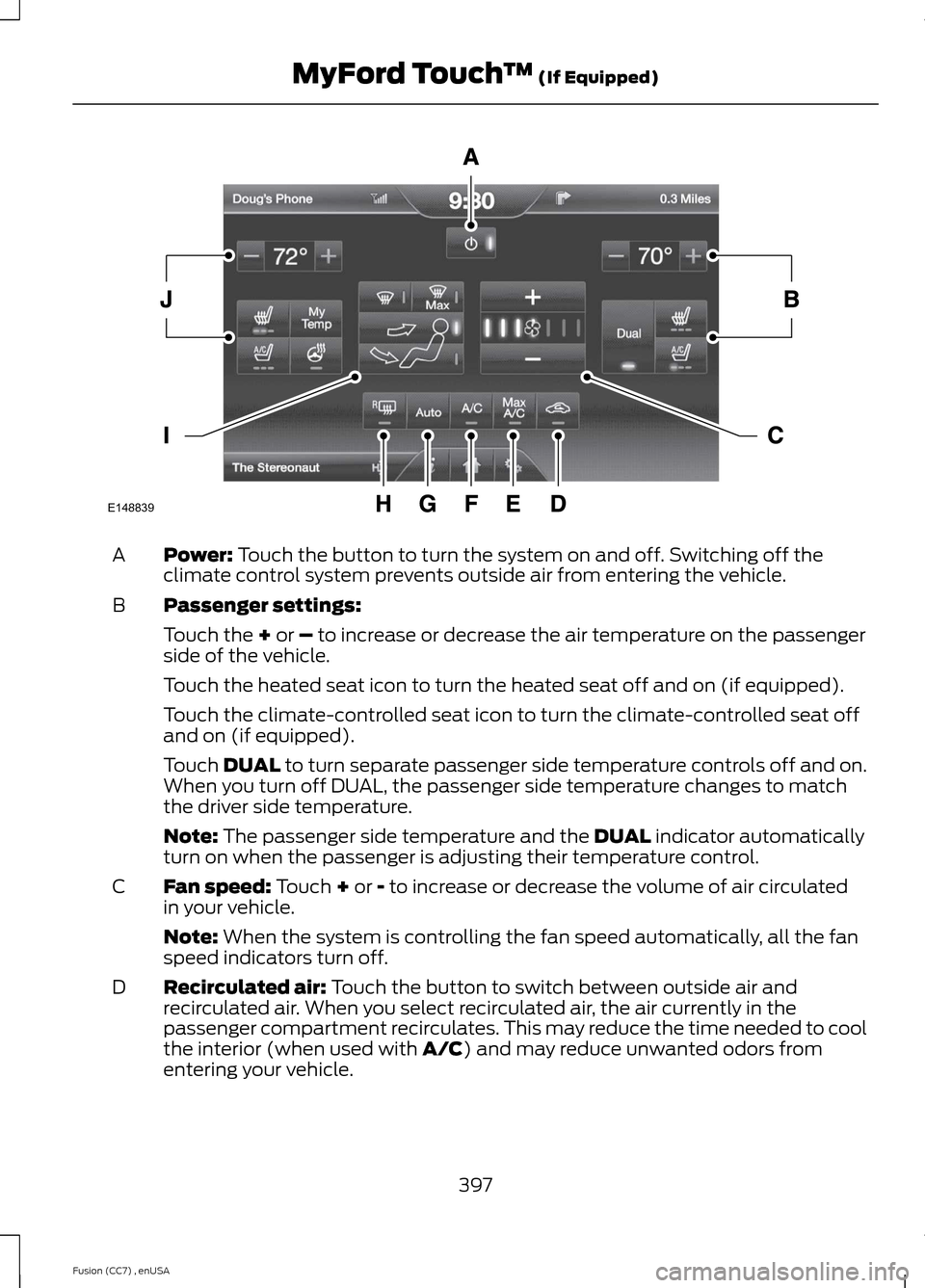
Power: Touch the button to turn the system on and off. Switching off theclimate control system prevents outside air from entering the vehicle.A
Passenger settings:B
Touch the + or – to increase or decrease the air temperature on the passengerside of the vehicle.
Touch the heated seat icon to turn the heated seat off and on (if equipped).
Touch the climate-controlled seat icon to turn the climate-controlled seat offand on (if equipped).
Touch DUAL to turn separate passenger side temperature controls off and on.When you turn off DUAL, the passenger side temperature changes to matchthe driver side temperature.
Note: The passenger side temperature and the DUAL indicator automaticallyturn on when the passenger is adjusting their temperature control.
Fan speed: Touch + or - to increase or decrease the volume of air circulatedin your vehicle.C
Note: When the system is controlling the fan speed automatically, all the fanspeed indicators turn off.
Recirculated air: Touch the button to switch between outside air andrecirculated air. When you select recirculated air, the air currently in thepassenger compartment recirculates. This may reduce the time needed to coolthe interior (when used with A/C) and may reduce unwanted odors fromentering your vehicle.
D
397Fusion (CC7) , enUSAMyFord Touch™ (If Equipped)E148839
Page 401 of 458
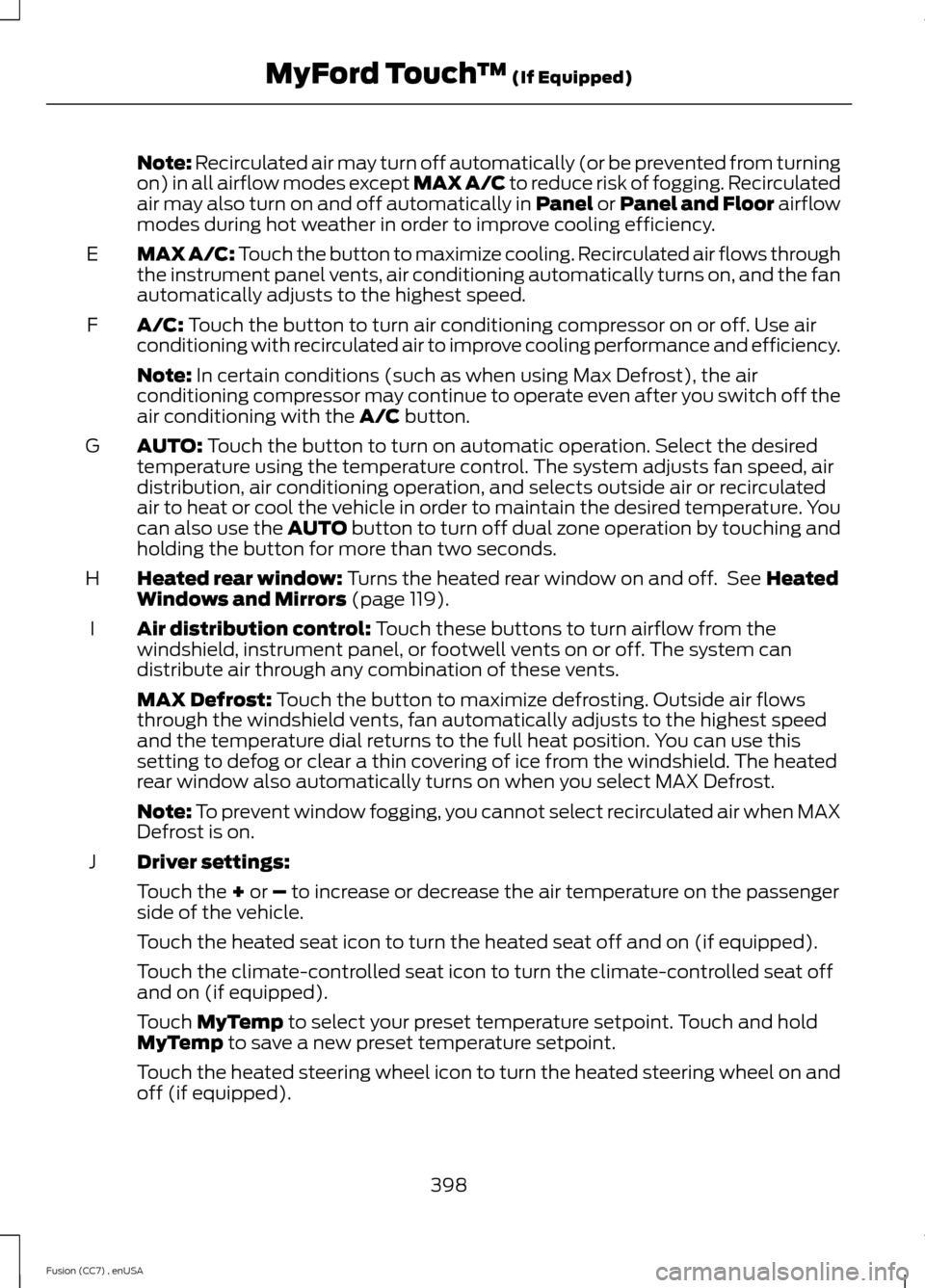
Note: Recirculated air may turn off automatically (or be prevented from turningon) in all airflow modes except MAX A/C to reduce risk of fogging. Recirculatedair may also turn on and off automatically in Panel or Panel and Floor airflowmodes during hot weather in order to improve cooling efficiency.
MAX A/C: Touch the button to maximize cooling. Recirculated air flows throughthe instrument panel vents, air conditioning automatically turns on, and the fanautomatically adjusts to the highest speed.
E
A/C: Touch the button to turn air conditioning compressor on or off. Use airconditioning with recirculated air to improve cooling performance and efficiency.F
Note: In certain conditions (such as when using Max Defrost), the airconditioning compressor may continue to operate even after you switch off theair conditioning with the A/C button.
AUTO: Touch the button to turn on automatic operation. Select the desiredtemperature using the temperature control. The system adjusts fan speed, airdistribution, air conditioning operation, and selects outside air or recirculatedair to heat or cool the vehicle in order to maintain the desired temperature. Youcan also use the AUTO button to turn off dual zone operation by touching andholding the button for more than two seconds.
G
Heated rear window: Turns the heated rear window on and off. See HeatedWindows and Mirrors (page 119).H
Air distribution control: Touch these buttons to turn airflow from thewindshield, instrument panel, or footwell vents on or off. The system candistribute air through any combination of these vents.
I
MAX Defrost: Touch the button to maximize defrosting. Outside air flowsthrough the windshield vents, fan automatically adjusts to the highest speedand the temperature dial returns to the full heat position. You can use thissetting to defog or clear a thin covering of ice from the windshield. The heatedrear window also automatically turns on when you select MAX Defrost.
Note: To prevent window fogging, you cannot select recirculated air when MAXDefrost is on.
Driver settings:J
Touch the + or – to increase or decrease the air temperature on the passengerside of the vehicle.
Touch the heated seat icon to turn the heated seat off and on (if equipped).
Touch the climate-controlled seat icon to turn the climate-controlled seat offand on (if equipped).
Touch MyTemp to select your preset temperature setpoint. Touch and holdMyTemp to save a new preset temperature setpoint.
Touch the heated steering wheel icon to turn the heated steering wheel on andoff (if equipped).
398Fusion (CC7) , enUSAMyFord Touch™ (If Equipped)
Page 449 of 458

Booster Seats..................................................20Types of Booster Seats......................................20Brake and Clutch Fluid Check.................245Brakes...............................................................163General Information..........................................163Breaking-In......................................................213Bulb Specification Chart...........................253
C
Cabin Air Filter................................................119California Proposition 65..............................11Capacities and Specifications................287Technical Specifications..................................291Car WashSee: Cleaning the Exterior..............................256Center Console..............................................135Changing a Bulb............................................251Lamp Assembly Condensation.....................251Replacing a Reverse Lamp Bulb..................252Replacing the Headlamp Bulbs....................251Replacing the License Plate LampBulb....................................................................253Replacing the Tail, Brake, High-MountBrake Lamp, and Turn Signal LampBulbs..................................................................252Changing a Fuse...........................................235Fuses.......................................................................235Changing a Road Wheel...........................282Dissimilar Spare Wheel and Tire AssemblyInformation.....................................................282Stowing the flat tire..........................................285Tire Change Procedure....................................283Changing the 12V Battery.........................245Changing the Engine Air Filter.................2552.5L Engine...........................................................255EcoBoost Engines..............................................255Changing the Wiper Blades.....................247Checking MyKey System Status................51Checking the Wiper Blades......................247Child Restraint and Safety BeltMaintenance.................................................32Child Safety.......................................................13General Information.............................................13Child Safety Locks..........................................23Left-Hand Side......................................................24Right-Hand Side...................................................24Child Seat Positioning...................................22
Cleaning Leather Seats.............................259Cleaning Products.......................................256Cleaning the Alloy Wheels.......................260Cleaning the Engine....................................257Cleaning the Exterior..................................256Cleaning Plastic Exterior Parts......................257Exterior Chrome.................................................256Stripes or Graphics (if equipped)................256Underbody............................................................257Cleaning the Instrument Panel andInstrument Cluster Lens........................258Cleaning the Interior...................................258Cleaning the Windows and WiperBlades...........................................................258Clearing All MyKeys........................................51Climate............................................................396Climate Control Voice Commands.............399Climate Control..............................................110Collision Warning System.........................196PRINCIPLE OF OPERATION...........................196Coolant CheckSee: Engine Coolant Check............................242Crash Sensors and Airbag Indicator........42Creating a MyKey.............................................51Programming/Changing ConfigurableSettings................................................................51Cruise Control..................................................65Principle of Operation.......................................179Type 1........................................................................65Type 2.......................................................................65Cruise controlSee: Using Cruise Control................................179Customer Assistance.................................220
D
Data Recording..................................................9Event Data Recording...........................................9Service Data Recording........................................9Daytime Running Lamps..............................71Digital Radio..................................................302HD Radio Reception and StationTroubleshooting............................................303Direction Indicators........................................73Driver Alert......................................................186PRINCIPLE OF OPERATION...........................186USING DRIVER ALERT.....................................186
446Fusion (CC7) , enUSAIndex