2014 FORD FOCUS ELECTRIC display
[x] Cancel search: displayPage 362 of 403
Map Preferences
Breadcrumbsdisplays your vehicle’s previously traveled route with
white dots. Turn this featureONorOFF.
Turn List Formatallows you to choose to have the system display your
turn listTop to BottomorBottom to Top.
Parking POI Notificationsets the automatic parking points of interest
notification. Turn this featureONorOFF.When parking points of
interest notification is on, the icons display on the map when you get
close to your destination. This may not be very useful in dense areas,
and may clutter the map when other points of interest display.
Route Preferences
Preferred Routeallows you to choose to have the system display the
Shortest, Fastestor mostEcologicalroute first. If you setAlways
Use Preferred RoutetoYe s, the system uses the selected route type
to calculate only one route to the desired destination.
Always Use Preferred Routebypasses route selection in destination
programming. The system only calculates one route based on the
preferred route setting.
Eco Time Penaltyallows you to select a low, medium or high cost for
the calculated Eco Route. The higher the setting, the longer the time
allotment is for the route.
Avoidfeatures allows you to choose to have the system avoid freeways,
toll roads, ferries and car trains when planning your route. Turn these
featuresONorOFF.
Use HOV Lanesallows you to choose to have the system use
high-occupancy vehicle lanes, if available, when planning your route.
Navigation Preferences
Guidance Promptsallows you to choose to have the system useVoice
& TonesorTone Onlyon your programmed route.
Auto - Fill State/Provinceallows you have the system automatically fill
in the state and province based on the information already entered into
the system. Turn this featureONorOFF.
MyFord Touch®361
2014 Focus Electric Vehicle(fob)
Owners Guide gf, 1st Printing, May 2013
USA(fus)
Page 363 of 403
Traffic Preferences
Avoid Traffic Problemsallows you to choose how you want the system
to handle traffic problems along your route.
•Automatic:Have the system reroute you to avoid traffic incidents
that develop and impact the current route. The system does not
provide a traffic alert notification.
•Manual:Have the system always provide a traffic alert notification
for traffic incidents along the planned route. You have a choice to
accept or ignore the notification before making the route deviation.
Traffic Alert Notificationallows you to choose have the system
display traffic alert notifications.
Other traffic alert features allows you to turn on certain, or all, traffic
icons on the map such as road work, incident, accidents and closed
roads. Scroll down to view all the different types of alerts. Turn these
featuresONorOFF.
Avoid Areas
Avoid Areasallows you to choose areas which you want the system to
avoid when calculating a route for you.
PressAddto program an entry. Once you make a selection, the system
tries to avoid the area(s) if possible for all routes. To delete a selection,
choose the listing on the screen. When the screen changes toAvoid
Areas Edit,you can pressDeleteat the bottom right of the screen.
Map Mode
Press the green bar in the upper right area of the touchscreen to view
map mode. Map mode shows advanced viewing comprised of both 2D
city maps as well as 3D landmarks (when available).
2D city mapsshow detailed outlines of buildings, visible land use and
land elements and detailed railway infrastructure for the most essential
cities around the globe. These maps also contain features, such as town
blocks, building footprints, and railways.
3D landmarksappear as clear, visible objects that are typically
recognizable and have a certain tourist value. The 3D landmarks appear
in 3D map mode only. Coverage varies, and improves with updated map
releases.
362MyFord Touch®
2014 Focus Electric Vehicle(fob)
Owners Guide gf, 1st Printing, May 2013
USA(fus)
Page 364 of 403
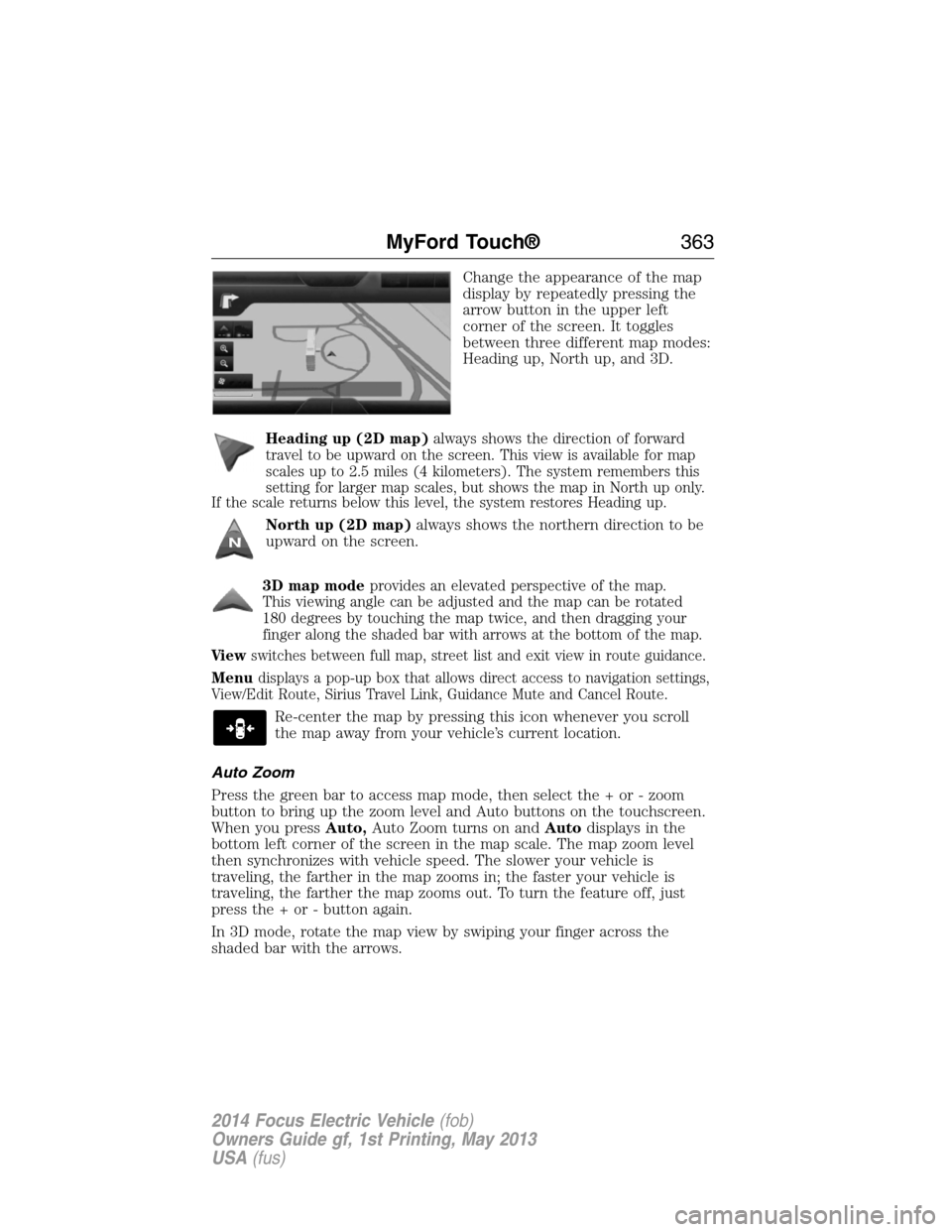
Change the appearance of the map
display by repeatedly pressing the
arrow button in the upper left
corner of the screen. It toggles
between three different map modes:
Heading up, North up, and 3D.
Heading up (2D map)
always shows the direction of forward
travel to be upward on the screen. This view is available for map
scales up to 2.5 miles (4 kilometers). The system remembers this
setting for larger map scales, but shows the map in North up only.
If the scale returns below this level, the system restores Heading up.
North up (2D map)always shows the northern direction to be
upward on the screen.
3D map mode
provides an elevated perspective of the map.
This viewing angle can be adjusted and the map can be rotated
180 degrees by touching the map twice, and then dragging your
finger along the shaded bar with arrows at the bottom of the map.
Vi e wswitches between full map, street list and exit view in route guidance.
Menudisplays a pop-up box that allows direct access to navigation settings,
View/Edit Route, Sirius Travel Link, Guidance Mute and Cancel Route.
Re-center the map by pressing this icon whenever you scroll
the map away from your vehicle’s current location.
Auto Zoom
Press the green bar to access map mode, then select the + or - zoom
button to bring up the zoom level and Auto buttons on the touchscreen.
When you pressAuto,Auto Zoom turns on andAutodisplays in the
bottom left corner of the screen in the map scale. The map zoom level
then synchronizes with vehicle speed. The slower your vehicle is
traveling, the farther in the map zooms in; the faster your vehicle is
traveling, the farther the map zooms out. To turn the feature off, just
press the + or - button again.
In 3D mode, rotate the map view by swiping your finger across the
shaded bar with the arrows.
MyFord Touch®363
2014 Focus Electric Vehicle(fob)
Owners Guide gf, 1st Printing, May 2013
USA(fus)
Page 365 of 403
Map Icons
Vehicle markshows the current location of your vehicle. It
stays in the center of the map display, except when in scroll
mode.
Scroll cursorallows you to scroll the map; the fixed icon is in
the center of the screen. The map position closest to the cursor
is in a window on the top center part of the screen.
Address book entry default icon(s)indicates the location on
the map of an address book entry. This is the default symbol
shown after the entry has been stored to the Address Book by
any method other than the map. You can select from any of the
22 icons available. You can use each icon more than once.
Homeindicates the location on the map currently stored as the
home position. You can only save one address from the Address
Book as your Home entry. You cannot change this icon.
POI (Point Of Interest) iconsindicate locations of any point
of interest categories you choose to display on the map. You can
choose to display three point of interest categories on the map at
one time.
Starting pointindicates the starting point of a planned route.
Waypointsindicates the location of a waypoint on the map.
The number inside the circle is different for each waypoint and
represents the position of the waypoint in the route list.
Destination symbolindicates the ending point of a planned
route.
Next maneuver pointindicates the location of the next turn on
the planned route.
No GPS symbolindicates that insufficient GPS satellite signals
are available for accurate map positioning. This icon may display
under normal operation in an area with poor GPS access.
364MyFord Touch®
2014 Focus Electric Vehicle(fob)
Owners Guide gf, 1st Printing, May 2013
USA(fus)
Page 366 of 403
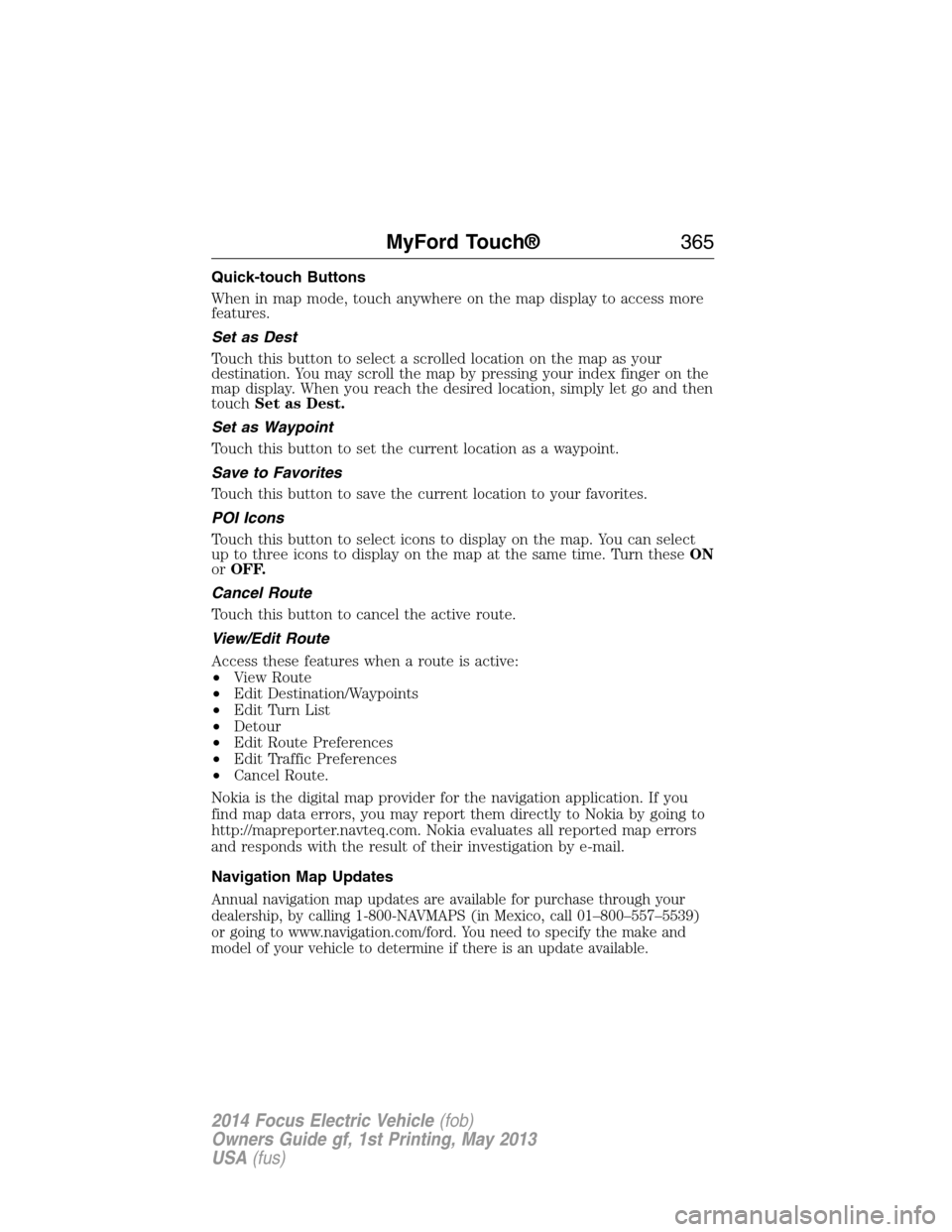
Quick-touch Buttons
When in map mode, touch anywhere on the map display to access more
features.
Set as Dest
Touch this button to select a scrolled location on the map as your
destination. You may scroll the map by pressing your index finger on the
map display. When you reach the desired location, simply let go and then
touchSet as Dest.
Set as Waypoint
Touch this button to set the current location as a waypoint.
Save to Favorites
Touch this button to save the current location to your favorites.
POI Icons
Touch this button to select icons to display on the map. You can select
up to three icons to display on the map at the same time. Turn theseON
orOFF.
Cancel Route
Touch this button to cancel the active route.
View/Edit Route
Access these features when a route is active:
•View Route
•Edit Destination/Waypoints
•Edit Turn List
•Detour
•Edit Route Preferences
•Edit Traffic Preferences
•Cancel Route.
Nokia is the digital map provider for the navigation application. If you
find map data errors, you may report them directly to Nokia by going to
http://mapreporter.navteq.com. Nokia evaluates all reported map errors
and responds with the result of their investigation by e-mail.
Navigation Map Updates
Annual navigation map updates are available for purchase through your
dealership, by calling 1-800-NAVMAPS (in Mexico, call 01–800–557–5539)
or going to www.navigation.com/ford. You need to specify the make and
model of your vehicle to determine if there is an update available.
MyFord Touch®365
2014 Focus Electric Vehicle(fob)
Owners Guide gf, 1st Printing, May 2013
USA(fus)
Page 368 of 403
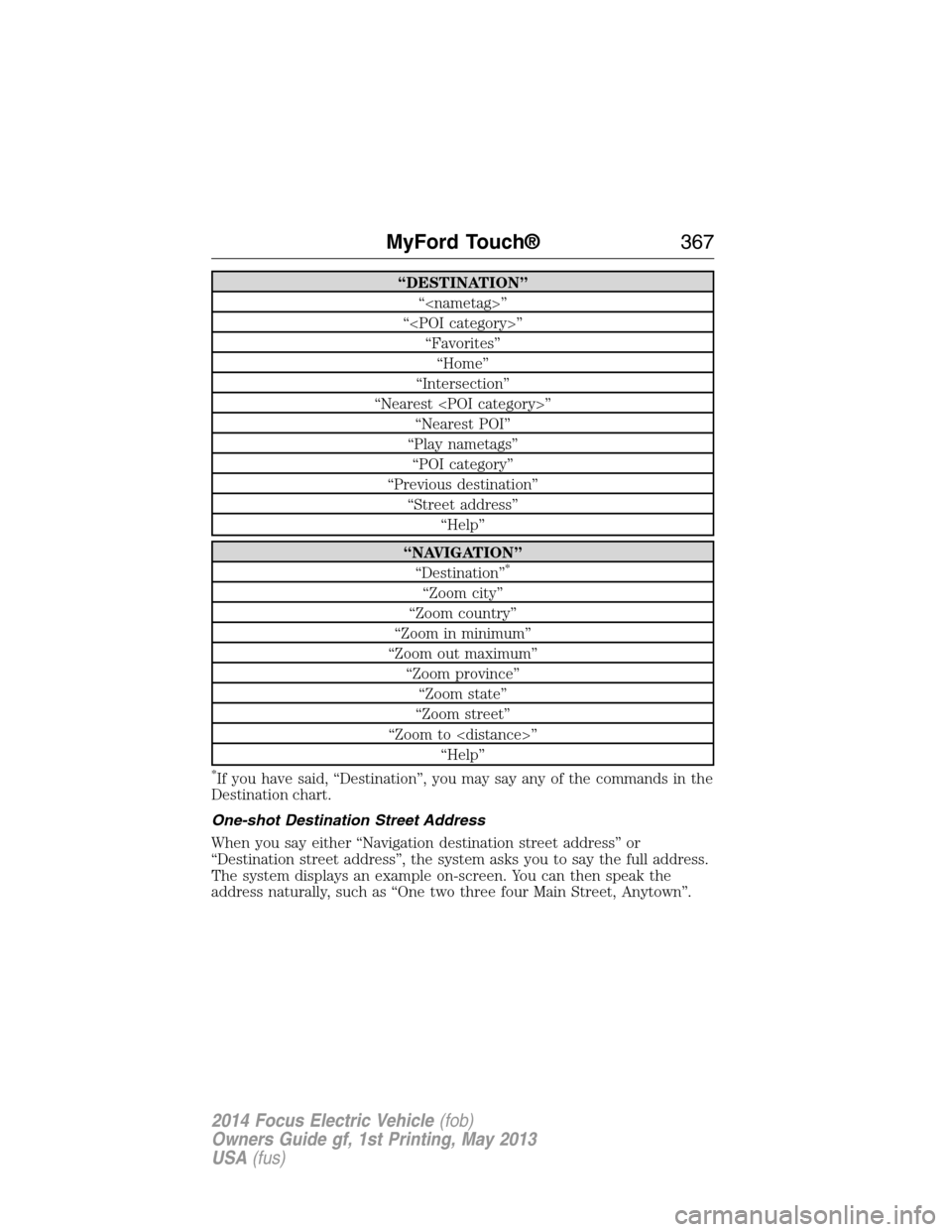
“DESTINATION”
“
“
“Favorites”
“Home”
“Intersection”
“Nearest
“Nearest POI”
“Play nametags”
“POI category”
“Previous destination”
“Street address”
“Help”
“NAVIGATION”
“Destination”*
“Zoom city”
“Zoom country”
“Zoom in minimum”
“Zoom out maximum”
“Zoom province”
“Zoom state”
“Zoom street”
“Zoom to
“Help”
*If you have said, “Destination”, you may say any of the commands in the
Destination chart.
One-shot Destination Street Address
When you say either “Navigation destination street address” or
“Destination street address”, the system asks you to say the full address.
The system displays an example on-screen. You can then speak the
address naturally, such as “One two three four Main Street, Anytown”.
MyFord Touch®367
2014 Focus Electric Vehicle(fob)
Owners Guide gf, 1st Printing, May 2013
USA(fus)
Page 399 of 403
automatic locking mode
(retractor) .................................34
LATCH .......................................26
Child safety seats - booster
seats .............................................20
Cleaning the touchscreen ........282
Cleaning your vehicle ...............227
engine compartment ..............230
instrument panel ....................231
interior .....................................231
plastic parts ............................229
washing ....................................227
waxing .....................................229
wheels ......................................233
wiper blades ............................230
Climate control (see Air
conditioning or Heating) ..........120
Climate voice commands .........354
Clock ..........................................341
Console ......................................138
overhead ..................................138
Coolant ......................................212
checking and adding ..............212
refill capacities ........................265
specifications ..........................265
Customer Assistance ................182
Ford Extended
Service Plan ............................271
Getting roadside assistance ...182
Getting the service
you need .................................190
Ordering additional owner’s
literature .................................196
Utilizing the
Mediation/Arbitration
Program ...................................194D
Daytime running lamps
(see Lamps) ................................84
Defrost
rear window ............................124
Dipstick
automatic transmission
fluid ..........................................215
Display settings .........................342
Driving under special
conditions ..................................151
through water .........................179
E
Electronic message center .......102
Electronic stability control ......158
Emergencies, roadside
jump-starting ..........................184
End user license agreement ....368
Engine
cleaning ...................................230
service points ..........................212
Engine fan .................................212
Event data recording ..................10
F
Fan, Engine Cooling .........209, 212
Fleet MyKey programming ........60
Floor mats .................................180
Fluid capacities .........................265
Fog lamps ....................................84
Fuses ..........................198–199, 205
398Index
2014 Focus Electric Vehicle(fob)
Owners Guide gf, 1st Printing, May 2013
USA(fus)
Page 400 of 403
G
Gauges .........................................95
Guidance for electric and
hybrid-electric vehicles ............187
H
Hazard flashers .........................183
HD Radio™ ...............................295
Headlamps ...................................81
aiming ..............................219–220
autolamp system .......................82
bulb specifications ..................226
daytime running lights .............84
flash to pass ..............................81
high beam .................................81
replacing bulbs ...............221–222
turning on and off ....................81
Head restraints .........................128
Heated steering wheel ..............352
Heating
heating and air conditioning
system .....................................120
Help ............................................351
High-voltage battery
charging ...................................142
service disconnect ..................148
High-voltage shut off ................184
Hill start assist ..........................152
Hood ..........................................210
How to use voice commands ...288
I
Illuminated visor mirror .............94
Information displays .................102Instrument panel
cleaning ...................................231
cluster ........................................97
lighting up panel and
interior .......................................83
Intelligent Access Key ................56
J
Jump-starting your vehicle ......184
K
Keyless entry system
autolock .....................................69
Keys .............................................73
L
Lamps ..........................................81
autolamp system .......................82
bulb replacement
specifications chart ................226
daytime running light ...............84
fog lamps ...................................84
headlamps .................................81
headlamps, flash to pass ..........81
instrument panel, dimming .....83
interior lamps .....................85–87
replacing bulbs ...............221–222
LATCH anchors ...........................26
Lights, warning and indicator ....97
Listening to music ....................291
Load limits .................................170
Locks
autolock .....................................69
childproof ..................................30
doors ..........................................67
Lubricant specifications ...........265
Lug nuts ....................................264
Index399
2014 Focus Electric Vehicle(fob)
Owners Guide gf, 1st Printing, May 2013
USA(fus)