2014 FORD FIESTA display
[x] Cancel search: displayPage 259 of 396
5. Switch your portable music player on
and adjust its volume to half its
maximum level.
6. Press AUX until LINE or LINE IN
appears in the display. You should hear
music from your device even if it is low. 7. Adjust the volume on your portable
music player until it reaches the volume
level of the FM station or CD. Do this
by switching back and forth between
the AUX and FM or CD controls.
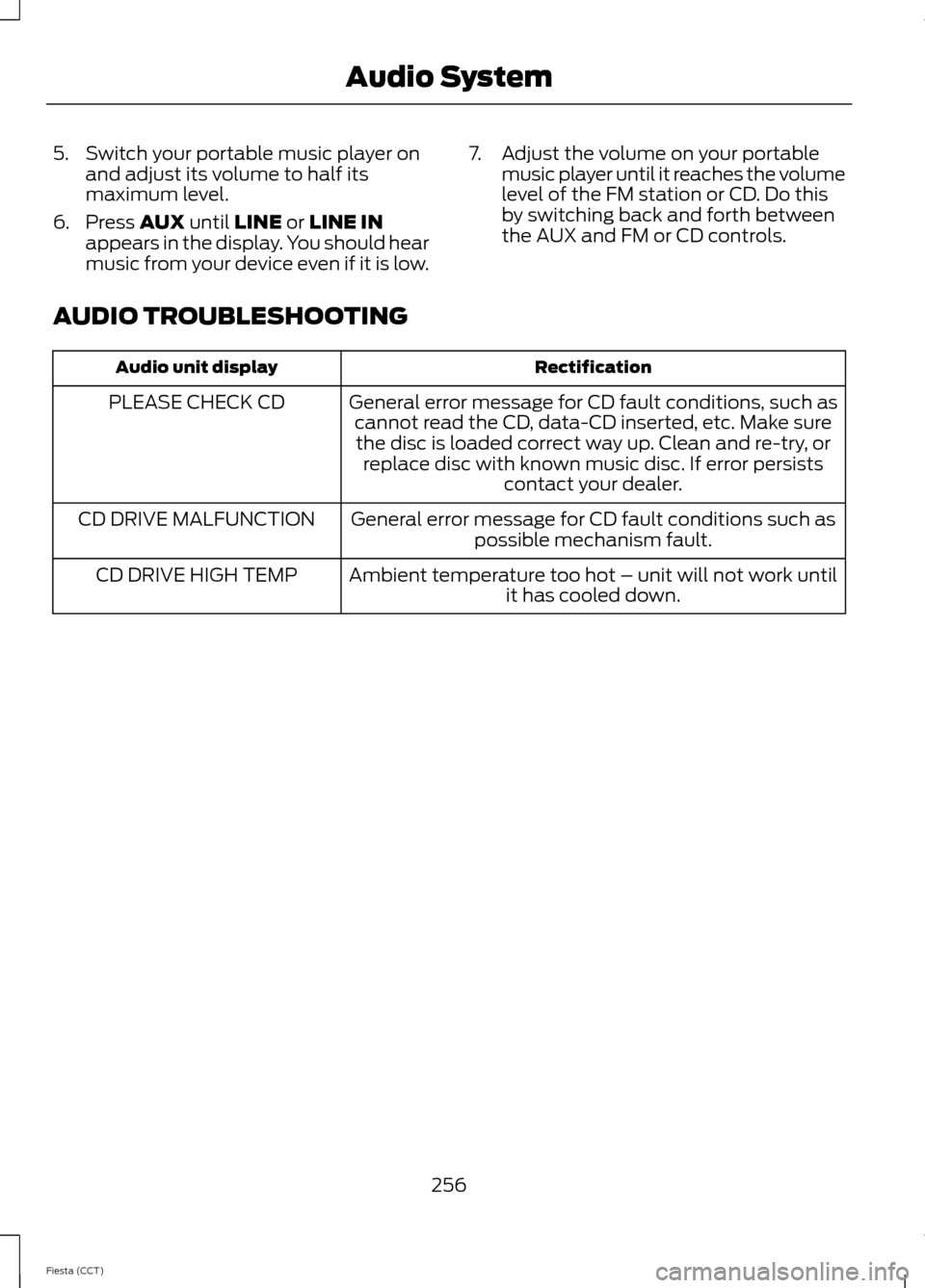
AUDIO TROUBLESHOOTING Rectification
Audio unit display
General error message for CD fault conditions, such ascannot read the CD, data-CD inserted, etc. Make surethe disc is loaded correct way up. Clean and re-try, or replace disc with known music disc. If error persists contact your dealer.
PLEASE CHECK CD
General error message for CD fault conditions such aspossible mechanism fault.
CD DRIVE MALFUNCTION
Ambient temperature too hot – unit will not work untilit has cooled down.
CD DRIVE HIGH TEMP
256
Fiesta (CCT) Audio System
Page 262 of 396

System data cannot be accessed without
special equipment and access to the
vehicle's SYNC module. Ford Motor
Company and Ford of Canada will not
access the system data for any purpose
other than as described absent consent, a
court order, or where required by law
enforcement, other government
authorities, or other third parties acting
with lawful authority. Other parties may
seek to access the information
independently of Ford Motor Company and
Ford of Canada. For further privacy
information, see the sections on 911 Assist,
Vehicle Health Report, and Traffic,
Directions and Information.
USING VOICE RECOGNITION
This system helps you control many
features using voice commands. This
allows you to keep your hands on the
wheel and focus on what is in front of you.
Initiating a Voice Session Push the voice icon. A tone
sounds and Listening appears in
the display. Say any of the
following: If You Want To
Say
Stream audio from your phone.
"Bluetooth audio"
Cancel the requested action.
"Cancel"
Access the device connected to the auxiliary input jack.
"Line in"
Access mobile applications.
"Mobile apps" *
Make calls.
"Phone"
Access the SYNC Services portal.
"Services" *
Return to the main menu.
"SYNC"
Access the device connected to your USB port.
"USB"
Run a vehicle health report.
"Vehicle health report" *
Adjust the level of voice interaction and feedback.
"Voice settings"
Hear a list of voice commands available in the current
mode.
"Help"
* This is an optional feature and available in the United States only.
259
Fiesta (CCT) SYNC™E142599
Page 265 of 396
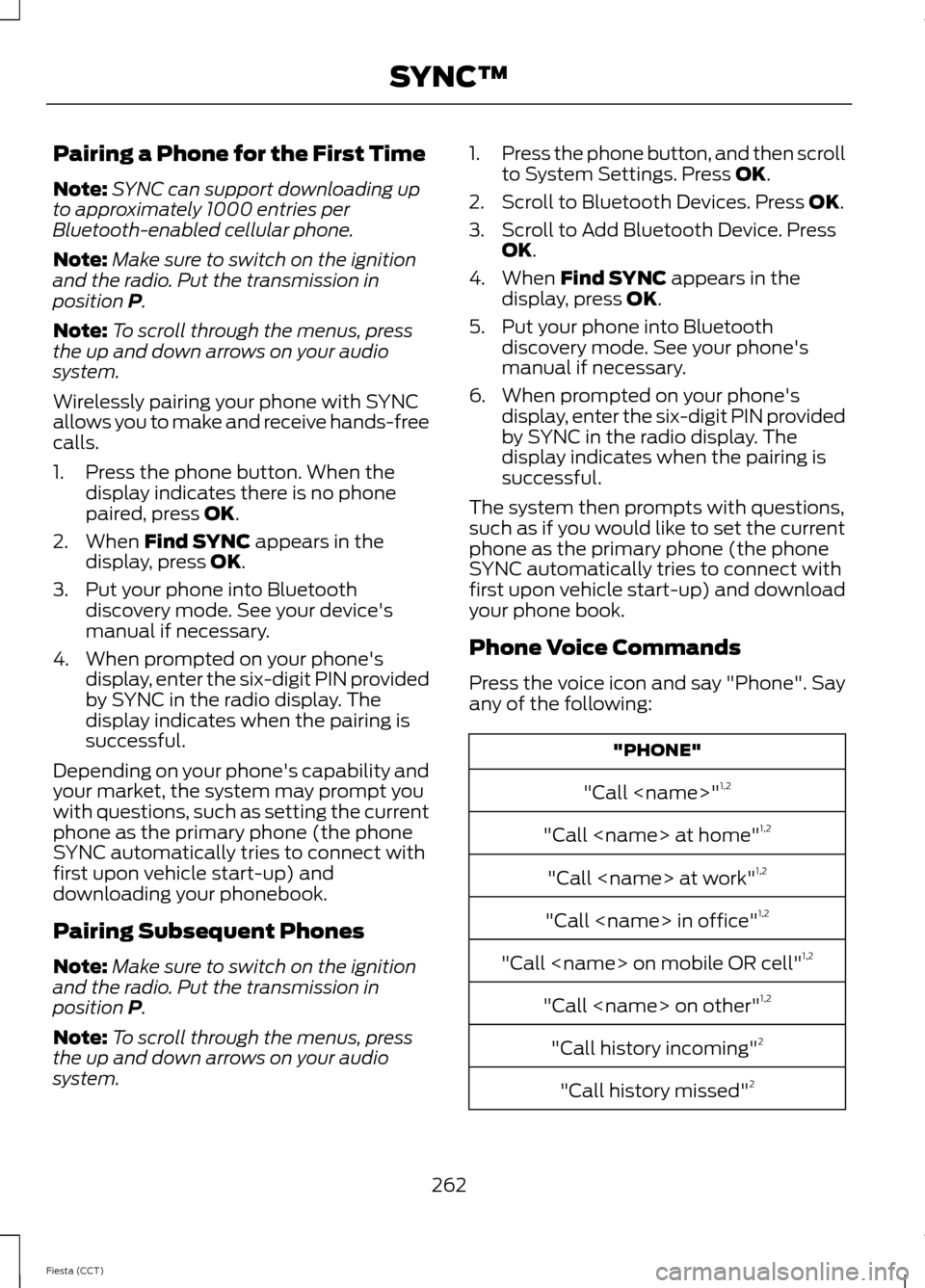
Pairing a Phone for the First Time
Note:
SYNC can support downloading up
to approximately 1000 entries per
Bluetooth-enabled cellular phone.
Note: Make sure to switch on the ignition
and the radio. Put the transmission in
position P.
Note: To scroll through the menus, press
the up and down arrows on your audio
system.
Wirelessly pairing your phone with SYNC
allows you to make and receive hands-free
calls.
1. Press the phone button. When the display indicates there is no phone
paired, press
OK.
2. When
Find SYNC appears in the
display, press OK.
3. Put your phone into Bluetooth discovery mode. See your device's
manual if necessary.
4. When prompted on your phone's display, enter the six-digit PIN provided
by SYNC in the radio display. The
display indicates when the pairing is
successful.
Depending on your phone's capability and
your market, the system may prompt you
with questions, such as setting the current
phone as the primary phone (the phone
SYNC automatically tries to connect with
first upon vehicle start-up) and
downloading your phonebook.
Pairing Subsequent Phones
Note: Make sure to switch on the ignition
and the radio. Put the transmission in
position
P.
Note: To scroll through the menus, press
the up and down arrows on your audio
system. 1.
Press the phone button, and then scroll
to System Settings. Press
OK.
2. Scroll to Bluetooth Devices. Press
OK.
3. Scroll to Add Bluetooth Device. Press OK
.
4. When
Find SYNC appears in the
display, press OK.
5. Put your phone into Bluetooth discovery mode. See your phone's
manual if necessary.
6. When prompted on your phone's display, enter the six-digit PIN provided
by SYNC in the radio display. The
display indicates when the pairing is
successful.
The system then prompts with questions,
such as if you would like to set the current
phone as the primary phone (the phone
SYNC automatically tries to connect with
first upon vehicle start-up) and download
your phone book.
Phone Voice Commands
Press the voice icon and say "Phone". Say
any of the following: "PHONE"
"Call
"Call
"Call
"Call
"Call
"Call
"Call history incoming" 2
"Call history missed" 2
262
Fiesta (CCT) SYNC™
Page 266 of 396
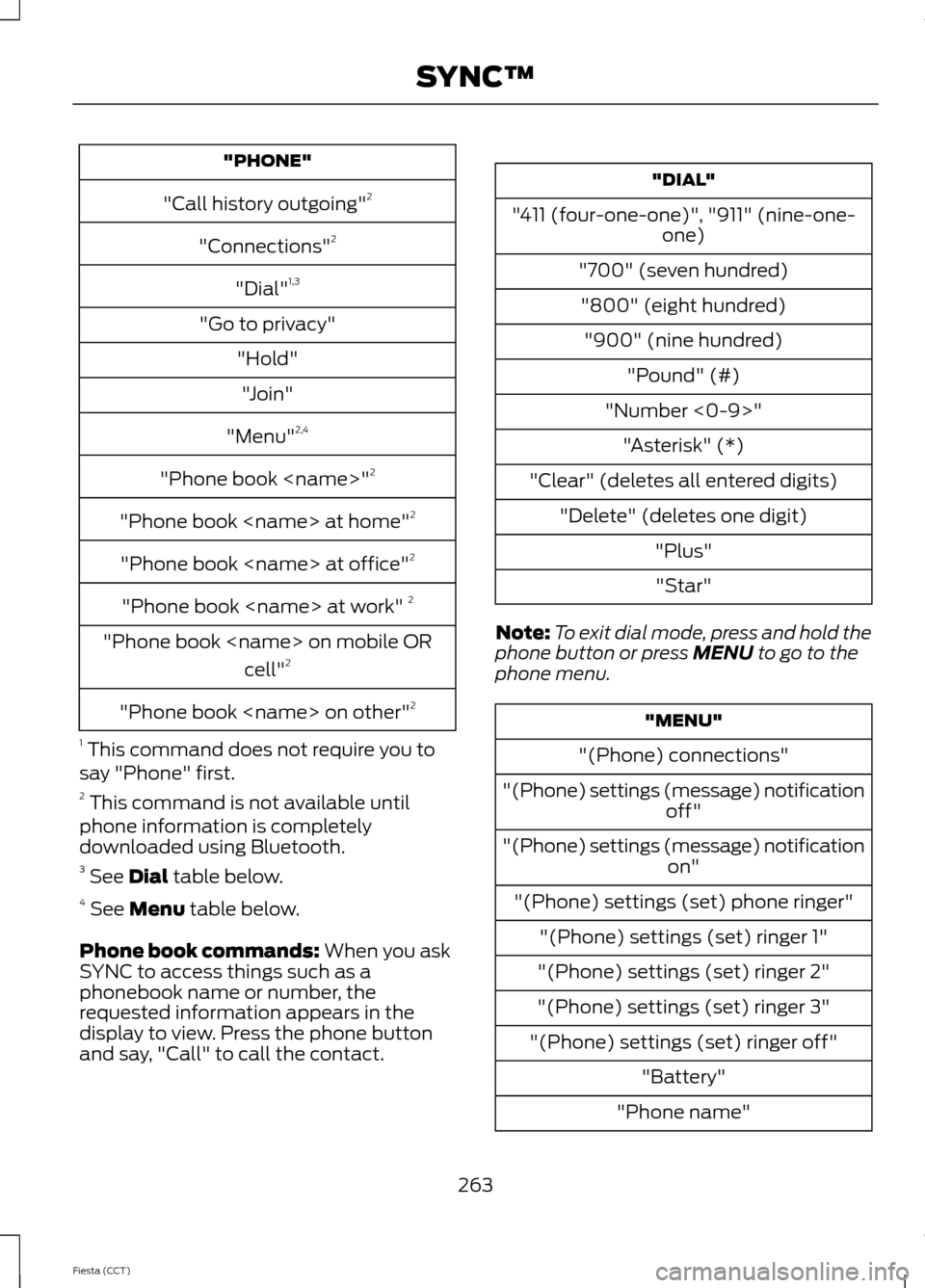
"PHONE"
"Call history outgoing" 2
"Connections" 2
"Dial" 1,3
"Go to privacy" "Hold""Join"
"Menu" 2,4
"Phone book
"Phone book
"Phone book
"Phone book
"Phone book
"Phone book
1 This command does not require you to
say "Phone" first.
2 This command is not available until
phone information is completely
downloaded using Bluetooth.
3 See Dial table below.
4 See
Menu table below.
Phone book commands:
When you ask
SYNC to access things such as a
phonebook name or number, the
requested information appears in the
display to view. Press the phone button
and say, "Call" to call the contact. "DIAL"
"411 (four-one-one)", "911" (nine-one- one)
"700" (seven hundred) "800" (eight hundred) "900" (nine hundred) "Pound" (#)
"Number <0-9>" "Asterisk" (*)
"Clear" (deletes all entered digits) "Delete" (deletes one digit) "Plus""Star"
Note: To exit dial mode, press and hold the
phone button or press
MENU to go to the
phone menu. "MENU"
"(Phone) connections"
"(Phone) settings (message) notification off"
"(Phone) settings (message) notification on"
"(Phone) settings (set) phone ringer" "(Phone) settings (set) ringer 1"
"(Phone) settings (set) ringer 2"
"(Phone) settings (set) ringer 3"
"(Phone) settings (set) ringer off" "Battery"
"Phone name"
263
Fiesta (CCT) SYNC™
Page 267 of 396
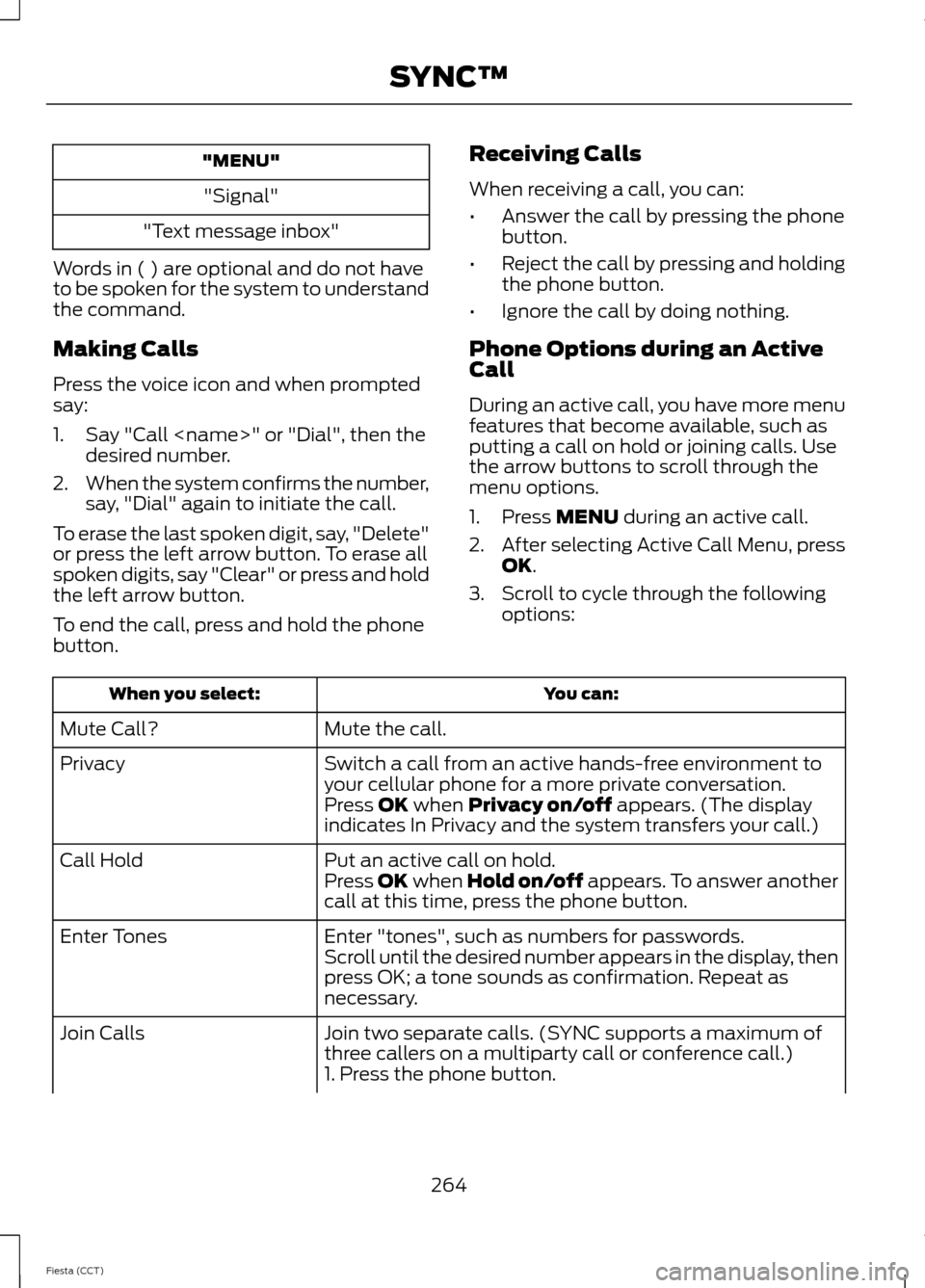
"MENU"
"Signal"
"Text message inbox"
Words in ( ) are optional and do not have
to be spoken for the system to understand
the command.
Making Calls
Press the voice icon and when prompted
say:
1. Say "Call
2. When the system confirms the number,
say, "Dial" again to initiate the call.
To erase the last spoken digit, say, "Delete"
or press the left arrow button. To erase all
spoken digits, say "Clear" or press and hold
the left arrow button.
To end the call, press and hold the phone
button. Receiving Calls
When receiving a call, you can:
•
Answer the call by pressing the phone
button.
• Reject the call by pressing and holding
the phone button.
• Ignore the call by doing nothing.
Phone Options during an Active
Call
During an active call, you have more menu
features that become available, such as
putting a call on hold or joining calls. Use
the arrow buttons to scroll through the
menu options.
1. Press MENU during an active call.
2. After selecting Active Call Menu, press
OK
.
3. Scroll to cycle through the following options: You can:
When you select:
Mute the call.
Mute Call?
Switch a call from an active hands-free environment to
your cellular phone for a more private conversation.
Privacy
Press
OK when Privacy on/off appears. (The display
indicates In Privacy and the system transfers your call.)
Put an active call on hold.
Call Hold
Press OK when Hold on/off appears. To answer another
call at this time, press the phone button.
Enter "tones", such as numbers for passwords.
Enter Tones
Scroll until the desired number appears in the display, then
press OK; a tone sounds as confirmation. Repeat as
necessary.
Join two separate calls. (SYNC supports a maximum of
three callers on a multiparty call or conference call.)
Join Calls
1. Press the phone button.
264
Fiesta (CCT) SYNC™
Page 268 of 396
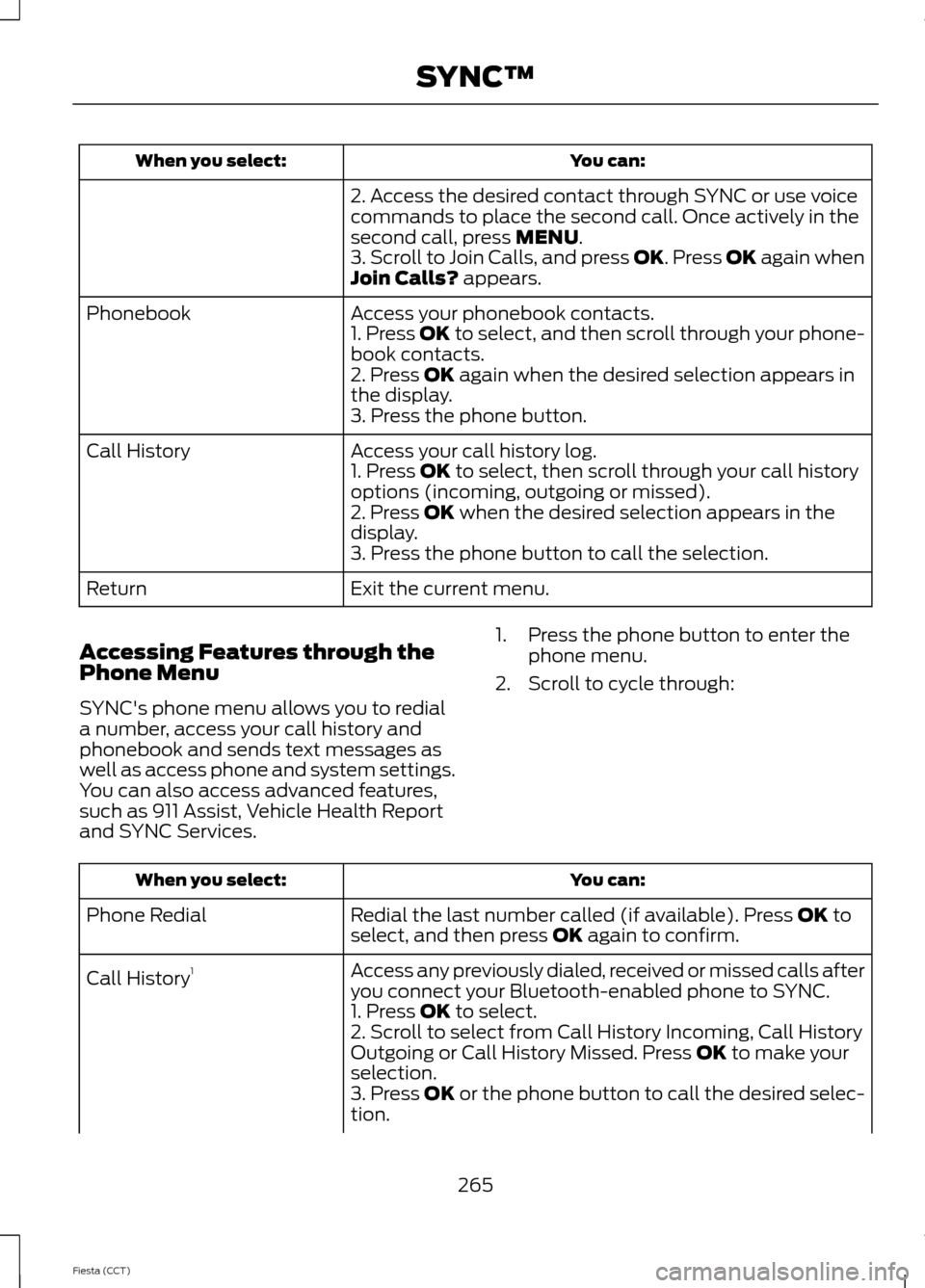
You can:
When you select:
2. Access the desired contact through SYNC or use voice
commands to place the second call. Once actively in the
second call, press MENU.
3. Scroll to Join Calls, and press OK. Press OK again when
Join Calls?
appears.
Access your phonebook contacts.
Phonebook
1. Press OK to select, and then scroll through your phone-
book contacts.
2. Press
OK again when the desired selection appears in
the display.
3. Press the phone button.
Access your call history log.
Call History
1. Press
OK to select, then scroll through your call history
options (incoming, outgoing or missed).
2. Press
OK when the desired selection appears in the
display.
3. Press the phone button to call the selection.
Exit the current menu.
Return
Accessing Features through the
Phone Menu
SYNC's phone menu allows you to redial
a number, access your call history and
phonebook and sends text messages as
well as access phone and system settings.
You can also access advanced features,
such as 911 Assist, Vehicle Health Report
and SYNC Services. 1. Press the phone button to enter the
phone menu.
2. Scroll to cycle through: You can:
When you select:
Redial the last number called (if available). Press
OK to
select, and then press OK again to confirm.
Phone Redial
Access any previously dialed, received or missed calls after
you connect your Bluetooth-enabled phone to SYNC.
Call History
1
1. Press
OK to select.
2. Scroll to select from Call History Incoming, Call History
Outgoing or Call History Missed. Press
OK to make your
selection.
3. Press
OK or the phone button to call the desired selec-
tion.
265
Fiesta (CCT) SYNC™
Page 270 of 396
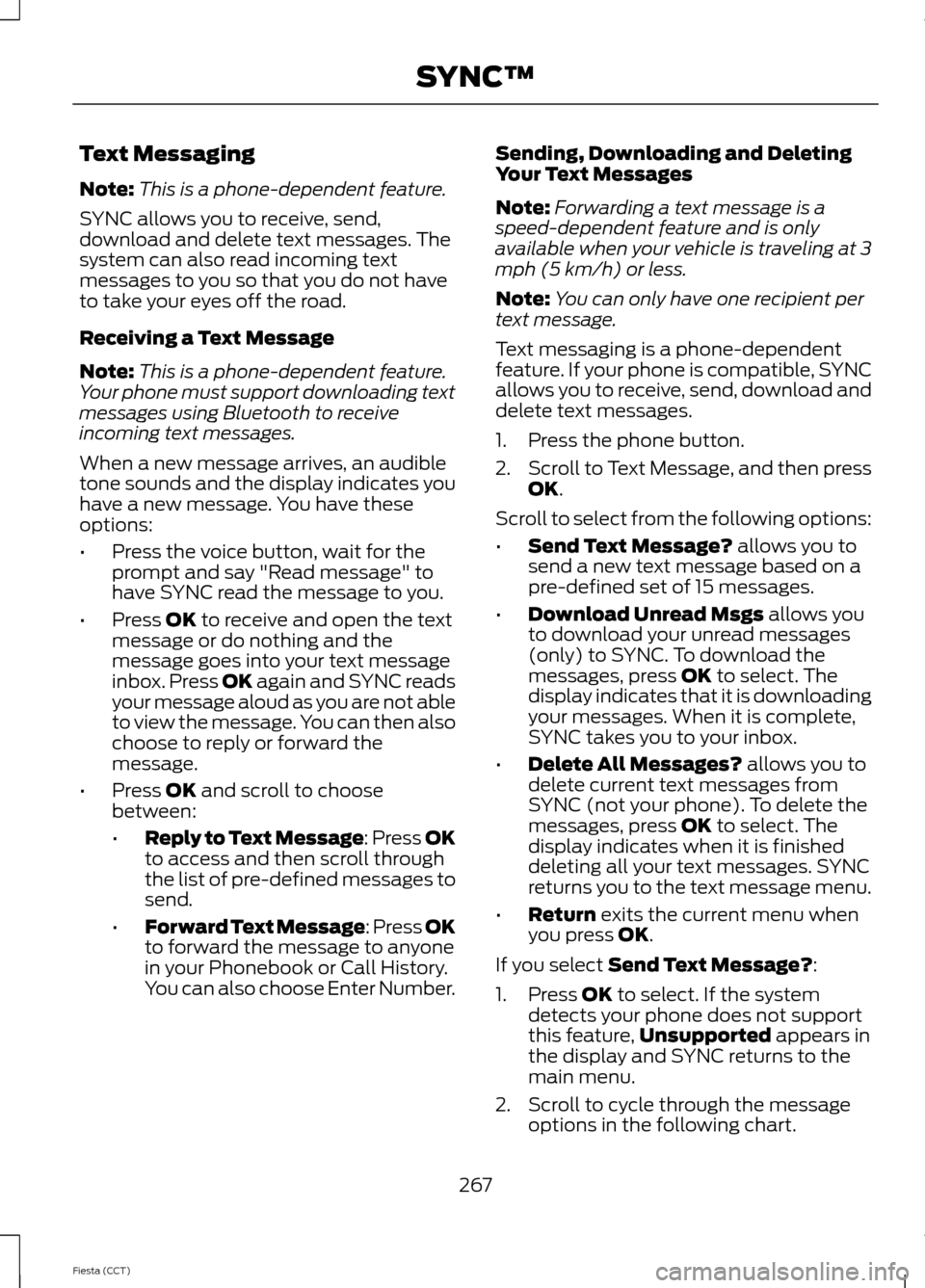
Text Messaging
Note:
This is a phone-dependent feature.
SYNC allows you to receive, send,
download and delete text messages. The
system can also read incoming text
messages to you so that you do not have
to take your eyes off the road.
Receiving a Text Message
Note: This is a phone-dependent feature.
Your phone must support downloading text
messages using Bluetooth to receive
incoming text messages.
When a new message arrives, an audible
tone sounds and the display indicates you
have a new message. You have these
options:
• Press the voice button, wait for the
prompt and say "Read message" to
have SYNC read the message to you.
• Press OK to receive and open the text
message or do nothing and the
message goes into your text message
inbox. Press OK again and SYNC reads
your message aloud as you are not able
to view the message. You can then also
choose to reply or forward the
message.
• Press
OK and scroll to choose
between:
• Reply to Text Message: Press OK
to access and then scroll through
the list of pre-defined messages to
send.
• Forward Text Message: Press OK
to forward the message to anyone
in your Phonebook or Call History.
You can also choose Enter Number. Sending, Downloading and Deleting
Your Text Messages
Note:
Forwarding a text message is a
speed-dependent feature and is only
available when your vehicle is traveling at 3
mph (5 km/h) or less.
Note: You can only have one recipient per
text message.
Text messaging is a phone-dependent
feature. If your phone is compatible, SYNC
allows you to receive, send, download and
delete text messages.
1. Press the phone button.
2. Scroll to Text Message, and then press
OK
.
Scroll to select from the following options:
• Send Text Message?
allows you to
send a new text message based on a
pre-defined set of 15 messages.
• Download Unread Msgs
allows you
to download your unread messages
(only) to SYNC. To download the
messages, press
OK to select. The
display indicates that it is downloading
your messages. When it is complete,
SYNC takes you to your inbox.
• Delete All Messages?
allows you to
delete current text messages from
SYNC (not your phone). To delete the
messages, press
OK to select. The
display indicates when it is finished
deleting all your text messages. SYNC
returns you to the text message menu.
• Return
exits the current menu when
you press OK.
If you select
Send Text Message?:
1. Press
OK to select. If the system
detects your phone does not support
this feature, Unsupported
appears in
the display and SYNC returns to the
main menu.
2. Scroll to cycle through the message options in the following chart.
267
Fiesta (CCT) SYNC™
Page 271 of 396
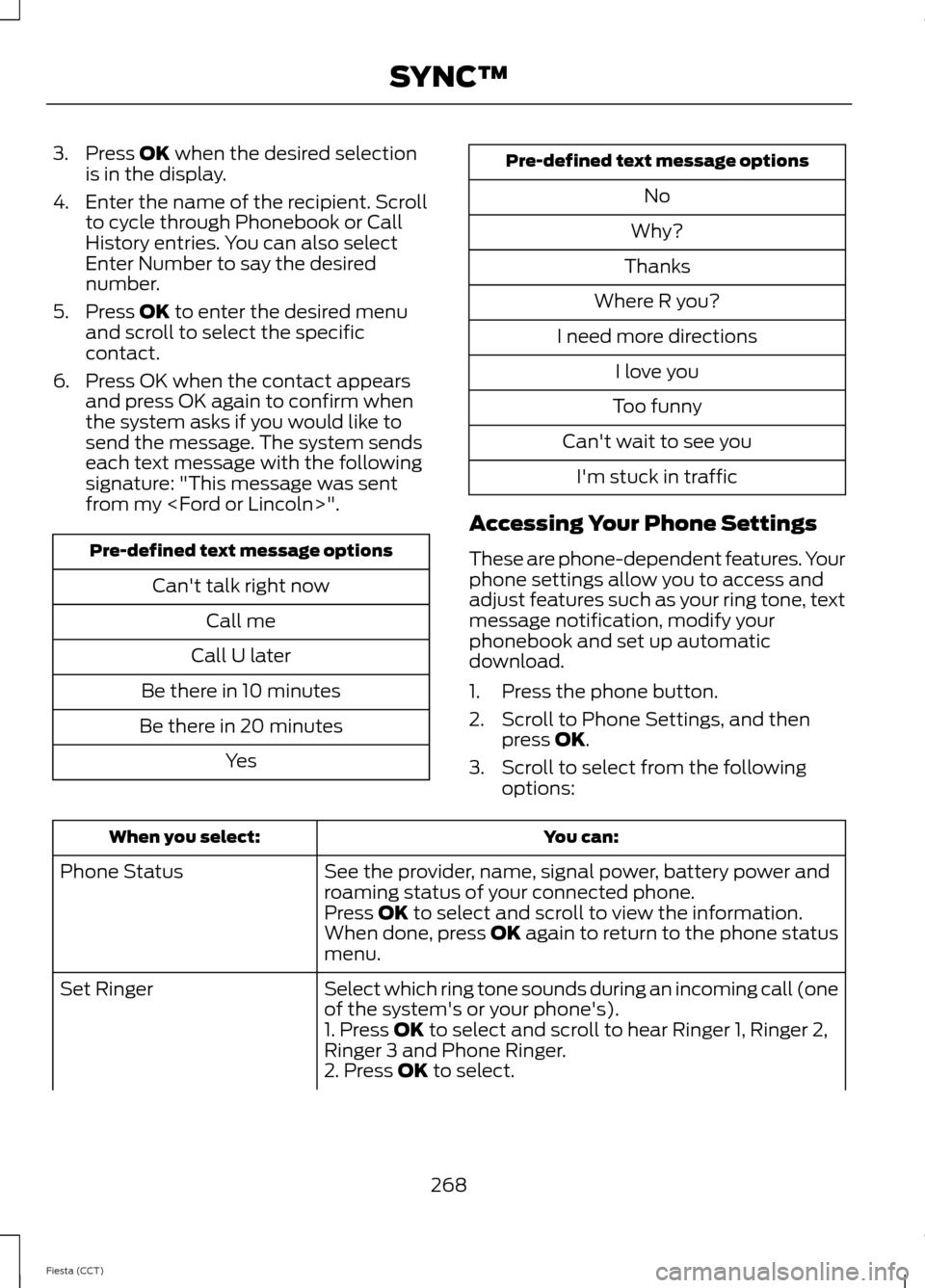
3. Press OK when the desired selection
is in the display.
4. Enter the name of the recipient. Scroll to cycle through Phonebook or Call
History entries. You can also select
Enter Number to say the desired
number.
5. Press
OK to enter the desired menu
and scroll to select the specific
contact.
6. Press OK when the contact appears and press OK again to confirm when
the system asks if you would like to
send the message. The system sends
each text message with the following
signature: "This message was sent
from my
Can't talk right nowCall me
Call U later
Be there in 10 minutes
Be there in 20 minutes Yes Pre-defined text message options
No
Why?
Thanks
Where R you?
I need more directions I love you
Too funny
Can't wait to see you I'm stuck in traffic
Accessing Your Phone Settings
These are phone-dependent features. Your
phone settings allow you to access and
adjust features such as your ring tone, text
message notification, modify your
phonebook and set up automatic
download.
1. Press the phone button.
2. Scroll to Phone Settings, and then press
OK.
3. Scroll to select from the following options: You can:
When you select:
See the provider, name, signal power, battery power and
roaming status of your connected phone.
Phone Status
Press
OK to select and scroll to view the information.
When done, press OK again to return to the phone status
menu.
Select which ring tone sounds during an incoming call (one
of the system's or your phone's).
Set Ringer
1. Press
OK to select and scroll to hear Ringer 1, Ringer 2,
Ringer 3 and Phone Ringer.
2. Press
OK to select.
268
Fiesta (CCT) SYNC™