SYNC AppLink
Note:
This feature is only available in the
United States.
Note: You must pair and connect your
smartphone to SYNC to access AppLink.
Note: iPhone users need to connect the
phone to the USB port in order to start the
application. We recommend you lock your
iPhone after starting an application.
Note: The AppLink feature is not available
if your vehicle is equipped with the MyFord
Touch or MyLincoln Touch system.
Note: Depending on your display type, you
can access AppLink from the media menu,
the phone menu, or by using voice
commands. Once an app is running through
AppLink, you can control main features of
the app through voice commands and
steering wheel controls.
To Access Using the Phone Menu
1. Press the phone button to access the SYNC phone menu on-screen.
2. Scroll to Mobile Apps and press OK to access a list of available applications.
3. Scroll through the list of available applications and press OK to select a
particular app.
4. Once an app is running through SYNC,
you can access an app ’s menu by
pressing the MENU button to first
access the SYNC menu.
5. Select "SYNC-Media" by pressing
OK.
6. Scroll until " Menu" is displayed (such as, Pandora Menu),
then press
OK. From here, you can
access an application's features, such
as Thumbs up and Thumbs down. For
more information, please visit
www.SYNCMyRide.com. To Access Using the Media Menu
1. Press the
AUX button on the center
console.
2. Press
MENU to access the SYNC
menu.
3. Select "SYNC-Media" by pressing
OK.
4. Scroll to Mobile Apps and press OK to
access a list of available applications.
5. Scroll through the list of available applications and press
OK to select a
particular app.
6. Once an app is running through SYNC,
you can access an app ’s menu by
pressing the
MENU button to first
access the SYNC menu.
7. Select "SYNC-Media" by pressing
OK.
8. Scroll until " Menu" is displayed (such as, Pandora Menu),
then press
OK. From here, you can
access an application's features, such
as Thumbs up and Thumbs down. For
more information, please visit
www.SYNCMyRide.com.
To Access Using Voice Commands
1. Press the voice icon.
2. When prompted, say "Mobile Apps".
3. Say the name of the application after the tone.
4. The app should start. While an app is running through SYNC, you can press
the voice button and speak commands
specific to the app, such as "Play
Station Quickmix". Say "Help" to
discover available voice commands.
278
Fiesta (CCT) SYNC™
"CD"
"Repeat off"
"Repeat track" "Shuffle"
"Shuffle CD" *
"Shuffle folder" *
"Shuffle off" "Help"
* This applies to WMA or MP3 files only.
SD Card Slot and USB Port
SD Card
Note: Your SD card slot is spring-loaded.
To remove the SD card, press the card in
and the system ejects it. Do not attempt to
pull the card to remove it as this could cause
damage.
Note: The navigation system also uses this
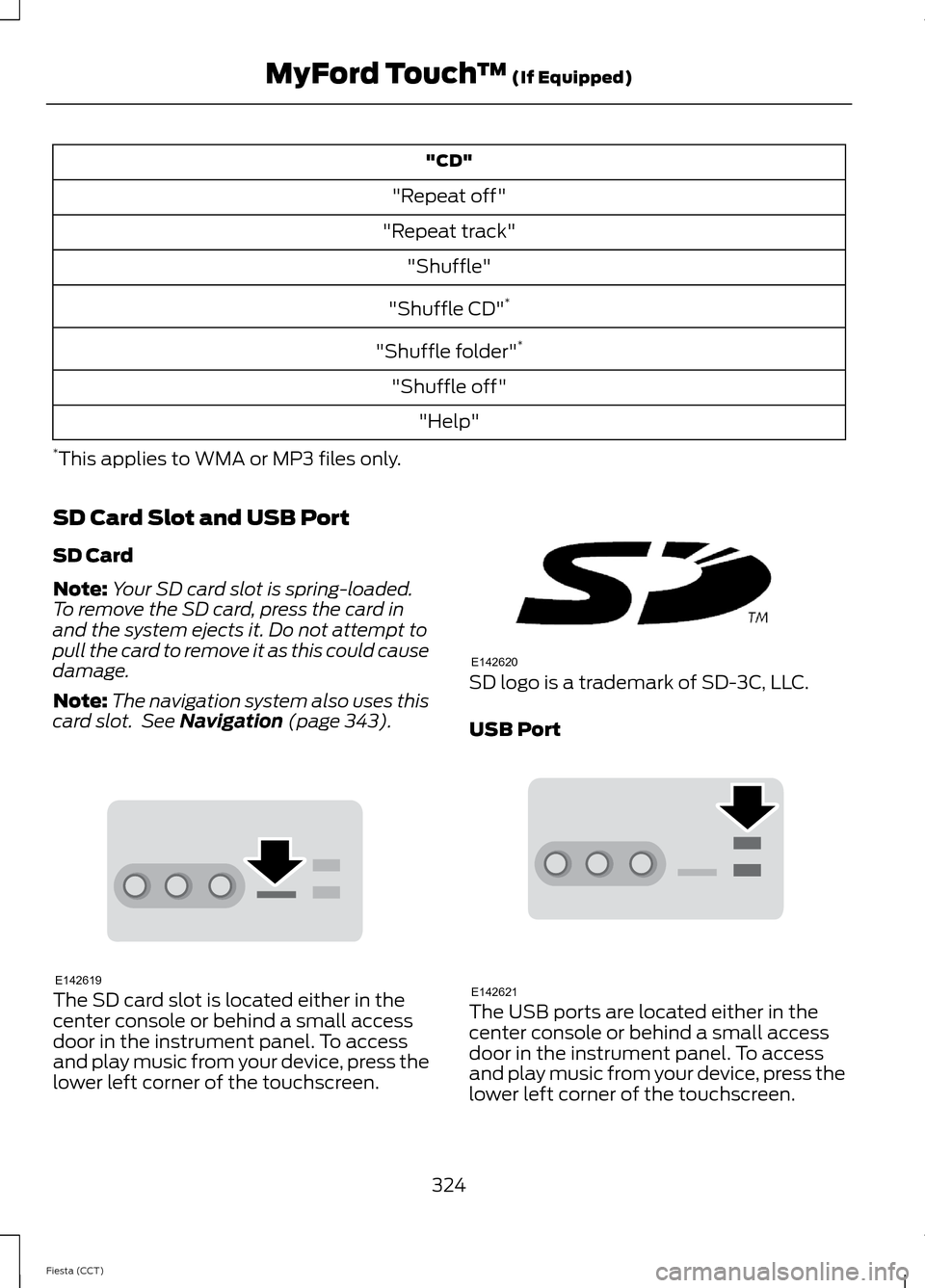
card slot. See Navigation (page 343). The SD card slot is located either in the
center console or behind a small access
door in the instrument panel. To access
and play music from your device, press the
lower left corner of the touchscreen. SD logo is a trademark of SD-3C, LLC.
USB Port
The USB ports are located either in the
center console or behind a small access
door in the instrument panel. To access
and play music from your device, press the
lower left corner of the touchscreen.
324
Fiesta (CCT) MyFord Touch
™
(If Equipped)E142619 E142620 E142621