2014 FORD F250 warning
[x] Cancel search: warningPage 303 of 460

1
Add 8 oz. (236 ml) of Additive Friction Modifier XL-3 or equivalent meeting Ford
Specification EST-M2C118– A for complete refill of limited slip Ford axles. Ford design
rear axles contain a synthetic lubricant that does not require changing unless you submerge
the axle in water.
2 Ford recommends using Motorcraft (Ford) DOT 3 LV High Performance Motor Vehicle
Brake Fluid, Motorcraft (Ford) DOT 4 LV High Performance Motor Vehicle Brake Fluid or
equivalent meeting WSS-M6C65-A1 or WSS-M6C65-A2. Use of any fluid other than the
recommended fluid may cause degraded brake performance and not meet the Ford
performance standards. Keep brake fluid clean and dry. Contamination with dirt, water,
petroleum products or other materials may result in brake system damage and possible
failure.
3 Add the coolant type originally equipped in your vehicle.
4 Ford has designed your engine to use Motorcraft engine oils or equivalent oils that meet
Ford ’s specification. It is also acceptable to use an engine oil of recommended viscosity
grade that meets API SN requirements and displays the API Certification Mark for gasoline
engines.
5 Do not use oils labeled as API SN unless the label also display the API certification mark.
These oils do not meet the requirements of your vehicles engine and emissions system.
6 Do not use supplemental engine oil additives. They are unnecessary and could lead to
engine damage not covered by your Ford warranty.
7 Use the correct automatic transmission fluid. Transmission fluid requirements are
indicated on the dipstick blade or the dipstick handle. Check the container to verify the
fluid you are adding is of the correct type. Refer to your scheduled maintenance information
to determine the correct service interval.
Note: Automatic transmissions that require MERCON LV should only use MERCON LV fluid.
Use of any fluid other than the recommended fluid may cause transmission damage.
8 Indicates only approximate dry-fill capacity. Some applications may vary based on cooler
size and if equipped with an in-tank cooler. You should set the amount of transmission
fluid and fluid level by the indication on the dipstick’ s normal operating range.
9 Fill to the proper capacity according to dipstick Type A. For correct dipstick type, See
Automatic Transmission Fluid Check (page 231).
9 Fill to the proper capacity according to dipstick Type B. For correct dipstick type, See
Automatic Transmission Fluid Check
(page 231).
10 See the Warning below: WARNING
The air conditioning refrigerant system contains refrigerant R-134a under high
pressure. Opening the air conditioning refrigerant system can cause personal injury.
Have the air conditioning refrigerant system serviced only by qualified personnel.
300
Super Duty (TFA) Capacities and Specifications
Page 305 of 460
•
MP3 folder mode represents a folder
structure consisting of one level of
folders. The CD player numbers all MP3
tracks on the disc (noted by the .mp3
file extension) and all folders
containing MP3 files, from F001
(folder) T001 (track) to F253 T255.
• Creating discs with only one level of
folders helps with navigation through
the disc files.
If you are burning your own MP3 discs, it is
important to understand how the system
reads the structures you create. While
various files may be present, (files with
extensions other than mp3), only files with
the .mp3 extension are played; other files
are ignored by the system. This enables
you to use the same MP3 disc for a variety
of tasks on your work computer, home
computer and your in-vehicle system. In track mode, the system displays and
plays the structure as if it were only one
level deep (all .mp3 files play, regardless
of being in a specific folder). In folder
mode, the system only plays the .mp3 files
in the current folder.
AUDIO UNIT - VEHICLES WITH:
AM/FM WARNING
Driving while distracted can result in
loss of vehicle control, crash and
injury. We strongly recommend that
you use extreme caution when using any
device that may take your focus off the
road. Your primary responsibility is the safe
operation of your vehicle. We recommend
against the use of any hand-held device
while driving and encourage the use of
voice-operated systems when possible.
Make sure you are aware of all applicable
local laws that may affect the use of
electronic devices while driving. 302
Super Duty (TFA) Audio SystemE163157
Page 306 of 460

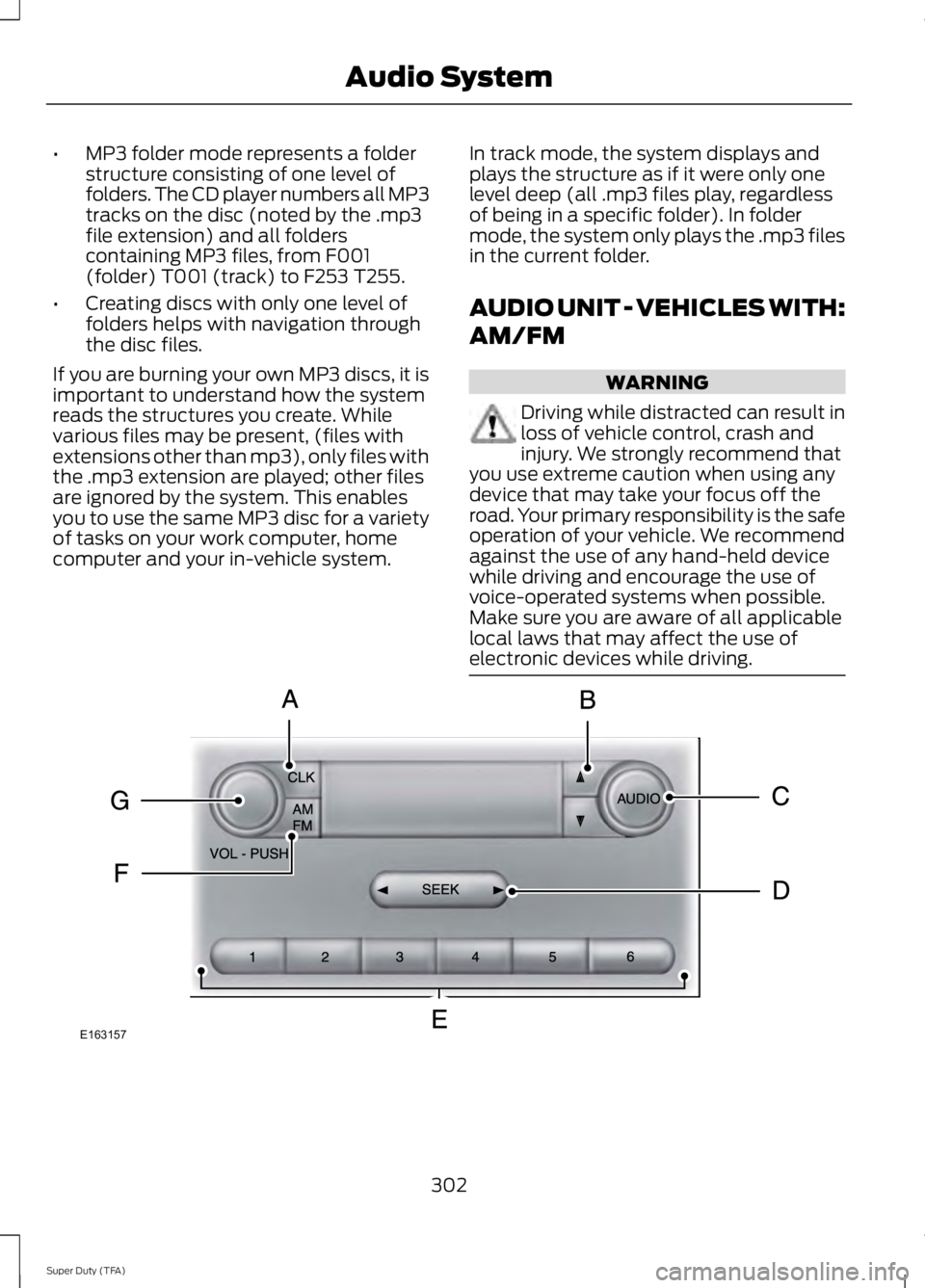
CLK: Press this button to switch the display between the clock and radio
frequency. To set the time, press and hold the button until the hours start to
flash. Press the arrow buttons (B) to adjust he hours, then repeat to set the
minutes. Press
CLK again to exit clock mode.
A
Tune: Press these arrow buttons to manually search through the radio frequency
band. Press and hold for a fast search. In AUDIO mode, press the buttons to
adjust different sound settings.
B
AUDIO:
Press this button to access settings for Treble, Middle, Bass, Fade and
Balance.
C
SEEK:
Press this button to go to the previous or next strong station on the
frequency band.
D
Memory presets:
Store your favorite radio stations. To store a radio station,
tune to the station, then press and hold a preset button until sound returns.
E
AM/FM:
Press this button to select a frequency band.
F
VOL-PUSH:
Press this button to switch the system off and on. Turn the control
to adjust the volume.
G
AUDIO UNIT - VEHICLES WITH:
AM/FM/CD/SYNC WARNING
Driving while distracted can result in
loss of vehicle control, crash and
injury. We strongly recommend that
you use extreme caution when using any
device that may take your focus off the
road. Your primary responsibility is the safe
operation of your vehicle. We recommend
against the use of any hand-held device
while driving and encourage the use of
voice-operated systems when possible.
Make sure you are aware of all applicable
local laws that may affect the use of
electronic devices while driving. 303
Super Duty (TFA) Audio System
Page 308 of 460
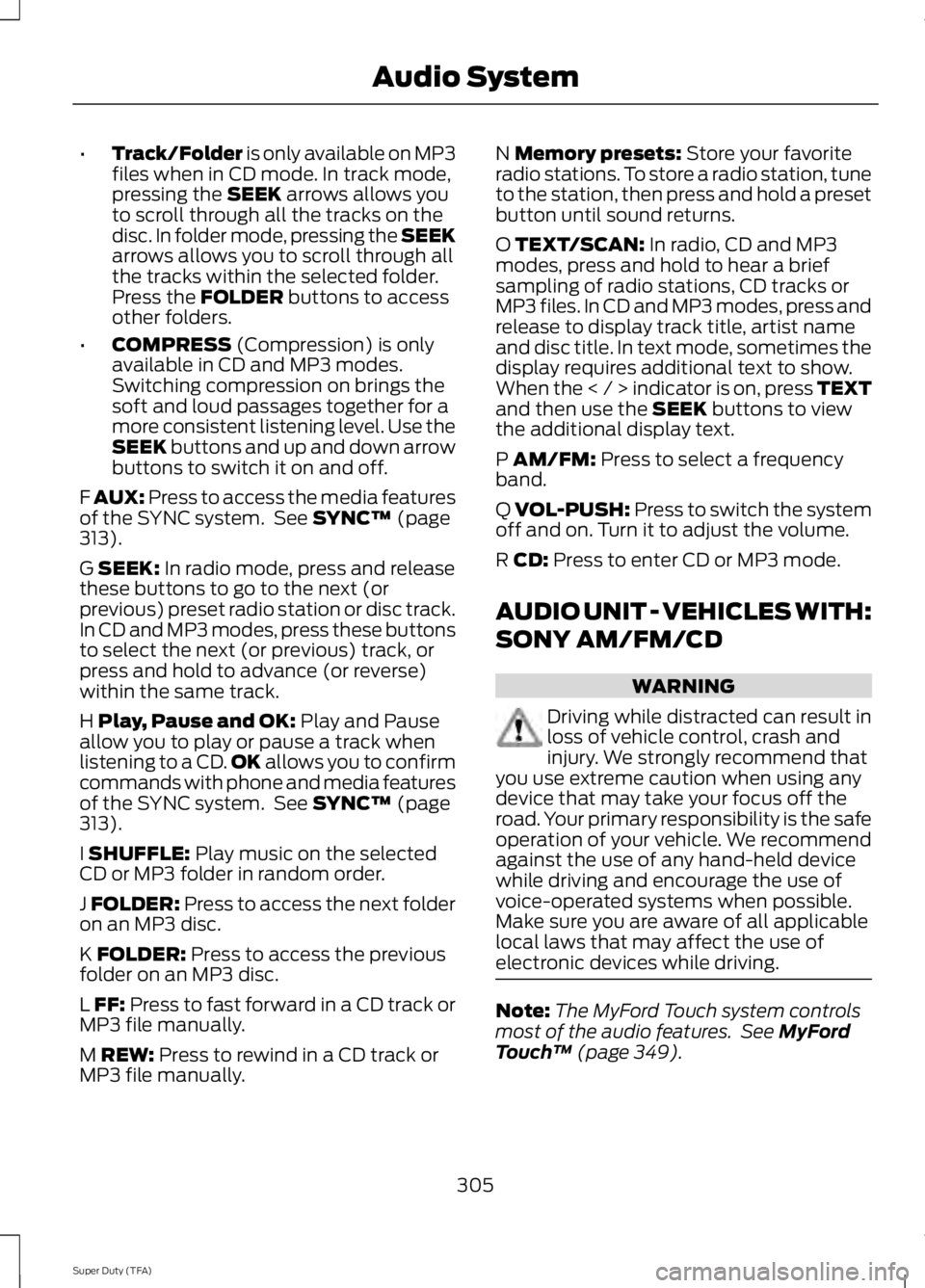
•
Track/Folder is only available on MP3
files when in CD mode. In track mode,
pressing the SEEK arrows allows you
to scroll through all the tracks on the
disc. In folder mode, pressing the SEEK
arrows allows you to scroll through all
the tracks within the selected folder.
Press the
FOLDER buttons to access
other folders.
• COMPRESS
(Compression) is only
available in CD and MP3 modes.
Switching compression on brings the
soft and loud passages together for a
more consistent listening level. Use the
SEEK
buttons and up and down arrow
buttons to switch it on and off.
F
AUX: Press to access the media features
of the SYNC system. See SYNC™ (page
313).
G
SEEK: In radio mode, press and release
these buttons to go to the next (or
previous) preset radio station or disc track.
In CD and MP3 modes, press these buttons
to select the next (or previous) track, or
press and hold to advance (or reverse)
within the same track.
H
Play, Pause and OK: Play and Pause
allow you to play or pause a track when
listening to a CD. OK
allows you to confirm
commands with phone and media features
of the SYNC system. See
SYNC™ (page
313).
I
SHUFFLE: Play music on the selected
CD or MP3 folder in random order.
J
FOLDER: Press to access the next folder
on an MP3 disc.
K
FOLDER: Press to access the previous
folder on an MP3 disc.
L
FF: Press to fast forward in a CD track or
MP3 file manually.
M
REW: Press to rewind in a CD track or
MP3 file manually. N
Memory presets: Store your favorite
radio stations. To store a radio station, tune
to the station, then press and hold a preset
button until sound returns.
O
TEXT/SCAN: In radio, CD and MP3
modes, press and hold to hear a brief
sampling of radio stations, CD tracks or
MP3 files. In CD and MP3 modes, press and
release to display track title, artist name
and disc title. In text mode, sometimes the
display requires additional text to show.
When the < / > indicator is on, press TEXT
and then use the
SEEK buttons to view
the additional display text.
P
AM/FM: Press to select a frequency
band.
Q
VOL-PUSH: Press to switch the system
off and on. Turn it to adjust the volume.
R
CD: Press to enter CD or MP3 mode.
AUDIO UNIT - VEHICLES WITH:
SONY AM/FM/CD WARNING
Driving while distracted can result in
loss of vehicle control, crash and
injury. We strongly recommend that
you use extreme caution when using any
device that may take your focus off the
road. Your primary responsibility is the safe
operation of your vehicle. We recommend
against the use of any hand-held device
while driving and encourage the use of
voice-operated systems when possible.
Make sure you are aware of all applicable
local laws that may affect the use of
electronic devices while driving. Note:
The MyFord Touch system controls
most of the audio features. See
MyFord
Touch ™ (page 349).
305
Super Duty (TFA) Audio System
Page 314 of 460

Possible action
Condition
Radio display
Contact SIRIUS at 1-888-
539-7474 to resolve
subscription issues.
Your satellite service is no
longer available.
Call SIRIUS 1-888-539-7474
Use the channel guide to
turn off the Lock or Skip
function on that station.
All the channels in the
selected category are either
skipped or locked.
None found. Check Channel
Guide.
No action required.
SIRIUS has updated the
channels available for your
vehicle.
Subscription Updated
AUDIO INPUT JACK WARNINGS
Driving while distracted can result in
loss of vehicle control, crash and
injury. We strongly recommend that
you use extreme caution when using any
device that may take your focus off the
road. Your primary responsibility is the safe
operation of your vehicle. We recommend
against the use of any hand-held device
while driving and encourage the use of
voice-operated systems when possible.
Make sure you are aware of all applicable
local laws that may affect the use of
electronic devices while driving. For safety reasons, do not connect
or adjust the settings on your
portable music player while your
vehicle is moving. Store the portable music player in a
secure location, such as the center
console or the glove box, when your
vehicle is moving. Hard objects may
become projectiles in a collision or sudden
stop, which may increase the risk of serious
injury. The audio extension cable must be
long enough to allow the portable music
player to be safely stored while your
vehicle is moving. The auxiliary input jack allows you to
connect and play music from your portable
music player through your vehicle speakers.
You can use any portable music player
designed for use with headphones. Your
audio extension cable must have male
1/8th-inch (3.5 millimeter) connectors at
each end.
1. Make sure your vehicle, radio and
portable music player are turned off
and the transmission is in position P.
2. Plug the extension cable from the portable music player into the AIJ.
3. Turn on the radio. Select either a tuned
FM station or a CD.
4. Adjust the volume as desired.
5. Turn on your portable music player and
adjust its volume to half its maximum
level.
311
Super Duty (TFA) Audio SystemE163160
Page 317 of 460

Times are subject to change due to
holidays.
SYNC Owner Account
Why do I need a SYNC owner account?
•
Required to activate Vehicle Health
Report and to view the reports online.
• Required to activate the
subscription-based SYNC Services and
to personalize your Saved Points and
Favorites.
• Essential for keeping up with the latest
software downloads available for
SYNC.
• Access to customer support for any
questions you may have.
Driving Restrictions
For your safety, certain features are
speed-dependent and restricted when your
vehicle is traveling over 3 mph (5 km/h).
Safety Information WARNING
Driving while distracted can result in
loss of vehicle control, crash and
injury. We strongly recommend that
you use extreme caution when using any
device that may take your focus off the
road. Your primary responsibility is the safe
operation of your vehicle. We recommend
against the use of any hand-held device
while driving and encourage the use of
voice-operated systems when possible.
Make sure you are aware of all applicable
local laws that may affect the use of
electronic devices while driving. When using SYNC:
•
Do not operate playing devices if the
power cords or cables are broken, split
or damaged. Place cords and cables
out of the way, so they do not interfere
with the operation of pedals, seats,
compartments or safe driving abilities.
• Do not leave playing devices in your
vehicle during extreme conditions as it
could cause them damage. See your
device's manual for further information.
• Do not attempt to service or repair the
system. See an authorized dealer.
Privacy Information
When a cellular phone is connected to
SYNC, the system creates a profile within
your vehicle that is linked to that cellular
phone. This profile is created in order to
offer you more cellular features and to
operate more efficiently. Among other
things, this profile may contain data about
your cellular phone book, text messages
(read and unread), and call history,
including history of calls when your cellular
phone was not connected to the system.
In addition, if you connect a media device,
the system creates and retains an index of
supported media content. The system also
records a short development log of
approximately 10 minutes of all recent
system activity. The log profile and other
system data may be used to improve the
system and help diagnose any problems
that may occur.
The cellular profile, media device index,
and development log will remain in the
vehicle unless you delete them and are
generally accessible only in the vehicle
when the cellular phone or media player
is connected. If you no longer plan to use
the system or the vehicle, we recommend
you perform a Master Reset to erase all
stored information.
314
Super Duty (TFA) SYNC™ (If Equipped)
Page 331 of 460

You can:
If you select:
Press OK to select.
This is a Bluetooth component, which can further help
your phone with the exchange of text messages.
MAP Profile
Exit the current menu.
Return
SYNC™ APPLICATIONS AND
SERVICES
(IF EQUIPPED)
In order for the following features to work,
your cellular phone must be compatible
with SYNC. To check your phone's
compatibility, visit www.SYNCMyRide.com,
www.SYNCMyRide.ca or
www.syncmaroute.ca.
• SYNC Services *
: Provides access to
traffic, directions and information such
as travel, horoscopes, stock prices and
more.
• 911 Assist: Can alert 911 in the event of
an emergency.
• Vehicle Health Report *
: Provides a
diagnostic and maintenance report
card of your vehicle.
* This is an optional feature and available
in the United States only.
911 Assist WARNINGS
Unless the 911 Assist setting is set on
before a crash, the system will not
dial for help which could delay
response time, potentially increasing the
risk of serious injury or death after a crash. WARNINGS
Do not wait for 911 Assist to make an
emergency call if you can do it
yourself. Dial emergency services
immediately to avoid delayed response
time which could increase the risk of
serious injury or death after a crash. If you
do not hear 911 Assist within five seconds
of the crash, the system or phone may be
damaged or non-functional. Always place your phone in a secure
location in your vehicle so it does not
become a projectile or get damaged
in a crash. Failure to do so may cause
serious injury to someone or damage the
phone which could prevent 911 Assist from
working properly. Note:
The SYNC 911 Assist feature must be
set on before the incident.
Note: Before setting this feature on, make
sure that you read the 911 Assist Privacy
Notice later in this section for important
information.
Note: If any user turns 911 Assist on or off,
that setting applies for all paired phones. If
911 Assist is turned off, either a voice
message plays or a display message (or
icon) comes on (or both) when your vehicle
is started after a previously paired phone
connects.
Note: Every phone operates differently.
While SYNC 911 Assist works with most
cellular phones, some may have trouble
using this feature.
328
Super Duty (TFA) SYNC™
(If Equipped)
Page 333 of 460

911 Assist May Not Work If
•
Your cellular phone or 911 Assist
hardware sustains damage in a crash.
• The vehicle's battery or the SYNC
system has no power.
• The phone(s) thrown from your vehicle
are the ones paired and connected to
the system.
911 Assist Privacy Notice
When you turn on 911 Assist, it may
disclose to emergency services that your
vehicle has been in a crash involving the
deployment of an airbag or activation of
the fuel pump shut-off. Certain versions or
updates to 911 Assist may also be capable
of electronically or verbally disclosing to
911 operators your vehicle location or other
details about your vehicle or crash to assist
911 operators to provide the most
appropriate emergency services. If you do
not want to disclose this information, do
not turn the feature on.
Vehicle Health Report WARNING
Always follow scheduled
maintenance instructions, regularly
inspect your vehicle, and seek repair
for any damage or problem you suspect.
Vehicle Health Report supplements, but
cannot replace, normal maintenance and
vehicle inspection. Vehicle Health Report
only monitors certain systems
electronically monitored by your vehicle
and will not monitor or report the status
of any other system, (such as brake lining
wear). Failure to perform scheduled
maintenance and regularly inspect your
vehicle may result in vehicle damage and
serious injury. Note:
This feature is only available in the
United States. Note:
Your Vehicle Health Report feature
requires activation before use. Visit
www.SYNCMyRide.com to register. There
is no fee or subscription associated with
Vehicle Health Report, but you must register
to use this feature.
Note: This feature may not function
properly if you have enabled caller ID
blocking on your cellular phone. Before
running a report, review the Vehicle Health
Report Privacy Notice.
Note: In order to allow a break-in period for
your vehicle, you may not be able to create
a Vehicle Health Report until your vehicle
odometer has reached 200 miles.
Note: Cellular phone and SMS charges may
apply when making a report.
Register for Vehicle Health Report and set
your report preferences at
www.SYNCMyRide.com. After registering,
you can request a Vehicle Health Report
(inside your vehicle). Return to your
account at www.SYNCMyRide.com to view
your report. You can also choose for SYNC
to remind you automatically to run reports
at specific mileage intervals.
The system allows you to check your
vehicle's overall health in the form of a
diagnostic report card. The vehicle health
report contains valuable information such
as:
• Vehicle diagnostic information
• Scheduled maintenance
• Open recalls and Field Service Actions
• Items noted during vehicle inspections
by an authorized dealer that still need
servicing.
You can run a report (after your vehicle has
been running a minimum of 60 seconds)
by pressing the voice button and saying
"Vehicle health report", or pressing the
phone button.
To run a report using the phone button:
330
Super Duty (TFA) SYNC™ (If Equipped)