2014 FORD F150 clock
[x] Cancel search: clockPage 311 of 472
CLK: Press this button to switch the display between the clock and radio
frequency. To set the time, press and hold the button until the hours start to
flash. Press the arrow buttons (B) to adjust he hours, then repeat to set the
minutes. Press
CLK again to exit clock mode.
A
Tune: Press these arrow buttons to manually search through the radio frequency
band. Press and hold for a fast search. In AUDIO mode, press the buttons to
adjust different sound settings.
B
AUDIO:
Press this button to access settings for Treble, Middle, Bass, Fade and
Balance.
C
SEEK:
Press this button to go to the previous or next strong station on the
frequency band.
D
Memory presets:
Store your favorite radio stations. To store a radio station,
tune to the station, then press and hold a preset button until sound returns.
E
AM/FM:
Press this button to select a frequency band.
F
VOL-PUSH:
Press this button to switch the system off and on. Turn the control
to adjust the volume.
G
AUDIO UNIT - VEHICLES WITH:
AM/FM/CD/SYNC/SATELLITE
RADIO WARNING
Driving while distracted can result in
loss of vehicle control, crash and
injury. We strongly recommend that
you use extreme caution when using any
device that may take your focus off the
road. Your primary responsibility is the safe
operation of your vehicle. We recommend
against the use of any hand-held device
while driving and encourage the use of
voice-operated systems when possible.
Make sure you are aware of all applicable
local laws that may affect the use of
electronic devices while driving. Note:
Some features, such as Sirius satellite
radio, may not be available in your location.
Check with an authorized dealer.
308
F150 (TF6) , enUSA Audio System
Page 313 of 472
SIRIUS allows you to access different satellite radio options.
CLOCK#:
Press this button to set the time. Use the memory preset buttons to
enter the time, and then press OK.
F
PHONE:
Press this button to access the phone features of the SYNC system.
See Using SYNC™ With Your Phone (page 327). If your vehicle is not equipped
with SYNC, the display reads NO PHONE.
G
SOUND:
Press this button to access settings for Treble, Middle, Bass, Balance
and Fade. Use the SEEK or TUNE controls to change the settings.
H
Bass
levels can be increased or decreased.
Treble
levels can be increased or decreased.
Balance
adjusts the sound between left and right speakers.
Fade
adjusts the sound between the front and back speakers.
Speed Compensated Volume
adjusts the volume to compensate for speed
and wind noise. You can set the system between off and +7.
All Seat Mode/Driver Seat Mode
optimizes sound quality for the chosen
seating position.
DSP Mode
(if equipped) allows you to choose between STEREO SURROUND
mode and STEREO mode.
SEEK:
I
In radio mode, select a frequency band and press one of these buttons. The
system stops at the first station it finds in that direction.
In Sirius mode, press one of these buttons to select the previous or next channel.
If you select a specific category (such as Jazz, Rock or News), use these buttons
to find the previous or next channel in the selected category.
In CD and MP3 modes, press one of these buttons to select the previous or next
track.
CD:
Press this button to access CD and MP3 modes.
J
The disc begins to play where it left off. If no CD is loaded, NO DISC
appears
in the display.
Press the
SEEK buttons to access the previous or next track. Press and hold
the SEEK buttons to quickly reverse or fast-forward within the same track.
TUNE/OK/Play/Pause:
K
In radio mode, turn the control to search manually through the radio frequency
band.
In Sirius mode, turn the control to find the next or previous available satellite
radio station.
OK
allows you to confirm commands with phone and media features.
310
F150 (TF6) , enUSA Audio System
Page 317 of 472

In radio mode, select a frequency band and press one of these buttons. The
system stops at the first station it finds in that direction. Press and hold one of
these buttons to move quickly in that direction to the next strong radio station
or memory preset.
In Sirius mode, press one of these buttons to select the previous or next channel.
If you select a specific category (such as Jazz, Rock or News), use these buttons
to find the previous or next channel in the selected category. Press and hold
one of these buttons to move quickly in that direction to the next channel or
category.
In CD mode, press one of these buttons to select the previous or next track.
Press and hold one of these buttons to move quickly in that direction within the
current track.
OK and arrow buttons: Press the up and down or left and right arrow buttons
to browse menu selections. Press OK to confirm menu selections.
G
Eject:
Press this button to eject a CD.
H
Power and Volume:
Press this button to switch the system off and on. Turn
it to adjust the volume.
I
CLOCK:
Press this button to access the clock setting. Use the center arrow
controls to change the hours and minutes.
J
SOUND:
Press this button to adjust settings for Treble, Middle, Bass, Balance
and Fade.
K
MENU:
Press this button to access different audio system features. See Menu
Structure later in this section.
L
PHONE:
Press this button to access the phone features of the SYNC system.
See Using SYNC™ With Your Phone (page 327).
M
AUX:
Press this button to access your auxiliary input jack or switch between
devices you plug into the input jack or USB port. See Using SYNC™ With Your
Media Player
(page 345).
N
SIRIUS:
Press this button to listen to Sirius satellite radio.
O
314
F150 (TF6) , enUSA Audio System
Page 363 of 472
This system uses a four-corner strategy to
provide quick access to several vehicle
features and settings. The touchscreen
provides easy interaction with your cellular
phone, multimedia, climate control and
navigation system. The corners display any
active modes within those menus, such as
phone status or the climate temperature.
Note:
Some features are not available while
your vehicle is moving.
Note: Your system is equipped with a
feature that allows you to access and
control audio features for 30 minutes after
you switch the ignition off (and no doors
open).
PHONE
Press to select any of the following:
• Phone
• Quick Dial
• Phonebook
• History
• Messaging
• Settings
NAVIGATION
Press to select any of the following:
• My Home
• Favorites
• Previous Destinations
• Point of Interest
• Emergency
• Street Address
• Intersection
• City Center
• Map
• Edit Route
• Cancel Route
CLIMATE Press to select any of the following:
•
Driver Settings
• Recirculated Air
• Auto
• Dual
• Passenger Settings
• A/C
• Defrost SETTINGS
Press to select any of the following:
• Clock
• Display
• Sound
• Vehicle
• Settings
• Help HOME
Press to access your home
screen. Depending on your
vehicle ’s option package and software,
your screens may vary in appearance from
the descriptions in this section. Your
features may also be limited depending on
your market. Check with an authorized
dealer for availability. INFORMATION
Press to select any of the following:
• Services
• Travel Link
• Alerts
• Calendar
• Apps
ENTERTAINMENT
360
F150 (TF6) , enUSA MyFord Touch
™ (If Equipped)E142607 E142613 E142608
Page 369 of 472
Voice settings using voice commands
"Interaction mode novice"
"Media candidate lists off" "Media candidate lists on"
"Phone candidate lists off" "Phone candidate lists on" "Help" Using Voice Commands with the
Touchscreen Options
Your voice system has a dual mode feature
which allows you to switch between using
voice commands and making on-screen
selections. This is available only when the
system displays a list of candidates
generated during a voice session. For
example, when entering in a street address
or trying to call a contact from the phone
you paired to the system.
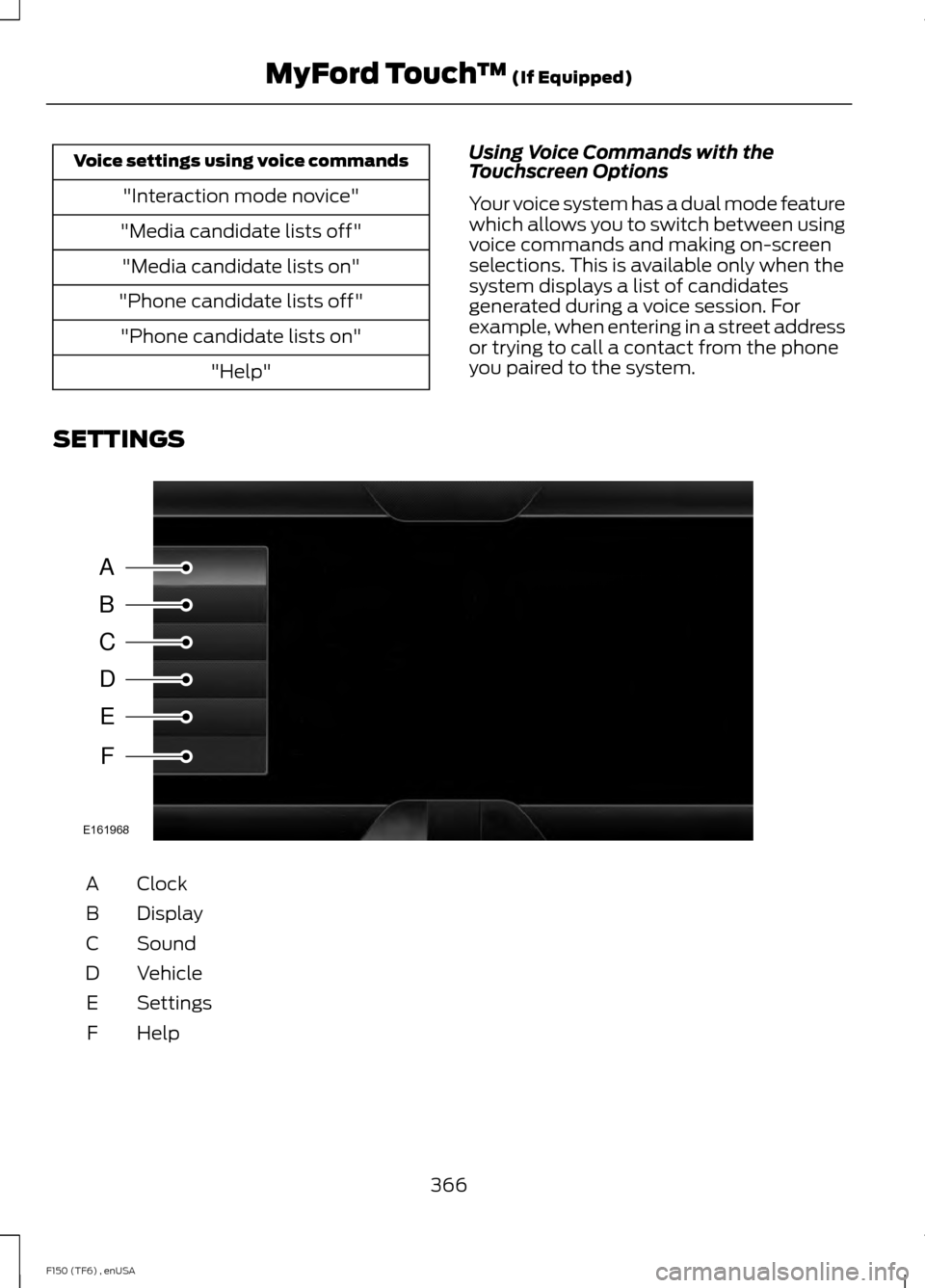
SETTINGS Clock
A
Display
B
Sound
C
Vehicle
D
Settings
E
HelpF
366
F150 (TF6) , enUSA MyFord Touch
™ (If Equipped)A
B
C
D
E
F
E161968
Page 370 of 472
Under this menu, you can set
your clock, access and adjust the
display, sound and vehicle
settings as well as access settings for
specific modes or the help feature.
Clock
Note: You cannot manually set the date.
Your vehicle ’s GPS does this for you.
Note: If the battery has been disconnected,
your vehicle needs to acquire a GPS signal
to update the clock. Once your vehicle
acquires the signal, it may take a few
minutes for the update to display the correct
time. 1. Press the Settings icon > Clock.
2. Press
+ and - to adjust the time.
From this screen, you can also make other
adjustments such as 12-hour or 24-hour
mode, activate GPS time synchronization
and have the system automatically update
new time zones.
You can also turn the outside air
temperature display off and on. It appears
at the top center of the touchscreen, next
to the time and date.
The system automatically saves any
updates you make to the settings.
Display
You can adjust the touchscreen display
through the touchscreen or by pressing the
voice button on your steering wheel
controls and when prompted, say, "Display
settings". Press the Settings icon >
Display
, to access and make
adjustments using the
touchscreen. •
Brightness
allows you to make the
screen display brighter or dimmer.
• Auto DIM
, when set to On, lets you use
the Auto Dim Manual Offset feature.
When set to
Off, screen brightness
does not change.
• Mode
allows you to set the screen to
a certain brightness or have the system
automatically change based on the
outside light level, or turn the display
off.
• If you select
AUTO or NIGHT, you
have the options of turning the
display's Auto Dim feature on or off
and changing the Auto Dim Manual
Offset feature.
• Auto Dim Manual Offset
allows you
to adjust screen dimming as the
outside lighting conditions change from
day to night. This feature also allows
you to adjust screen brightness using
the instrument panel dimming control.
• Edit Wallpaper
•You can have your touchscreen
display the default photo or upload
your own.
Uploading Photos for Your Home
Screen Wallpaper
Note: You cannot load photos directly from
your camera. You must access the photos
either from your USB mass storage device
or from an SD card.
Note: Photographs with extremely large
dimensions (such as 2048 x 1536) may not
be compatible and appear as a blank
(black) image on the display.
Your system allows you to upload and view
up to 32 photos. To access, press the Settings
icon >
Display > Edit
Wallpaper, and then follow the
system prompts to upload your
photographs.
367
F150 (TF6) , enUSA MyFord Touch
™
(If Equipped)E142607 E142607 E142607 E142607
Page 468 of 472

Power Windows..............................................75
Accessory Delay.................................................... 76
Bounce-Back.......................................................... 75
One-Touch Up or Down..................................... 75
Power Sliding Back Window............................ 76
Window Lock.......................................................... 76
R
Rear Axle...........................................................161
Rear Seat Armrest........................................123
Rear Seats
........................................................119
Folding up the Rear Seat Cushion (Super
Crew)................................................................... 119
Returning the Seat to the Seating Position............................................................... 119
Rear View Camera........................................173 Using the Rear View Camera System..........173
Rear View Camera See: Rear View Camera.................................... 173
Recommended Towing Weights............192 Calculating the Maximum Loaded Trailer
Weight for Your Vehicle.............................. 200
Refueling..........................................................142 Easy Fuel ™ Capless Fuel System................142
Remote Control
..............................................49
Car Finder................................................................ 50
Integrated Keyhead Transmitters .................49
Memory Feature................................................... 50
Remote Start ......................................................... 51
Replacing the Battery......................................... 49
Sounding a Panic Alarm..................................... 51
Remote Start
...................................................113
Automatic Settings............................................. 113
Removing a Headlamp
...............................251
Replacing Halogen Headlamp Bulbs (If
Equipped)......................................................... 251
Replacing HID Headlamp Bulbs (If Equipped)........................................................ 252
Repairing Minor Paint Damage
..............263
Replacement Parts Recommendation.........................................11
Collision Repairs..................................................... 11
Scheduled Maintenance and Mechanical Repairs................................................................... 11
Warranty on Replacement Parts..................... 12
Replacing a Lost Key or Remote Control.............................................................52 Reporting Safety Defects (Canada
Only)..............................................................224
Reporting Safety Defects (U.S. Only)
..............................................................223
Roadside Assistance...................................215 Vehicles Sold In Canada : Getting Roadside
Assistance........................................................ 215
Vehicles Sold In Canada : Using Roadside Assistance........................................................ 215
Vehicles Sold In The U.S.: Getting Roadside Assistance........................................................ 215
Vehicles Sold In The U.S. : Using Roadside Assistance........................................................ 215
Roadside Emergencies
...............................215
Running-In See: Breaking-In.................................................. 210
Running Out of Fuel
......................................141
Refilling With a Portable Fuel
Container........................................................... 141
S
Safety Belt Height Adjustment
.................34
Safety Belt Minder.........................................35
Belt-Minder™........................................................ 35
Safety Belts......................................................30 Principle of Operation........................................ 30
Safety Belt Warning Lamp and Indicator Chime..............................................................34
Conditions of operation..................................... 35
Safety Canopy ™
............................................46
Safety Precautions.......................................139
Satellite Radio
...............................................318
Satellite Radio Electronic Serial Number
(ESN)................................................................ 320
Satellite Radio Reception Factors...............319
SIRIUS® Satellite Radio Service................... 319
Troubleshooting................................................. 320
Scheduled Maintenance Record............451
Scheduled Maintenance..........................438
Seats
...................................................................114
Security...............................................................61
Settings...........................................................366 Clock....................................................................... 367
Display.................................................................... 367
Settings................................................................. 369
Sound.................................................................... 368
Vehicle................................................................... 368
465
F150 (TF6) , enUSA Index