Page 447 of 519
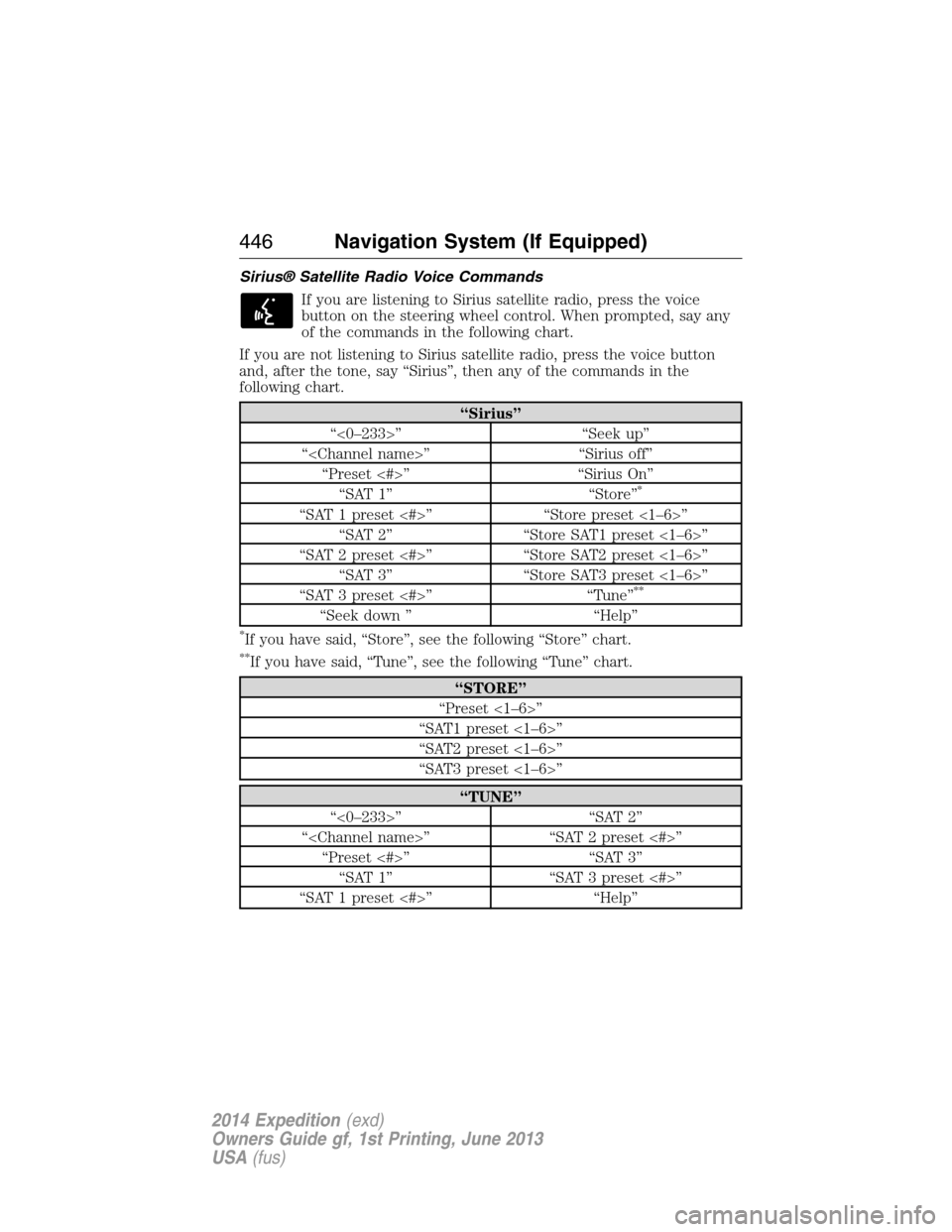
Sirius® Satellite Radio Voice Commands
If you are listening to Sirius satellite radio, press the voice
button on the steering wheel control. When prompted, say any
of the commands in the following chart.
If you are not listening to Sirius satellite radio, press the voice button
and, after the tone, say “Sirius”, then any of the commands in the
following chart.
“Sirius”
“<0–233>” “Seek up”
“” “Sirius off”
“Preset <#>” “Sirius On”
“SAT 1” “Store”
*
“SAT 1 preset <#>” “Store preset <1–6>”
“SAT 2” “Store SAT1 preset <1–6>”
“SAT 2 preset <#>” “Store SAT2 preset <1–6>”
“SAT 3” “Store SAT3 preset <1–6>”
“SAT 3 preset <#>” “Tune”
**
“Seek down ” “Help”
*If you have said, “Store”, see the following “Store” chart.
**If you have said, “Tune”, see the following “Tune” chart.
“STORE”
“Preset <1–6>”
“SAT1 preset <1–6>”
“SAT2 preset <1–6>”
“SAT3 preset <1–6>”
“TUNE”
“<0–233>” “SAT 2”
“” “SAT 2 preset <#>”
“Preset <#>” “SAT 3”
“SAT 1” “SAT 3 preset <#>”
“SAT 1 preset <#>” “Help”
446Navigation System (If Equipped)
2014 Expedition(exd)
Owners Guide gf, 1st Printing, June 2013
USA(fus)
Page 451 of 519
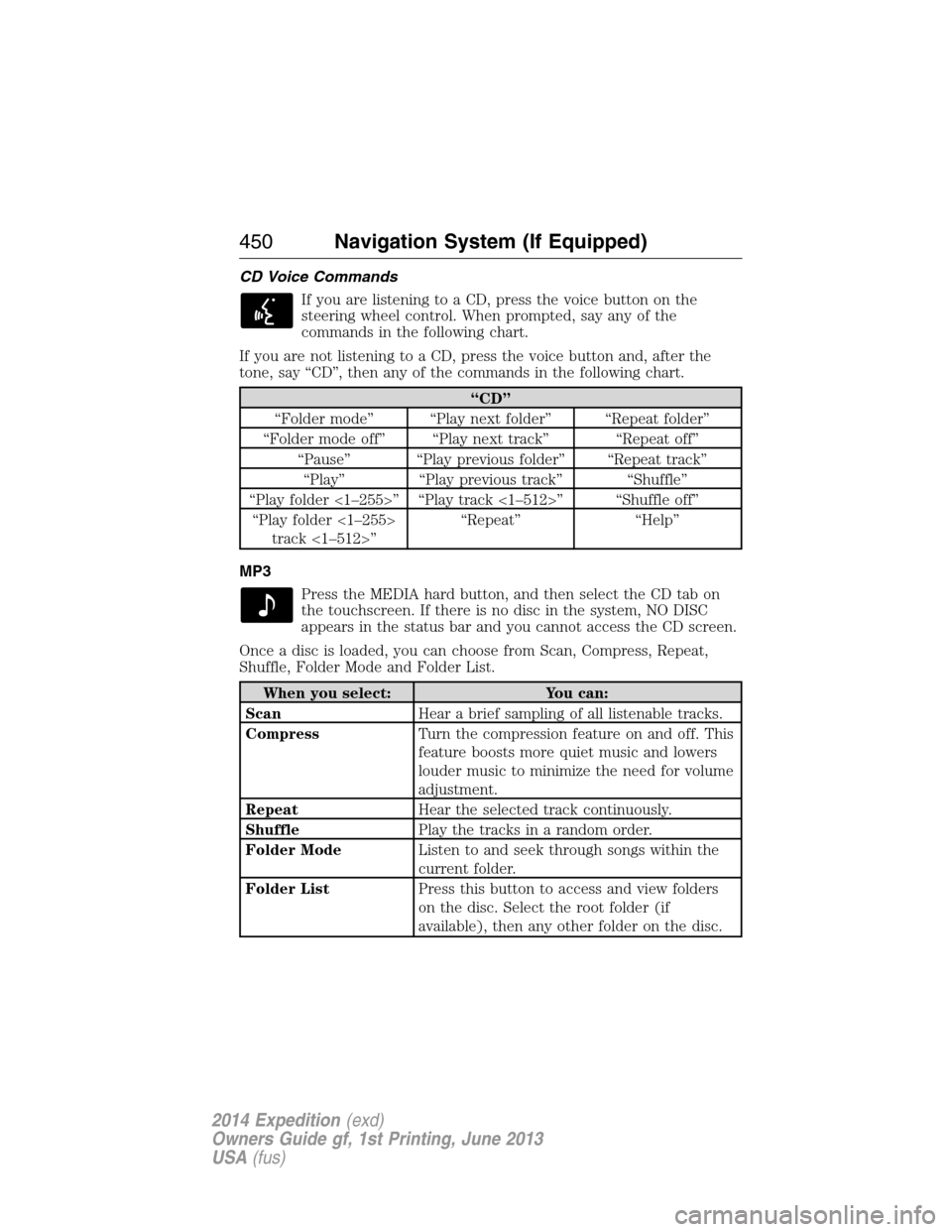
CD Voice Commands
If you are listening to a CD, press the voice button on the
steering wheel control. When prompted, say any of the
commands in the following chart.
If you are not listening to a CD, press the voice button and, after the
tone, say “CD”, then any of the commands in the following chart.
“CD”
“Folder mode” “Play next folder” “Repeat folder”
“Folder mode off” “Play next track” “Repeat off”
“Pause” “Play previous folder” “Repeat track”
“Play” “Play previous track” “Shuffle”
“Play folder <1–255>” “Play track <1–512>” “Shuffle off”
“Play folder <1–255>
track <1–512>”“Repeat” “Help”
MP3
Press the MEDIA hard button, and then select the CD tab on
the touchscreen. If there is no disc in the system, NO DISC
appears in the status bar and you cannot access the CD screen.
Once a disc is loaded, you can choose from Scan, Compress, Repeat,
Shuffle, Folder Mode and Folder List.
When you select: You can:
ScanHear a brief sampling of all listenable tracks.
CompressTurn the compression feature on and off. This
feature boosts more quiet music and lowers
louder music to minimize the need for volume
adjustment.
RepeatHear the selected track continuously.
ShufflePlay the tracks in a random order.
Folder ModeListen to and seek through songs within the
current folder.
Folder ListPress this button to access and view folders
on the disc. Select the root folder (if
available), then any other folder on the disc.
450Navigation System (If Equipped)
2014 Expedition(exd)
Owners Guide gf, 1st Printing, June 2013
USA(fus)
Page 453 of 519
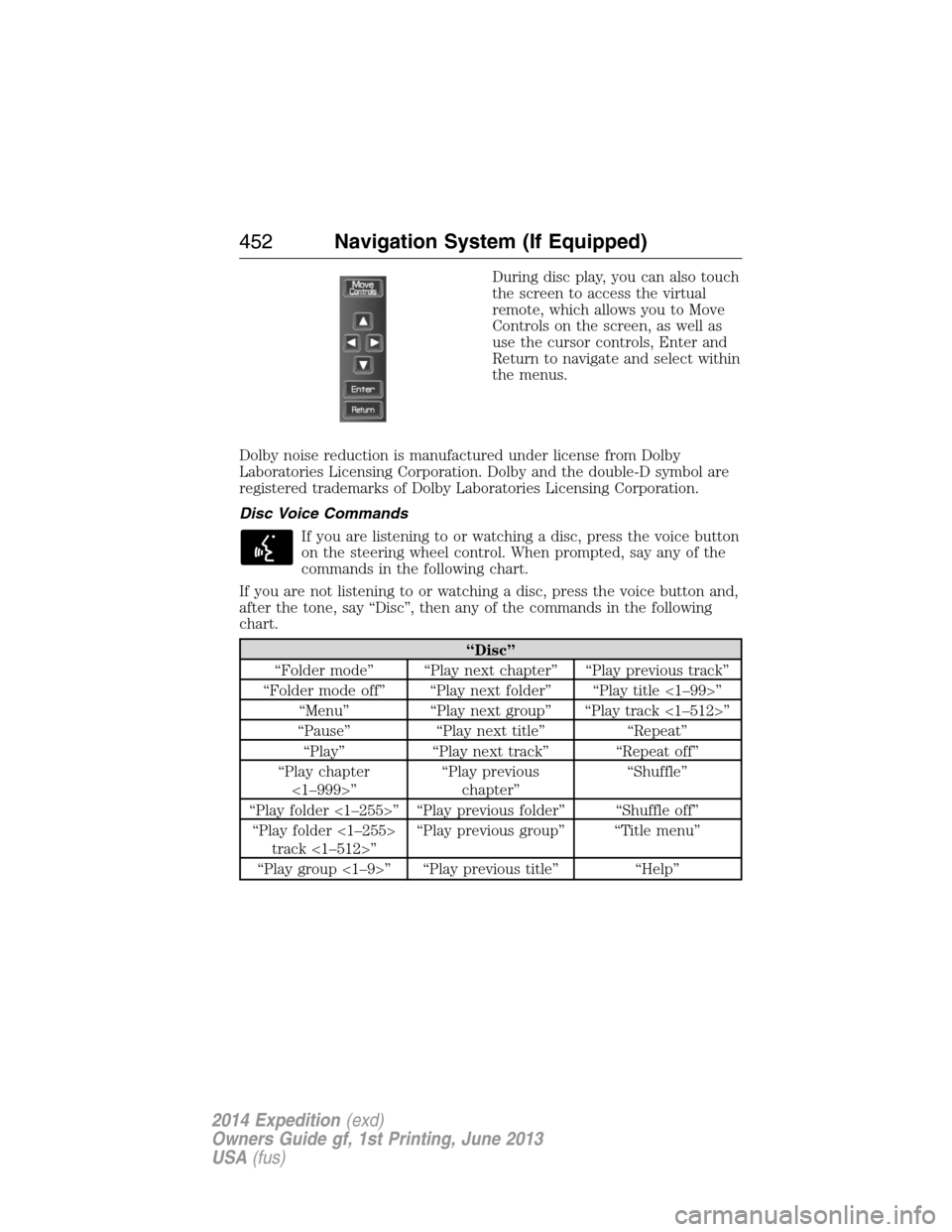
During disc play, you can also touch
the screen to access the virtual
remote, which allows you to Move
Controls on the screen, as well as
use the cursor controls, Enter and
Return to navigate and select within
the menus.
Dolby noise reduction is manufactured under license from Dolby
Laboratories Licensing Corporation. Dolby and the double-D symbol are
registered trademarks of Dolby Laboratories Licensing Corporation.
Disc Voice Commands
If you are listening to or watching a disc, press the voice button
on the steering wheel control. When prompted, say any of the
commands in the following chart.
If you are not listening to or watching a disc, press the voice button and,
after the tone, say “Disc”, then any of the commands in the following
chart.
“Disc”
“Folder mode” “Play next chapter” “Play previous track”
“Folder mode off” “Play next folder” “Play title <1–99>”
“Menu” “Play next group” “Play track <1–512>”
“Pause” “Play next title” “Repeat”
“Play” “Play next track” “Repeat off”
“Play chapter
<1–999>”“Play previous
chapter”“Shuffle”
“Play folder <1–255>” “Play previous folder” “Shuffle off”
“Play folder <1–255>
track <1–512>”“Play previous group” “Title menu”
“Play group <1–9>” “Play previous title” “Help”
452Navigation System (If Equipped)
2014 Expedition(exd)
Owners Guide gf, 1st Printing, June 2013
USA(fus)
Page 454 of 519
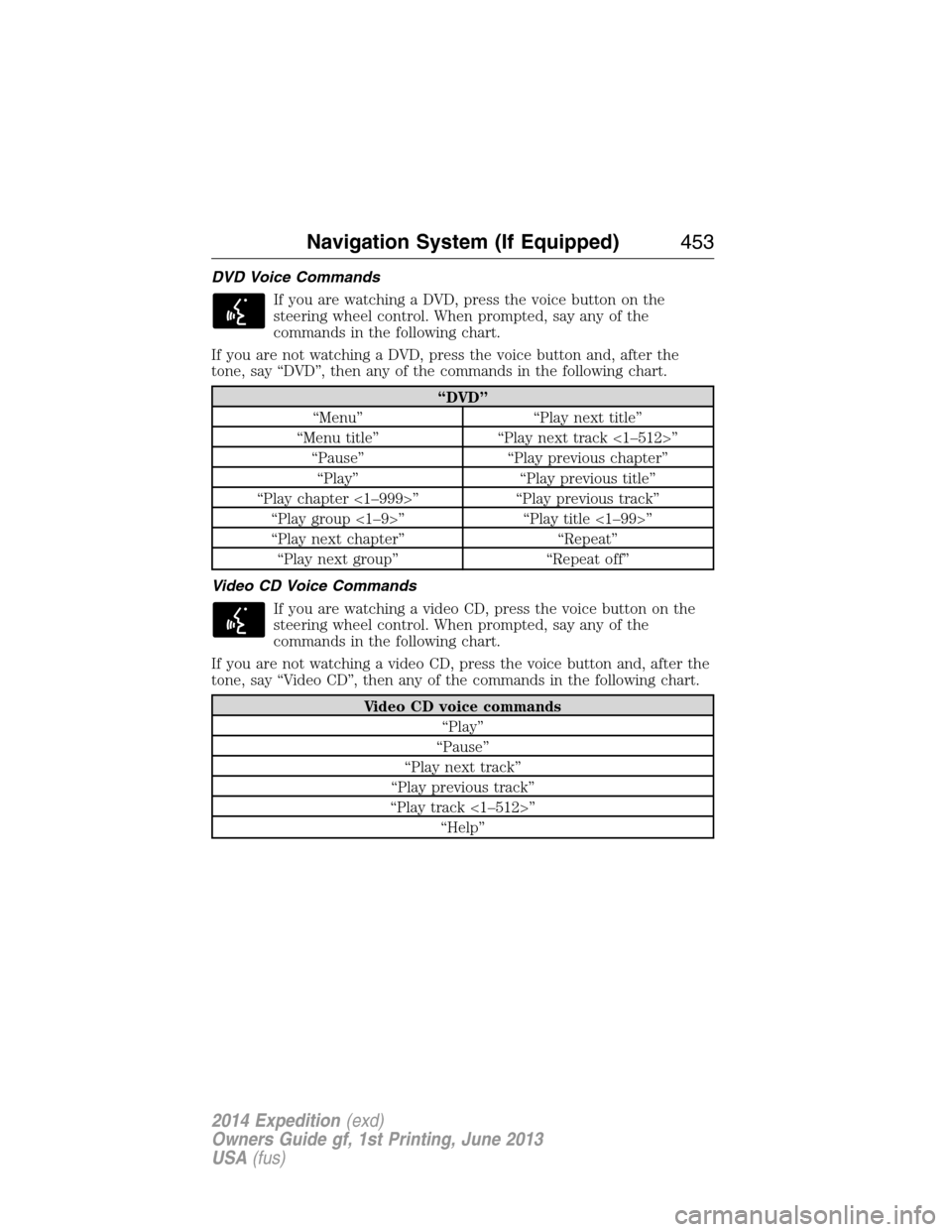
DVD Voice Commands
If you are watching a DVD, press the voice button on the
steering wheel control. When prompted, say any of the
commands in the following chart.
If you are not watching a DVD, press the voice button and, after the
tone, say “DVD”, then any of the commands in the following chart.
“DVD”
“Menu” “Play next title”
“Menu title” “Play next track <1–512>”
“Pause” “Play previous chapter”
“Play” “Play previous title”
“Play chapter <1–999>” “Play previous track”
“Play group <1–9>” “Play title <1–99>”
“Play next chapter” “Repeat”
“Play next group” “Repeat off”
Video CD Voice Commands
If you are watching a video CD, press the voice button on the
steering wheel control. When prompted, say any of the
commands in the following chart.
If you are not watching a video CD, press the voice button and, after the
tone, say “Video CD”, then any of the commands in the following chart.
Video CD voice commands
“Play”
“Pause”
“Play next track”
“Play previous track”
“Play track <1–512>”
“Help”
Navigation System (If Equipped)453
2014 Expedition(exd)
Owners Guide gf, 1st Printing, June 2013
USA(fus)
Page 457 of 519
4. Select the desired songs and then press Add. The system shows you
the currently selected songs. You can choose to Edit Name to change
the name of the playlist, Delete Playlist to remove it, Add Tracks to
the playlist or Sort Playlist.
5. After you change the playlist, select Edit Name to rename your
playlist.
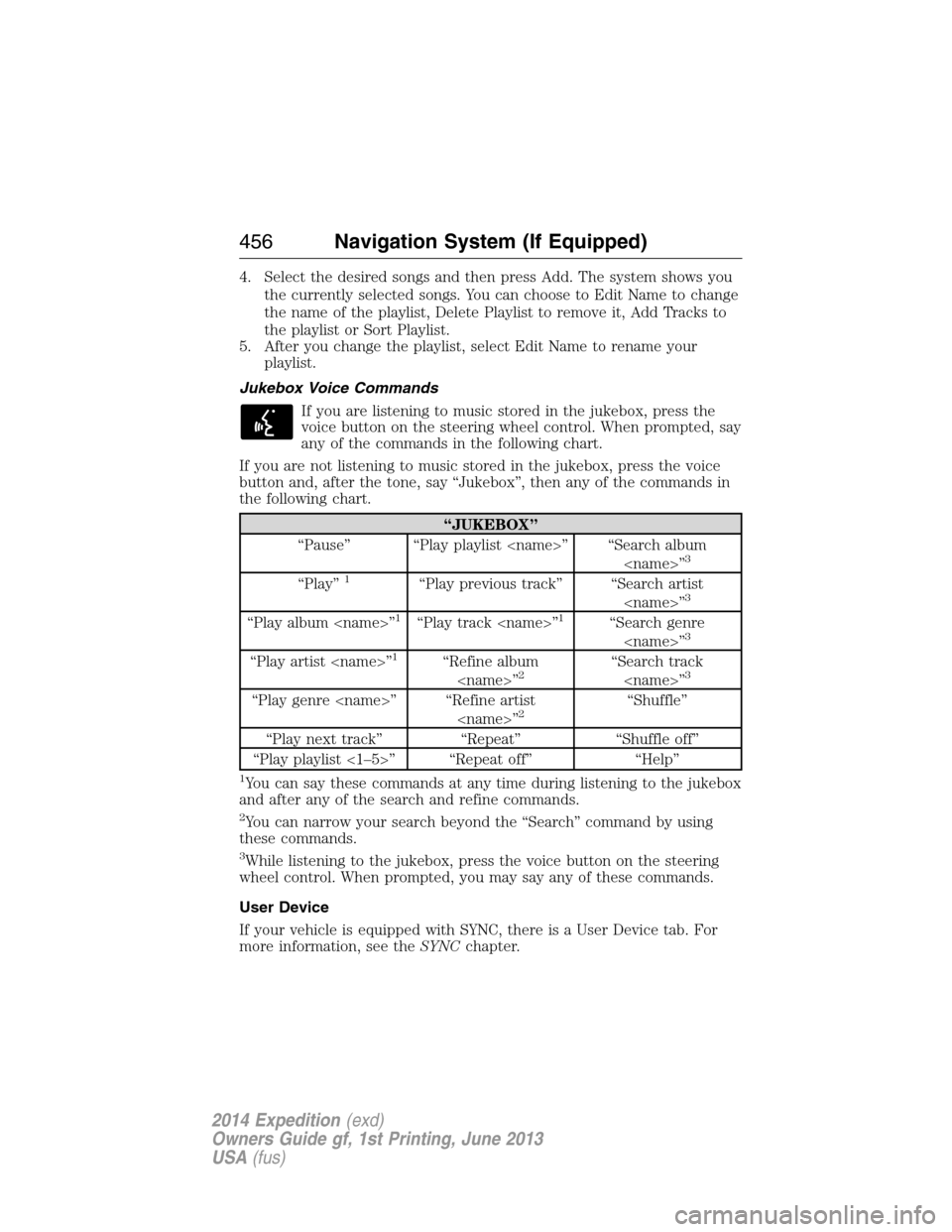
Jukebox Voice Commands
If you are listening to music stored in the jukebox, press the
voice button on the steering wheel control. When prompted, say
any of the commands in the following chart.
If you are not listening to music stored in the jukebox, press the voice
button and, after the tone, say “Jukebox”, then any of the commands in
the following chart.
“JUKEBOX”
“Pause” “Play playlist ” “Search album
”
3
“Play”1“Play previous track” “Search artist
”3
“Play album ”1“Play track ”1“Search genre
”3
“Play artist ”1“Refine album
”2“Search track
”3
“Play genre ” “Refine artist
”2“Shuffle”
“Play next track” “Repeat” “Shuffle off”
“Play playlist <1–5>” “Repeat off” “Help”
1You can say these commands at any time during listening to the jukebox
and after any of the search and refine commands.
2You can narrow your search beyond the “Search” command by using
these commands.
3While listening to the jukebox, press the voice button on the steering
wheel control. When prompted, you may say any of these commands.
User Device
If your vehicle is equipped with SYNC, there is a User Device tab. For
more information, see theSYNCchapter.
456Navigation System (If Equipped)
2014 Expedition(exd)
Owners Guide gf, 1st Printing, June 2013
USA(fus)
Page 471 of 519
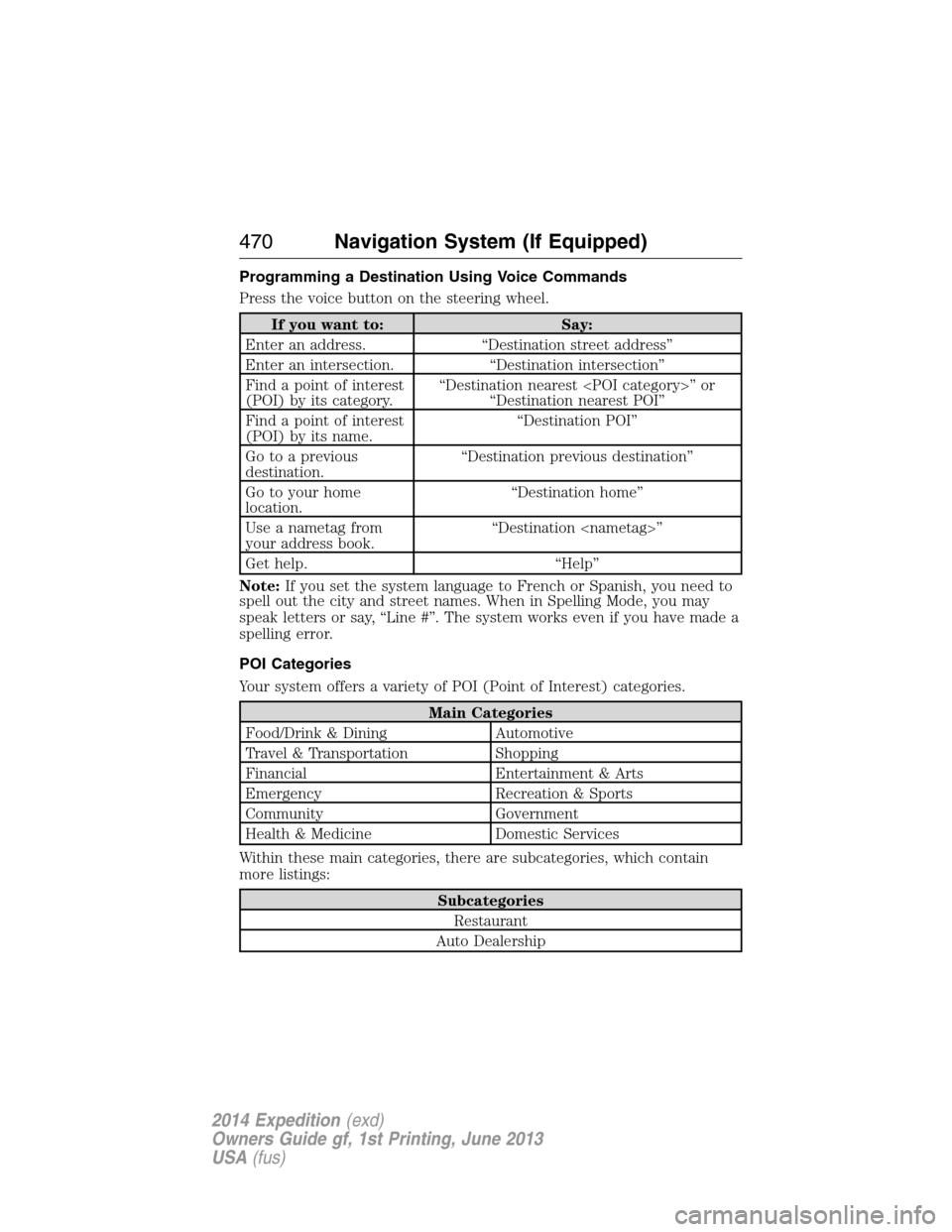
Programming a Destination Using Voice Commands
Press the voice button on the steering wheel.
If you want to: Say:
Enter an address. “Destination street address”
Enter an intersection. “Destination intersection”
Find a point of interest
(POI) by its category.“Destination nearest ” or
“Destination nearest POI”
Find a point of interest
(POI) by its name.“Destination POI”
Go to a previous
destination.“Destination previous destination”
Go to your home
location.“Destination home”
Use a nametag from
your address book.“Destination ”
Get help. “Help”
Note:If you set the system language to French or Spanish, you need to
spell out the city and street names. When in Spelling Mode, you may
speak letters or say, “Line #”. The system works even if you have made a
spelling error.
POI Categories
Your system offers a variety of POI (Point of Interest) categories.
Main Categories
Food/Drink & Dining Automotive
Travel & Transportation Shopping
Financial Entertainment & Arts
Emergency Recreation & Sports
Community Government
Health & Medicine Domestic Services
Within these main categories, there are subcategories, which contain
more listings:
Subcategories
Restaurant
Auto Dealership
470Navigation System (If Equipped)
2014 Expedition(exd)
Owners Guide gf, 1st Printing, June 2013
USA(fus)
Page 480 of 519
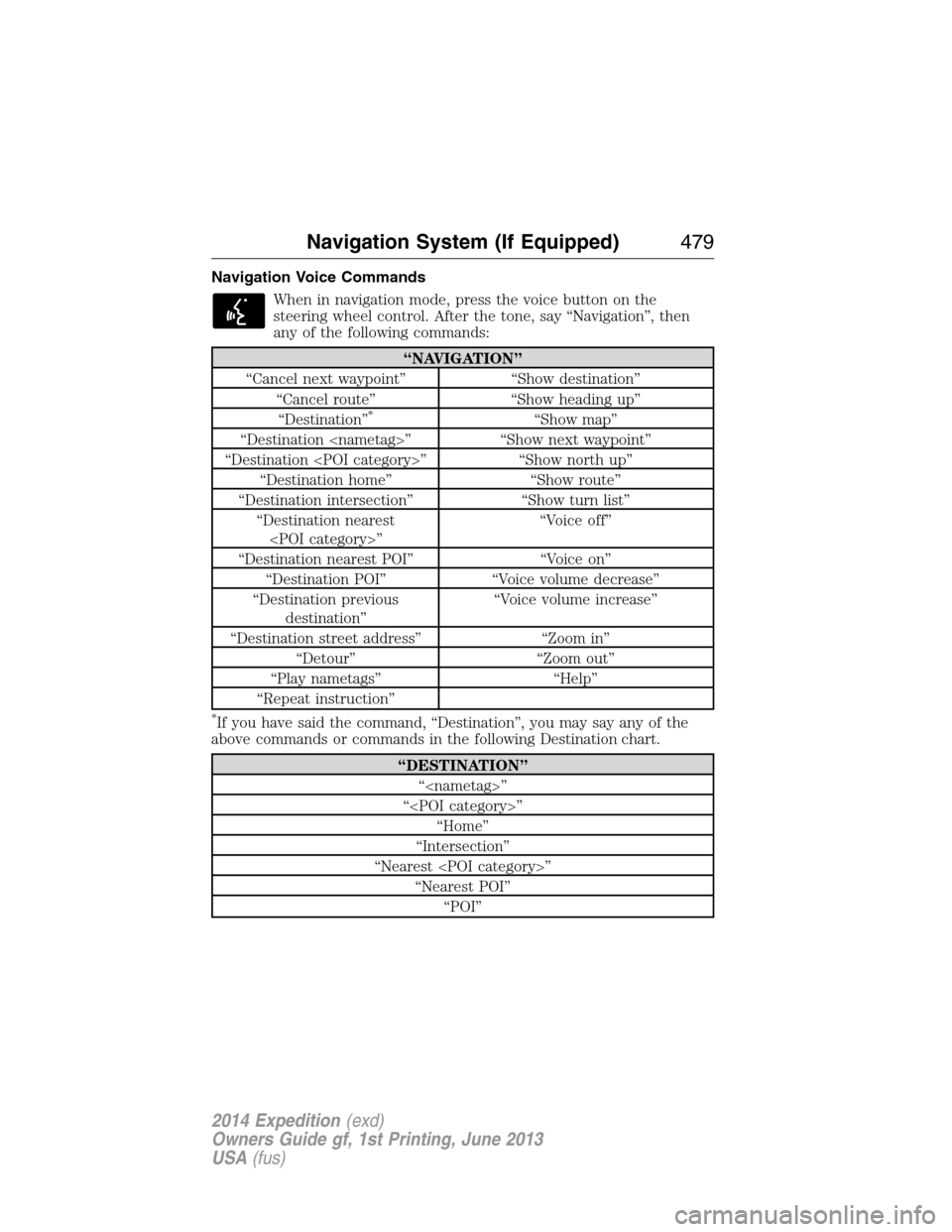
Navigation Voice Commands
When in navigation mode, press the voice button on the
steering wheel control. After the tone, say “Navigation”, then
any of the following commands:
“NAVIGATION”
“Cancel next waypoint” “Show destination”
“Cancel route” “Show heading up”
“Destination”
*“Show map”
“Destination ” “Show next waypoint”
“Destination ” “Show north up”
“Destination home” “Show route”
“Destination intersection” “Show turn list”
“Destination nearest
”“Voice off”
“Destination nearest POI” “Voice on”
“Destination POI” “Voice volume decrease”
“Destination previous
destination”“Voice volume increase”
“Destination street address” “Zoom in”
“Detour” “Zoom out”
“Play nametags” “Help”
“Repeat instruction”
*If you have said the command, “Destination”, you may say any of the
above commands or commands in the following Destination chart.
“DESTINATION”
“”
“”
“Home”
“Intersection”
“Nearest ”
“Nearest POI”
“POI”
Navigation System (If Equipped)479
2014 Expedition(exd)
Owners Guide gf, 1st Printing, June 2013
USA(fus)
Page 488 of 519
![FORD EXPEDITION 2014 3.G Owners Manual Adobe
Contains Adobe® [Flash® Player] or [AIR®] technology by Adobe
Systems Incorporated. This [Licensee Product] contains [Adobe® Flash®
Player] [Adobe® AIR®] software under license from Adobe](/manual-img/11/4936/w960_4936-487.png "FORD EXPEDITION 2014 3.G Owners Manual Adobe
Contains Adobe® [Flash® Player] or [AIR®] technology by Adobe
Systems Incorporated. This [Licensee Product] contains [Adobe® Flash®
Player] [Adobe® AIR®] software under license from Adobe")
Adobe
Contains Adobe® [Flash® Player] or [AIR®] technology by Adobe
Systems Incorporated. This [Licensee Product] contains [Adobe® Flash®
Player] [Adobe® AIR®] software under license from Adobe Systems
Incorporated, Copyright�1995-2009 Adobe Macromedia Software LLC.
All rights reserved. Adobe, Flash and AIR are trademarks of Adobe
Systems Incorporated.
End user notice
Microsoft® Windows® Mobile for Automotive Important Safety
Information
This system Ford SYNC™ contains software that is licensed to
Manufacturer FORD MOTOR COMPANY by an affiliate of Microsoft
Corporation pursuant to a license agreement. Any removal, reproduction,
reverse engineering or other unauthorized use of the software from this
system in violation of the license agreement is strictly prohibited and
may subject you to legal action.
Read and follow instructions
Before using your Windows Automotive-based system, read and follow all
instructions and safety information provided in this end user manual
(“User’s Guide”). Not following precautions found in this User’s Guide
can lead to an accident or other serious consequences.
Keep User’s Guide in Vehicle
When kept in the vehicle, the User’s Guide will be a ready reference for
you and other users unfamiliar with the Windows Automotive-based
system. Please make certain that before using the system for the first
time, all persons have access to the User’s Guide and read its
instructions and safety information carefully.
WARNING:Operating certain parts of this system while driving
can distract your attention away from the road, and possibly
cause an accident or other serious consequences. Do not change
system settings or enter data non-verbally (using your hands) while
driving. Stop the vehicle in a safe and legal manner before attempting
these operations. This is important since while setting up or changing
some functions you might be required to distract your attention away
from the road and remove your hands from the wheel.
Appendices487
2014 Expedition(exd)
Owners Guide gf, 1st Printing, June 2013
USA(fus)