2014 FORD ESCAPE sat nav
[x] Cancel search: sat navPage 329 of 428
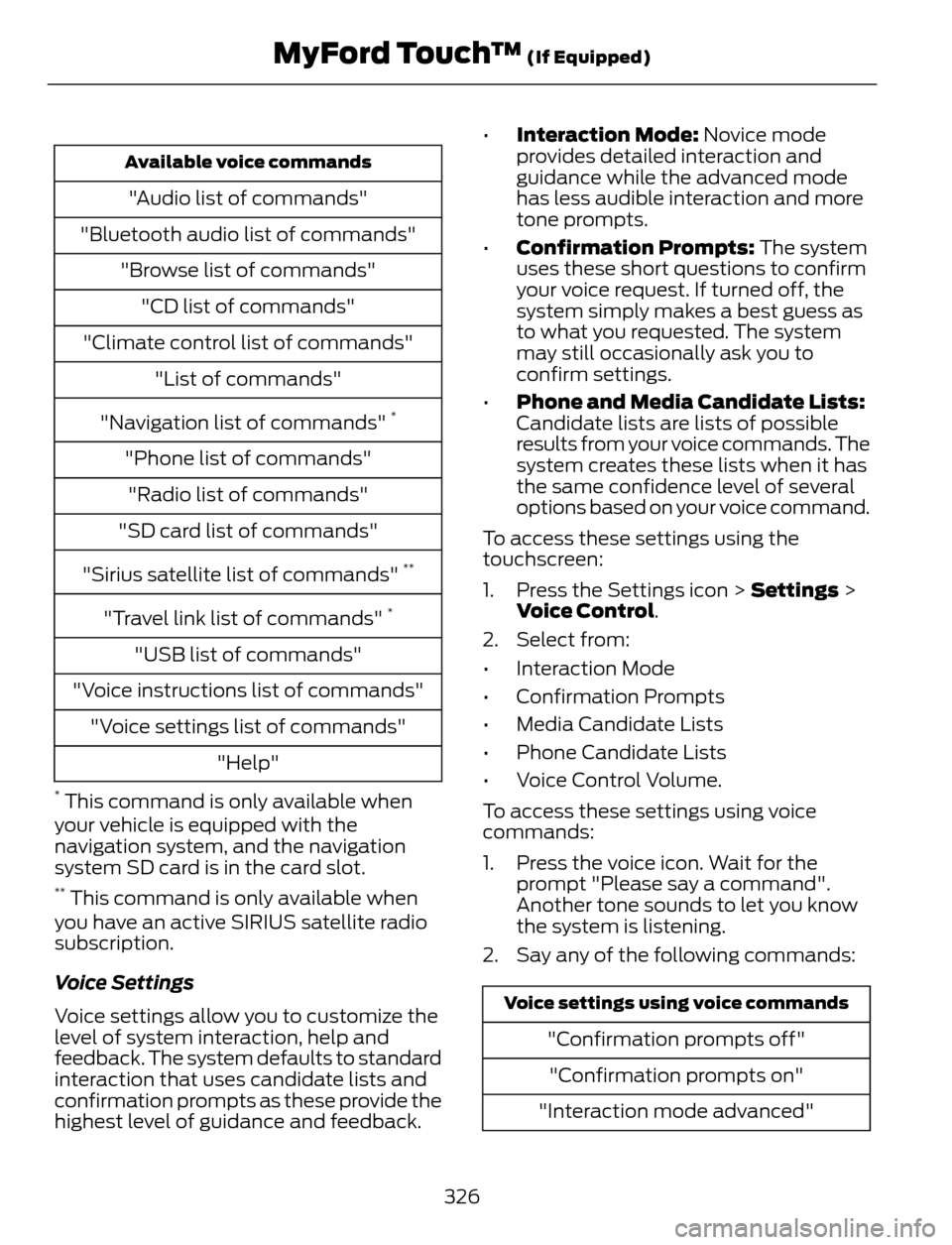
Available voice commands
"Audio list of commands"
"Bluetooth audio list of commands"
"Browse list of commands"
"CD list of commands"
"Climate control list of commands"
"List of commands"
"Navigation list of commands"
*
"Phone list of commands"
"Radio list of commands"
"SD card list of commands"
"Sirius satellite list of commands"
**
"Travel link list of commands" *
"USB list of commands"
"Voice instructions list of commands"
"Voice settings list of commands"
"Help"
* This command is only available when
your vehicle is equipped with the
navigation system, and the navigation
system SD card is in the card slot.
** This command is only available when
you have an active SIRIUS satellite radio
subscription.
Voice Settings
Voice settings allow you to customize the
level of system interaction, help and
feedback. The system defaults to standard
interaction that uses candidate lists and
confirmation prompts as these provide the
highest level of guidance and feedback.•Interaction Mode: Novice mode
provides detailed interaction and
guidance while the advanced mode
has less audible interaction and more
tone prompts.
•Confirmation Prompts: The system
uses these short questions to confirm
your voice request. If turned off, the
system simply makes a best guess as
to what you requested. The system
may still occasionally ask you to
confirm settings.
•Phone and Media Candidate Lists:
Candidate lists are lists of possible
results from your voice commands. The
system creates these lists when it has
the same confidence level of several
options based on your voice command.
To access these settings using the
touchscreen:
1. Press the Settings icon > Settings >
Voice Control.
2. Select from:
• Interaction Mode
• Confirmation Prompts
• Media Candidate Lists
• Phone Candidate Lists
• Voice Control Volume.
To access these settings using voice
commands:
1. Press the voice icon. Wait for the
prompt "Please say a command".
Another tone sounds to let you know
the system is listening.
2. Say any of the following commands:
Voice settings using voice commands
"Confirmation prompts off"
"Confirmation prompts on"
"Interaction mode advanced"
326
MyFord Touch™ (If Equipped)
Page 332 of 428

Only the photograph(s), which meets the
following conditions, display:
• Compatible file formats are as follows:
.jpg, .gif, .png, .bmp
• Each file must be 1.5 MB or less.
• Recommended dimensions: 800 x 384
Sound
E142607
Press the Settings icon > Sound,
then select from the following:
Sound
Bass
Midrange
Treble
Set Balance and Fade
DSP
*
Occupancy Mode*
Speed Compensated Volume
* Your vehicle may not have these sound
settings.
Vehicle
E142607
Press the Settings icon >
Vehicle, then select from the
following:
• Vehicle Health Report
• Rear View Camera
• Enable Valet Mode.
Vehicle Health Report
Turn Automatic Reminders on and off
and set the mileage interval at which you
would like to receive the reports. Press ?
for more information on these selections.When done making your selections, press
Run Vehicle Health Report Now if you
want your report.
You can find more information on Vehicle
Health Report in this chapter. See
Information (page 359).
Rear View Camera
This menu allows you to access settings
for your rear view camera.
E142607
Press the Settings icon >
Vehicle > Rear View Camera,
then select from the following
settings:
• Rear Camera Delay
• Visual Park Aid Alert
• Guidelines.
You can find more information on the rear
view camera in another chapter. See Rear
View Camera (page 156).
Enable Valet Mode
Note:If the system locks, and you need to
reset the PIN, enter 3681 and the system
unlocks.
Valet mode allows you to lock the system.
No information is accessible until the
system is unlocked with the correct PIN.
E142607
1. Press the Settings icon > Vehicle >
Enable Valet Mode.
2. When prompted, enter a four-digit PIN.
After you press Continue, the system locks
until you enter the PIN again.
Settings
Access and adjust system settings, voice
features, as well as phone, navigation and
wireless settings.
329
MyFord Touch™ (If Equipped)
Page 338 of 428

E142626
The
Wi-FiCERTIFIED Logo is a certification mark of
the Wi-Fi Alliance.
Help
E142607
Press the Settings icon > Help,
then select from the following:
Help
View your vehicle's current location, if your vehicle is
equipped with navigation. If your vehicle is not equipped
with navigation, nothing displays. Where Am I?
Touchscreen system serial number System Information
Your vehicle identification number (VIN)
Touchscreen system software version
Navigation system version
Map database version
Sirius satellite radio ESN
Gracenote Database Information and Library version
View the licenses for any software and applications
installed on your system. Software Licenses
Certain features are not accessible when your vehicle is
moving. Driving Restrictions
Turn on and turn off the 911 Assist feature. See Informa-
tion (page 359). 911 Assist
In Case of Emergency (ICE) Quick Dial: allows you to
save up to two numbers as ICE contacts for quick access
if there is an emergency. Select Edit to access your
phonebook and then select the desired contacts. The
numbers then appear as options on this screen for the ICE
1 and ICE 2 buttons. The ICE contacts you select appear
at the end of the 911 Assist call process.
View categorized lists of voice commands. Voice Command List
335
MyFord Touch™ (If Equipped)
Page 380 of 428

E142655
No GPS symbol indicates that
insufficient GPS satellite signals
are available for accurate map
positioning. This icon may display
under normal operation in an area with
poor GPS access.
Quick-touch Buttons
When in map mode, touch anywhere on
the map display to access the following
options:
Set as Dest
Touch this button to select a scrolled
location on the map as your destination.
You may scroll the map by pressing your
index finger on the map display. When you
reach the desired location, simply let go
and then touch Set as Dest.
Set as Waypoint
Touch this button to set the current
location as a waypoint.
Save to Favorites
Touch this button to save the current
location to your favorites.
POI Icons
Touch this button to select icons to display
on the map. You can select up to three
icons to display on the map at the same
time. Turn these ON or OFF.
Cancel Route
Touch this button to cancel the active
route.
View/Edit Route
Access these features when a route is
active:
• View Route
• Edit Destination/Waypoints• Edit Turn List
• Detour
• Edit Route Preferences
• Edit Traffic Preferences
• Cancel Route.
Nokia is the digital map provider for the
navigation application. If you find map data
errors, you may report them directly to
Nokia by going to
http://mapreporter.navteq.com. Nokia
evaluates all reported map errors and
responds with the result of their
investigation by e-mail.
Navigation Map Updates
Annual navigation map updates are
available for purchase through your
dealership, by calling 1-800-NAVMAPS (in
Mexico, call 01-800-557-5539) or going
to www.navigation.com/ford. You need to
specify the make and model of your vehicle
to determine if there is an update available.
Navigation Voice Commands
E142599
When in navigation mode, press
the voice button on the steering
wheel controls. After the tone,
say any of the following commands:
Navigation system voice commands
"Cancel next waypoint" 1
"Cancel route"1
"Destination"2
"Destination
"Destination
"Destination favorites"
"Destination home"
377
MyFord Touch™ (If Equipped)