2014 FORD E SERIES Control
[x] Cancel search: ControlPage 298 of 438
5. Switch your portable music player on and adjust its volume to half its
maximum level.
6. PressAUXuntilLINEorLINE INappears in the display. You
should hear music from your device even if it is low.
7. Adjust the volume on your portable music player until it reaches the
volume level of the FM station or CD. Do this by switching back and
forth between the AUX and FM or CD controls.
USB PORT (IF EQUIPPED)
WARNING:Driving while distracted can result in loss of vehicle
control, crash and injury. We strongly recommend that you use
extreme caution when using any device that may take your focus off
the road. Your primary responsibility is the safe operation of your
vehicle. We recommend against the use of any hand-held device while
driving and encourage the use of voice-operated systems when possible.
Make sure you are aware of all applicable local laws that may affect the
use of electronic devices while driving.
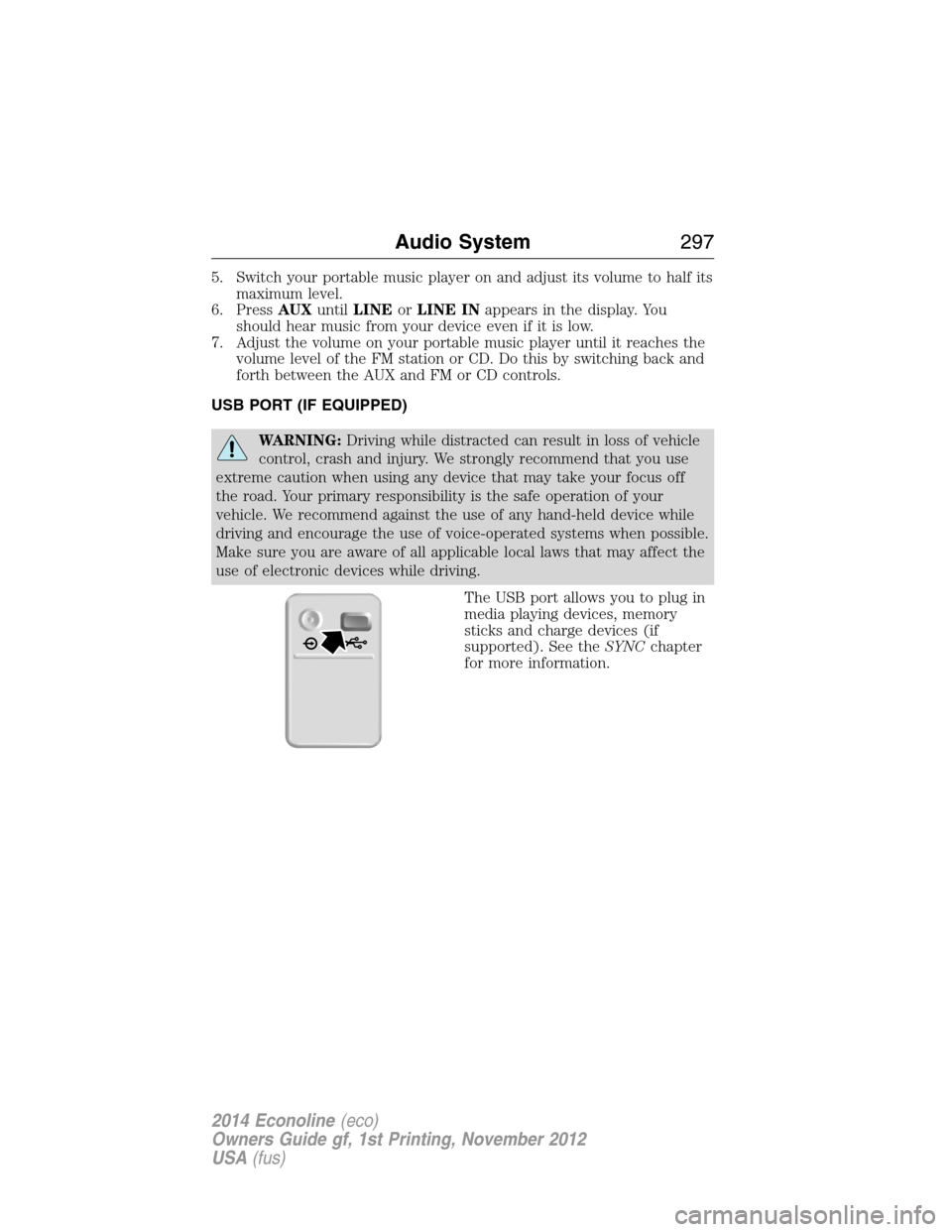
The USB port allows you to plug in
media playing devices, memory
sticks and charge devices (if
supported). See theSYNCchapter
for more information.
Audio System297
2014 Econoline(eco)
Owners Guide gf, 1st Printing, November 2012
USA(fus)
Page 300 of 438

GENERAL INFORMATION
Make sure you review your device’s manual before using it with SYNC.
Support
The SYNC support team is available to help you with any questions you
cannot answer on your own.
Monday-Saturday, 8:30am-9:00pm EST.
Sunday, 10:30am-7:30pm EST.
In the United States, call: 1–800–392–3673.
In Canada, call: 1–800–565–3673.
Times are subject to change due to holidays.
SYNC Owner Account
Why do I need a SYNC owner account?
•Required to activate Vehicle Health Report and to view the reports
online.
•Required to activate the subscription-based SYNC Services and to
personalize your Saved Points and Favorites.
•Essential for keeping up with the latest software downloads available
for SYNC.
•Access to customer support for any questions you may have.
Driving Restrictions
For your safety, certain features are speed-dependent and restricted
when your vehicle is traveling over 3 mph (5 km/h).
Safety Information
WARNING:Driving while distracted can result in loss of vehicle
control, crash and injury. We strongly recommend that you use
extreme caution when using any device that may take your focus off
the road. Your primary responsibility is the safe operation of your
vehicle. We recommend against the use of any handheld device while
driving and encourage the use of voice-operated systems when possible.
Make sure you are aware of all applicable local laws that may affect the
use of electronic devices while driving.
SYNC®299
2014 Econoline(eco)
Owners Guide gf, 1st Printing, November 2012
USA(fus)
Page 302 of 438

USING VOICE RECOGNITION
This system helps you control many features using voice commands. This
allows you to keep your hands on the wheel and focus on what is in
front of you.
Initiating a Voice Session
Push the voice icon; a tone sounds and Listening appears in the
display. Say any of the following:
Say: If you want to:
“Phone” Make calls.
“USB” Access the device connected to your USB
port.
“Bluetooth Audio” Stream audio from your phone.
“Line in” Access the device connected to the auxiliary
input jack.
“Cancel” Cancel the requested action.
“SYNC” Return to the main menu.
“Voice settings” Adjust the level of voice interaction and
feedback.
“Vehicle Health Report” Run a vehicle health report.
*
“Services” Access the SYNC Services portal.*
“Mobile apps” Access mobile applications.*
“Help” Hear a list of voice commands available in the
current mode.
*If equipped, U.S. only.
SYNC®301
2014 Econoline(eco)
Owners Guide gf, 1st Printing, November 2012
USA(fus)
Page 327 of 438

Note:The AppLink feature is not available if your vehicle is equipped
with the MyFord Touch or MyLincoln Touch system.
Depending on your display type, you can access AppLink from the media
menu, the phone menu, or by using voice commands. Once an app is
running through AppLink, you can control main features of the app
through voice commands and steering wheel controls.
To Access Using the Phone Menu
1. Press the Phone button.
2. Browse to Mobile Applications and pressOK.
3. Browse to your desired app and pressOK.
4. Once an app is running through SYNC, you can access an app’s menu
by pressing theMENUbutton to first access the SYNC menu.
5. Scroll until “
Menu), then pressOK.From here, you can access an application’s
features, such as Thumbs up, Thumbs down, etc. For more
information, please visit www.SYNCMyRide.com.
To Access Using the Media Menu
1. Press theAUXbutton to access the SYNC menu.
2. Press the Menu button to access the SYNC Media menu.
3. Browse to Mobile Applications and pressOK.
4. Browse to your desired app and pressOK.
5. Once an app is running through SYNC, you can access an app’s menu
by pressing theMENUbutton to first access the SYNC menu.
6. Scroll until “
Menu), then pressOK.From here, you can access an application’s
features, such as Thumbs up, Thumbs down, etc. For more
information, please visit www.SYNCMyRide.com.
To Access Using the Navigation Screen (If Equipped)
1. Press the Phone button.
2. Press the SYNC Apps tab.
3. Press Mobile Apps.
4. Select the app to start it.
To Access Using Voice Commands
1. Press the voice icon.
2. When prompted, say “Mobile Apps”.
3. Say the name of the application after the tone.
4. The app should start. While an app is running through SYNC, you can
press the voice button and speak commands specific to the app, such
as “Play Station Quickmix”. Say “Help” to discover available voice
commands.
326SYNC®
2014 Econoline(eco)
Owners Guide gf, 1st Printing, November 2012
USA(fus)
Page 339 of 438

When you select: You can:
Factory DefaultsReturn to the factory default settings. This
selection does not erase your indexed
information (phonebook, call history, text
messages and paired devices).
1. Press OK to select and then press OK again
when Restore Defaults? appears in the display.
2. Press OK to confirm.
Master ResetCompletely erase all information stored on
SYNC (all phonebook, call history, text
messages and all paired devices) and return
to the factory default settings.
ApplicationDownload new software applications (if
available) and then load the desired
applications through your USB port. See the
web site for more information.
ReturnExit the current menu.
TROUBLESHOOTING
Your SYNC system is easy to use. However, should questions arise, see
the tables below.
Use the website at any time to check your phone’s compatibility, register
your account and set preferences as well as access a customer
representative via an online chat (during certain hours). Visit
www.SYNCMyRide.com, www.SYNCMyRide.ca or www.syncmaroute.ca for
more information.
Phone issues
Issue Possible
cause(s)Possible solution(s)
Excessive
background noise
during a phone
call.The audio control
settings on your
phone may be
affecting SYNC
performance.Review your phone’s user guide
regarding audio adjustments.
338SYNC®
2014 Econoline(eco)
Owners Guide gf, 1st Printing, November 2012
USA(fus)
Page 347 of 438

NAVIGATION CONTROLS
WARNING:Driving while distracted can result in loss of vehicle
control, crash and injury. We strongly recommend that you use
extreme caution when using any device that may take your focus off
the road. Your primary responsibility is the safe operation of your
vehicle. We recommend against the use of any hand-held device while
driving and encourage the use of voice-operated systems when possible.
Make sure you are aware of all applicable local laws that may affect the
use of electronic devices while driving.
The system divides the screen in two sections after it initializes:
•Status bars:This is the top and bottom portion of the screen. It
displays the clock or date and other useful information, depending on
which mode you are in.
•Display area:The touchscreen changes depending on current
system operation. Different buttons display in this area, depending on
which mode you are in.
Note:Some features, such as Sirius satellite radio, may not be available
in your location. Check with an authorized dealer.
346Navigation System (If Equipped)
2014 Econoline(eco)
Owners Guide gf, 1st Printing, November 2012
USA(fus)
Page 348 of 438

A.Memory presets:
•Store your favorite radio stations. To store a radio station, tune to the
station, then press and hold a preset button until sound returns.
•In radio and satellite radio mode, press a button to access your saved
presets or channels.
B.CD and DVD slot:Insert a CD or DVD, label side up.
C.Eject:Press this button to eject a CD or DVD from the system.
D.TUNE RPT:
•In radio or satellite radio mode, turn the control to advance in
individual increments up or down the frequency band to the desired
station.
•In MP3 mode, turn the control to advance to the next or previous
folder.
•In navigation mode, press this button to hear the last spoken
navigation guidance prompt.
E.MAP:
•Press this button to access the navigation map.
•Press while the map display is active to center the map on the
current vehicle position. Press while the map display and route are
active to see the different map guidance views.
F.DEST:
•Press this button to access the destination entry menu.
•Press while the destination entry menu is active to show additional
destination entry techniques.
G.N AV:
•Press this button to access the navigation menu.
•Press while the navigation menu is active to access the navigation
menu tabs.
H.I (Information):Press this button to access features such as Where
am I?, Sirius Travel Link, Calendar, System Info and Help.
I.PHONE:Press this button to access the SYNC phone menu.
J.DISP:Press this button to select a display mode: On, Status Bar Only,
and Off.
K.SEEK:
•In radio and satellite radio mode, press the arrow buttons to find
previous or next available stations or channels within the currently
selected Category or Genre.
•In CD and DVD modes, press the arrow buttons to select the previous
or next track or chapter.
Navigation System (If Equipped)347
2014 Econoline(eco)
Owners Guide gf, 1st Printing, November 2012
USA(fus)
Page 349 of 438

L.MENU:
•Press this button to access the system menu.
•Press while the system menu is active to access the menu tabs of
Display, Clock, Feedback Settings, System Settings and Valet Mode.
M.SOUND:
•Press this button to access the sound menu.
•Press while the sound menu is active to access the menu tabs of
Bass/Treble, Balance/Fade, SCV (Speed Compensated Volume), DSP
(Digital Signal Processing) and Visualizer.
N.MEDIA:
•Press this button to access the media menu.
•Press while the media menu is active to access the available sources
of CD/DVD, Jukebox and User Device.
O.RADIO:
•Press this button to access the radio menu.
•Press while the radio menu is active to access the available sources of
AM, FM1, FM2, SAT1, SAT2, and SAT3.
P.VOL:Press and hold this button to turn the system off and on. Turn
the control to adjust the volume.
Note:If a navigation route is active when the navigation system is off,
the system resumes the route when you turn the system on.
DISPLAY MODE
You can choose to turn your screen on or off and if you would like to
view the status bars on the top and bottom of the screen. Press DISP to
see the options.
Display Mode Voice Commands
The following voice commands are available in display mode. If
you are not in display mode, press the voice button on the
steering wheel. When prompted, say “Display mode” and then
any of the following commands.
Display mode voice commands
“Display on”
“Display off”
“Status bar”
“Brighter”
“Dimmer”
“Day”
348Navigation System (If Equipped)
2014 Econoline(eco)
Owners Guide gf, 1st Printing, November 2012
USA(fus)