Page 437 of 476
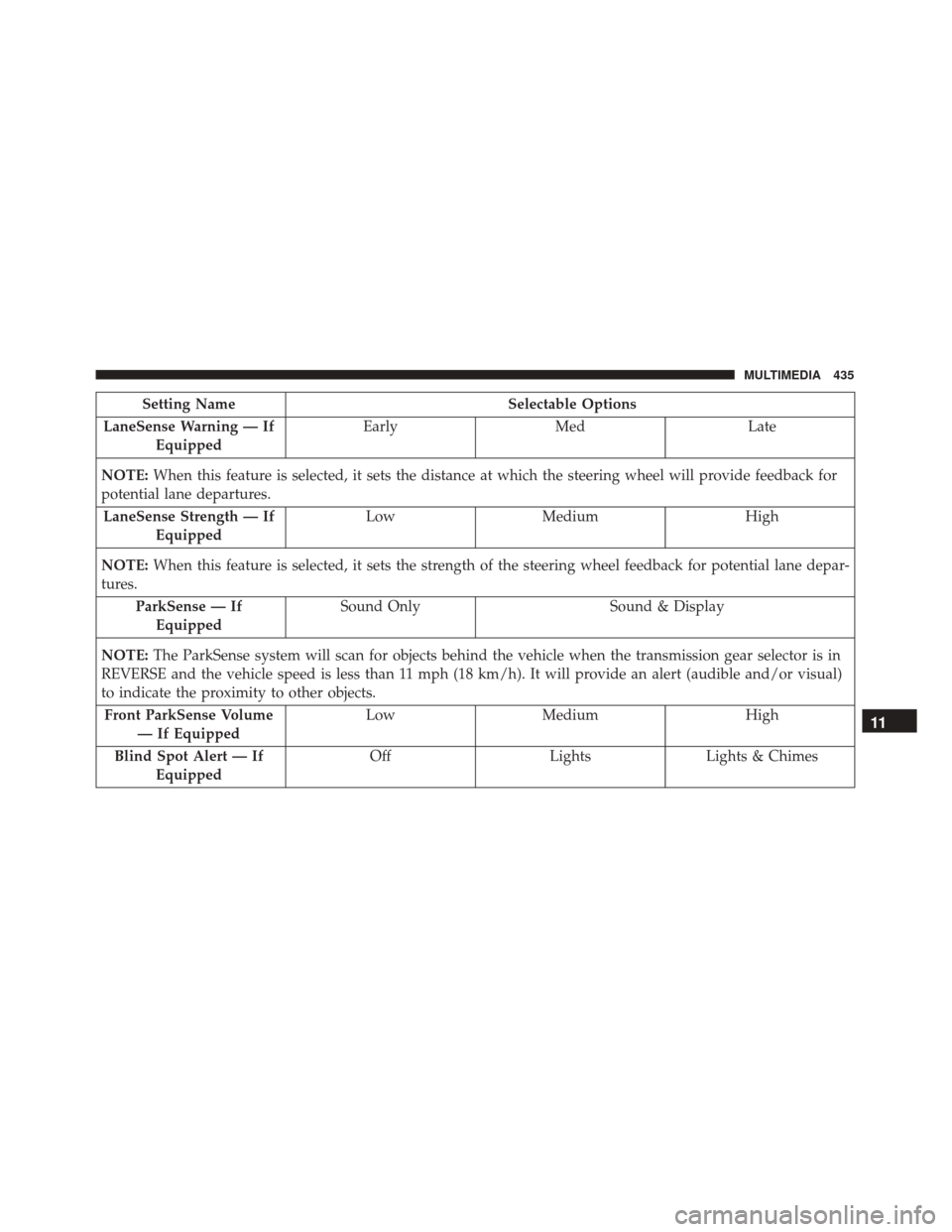
Setting NameSelectable Options
LaneSense Warning — If Equipped Early
Med Late
NOTE: When this feature is selected, it sets the distance at which the steering wheel will provide feedback for
potential lane departures.
LaneSense Strength — If Equipped Low
Medium High
NOTE: When this feature is selected, it sets the strength of the steering wheel feedback for potential lane depar-
tures.
ParkSense — IfEquipped Sound Only
Sound & Display
NOTE: The ParkSense system will scan for objects behind the vehicle when the transmission gear selector is in
REVERSE and the vehicle speed is less than 11 mph (18 km/h). It will provide an alert (audible and/or visual)
to indicate the proximity to other objects.
Front ParkSense Volume — If Equipped Low
Medium High
Blind Spot Alert — If Equipped Off
LightsLights & Chimes
11
MULTIMEDIA 435
Page 438 of 476
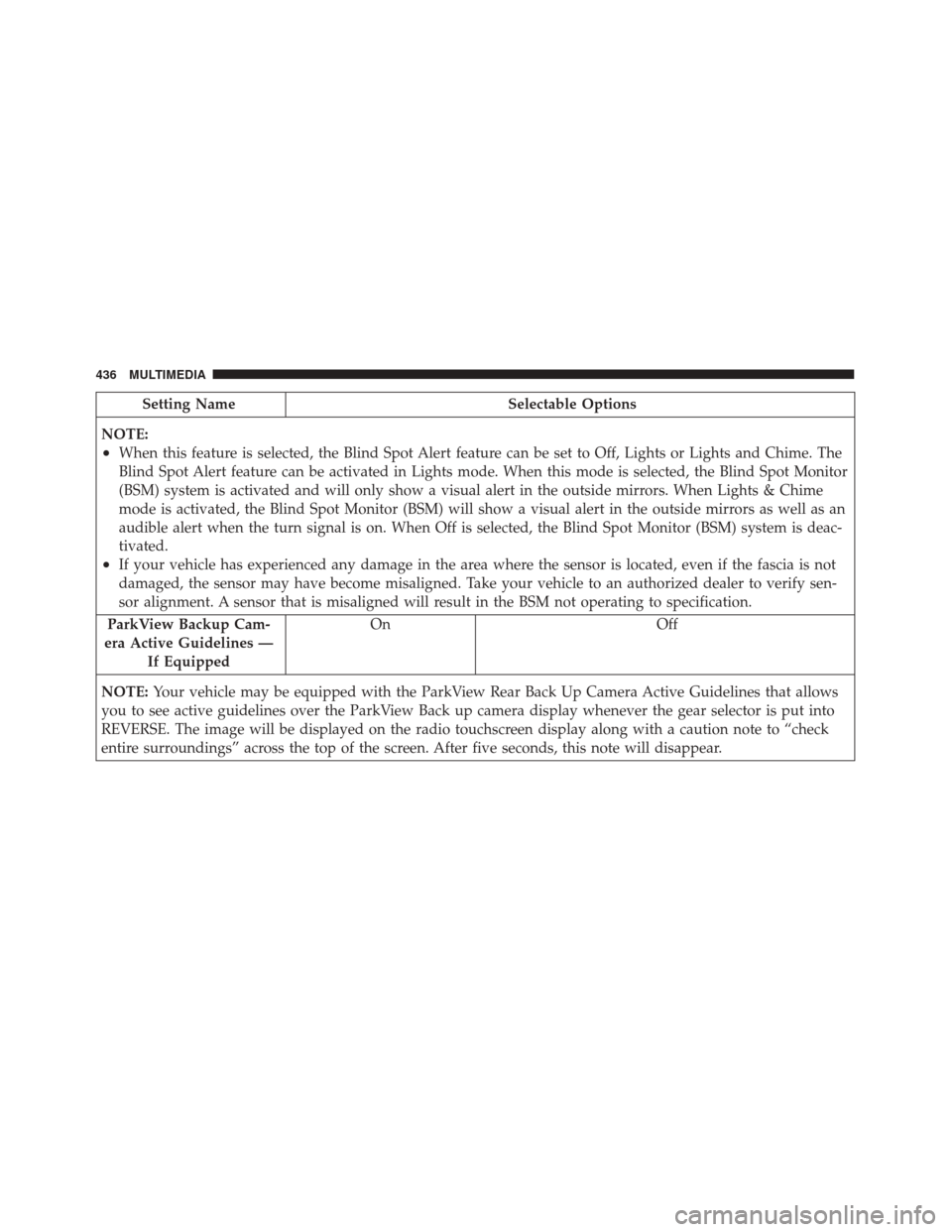
Setting NameSelectable Options
NOTE:
•When this feature is selected, the Blind Spot Alert feature can be set to Off, Lights or Lights and Chime. The
Blind Spot Alert feature can be activated in Lights mode. When this mode is selected, the Blind Spot Monitor
(BSM) system is activated and will only show a visual alert in the outside mirrors. When Lights & Chime
mode is activated, the Blind Spot Monitor (BSM) will show a visual alert in the outside mirrors as well as an
audible alert when the turn signal is on. When Off is selected, the Blind Spot Monitor (BSM) system is deac-
tivated.
•If your vehicle has experienced any damage in the area where the sensor is located, even if the fascia is not
damaged, the sensor may have become misaligned. Take your vehicle to an authorized dealer to verify sen-
sor alignment. A sensor that is misaligned will result in the BSM not operating to specification.
ParkView Backup Cam-
era Active Guidelines — If Equipped On Off
NOTE: Your vehicle may be equipped with the ParkView Rear Back Up Camera Active Guidelines that allows
you to see active guidelines over the ParkView Back up camera display whenever the gear selector is put into
REVERSE. The image will be displayed on the radio touchscreen display along with a caution note to “check
entire surroundings” across the top of the screen. After five seconds, this note will disappear.
436 MULTIMEDIA
Page 439 of 476
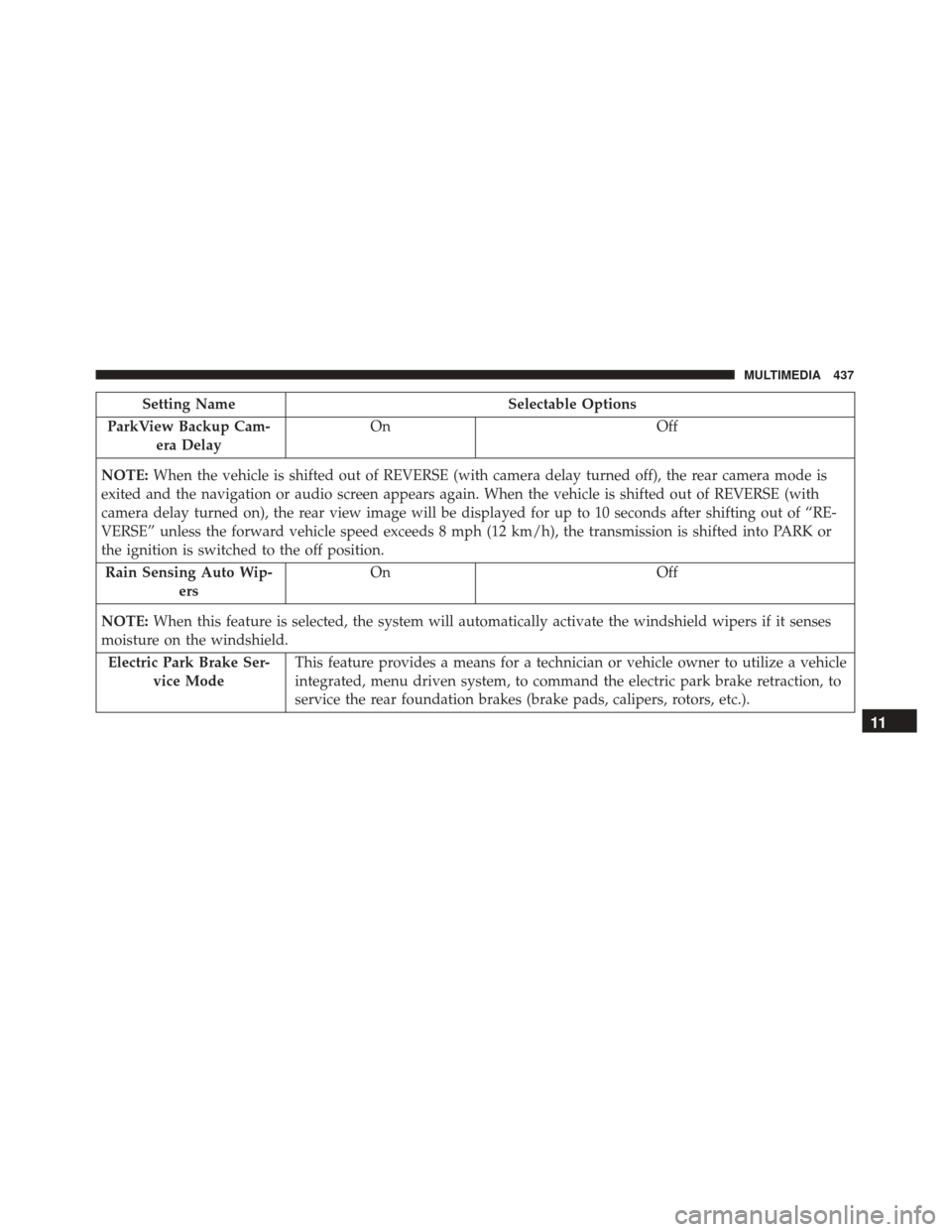
Setting NameSelectable Options
ParkView Backup Cam- era Delay On
Off
NOTE: When the vehicle is shifted out of REVERSE (with camera delay turned off), the rear camera mode is
exited and the navigation or audio screen appears again. When the vehicle is shifted out of REVERSE (with
camera delay turned on), the rear view image will be displayed for up to 10 seconds after shifting out of “RE-
VERSE” unless the forward vehicle speed exceeds 8 mph (12 km/h), the transmission is shifted into PARK or
the ignition is switched to the off position.
Rain Sensing Auto Wip- ers On
Off
NOTE: When this feature is selected, the system will automatically activate the windshield wipers if it senses
moisture on the windshield.
Electric Park Brake Ser- vice Mode This feature provides a means for a technician or vehicle owner to utilize a vehicle
integrated, menu driven system, to command the electric park brake retraction, to
service the rear foundation brakes (brake pads, calipers, rotors, etc.).
11
MULTIMEDIA 437
Page 443 of 476
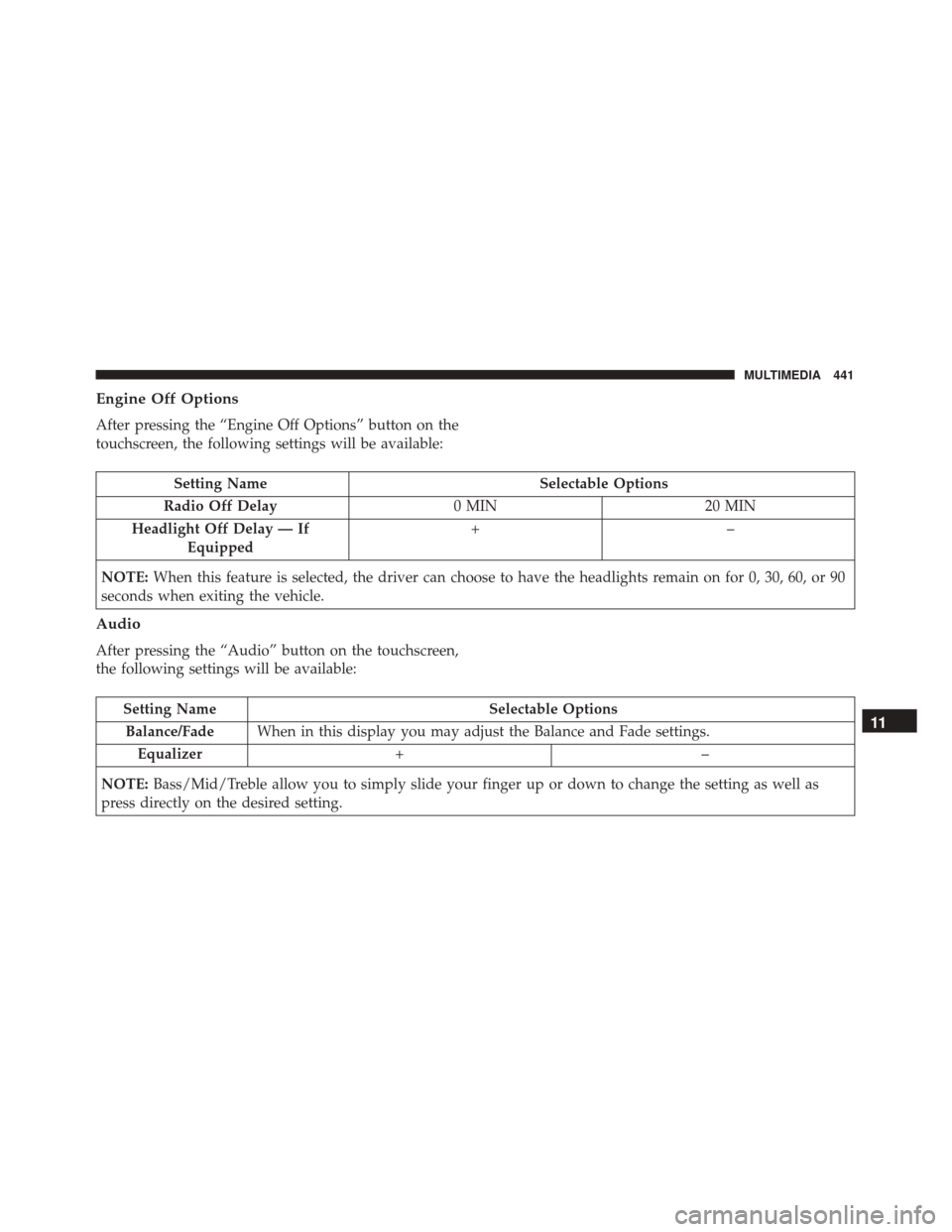
Engine Off Options
After pressing the “Engine Off Options” button on the
touchscreen, the following settings will be available:
Setting NameSelectable Options
Radio Off Delay 0 MIN20 MIN
Headlight Off Delay — If Equipped +–
NOTE: When this feature is selected, the driver can choose to have the headlights remain on for 0, 30, 60, or 90
seconds when exiting the vehicle.
Audio
After pressing the “Audio” button on the touchscreen,
the following settings will be available:
Setting Name Selectable Options
Balance/Fade When in this display you may adjust the Balance and Fade settings.
Equalizer +–
NOTE: Bass/Mid/Treble allow you to simply slide your finger up or down to change the setting as well as
press directly on the desired setting.11
MULTIMEDIA 441
Page 446 of 476
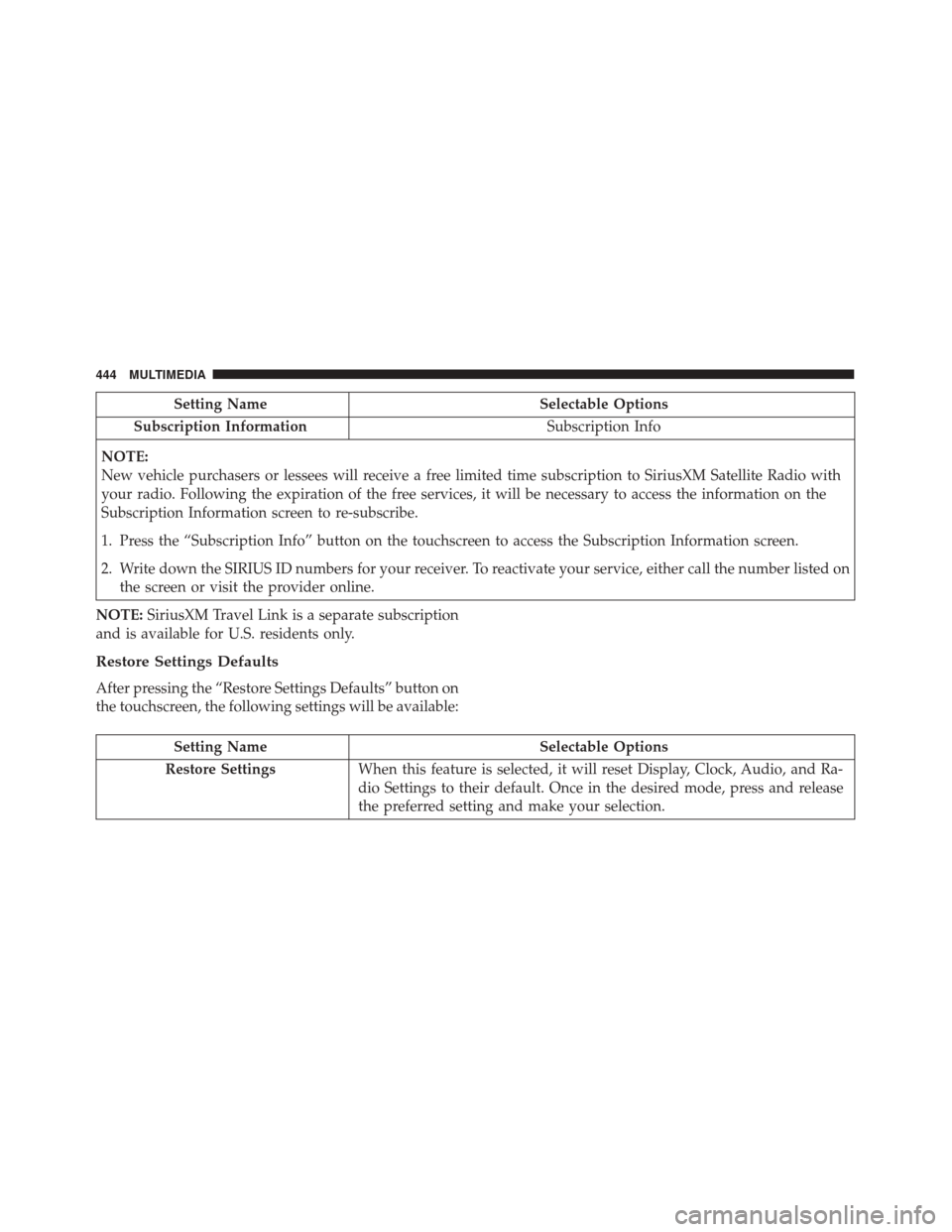
Setting NameSelectable Options
Subscription Information Subscription Info
NOTE:
New vehicle purchasers or lessees will receive a free limited time subscription to SiriusXM Satellite Radio with
your radio. Following the expiration of the free services, it will be necessary to access the information on the
Subscription Information screen to re-subscribe.
1. Press the “Subscription Info” button on the touchscreen to access the Subscription Information screen.
2. Write down the SIRIUS ID numbers for your receiver. To reactivate your service, either call the number listed on the screen or visit the provider online.
NOTE: SiriusXM Travel Link is a separate subscription
and is available for U.S. residents only.
Restore Settings Defaults
After pressing the “Restore Settings Defaults” button on
the touchscreen, the following settings will be available:
Setting Name Selectable Options
Restore Settings When this feature is selected, it will reset Display, Clock, Audio, and Ra-
dio Settings to their default. Once in the desired mode, press and release
the preferred setting and make your selection.
444 MULTIMEDIA
Page 451 of 476
VOICE RECOGNITION QUICK TIPS
Introducing Uconnect
Start using Uconnect Voice Recognition with these
helpful quick tips. It provides the key Voice Commands
and tips you need to know to control your Uconnect 5.0
or 6.5 NAV system.
Key Features:
•Five-inch Color Touchscreen Display with AM/FM/
USB/Bluetooth
• Bluetooth with integrated voice control Key Features:
•
6.5-inch Color Touchscreen Display with AM/FM/
USB/SD Card/Bluetooth
• Bluetooth with integrated voice control
• GPS navigation (if equipped)
Uconnect 5.0
Uconnect 6.5 NAV
11
MULTIMEDIA 449
Page 455 of 476
•Play artist Beethoven;Play album Greatest Hits;
Play song Moonlight Sonata; Play genreClassical.
TIP: Press the Browse button on the touchscreen to see
all of the music on your iPod or USB device. Your Voice
Command must match exactlyhow the artist, album,
song and genre information is displayed.
Phone
Making and answering hands-free phone calls is easy
with Uconnect. When the Phonebook button is illumi-
nated on your touchscreen, your system is ready. Check
UconnectPhone.com for mobile phone compatibility
and pairing instructions.
Push the Phone button
. After the beep, say one of
the following commands �
•Call John Smith.
• Dial 123-456-7890 and follow the system prompts.
• Redial (call previous outgoing phone number).
Uconnect 5.0 Media
Uconnect 6.5 NAV Media
11
MULTIMEDIA 453