Page 401 of 476

tires must meet under the Federal Motor Vehicle
Safety Standard No. 109. Grades B and A represent
higher levels of performance on the laboratory test
wheel, than the minimum required by law.
WARNING!
The temperature grade for this tire is established
for a tire that is properly inflated and not over-
loaded. Excessive speed, under-inflation, or ex-
cessive loading, either separately or in combina-
tion, can cause heat buildup and possible tire
failure.
TIRE ROTATION RECOMMENDATIONS
The tires on the front and rear of your vehicle operate at
different loads and perform different steering, han-
dling, and braking functions. For these reasons, they
wear at unequal rates.
These effects can be reduced by timely rotation of tires.
The benefits of rotation are especially worthwhile with
aggressive tread designs such as those on On/Off Road
type tires. Rotation will increase tread life, help to
maintain mud, snow, and wet traction levels, and
contribute to a smooth, quiet ride. Refer to the “Maintenance Plan” in this section for the
proper maintenance intervals. The reasons for any rapid
or unusual wear should be corrected prior to rotation
being performed.
The suggested Front Wheel Drive (FWD) rotation
method is the “forward cross” shown in the following
diagram. This rotation pattern does not apply to some
directional tires that must not be reversed.
The suggested Four Wheel Drive (4WD) Tire rotation
method is the “rearward cross” shown in the following
diagram.
Front Wheel Drive (FWD) Tire Rotation
9
MAINTAINING AND CARING FOR YOUR VEHICLE 399
Page 418 of 476
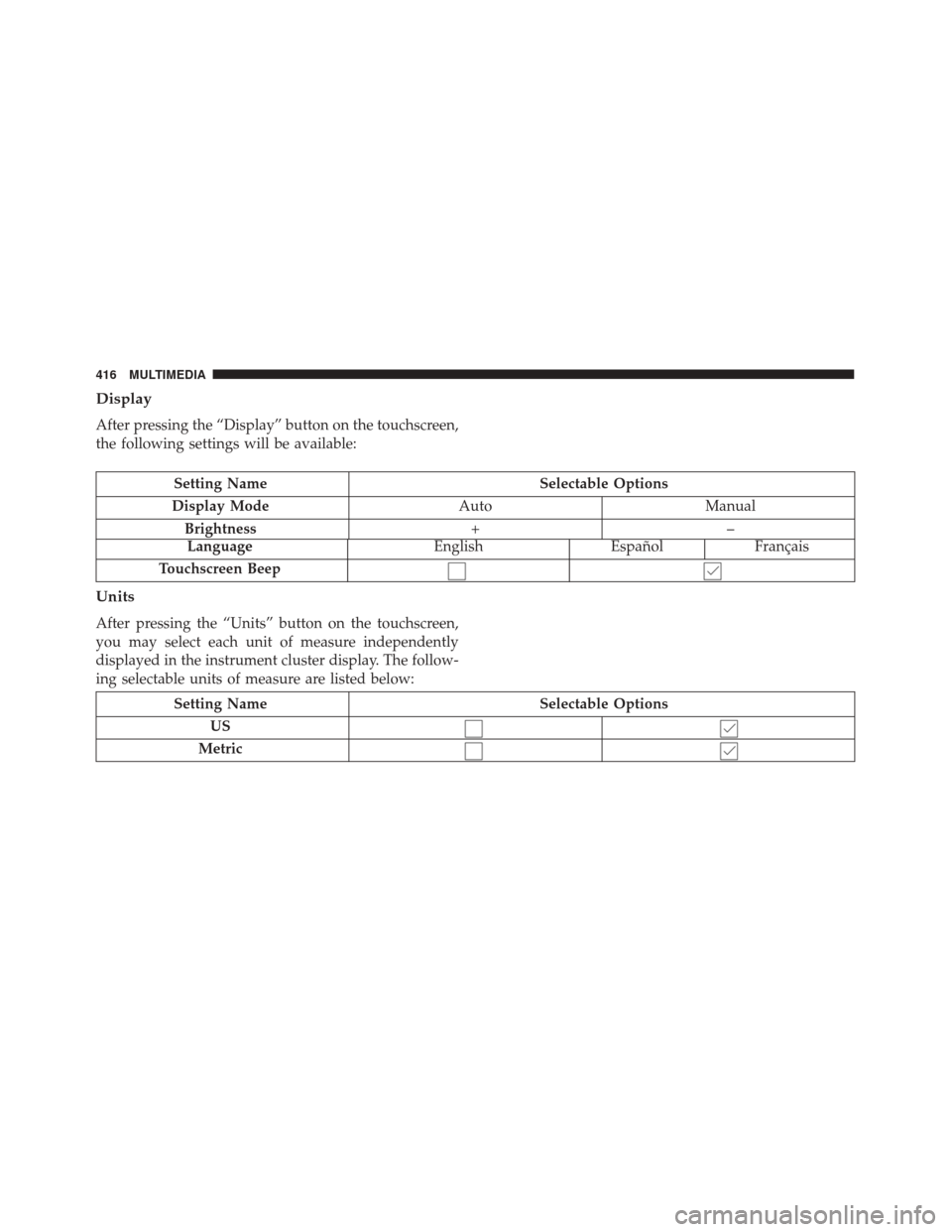
Display
After pressing the “Display” button on the touchscreen,
the following settings will be available:
Setting NameSelectable Options
Display Mode AutoManual
Brightness +–
LanguageEnglish Español Français
Touchscreen Beep
Units
After pressing the “Units” button on the touchscreen,
you may select each unit of measure independently
displayed in the instrument cluster display. The follow-
ing selectable units of measure are listed below:
Setting Name Selectable Options
US
Metric
416 MULTIMEDIA
Page 419 of 476
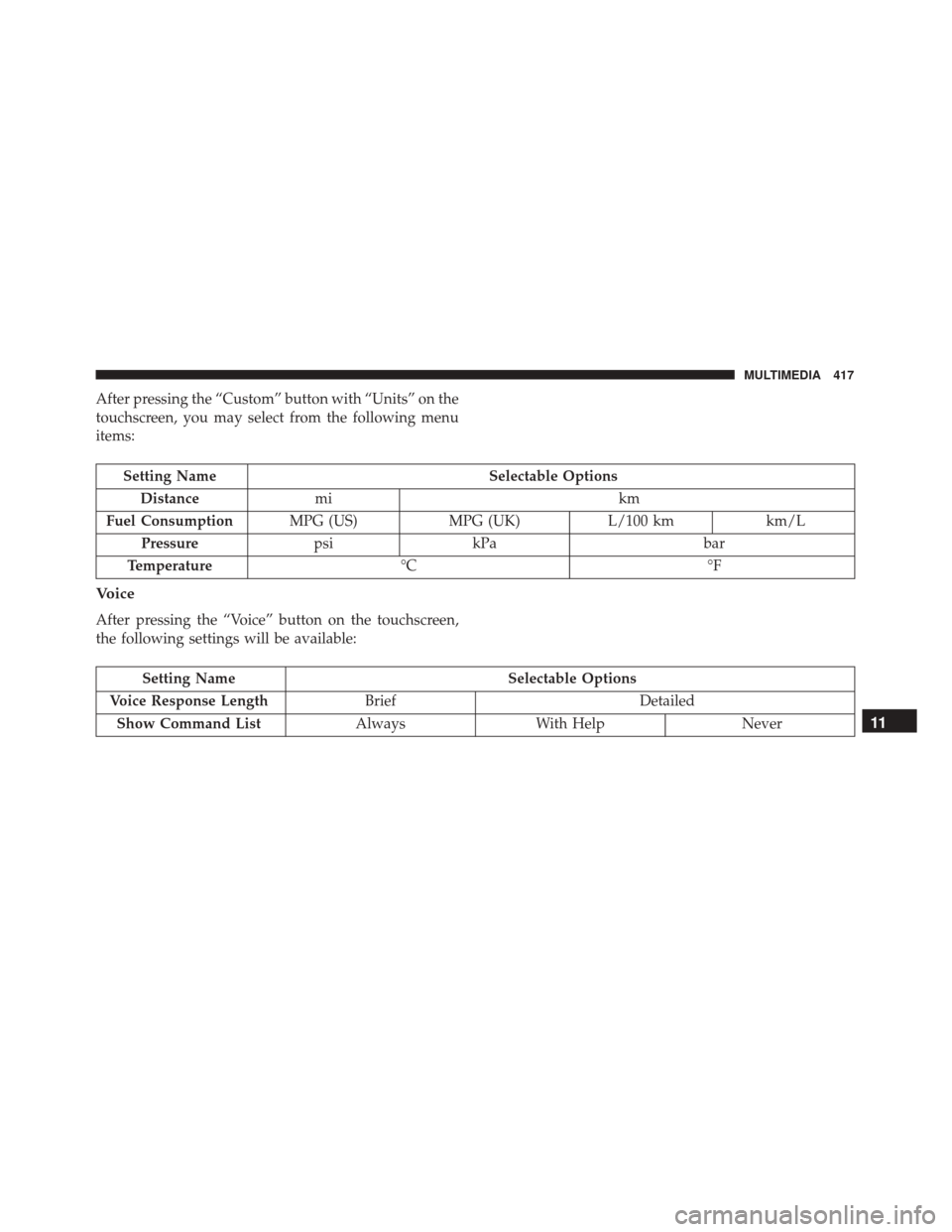
After pressing the “Custom” button with “Units” on the
touchscreen, you may select from the following menu
items:
Setting NameSelectable Options
Distance mi km
Fuel Consumption MPG (US)MPG (UK)L/100 kmkm/L
Pressure psikPa bar
Temperature °C °F
Voice
After pressing the “Voice” button on the touchscreen,
the following settings will be available:
Setting Name Selectable Options
Voice Response Length Brief Detailed
Show Command List AlwaysWith Help Never
11
MULTIMEDIA 417
Page 420 of 476
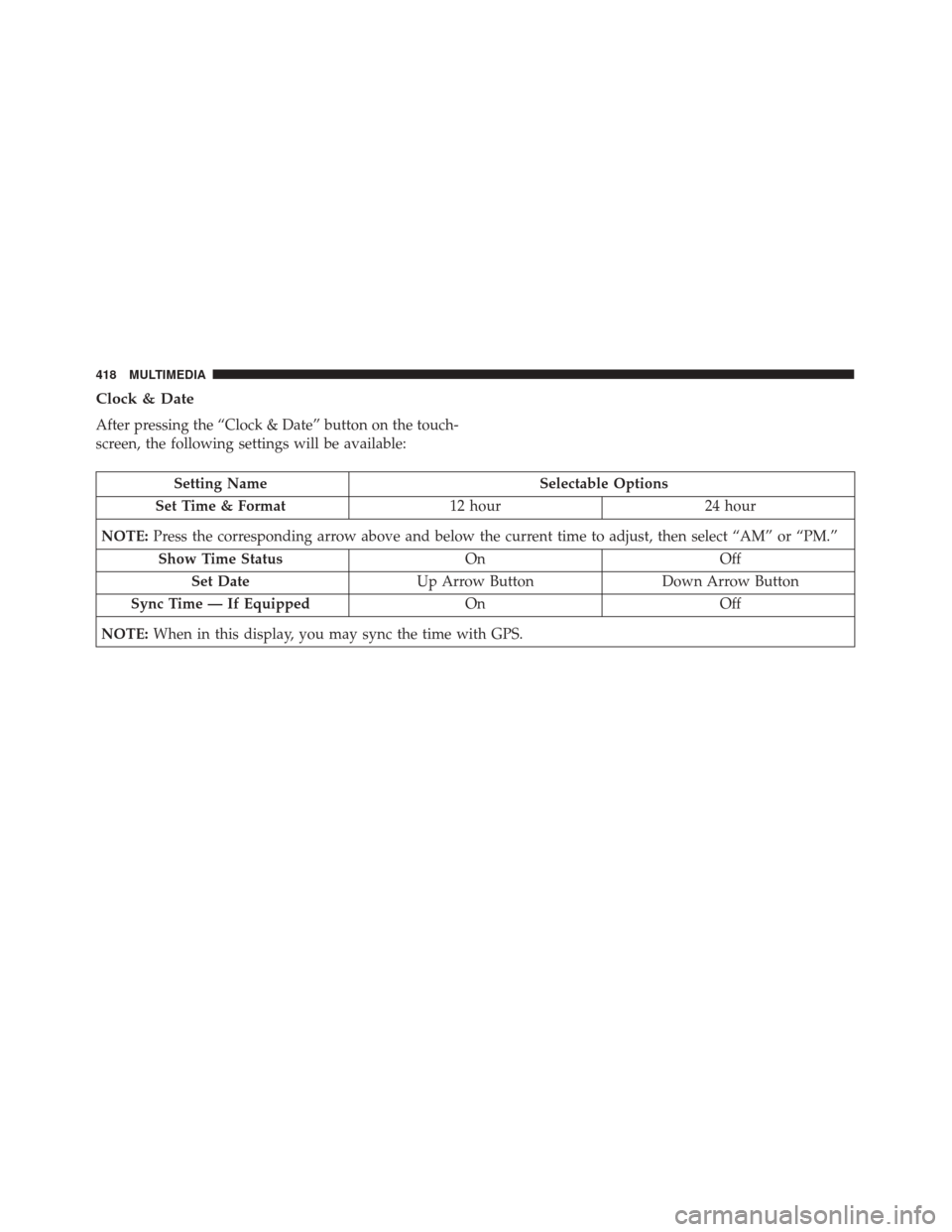
Clock & Date
After pressing the “Clock & Date” button on the touch-
screen, the following settings will be available:
Setting NameSelectable Options
Set Time & Format 12 hour24 hour
NOTE: Press the corresponding arrow above and below the current time to adjust, then select “AM” or “PM.”
Show Time Status OnOff
Set Date Up Arrow Button Down Arrow Button
Sync Time — If Equipped OnOff
NOTE: When in this display, you may sync the time with GPS.
418 MULTIMEDIA
Page 433 of 476
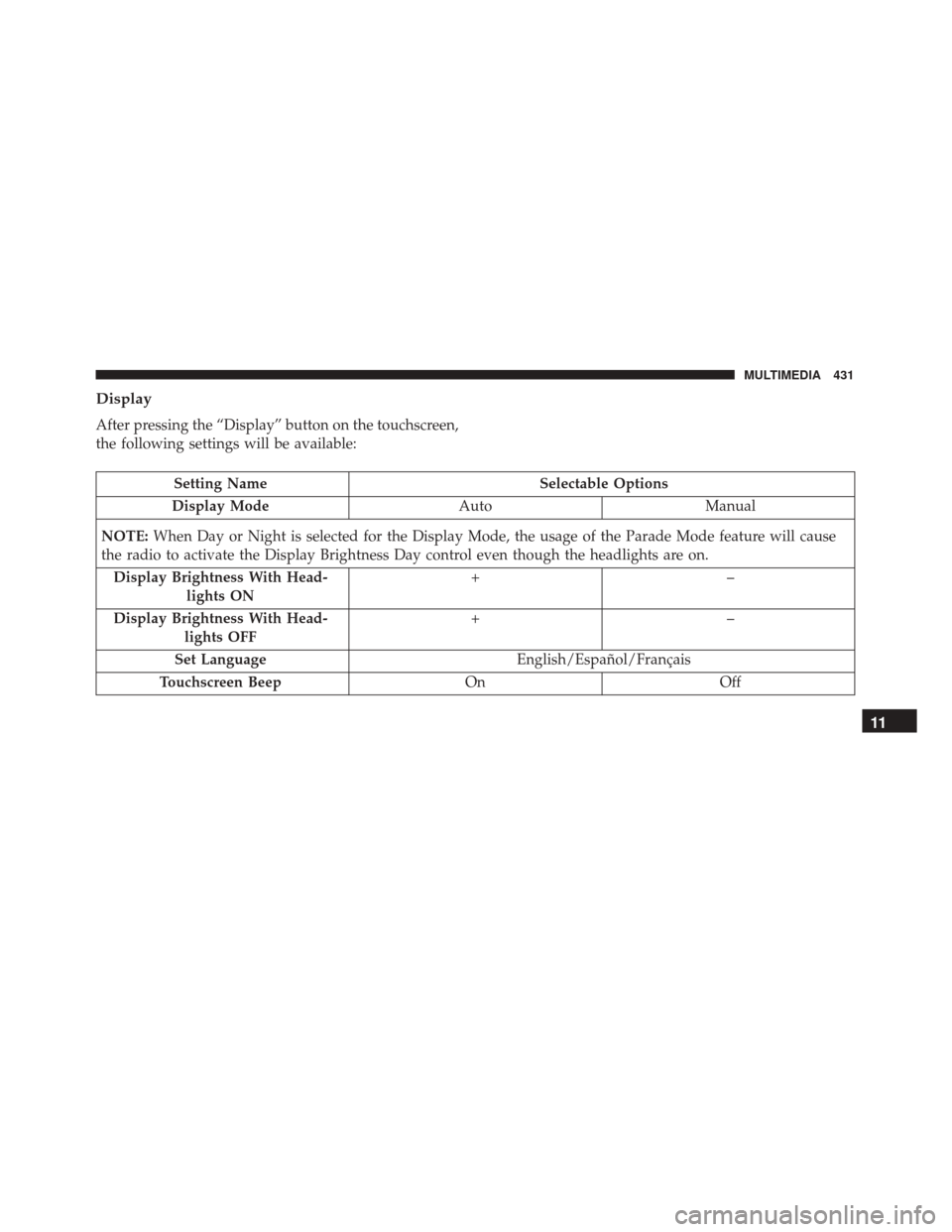
Display
After pressing the “Display” button on the touchscreen,
the following settings will be available:
Setting NameSelectable Options
Display Mode AutoManual
NOTE: When Day or Night is selected for the Display Mode, the usage of the Parade Mode feature will cause
the radio to activate the Display Brightness Day control even though the headlights are on.
Display Brightness With Head- lights ON +–
Display Brightness With Head- lights OFF +–
Set Language English/Español/Français
Touchscreen Beep OnOff
11
MULTIMEDIA 431
Page 435 of 476
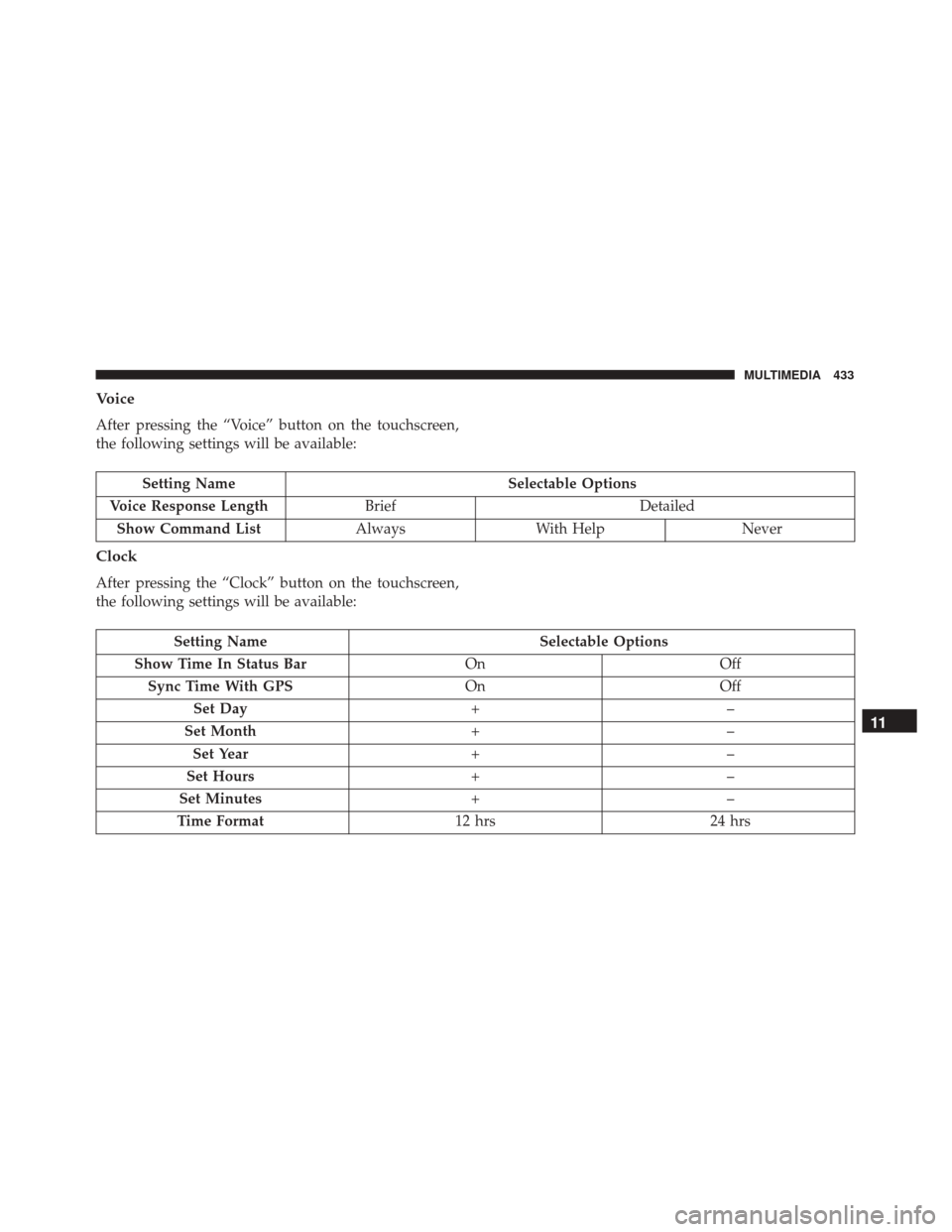
Voice
After pressing the “Voice” button on the touchscreen,
the following settings will be available:
Setting NameSelectable Options
Voice Response Length Brief Detailed
Show Command List AlwaysWith Help Never
Clock
After pressing the “Clock” button on the touchscreen,
the following settings will be available:
Setting Name Selectable Options
Show Time In Status Bar OnOff
Sync Time With GPS OnOff
Set Day +–
Set Month +–
Set Year +–
Set Hours +–
Set Minutes +–
Time Format 12 hrs24 hrs
11
MULTIMEDIA 433
Page 457 of 476
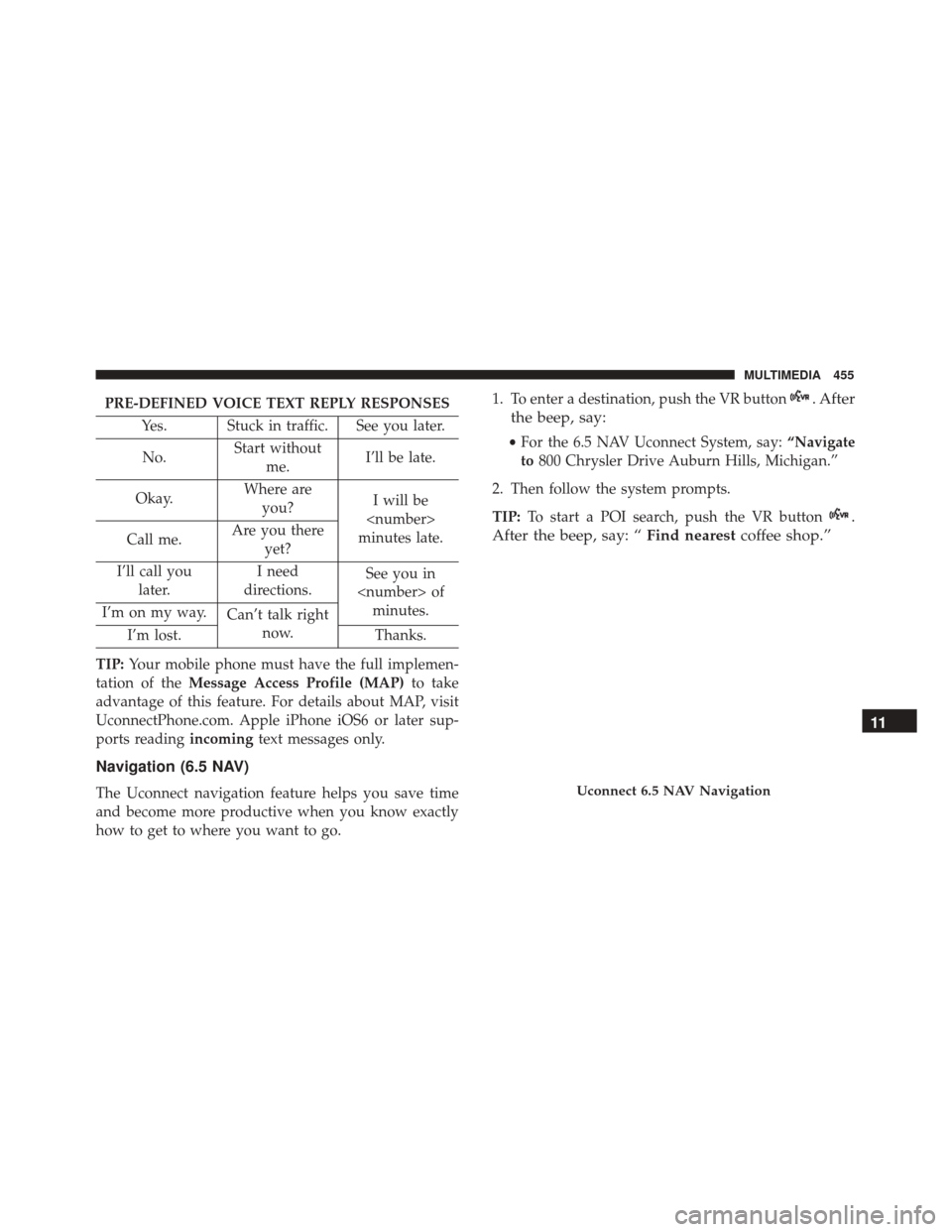
PRE-DEFINED VOICE TEXT REPLY RESPONSESYes. Stuck in traffic. See you later.
No. Start without
me. I’ll be late.
Okay. Where are
you? I will be
minutes late.
Call me. Are you there
yet?
I’ll call you later. I need
directions. See you in
of minutes.
I’m on my way. Can’t talk right
now.
I’m lost. Thanks.
TIP: Your mobile phone must have the full implemen-
tation of the Message Access Profile (MAP) to take
advantage of this feature. For details about MAP, visit
UconnectPhone.com. Apple iPhone iOS6 or later sup-
ports reading incomingtext messages only.
Navigation (6.5 NAV)
The Uconnect navigation feature helps you save time
and become more productive when you know exactly
how to get to where you want to go. 1. To enter a destination, push the VR button
. After
the beep, say:
• For the 6.5 NAV Uconnect System, say: “Navigate
to 800 Chrysler Drive Auburn Hills, Michigan.”
2. Then follow the system prompts.
TIP: To start a POI search, push the VR button
.
After the beep, say: “ Find nearestcoffee shop.”
Uconnect 6.5 NAV Navigation
11
MULTIMEDIA 455
Page 458 of 476
Siri Eyes Free — If Equipped
Siri lets you use your voice to send text messages, select
media, place phone calls and much more. Siri uses your
natural language to understand what you mean and
will respond back to confirm your requests. The system
is designed to keep your eyes on the road and your
hands on the wheel by letting Siri help you perform
useful tasks.
To enable Siri push and hold, then release the Uconnect
Voice Recognition (VR) button on the steering wheel.
After you hear a double beep you can ask Siri to play
podcasts and music, get directions, read text messages
and many other useful requests.Getting Started
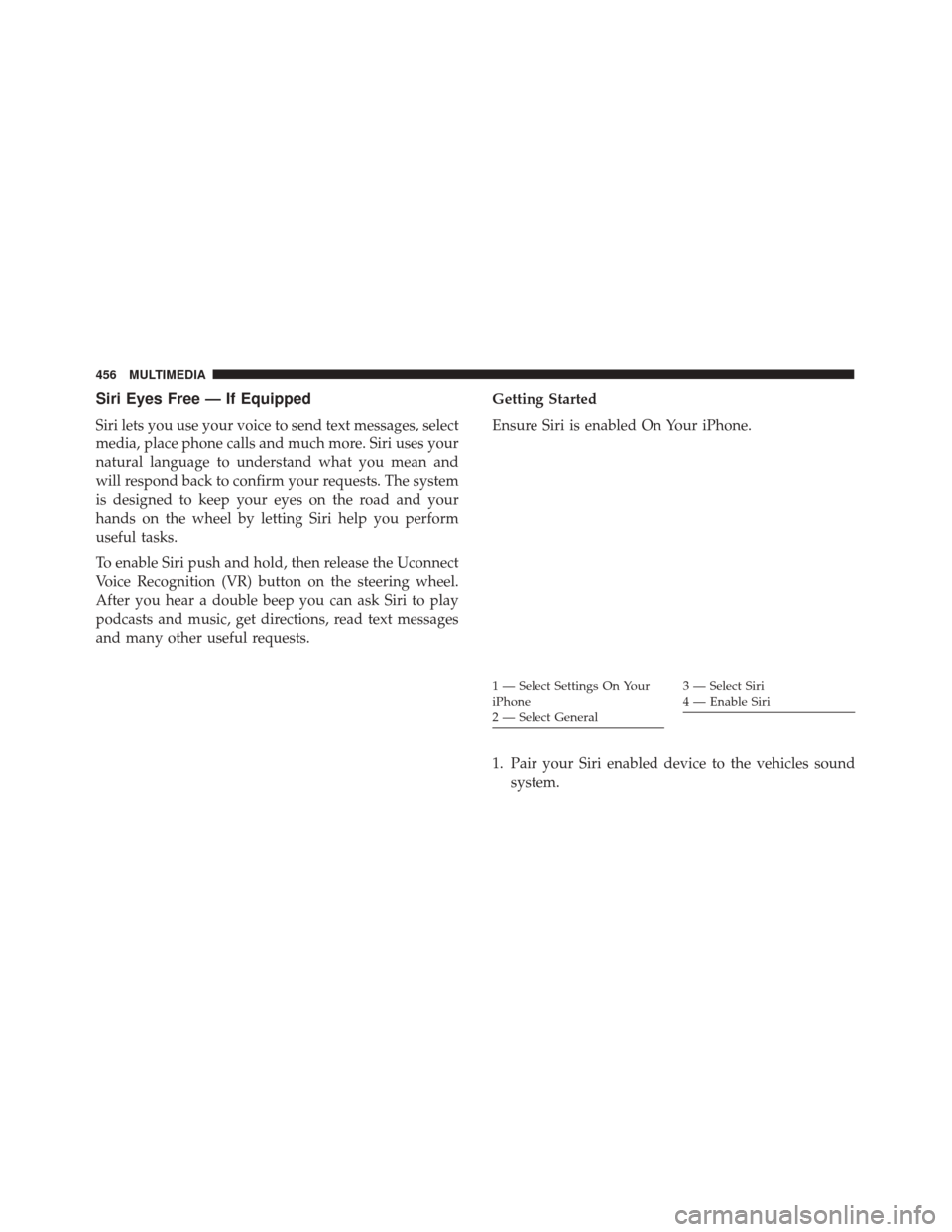
Ensure Siri is enabled On Your iPhone.
1. Pair your Siri enabled device to the vehicles sound
system.
1 — Select Settings On Your
iPhone
2 — Select General3 — Select Siri
4 — Enable Siri
456 MULTIMEDIA