Page 180 of 392
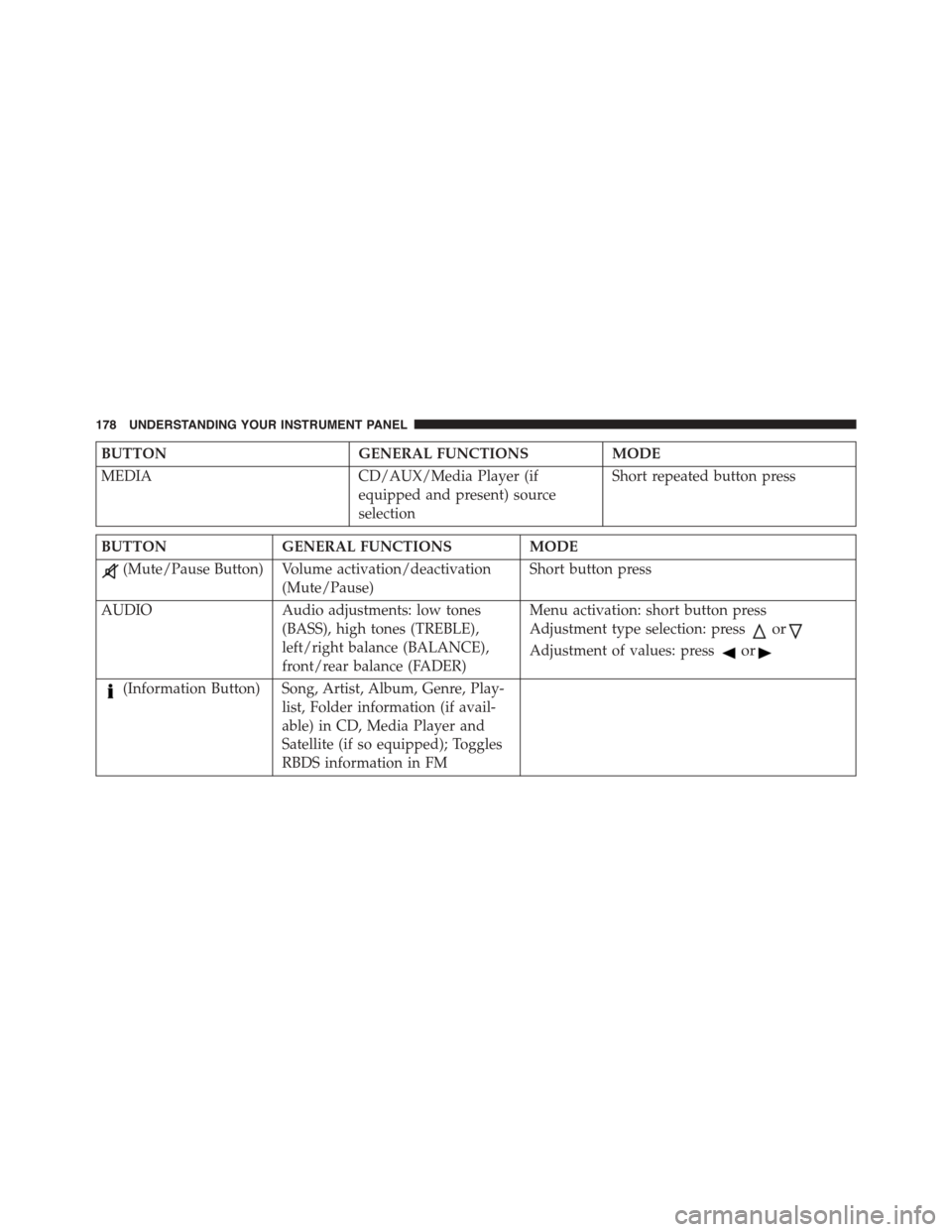
BUTTONGENERAL FUNCTIONSMODE
MEDIACD/AUX/Media Player (if
equipped and present) source
selection
Short repeated button press
BUTTONGENERAL FUNCTIONSMODE
(Mute/Pause Button) Volume activation/deactivation
(Mute/Pause)
Short button press
AUDIOAudio adjustments: low tones
(BASS), high tones (TREBLE),
left/right balance (BALANCE),
front/rear balance (FADER)
Menu activation: short button press
Adjustment type selection: pressor
Adjustment of values: pressor
(Information Button) Song, Artist, Album, Genre, Play-
list, Folder information (if avail-
able) in CD, Media Player and
Satellite (if so equipped); Toggles
RBDS information in FM
178 UNDERSTANDING YOUR INSTRUMENT PANEL
Page 195 of 392
Radio U.S. service only available to those at least 18 years
of age in the 48 contiguous United States, D.C., & PR.
Visit www.sirius.com
Sirius Subscription Issues When Replacing A Sirius
Radio
When a radio needs to be replaced, the dealer will need
the SIRIUS information to order a new radio (even if the
SIRIUS subscription has lapsed). The ESN number con-
tains 12 digits.
The following are instructions for retrieving the Electronic
Serial Number (ESN) from FIAT 500 NAFTA model radios:
To retrieve the ESN of SIRIUS Satellite Receiver Module
tune to Channel 0. Make sure that when the order is placed,
the ESN are correct. If any of the ESN numbers are not
entered correctly, then the SIRIUS subscription will not be
able to be transferred to the new radio and will not be
active when installed in the customer ’s vehicle.
CD Player
Introduction
This chapter describes the operation of the CD player
only. To operate the radio, refer to the description in the
“Functions and Adjustments” chapter.
CD Player Selection
To activate the CD player built into the equipment,
proceed as follows:
•Load a CD with the equipment switched on. The first
track will start to play.
or
•If a CD has already been loaded, turn on the radio and
then briefly press the MEDIA button to select the “CD”
function mode. The last track listened to will start to play.
4
UNDERSTANDING YOUR INSTRUMENT PANEL 193
Page 197 of 392

A CD which cannot be read will not be ejected until these
functions are over. At the end, with the CD mode
activated, the display will show the wording “CD Disc
error” for a few seconds and then the CD will be ejected.
Display Information
When the CD player is operating, information will ap-
pear on the display with the following meaning:
•“Track 5” indicates the CD track number.
•“03:42” indicates the time elapsed since the start of the
track (if the relevant Menu function is activated).
Track Selection
Briefly press thebutton to play the previous CD
track and thebutton to play the next track. The
tracks are selected cyclically: the first track is selected
after the last track and vice versa.
If the track has been played for more than 3 seconds,
pressing thebutton, starts the track again from the
beginning. In this case, if you want to play the
previous track, press thebutton twice consecu-
tively.
Track Fast Forward/Rewind
Keep thebutton pressed down to fast forward the
selected track and keep thebutton pressed down to
fast rewind the track. The fast forward/rewind will
stop once the button is released.
Pause Function
To pause the CD player, press thebutton. The word-
ing “CD Pause” appears on the display.
To resume listening to the track, press thebutton
again.
4
UNDERSTANDING YOUR INSTRUMENT PANEL 195
Page 198 of 392
CD MP3 Player
Introduction
This chapter describes the operation of the CD MP3
player.
NOTE:Layer-3 audio decoding technology is licensed
from Fraunhofer IIS and Thomson multimedia.
MP3 Mode
In addition to playing regular audio CDs, the radio is also
enabled to play CDROMs on which compressed audio
files have been recorded in an MP3 format.
To guarantee optimal reproduction, it is advisable to use
good quality CDs burned at the lowest speed possible.
The files on an MP3 CD are structured in folders that
create lists of all the folders containing MP3 tracks
(folders or subfolders are all on the same level). The
folders that do not contain MP3 tracks cannot be selected.
The specifications and operating conditions for playing
MP3 files are the following:
•The CD-ROMs used should be burned in accordance
with ISO standard 9660.
•The music files should have the extension “.mp3” or
“.wma” files with a different extension will not be
reproduced.
•The sampling frequencies that can be reproduced are:
44.1 kHz, stereo (from 96 to 320 kbit/s) – 22.05 kHz,
mono or stereo (from 32 to 80 kbit/s).
•Tracks with a variable bit-rate can be reproduced.
NOTE:The track names must not include the following
characters: spaces, ‘ (apostrophes), ( and ) (open and close
brackets). During the burning of a MP3 CD, make sure
that the names of the files do not contain these characters;
if not, the radio will not be able to play the tracks
involved.
196 UNDERSTANDING YOUR INSTRUMENT PANEL
Page 200 of 392
Structure Of The Folders
The radio with MP3 player:
•Recognizes only the folders that effectively contain
MP3 format files.
•If the MP3 files on a CD-ROM are structured in
sub-folders their structure is compressed to a single
level structure, where the sub-folders are taken to the
level of the main folders.
Troubleshooting
General
Sound Volume Low
The Fader function should be adjusted to the values “F”
(front) only to prevent the reduction in radio output
power and the cancelling of the volume if the Fader level
adjustment is equal to R+9.
Source Can Not Be Selected
Nothing has been loaded. Load the CD or the MP3 CD to
be listened to.
CD Player
The CD Does Not Play:
The CD is dirty. Clean the CD.
The CD is scratched. Try using another CD.
The CD Can Not Be Loaded:
A CD is already loaded. Press thebutton and remove
the CD.
198 UNDERSTANDING YOUR INSTRUMENT PANEL
Page 201 of 392
MP3 File Reading
Track Skips While Playing Mp3 Files:
The CD is scratched or dirty.
The Duration Of The Mp3 Tracks Is Not Correctly
Displayed:
In some cases (due to the recording mode) the duration of
the MP3 tracks can be displayed incorrectly.
Operating Instructions — Hands-Free Phone (If
Equipped)
Refer to the appropriate “BLUE&ME™ User ’s Manual”
for further information.
Personal/Portable Navigation Device (PND) — If
Equipped
A Personal/Portable Navigation Device (PND) is avail-
able as optional equipment for this vehicle, refer to the
Navigation User Guide for further information.
iPod®/USB/MEDIA PLAYER CONTROL — IF
EQUIPPED
This feature allows an iPod® or external USB device to be
plugged into the USB port, located in the glove compart-
ment.
4
UNDERSTANDING YOUR INSTRUMENT PANEL 199
Page 203 of 392
The right-hand control is a rocker-type switch with a
pushbutton in the center and controls the volume and
mode of the sound system. Pressing the top of the rocker
switch will increase the volume, and pressing the bottom
of the rocker switch will decrease the volume.
Pressing the center button will make the radio switch
between the various modes available (AM/FM/SAT/
CD/AUX/Media Player, etc.) and can also be used to
select/enter an item while scrolling through menu.
The left-hand control is a rocker-type switch with a
pushbutton in the center. The function of the left-hand
control is different depending on which mode you are in.
The following describes the left-hand control operation in
each mode.
Radio Operation
Pressing the top of the switch will “Seek” up for the next
listenable station and pressing the bottom of the switch
will “Seek” down for the next listenable station.
The button located in the center of the left-hand control
will tune to the next preset station that you have pro-
grammed in the radio preset pushbutton.
CD Player Operation
Pressing the top of the switch once will go to the next
track on the CD. Pressing the bottom of the switch once
will go to the beginning of the current track, or to the
beginning of the previous track if it is within one second
after the current track begins to play.
If you press the switch up or down twice, it plays the
second track; three times, it will play the third, etc.
4
UNDERSTANDING YOUR INSTRUMENT PANEL 201
Page 204 of 392
Operating Instructions — Hands-Free Phone (If
Equipped)
Refer to the appropriate Blue&Me™ User ’s Manual for
further information.
CD/DVD DISC MAINTENANCE
To keep a CD/DVD in good condition, take the following
precautions:
1. Handle the disc by its edge; avoid touching the
surface.
2. If the disc is stained, clean the surface with a soft cloth,
wiping from center to edge.
3. Do not apply paper or tape to the disc; avoid scratch-
ing the disc.
4. Do not use solvents such as benzene, thinner, cleaners,
or anti-static sprays.
5. Store the disc in its case after playing.
6. Do not expose the disc to direct sunlight.
7. Do not store the disc where temperatures may become
too high.
NOTE:If you experience difficulty in playing a particular
disc, it may be damaged (e.g., scratched, reflective coat-
ing removed, a hair, moisture or dew on the disc)
oversized, or have protection encoding. Try a known
good disc before considering disc player service.
202 UNDERSTANDING YOUR INSTRUMENT PANEL