Page 117 of 529
To activate the Uconnect® Phone, simply press the
button and follow the audible prompts for direc-
tions. Uconnect® Phone sessions begin with a press of
the
button on the radio control head.
Cancel Command
At any prompt, after the beep, you can say “Cancel” and
you will be returned to the main menu. However, in a
few instances the system will take you back to the
previous menu.
Pair (Link) Uconnect® Phone To A Mobile Phone
To begin using your Uconnect® Phone, you must pair
your compatible Bluetooth® enabled mobile phone.
To complete the pairing process, you will need to refer-
ence your mobile phone Owner’s Manual. The
Uconnect® website may also provide detailed instruc-
tions for pairing. The following are general phone to Uconnect® Phone
pairing instructions:
•
Press the
button to begin.
•After the “Ready” prompt and the following beep, say
“Device Pairing.”
• When prompted, after the beep, say “Pair a Device”
and follow the audible prompts.
• You will be asked to say a four-digit Personal Identi-
fication Number (PIN), which you will later need to
enter into your mobile phone. You can enter any
four-digit PIN. You will not need to remember this PIN
after the initial pairing process.
• For identification purposes, you will be prompted to
give the Uconnect® Phone a name for your mobile
phone. Each mobile phone that is paired should be
given a unique phone name.
116 UNDERSTANDING THE FEATURES OF YOUR VEHICLE
Page 132 of 529
List Paired Mobile Phone Names
•Press thebutton to begin.
•After the “Ready” prompt and the following beep, say
“Setup Phone Pairing.”
• When prompted, say “List Phones.”
• The Uconnect® Phone will play the phone names of all
paired mobile phones in order from the highest to the
lowest priority. To “Select” or “Delete” a paired phone
being announced, press the
button and say
“Select” or “Delete.” Also, see the next two sections
for an alternate way to “Select” or “Delete” a paired
phone. Select Another Mobile Phone
This feature allows you to select and start using another
phone paired with the Uconnect® Phone.
•
Press the
button to begin.
•After the “Ready” prompt and the following beep, say
“Setup Select Phone” and follow the prompts.
• You can also press the
button at any time while
the list is being played, and then choose the phone
that you wish to select.
• The selected phone will be used for the next phone
call. If the selected phone is not available, the
Uconnect® Phone will return to using the highest
priority phone present in or near (approximately
within 30 ft (9 m)) the vehicle.
3
UNDERSTANDING THE FEATURES OF YOUR VEHICLE 131
Page 133 of 529
Delete Uconnect® Phone Paired Mobile Phones
•Press thebutton to begin.
•After the “Ready” prompt and the following beep, say
“Setup Phone Pairing.”
• At the next prompt, say “Delete” and follow the
prompts.
• You can also press the
button at any time while
the list is being played, and then choose the phone
you wish to delete.
Things You Should Know About Your Uconnect®
Phone
Uconnect® Phone Tutorial
To hear a brief tutorial of the system features, press the
button and say “Uconnect® Tutorial.” Voice Training
For users experiencing difficulty with the system recog-
nizing their voice commands or numbers, the Uconnect®
Phone Voice Training feature may be used. To enter this
training mode, follow one of the two following proce-
dures:
From outside the Uconnect® Phone mode (e.g., from
radio mode):
•
Press and hold the
button for five seconds until
the session begins, or,
• Press thebutton and say the “Voice Training,”
“System Training,” or “Start Voice Training” com-
mand.
You can either press the Uconnect® Phone button to
restore the factory setting or repeat the words and
phrases when prompted by the Uconnect® Phone. For
132 UNDERSTANDING THE FEATURES OF YOUR VEHICLE
Page 134 of 529
best results, the Voice Training session should be com-
pleted when the vehicle is parked with the engine
running, all windows closed, and the blower fan
switched off.
This procedure may be repeated with a new user. The
system will adapt to the last trained voice only.
Reset
•Press thebutton.
•After the “Ready” prompt, and the following beep, say
“Setup,” then “Reset.”
This will delete all phone pairing, phone book entries,
and other settings in all language modes. The System will
prompt you before resetting to factory settings.
Voice Command
• For best performance, adjust the rearview mirror to
provide at least ½ inch (1 cm) gap between the
overhead console (if equipped) and the mirror.
• Always wait for the beep before speaking.
• Speak normally without pausing, just as you would
speak to a person sitting a few feet/meters away from
you.
• Make sure that no one other than you is speaking
during a Voice Command period.
Performance is maximized under:
• Low-to-medium blower setting
• Low-to-medium vehicle speed
• Low road noise
• Smooth road surface
3
UNDERSTANDING THE FEATURES OF YOUR VEHICLE 133
Page 143 of 529
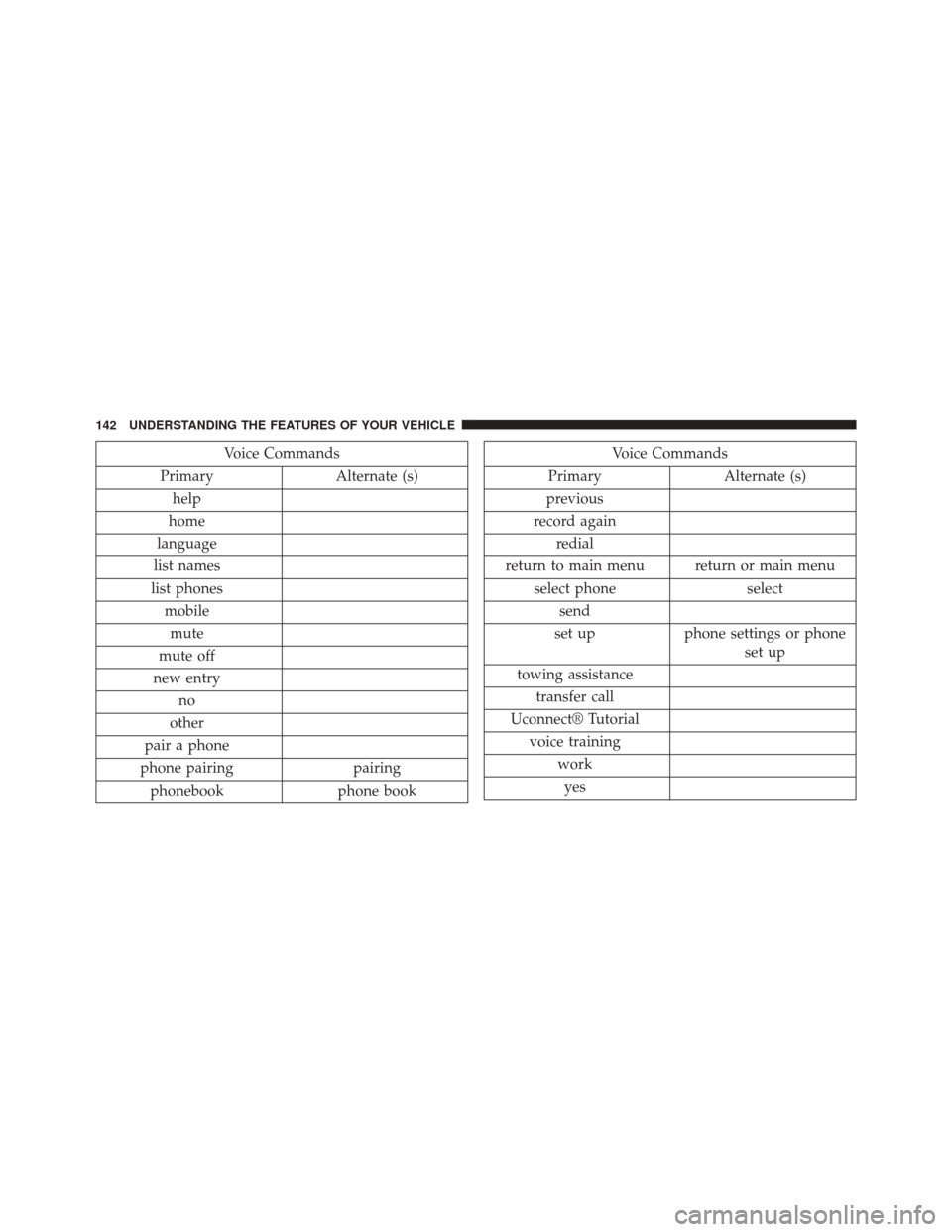
Voice Commands
Primary Alternate (s)
help
home
language
list names
list phones mobilemute
mute off
new entry no
other
pair a phone
phone pairing pairing
phonebook phone bookVoice Commands
Primary Alternate (s)
previous
record again redial
return to main menu return or main menu select phone select
send
set up phone settings or phone
set up
towing assistance transfer call
Uconnect® Tutorial voice training workyes
142 UNDERSTANDING THE FEATURES OF YOUR VEHICLE