Page 177 of 240

04
10.11
JUMPER-PAPIER_EN_CHAP10A_AUTORADIO_FIAT-TACTILE-1_ED01-2014
RADIO
When the system switches to analogue radio, there is a difference of few seconds with sometimes a change in volume.
When the digital signal is restored, the system automatically changes back to "DAB".
Select the " Navigate " tab.
Press on repeatedly on " Radio " to display the "DAB Radio".
Select a list from the fi lters offered: " All ", " Genres ", Multiplex " then select a radio station.
Press the " Update " button to update the list of "DAB Radio" stations received.
Digital radio provides higher quality reception and also the graphical display of current information on the radio station being listened to.
The range of multiplexes available is displayed in alphabetical order.
"DAB" does not cover 100% of the territory.
When the digital radio signal is weak, the " AF " (alternative frequencies) option allows you to continue listening to the same station, by automatically switching to the corresponding "FM" analogue station (if there is one).
If the "DAB" station being listened to is not available, the sound will \
cut out while the digital signal is too weak.
Digital radio - DAB / FM auto tracking DAB (Digital Audio Broadcasting) Digital radio Digital radio DAB (Digital Audio Broadcasting) Digital radio DAB (Digital Audio Broadcasting)
Page 179 of 240
10.13
JUMPER-PAPIER_EN_CHAP10A_AUTORADIO_FIAT-TACTILE-1_ED01-2014
Level 1Level 2Level 3Comment
Media Briefl y press the symbols to play the previous/next track. Press and hold the symbols for fast forward or back in the track selected.
Media
Navigate
Currently playing
Navigate and select tracks on the active device. The selection possibilities depend on the device connected or the type of CD inserted.
Artists
Albums
Genres
Tracks
Playlists
Audio books
Podcasts
Media
Source
CD Select the desired audio source from those available or insert a device intended for this purpose, the system starts playing the source automatically. AUX
USB
Bluetooth
Sources connected
Pair a Bluetooth audio device. Add device
Tel. connect.
Media
Info
Information Display information on the track playing.
Page 181 of 240
10.15
JUMPER-PAPIER_EN_CHAP10A_AUTORADIO_FIAT-TACTILE-1_ED01-2014
Level 1Level 2Level 3Comment
Media
Random
Press the button to play the tracks on the CD, USB, iPod or Bluetooth device in random order.
Media
Repeat
Press the button to activate this function.
Media
Audio
Equaliser Adjust the bass, mid-range and treble.
Balance / Fade
Bass Adjust the balance of the speakers, front and rear, left and right. Press the button in the middle of the arrows to balance the adjustments.
Mid-range
Treble
Volume / Speed Select the desired setting, the option is highlighted.
Loudness Optimise audio quality at low volume.
Automatic radio Adjust the radio on startup or restore the active state the last time the ignition was switched to STOP.
Radio off delay Adjust the setting.
Adjust AUX vol. Adjust the setting.
Page 183 of 240
05
10.17
JUMPER-PAPIER_EN_CHAP10A_AUTORADIO_FIAT-TACTILE-1_ED01-2014
MEDIA
Selection of source
Use the play settings in the screen.
Press the " Random " and/or " Repeat " button to activate them, press again to deactivate them.
Select the " Source " tab to display the carousel of audio sources.
Select the source.
Press on " Media ".
Page 185 of 240

05
10.19
JUMPER-PAPIER_EN_CHAP10A_AUTORADIO_FIAT-TACTILE-1_ED01-2014
Audio streaming
Streaming allows audio fi les on your telephone to be played via the vehicle's speakers.
Switch on Bluetooth on the device.
Press " Media ".
If there is an active media source, press the " Source " button.
Select the " Bluetooth " media source then press the " Add device " button.
Search for the name of the peripheral device and when requested by the audio system, enter the PIN number displayed in the screen of the system or confi rm in the device the PIN displayed.
When the pairing procedure has succeeded, a screen page appears:
- reply "Yes" to the question, the Bluetooth audio device will be saved as favourite (the device will have priority over other devices paired subsequently).
- reply "No", priority will be determined according to the order of connection. the last device connected will have the highest priority.
Some Bluetooth devices do not allow scanning of tracks and information by means of the categories present.
Connecting APPLE ® Connecting APPLE ® Connecting APPLE players ® players ®
Connect the Apple ® player to the USB ® player to the USB ®
port using a suitable cable (not supplied).
Play starts automatically.
Control is via the audio system.
The classifi cations available are those of the portable device connected (artists / albums / genres / tracks / playlists / audio books / podcasts).
The default classifi cation used is by artist. To modify the classifi cation used, return to the fi rst level of the menu then select the desired classifi cation (playlists for example) and confi rm to go down through the menu to the desired track.
MEDIA
The version of software in the audio system may not be compatible with the generation of your Apple ® player. ® player. ®
Page 187 of 240

10.21
JUMPER-PAPIER_EN_CHAP10A_AUTORADIO_FIAT-TACTILE-1_ED01-2014
Level 1Level 2Level 3Comment
Phone
Mobile phone Display and call contacts present in the mobile phone.
Press these buttons to scroll through the list of contact names.
Go directly to the desired letter in the list.
Phone
Recent calls
All calls
Display and call contacts from the recent calls log. In
Out
Missed
Phone
The system memory contains predefi ned text messages, which can be sent to reply to a message received or as a new message. On receipt of a text message, the system also allows the message in question to be sent.
Phone
Settings
Tel. connected
Disconnect
Associate up to 10 telephones/audio devices to simplify and speed up access and connection.
Delete device
Save favourites
Texts On
Download
Add device
Audio connect.
Phone
Call Dial the telephone number using the virtual keypad in the screen.
Phone
Transf.
Transf. Transfer calls from the system to the mobile phone and vice versa.
Mute Switches of the system microphone for private conversations.
Page 189 of 240

06
10.23
JUMPER-PAPIER_EN_CHAP10A_AUTORADIO_FIAT-TACTILE-1_ED01-2014
The services available depend on the network, the SIM card and the compatibility of the Bluetooth device used. Check the instructions for your telephone and with your service provider for the services to which you have access.
The profi les compatible with the system are: HFP, OPP, PBAP, A2DP, AVRCP, MAP.
When you return to your vehicle, the last telephone connected reconnects automatically, within around 30 seconds of switching on the ignition (withBluetooth switched on).
To modify the automatic connection profi le, select the telephone in the list then select the desired setting.
BLUETOOTH
Automatic reconnection
When the ignition is switched on, the telephone connected when the ignition was last switched off reconnects automatically, if this connection mode had been set during the pairing procedure (see previous pages).
Connection is conformed by the display of a message and the name of the telephone.
Managing paired telephones
Press " Setting ".
Select " Telephone/Bluetooth " then select the telephone in the list of paired devices.
Select " Connected " or " Disconnected ", " Delete device " or " Add device ", " Save Favourites ", " Text messages on ", " Download " on the list of options offered.
This function allows the connection or disconnection of a peripheral device as well as the deletion of a pairing.
Page 191 of 240
06
10.25
JUMPER-PAPIER_EN_CHAP10A_AUTORADIO_FIAT-TACTILE-1_ED01-2014
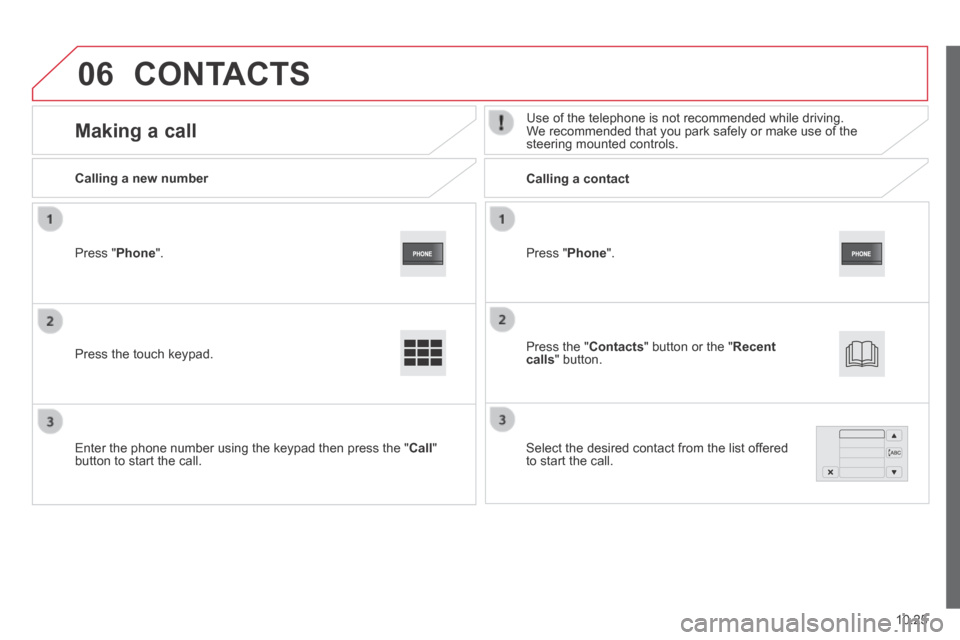
Press " Phone ".
Calling a new number Calling a contact
Making a call Use of the telephone is not recommended while driving. We recommended that you park safely or make use of the steering mounted controls.
Press the touch keypad.
Enter the phone number using the keypad then press the " Call " button to start the call.
Press " Phone ".
Press the " Contacts " button or the " Recent calls " button.
Select the desired contact from the list offered to start the call.
CONTACTS