Page 233 of 284
07
231
Press the button on the numerical keypad to recall a
preset station.
Or press then turn the thumb wheel at the steering
mounted controls.
Presetting a station
after selecting a station, press one of the buttons
on the numerical keypad for 2 seconds to preset the
current station.
An audible signal confirms that the station has been
preset. Press
RADIO.
Activate / Deactivate RDS
RDS, if activated, allows you to continue listening to the same
station by automatic retuning to alternative frequencies. However
,
in certain conditions, coverage of an R
d S station may not be
assured throughout the entire country as radio stations do not
cover 100 % of the territory. This explains the loss of reception of
the station during a journey.
Select "Guidance options " then
confirm.
a
ctivate or deactivate "RDS" then
confirm.
RADIO
Page 234 of 284
08
232"MEDIA"
"Change media"
"Eject USB device" (if US b
connected)
"Play mode" ("Normal",
"Random", "Random on all
media", "Repetition")
"Audio settings " (see this section)
"Activate / Deactivate AUX input "
List of the current media
tracks.
Go from the list to the menu (left/right).or
Press MUSIC.
MUSIC MEDIA
PLAYERS
Access to the "MUSIC MEDIA PLAYER " menu
Page 235 of 284
08
233
CD, MP3 CD / USB player
The audio equipment will only play audio files with ".wma, .aac, .flac,.
ogg and.mp3" file extensions and with a bit rate of between 32 Kbps
and 320 Kbps.
It also supports Vb R (Variable b it Rate) mode.
No other type of file (.mp4, .m3u...) can be played.
WMA files must be of the standard wma 9 type.
The sampling rates supported are greater than 32 KHz.
It is advisable to restrict file names to 20 characters, without using of
special characters (e.g.: " " ? ; ù) to avoid any playing and displaying
problems.
In order to be able to play a recorded CDR or CDRW, when recording
it is preferable to select the ISO 9660 level 1, 2 or Joliet standard.
If the disc is recorded in another format (udf, ...), it may not be pl\
ayed
correctly.
It is recommended that the same recording standard is always used
for an individual disc, with as low a speed as possible (4x maximum)
for optimum sound quality.
In the particular case of a multi-session CD, the Joliet standard is
recommended. Information and advice
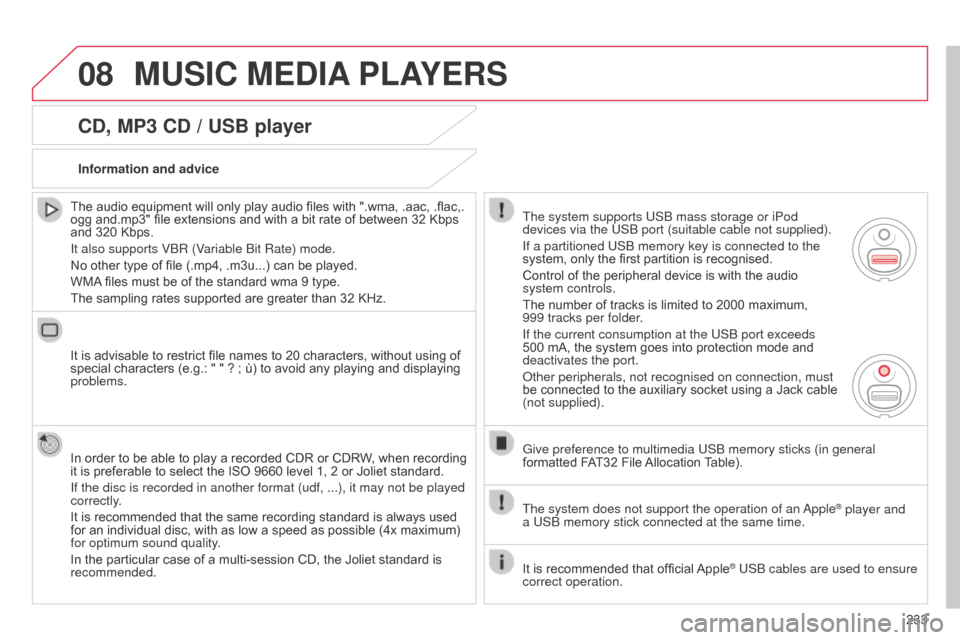
The system supports US b mass storage or iPod
devices via the US
b port (suitable cable not supplied).
If a partitioned US
b memory key is connected to the
system, only the first partition is recognised.
Control of the peripheral device is with the audio
system controls.
The number of tracks is limited to 2000 maximum,
999
tracks per folder.
If the current consumption at the US
b port exceeds
500 mA, the system goes into protection mode and
deactivates the port.
o
ther peripherals, not recognised on connection, must
be connected to the auxiliary socket using a Jack cable
(not supplied).
Give preference to multimedia US
b memory sticks (in general
formatted FAT32 File Allocation Table).
The system does not support the operation of an
a
pple
® player and
a
US
b
memory stick connected at the same time.
It is recommended that official Apple
® USb cables are used to ensure
correct operation.
MUSIC MEDIA PLAYERS
Page 239 of 284
08
237
MUSIC MEDIA PLAYERS
Using the auxiliary input (AUX)
JACK/USB audio cable not supplied
Connect the portable device
(MP3, WM
a player…) to the
JACK auxiliary audio socket or
US
b port using a suitable cable.
Press MUSIC to display the "MUSIC"
menu. Select "Activate / Deactivate AUX
input
" and confirm.
First adjust the volume of your portable
device (to a high level). Then adjust the
volume of your audio system.
d
isplay and management of the controls are via the portable device.
Page 244 of 284
11
242
SCREEN MENU MAP(S)
1
1
2
1
1
2
2
2
2
2
2
2
3
3
2
2
2
1
Random on all media
Repetition
Audio settings
Activate / Deactivate AUX
input
"MUSIC" MENU
Change Media
Read mode
Normal
Random
a
ll passengers
Le-Ri balance
Fr-Re balance
Auto. Volume
Update radio list
Bass
Treble
Loudness
Distribution
d
river
1
2
1
1
3
3
3
3
3
3
2Equalizer
"RADIO" MENUChange Waveband
Options
RDS station tracking
Audio settings
none
Classical
Jazz
Rock
T
echno
Vocal
2
2
2
2
USB/iPod
AUX CD
Bluetooth streaming
2
2
FM
AM
3activated / deactivated
3activated / deactivated
Page 257 of 284

04
255
AUDIO
Press the SoURCE button several
times in succession and select the
radio.
Press the
band
a
ST button to select
a waveband: FM1, FM2, FMast, AM.
Briefly press one of the buttons to
carry out an automatic search of the
radio stations.
Press one of the buttons to carry out
a manual search up / down for radio
frequencies.
Press the LIST REFRESH button to
display the list of stations received
locally (30 stations maximum).
To update this list, press for more
than two seconds. The external environment (hills, buildings, tunnels, basement car parks\
, ...)
may block reception, including in R
d S mode. This is a normal effect of the
way in which radio waves are transmitted and does not indicate any failure
of the audio system.
RDS
RadioSelecting a station
Press the ME n U button.
Select
a
U d I o FU n CTI on S then
press
ok .
Select the FM W
aVE
band
PREFERE
n CES function then
press
ok .
Select
a
CTIV
aTE R
d S then
press
ok . R d S appears on the
screen.
In radio mode, press
ok directly to activate / deactivate R d S
mode.
The RdS, if displayed, enables you to continue listening to the same
station by automatic retuning to alternative frequencies. Howev er, in certain
conditions, coverage of an R
d S station may not be assured throughout the
country as radio stations do not cover 100% of the territory. Under conditions
of very weak reception, the system may change to a regional station.
Page 258 of 284

04
256
AUDIO
Insert circular compact discs only.
Some anti-pirating systems, on original discs or Cd s copied using a
personal recorder, may cause faults which are no reflection on the
quality of the vehicle's player.
Without pressing the EJECT button, insert a CD in the player, play
begins automatically.
CD
Playing a CD
To play a disc which has already been
inserted, press the S o URCE button
several times in succession and
select C
d .
Press one of the buttons to select a
track on the C
d .
Press the LIST REFRESH button to display the list of tracks
on the C
d
. Press and hold one of the buttons for
fast forwards or fast backwards.
Receiving TA messages
Press the Ta button to activate or
deactivate traffic messages.
The
TA (Traffic Announcement) function gives priority to TA alert
messages. To operate, this function needs good reception of a
radio station transmitting this type of message. When a traffic
report is transmitted, the current audio source (Radio, C d , ...) is
interrupted automatically to play the T
a message.
n ormal playback
of the audio source resumes at the end of the transmission of the
message.
Page 268 of 284
07
266
SCREEN MENU MAP(S)
activate / deactivate RDS
activate / deactivate REG mode
activate / deactivate radiotext
RADIO
activate / deactivate Intro
CD / MP3 CD
activate / deactivate track repeat
(the entire current CD for CD, the entire
current folder for MP3 CD)
activate / deactivate random play
(the
entire current CD for CD, the entire
current folder for MP3 CD) activate / deactivate track repeat (of the
current folder / artist / genre / playlist)
USB
activate / deactivate random play (of the
current folder / artist / genre / playlist)
1
1
1
1
1
1
1
1
Screen CPress the ok dial for access to short-cut menus according
to the display on the screen:


