Page 160 of 703
•This downloaded phonebook cannot be edited or
deleted on the Uconnect® Phone. These can only be
edited on the mobile phone. The changes are trans-
ferred and updated to Uconnect® Phone on the next
phone connection.
Add Names To Your Uconnect® Phonebook
NOTE: Adding names to the Uconnect® Phonebook is
recommended when the vehicle is not in motion.
• Push the
button to begin.
• After the “Ready” prompt and the following beep, say
“Phonebook New Entry.”
• When prompted, say the name of the new entry. Use of
long names helps the Voice Command and it is recom-
mended. For example, say “Robert Smith” or “Robert”
instead of “Bob.” •
When prompted, enter the number designation (e.g.,
“Home,” “Work,” “Mobile,” or “Other”). This will
allow you to store multiple numbers for each phone-
book entry, if desired.
• When prompted, recite the phone number for the
phonebook entry that you are adding.
After you are finished adding an entry into the phone-
book, you will be given the opportunity to add more
phone numbers to the current entry or to return to the
main menu.
The Uconnect® Phone will allow you to enter up to 32
names in the phonebook with each name having up to
four associated phone numbers and designations. Each
language has a separate 32-name phonebook accessible
only in that language. In addition, if equipped and
supported by your phone, Uconnect® Phone automati-
cally downloads your mobile phone’s phonebook.
158 UNDERSTANDING THE FEATURES OF YOUR VEHICLE
Page 166 of 703
Call Continuation
Call continuation is the progression of a phone call on the
Uconnect® Phone after the vehicle ignition has been
switched to OFF. Call continuation functionality avail-
able on the vehicle can be any one of three types:
1. After the ignition is switched to OFF, a call cancontinue on the Uconnect® Phone either until the call
ends, or until the vehicle battery condition dictates
cessation of the call on the Uconnect® Phone and
transfer of the call to the mobile phone.
2. After the ignition is cycled to OFF, a call can continue on the Uconnect® Phone for a certain duration, after
which the call is automatically transferred from the
Uconnect® Phone to the mobile phone.
3. An active call is automatically transferred to the mobile phone after the ignition is cycled to OFF.
Uconnect® Phone Features
Language Selection
To change the language that the Uconnect® Phone is
using:
•Press the
button to begin.
• After the “Ready” prompt and the following beep, say
the name of the language you wish to switch to
English, Espanol, or Francais.
• Continue to follow the system prompts to complete the
language selection.
After selecting one of the languages, all prompts and
voice commands will be in that language.
NOTE: After every Uconnect® Phone language change
operation, only the language-specific 32-name phone-
book is usable. The paired phone name is not language-
specific and is usable across all languages.
164 UNDERSTANDING THE FEATURES OF YOUR VEHICLE
Page 178 of 703
Turn Voice Text Reply Incoming Announcement ON/
OFF
Turning the Voice Text Reply Incoming Announcement
OFF will stop the system from announcing the new
incoming messages.
•Press the
button.
• After the “Ready” prompt and the following beep, say
“Setup, Incoming Message Announcement,” you will
then be given a choice to change it.
Bluetooth® Communication Link
Mobile phones have been found to lose connection to the
Uconnect® Phone. When this happens, the connection
can generally be reestablished by switching the phone
off/on. Your mobile phone is recommended to remain in
Bluetooth® ON mode.
Power-Up
After switching the ignition key from OFF to either the
ON or ACC position, or after a language change, you
must wait at least 15 seconds prior to using the system.
176 UNDERSTANDING THE FEATURES OF YOUR VEHICLE
Page 189 of 703
– “Continue” (to continue recording)
– “Delete” (to delete the recording)
• “Play Memos” (to play previously recorded memos) —
During the playback you may press the Voice Com-
mand
button to stop playing memos. You pro-
ceed by saying one of the following commands:
– “Repeat” (to repeat a memo)
– “Next” (to play the next memo)
– “Previous” (to play the previous memo)
– “Delete” (to delete a memo)
– “Delete All” (to delete all memos)
Setup
To switch to system setup, you may say one of the
following:
• “Change to setup” •
“Switch to system setup”
• “Main menu setup”
• “Switch to setup”
In this mode, you may say the following commands:
• “Language English”
• “Language French”
• “Language Spanish”
• “Tutorial”
• “Voice Training”
NOTE: Keep in mind that you have to press the Voice
Command
button first and wait for the beep
before speaking the “Barge In” commands.
3
UNDERSTANDING THE FEATURES OF YOUR VEHICLE 187
Page 430 of 703
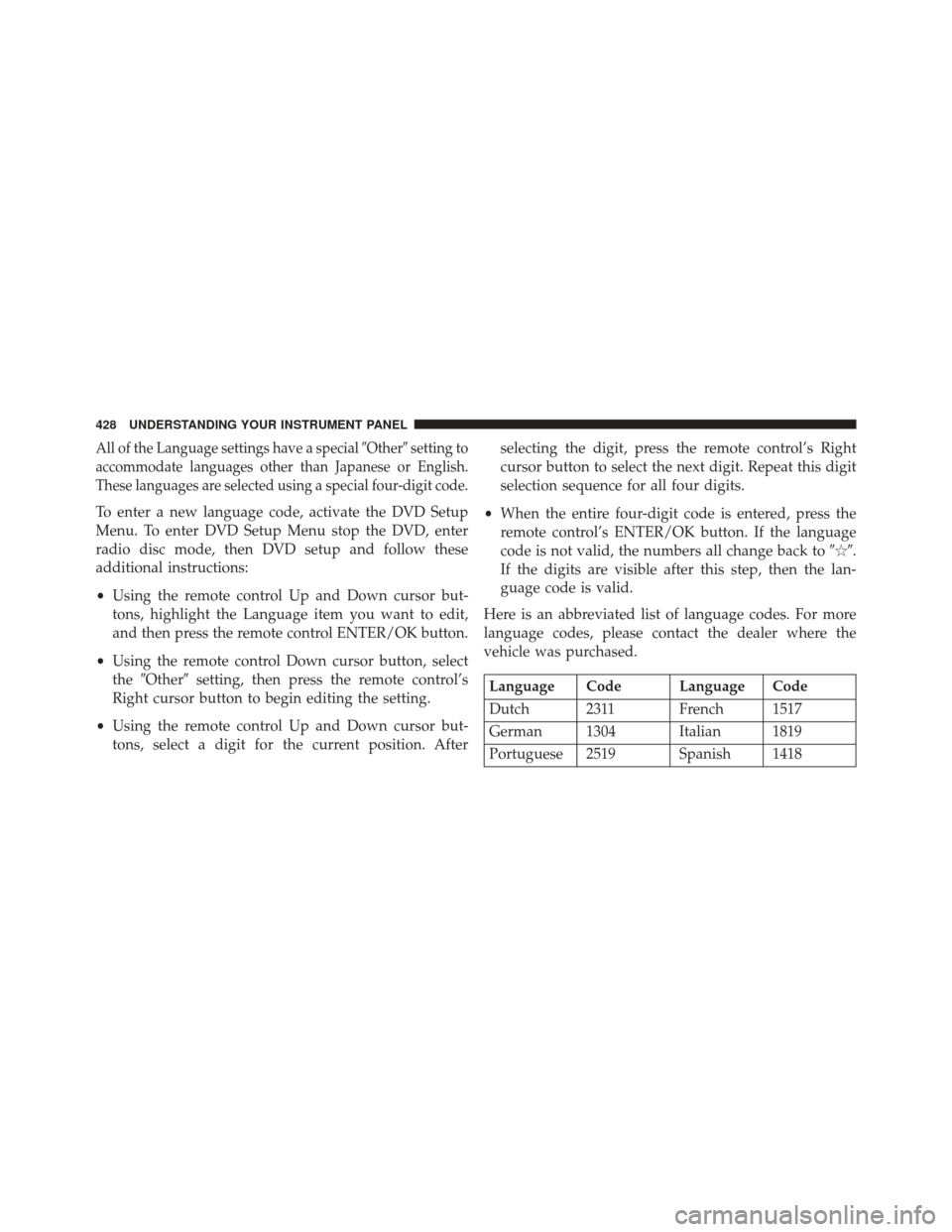
All of the Language settings have a special�Other�setting to
accommodate languages other than Japanese or English.
These languages are selected using a special four-digit code.
To enter a new language code, activate the DVD Setup
Menu. To enter DVD Setup Menu stop the DVD, enter
radio disc mode, then DVD setup and follow these
additional instructions:
• Using the remote control Up and Down cursor but-
tons, highlight the Language item you want to edit,
and then press the remote control ENTER/OK button.
• Using the remote control Down cursor button, select
the �Other� setting, then press the remote control’s
Right cursor button to begin editing the setting.
• Using the remote control Up and Down cursor but-
tons, select a digit for the current position. After selecting the digit, press the remote control’s Right
cursor button to select the next digit. Repeat this digit
selection sequence for all four digits.
• When the entire four-digit code is entered, press the
remote control’s ENTER/OK button. If the language
code is not valid, the numbers all change back to �\b�.
If the digits are visible after this step, then the lan-
guage code is valid.
Here is an abbreviated list of language codes. For more
language codes, please contact the dealer where the
vehicle was purchased.
Language Code Language Code
Dutch 2311 French 1517
German 1304 Italian 1819
Portuguese 2519 Spanish 1418
428 UNDERSTANDING YOUR INSTRUMENT PANEL