2014 CHRYSLER 300 SRT lock
[x] Cancel search: lockPage 337 of 590
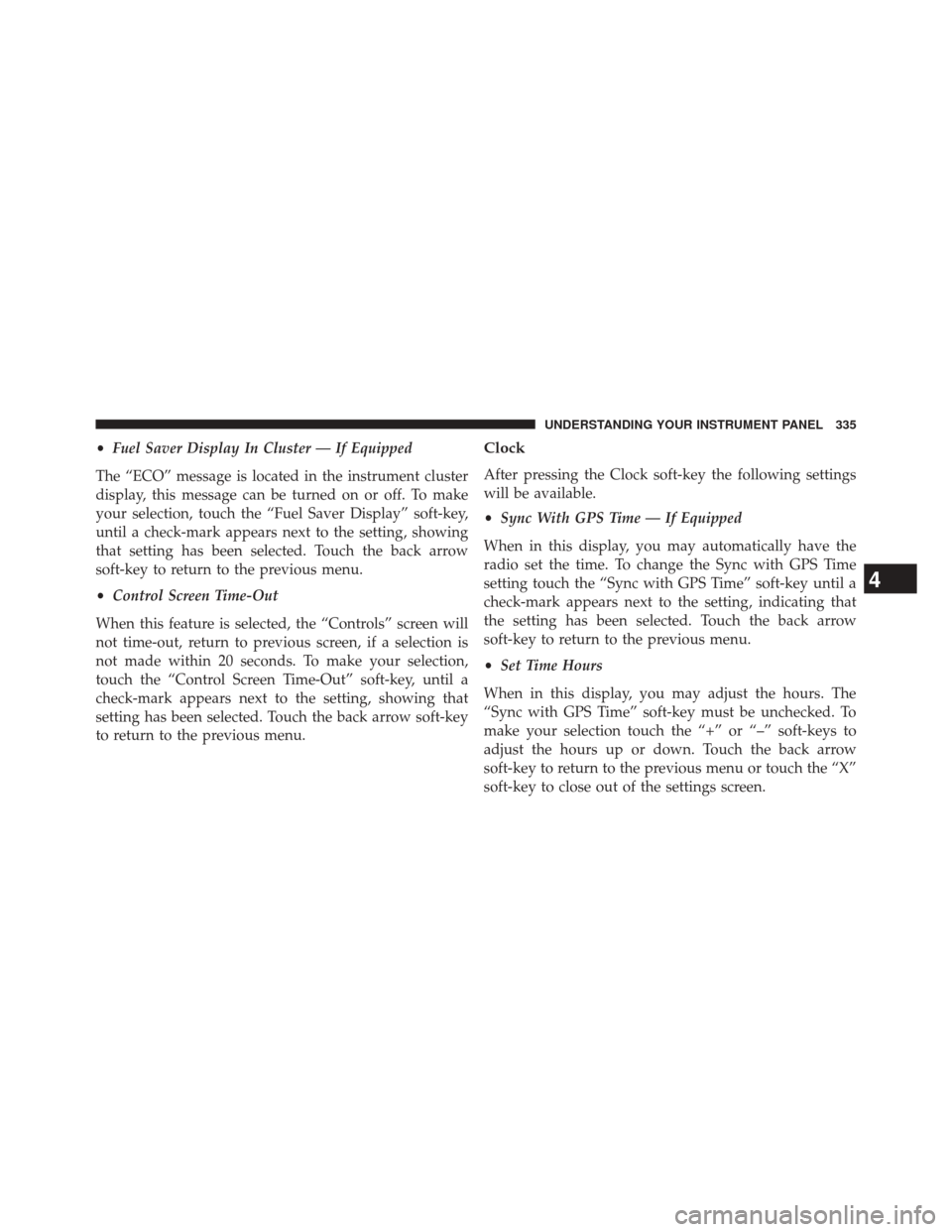
•Fuel Saver Display In Cluster — If Equipped
The “ECO” message is located in the instrument cluster
display, this message can be turned on or off. To make
your selection, touch the “Fuel Saver Display” soft-key,
until a check-mark appears next to the setting, showing
that setting has been selected. Touch the back arrow
soft-key to return to the previous menu.
• Control Screen Time-Out
When this feature is selected, the “Controls” screen will
not time-out, return to previous screen, if a selection is
not made within 20 seconds. To make your selection,
touch the “Control Screen Time-Out” soft-key, until a
check-mark appears next to the setting, showing that
setting has been selected. Touch the back arrow soft-key
to return to the previous menu.Clock
After pressing the Clock soft-key the following settings
will be available.
• Sync With GPS Time — If Equipped
When in this display, you may automatically have the
radio set the time. To change the Sync with GPS Time
setting touch the “Sync with GPS Time” soft-key until a
check-mark appears next to the setting, indicating that
the setting has been selected. Touch the back arrow
soft-key to return to the previous menu.
• Set Time Hours
When in this display, you may adjust the hours. The
“Sync with GPS Time” soft-key must be unchecked. To
make your selection touch the “+” or “–” soft-keys to
adjust the hours up or down. Touch the back arrow
soft-key to return to the previous menu or touch the “X”
soft-key to close out of the settings screen.
4
UNDERSTANDING YOUR INSTRUMENT PANEL 335
Page 338 of 590
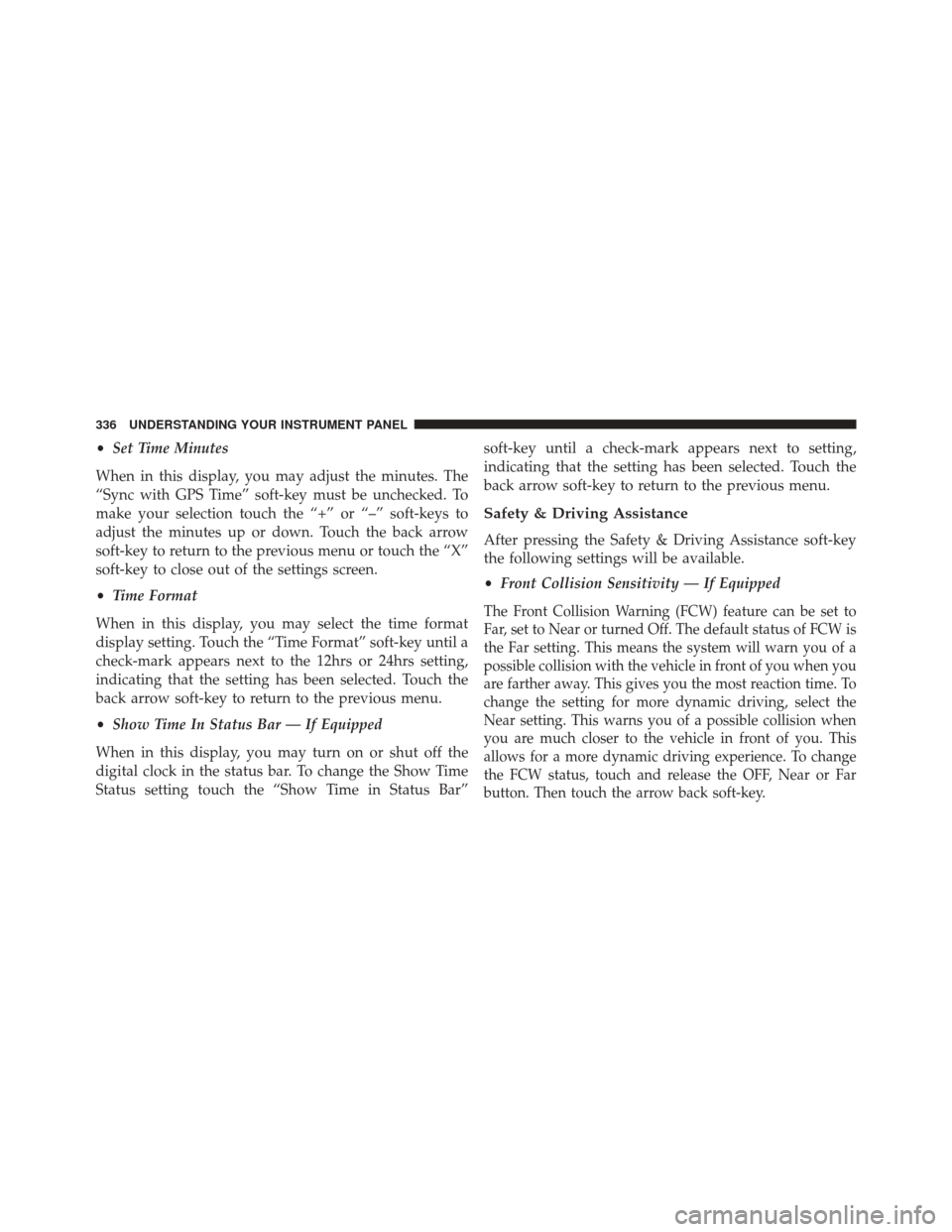
•Set Time Minutes
When in this display, you may adjust the minutes. The
“Sync with GPS Time” soft-key must be unchecked. To
make your selection touch the “+” or “–” soft-keys to
adjust the minutes up or down. Touch the back arrow
soft-key to return to the previous menu or touch the “X”
soft-key to close out of the settings screen.
• Time Format
When in this display, you may select the time format
display setting. Touch the “Time Format” soft-key until a
check-mark appears next to the 12hrs or 24hrs setting,
indicating that the setting has been selected. Touch the
back arrow soft-key to return to the previous menu.
• Show Time In Status Bar — If Equipped
When in this display, you may turn on or shut off the
digital clock in the status bar. To change the Show Time
Status setting touch the “Show Time in Status Bar” soft-key until a check-mark appears next to setting,
indicating that the setting has been selected. Touch the
back arrow soft-key to return to the previous menu.
Safety & Driving Assistance
After pressing the Safety & Driving Assistance soft-key
the following settings will be available.
•
Front Collision Sensitivity — If Equipped
The Front Collision Warning (FCW) feature can be set to
Far, set to Near or turned Off. The default status of FCW is
the Far setting. This means the system will warn you of a
possible collision with the vehicle in front of you when you
are farther away. This gives you the most reaction time. To
change the setting for more dynamic driving, select the
Near setting. This warns you of a possible collision when
you are much closer to the vehicle in front of you. This
allows for a more dynamic driving experience. To change
the FCW status, touch and release the OFF, Near or Far
button. Then touch the arrow back soft-key.
336 UNDERSTANDING YOUR INSTRUMENT PANEL
Page 342 of 590
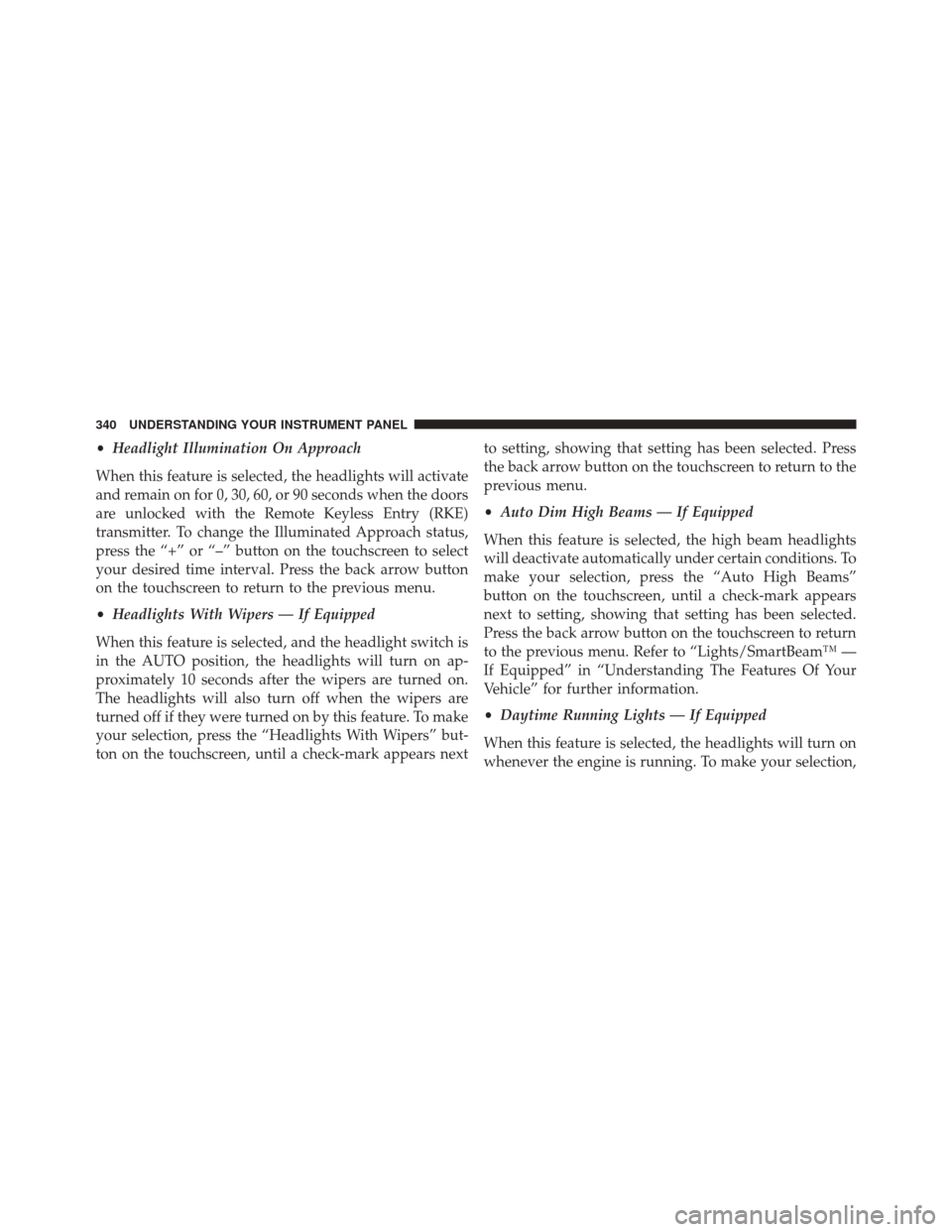
•Headlight Illumination On Approach
When this feature is selected, the headlights will activate
and remain on for 0, 30, 60, or 90 seconds when the doors
are unlocked with the Remote Keyless Entry (RKE)
transmitter. To change the Illuminated Approach status,
press the “+” or “–” button on the touchscreen to select
your desired time interval. Press the back arrow button
on the touchscreen to return to the previous menu.
• Headlights With Wipers — If Equipped
When this feature is selected, and the headlight switch is
in the AUTO position, the headlights will turn on ap-
proximately 10 seconds after the wipers are turned on.
The headlights will also turn off when the wipers are
turned off if they were turned on by this feature. To make
your selection, press the “Headlights With Wipers” but-
ton on the touchscreen, until a check-mark appears next to setting, showing that setting has been selected. Press
the back arrow button on the touchscreen to return to the
previous menu.
•
Auto Dim High Beams — If Equipped
When this feature is selected, the high beam headlights
will deactivate automatically under certain conditions. To
make your selection, press the “Auto High Beams”
button on the touchscreen, until a check-mark appears
next to setting, showing that setting has been selected.
Press the back arrow button on the touchscreen to return
to the previous menu. Refer to “Lights/SmartBeam™ —
If Equipped” in “Understanding The Features Of Your
Vehicle” for further information.
• Daytime Running Lights — If Equipped
When this feature is selected, the headlights will turn on
whenever the engine is running. To make your selection,
340 UNDERSTANDING YOUR INSTRUMENT PANEL
Page 343 of 590
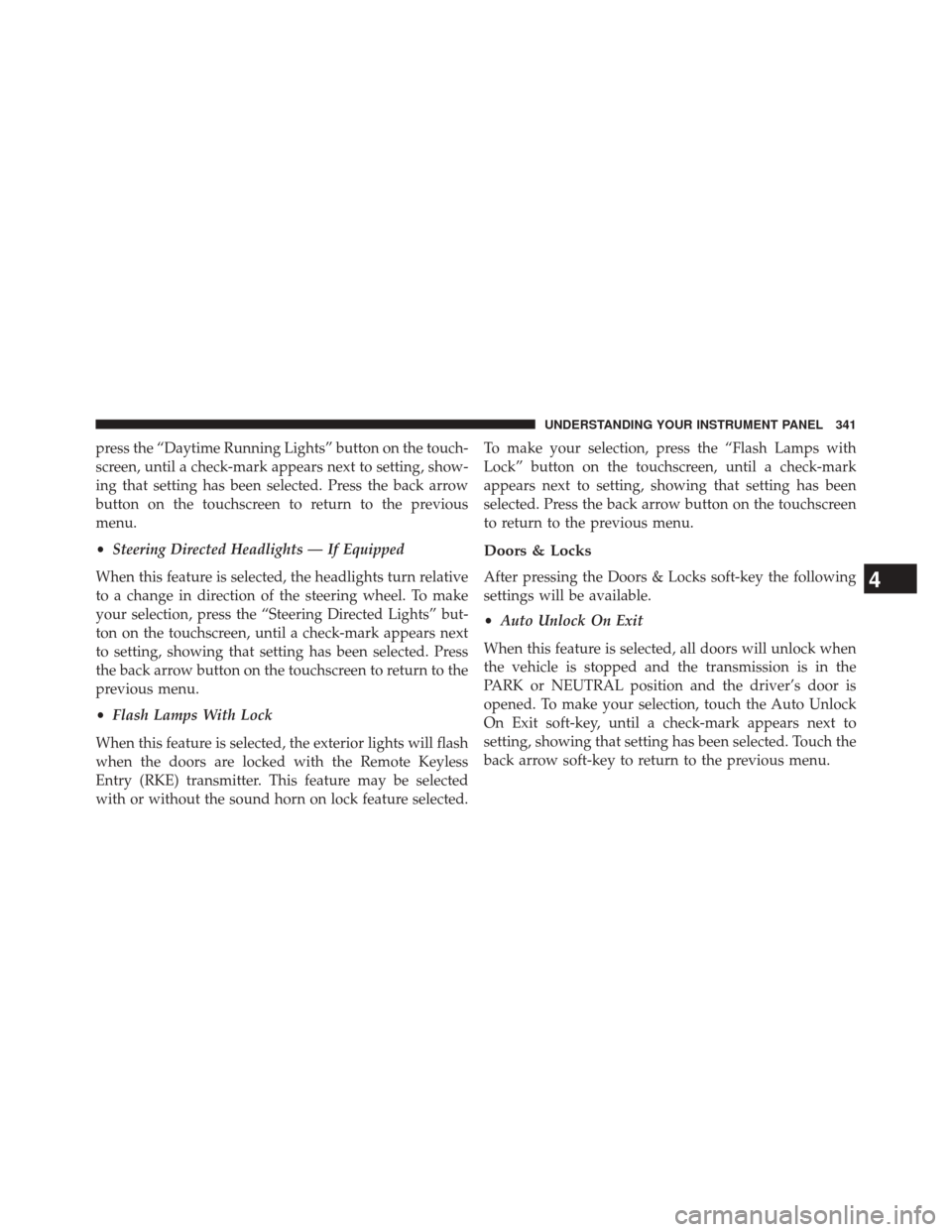
press the “Daytime Running Lights” button on the touch-
screen, until a check-mark appears next to setting, show-
ing that setting has been selected. Press the back arrow
button on the touchscreen to return to the previous
menu.
•Steering Directed Headlights — If Equipped
When this feature is selected, the headlights turn relative
to a change in direction of the steering wheel. To make
your selection, press the “Steering Directed Lights” but-
ton on the touchscreen, until a check-mark appears next
to setting, showing that setting has been selected. Press
the back arrow button on the touchscreen to return to the
previous menu.
• Flash Lamps With Lock
When this feature is selected, the exterior lights will flash
when the doors are locked with the Remote Keyless
Entry (RKE) transmitter. This feature may be selected
with or without the sound horn on lock feature selected. To make your selection, press the “Flash Lamps with
Lock” button on the touchscreen, until a check-mark
appears next to setting, showing that setting has been
selected. Press the back arrow button on the touchscreen
to return to the previous menu.
Doors & Locks
After pressing the Doors & Locks soft-key the following
settings will be available.
•
Auto Unlock On Exit
When this feature is selected, all doors will unlock when
the vehicle is stopped and the transmission is in the
PARK or NEUTRAL position and the driver’s door is
opened. To make your selection, touch the Auto Unlock
On Exit soft-key, until a check-mark appears next to
setting, showing that setting has been selected. Touch the
back arrow soft-key to return to the previous menu.4
UNDERSTANDING YOUR INSTRUMENT PANEL 341
Page 344 of 590
•Flash Lamps With Lock
When this feature is selected, the front and headlights
will flash when the doors are locked or unlocked with the
Remote Keyless Entry (RKE) transmitter. To make your
selection, touch the Flash Lights With Lock soft-key, until
a check-mark appears next to setting, showing that
setting has been selected. Touch the back arrow soft-key
to return to the previous menu.
• Sound Horn With Lock
When this feature is selected, the horn will sound when
the remote start is activated. To make your selection,
touch the Sound Horn With Lock soft-key, until a check-
mark appears next to setting, showing that setting has
been selected. Touch the back arrow soft-key to return to
the previous menu. •
Sound Horn With Remote Start
When this feature is selected, the horn will sound when
the remote start is activated. To make your selection,
touch the Sound Horn With Remote Start soft-key, until a
check-mark appears next to setting, showing that setting
has been selected. Touch the back arrow soft-key to
return to the previous menu.
• 1st Press Of Key Fob Unlocks
When 1st Press Of Key Fob Unlocks is selected, only the
driver’s door will unlock on the first press of the Remote
Keyless Entry (RKE) transmitter UNLOCK button. When
1st Press Of Key Fob Unlocks is selected, you must press
the RKE transmitter UNLOCK button twice to unlock the
passenger’s doors. When Unlock All Doors On 1st Press
is selected, all of the doors will unlock on the first press
of the RKE transmitter UNLOCK button.
342 UNDERSTANDING YOUR INSTRUMENT PANEL
Page 345 of 590
NOTE:If the vehicle is programmed 1st Press Of Key Fob
Unlocks, all doors will unlock no matter which Passive
Entry equipped door handle is grasped. If 1st Press Of
Key Fob Unlocks is programmed, only the driver ’s door
will unlock when the driver ’s door is grasped. With
Passive Entry, if 1st Press Of Key Fob Unlocks is pro-
grammed touching the handle more than once will only
result in the driver ’s door opening. If driver door first is
selected, once the driver door is opened, the interior door
lock/unlock switch can be used to unlock all doors (or
use RKE transmitter).
• Passive Entry
This feature allows you to lock and unlock the vehicle’s
door(s) without having to press the Remote Keyless
Entry (RKE) transmitter lock or unlock buttons. To make
your selection, touch the Passive Entry soft-key, until a
check-mark appears next to setting, showing that setting
has been selected. Touch the back arrow soft-key to return to the previous menu. Refer to “Keyless Enter-N-
Go™” in “Things To Know Before Starting Your Vehicle”.
•
Personal Settings Linked To Key Fob— If Equipped
This feature provides automatic driver seat positioning to
enhance driver mobility when entering and exiting the
vehicle. To make your selection, touch the Memory
Linked To FOB soft-key, until a check-mark appears next
to setting, showing that setting has been selected. Touch
the back arrow soft-key to return to the previous menu.
NOTE: The seat will return to the memorized seat
location (if Recall Memory with Remote Key Unlock is set
to ON) when the Remote Keyless Entry (RKE) transmitter
is used to unlock the door. Refer to “Driver Memory
Seat” in “Understanding The Features Of Your Vehicle”
for further information.
4
UNDERSTANDING YOUR INSTRUMENT PANEL 343
Page 353 of 590
SETTING THE ANALOG CLOCK
To set the analog clock at the top center of the instrument
panel, press and hold the button until the setting is
correct.
iPod®/USB/MP3 CONTROL
This feature allows an iPod® or external USB device to be
plugged into the USB port.
iPod® control supports Mini, 4G, Photo, Nano, 5G iPod®
and iPhone® devices. Some iPod® software versions
may not fully support the iPod® control features. Please
visit Apple’s website for software updates.
For further information, refer to the Uconnect® Supple-
ment Manual.
Setting The Analog Clock
4
UNDERSTANDING YOUR INSTRUMENT PANEL 351
Page 354 of 590
HARMAN KARDON® Logic7® HIGH
PERFORMANCE MULTICHANNEL SURROUND
SOUND SYSTEM WITH DRIVER-SELECTABLE
SURROUND (DSS) — IF EQUIPPED
Your vehicle is equipped with a Harman Kardon® audio
system with GreenEdge™ technology that offers superior
sound quality, higher Sound Pressure Levels (SPL) and
reduced energy consumption. The new system utilizes
proprietary amplifier and speaker technologies deliver-
ing substantial increases in component and system effi-
ciency levels.
The 12 Channel Class D GreenEdge high efficiency
amplifier is governed by a high voltage tracking power
supply and drives a 7.5-channel playback architecture.
The Harman Kardon® audio system offers the ability to
choose Logic 7® surround sound for any audio source.
The GreenEdge high-efficiency speaker designs ensure
the system has higher SPL and a dramatic increase indynamic sound quality. The speakers are tuned for
maximum efficiency and perfectly matched to the ampli-
fier output stage ensuring state of the art multi-seat
surround sound processing.
Logic7® multichannel surround-sound technology deliv-
ers an immersive, accurate sound-stage to every seating
position. This surround effect is available for audio from
any source - AM/FM/CD/ Satellite Radio or dashboard
AUX input; and is activated through the Uconnect®
System. Refer to “Surround Sound” under “Uconnect®
Settings” in “Understanding Your Instrument Panel.”
STEERING WHEEL AUDIO CONTROLS
The remote sound system controls are located on the rear
surface of the steering wheel at the three and nine o’clock
positions.
352 UNDERSTANDING YOUR INSTRUMENT PANEL