2014 CHEVROLET SILVERADO change time
[x] Cancel search: change timePage 248 of 546
Black plate (44,1)Chevrolet Silverado Owner Manual (GMNA-Localizing-U.S./Canada/Mexico-
5853506) - 2014 - crc 2nd - 5/15/13
7-44 Infotainment System
Pairing Information
.Up to 10 cell phones can be
paired to the Bluetooth system.
.The pairing process is disabled
when the vehicle is moving.
.Pairing only needs to be
completed once per phone,
unless the pairing information on
the cell phone changes or the
cell phone is deleted from the
system.
.Only one paired cell phone can
be connected to the Bluetooth
system at a time.
.If multiple paired cell phones are
within range of the system, the
system connects to the most
recently connected device. To
connect to a different paired
phone, see“Connecting to a
Different Phone” after in this
section. Pairing a Phone or Device
1. From the Home Page, turn the
MENU knob to access the
PHONE screen button, then
press the MENU knob to select
the PHONE screen button. If a
device has been previously
paired, the main Phone menu
will be shown. If no devices
have been paired, Step 2 can be
skipped.
2. Turn the MENU knob and press to select Manage Phones.
3. Press the button just below the PAIR/screen button. A four-digit
Personal Identification Number
(PIN) appears on the display.
The PIN may be used in Step 5.
4. Start the pairing process on the cell phone to be paired to the
vehicle. See the cell phone
manufacturer's user guide for
information on this process. 5. Locate
“Chevrolet MyLink” on
the display. Follow the
instructions on the cell phone to
enter the PIN provided in Step 3
or confirm the six-digit code
shown on the display. After the
PIN is successfully entered or
the code is confirmed, the
system responds with “
paired” when the pairing process
is complete.
6. If “Chevrolet MyLink” does not
appear, turn the phone off or
remove the phone battery and
retry.
7. If the phone prompts to accept connection or allow phone book
download, select always accept
and allow. The phone book my
not be available if not accepted.
8. Repeat Steps 1−7 to pair additional phones.
Page 253 of 546
Black plate (49,1)Chevrolet Silverado Owner Manual (GMNA-Localizing-U.S./Canada/Mexico-
5853506) - 2014 - crc 2nd - 5/15/13
Infotainment System 7-49
Using the“Voice Keypad”
Command
1. Press
g. The system responds
“Command Please,” followed by
a tone.
2. After the tone, say “Voice
Keypad.” The system allows
entry of special numbers and
characters.
Using the “Voice mail” Command
1. Press
g. The system responds
“Command Please,” followed by
a tone.
2. After the tone, say “Voice mail.”
The system dials the voice mail
number of the connected phone.
Clearing the System
Unless information is deleted out of
the vehicle Bluetooth system, it will
be retained. This includes phone
pairing information. For directions
on how to delete this information,
see “Deleting a Paired Phone.”
Trademarks and
License Agreements
FCC Information
See Radio Frequency Statement on
page 13-15.
"Made for iPod," and "Made for
iPhone," mean that an electronic
accessory has been designed to
connect specifically to iPod or
iPhone and has been certified by
the developer to meet Apple
performance standards. Apple is not
responsible for the operation of this
device or its compliance with safety
and regulatory standards. Please
note that the use of this accessory
with iPod or iPhone may affect
wireless performance. iPhone
®,
iPod®, iPod classic®, iPod nano®, iPod shuffle
®, and iPod touch®are
trademarks of Apple Inc., registered
in the U.S. and other countries.
Fees and Taxes: Subscription fee,
taxes, one time activation fee, and
other fees may apply. Subscription
fee is consumer only. All fees and
programming subject to change.
Subscriptions subject to Customer
Agreement available at
www.siriusxm.com. SiriusXM
®
service only available in the
48 contiguous United States and
Canada.
In Canada: Some deterioration of
service may occur in extreme
northern latitudes. This is beyond
the control of SiriusXM
®Satellite
Radio.
Page 256 of 546
Black plate (52,1)Chevrolet Silverado Owner Manual (GMNA-Localizing-U.S./Canada/Mexico-
5853506) - 2014 - crc 2nd - 5/15/13
7-52 Infotainment System
Gracenote Data, the Gracenote
Software, and Gracenote Servers.
Gracenote reserves all rights in
Gracenote Data, the Gracenote
Software, and the Gracenote
Servers, including all ownership
rights. Under no circumstances will
Gracenote become liable for any
payment to you for any information
that you provide. You agree that
Gracenote may enforce its rights
under this Agreement against you
directly in its own name.
The Gracenote service uses a
unique identifier to track queries for
statistical purposes. The purpose of
a randomly assigned numeric
identifier is to allow the Gracenote
service to count queries without
knowing anything about who you
are. For more information, see the
web page for the Gracenote Privacy
Policy for the Gracenote service.
The Gracenote Software and each
item of Gracenote Data are licensed
to you "AS IS." Gracenote makes no
representations or warranties,
express or implied, regarding theaccuracy of any Gracenote Data.
Gracenote reserves the right to
delete data from the Gracenote
Servers or to change data
categories for any cause that
Gracenote deems sufficient. No
warranty is made that the Gracenote
Software or Gracenote Servers are
error-free or that functioning of
Gracenote Software or Gracenote
Servers will be uninterrupted.
Gracenote is not obligated to
provide you with new enhanced or
additional data types or categories
that Gracenote may provide in the
future and is free to discontinue its
services at any time.
GRACENOTE DISCLAIMS ALL
WARRANTIES EXPRESS OR
IMPLIED, INCLUDING, BUT NOT
LIMITED TO, IMPLIED
WARRANTIES OF
MERCHANTABILITY, FITNESS
FOR A PARTICULAR PURPOSE,
TITLE, AND NON-INFRINGEMENT.
GRACENOTE DOES NOT
WARRANT THE RESULTS THAT
WILL BE OBTAINED BY YOUR
USE OF THE GRACENOTE
SOFTWARE OR ANY
GRACENOTE SERVER. IN NO
CASE WILL GRACENOTE BE
LIABLE FOR ANY
CONSEQUENTIAL OR
INCIDENTAL DAMAGES OR FOR
ANY LOST PROFITS OR LOST
REVENUES.
© 2013. Gracenote, Inc. All Rights
Reserved.
PANDORA
PANDORA, the PANDORA logo,
and the Pandora trade dress are
trademarks or registered trademarks
of Pandora Media, Inc. Used with
permission.
Unicode
Copyright © 1991-2013 Unicode,
Inc. All rights reserved. Distributed
under the Terms of Use in http://
www.unicode.org/copyright.html.
Page 292 of 546
Black plate (24,1)Chevrolet Silverado Owner Manual (GMNA-Localizing-U.S./Canada/Mexico-
5853506) - 2014 - crc 2nd - 5/15/13
9-24 Driving and Operating
Starting and
Operating
New Vehicle Break-In
{Caution
The vehicle does not need an
elaborate break-in. But it will
perform better in the long run if
you follow these guidelines:
.Keep the vehicle speed at
88 km/h (55 mph) or less for
the first 805 km (500 mi).
.Do not drive at any one
constant speed, fast or slow,
for the first 805 km (500 mi).
Do not make full-throttle
starts. Avoid downshifting to
brake or slow the vehicle.
.Avoid making hard stops for
the first 322 km (200 mi) or
so. During this time the new
brake linings are not yet(Continued)
Caution (Continued)
broken in. Hard stops with
new linings can mean
premature wear and earlier
replacement. Follow this
breaking-in guideline every
time you get new brake
linings.
.Do not tow a trailer during
break-in. SeeTrailer Towing
on page 9-80 for the trailer
towing capabilities of the
vehicle and more information.
Following break-in, engine speed
and load can be gradually
increased.
Adjustable Throttle and
Brake Pedal
If equipped, the position of the
throttle and brake pedals can be
changed.
No adjustment to the pedals can be
made when the vehicle is in
R (Reverse) or while using cruise
control.
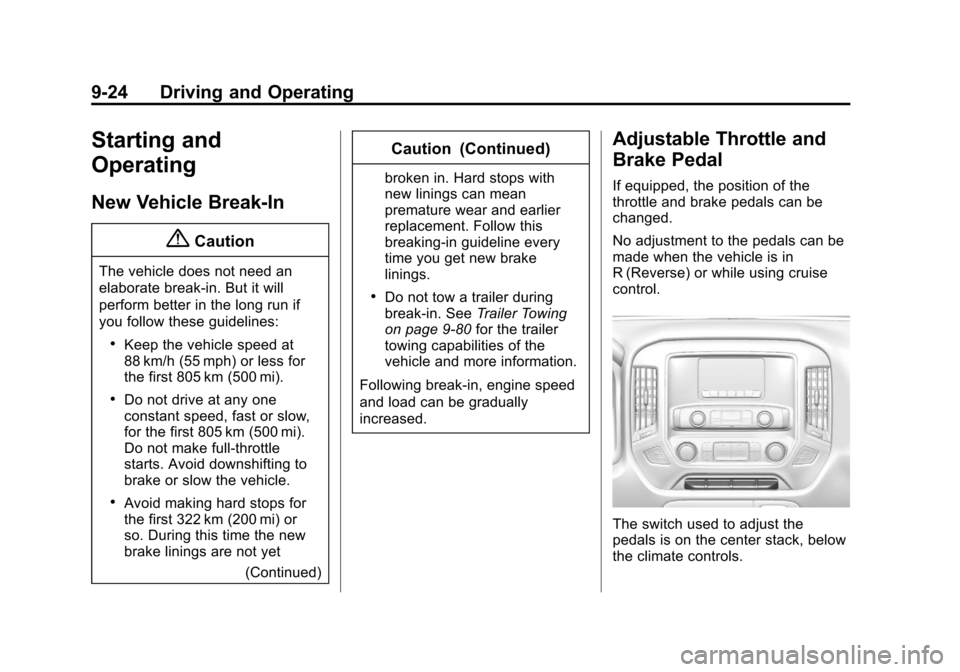
The switch used to adjust the
pedals is on the center stack, below
the climate controls.
Page 305 of 546
Black plate (37,1)Chevrolet Silverado Owner Manual (GMNA-Localizing-U.S./Canada/Mexico-
5853506) - 2014 - crc 2nd - 5/15/13
Driving and Operating 9-37
M (Manual Mode):This position
allows selection of a range of gears
appropriate for current driving
conditions. If equipped, see “Range
Selection Mode” underManual
Mode on page 9-37.
{Caution
Spinning the tires or holding the
vehicle in one place on a hill
using only the accelerator pedal
may damage the transmission.
The repair will not be covered by
the vehicle warranty. If you are
stuck, do not spin the tires. When
stopping on a hill, use the brakes
to hold the vehicle in place.
Normal Mode Grade Braking
If equipped with a gasoline engine
and an automatic transmission,
Normal Mode Grade Braking is
enabled when the vehicle is started,
but is not enabled in Range
Selection Mode. It assists in
maintaining desired vehicle speeds when driving on downhill grades by
using the engine and transmission
to slow the vehicle. The first time
the system engages for each
ignition key cycle, a DIC message
will be displayed. See
Transmission
Messages on page 5-43.
To disable or enable Normal Mode
Grade Braking within the current
ignition key cycle, press and hold
the Tow/Haul button for
five seconds. When the button is
released, the requested mode
change is made. A DIC message
displays. See Transmission
Messages on page 5-43.
For other forms of grade braking,
see Tow/Haul Mode on page 9-39
and Cruise Control on page 9-60.
Manual Mode
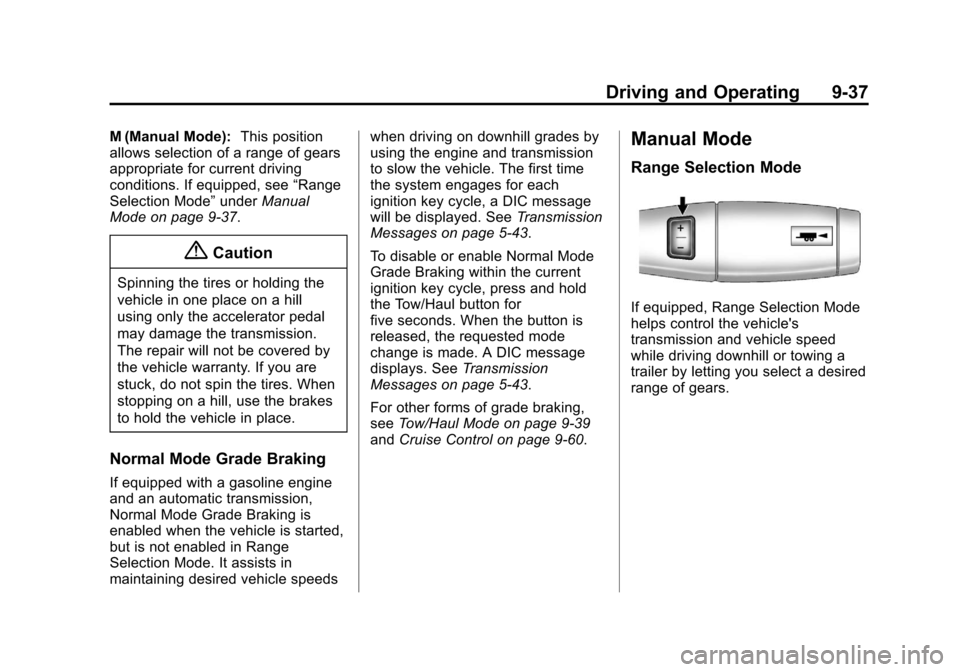
Range Selection Mode
If equipped, Range Selection Mode
helps control the vehicle's
transmission and vehicle speed
while driving downhill or towing a
trailer by letting you select a desired
range of gears.
Page 322 of 546
Black plate (54,1)Chevrolet Silverado Owner Manual (GMNA-Localizing-U.S./Canada/Mexico-
5853506) - 2014 - crc 2nd - 5/15/13
9-54 Driving and Operating
{Caution
Shifting the transmission into gear
before the requested mode
indicator light has stopped
flashing could damage the
transfer case. To help avoid
damaging the vehicle, always wait
for the mode indicator lights to
stop flashing before shifting the
transmission into gear.
5. Start the engine and shift the transmission to the desired
position.
Brakes
Antilock Brake
System (ABS)
This vehicle has ABS, an advanced
electronic braking system that helps
prevent a braking skid.
When the vehicle begins to drive
away, ABS checks itself.
A momentary motor or clicking noise
might be heard while this test is
going on, and it might even be
noticed that the brake pedal moves
a little. This is normal.
If there is a problem with ABS, this
warning light stays on. See Antilock
Brake System (ABS) Warning Light
on page 5-25. If driving safely on a wet road and it
becomes necessary to slam on the
brakes and continue braking to
avoid a sudden obstacle, a
computer senses that the wheels
are slowing down. If one of the
wheels is about to stop rolling, the
computer will separately work the
brakes at each wheel.
ABS can change the brake pressure
to each wheel, as required, faster
than any driver could. This can help
you steer around the obstacle while
braking hard.
As the brakes are applied, the
computer keeps receiving updates
on wheel speed and controls
braking pressure accordingly.
Remember: ABS does not change
the time needed to get a foot up to
the brake pedal or always decrease
stopping distance. If you get too
close to the vehicle in front of you,
there will not be enough time to
apply the brakes if that vehicle
Page 328 of 546
Black plate (60,1)Chevrolet Silverado Owner Manual (GMNA-Localizing-U.S./Canada/Mexico-
5853506) - 2014 - crc 2nd - 5/15/13
9-60 Driving and Operating
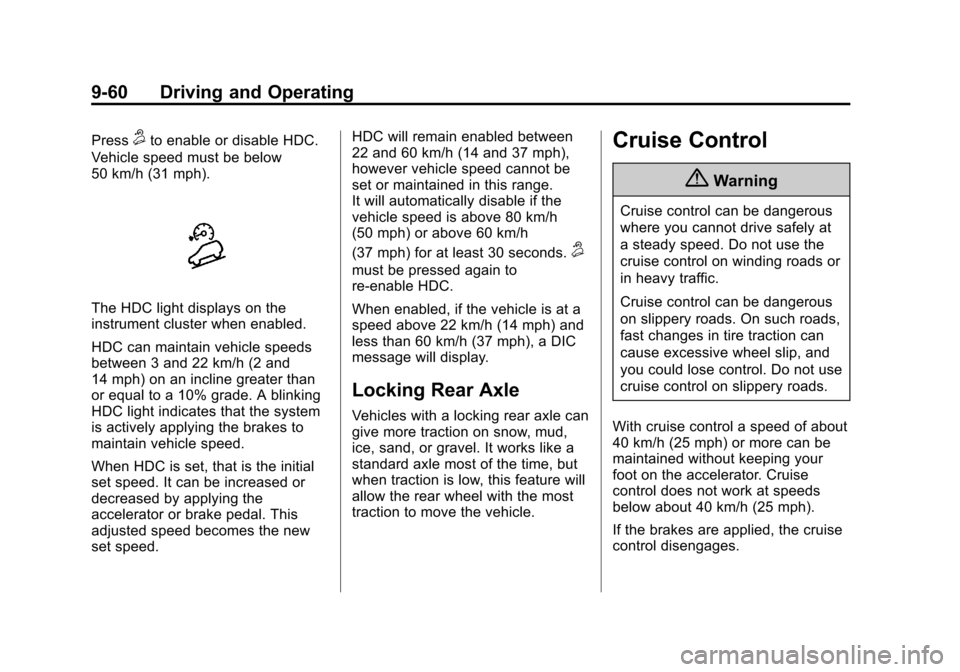
Press5to enable or disable HDC.
Vehicle speed must be below
50 km/h (31 mph).
The HDC light displays on the
instrument cluster when enabled.
HDC can maintain vehicle speeds
between 3 and 22 km/h (2 and
14 mph) on an incline greater than
or equal to a 10% grade. A blinking
HDC light indicates that the system
is actively applying the brakes to
maintain vehicle speed.
When HDC is set, that is the initial
set speed. It can be increased or
decreased by applying the
accelerator or brake pedal. This
adjusted speed becomes the new
set speed. HDC will remain enabled between
22 and 60 km/h (14 and 37 mph),
however vehicle speed cannot be
set or maintained in this range.
It will automatically disable if the
vehicle speed is above 80 km/h
(50 mph) or above 60 km/h
(37 mph) for at least 30 seconds.
5
must be pressed again to
re-enable HDC.
When enabled, if the vehicle is at a
speed above 22 km/h (14 mph) and
less than 60 km/h (37 mph), a DIC
message will display.
Locking Rear Axle
Vehicles with a locking rear axle can
give more traction on snow, mud,
ice, sand, or gravel. It works like a
standard axle most of the time, but
when traction is low, this feature will
allow the rear wheel with the most
traction to move the vehicle.
Cruise Control
{Warning
Cruise control can be dangerous
where you cannot drive safely at
a steady speed. Do not use the
cruise control on winding roads or
in heavy traffic.
Cruise control can be dangerous
on slippery roads. On such roads,
fast changes in tire traction can
cause excessive wheel slip, and
you could lose control. Do not use
cruise control on slippery roads.
With cruise control a speed of about
40 km/h (25 mph) or more can be
maintained without keeping your
foot on the accelerator. Cruise
control does not work at speeds
below about 40 km/h (25 mph).
If the brakes are applied, the cruise
control disengages.
Page 332 of 546
Black plate (64,1)Chevrolet Silverado Owner Manual (GMNA-Localizing-U.S./Canada/Mexico-
5853506) - 2014 - crc 2nd - 5/15/13
9-64 Driving and Operating
Warning (Continued)
Under many conditions, these
systems will not:
.Detect children, pedestrians,
bicyclists, or animals.
.Detect vehicles or objects
outside the area monitored by
the system.
.Work at all driving speeds.
.Warn you or provide you with
enough time to avoid a crash.
.Work under poor visibility or
bad weather conditions.
.Work if the detection sensor
is not cleaned or is covered
by ice, snow, mud, or dirt.
Complete attention is always
required while driving, and you
should be ready to take action
and apply the brakes and/or steer
the vehicle to avoid crashes. Audible or Safety Alert Seat
Some driver assistance features
alert the driver of obstacles by
beeping. To change the volume of
the warning chime, see
“Comfort
and Convenience” underVehicle
Personalization on page 5-46.
If equipped with the Safety Alert
Seat, the driver seat cushion may
provide a vibrating pulse alert
instead of beeping. To change this,
see “Collision/Detection Systems”
under Vehicle Personalization on
page 5-46.
Assistance Systems for
Parking or Backing
When the vehicle is in R (Reverse),
the Rear Vision Camera (RVC) and
Rear Parking Assist may help the
driver to avoid a crash or to reduce
crash damage. Some models may
also have Front Parking Assist.
The RVC and Rear Parking Assist
will not work properly if the tailgate
is down. If the tailgate is down, do
not use these systems.
When the vehicle is shifted into
R (Reverse), the RVC displays an
image of the area behind the vehicle
in the center stack display. The
previous screen displays when the
vehicle is shifted out of R (Reverse)
after a short delay. To return to the
previous screen sooner, press a
button on the infotainment system,
shift into P (Park), or reach a vehicle
speed of 8 km/h (5 mph).