2014 CHEVROLET ORLANDO display
[x] Cancel search: displayPage 67 of 98
Black plate (67,1)Chevrolet Orlando Infotainment System (GMNA-Localizing-Canada-
6081467) - 2014 - CRC - 6/13/13
Infotainment System 67
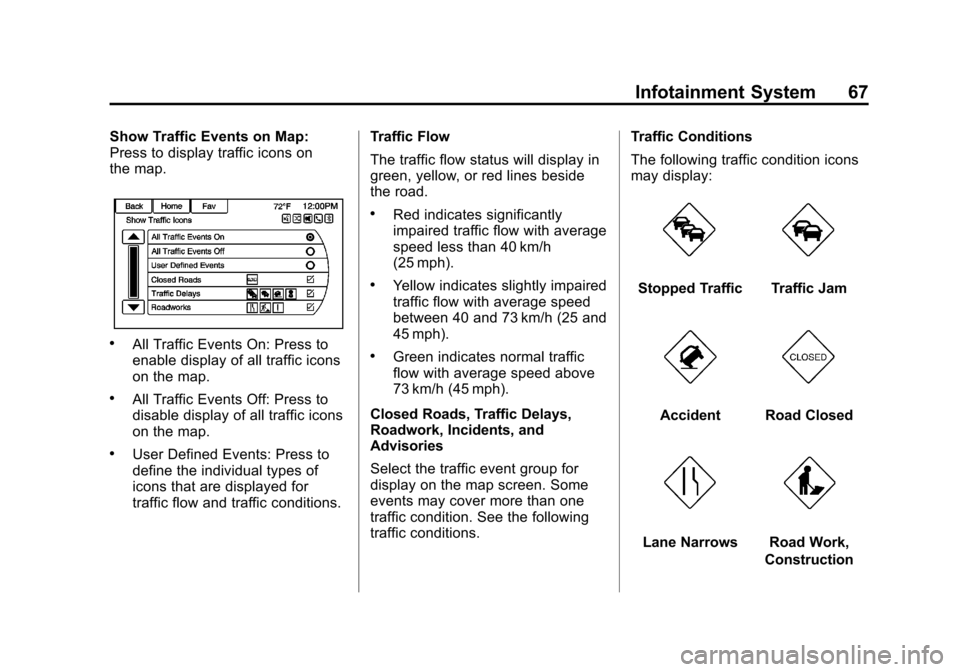
Show Traffic Events on Map:
Press to display traffic icons on
the map.
.All Traffic Events On: Press to
enable display of all traffic icons
on the map.
.All Traffic Events Off: Press to
disable display of all traffic icons
on the map.
.User Defined Events: Press to
define the individual types of
icons that are displayed for
traffic flow and traffic conditions.Traffic Flow
The traffic flow status will display in
green, yellow, or red lines beside
the road.
.Red indicates significantly
impaired traffic flow with average
speed less than 40 km/h
(25 mph).
.Yellow indicates slightly impaired
traffic flow with average speed
between 40 and 73 km/h (25 and
45 mph).
.Green indicates normal traffic
flow with average speed above
73 km/h (45 mph).
Closed Roads, Traffic Delays,
Roadwork, Incidents, and
Advisories
Select the traffic event group for
display on the map screen. Some
events may cover more than one
traffic condition. See the following
traffic conditions. Traffic Conditions
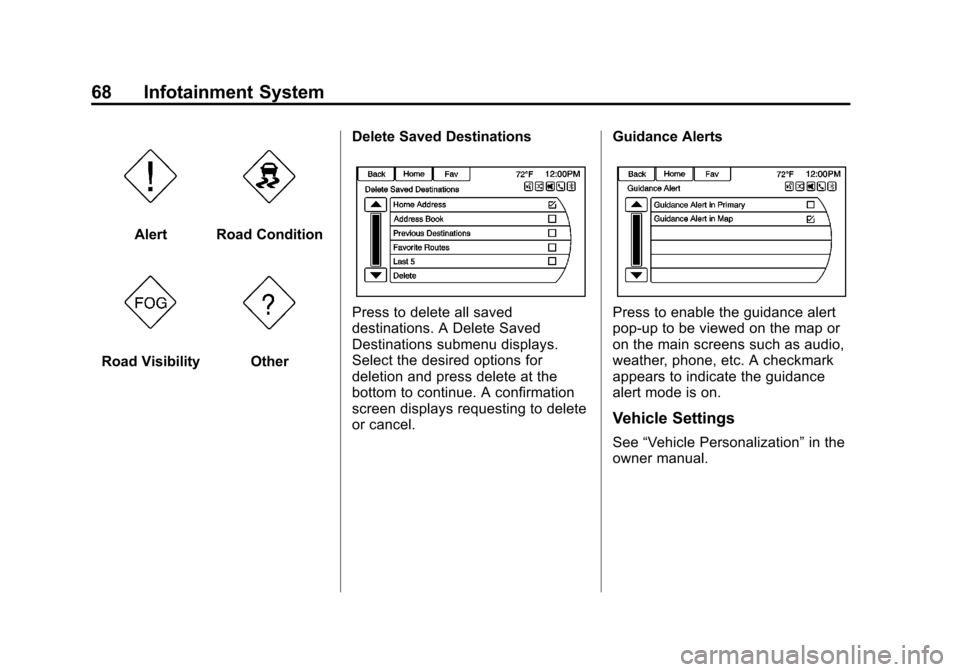
The following traffic condition icons
may display:
Stopped TrafficTraffic Jam
AccidentRoad Closed
Lane NarrowsRoad Work,
Construction
Page 68 of 98
Black plate (68,1)Chevrolet Orlando Infotainment System (GMNA-Localizing-Canada-
6081467) - 2014 - CRC - 6/13/13
68 Infotainment System
AlertRoad Condition
Road VisibilityOtherDelete Saved Destinations
Press to delete all saved
destinations. A Delete Saved
Destinations submenu displays.
Select the desired options for
deletion and press delete at the
bottom to continue. A confirmation
screen displays requesting to delete
or cancel. Guidance AlertsPress to enable the guidance alert
pop-up to be viewed on the map or
on the main screens such as audio,
weather, phone, etc. A checkmark
appears to indicate the guidance
alert mode is on.
Vehicle Settings
See
“Vehicle Personalization” in the
owner manual.
Page 69 of 98
Black plate (69,1)Chevrolet Orlando Infotainment System (GMNA-Localizing-Canada-
6081467) - 2014 - CRC - 6/13/13
Infotainment System 69
Display Settings
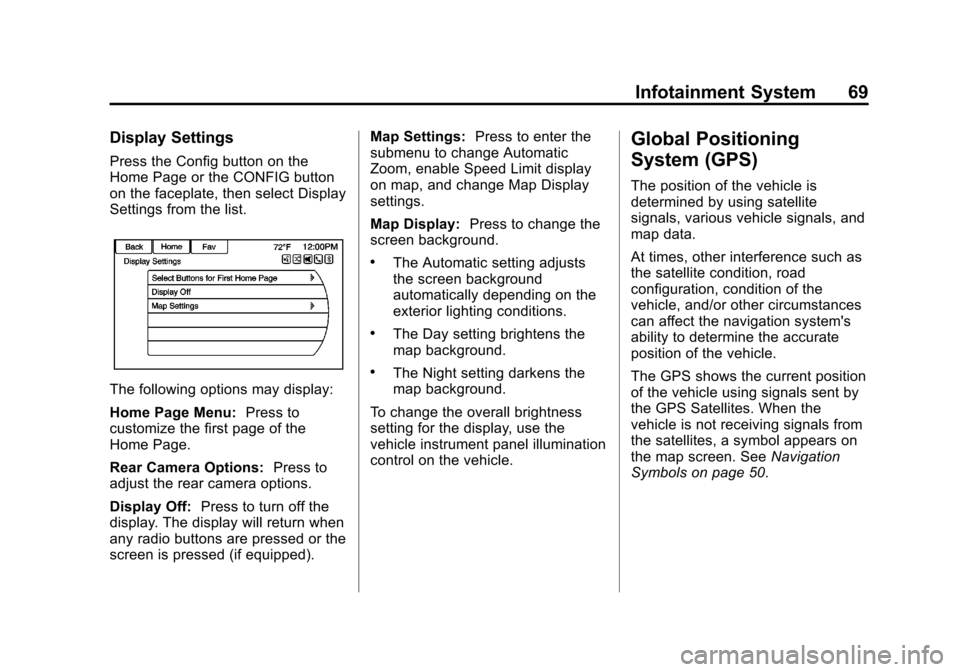
Press the Config button on the
Home Page or the CONFIG button
on the faceplate, then select Display
Settings from the list.
The following options may display:
Home Page Menu:Press to
customize the first page of the
Home Page.
Rear Camera Options: Press to
adjust the rear camera options.
Display Off: Press to turn off the
display. The display will return when
any radio buttons are pressed or the
screen is pressed (if equipped). Map Settings:
Press to enter the
submenu to change Automatic
Zoom, enable Speed Limit display
on map, and change Map Display
settings.
Map Display: Press to change the
screen background.
.The Automatic setting adjusts
the screen background
automatically depending on the
exterior lighting conditions.
.The Day setting brightens the
map background.
.The Night setting darkens the
map background.
To change the overall brightness
setting for the display, use the
vehicle instrument panel illumination
control on the vehicle.
Global Positioning
System (GPS)
The position of the vehicle is
determined by using satellite
signals, various vehicle signals, and
map data.
At times, other interference such as
the satellite condition, road
configuration, condition of the
vehicle, and/or other circumstances
can affect the navigation system's
ability to determine the accurate
position of the vehicle.
The GPS shows the current position
of the vehicle using signals sent by
the GPS Satellites. When the
vehicle is not receiving signals from
the satellites, a symbol appears on
the map screen. See Navigation
Symbols on page 50.
Page 71 of 98
Black plate (71,1)Chevrolet Orlando Infotainment System (GMNA-Localizing-Canada-
6081467) - 2014 - CRC - 6/13/13
Infotainment System 71
.There is no route guidance when
turning at an intersection.
.Plural names of places might be
announced occasionally.
.It could take a long time to
operate automatic rerouting
during high-speed driving.
.Automatic rerouting might
display a route returning to the
set waypoint if heading for a
destination without passing
through a set waypoint.
.The route prohibits the entry of a
vehicle due to a regulation by
time or season or any other
regulation that may be given.
.Some routes might not be
searched.
.The route to the destination
might not be shown if there are
new roads, if roads have
recently changed, or if certain
roads are not listed in the map
data. SeeMaps on page 49.
To recalibrate the vehicle's position
on the map, park with the vehicle
running for two to five minutes, until
the vehicle position updates. Make
sure the vehicle is parked in a
location that is safe and has a clear
view of the sky and away from large
obstruction.
If the System Needs
Service
If the navigation system needs
service and the steps listed here
have been followed but there are
still problems, see your dealer for
assistance.
Map Data Updates
The map data provided in the
vehicle is the most up-to-date
information available when the
vehicle was produced. The map
data is updated periodically,
provided that the map information
has changed.
For questions about the operation of
the navigation system or the update
process, contact the GM Nav Disc
Center toll-free phone number,
1-877-NAV-DISC (1-877-628-3472)
or go to the center ’s website,
www.gmnavdisc.com. If updates are
needed, call the GM Nav Disc
Center or order a new Map Update
online. To order map data, have the
vehicle’s Vehicle Identification
Number (VIN) available. See
“Vehicle Identification Number
(VIN)” in the owner manual.
After receiving the updated map
data, see Maps on page 49.
Page 72 of 98
Black plate (72,1)Chevrolet Orlando Infotainment System (GMNA-Localizing-Canada-
6081467) - 2014 - CRC - 6/13/13
72 Infotainment System
Database Coverage
Explanations
Coverage areas vary with respect to
the level of map detail available for
any given area. Some areas feature
greater levels of detail than others.
If this happens, it does not mean
there is a problem with the system.
As the map data is updated, more
detail can become available for
areas that previously had limited
detail. SeeMap Data Updates on
page 71.
Voice Recognition
Voice recognition allows for
hands-free operation of the
infotainment system features.
Voice recognition can be used when
the radio is on or when Retained
Accessory Power (RAP) is active.
See “Retained Accessory Power
(RAP)” in the owner manual. The
system maintains a minimum
volume level.
Using Voice Recognition
1. Pressb/gon the steering
wheel. The audio system mutes.
A voice prompt states, “Please
say a command.” Wait until the
tone is heard before speaking.
If there is no tone, make sure
that the volume is turned up.
While voice recognition is active,
the system displays a
gsymbol
in the top right of the screen. 2. Clearly speak one of the
commands listed later in this
section.
Press
b/gtwice on the steering
wheel to skip the voice prompt
messages.
Canceling Voice Recognition
1. Press and release$/ion
the steering wheel control to
cancel a command, if the system
response does not match the
voice command, or say
“Goodbye” or“Cancel.”
2. The system replies, “Goodbye.”
Helpful Hints for Speaking
Commands
.When multiple commands are
available, choose the command
that works best for you.
Page 76 of 98

Black plate (76,1)Chevrolet Orlando Infotainment System (GMNA-Localizing-Canada-
6081467) - 2014 - CRC - 6/13/13
76 Infotainment System
Settings Commands
Verbose (set) on (mode), Verbose
(set) off (mode):Instructs the
system to turn voice prompts on or
off. When off, this feature turns off
voice prompts.
Language (language): Instructs
the system to set the language.
List Devices: Instructs the system
to give a list of devices to use.
Other Commands
Goodbye: Instructs the system to
end a phone call or voice
recognition.
Cancel: Instructs the system to
cancel an action.
Go Back, Back, Previous:
Instructs the system to go back to a
prior menu.
Main Menu: Instructs the system to
go to the main menu. Yes, Yep, Yup, Ya, Sure, Right,
Correct, OK, Positive, You Got it,
Probably, You Bet:
These can be
used to say “Yes.”
No, Nope, Na, No way, Wrong,
Incorrect, Negative, Not really, No
I said, No I Did Not, No I Do Not:
These can be used to say “No.”
Next Page, Page Down: Instructs
the system to scroll forward one
page in a list.
Previous Page, Page Up: Instructs
the system to scroll back one page
in a list.
Navigation Commands (If
Equipped)
To activate the navigation voice
recognition:
1. Press
b/gon the steering
wheel. The audio system mutes.
A voice prompt says, “Please
say a command.” Wait until the
tone is heard before speaking. If there is no tone, make sure
the volume is turned up.
While voice recognition is active,
the system displays a symbol in
the top right of the screen.
2. Clearly speak the command “Navigation.”
3. Clearly speak one of the commands in this section.
The following commands only apply
once the Navigation command is
given.
Change Country: Changes the
country origin to input a destination
from that region. The system will
accept United States, Canada,
or Mexico.
Address or Destination: Allows
an address to be stated as a
one-shot method. The system will
recognize the address if stated
all at once or say a city center.
An example is to say, “200
Renaissance Street, Detroit,
Michigan” or“Detroit, Michigan.”
Page 77 of 98
Black plate (77,1)Chevrolet Orlando Infotainment System (GMNA-Localizing-Canada-
6081467) - 2014 - CRC - 6/13/13
Infotainment System 77
Directed Address:Allows an
address to be stated one step at a
time. The format will be State/
Province, City, Street, then House
Number.
Intersection: Allows an
Intersection to be stated as the
destination. The format will be
State/Province, City, Street, then
Intersection.
Home: Instructs the system to start
guidance to the address saved as
My Home.
Contact: When a phone is paired
to the system, which contains
Address Information stored for
contacts, the address associated
with that contact can become a
route. If the system cannot resolve
the address, an error displays.
Points of Interest or POI: Allows a
Point of Interest to be stated as a
destination. Become familiar with
the POI categories and
sub-categories in the system by
pressing Destination from the Home
Page or DEST on the faceplate, then selecting Point of Interest. POI
commands for Along Route and
Around Destination will be available
if route guidance is active.
Add Waypoint:
Allows addition
of individual waypoints or the
destination. The system will ask for
the choice of entry method to
continue. An example is to say, “POI
Along Route” or“Intersection.”
Delete Waypoint: When guidance
is active, this command allows the
deletion of individual waypoints or
the destination. If guidance is not
active, the system will indicate the
destination list is empty.
Where Am I?, My Location,
or Current Position: Instructs the
system to give the current position
of the vehicle.
Help: The system plays back more
specific help commands associated
with Navigation or a Navigation
sub-feature. Cancel Guidance or Cancel
Route:
Instructs the system to
cancel guidance.
Entering a Destination in Other
Countries
For the voice recognition to respond
to a local address, the
corresponding country needs to be
set in the navigation system.
The country can also be set using
voice commands. However, the
country will change back to the
default country when the vehicle is
keyed off.
1. Press
b/gon the steering
wheel.
2. Say “Navigation.”
3. Say “Change Country.”
4. Say the country name. For example, say “Canada.”
Page 79 of 98
Black plate (79,1)Chevrolet Orlando Infotainment System (GMNA-Localizing-Canada-
6081467) - 2014 - CRC - 6/13/13
Infotainment System 79
Voice Pass-Thru
Voice pass-thru allows access to the
voice recognition commands on the
cell phone, i.e. Siri or Voice
Command. See the cell phone
manufacturer's user guide to see if
the cell phone supports this feature.
To activate phone voice recognition
system, press and hold
b/gon
the steering wheel for approximately
two sec.
Bluetooth Phone/
Devices
Bluetooth
Overview
If equipped with Bluetooth capability,
the system can interact with many
cell phones and devices, allowing:
.Placing and receiving hands-free
calls.
.Sharing of the cell phone’s
address book or contact list with
the vehicle. The phone book will
only display when that phone is
connected.
.Placing outgoing calls by voice
recognition.
The system can be used while in
ON/RUN, ACC/ACCESSORY,
or Retained Accessory Power
(RAP). The range of the Bluetooth
system can be up to 9.1 m (30 ft).
The radio can connect to most Bluetooth-enabled phones.
Available features and functions
may be dependent on the device.
On a current phone call screen, an
image of the contact from your
phone's contact list can be
displayed. Not all phones are
compatible with this feature.
Bluetooth Controls
Use the buttons on the infotainment
system and the steering wheel to
operate the Bluetooth system.
Steering Wheel Controls
b/g(Push to Talk):
Press to
answer incoming calls and start
voice recognition.
$/i(Mute/End Call): Press to
end a call, decline an incoming call,
or cancel voice recognition.
+
x− (Volume): Press + or−to
increase or decrease the volume.