Page 47 of 98
Black plate (47,1)Chevrolet Orlando Infotainment System (GMNA-Localizing-Canada-
6081467) - 2014 - CRC - 6/13/13
Infotainment System 47
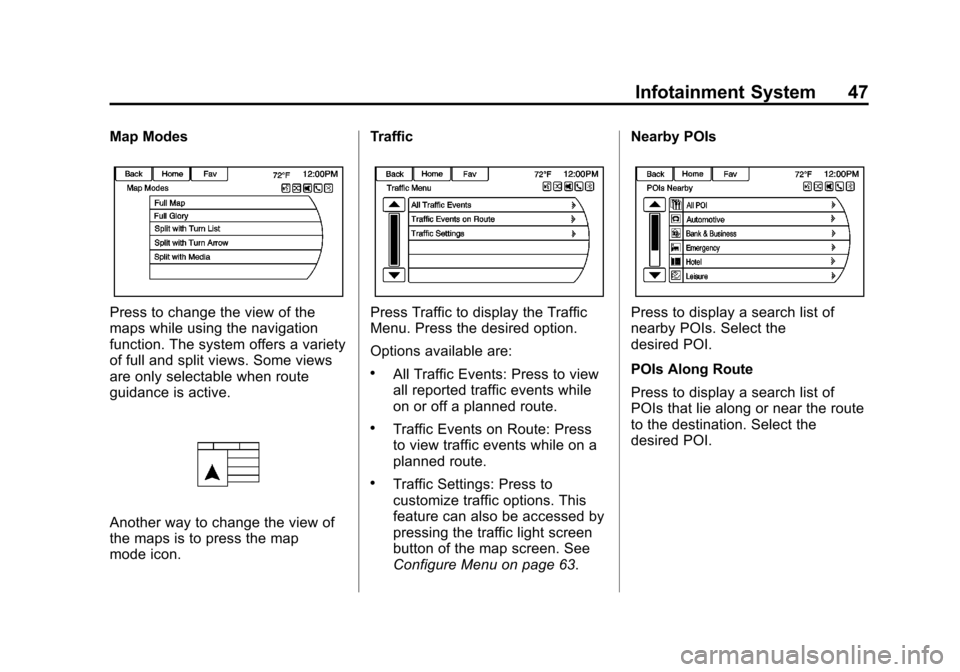
Map Modes
Press to change the view of the
maps while using the navigation
function. The system offers a variety
of full and split views. Some views
are only selectable when route
guidance is active.
Another way to change the view of
the maps is to press the map
mode icon.Traffic
Press Traffic to display the Traffic
Menu. Press the desired option.
Options available are:
.All Traffic Events: Press to view
all reported traffic events while
on or off a planned route.
.Traffic Events on Route: Press
to view traffic events while on a
planned route.
.Traffic Settings: Press to
customize traffic options. This
feature can also be accessed by
pressing the traffic light screen
button of the map screen. See
Configure Menu on page 63.Nearby POIs
Press to display a search list of
nearby POIs. Select the
desired POI.
POIs Along Route
Press to display a search list of
POIs that lie along or near the route
to the destination. Select the
desired POI.
Page 52 of 98
Black plate (52,1)Chevrolet Orlando Infotainment System (GMNA-Localizing-Canada-
6081467) - 2014 - CRC - 6/13/13
52 Infotainment System
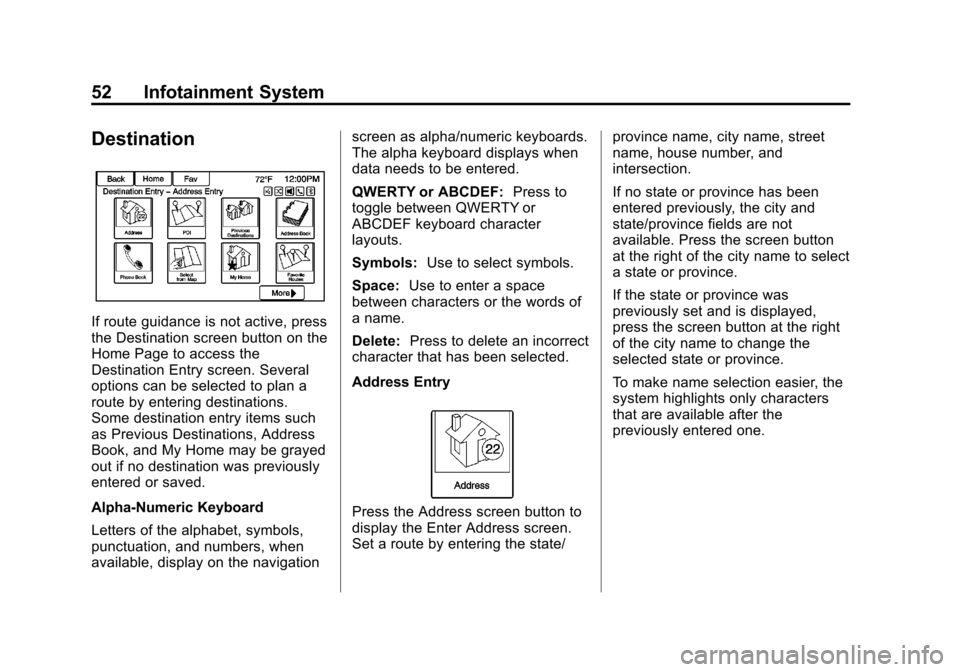
Destination
If route guidance is not active, press
the Destination screen button on the
Home Page to access the
Destination Entry screen. Several
options can be selected to plan a
route by entering destinations.
Some destination entry items such
as Previous Destinations, Address
Book, and My Home may be grayed
out if no destination was previously
entered or saved.
Alpha-Numeric Keyboard
Letters of the alphabet, symbols,
punctuation, and numbers, when
available, display on the navigationscreen as alpha/numeric keyboards.
The alpha keyboard displays when
data needs to be entered.
QWERTY or ABCDEF:
Press to
toggle between QWERTY or
ABCDEF keyboard character
layouts.
Symbols: Use to select symbols.
Space: Use to enter a space
between characters or the words of
a name.
Delete: Press to delete an incorrect
character that has been selected.
Address Entry
Press the Address screen button to
display the Enter Address screen.
Set a route by entering the state/ province name, city name, street
name, house number, and
intersection.
If no state or province has been
entered previously, the city and
state/province fields are not
available. Press the screen button
at the right of the city name to select
a state or province.
If the state or province was
previously set and is displayed,
press the screen button at the right
of the city name to change the
selected state or province.
To make name selection easier, the
system highlights only characters
that are available after the
previously entered one.
Page 61 of 98
Black plate (61,1)Chevrolet Orlando Infotainment System (GMNA-Localizing-Canada-
6081467) - 2014 - CRC - 6/13/13
Infotainment System 61
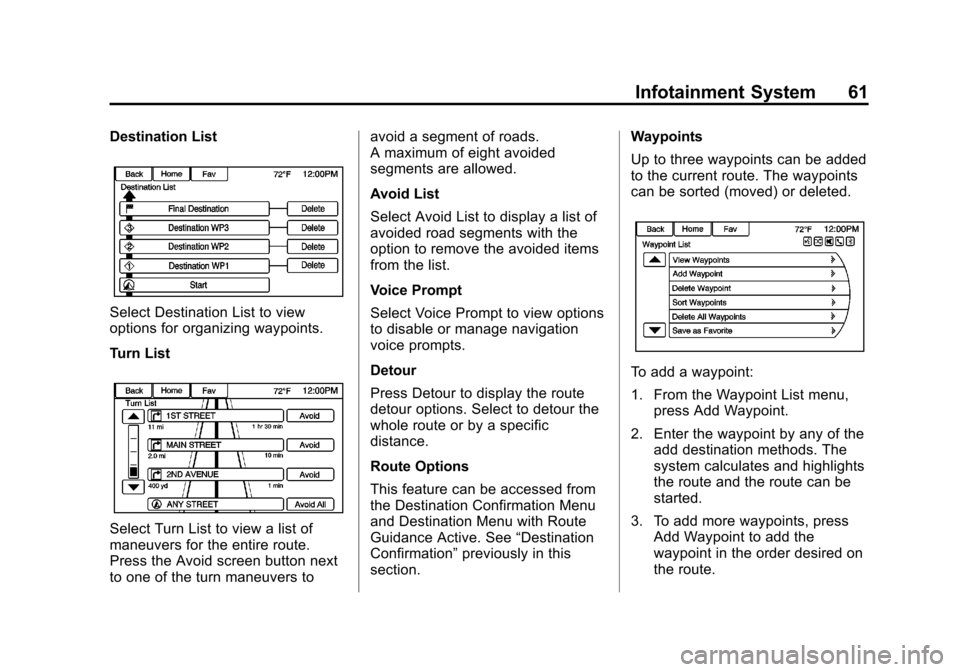
Destination List
Select Destination List to view
options for organizing waypoints.
Turn List
Select Turn List to view a list of
maneuvers for the entire route.
Press the Avoid screen button next
to one of the turn maneuvers toavoid a segment of roads.
A maximum of eight avoided
segments are allowed.
Avoid List
Select Avoid List to display a list of
avoided road segments with the
option to remove the avoided items
from the list.
Voice Prompt
Select Voice Prompt to view options
to disable or manage navigation
voice prompts.
Detour
Press Detour to display the route
detour options. Select to detour the
whole route or by a specific
distance.
Route Options
This feature can be accessed from
the Destination Confirmation Menu
and Destination Menu with Route
Guidance Active. See
“Destination
Confirmation” previously in this
section. Waypoints
Up to three waypoints can be added
to the current route. The waypoints
can be sorted (moved) or deleted.
To add a waypoint:
1. From the Waypoint List menu,
press Add Waypoint.
2. Enter the waypoint by any of the add destination methods. The
system calculates and highlights
the route and the route can be
started.
3. To add more waypoints, press Add Waypoint to add the
waypoint in the order desired on
the route.
Page 67 of 98
Black plate (67,1)Chevrolet Orlando Infotainment System (GMNA-Localizing-Canada-
6081467) - 2014 - CRC - 6/13/13
Infotainment System 67
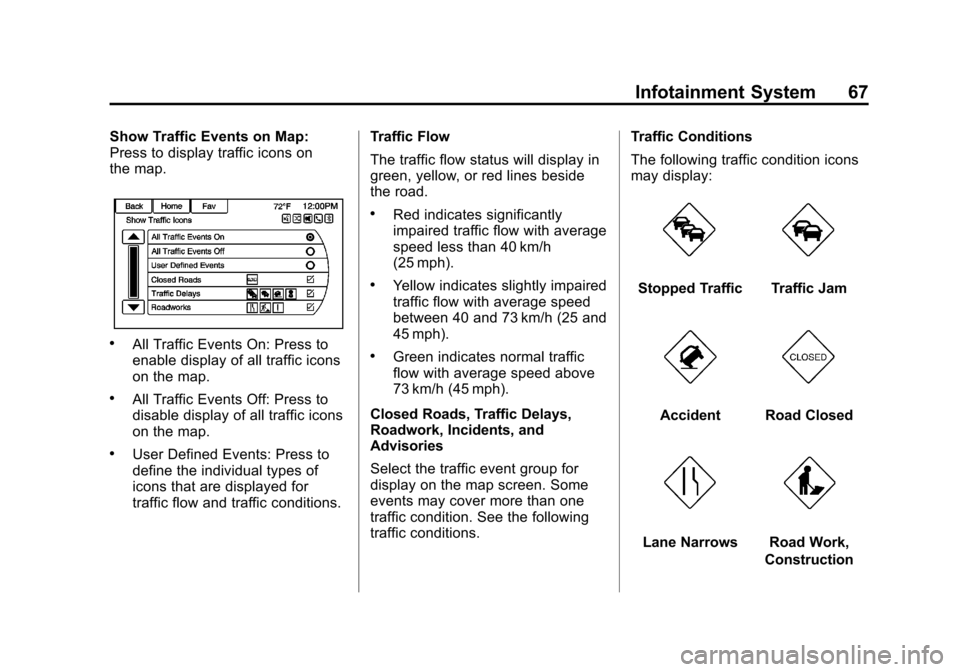
Show Traffic Events on Map:
Press to display traffic icons on
the map.
.All Traffic Events On: Press to
enable display of all traffic icons
on the map.
.All Traffic Events Off: Press to
disable display of all traffic icons
on the map.
.User Defined Events: Press to
define the individual types of
icons that are displayed for
traffic flow and traffic conditions.Traffic Flow
The traffic flow status will display in
green, yellow, or red lines beside
the road.
.Red indicates significantly
impaired traffic flow with average
speed less than 40 km/h
(25 mph).
.Yellow indicates slightly impaired
traffic flow with average speed
between 40 and 73 km/h (25 and
45 mph).
.Green indicates normal traffic
flow with average speed above
73 km/h (45 mph).
Closed Roads, Traffic Delays,
Roadwork, Incidents, and
Advisories
Select the traffic event group for
display on the map screen. Some
events may cover more than one
traffic condition. See the following
traffic conditions. Traffic Conditions
The following traffic condition icons
may display:
Stopped TrafficTraffic Jam
AccidentRoad Closed
Lane NarrowsRoad Work,
Construction
Page 69 of 98
Black plate (69,1)Chevrolet Orlando Infotainment System (GMNA-Localizing-Canada-
6081467) - 2014 - CRC - 6/13/13
Infotainment System 69
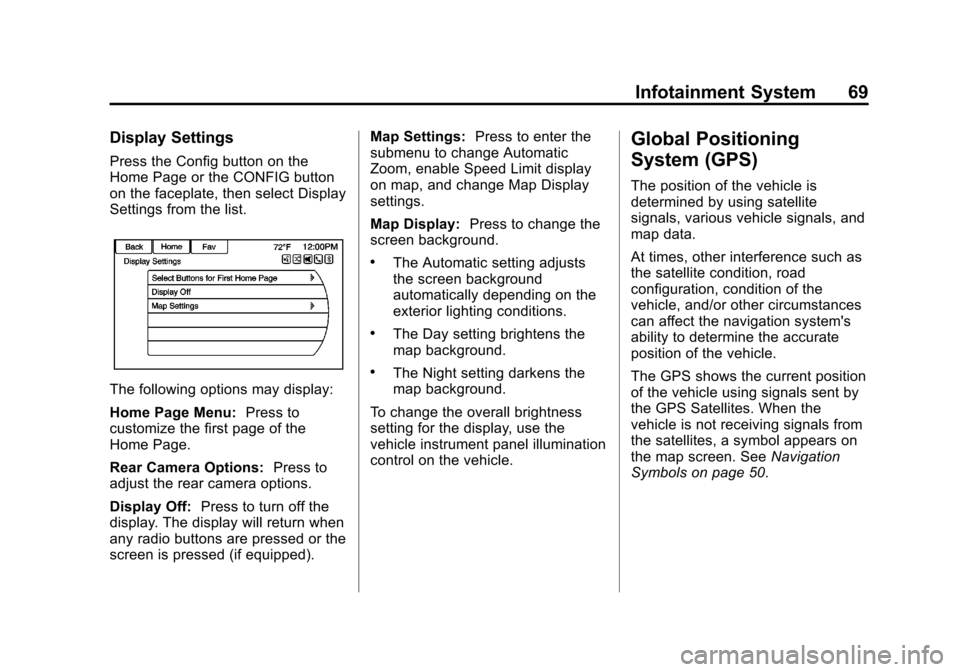
Display Settings
Press the Config button on the
Home Page or the CONFIG button
on the faceplate, then select Display
Settings from the list.
The following options may display:
Home Page Menu:Press to
customize the first page of the
Home Page.
Rear Camera Options: Press to
adjust the rear camera options.
Display Off: Press to turn off the
display. The display will return when
any radio buttons are pressed or the
screen is pressed (if equipped). Map Settings:
Press to enter the
submenu to change Automatic
Zoom, enable Speed Limit display
on map, and change Map Display
settings.
Map Display: Press to change the
screen background.
.The Automatic setting adjusts
the screen background
automatically depending on the
exterior lighting conditions.
.The Day setting brightens the
map background.
.The Night setting darkens the
map background.
To change the overall brightness
setting for the display, use the
vehicle instrument panel illumination
control on the vehicle.
Global Positioning
System (GPS)
The position of the vehicle is
determined by using satellite
signals, various vehicle signals, and
map data.
At times, other interference such as
the satellite condition, road
configuration, condition of the
vehicle, and/or other circumstances
can affect the navigation system's
ability to determine the accurate
position of the vehicle.
The GPS shows the current position
of the vehicle using signals sent by
the GPS Satellites. When the
vehicle is not receiving signals from
the satellites, a symbol appears on
the map screen. See Navigation
Symbols on page 50.