2014 CHEVROLET CAPTIVA SPORT Home
[x] Cancel search: HomePage 5 of 92
Black plate (5,1)Chevrolet Captiva Sport Infotainment System (GMNA-Localizing-US/Canada-
6225549) - 2014 - 2nd crc - 9/16/13
Infotainment System 5
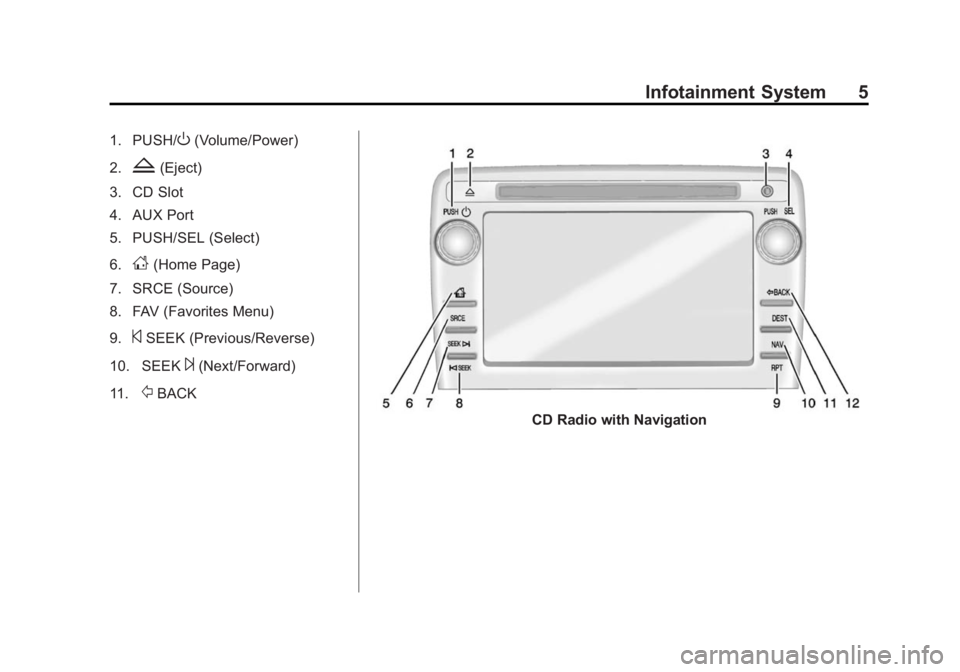
1. PUSH/O(Volume/Power)
2.
Z(Eject)
3. CD Slot
4. AUX Port
5. PUSH/SEL (Select)
6.
D(Home Page)
7. SRCE (Source)
8. FAV (Favorites Menu)
9.
©SEEK (Previous/Reverse)
10. SEEK
¨(Next/Forward)
11.
/BACK
CD Radio with Navigation
Page 6 of 92
Black plate (6,1)Chevrolet Captiva Sport Infotainment System (GMNA-Localizing-US/Canada-
6225549) - 2014 - 2nd crc - 9/16/13
6 Infotainment System
1. PUSH/O(Volume/Power)
2.
Z(Eject)
3. AUX Port
4. PUSH/SEL (Select)
5.
D(Home Page)
6. SRCE (Source)
7. SEEK
¨(Next/Forward)
8.
©SEEK (Previous/Reverse)
9. RPT (Repeat)
10. NAV (Navigation)
11. DEST (Destination)
12.
/BACK
Infotainment Controls
PUSH/O(Volume/Power):
.Press to turn the system on
and off.
.Turn to adjust the volume.
Z(Eject): Press to eject a disc
from the CD player. See CD Player
on page 28.
AUX Port: 3.5 mm (1/8 in)
connection for external audio
devices.
PUSH/SEL (Select):
.Turn to manually find a station or
highlight a menu selection.
.Press to select a highlighted
selection.
D(Home Page): Press to go to
the Home Page. See “Home Page”
in this section.
SRCE (Source): Press to change
the audio source to AM, FM,
SiriusXM
®(if equipped), Pandora®
(if equipped), Stitcher™, CD, USB,
iPod®, AUX, or Bluetooth®Audio.
FAV (Favorites Menu): In AM, FM,
or SiriusXM, press to scroll through
the favorites banner. The stored
stations for each list display on the
bottom of the screen. To store a favorite station, press and hold on
the desired position on the banner
until a beep is heard.
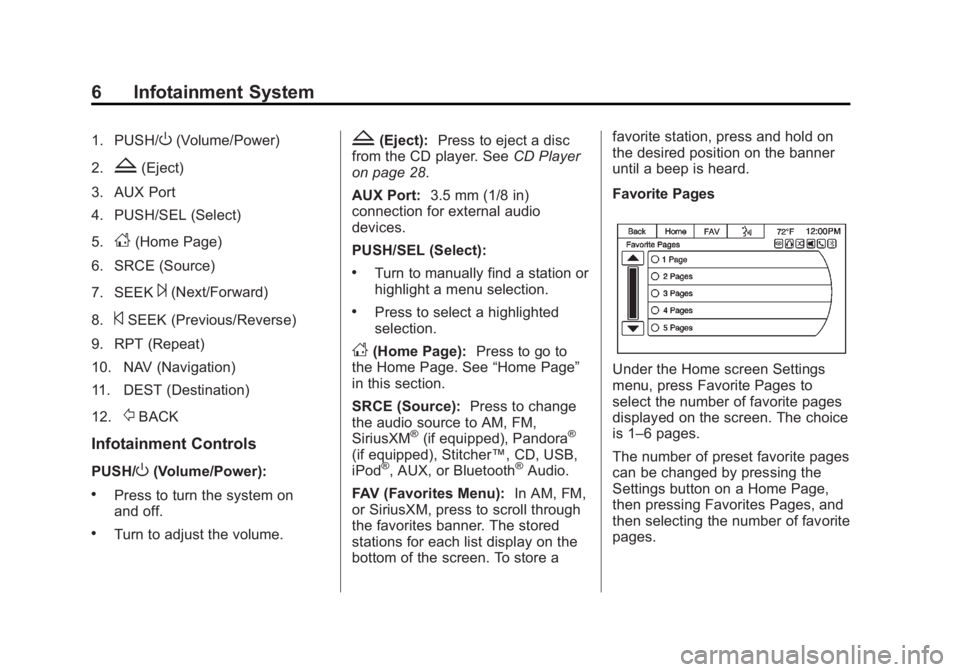
Favorite Pages
Under the Home screen Settings
menu, press Favorite Pages to
select the number of favorite pages
displayed on the screen. The choice
is 1–6 pages.
The number of preset favorite pages
can be changed by pressing the
Settings button on a Home Page,
then pressing Favorites Pages, and
then selecting the number of favorite
pages.
Page 8 of 92
Black plate (8,1)Chevrolet Captiva Sport Infotainment System (GMNA-Localizing-US/Canada-
6225549) - 2014 - 2nd crc - 9/16/13
8 Infotainment System
Steering Wheel Controls
For vehicles with audio steering
wheel controls, some audio controls
can be adjusted at the steering
wheel.
+ /−(Next/Previous): Press and
release to go to the next or the
previous preset radio station or CD
track.
J/0(Call/Mute): For vehicles with
Bluetooth®and OnStar®, press to
interact with those systems. See
Bluetooth on page 70 or“OnStar
Overview” in the owner manual. Press and and hold to mute the
vehicle speakers only. Press and
hold again to turn the sound
back on.
K(End Call):
Press to reject an
incoming call, or end a current call.
Press to silence the vehicle
speakers while using the
infotainment system. Press again to
turn the sound on.
v+ orv− (Volume): Move the
thumbwheel up or down to increase
or to decrease the volume.
Using the System
The infotainment system is
controlled by touching the screen
and by using the knobs and other
buttons.
Voice recognition, through the
steering wheel controls, can be
used to control the infotainment
features.
Press
J/0on the steering wheel
controls to begin voice recognition.
See Voice Recognition on page 63.
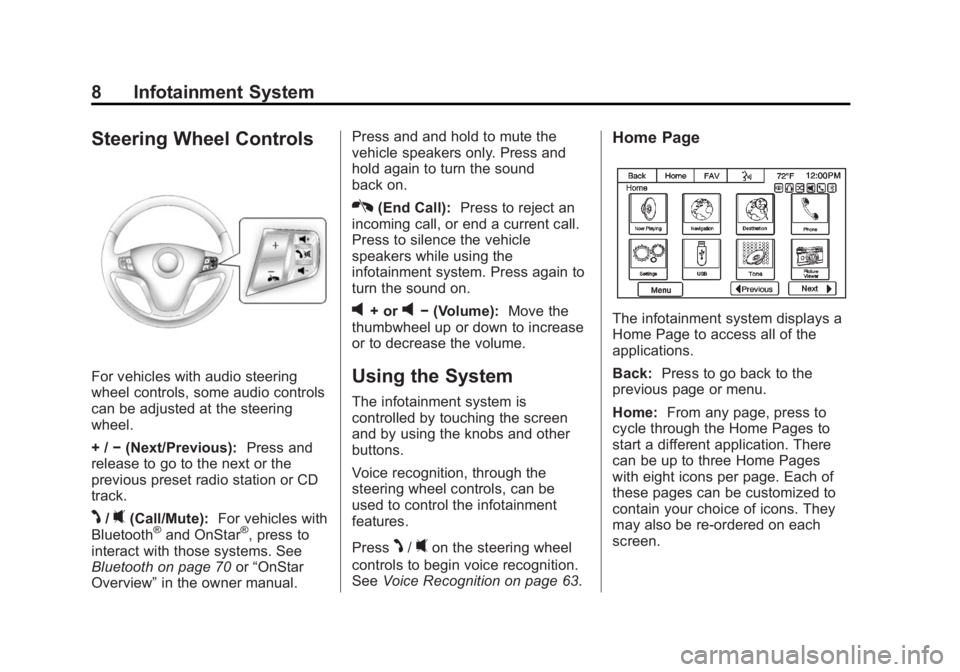
Home Page
The infotainment system displays a
Home Page to access all of the
applications.
Back: Press to go back to the
previous page or menu.
Home: From any page, press to
cycle through the Home Pages to
start a different application. There
can be up to three Home Pages
with eight icons per page. Each of
these pages can be customized to
contain your choice of icons. They
may also be re-ordered on each
screen.
Page 9 of 92

Black plate (9,1)Chevrolet Captiva Sport Infotainment System (GMNA-Localizing-US/Canada-
6225549) - 2014 - 2nd crc - 9/16/13
Infotainment System 9
FAV (Favorites):Keep pressing to
scroll through the favorites banner.
The stored stations for each list
display on the bottom of the screen.
To store a favorite station, press and
hold on the desired position on the
banner.
!(Voice Recognition): Press to
begin voice recognition. See Voice
Recognition on page 63. Press and
hold to mute the radio.
Menu: Press to enter the Home
Page menu.
Next
r: Press to go to the next
Home Page.
qPrevious: Press to go to the
previous Home Page.
Home Page Customization
All three Home Pages can be
individually customized.
To change screen buttons on the
current Home Page:
1. Press Menu.
2. Press Customize Home Page.
3. Press a screen button to add or remove from the first Home
Page. A checkmark indicates it
will be displayed. The maximum
number of buttons on any Home
Page is eight.
4. Press Done. To re-order buttons on the current
Home Screen:
1. Press Sort.
2. Press an icon to move it.
3. Press another icon to swap the
position with the icon pressed in
Step 2.
4. Press Done.
To restore Home Page defaults:
1. Press Menu.
2. Press Restore Home Page Defaults.
Home Page Features
Some features are disabled when
the vehicle is moving and some
icons may not be active.
Touch screen buttons are
highlighted in color when available
or grayed out when not available.
Various functions are disabled when
the vehicle is moving.
Page 10 of 92

Black plate (10,1)Chevrolet Captiva Sport Infotainment System (GMNA-Localizing-US/Canada-
6225549) - 2014 - 2nd crc - 9/16/13
10 Infotainment System
Press the Now Playing screen
button to display the active source
page. The sources available are
AM, FM, SiriusXM (if equipped), CD,
USB/iPod, Pandora (if equipped),
Stitcher, and AUX.
SeeAM-FM Radio on page 14,
Satellite Radio on page 19, CD
Player on page 28, USB Port on
page 34, Pandora Internet Radio on
page 19, Stitcher Internet Radio on
page 24, and Auxiliary Devices on
page 39.Press the Navigation screen button
to display a map of your current
vehicle position. See Using the
Navigation System on page 40,
Maps on page 42, Navigation
Symbols on page 43, Destination on
page 44, and Settings on page 54.
Press the Destination screen button
to display the Destination Entry
home page or the Destination Menu.
The available screen buttons
provide easy access to a variety of
ways to enter a destination. See
Destination on page 44.
Press the Phone screen button to
display the Phone main page. See
Bluetooth on page 70.
Press the Text Messaging screen
button to display a pop-up message
display stating, “Retrieving
Messages.” Once messages are
retrieved, select a message for
viewing, or press the Sent screen
button to view a listing of sent or
received messages. See Text
Messaging on page 83.
Page 12 of 92

Black plate (12,1)Chevrolet Captiva Sport Infotainment System (GMNA-Localizing-US/Canada-
6225549) - 2014 - 2nd crc - 9/16/13
12 Infotainment System
If equipped, press the Pandora
screen button to display the
Pandora home page and stream
personalized radio stations based
on artists, songs, genres, and
comedians. SeePandora Internet
Radio on page 19.
If equipped, press the Stitcher
screen button to display the Stitcher
home page and stream news,
sports, and entertainment shows
through the audio system. See
Stitcher Internet Radio on page 24.
Press the DISC screen button to
display the CD main page and play
the current or last CD track
selected. See CD Player on
page 28.
Press the Bluetooth Audio screen
button to display the Bluetooth
Audio main page and play music
through a Bluetooth device. See
Bluetooth Audio on page 39.
Press the iPod screen button to
display the iPod main page and play
the current or last track selected.
See USB Port on page 34.
Press the USB screen button to
display the USB main page and play
the current or last track selected.
SeeUSB Port on page 34.
Page 14 of 92

Black plate (14,1)Chevrolet Captiva Sport Infotainment System (GMNA-Localizing-US/Canada-
6225549) - 2014 - 2nd crc - 9/16/13
14 Infotainment System
Radio
AM-FM Radio
Playing the Radio
PUSH/O(Power/Volume):
.Press to turn the radio on or off.
.Turn to increase or decrease the
volume of the active source.
The steering wheel controls can
also be used to adjust the volume.
See Steering Wheel Controls on
page 8. Audio Source
To access AM, FM, or SiriusXM
(if equipped), do one of the
following:
.On one of the Home Pages,
press the AM, FM, or XM
(if equipped) screen button.
.Press the SRCE radio button to
scroll through the options.
A source ribbon will appear at
the bottom of the screen
allowing you to select the one
you want.
.Use voice recognition by
pressing one of the voice
recognition buttons. After the
voice prompt and the beep, say
one of the following:
“Tune AM,”
“Tune FM,” or“Tune XM,” or
“AM,” “FM,” or“XM”.
Infotainment System Settings
Tone Settings
To access the tone settings, press
the Tone button on the Home Page,
or press the PUSH/SEL knob while
in an audio source.
To adjust the settings:
.Bass: Press + or −to change
the level.
.Middle: Press + or −to change
the level.
.Treble: Press + or −to change
the level.
Page 17 of 92

Black plate (17,1)Chevrolet Captiva Sport Infotainment System (GMNA-Localizing-US/Canada-
6225549) - 2014 - 2nd crc - 9/16/13
Infotainment System 17
SiriusXM (If Equipped)
To access the XM Menu, press the
Menu screen button and the
following may display:
Favorites List:Press to display the
favorites list. XM Channel List:
Press to display
a list of SiriusXM channels.
XM Category List: Press to display
a list of SiriusXM categories.
Storing Radio Station Presets
Up to 30 preset stations can be
stored into the favorites banner: AM,
FM, and SiriusXM (if equipped) can
be mixed.
1. From the AM, FM, or XM main page, press and hold one of the
preset screen buttons at the
bottom of the screen. After a few
seconds, a beep is heard and
the new preset information
displays on that screen button.
2. Repeat for each preset.
Mixed-Band Presets
Each favorite page can store five
preset stations. The presets within a
page can be from different radio
bands. To scroll through the pages, press
FAV or the FAV screen button on the
top bar. The current page number
displays above the preset buttons.
To change the number of favorite
pages displayed:
1. Press Settings on the
Home Page.
2. Press Favorite Pages.
3. Select the number of pages to display.
Recalling a Preset Station
To recall a preset station from a
favorites page, do one the following:
.Press the FAV screen button at
the top bar to display the preset
pop-up. Press one of the preset
screen buttons to go to the
selected preset station.
.In the AM, FM, or XM (if
equipped) main page, press one
of the preset screen buttons to
go to the selected preset station.