2014 AUDI RS7 SPORTBACK key
[x] Cancel search: keyPage 88 of 292

86 Audi adaptive cruise control and braking guard
When approaching a moving vehicle up ahead,
the adaptive cruise control system automati
cally brakes to match that object's speed and
then maintains the stored distance. If the ve
h icle ahead accelerates, adaptive cruise con
trol will also accelerate up to the stored
speed.
The higher the speed , the greater the distance
in yards (meters)
c::> & . The Distance 3 setting
is recommended .
The distances prov ided are spec ified values .
Depending on the driving situation and the
how the vehicle ahead is driving, the actual
d istance may be more or less than these tar
get distances.
The various symbols for the time increments
appear briefly in the information line @
c::> page 83, fig . 91 when you change the set
tings .
~-~- --Distance 1 : This setting corre
sponds to a distance of 92 feet/28 meters
when traveling at 62 mph (100 km/h), or a
time interval of 1 second.
~--~- -Distance 2: This setting corre
sponds to a distance of 118 feet/36 meters
when traveling at 62 mph (100 km/h), or a
time inte rval of 1.3 seconds .
~--- ~-Distance 3: This setting corre
sponds to a distance of 164 feet/SO meters
when traveling at 62 mph (100 km/h), or a
time interval of 1.8 seconds .
~---- ~ Distance 4: This setting corre
sponds to a distance of 210 feet/64 meters
when traveling at 62 mph (100 km/h), or a
time interval of 2.3 seconds .
A WARNING ,. -
Following other vehicles too closely in
creases the risk of collisions and serious
personal inj ury.
- Setting short distances to the traffic
ahead reduces the time and distance
available to bring your vehicle to a safe
stop and makes it even more necessary
to pay close attention to traffic. -
Always obey applicable traffic laws, use
good judgment, and select a safe follow ing d istance for the traff ic, road and
weather conditions.
@ Tips
- Distance 3 is set automatically each time
you switch the ignition on.
- Your standard settings are automatically
stored and assigned to the remote con
trol key being used.
Selecting the driving mode
Applies to veh icles: w ith Audi adaptive cruise co ntrol
.,. Select the desired driving mode in drive se
lect
c::> page 96 .
(D Tips
Your settings are automatically stored and
ass igned to the remote control key being
used.
Prompt for dr iver intervention
Applies to veh icles: w ith Audi adaptive cruise co ntro l
Fig. 95 Instrume nt cluster: req uest fo r drive r inte rven
t ion
In certain situations, the system will prompt
yo u to take action . This could happen, for ex
amp le, if braking by the adap tive cruise con
tro l system is not enough to maintain enough
distance to the veh icle ahead .
T he indicator light
I and the symbol in the
display will war n you abo ut the situat ion
c::>fig. 95 . You wi ll also hear an acoustic signal.
- Press the brake pedal to slow yo ur vehicle
down.
Page 90 of 292

88 Audi adaptive cruise control and braking guard
stopped vehicle or stationary obstacle (end of a traffic jam or vehicle that has
broken down in traffic).
- Always remember that the radar sensor
for the braking guard works only within
defined detection and range limits that
may prevent the proper detection of oth
er vehicles.
- The radar sensor's function and range
can be reduced by rain, snow and heavy
spray . Moving vehicles up ahead may not
be promptly detected or may not be de
tected at all.
- Reflective surfaces including crash barri
ers or tunnel entrances may impair the
function of the radar sensor.
({) Tips
-You can cancel the braking with increas
ing force that is initiated by the system
by braking yourself, by accelerating no
ticeably or by swerving.
- Braking guard error messages
¢page 88.
- Keep in mind that braking guard can
brake unexpectedly . Always secure any
cargo or objects that you are transport
ing to reduce the risk of damage or in
jury.
Settings in the MMI
Applies to vehicles: with Audi adaptive cruise co ntrol
.. Select : I CARI function button > (Car)* sys
tems
control button > Driver assist > Audi
braking guard.
System -
Switch braking guard On and Off.
When you switch the ignition on, the message
Audi braking guard off appears if the system
is switched off.
Early warning -The distance and approach
warnings in the display can be switched
On/
Off.
(D Tips
- Your settings are automatically stored
and assigned to the remote control key being used at the time the settings are
made.
- If you restrict or switch off the ESC, the
braking guard also switches itself off
¢page 191.
- Switch braking guard off when you are
loading the vehicle onto a vehicle carrier,
train, ship or other type of transporta
tion. This can prevent undesired warn
ings from the braking guard system.
Messages
Applies to vehicles: with Aud i adapt ive cru ise contro l
Braking guard: off
This driver message appears if the system is
turned off via the infotainment. Otherwise , if
the system is turned off, the information ap
pears every time shortly after the start of the
trip.
The driver message also appears if the system
is not available due to a malfunction or if the
ESC is not switched on
¢ page 191. If this is
the case, the system will not provide warnings about a possible collision.
Braking guard: activated
This driver message appears if sharp brake
pressure was applied due to an acute warning.
ACC: Unavailable!
ACC and Audi braking guard: not available
The system cannot detect moving vehicles up
ahead correctly and is switched off. The sen
sors have been displaced or are not working
properly. The Audi pre sense functions may al
so be affected . Drive to your authorized Audi
dealer or authorized Audi service facility im
mediately to have the malfunction corrected.
ACC: currently unavailable. No sensor vision
ACC and braking guide: currently unavaila
ble. No sensor vision
This message appears if the sensor view is ob
structed, for example by leaves, snow, heavy
spray or dirt. Clean the sensors¢
page 81,
rg.86. ~
Page 94 of 292
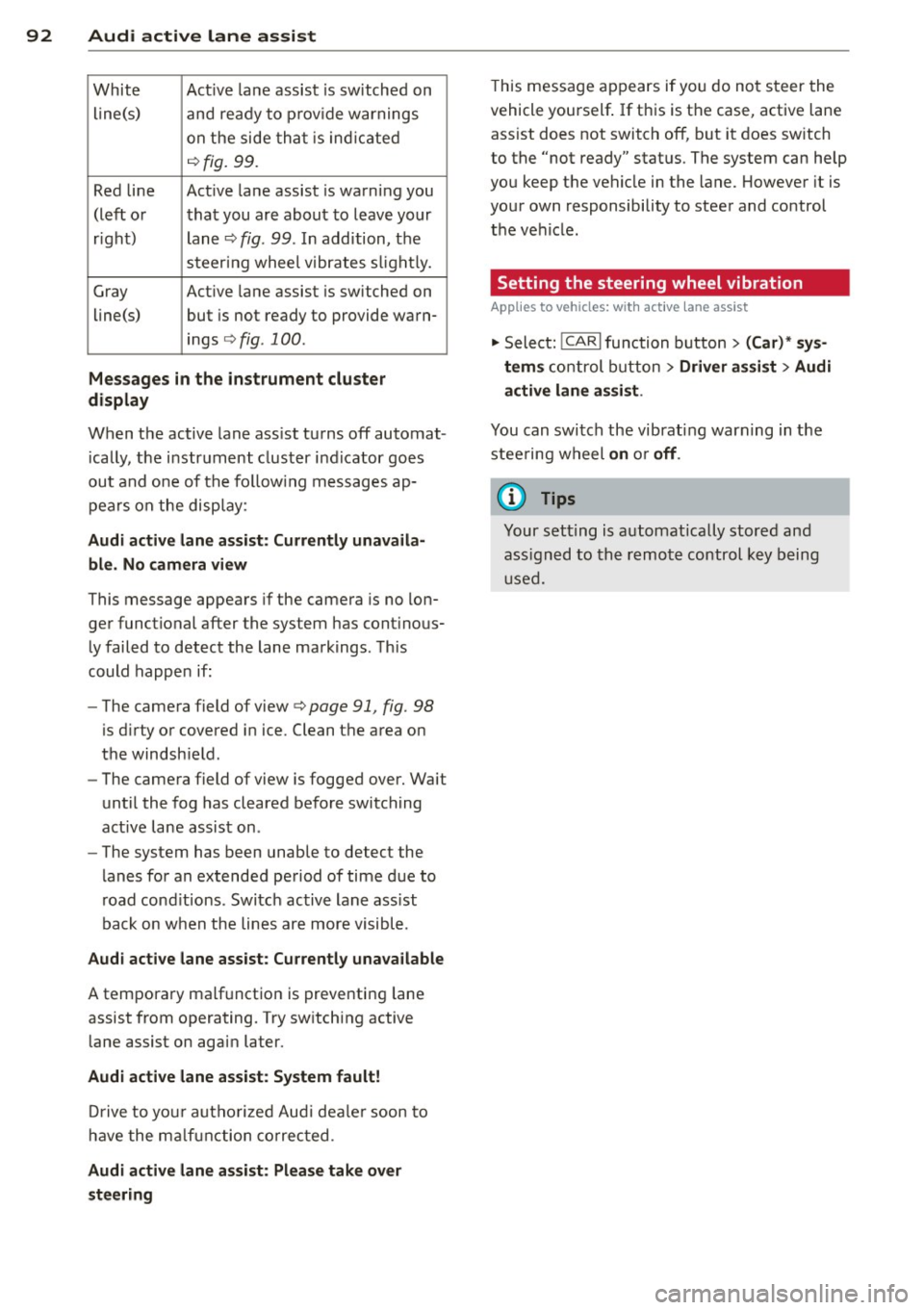
92 Audi active lane assist
White Act ive l an e assist is switched on
line(s) and ready to p rov ide warnings
on the side tha t is ind ic a ted
¢ fig. 99.
Red line Act ive l ane assist is warning you
(left o r t hat you are about to leave your
r ight) lan e
c'.> fig. 99. In addition, t he
s teer ing whee l v ibrates s lig htly.
G ray Act ive l ane assist is switched on
line(s) but is not ready to provide wa rn-
ings
c-.> fig . 100 .
Messages in the instrument cluster
display
When t he active lane ass ist tu rns off automat
i cally, t he i nstrument cluster i ndicator goes
out and one of t he fo llow ing me ssages ap
pea rs on the disp lay :
Audi active lane ass ist: Currently unavaila
ble. No camera view
This message appears if the camera is no lon
ge r functional after the system has cont inous
ly failed to detect the lane markings . T his
could happe n if:
- The camera field of view
c-.> page 91 , fig . 98
is d irty or covered i n ice. Clean t he area on
t h e windsh ie ld .
- The camera field of view is fogged over. Wait
until the fog has cleared before switching
active lane assis t on .
- The system has been unable to detect the
lanes fo r an extended pe riod of time due to
road cond itions . Switch ac tive lane ass ist
back on w hen the lines are more visible.
Audi active lane ass ist: Currently unava ilable
A tempora ry malf unct ion is preventing lane
assist from operating. Try sw itch ing active
lane assist on again later.
Audi active lane a ssist: System fault!
Dr ive to yo ur authoriz ed Au di dealer soon to
h ave the m alfunc tion co rrec ted .
Audi active lane a ssist : Please take over
steering
T his message ap pears if yo u do no t steer the
vehicle yourself . If th is is the case, active lane
ass ist does not switch off, but it does sw itch
to the "not ready" stat us. T he system can help
you keep t he vehicle in the lane. However it is
yo ur own responsibility to stee r and control
the ve hicle .
Setting the steering wheel vibration
Applies to vehicles: with active lane assist
"' Sele ct: !CARI function button> (Car) * sys
tem s
con trol button > Driver assi st > Audi
active lane assi st.
You can swi tc h the vibrating warn ing in the
stee ring w heel
on or off .
(D Tips
Your s etting is a utom atically store d and
ass igned to the rem ote control key b eing
u sed.
Page 97 of 292
Have your authorized Audi dealer or au
thorized A udi Service Facility check the ir
function.
@ Tips
- If the win dow g lass in the driver 's door
or front passenger's door has been tint
ed, the disp lay in the exterior m irror may
be misinterp reted .
- For Decla rat ion of Compliance to United
States FCC and Industry Canada regula
tions
¢ page 2 76.
Activating and deactivating
Applies to vehicles: mit side assist
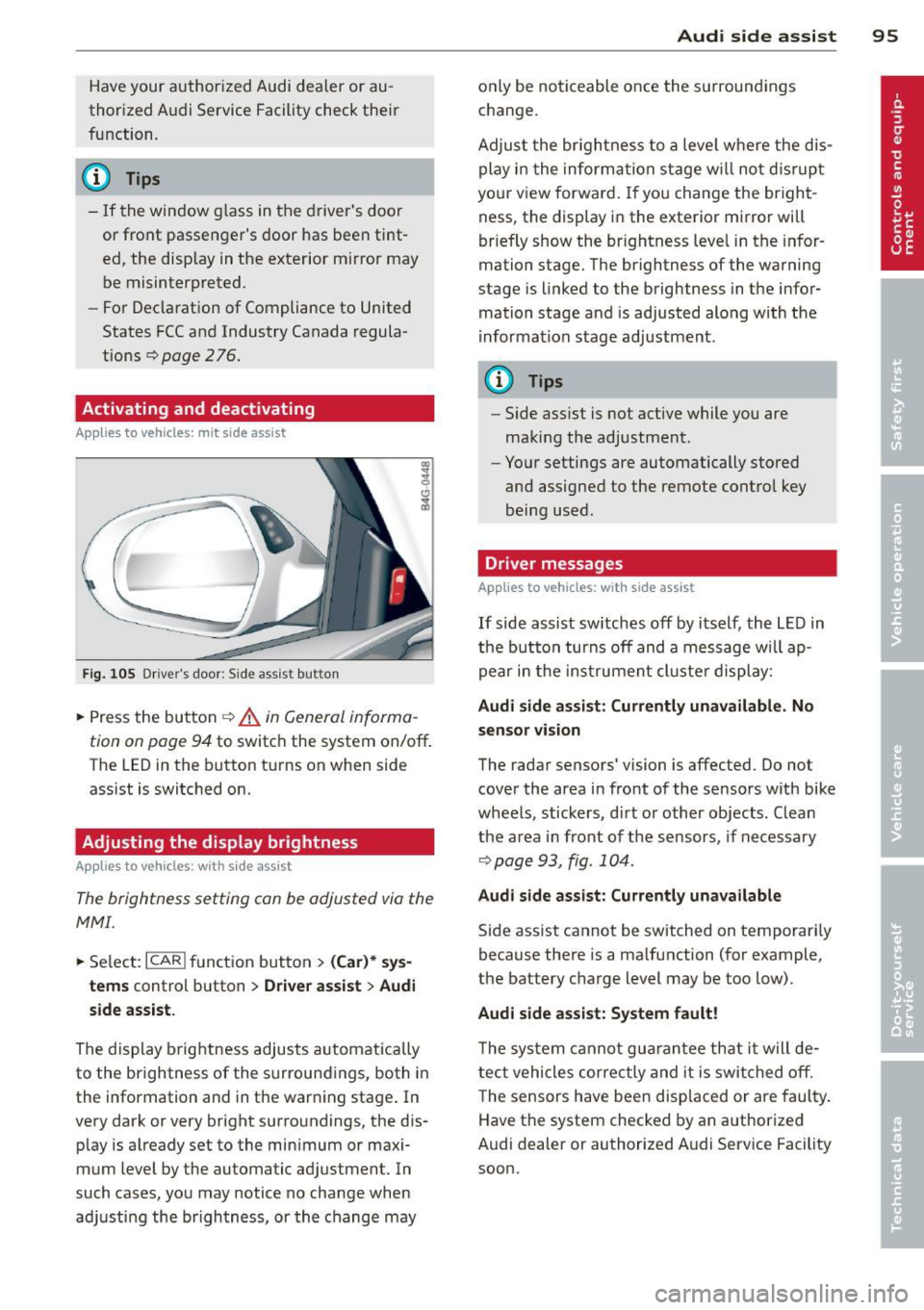
Fig. 10 5 Drive r's d oor : Sid e ass is t butt on
.. Press the but ton ¢ .&. in General informa
tion on page 94
to switch the system on/off .
The LED in the button t urns on when side
ass ist is switc hed on.
Adjusting the display brightness
Applies to vehicles: with side assist
The brightness setting can be adjusted via the
MMI.
.. Se lect : ICAR I function button> (Car)* sys
tems
contro l button > Drive r assist > Audi
side assist.
The display brig htness adjusts a utomatically
to the brightness of the surroun dings, both in
the information and in the warn ing stage . In
very dark or very bright surro undings, the dis
p lay is a lready set to the min imum or maxi
mum Level by the automatic ad justment. In
such cases, you may notice no cha nge when
a d ju sting the brightness, or the change may
Aud i side assist 95
only be no ticeable once the s urround ings
c hange.
Adjus t the br igh tness to a leve l where the dis
play i n the informa tion stage w ill no t dis rup t
your view forward . If you change the br igh t
ness, the display in the exterior mirror will
brief ly show the br ightness leve l in the infor
mation stage. The brightness of the warning
stage is linked to the brightness in the infor
mation stage and is adjusted alo ng with the
i nfor mation stage ad justment.
(D Tips
- Side ass ist is not act ive while you are
making the adjustment .
- Yo ur settings are automatically stored
and assigned to the remote contro l key
being used.
Driver messages
Applies to vehicles: with side assist
If side assist sw itches off by i tself, the L ED in
t he b utto n turns off and a message wi ll ap
pe ar in the inst rume nt cl uste r d is play:
Audi side assist: Currently unavailable. No
sensor vi sion
The rada r sensors' vision is affected. Do not
cover the area in fro nt of the sensors with bike
whee ls, sticke rs, d irt o r other objects. Clean
the a rea in front of the sensors, if necessary
¢page 93, fig . 10 4.
Audi side assist: Currently unavailable
Side assist cannot be switched on temporari ly
because there is a malfunction (for example,
the battery c ha rge level may be too low) .
Audi side assist: System fault !
The sy stem cannot gu arant ee th at it w ill de
tect vehicles correctly and it is swi tched o ff.
T he sensors have been disp laced or are faul ty .
Have the system checked by an authorized
A udi dealer or authorized A udi Service Facility
soon.
Page 100 of 292
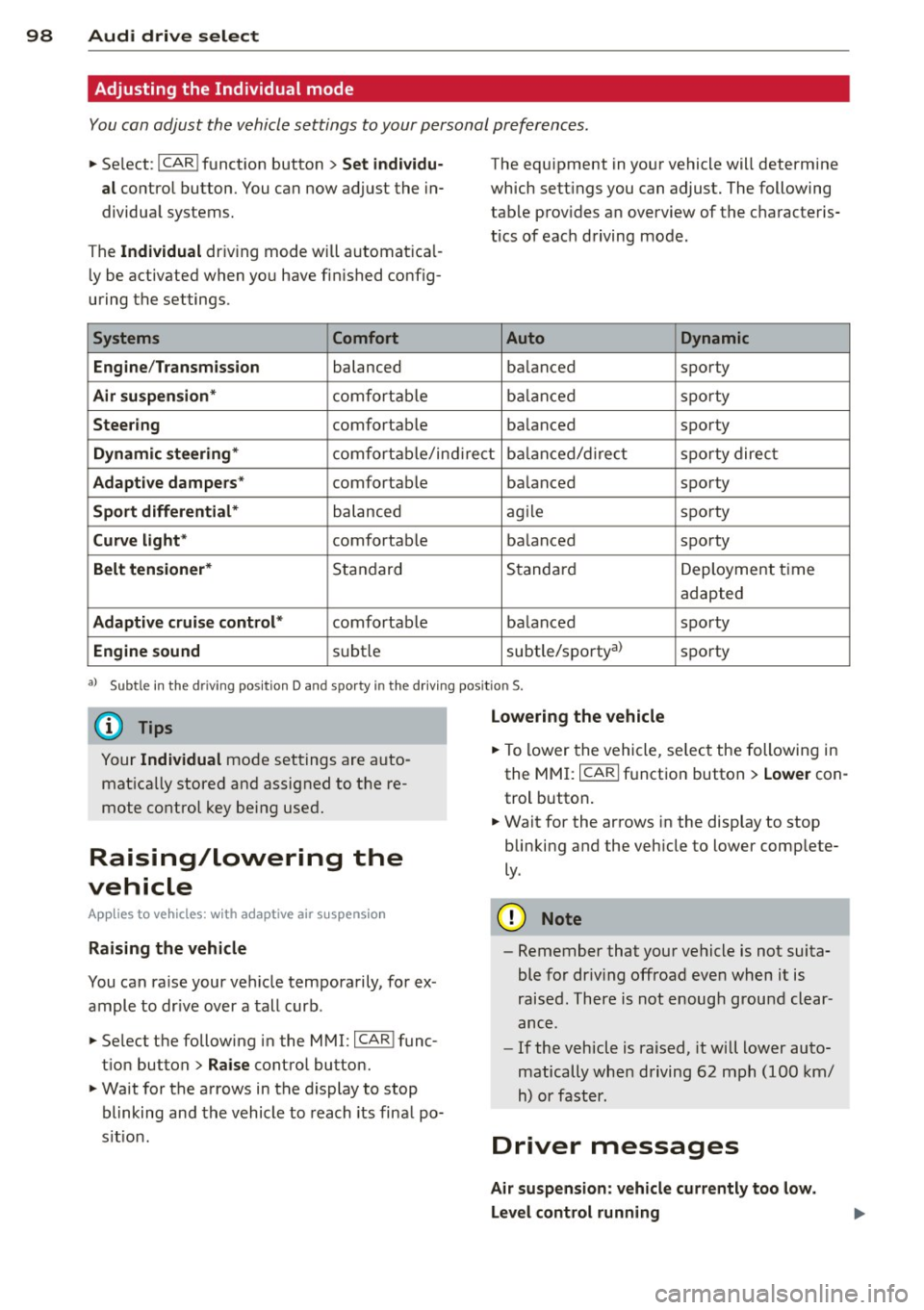
98 Audi drive select
Adjusting the Individual mode
You can adjust the vehicle settings to your personal preferences .
• Se lect : I CAR ! function button > Set individu
al
control button. You can now adjust the in
dividual systems.
The
Individual dr iving mode will automatica l
ly be activated when you have finished config
uring the settings .
Systems Comfort
Engine /Transmission
balanced
Air suspension* comfortable
Steering comfortable The equipment
in your vehicle will determine
which settings you can adjust. The following
table provides an overview of the characteris
tics of each driving mode.
Auto Dynamic
balanced sporty
balanced sporty
balanced sporty
Dynamic steering* comfortable/indirect balanced/direct sporty direct
Adaptive dampers* comfortable balanced sporty
Sport differential* balanced agile sporty
Curve
light* comfortable balanced sporty
Belt tensioner* Standard Standard
Deployment time
adapted
Adaptive cruise control* comfortable balanced sporty
Engine sound subtle subtle/sportyal sporty
al
Sub tle in th e d riving po sit ion D an d sp orty in the driv ing pos itio n S.
(D Tips
Your Individual mode settings are auto
matically stored and assigned to the re
mote control key being used.
Raising/lowering the
vehicle
App lies to vehicles: with adaptive air suspension
Raising the vehicle
You can raise your vehicle temporarily, for ex
ample to drive over a tall curb.
• Se lect the following in the MMI: ICAR!func
tion button>
Raise control button.
• Wait for the arrows in the display to stop
blinking and the vehicle to reach its final po
s it ion .
Lowering the vehicle
• To lower the vehicle, select the following in
the MMI: ICARI function button >
Lower con
trol button.
• Wait for the arrows in the display to stop
blinking and the vehicle to lower complete
ly .
(D Note
- Remember that your vehicle is not suita
ble for dr iv ing offroad even when it is
raised. There is not enough ground clear
ance .
- If the vehicle is raised, it will lower auto
matically when driving 62 mph (100 km/
h) or faster.
Driver messages
Air suspension: vehicle currently too low.
Level control running
Page 122 of 292
120 Parking systems
Parking aid > Change to front/rear > Auto
or Manual.
Auto -
This view behind the vehicle (Rear
mode) is displayed automatically when you
shift into reverse . This view in front of the ve
hicle
( Front mode) is disp layed automatically
when you shift into the forward gears.
Manual -This view behind the vehicle (Rear
mode) is a lways disp layed when you turn on
the system.
Adjusting the display and the warning tones
Applies to vehicles: with parking system plus/rear view
camera/peripheral cameras
The display and warning tones can be adjust
ed in the Infotainment.
.. Se lect: I CAR ! function button > (Car)* sys
tems
control button > Driver assist > Park
ing aid.
Display
On* -
optical display is shown for the parking
system plus, rear view came ra image is shown
for parking system plus with rear view cam
era*.
Off -when the parking system is switched off,
on ly audib le signals are given.
Warning tones
Front volume -
Volume for the front area
Rear volume -Volume for the rear area
Front frequency -Frequency for the front area
Rear frequency -Frequency for the rear area
Music volume while parking -When the park
ing system is tu rned on, the volume of the au
dio/video source is lowered.
The newly adjusted value is briefly heard from
the signa l gene rator .
(D Tips
-The warning tones can a lso be adjusted
directly from the visual display or the rear v
iew camera* image. Simply press
the
Settings control button.
- Changed settings are activated when the
parking system is switched on again.
- The settings are automatically stored
and assigned to the remote cont rol key
that is in use .
Error messages
Applies to vehicles: with parking system plus/rear view
camera/peripheral cameras
T here is an error in the system if the LED in
the
p, q~ button is blinking and you hear a con
tinuous alarm for a few seconds after switch
ing on the parking system or when the park
ing system is already activated. If the error is
not corrected before you switc h
off the igni
tion, the LED in the
Pwi button will blink the
next t ime you sw itch on the parking system by
shifting into reverse.
Parking system plus
If a sensor is fa ulty, the~ symbol will appear
in front of/behind the vehicle in the Infotain
ment display. If a rear sensor is faulty, only
obstacles that are in areas @ and ® are
shown
Q page 111, fig. 121. If a front sensor
is faulty, only obstacles that are in areas ©
and @are shown.
Peripheral cameras*
There is also a system error if:
- the
i:80 ·• symbol appears in the display and
the corresponding display area is shown in
blue. The camera is not working in this area.
- all segments aro und the vehicles are red or
if no segments are displayed.
Drive to your authorized Audi dealer or au
thorized repa ir facility immed iately to have
the malfunction corrected.
Page 124 of 292
122 Homelink
@ Tips
To open t he ga rage door, p ress the butto n,
but do not press it for longer ten seco nds
or the Homelink modu le w ill switch to
programming mode.
Programming the transmitter
App lies to vehicles: with Home link
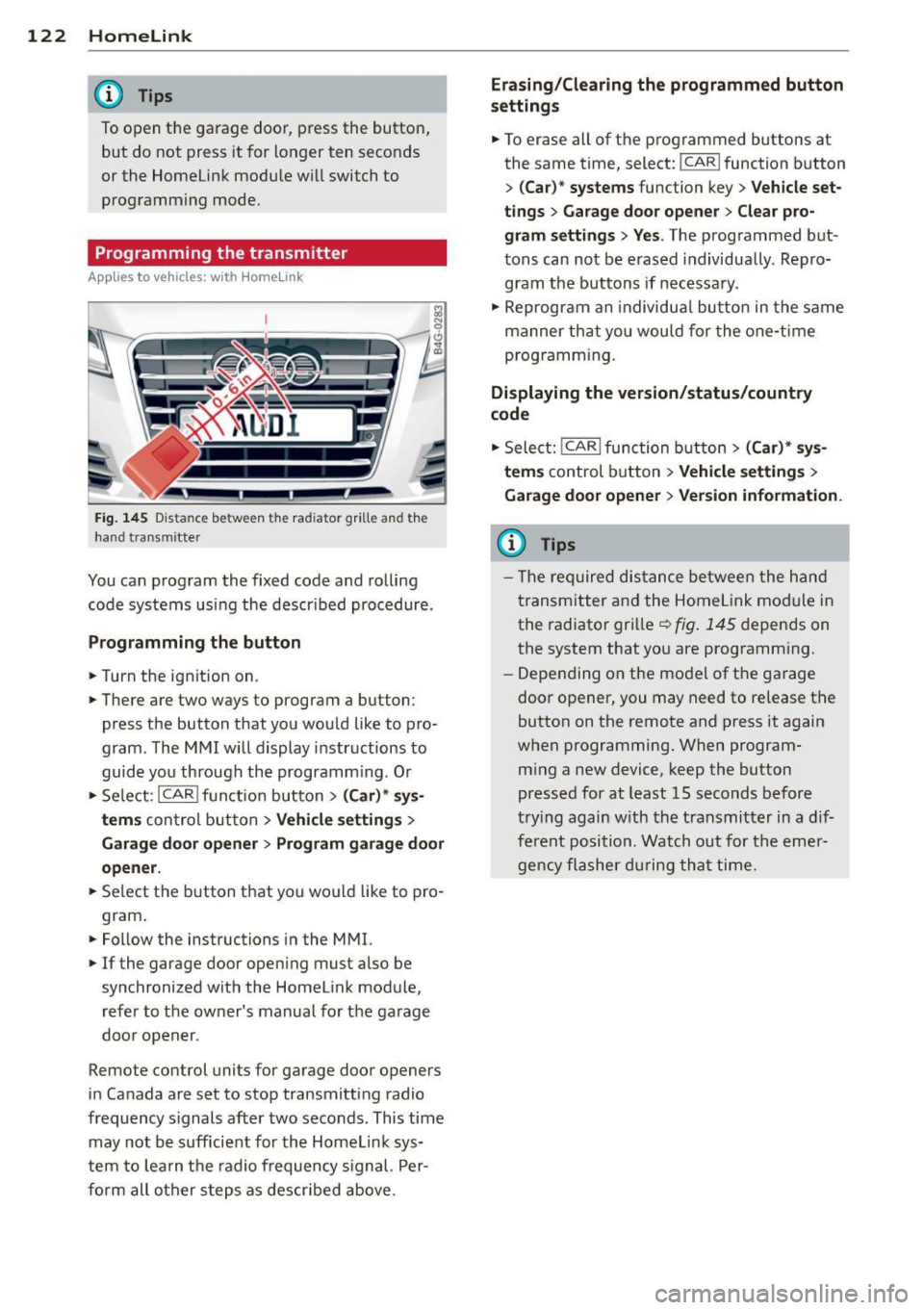
Fig. 145 Dis ta n ce between t he rad iator gr ille and the
hand t ransm itte r
You can prog ram the fixed code and ro lling
code systems us ing the descr ibed procedure .
Programming the button
.. Turn the ign ition on .
.. There are two ways to program a button:
press the button that you wou ld like to pro
gram . The M MI w ill display instructions to
guide yo u through the progr amm ing. Or
.. Se le ct: I CAR I f u ncti on but ton>
(Car) * sys ·
terns
con tro l bu tton > Vehicle settings >
Garage door opener > Program garage door
opener .
.. Se lect t he b utton t hat yo u wo uld like to pro
gram .
.. Fo llow the instructions i n the MMI.
.. If the garage door ope ning must also be
synchronized wit h the Homel ink module,
re fer to the ow ner's manual fo r the ga rage
doo r open er.
Remote control units for garage door openers
in Canada are set to s top transmitting radio
frequency signals after two seconds. This time may not b e sufficient for th e Homel ink sys
tem to lea rn t he radio frequency s ignal. Per
form all o ther step s as descr ibed above.
Erasing/Clearing the programmed button
settings
.. To erase all of t he p rogrammed buttons at
the same time , select: !C A R!function button
>
( Car )* systems function key > Vehicle set
tings
> Garage door opener > Clear pro·
gram settings > Yes .
The prog rammed but
tons can not be erased individua lly. Repro
g ram the b uttons if necessa ry .
.. Reprogr am an individu al bu tton in the same
manner th at you wou ld for the one-t ime
prog ramm in g .
Displaying the version/status/country
code
.. Sele ct: I CAR I func tion button > (Car )* sys
tems
control b utt on > Vehicle settings >
Garage door opener
> Version information.
(D Tips
- T he re qu ired dis tance betwee n the h and
tr ansm itter a nd the Homelink module in
the radiator grill e~
fig . 145 depen ds on
the system that yo u are prog ramm ing .
- Depe nding on the mode l of t he ga ra g e
door o pener, you may need to release t he
button on the rem ote and press it again
when programming . When program·
m ing a new device, keep the button
presse d for at least 15 seconds befor e
tr ying again w ith the t ransmit ter in a dif
fe re nt po sition. Watch out f or th e eme r
ge ncy fl ashe r dur in g tha t time.
Page 138 of 292
136 Safety belts
Important safety instructions about
safety belts
Safety belts must always be correctly posi
tioned across the strongest bones of your
body.
,.. Always wear safety belts as illustrated and
described in this chapter.
,.. Make sure that your safety belts are always
ready for use and are not damaged.
A WARNING
Not wearing safety belts or wearing them
improperly increases the risk of serious
personal injury and death. Safety belts can
work only when used correctly .
- Always fasten your safety belts correctly
before driving
off and make sure all pas
sengers are correctly restrained.
- For maximum protection, safety belts must always be positioned properly on
the body .
- Never strap more than one person , in
cluding small children, into any belt.
- Never place a safety belt over a child sit ting on your lap.
- Always keep feet in the footwell in front
of the seat while the vehicle is being driv
en .
- Never let any person ride with their feet on the instrument panel or sticking out
the window or on the seat.
- Never remove a safety belt while the ve
hicle is moving. Doing so will increase
your risk of be ing injured or killed.
- Never wear belts twisted.
- Never wear belts over rigid or breakable
objects in or on your clothing, such as
eye glasses, pens, keys, etc., as these
may cause injury.
- Never allow safety belts to become dam
aged by being caught in door or seat
hardware .
- Do not wear the shoulder pa rt of the belt
under your arm or otherwise out of pos i
tion . -
Several layers of heavy clothing may in
terfere with correct positioning of belts
and reduce the overall effectiveness of
the system .
- Always keep belt buckles free of anything
that may prevent the buckle from latch
ing securely .
- Never use comfort clips or devices that
create slack in the shoulder belt . Howev
er, special clips may be required for the
proper use of some child restraint sys
tems .
- Torn or frayed safety belts can tear, and
damaged belt hardware can break in an
accident. Inspect belts regularly .
If web
bing, bindings, buck les, or retractors are
damaged, have belts replaced by an au
thorized Audi dealer or qualified work
shop.
- Safety belts that have been worn and
loaded in an accident must be replaced
with the correct replacement safety belt
by an authorized Audi dealer . Replace
ment may be necessary even if damage
cannot be clearly seen . Anchorages that
were loaded must also be inspected.
- Never remove, modify, disassemble, or
try to repair the safety belts yourself.
- Always keep the belts clean. Dirty belts
may not work properly and can impair
the function of the inert ia reel
c::> ta
ble Cleaning interior on page 205 .
Safety belts
Fastening safety belts
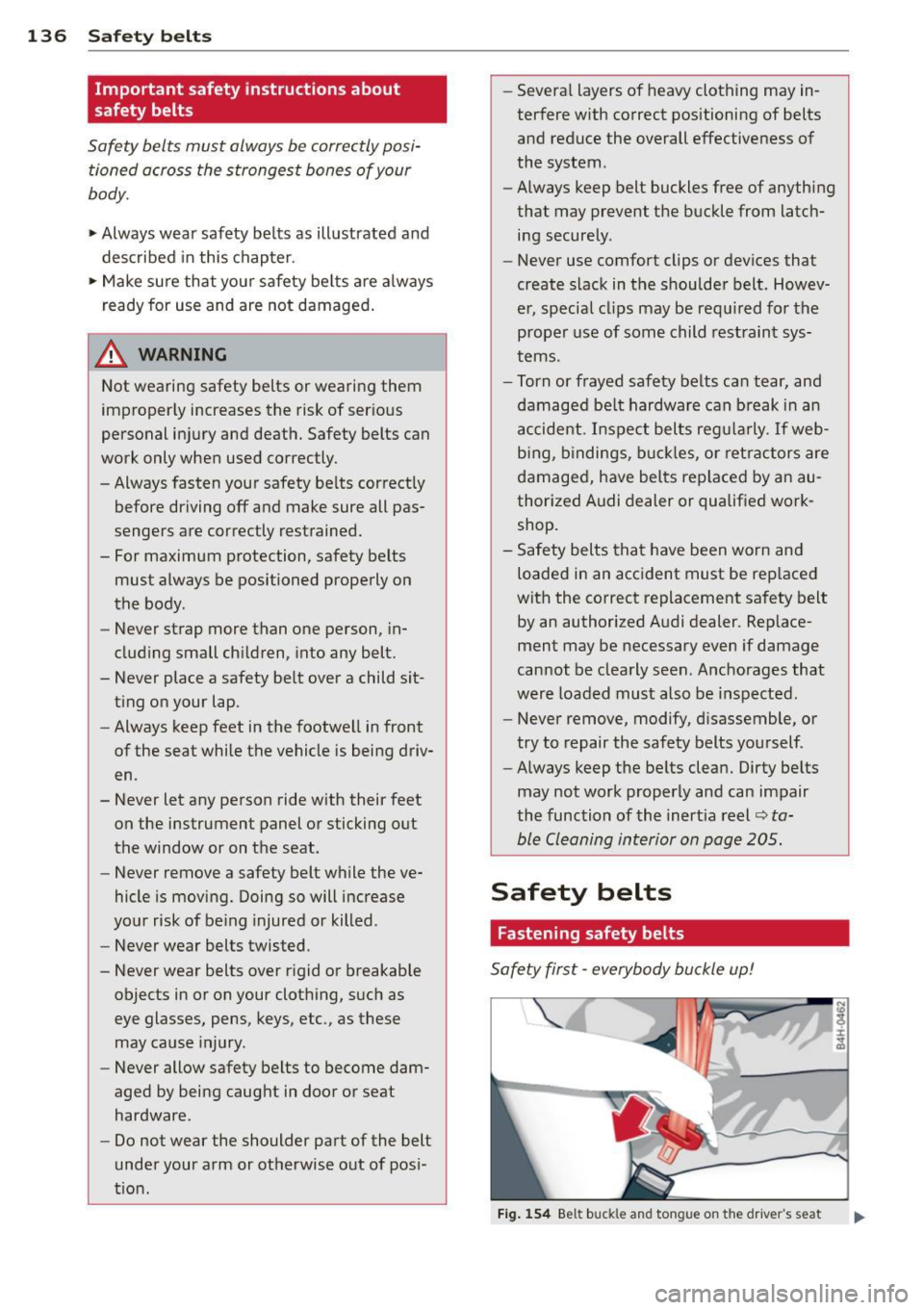
Safety first -everybody buckle up!
Fig. 154 B elt buck le and to ngue o n th e drive r's se at