Page 252 of 532
252 3-2. Using the audio system
●Extensions
If the file extensions .mp3 and .wma are used for files other than MP3 and
WMA files, they will be mistakenly recognized and played as MP3 and
WMA files. This may result in large amounts of interference and damage
to the speakers.
● Playback
• To play MP3 file with steady sound quality, we recommend a fixed bit
rate of at least 128 kbps and a sampling frequency of 44.1 kHz.
• CD-R or CD-RW playback may not be possible in some instances, depending on the characteristics of the disc.
• There is a wide variety of freeware and other encoding software for MP3 and WMA files on the market, and depending on the status of the
encoding and the file format, poor sound quality or noise at the start of
playback may result. In some cases, playback may not be possible at
all.
• When files other than MP3 or WMA files are recorded on a disc, it may take more time to recognize the disc and in some cases, playback may
not be possible at all.
• Microsoft, Windows, and Windows Media are the registered trade- marks of Microsoft Corporation in the U.S. and other countries.
NOTICE
■ CDs and adapters that cannot be used
P. 242
■ CD player precautions
P. 243
Page 269 of 532
269
3-2. Using the audio system
3
Interior features
NOTICE
■
To prevent damage to USB memory
●Do not leave USB memory in the vehicle. The temperature inside the vehi-
cle may become high, resulting in damage to the player.
● Do not push down on or apply unnecessary pressure to the USB memory
while it is connected as this may damage the USB memory or its terminal.
● Do not insert foreign objects into the port as this may damage the USB
memory or its terminal.
Page 280 of 532
280
3-3. Using the Bluetooth® audio system
Bluetooth® audio/phone
■Conditions affecting operation
The Bluetooth
® audio/phone may not operate normally in the following situa-
tions:
● The portable player does not support Bluetooth
®
●The cellular phone is located outside the service area
● The Bluetooth
® device is switched off
● The Bluetooth
® device has a low battery
● The Bluetooth
® device is not connected to the system
● The Bluetooth
® device is behind the seat or in the glove box or console
box, or metal material covers or touches the device
■ Bluetooth® audio
The Bluetooth
® audio system enables yo u to enjoy music played
on a portable digital audio player (portable player) from the vehi-
cle speakers via wireless communication.
This audio system supports Bluetooth
®, a wireless data system
capable of playing portable audi o music without cables. If your
portable player does not support Bluetooth
®, the Bluetooth®
audio system will not function.
■ Bluetooth
® phone (hands-free phone system)
This system supports Bluetooth
®, which allows you to make or
receive calls without using cables to connect a cellular phone
and the system, and without operating the cellular phone.
: If equipped
Page 281 of 532
281
3-3. Using the Bluetooth
® audio system
3
Interior features
■
When transferring ownership of the vehicle
Be sure to initialize the system to prevent personal data from being improp-
erly accessed. ( P. 301)
■ About Bluetooth
®
■Compatible models
●Bluetooth
® specifications:
Ver. 1.1, or higher (recommended: Ver. 2.1 + EDR or higher)
● Following Profiles:
• A2DP (Advanced Audio Distribution Prof ile) Ver. 1.0, or higher (recom-
mended: Ver. 1.2 or higher)
• AVRCP (Audio/Video Remote Control Pr ofile) Ver. 1.0 or higher (rec-
ommended: Ver. 1.3 or higher)
Portable players must correspond to the above specifications in order to be
connected to the Bluetooth
® audio system. However, please note that some
functions may be limited depending on the type of portable player.
● Cellular phone
• HFP (Hands Free Profile) Ver. 1.0 or higher (recommended: Ver. 1.5)
• OPP (Object Push Profile) Ver. 1.1
• PBAP (Phone Book Access Profile) Ver. 1.0
CAUTION
■Caution while driving
●Do not use a cellular phone.
● Do not connect Bluetooth
® device or operate the controls.
Bluetooth is a registered trademark of
Bluetooth SIG. Inc.
Page 285 of 532
285
3-3. Using the Bluetooth
® audio system
3
Interior features
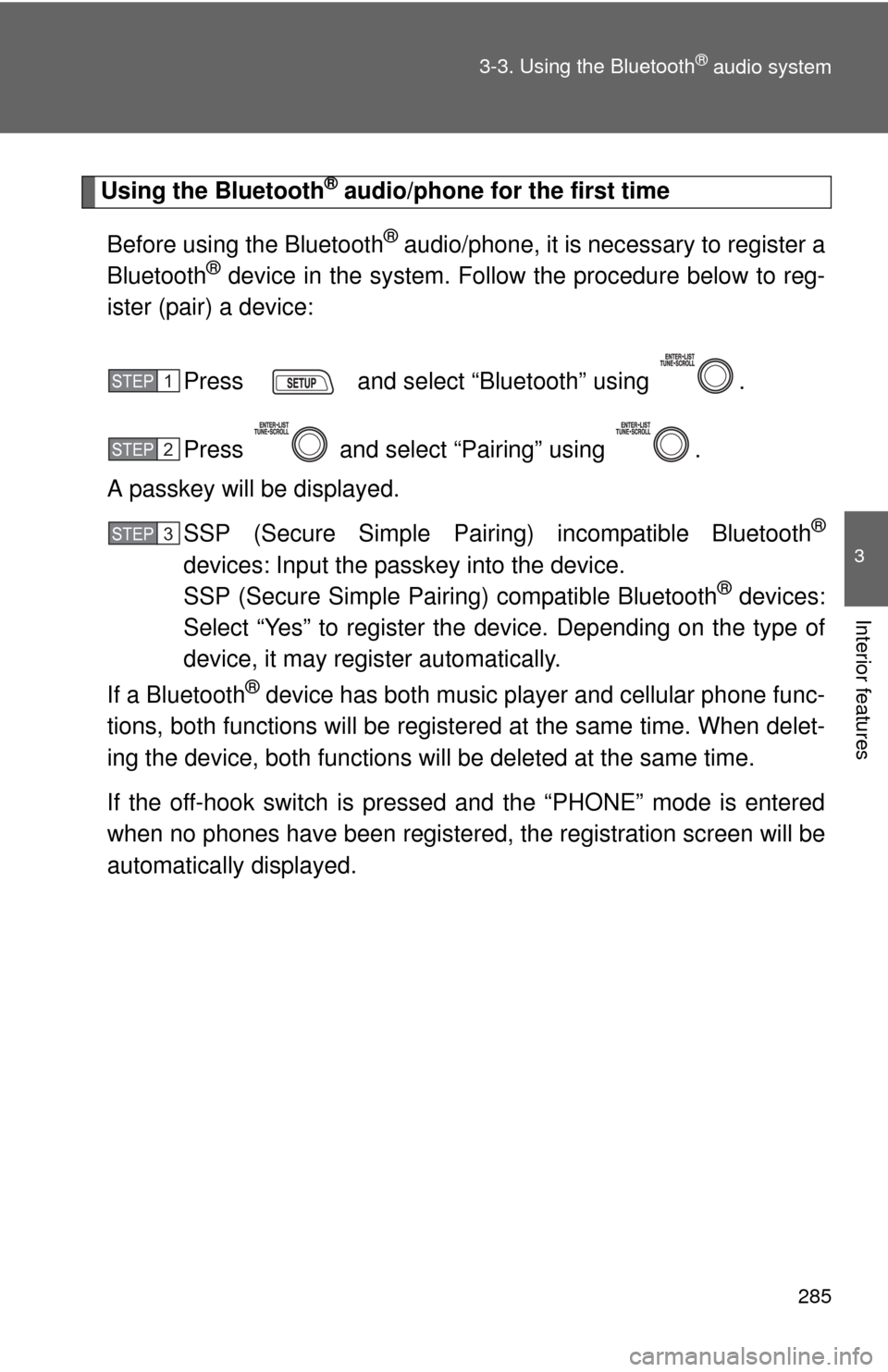
Using the Bluetooth® audio/phone for the first time
Before using the Bluetooth
® audio/phone, it is necessary to register a
Bluetooth® device in the system. Follow the procedure below to reg-
ister (pair) a device:
Press and select “Bluetooth” using .
Press and select “Pairing” using .
A passkey will be displayed.
SSP (Secure Simple Pairin g) incompatible Bluetooth
®
devices: Input the passkey into the device.
SSP (Secure Simple Pairing) compatible Bluetooth® devices:
Select “Yes” to register the device. Depending on the type of
device, it may register automatically.
If a Bluetooth
® device has both music player and cellular phone func-
tions, both functions will be regist ered at the same time. When delet-
ing the device, both f unctions will be deleted at the same time.
If the off-hook switch is pressed and the “PHONE” mode is entered
when no phones have been registered, the re gistration screen will be
automatically displayed.
STEP 1
STEP 2
STEP 3
Page 286 of 532
286 3-3. Using the Bluetooth
® audio system
Menu list of the Bluetooth® audio/phone
First menuSecond menuThird menuOperation details
“Bluetooth” “BT Pairing” -
Registering a
Bluetooth
® device
“List Phone” - Listing the registered
cellular phones
“List Audio” - Listing the registered
portable players
“Passkey” - Changing the passkey
“BT Power” - Setting automatic
connection of the device
on or off
“Bluetooth info” “Device Name”
“Device
Address”Displaying the device
status
“Display
Setting” -Setting the automatic
connection confirmation
display to on or off
“Initialize” - Initializing the settings
Page 288 of 532
288
3-3. Using the Bluetooth® audio system
Operating a Bluetooth® enabled portable player
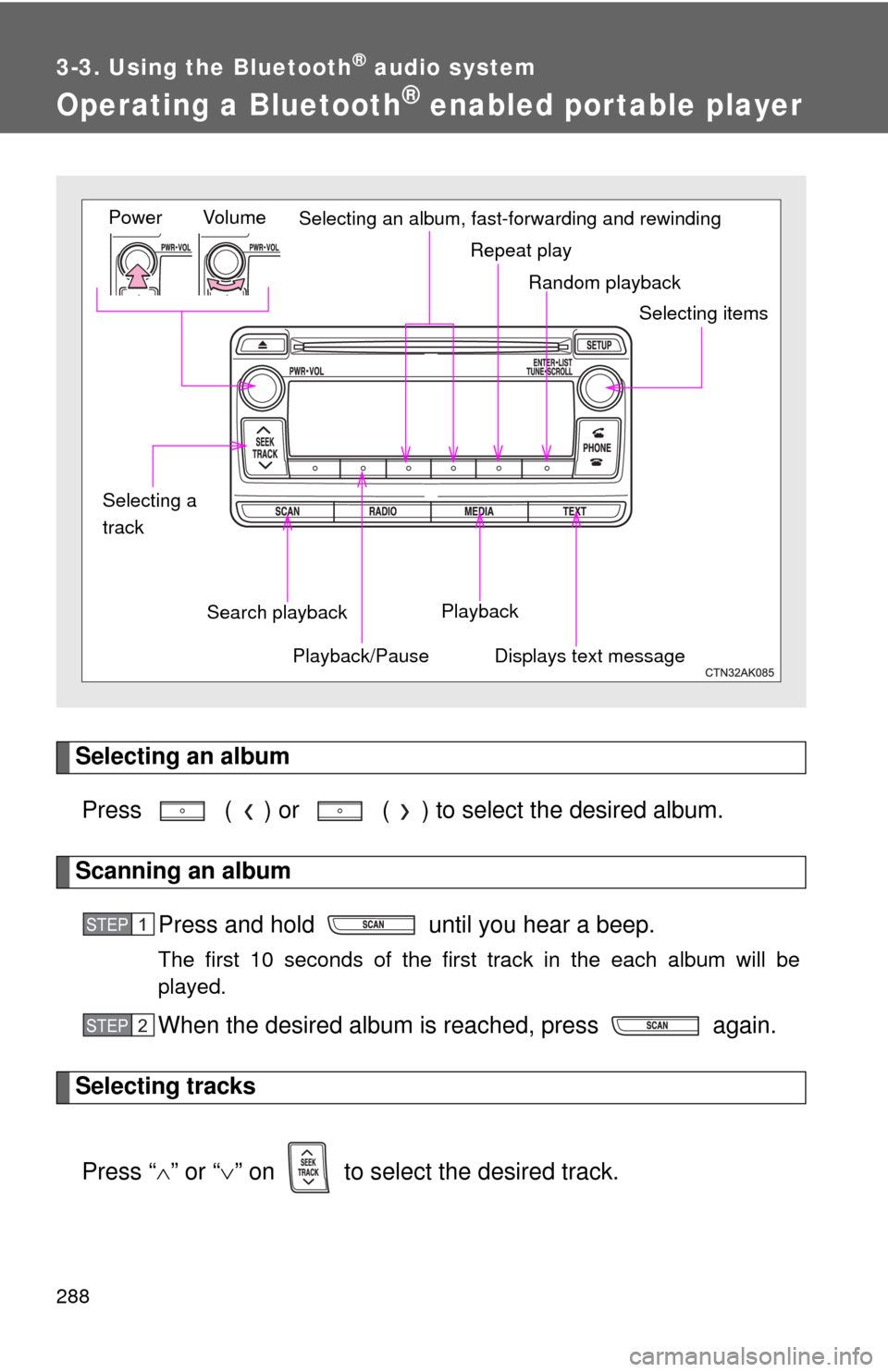
Selecting an albumPress ( ) or ( ) to select the desired album.
Scanning an album Press and hold until you hear a beep.
The first 10 seconds of the first track in the each album will be
played.
When the desired album is reached, press again.
Selecting tracks
Press “ ” or “ ” on to select the desired track.
Random playback
Repeat play
Playback
Playback/PauseDisplays text message
Vol u m e
Power
Selecting itemsSelecting an album, fast-forwarding and rewinding
Search playback
Selecting a
track
STEP 1
STEP 2
Page 290 of 532
290 3-3. Using the Bluetooth
® audio system
■Bluetooth® audio system functions
Depending on the portable player that is connected to the system, certain
functions may not be available.