2013 SKODA SUPERB wheel
[x] Cancel search: wheelPage 120 of 274
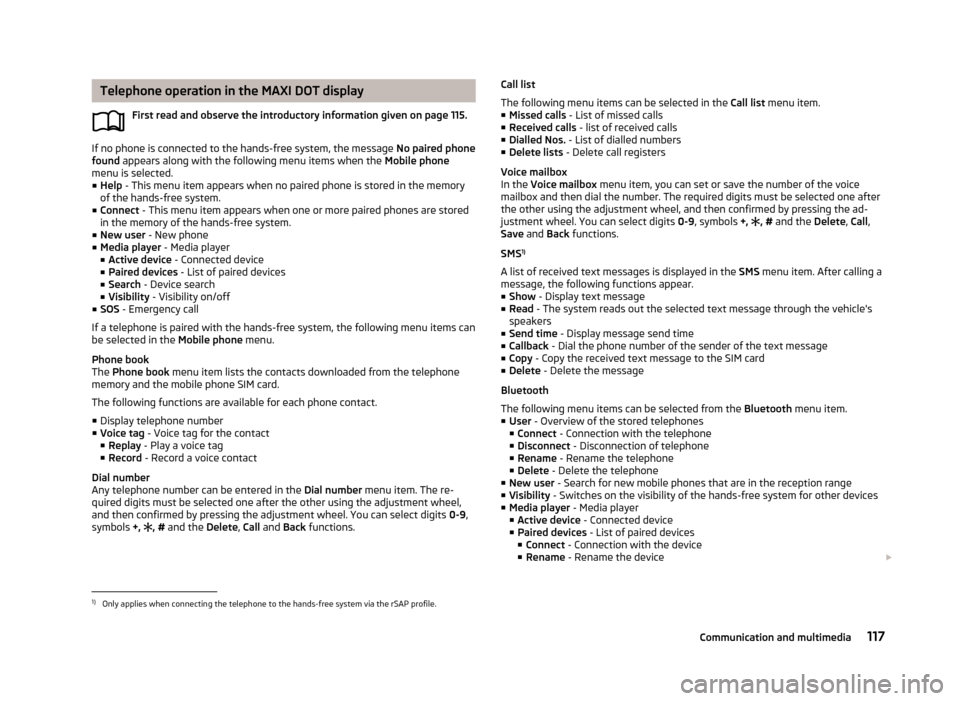
Telephone operation in the MAXI DOT displayFirst read and observe the introductory information given on page 115.
If no phone is connected to the hands-free system, the message No paired phone
found appears along with the following menu items when the Mobile phone
menu is selected. ■ Help - This menu item appears when no paired phone is stored in the memory
of the hands-free system.
■ Connect - This menu item appears when one or more paired phones are stored
in the memory of the hands-free system.
■ New user - New phone
■ Media player - Media player
■ Active device - Connected device
■ Paired devices - List of paired devices
■ Search - Device search
■ Visibility - Visibility on/off
■ SOS - Emergency call
If a telephone is paired with the hands-free system, the following menu items can
be selected in the Mobile phone menu.
Phone book
The Phone book menu item lists the contacts downloaded from the telephone
memory and the mobile phone SIM card.
The following functions are available for each phone contact.
■ Display telephone number
■ Voice tag - Voice tag for the contact
■ Replay - Play a voice tag
■ Record - Record a voice contact
Dial number
Any telephone number can be entered in the Dial number menu item. The re-
quired digits must be selected one after the other using the adjustment wheel,
and then confirmed by pressing the adjustment wheel. You can select digits 0-9,
symbols +,
, # and the Delete, Call and Back functions.
Call list
The following menu items can be selected in the Call list menu item.
■ Missed calls - List of missed calls
■ Received calls - list of received calls
■ Dialled Nos. - List of dialled numbers
■ Delete lists - Delete call registers
Voice mailbox
In the Voice mailbox menu item, you can set or save the number of the voice
mailbox and then dial the number. The required digits must be selected one after
the other using the adjustment wheel, and then confirmed by pressing the ad-
justment wheel. You can select digits 0-9, symbols +, , # and the Delete, Call ,
Save and Back functions.
SMS 1)
A list of received text messages is displayed in the SMS menu item. After calling a
message, the following functions appear.
■ Show - Display text message
■ Read - The system reads out the selected text message through the vehicle's
speakers
■ Send time - Display message send time
■ Callback - Dial the phone number of the sender of the text message
■ Copy - Copy the received text message to the SIM card
■ Delete - Delete the message
Bluetooth
The following menu items can be selected from the Bluetooth menu item.
■ User - Overview of the stored telephones
■ Connect - Connection with the telephone
■ Disconnect - Disconnection of telephone
■ Rename - Rename the telephone
■ Delete - Delete the telephone
■ New user - Search for new mobile phones that are in the reception range
■ Visibility - Switches on the visibility of the hands-free system for other devices
■ Media player - Media player
■ Active device - Connected device
■ Paired devices - List of paired devices
■ Connect - Connection with the device
■ Rename - Rename the device 1)
Only applies when connecting the telephone to the hands-free system via the rSAP profile.
117Communication and multimedia
Page 125 of 274

Voice control
Introduction
This chapter contains information on the following subjects:
Dialogue
122
Voice commands - GSM II
123
Voice commands - GSM III
123
Dialogue
Fig. 112
Multifunction steering wheel
First read and observe the introductory information given on page 122.
The voice control system (hereinafter referred to as the system) makes it possible to use voice commands for some functions of the hands-free system.
The period of time during which the system is ready to receive voice commandsand to carry them out is called a dialogue. The system gives audible feedback and guides you if necessary through the relevant functions.
Optimum understanding of the voice commands depends on several factors. › Speak with a normal tone of voice without intonation and excessive pauses.
› Avoid a bad pronunciation.
› Close the doors, windows and sliding roof, to reduce or stop disturbing exterior
noise.
› You are recommended to speak louder at higher speeds, so that the sound of
your voice is not drowned out by the increased ambient noise.
› During the dialogue, limit additional noise in the vehicle, e.g. passengers talking
at the same time.
› Do not speak, if the system makes an announcement.
The microphone for voice control is inserted in the moulded headliner and direc- ted to the driver and front passenger. Therefore the driver and the front passen-
ger can operate the equipment.
Entering a phone number
The telephone number can be entered as a continuous series of individually spo-
ken digits (the whole number at once) or in the form of digital blocks (separated
by short pauses). After each order of digits (separation through brief voice pause)
all of the digits detected up to now are repeated by the system.
The digits 0 - 9, symbols +,
, # are permitted. The system detects no continuous
digit combinations such as twenty-three, but only individually spoken digits (two, three).
Activating voice control - GSM II
By briefly pressing the button 1
» Fig. 112 on the multifunction steering wheel.
Deactivating voice control - GSM II If the system is currently playing a message, you will need to end the message currently being played by briefly pressing the button
1
on the multi-function
steering wheel.
If the system expects a voice command, you can end the dialogue yourself:
› with the
CANCEL voice command;
› by briefly pressing the button
1
on the multifunction steering wheel.
Activating voice control - GSM III
The dialogue can be started at any time by pressing the button
1
» Fig. 112 on
the multifunction steering wheel 1)
.
Deactivating voice control - GSM III If the system is currently playing a message, the message that is currently being
played must be terminated by pressing the button
1
» Fig. 112 on the multi-func-
tion steering wheel.
If the system expects a voice command, you can end the dialogue yourself:
› with the
CANCEL voice command;
› by briefly pressing the button
1
» Fig. 112 on the multifunction steering wheel.
1)
Not valid for vehicles with the Columbus navigation system.
122Using the system
Page 126 of 274

Note■The dialogue of an incoming call is immediately interrupted.■The voice control is only possible in vehicles fitted with a multi-function steer-
ing wheel with telephone control.■
On vehicles that are factory-fitted with the Columbus navigation system, it is
only possible to operate the voice control for the telephone via this device » Op-
erating instructions for the Columbus navigation system , chapter Voice control
for the navigation system .
Voice commands - GSM II
First read and observe the introductory information given on page 122.
Basic voice commands
Voice commandActionHELPAfter this command, the system repeats all possiblecommands.CALL XYZThis command calls up the contact from the phone
book.PHONE BOOKAfter this command, for example, the phone book
can be repeated back to you, a voice entry for the
contact can be updated or deleted, etc.CALL HISTORYLists of dialled numbers, missed calls, etc.DIAL NUMBERAfter this command, a telephone number can be en-
tered in order to establish a connection with the re-
quested party.REDIALAfter this command the system calls the last dialled
number.MUSIC a)Play music from the mobile phone or another paired
device.FURTHER OPTIONSAfter this command the system offers additional
context-dependent commands.SETTINGSSelection for setting Bluetooth ®
, dialogue etc.CANCELThe dialogue is ended.a)
On vehicles fitted with the Amundsen+ navigation system, this function can be accessed via the navi-
gation system menu; refer to the » operating instructions for the Amundsen+ navigation system .
If a voice command is not detected, the system answers with “ Sorry?”, and a new
entry can be made. After the 2nd error the system repeats the aid. After the 3rd error the answer “ Cancelled” is given and the dialogue is ended.
Storing voice recording for a contact
If automatic name recognition does not work reliably for some contacts, you can
choose to save your own voice tag for the contact in the Phone book - Voice tag -
Record menu item.
Your own voice tag can also be saved using the voice control in the Further op-
tions menu.
Voice commands - GSM III
First read and observe the introductory information given on page 122.
Basic voice commands
Voice commandActionHELPAfter this command, the system repeats all possiblecommands.CALL NAMEAfter this command, a name can be entered to es- tablish a connection with the requested party.DIAL NUMBERAfter this command, a telephone number can be en-
tered in order to establish a connection with the re-
quested party.REDIALThe last selected telephone number is selected.READ ADDRESSBOOKThe system reads out contacts from the telephone
book.READ MESSAGESThe system reads the messages which were re-
ceived while the telephone was connected to the
control unit.SHORT DIALOGUEThe help is significantly reduced (good operating
knowledge provided).LONG DIALOGUEThe help is not reduced (suitable for beginners).CANCELThe dialogue is ended. 123Communication and multimedia
Page 129 of 274

Multimedia
Introduction
This chapter contains information on the following subjects:
Music playback via Bluetooth ®
126
Operating the radio and navigation system on the multifunction steering
wheel
126
AUX- and MDI inputs
127
CD change
128
DVD-preinstallation
128
Music playback via Bluetooth ®
First read and observe the introductory information given on page 126.
The universal telephone preinstallation makes it possible to play back music via
Bluetooth ®
from devices such as MP3 players, mobile phones or notebooks.
To ensure that music can be played via Bluetooth ®
, you must first pair the device
with the hands-free system in the Phone - Bluetooth - Media player menu.
The music playback process is performed on the connected device.
The universal telephone preinstallation GSM II ensures that the music played back
via the hands-free system can be controlled with the remote control » page 123,
Voice commands - GSM II .
Note
The device being connected must support the Bluetooth ®
A2DP profile; refer to
the operating instructions for the relevant device being connected.
Operating the radio and navigation system on the multifunction steering wheel
Fig. 113
Multifunction steering wheel: control buttons
First read and observe the introductory information given on page 126.
The multifunction steering wheel comprises buttons for setting the basic func-
tions for the factory-fitted radio and navigation system » Fig. 113.
The radio and navigation system can of course still be operated on the devices. A
description is included in the relevant operating instructions.
If the side lights are switched on, the buttons on the multifunction steeringwheel are illuminated.
The buttons apply for the respective operating mode of the current radio, audio,
video or navigation system.
The following functions can be completed by pressing or turning the buttons.
126Using the system
Page 130 of 274

Button/wheelActionRadioTVAudio sourcesDVD videoNavigation1PressChange audio source2
PressSwitch tone off/on (MUTE )Interrupt current
navigation an-nouncement2Turn upwardsIncrease the volume2Turn downwardsDecrease the volume3Press brieflySkip to next channelSkip to next channelSkip to next trackSkip to next chapterNo functionStop traffic announcement3Press and hold but- tonNo functionFast forwardNo function4
Press brieflySwitch to previous channelSwitch to previouschannelSwitch to start of tracka)Switch to previous
chapterNo functionStop traffic announcement4Press and hold but- tonNo functionFast rewindNo function5Turn upwardsSwitch to previous channel and displayList of stored/accessible channelsSkip to next channelSkip to next trackSkip to next chapterShow the option tostop navigation ordisplay the list of recent destina- tions5Turn downwardsSwitch to the next channel and displayList of stored / accessible channelsSwitch to previous channelSwitch to start of tracka)Switch to previous
chapter6Press brieflyCall up the main menua)
To go to the previous track, press the adjustment wheel twice or rotate it by two positions.
AUX- and MDI inputs
First read and observe the introductory information given on page 126.
The AUX- and MDI inputs are used to connect external audio sources (e.g. iPod or
MP3 player) and to play back music from these devices via the factory-fitted radio
or navigation system.
The AUX-input is located in the storage compartment below the front armrest
and is marked with .
The MDI input is located in the storage compartment below the front armrest.
For a description of use, refer to the operating instructions for the relevant radio or navigation system.
127Communication and multimedia
Page 133 of 274

Driving
Starting-off and Driving
Steering
Introduction
Fig. 116
Correct seated position for the
driver
This chapter contains information on the following subjects:
Adjusting the steering wheel position
130
Power steering
131WARNING■ When driving, hold the steering wheel with both hands firmly on the outer
edge in the 9 o'clock and 3 o'clock position. Never hold the steering wheel in
the 12 o'clock position or in any other way (e.g. in the middle or inner edge of
the steering wheel). In such cases, you could severely injure the arms, hands
and head when the driver airbag is deployed.■
Never adjust the steering wheel when the vehicle is moving only when the
vehicle is stationary!
WARNING (Continued)■ Adjust the steering wheel so that the distance A » Fig. 116 between the
steering wheel and your chest is at least 25 cm. Adjust the distance of the
legs to the circuit board in the region of the knee airbag to at least 10 cm B.
If
you do not comply with the minimum distance, the airbag system will not pro-
tect you - danger of death!
■
If the steering wheel is adjusted further towards the head, the protection
provided by the driver airbag in the event of an accident is reduced. Check that the steering wheel is aligned to the chest.
Adjusting the steering wheel position
Fig. 117
Adjustable steering wheel: Lever
below steering wheel
First read and observe the introductory information and safety warn-
ings on page 130.
The height and forward/back position of the steering wheel can be adjusted.
›
First of all adjust the driver's seat » page 66.
›
Pull the lever below the steering wheel down » Fig. 117.
›
Adjust the steering wheel to the desired position (with regard to the height and
forward/back position).
›
Push the lever upwards to the stop.
WARNINGThe lever for adjusting the steering wheel must be locked whilst driving so
that the steering wheel cannot accidentally change position during the jour-
ney – risk of accident!
130Driving
Page 134 of 274

Power steeringFirst read and observe the introductory information and safety warn-ings
on page 130.
The power steering enables you to steer the vehicle with less physical force.
The power steering only works when the engine is running. It is still fully possible to steer the vehicle if the power steering fails or if the en-gine is not running (e.g. when towing). However, greater physical effort is re-
quired to turn the steering wheel.
Starting and stopping the engine using the key
Introduction
This chapter contains information on the following subjects:
Electronic immobilizer
132
Ignition Switch
132
Starting the engine
132
Stopping the engine
133
Starting and stopping the engine on vehicles with the KESSY system » page 133.
The engine can only be started using a correctly coded original key. The engine running noises may louder at first be louder for a short time afterstarting the cold engine. This is quite normal and is not an operating problem.
WARNING■ When driving, the ignition key must always be in the position 2 » Fig. 118 on
page 132 (ignition switched on) without the engine running. This position is
confirmed by the appearance of certain indicator lamps in the instrument clus-
ter. ■ If the key is not in position 2,
it could unexpectedly lock the steering -
danger of accident!
■
Only pull the ignition key from the ignition lock when the vehicle has come
to a complete stop (by applying the handbrake). Otherwise, the steering could
be blocked – risk of accident!
■
When leaving the vehicle, the ignition must always be removed. This is par-
ticularly important if children are left in the vehicle. Children could otherwise
start the engine for example – risk of accident or injury!
■
Never leave the vehicle unattended with the engine running.
■
Never switch off the engine before the vehicle is stationary – risk of acci-
dent!
WARNING■ Never leave the engine running in unventilated or closed rooms. The ex-
haust gases from the engine contain substances such as odourless and col-
ourless carbon monoxide (a poisonous gas) – risk to life! ■ Carbon monoxide can cause unconsciousness and death.
CAUTION
■The starter must only be operated when the engine is not running and the vehi-
cle is at a standstill. The starter or engine can be damaged if the starter is activa-
ted when the engine is running 3
» Fig. 118 on page 132.
■
Do not tow start the engine – there is a risk of damaging the engine and the
catalytic converter. The battery from another vehicle can be used as a jump-start
aid » page 234 , Jump-starting .
CAUTION
■
Avoid high engine revolutions, full throttle and high engine loads before the en-
gine has reached its operating temperature – risk of damaging the engine!■
Do not switch the engine off immediately at the end of your journey after the
engine has been operated over a prolonged period at high loads but leave it to
run at an idling speed for about 1 minute. This prevents any possible accumulation
of heat when the engine is switched off.
131Starting-off and Driving
Page 135 of 274

For the sake of the environmentDo not warm up the engine while the vehicle is stationary. If possible, start your
journey as soon as the engine has started. Through this the engine reaches its operating temperature more rapidly and the pollutant emissions are lower.
Note
After switching off the ignition, the radiator fan may intermittently continue to
operate for approx. 10 minutes.
Electronic immobilizer
First read and observe the introductory information and safety warn-ings
on page 131.
An electronic chip is integrated in the head of the key. The immobiliser is deacti-
vated with the aid of this chip when the key is inserted in the ignition lock.
The electronic immobiliser is automatically activated when the ignition key is
withdrawn from the lock.
The engine will not start if a non-authorized ignition key is used.
The following message is shown in the information cluster display.
Immobilizer active.
IMMOBILISER
Ignition Switch
Fig. 118
Positions of the vehicle key in
the ignition lockFirst read and observe the introductory information and safety warn-
ings on page 131.
Petrol engines » Fig. 118
Ignition switched off, engine off, the steering can be locked
Ignition switched on
Starting engine
Diesel engines » Fig. 118
Fuel supply interrupted, ignition switched off, engine switched off, the steer-
ing can be locked.
Heating glow plugs on, ignition switched on
Starting engine
To lock the steering , with the ignition key withdrawn, turn the steering wheel
until the steering locking pin engages audibly.
If the steering is locked and the key cannot or can only be turned with difficulty
into the position
2
» Fig. 118 , move the steering wheel back and forth and the
steering lock will unlock.
Note
We recommend locking the steering wheel whenever leaving the vehicle. This
acts as a deterrent against the attempted theft of your car.
Starting the engine
First read and observe the introductory information and safety warn-
ings
on page 131.
Vehicles with a diesel engine are equipped with a glow plug system. The glow
plug warning light
illuminates after the ignition has been switched on. Start
the engine after the warning light
has gone out.
You should not switch on any major electrical components during the heating pe- riod otherwise the vehicle battery will be drained unnecessarily.
Procedure for starting the engine
›
Firmly apply the handbrake.
›
Move the gearshift lever into neutral or move the selector lever into position P
or N.
›
Switch on the ignition
2
» Fig. 118 on page 132.
123123132Driving