Page 243 of 308
241
01
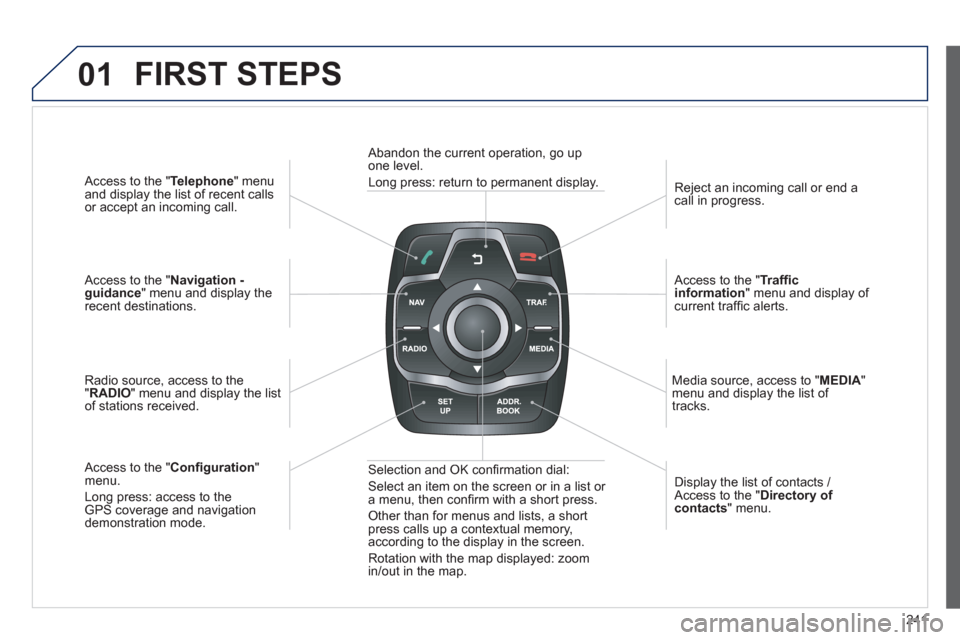
Access to the "Telephone " menuand display the list of recent calls
or accept an incoming call.
Access to the "Navigation -guidance" menu and display therecent destinations.
Radio source, access to the
"RADIO
" menu and display the listof stations received.
A
ccess to the "Confi guration"menu.
Long press: access to theGPS coverage and navigationdemonstration mode. Re
ject an incoming call or end a call in progress.
Access to the "Traffi c information
" menu and display of current traffi c alerts.
Media source, access to "MEDI
A" menu and display the list of
tracks.
Abandon the current operation, go upone level.
Long press: return to permanent display.
Selection and OK confi rmation dial:
Select an item on the screen or in a list or
a menu, then confi rm with a short press.
Other than for menus and lists, a short press calls up a contextual memory,
according to the display in the screen.
Rotation with the map displayed: zoom
in
/out in the map.Displa
y the list of contacts / Access to the "Directory of contacts " menu.
FIRST STEPS
Page 244 of 308
242
02STEERING MOUNTED CONTROLS
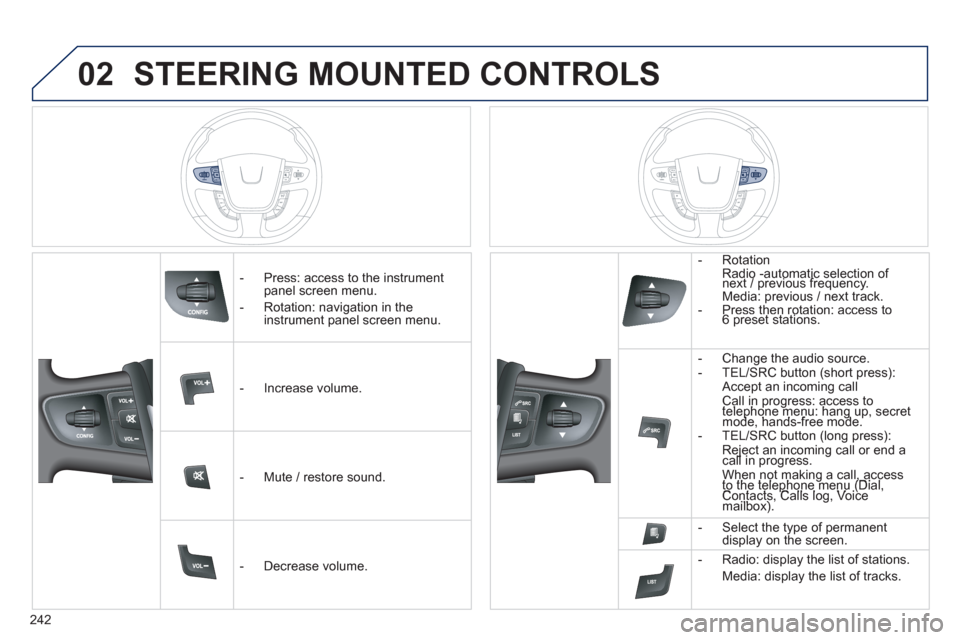
- Press: access to the instrumentpanel screen menu.
-
Rotation: navigation in the instrument panel screen menu.
- In
crease volume.
- Mute
/ restore sound.
-
Decrease volume.
-
Rotation
Radio -automatic selection of next / previous frequency.
Media: previous / next track.
- Press then rotation: access to 6 preset stations.
-
Change the audio source.
- TEL/SRC button (short press):
Accept an incoming call Call in progress: access to telephone menu: hang up, secret pgpg
mode, hands-free mode.pgppg
- TEL/SRC button (long press): Reject an incoming call or end a call in progress. jj
When not making a call, accessto the telephone menu (Dial,g,g,
Contacts, Calls log, Voice p(p
mailbox). ,
- Select the type of permanent
display on the screen.
- Radio: displa
y the list of stations.
Media: displa
y the list of tracks.
Page 245 of 308
243
03
For the details of the menus, refer to the "Screen menu map"section.
For cleaning the screen, the use of a soft, non-abrasive cloth (spectacles cloth) is recommended, with no additional product. "RADIO
"
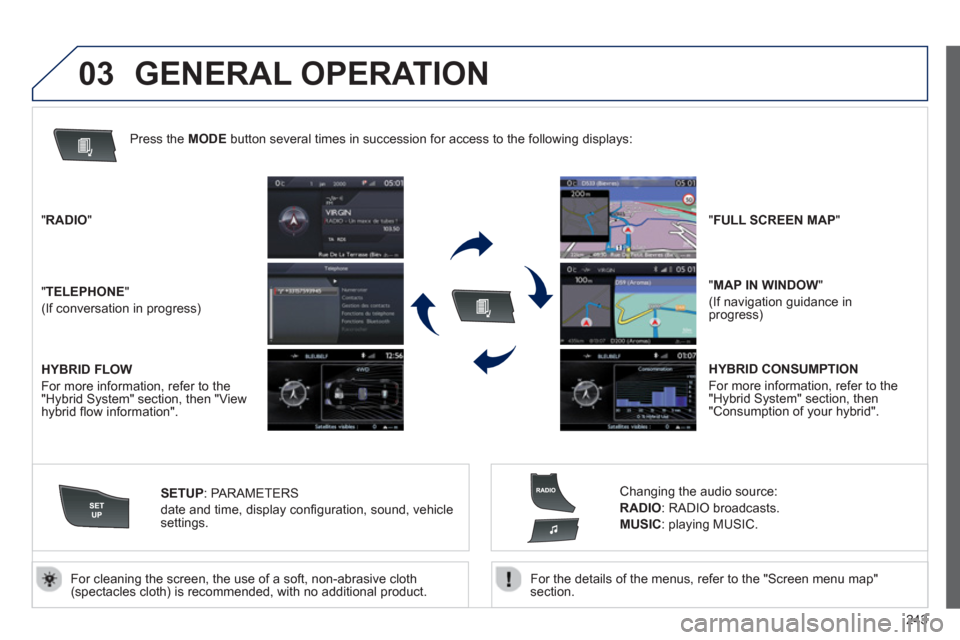
"TELEPHONE"
(If conversation in progress)
SETUP:
PARAMETER
S
date and time, display confi guration, sound, vehicle settings.
Changing the audio source:
RADIO:
RADIO broadcasts.
MUSIC: playing MUSIC. Pr
ess the MODE button several times in succession for access to the following displays:
GENERAL OPERATION
"FULL SCREEN MAP"
"
MAP IN WINDOW"
(If navigation guidance inprogress)
HYBRID FLOW
For more information, refer to the "Hybrid System" section, then "View
hybrid fl ow information".
HYBRID CONSUMPTION
For more in
formation, refer to the "Hybrid System" section, then"Consumption of your hybrid".
Page 247 of 308
245
04
""""""""""""ggggggggggNavigation guidanceNavigation guidanceNavigation guidanceNavigation guidanceNavigation guidanceNavigation - guidanceNavigation - guidanceNavigation - guidanceNavigation - guidanceNavigation guidanceNavigation guidanceNavigation guidanceNavigation guidanceN i ti idN i ti idN i ti idN i ti idN i ti idN i ti idN i ti idN i ti idN i ti idNi i id""""""""""""
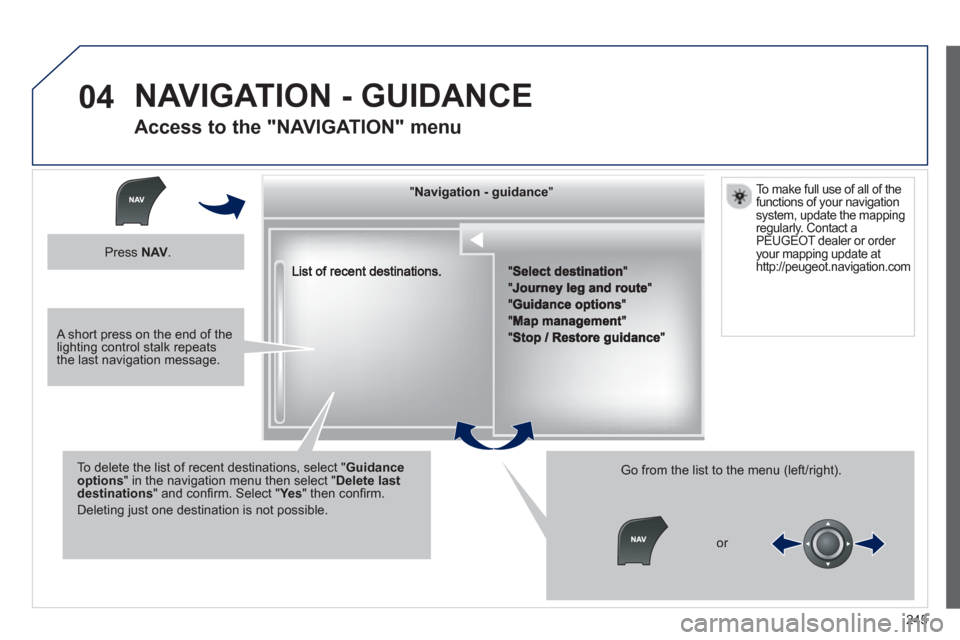
To delete the list of recent destinations, select "Guidance options" in the navigation menu then select "Delete last destinations" and confi rm. Select "Ye s" then confi rm.
Deleting just one destination is not possible.
Go from the list to the menu (left/right).
NAVIGATION - GUIDANCE
Access to the "NAVIGATION" menu
Press NAV.
or
To make full use of all of thefunctions of your navigation
system, update the mapping
regularly. Contact a PEUGEOT dealer or order your mapping update at http://peugeot.navigation.com
A short press on the end of thelighting control stalk repeats the last navigation message.
Page 248 of 308
246
04
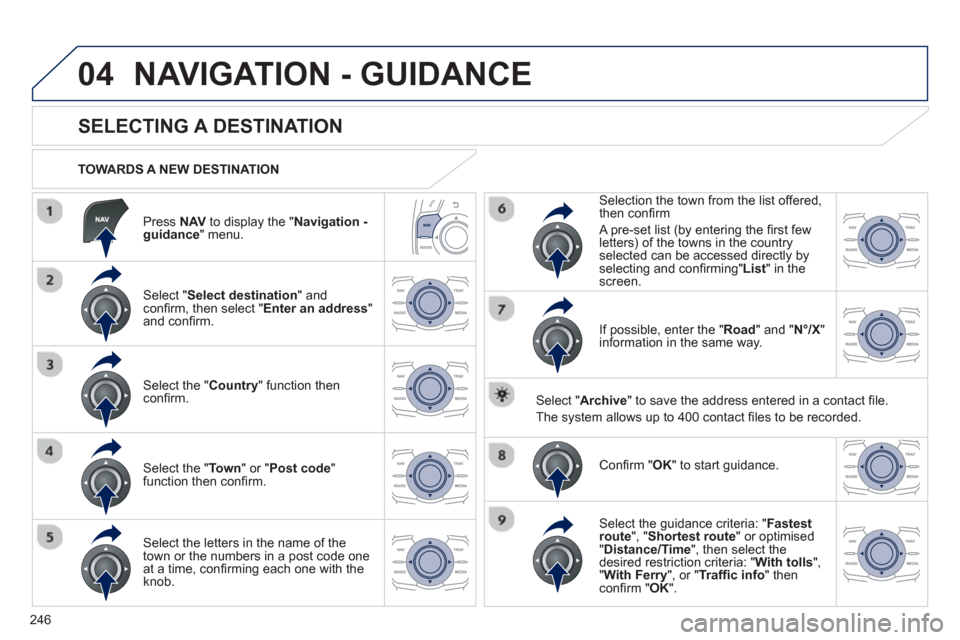
Press NAV
to display the "Navigation -guidance " menu.
TOWARDS A NEW DESTINATION
NAVIGATION - GUIDANCE
SELECTING A DESTINATION
Select "Select destination
" and confi rm, then select " Enter an address"and confi rm.
Select the " Country
" function then confi rm.
Select the " Town
" or " Post code
"
function then confi rm.
Select the letters in the name of the
town or the numbers in a post code one
at a time, confi rming each one with the
knob. Selection the town from the list offered,
th
en confi rm
A pre-set list
(by entering the fi rst few letters) of the towns in the country
selected can be accessed directly by
selectin
g and confi rming" List " in thescreen.
If
possible, enter the " Road
" and "N°/X"
information in the same way.
Select "Archive
" to save the address entered in a contact fi le.
The s
ystem allows up to 400 contact fi les to be recorded.
Confi rm " OK
" to start guidance.
Select the guidance criteria: "Fastest
route", " Shortest route" or optimised "Distance/Time ", then select thedesired restriction criteria: "With tolls","With Ferry", or "Traffi c info" thenconfi rm "OK".
Page 249 of 308
247
04NAVIGATION - GUIDANCE
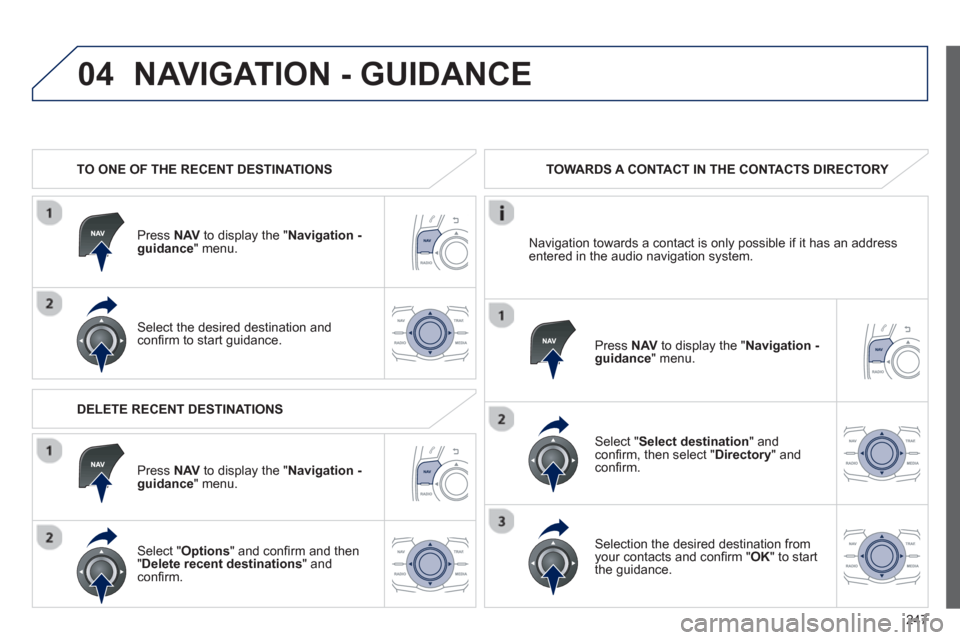
TO ONE OF THE RECENT DESTINATIONS
Pr
ess NAVto display the "Navigation - guidance" menu.
Select the desired destination and confi rm to start guidance.
TOWARDS A CONTACT IN THE CONTACTS DIRECTORY
Select "Select destination " and confi rm, then select " Directory" andconfi rm.
Selection the desired destination fromyour contacts and confi rm "OK" to start
the guidance.
Press NAV
to display the " Navigation -guidance
" menu.
DELETE RECENT DE
STINATIONS
Pr
ess NAVto display the "Navigation - guidance" menu.
Select " Options
" and confi rm and then"Delete recent destinations
" andconfi rm.
Navi
gation towards a contact is only possible if it has an addressentered in the audio navigation system.
Page 250 of 308
248
04
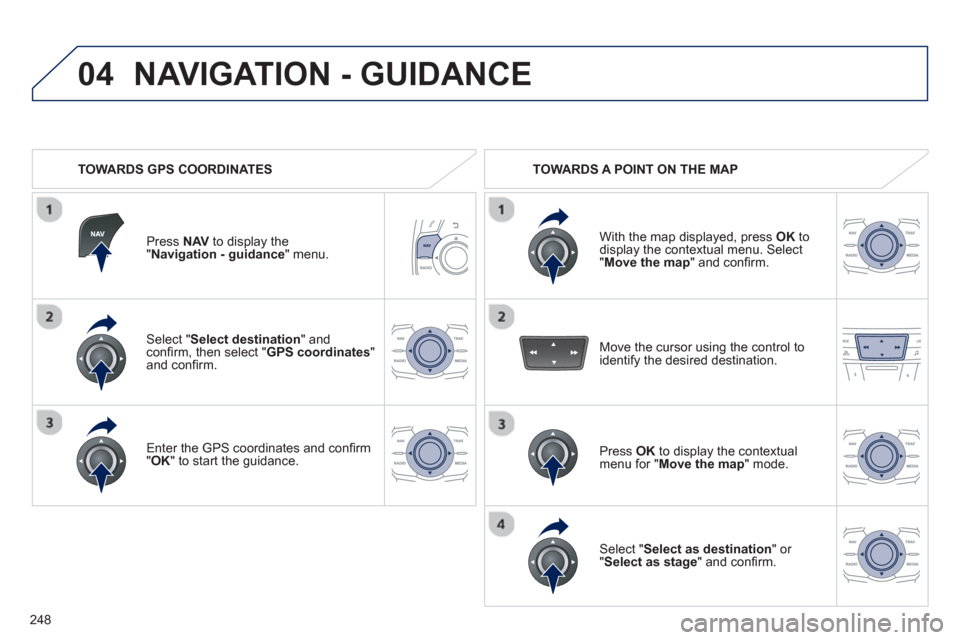
Select " Select destination " andconfi rm, then select "GPS coordinates"and confi rm.
Enter the
GPS coordinates and confi rm "OK" to start the guidance.
Press NAVto display the"Navigation - guidance " menu.
NAVIGATION - GUIDANCE
TOWARDS GPS COORDINATES TOWARDS A POINT ON THE MAP
With the map displa
yed, press OKto
display the contextual menu. Select"Move the map
" and confi rm.
Pr
ess OK
to display the contextual
menu for " Move the map " mode.
Select " Select as destination
" or "Select as stage" and confi rm. Move the cursor usin
g the control to
identify the desired destination.
Page 251 of 308
249
04
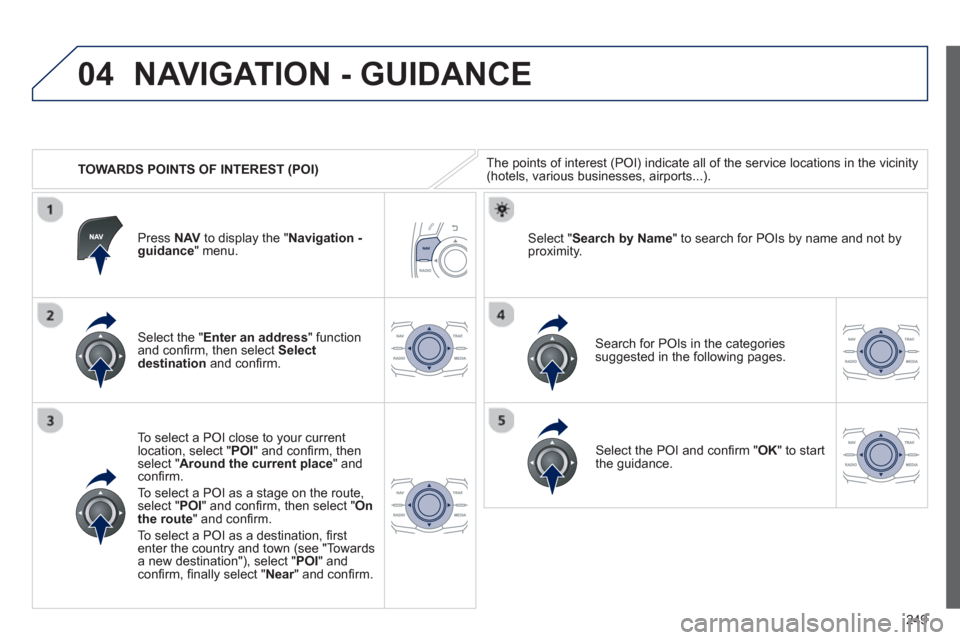
TOWARDS POINTS OF INTEREST (POI)
NAVIGATION - GUIDANCE
The points of interest (POI) indicate all of the service locations in the vicinity(hotels, various businesses, airports...).
Select the " Enter an address
" function
and confi rm, then select Select
destinationand confi rm.
To select a P
OI close to your currentlocation, select "POI" and confi rm, thenselect " Around the current place
" and confi rm.
To select a P
OI as a stage on the route,select " POI" and confi rm, then select " On
the route" and confi rm.
To select a P
OI as a destination, fi rst enter the country and town (see "Towards
a new destination"), select "POI" andconfi rm, fi nally select "Near" and confi rm.r
Search for POIs in the categories
suggested in the following pages.
Select " Search by Name
" to search for POIs by name and not byproximity. Press NAVto display the "Navigation -guidance" menu.
Select the POI and confi rm " OK" to start
the guidance.