Page 129 of 268
8
!
127
DRIVING
When the cruise control is switched
on, be careful if you maintain the
pressure on one of the programmed
speed changing buttons: this may
result in a very rapid change in the
speed of your vehicle.
Do not use the cruise control on
slippery roads or in heavy traffi c.
On a steep descent, the cruise
control will not be able to prevent
the vehicle from exceeding the pro-
grammed speed.
To avoid any risk of jamming of the
pedals:
- ensure that the mat is posi-tioned correctly,
- never fi t one mat on top of an- other.
Programming
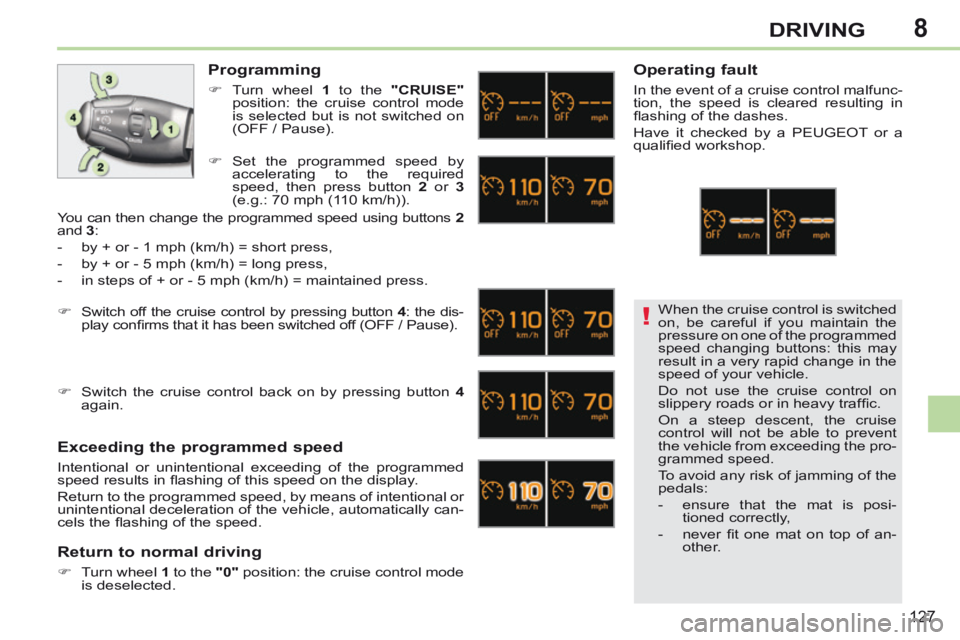
Turn wheel 1 to the "CRUISE"
position: the cruise control mode
is selected but is not switched on
(OFF / Pause).
Exceeding the programmed speed
Intentional or unintentional exceeding of the programmed
speed results in fl ashing of this speed on the display.
Return to the programmed speed, by means of intentional or
unintentional deceleration of the vehicle, automatically can-
cels the fl ashing of the speed.
Return to normal driving
Turn wheel 1 to the "0" position: the cruise control mode
is deselected.
Operating fault
In the event of a cruise control malfunc-
tion, the speed is cleared resulting in
fl ashing of the dashes.
Have it checked by a PEUGEOT or a
qualifi ed workshop.
Set the programmed speed by accelerating to the required
speed, then press button 2 or 3
(e.g.: 70 mph (110 km/h)).
Switch off the cruise control by pressing button 4 : the dis-
play confi rms that it has been switched off (OFF / Pause).
Switch the cruise control back on by pressing button 4
again.
You can then change the programmed speed using buttons
2
and 3 :
- by + or - 1 mph (km/h) = short press,
- by + or - 5 mph (km/h) = long press,
- in steps of + or - 5 mph (km/h) = maintained press.
Page 184 of 268
02
182
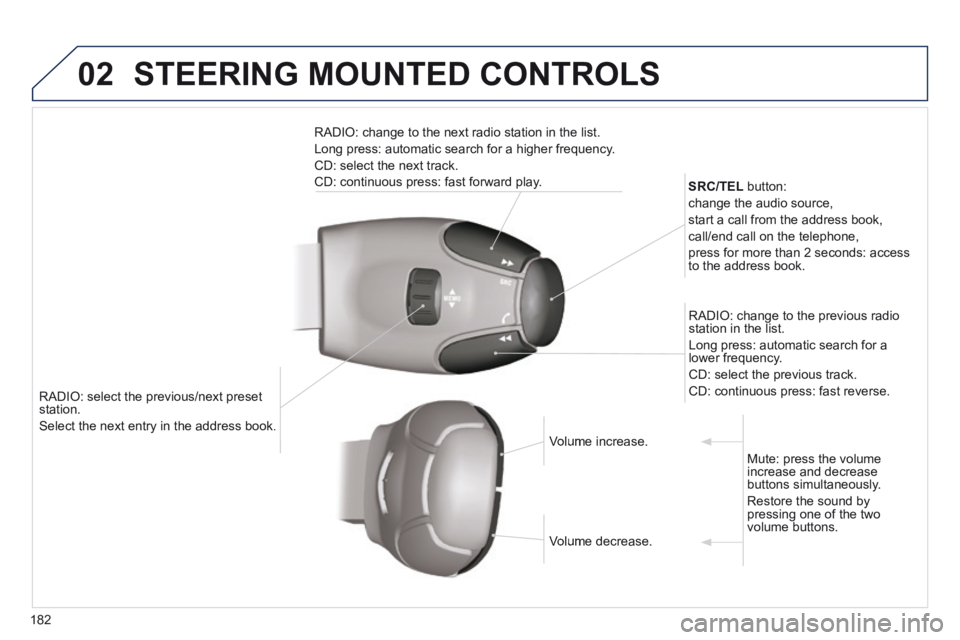
RADIO: select the previous/next preset station.
Select the next entry in the address book. Select the next entry in the address book.
SRC/TEL button:
change the audio source,
start a call from the address book,
call/end call on the telephone,
press for more than 2 seconds: access to the address book.
RADIO: change to the previous radio station in the list.
Long press: automatic search for a lower frequency.
CD: select the previous track.
CD: continuous press: fast reverse.
RADIO: change to the next radio station in the list.
Long press: automatic search for a higher frequency.
CD: select the next track.
CD: continuous press: fast forward play.
Volume increase. Volume increase.
Volume decrease. Volume decrease.
Mute: press the volume increase and decrease buttons simultaneously.
Restore the sound by pressing one of the two volume buttons.
STEERING MOUNTED CONTROLS
Page 215 of 268
07
213
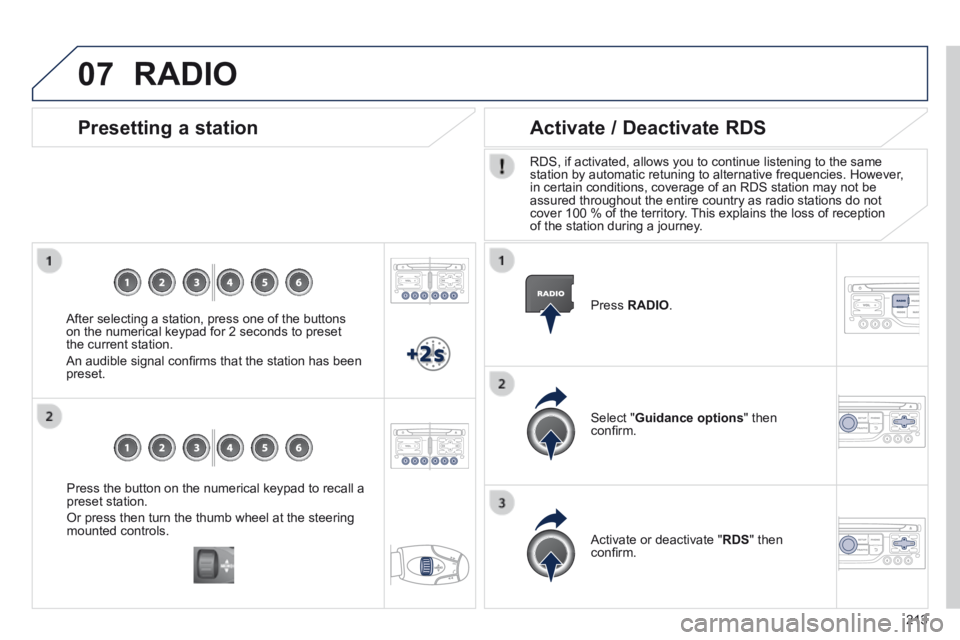
Press the button on the numerical keypad to recall a preset station.
Or press then turn the thumb wheel at the steering mounted controls.
Presetting a station
After selecting a station, press one of the buttons on the numerical keypad for 2 seconds to preset the current station.
An audible signal confi rms that the station has been preset.
Press RADIO .
Activate / Deactivate RDS
RDS, if activated, allows you to continue listening to the same station by automatic retuning to alternative frequencies. However, in certain conditions, coverage of an RDS station may not be assured throughout the entire country as radio stations do not cover 100 % of the territory. This explains the loss of reception of the station during a journey.
Select " Guidance options " then confi rm.
Activate or deactivate " RDS " then confi rm.
RADIO
Page 220 of 268

08
218
Audio streaming
Streaming allows audio fi les on your telephone to be played via the vehicle's speakers.
Connect the telephone: see " USING THE TELEPHONE ".
Select " Audio " or " All " profi le.
If play does not start automatically, it may be necessary to start the audio playback from the telephone.
Control is from the peripheral device or by using the audio system buttons.
Once connected in streaming mode, the telephone is considered to be a media source.
It is recommended that you activate " Repeat " on the Bluetooth peripheral.
MUSIC MEDIA PLAYERS
Connecting APPLE ® Connecting APPLE ® Connecting APPLE players ® players ®
Connect the Apple ® player to the USB port using a suitable cable (not ® player to the USB port using a suitable cable (not ®
supplied).
Play starts automatically.
Control is via the audio system.
The classifi cations available are those of the portable device connected (artists / albums / genres / playlists / audiobooks / podcasts).
The default classifi cation used is by artist. To modify the classifi cation used, return to the fi rst level of the menu then select the desired classifi cation (playlists for example) and confi rm to go down through the menu to the desired track.
The "Shuffl e tracks" mode on an iPod ® corresponds to the "Random" ® corresponds to the "Random" ®
mode on the audio system.
The "Shuffl e albums" mode on an iPod ® corresponds to the "Random ® corresponds to the "Random ®
all" on the audio system.
"Shuffl e tracks" is restored by default on each connection.
The version of software in the audio system may not be compatible with the generation of your Apple ® player. ® player. ®
Page 236 of 268
01
234
FIRST STEPS
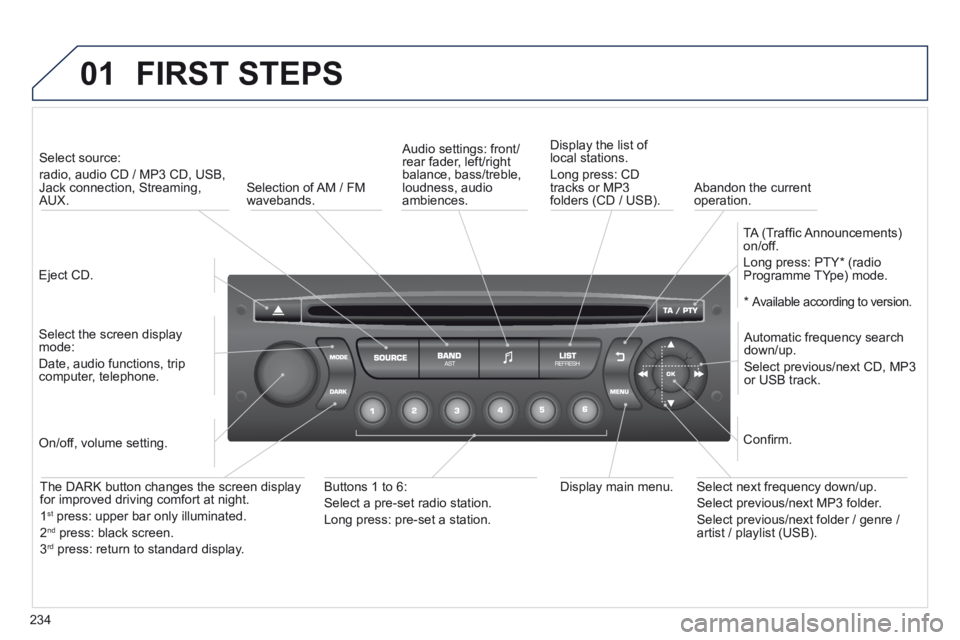
Eject CD.
Select source:
radio, audio CD / MP3 CD, USB, Jack connection, Streaming, AUX.
Select the screen display mode:
Date, audio functions, trip computer, telephone.
Automatic frequency search down/up.
Select previous/next CD, MP3 or USB track.
Audio settings: front/rear fader, left/right balance, bass/treble, loudness, audio ambiences.
Display the list of local stations.
Long press: CD tracks or MP3 folders (CD / USB).
TA (Traffi c Announcements) on/off.
Long press: PTY * (radio Programme TYpe) mode.
Display main menu. The DARK button changes the screen display for improved driving comfort at night.
1 st press: upper bar only illuminated.
2 nd press: black screen.
3 rd press: return to standard display.
On/off, volume setting.
Buttons 1 to 6:
Select a pre-set radio station.
Long press: pre-set a station.
Select next frequency down/up.
Select previous/next MP3 folder.
Select previous/next folder / genre / artist / playlist (USB).
Confi rm.
Selection of AM / FM wavebands. Abandon the current operation.
* Available according to version. * Available according to version. *
Page 237 of 268
02
235
STEERING MOUNTED CONTROLS
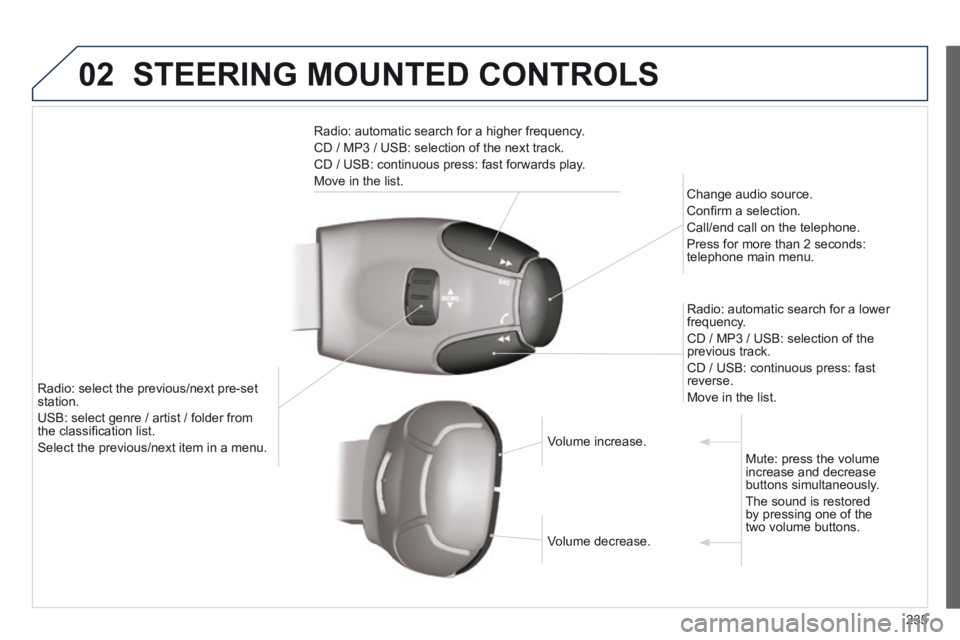
Radio: automatic search for a higher frequency.
CD / MP3 / USB: selection of the next track.
CD / USB: continuous press: fast forwards play.
Move in the list. Change audio source.
Confi rm a selection.
Call/end call on the telephone.
Press for more than 2 seconds: telephone main menu.
Radio: automatic search for a lower frequency.
CD / MP3 / USB: selection of the previous track.
CD / USB: continuous press: fast reverse.
Move in the list. Radio: select the previous/next pre-set station.
USB: select genre / artist / folder from the classifi cation list.
Select the previous/next item in a menu. Volume increase. Volume increase.
Volume decrease. Volume decrease.
Mute: press the volume increase and decrease buttons simultaneously.
The sound is restored by pressing one of the two volume buttons.
Page 239 of 268
04
237
AUDIO
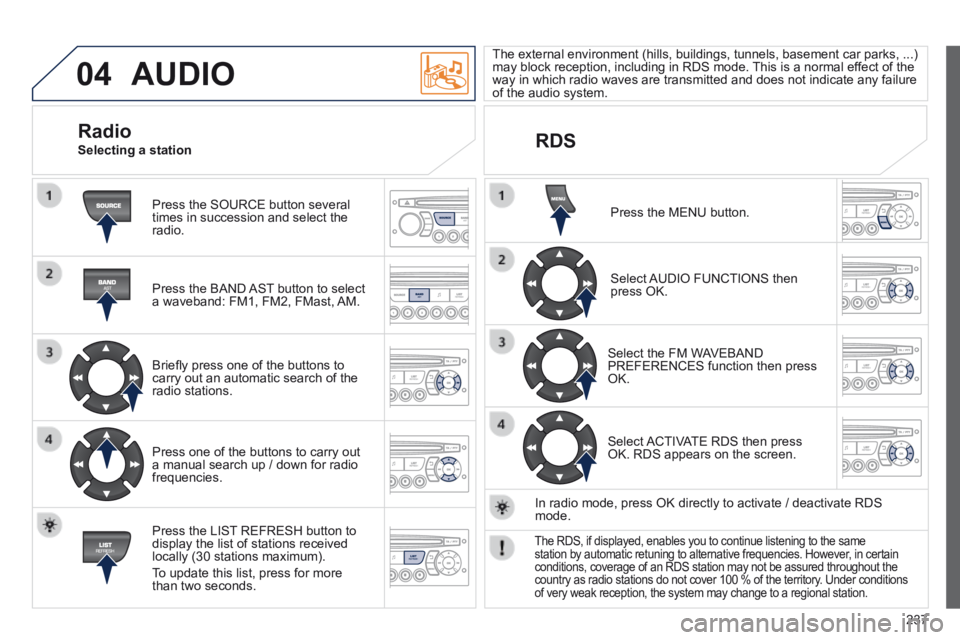
Press the SOURCE button several times in succession and select the radio.
Press the BAND AST button to select a waveband: FM1, FM2, FMast, AM.
Briefl y press one of the buttons to carry out an automatic search of the radio stations.
Press one of the buttons to carry out a manual search up / down for radio frequencies.
Press the LIST REFRESH button to display the list of stations received locally (30 stations maximum).
To update this list, press for more than two seconds.
The external environment (hills, buildings, tunnels, basement car parks, ...) may block reception, including in RDS mode. This is a normal effect of the way in which radio waves are transmitted and does not indicate any failu\
re of the audio system.
RDS
Radio Selecting a station
Press the MENU button.
Select AUDIO FUNCTIONS then press OK.
Select the FM WAVEBAND PREFERENCES function then press OK.
Select ACTIVATE RDS then press OK. RDS appears on the screen.
In radio mode, press OK directly to activate / deactivate RDS mode.
The RDS, if displayed, enables you to continue listening to the same station by automatic retuning to alternative frequencies. However, in certain conditions, coverage of an RDS station may not be assured throughout the\
country as radio stations do not cover 100 % of the territory. Under conditions of very weak reception, the system may change to a regional station.
Page 240 of 268
04
238
AUDIO
Insert circular compact discs only.
Some anti-pirating systems, on original discs or CDs copied using a personal recorder, may cause faults which are no refl ection on the quality of the vehicle's player.
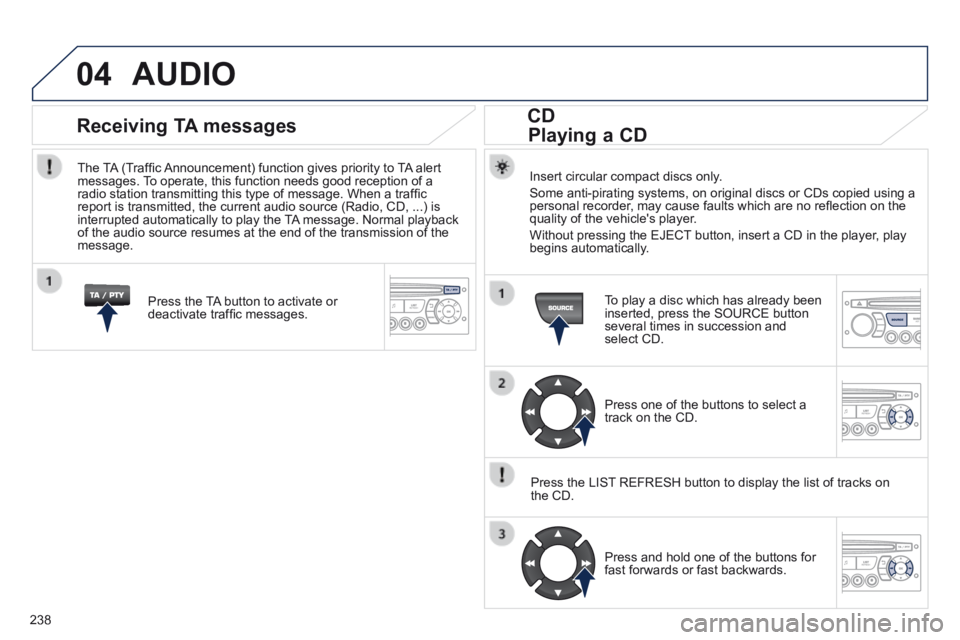
Without pressing the EJECT button, insert a CD in the player, play begins automatically.
CD Playing a CD
To play a disc which has already been inserted, press the SOURCE button several times in succession and select CD.
Press one of the buttons to select a track on the CD.
Press the LIST REFRESH button to display the list of tracks on the CD.
Press and hold one of the buttons for fast forwards or fast backwards.
Receiving TA messages
Press the TA button to activate or deactivate traffi c messages.
The TA (Traffi c Announcement) function gives priority to TA alert messages. To operate, this function needs good reception of a radio station transmitting this type of message. When a traffi c report is transmitted, the current audio source (Radio, CD, ...) is interrupted automatically to play the TA message. Normal playback of the audio source resumes at the end of the transmission of the message.