Page 294 of 324
292
FREQUENTLY ASKED QUESTIONS
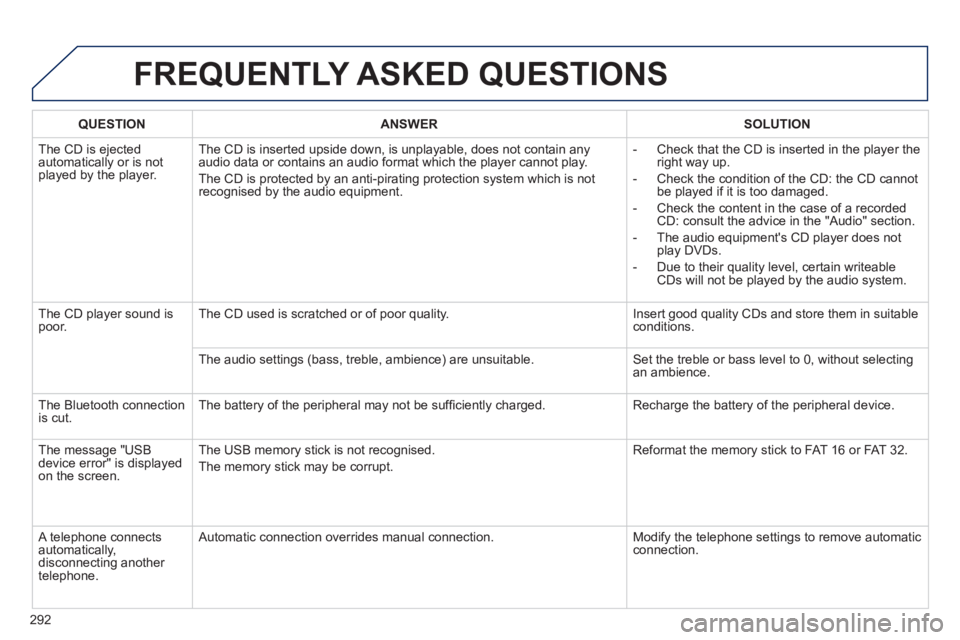
QUESTIONANSWERSOLUTION
The CD is ejected
automatically or is not played by the player. The
CD is inserted upside down, is unplayable, does not contain any audio data or contains an audio format which the player cannot play.
The
CD is protected by an anti-pirating protection system which is not recognised by the audio equipment.
-
Check that the CD is inserted in the player the
right way up.
-
Check the condition of the CD: the CD cannot
be played if it is too damaged.
-
Check the content in the case of a recordedCD: consult the advice in the "Audio" section.
- The audio equipment's CD pla
yer does not
play DVDs.
-
Due to their quality level, certain writeableCDs will not be played by the audio system.
The
CD player sound ispoor.The CD used is scratched or of poor quality. Insert good quality CDs and store them in suitable conditions.
The audio settin
gs (bass, treble, ambience) are unsuitable. Set the treble or bass level to 0, without selectingan ambience.
Th
e Bluetooth connection
is cut. The battery of the peripheral may not be suffi ciently charged. Recharge the battery of the peripheral device.
The messa
ge "USB
device error" is displayedon the screen.The USB memor
y stick is not recognised.
The memor
y stick may be corrupt. Reformat the memor
y stick to FAT 16 or FAT 32.
A telephone connects
automatically,
disconnecting another
telephone. A
utomatic connection overrides manual connection. Modify the telephone settings to remove automatic connection.
Page 295 of 324
293
FREQUENTLY ASKED QUESTIONS
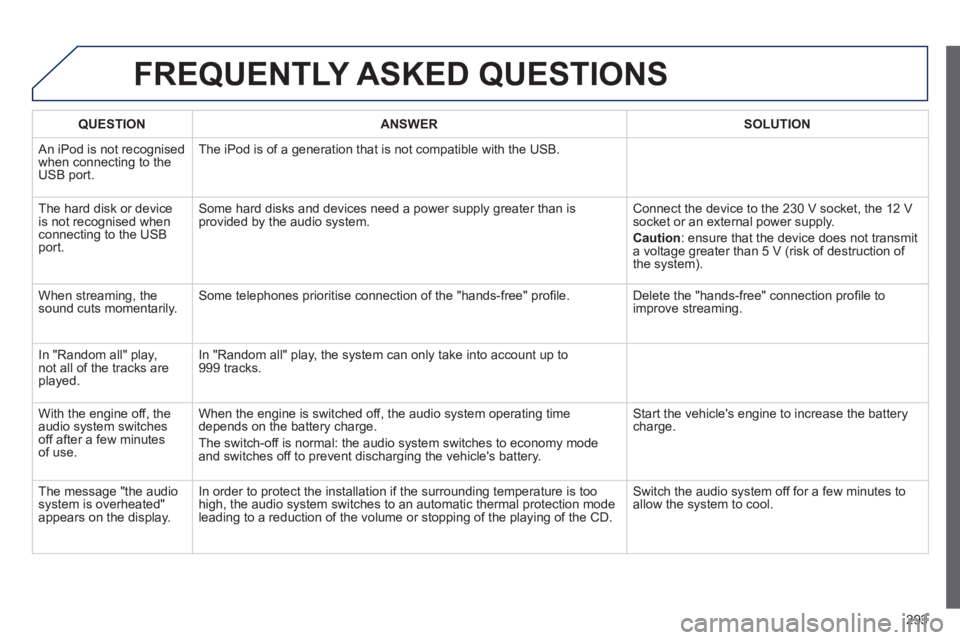
QUESTIONANSWERSOLUTION
An iPod is not recognisedwhen connecting to the
USB port.The iPod is o
f a generation that is not compatible with the USB.
Th
e hard disk or deviceis not recognised whenconnecting to the USBport. Some hard disks and devices need a power suppl
y greater than is
provided by the audio system. Connect the device to the 230 V socket, the 12 V socket or an external power supply.
Caution
:
ensure that the device does not transmit
a voltage greater than 5 V (risk of destruction of
the system).
When streaming, the
sound cuts momentarily. Some telephones prioritise connection of the "hands-free" profi le. Delete the "hands-free" connection profi le to
improve streaming.
In "Random all" pla
y,not all of the tracks areplayed.In "Random all" pla
y, the system can only take into account up to 999 tracks.
With the en
gine off, the
audio system switches off after a few minutes of use. When the en
gine is switched off, the audio system operating time
depends on the battery charge.
The switch-off is normal: the audio s
ystem switches to economy mode and switches off to prevent discharging the vehicle's battery. Start the vehicle's en
gine to increase the batterycharge.
The messa
ge "the audio system is overheated"
appears on the display. In order to protect the installation i
f the surrounding temperature is too
high, the audio system switches to an automatic thermal protection mode leading to a reduction of the volume or stopping of the playing of the CD.
Switch the audio system off for a few minutes to
allow the system to cool.
Page 297 of 324
295
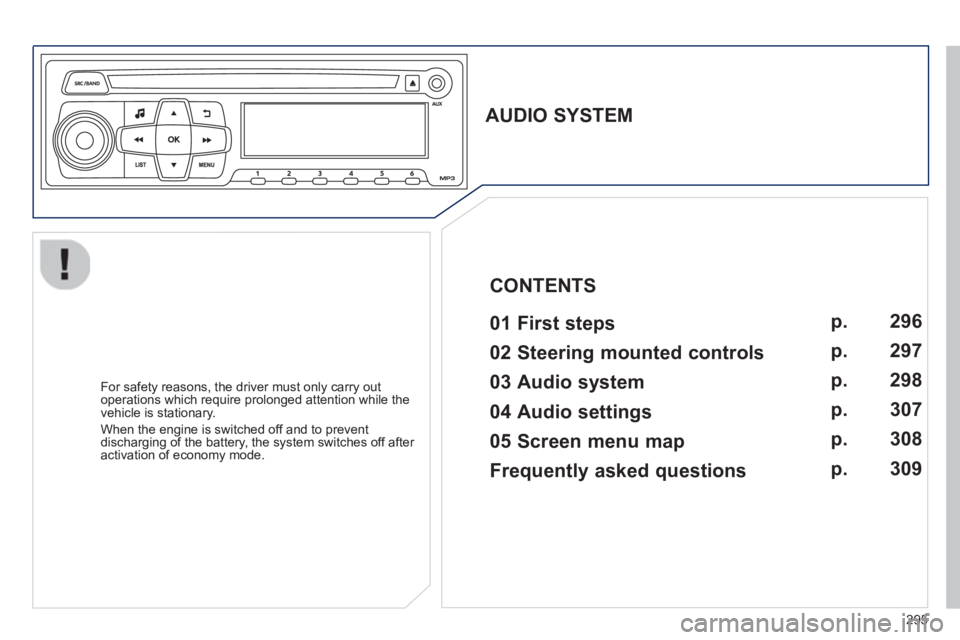
AUDIO SYSTEM
01 First steps
For safety reasons, the driver must only carry out
operations which require prolonged attention while the
vehicle is stationary.
When the en
gine is switched off and to prevent
discharging of the battery, the system switches off after
activation of economy mode.
CONTENTS
02 Steering mounted controls
03 Audio system
04 Audio settings
05 Screen menu map
Frequently asked questions p.
p.
p.
p.
p.
p. 29
6
297
298
307
308
309
Page 298 of 324
01
FIRST STEPS
296
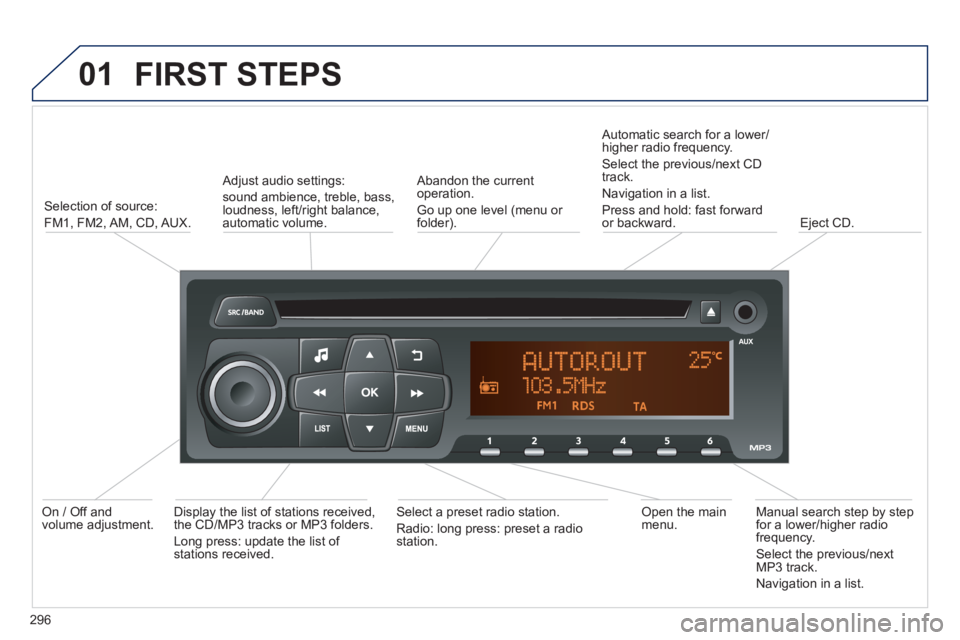
Selection of source:
FM1, FM2, AM,
CD, AUX.
Adjust audio settings:
sound ambience, treble, bass,loudness, left/right balance, automatic volume.
Abandon the current
operation.
Go up one level (menu or folder).
A
utomatic search for a lower/higher radio frequency.
Select the previous/next CD
track.
Navi
gation in a list.
Pr
ess and hold: fast forwardor backward.
Eject CD.
Manual search step by step for a lower/higher radio frequency.
Select the previous/nextMP3 track.
Navi
gation in a list.
Open the mainmenu. Select a preset radio station.Radio: long press: preset a radiostation. Displa
y the list of stations received,
the CD/MP3 tracks or MP3 folders.
Lon
g press: update the list of stations received.
On / Off and
volume adjustment.
Page 299 of 324
02 STEERING MOUNTED CONTROLS
297
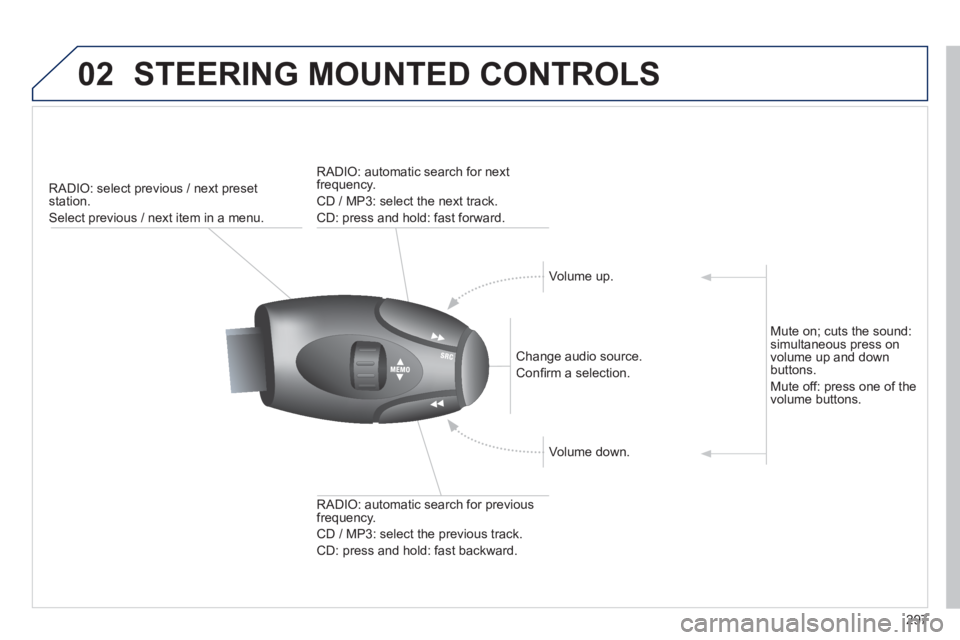
RADIO: select previous / next presetstation.
Select previous / next item in a menu.
Change audio source.
Confi rm a selection.
RADI
O: automatic search for previousfrequency.
CD / MP3: select the
previous track.
CD:
press and hold: fast backward.
RADI
O: automatic search for next
frequency.
CD / MP3: select the next track.
CD: press and hold: fast forward.
Volume up.
V
olume down.
Mute on; cuts the sound:
simultaneous press on
volume up and downbuttons.
Mute o
ff: press one of the
volume buttons.
Page 300 of 324
03
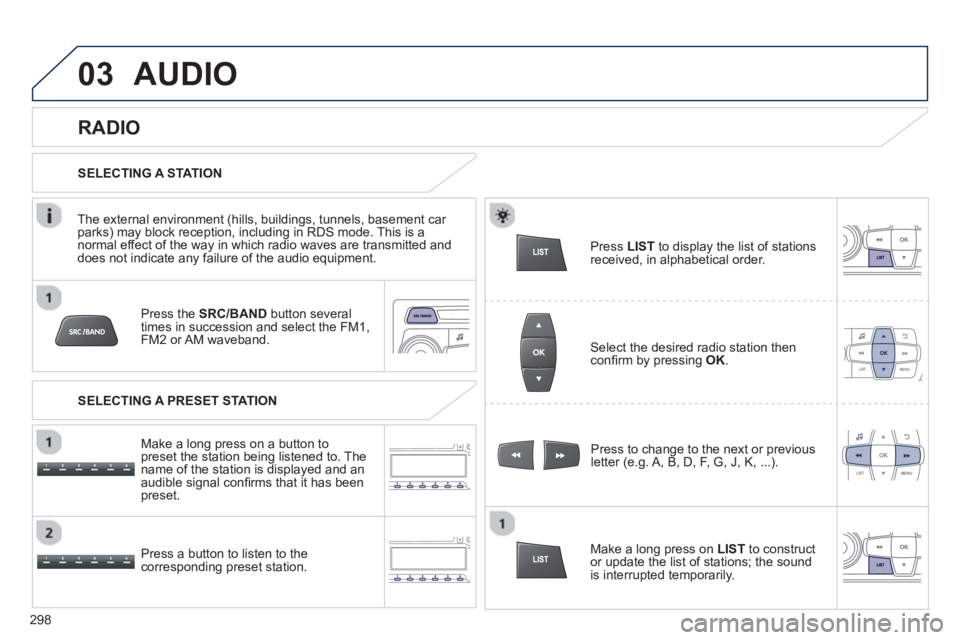
Press the SRC/BANDbutton several
times in succession and select the FM1, FM2 or AM waveband.
Pr
ess a button to listen to the corresponding preset station.Press to chan
ge to the next or previousletter (e.g. A, B, D, F, G, J, K, ...).
RADIO
Select the desired radio station thenconfi rm by pressing OK.
SELECTING A STATION
Make a lon
g press on LIST
to construct
or update the list of stations; the sound
is interrupted temporarily.
The external environment
(hills, buildings, tunnels, basement car parks) may block reception, including in RDS mode. This is a normal effect of the way in which radio waves are transmitted and
does not indicate any failure of the audio equipment.
SELECTING A PRESET STATION
Make a lon
g press on a button to
preset the station being listened to. The
name of the station is displayed and anaudible signal confi rms that it has been
preset.
Pr
ess LIST
to display the list of stations
received, in alphabetical order.
AUDIO
298
Page 301 of 324
03
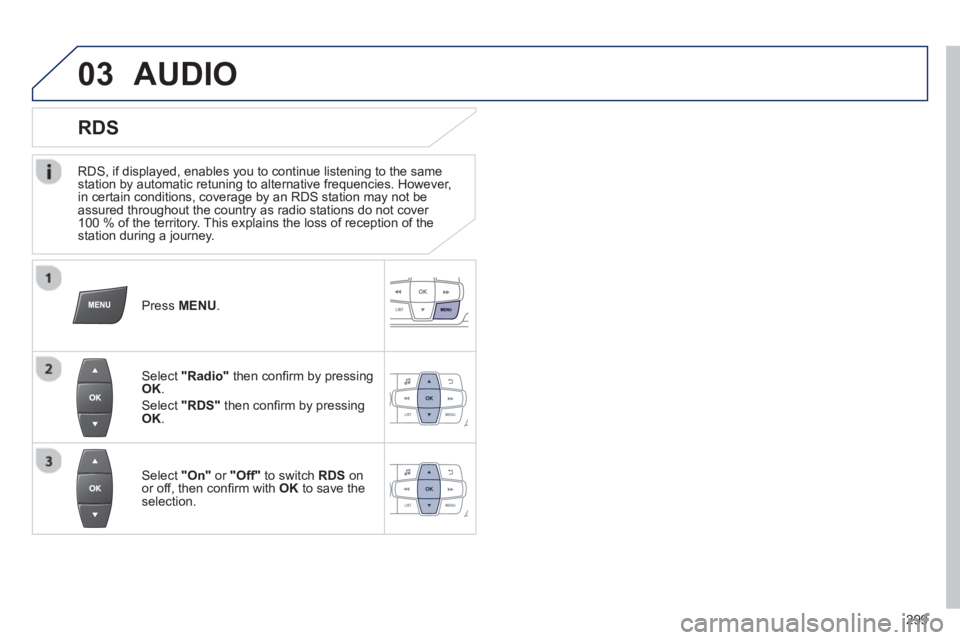
RDS, if displayed, enables you to continue listening to the samestation by automatic retuning to alternative frequencies. However,
in certain conditions, coverage by an RDS station may not be
assured throughout the country as radio stations do not cover
100 % of the territory. This explains the loss of reception of the station during a journey.
AUDIO
RDS
Press MENU .
Select "Radio"
then confi rm by pressing
OK.
Select "RDS"then confi rm by pressingOK
.
Select "On"
or "Off"
to switch RDSonor off, then confi rm with OK
to save the selection.
2
99
Page 302 of 324
03AUDIO
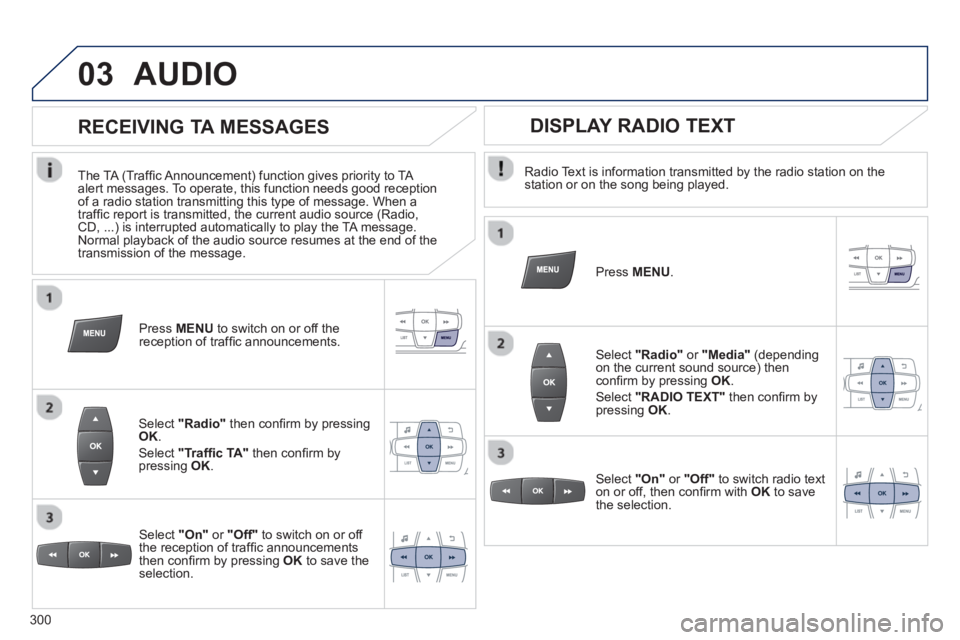
Radio Text is information transmitted by the radio station on thestation or on the song being played.
Pr
ess MENU.
Select "Radio"or "Media"(dependingon the current sound source) then confi rm by pressing OK.
Select "RADIO TEXT"
then confi rm by pressing OK.
DISPLAY RADIO TEXT
RECEIVING TA MESSAGES
The TA (Traffi c Announcement) function gives priority to TA
alert messages. To operate, this function needs good receptionof a radio station transmitting this type of message. When a
traffi c report is transmitted, the current audio source (Radio,CD, ...) is interrupted automatically to play the TA message.
Normal playback of the audio source resumes at the end of the
transmission of the message.
Select "Radio"then confi rm by pressingOK.
Select "Traffi c TA"
then confi rm by pressing OK.
Select "On"or "Off"
to switch on or off
the reception of traffi c announcements
then confi rm by pressing OKto save theselection.
Press MENU
to switch on or off the reception of traffi c announcements.
Select "On"or "Off"
to switch radio text
on or off, then confi rm with OK
to savethe selection.
300