Page 276 of 324
03
274
RADIO
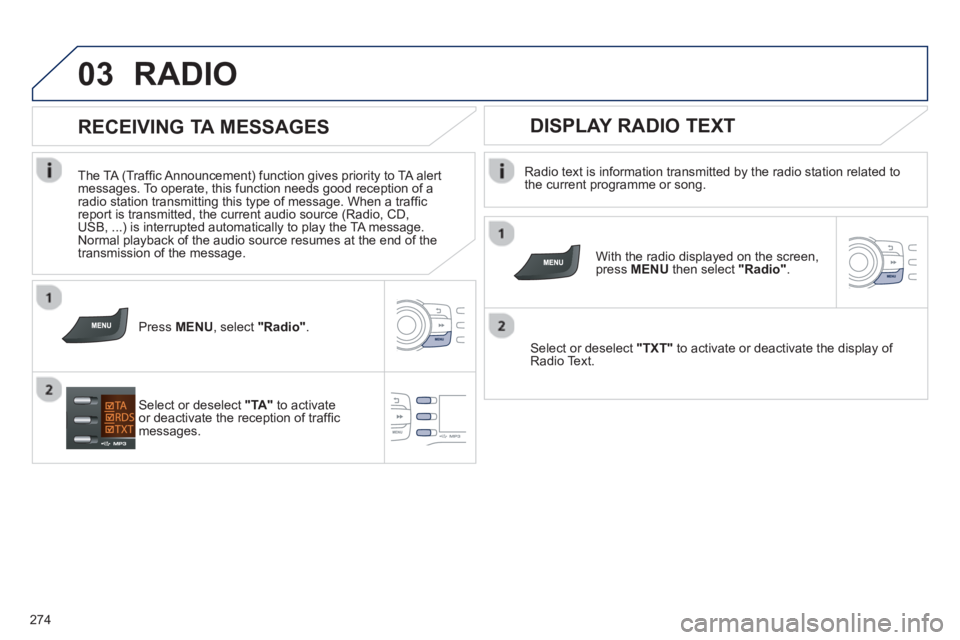
Radio text is information transmitted by the radio station related to
the current programme or song.
With the radio displayed on the screen, press MENUthen select "Radio".
Select or deselect "TXT"to activate or deactivate the display of Radio Text.
DISPLAY RADIO TEXT
RECEIVING TA MESSAGES
The TA (Traffi c Announcement) function gives priority to TA alertmessages. To operate, this function needs good reception of a
radio station transmitting this type of message. When a traffi c
report is transmitted, the current audio source (Radio, CD,USB, ...) is interrupted automatically to play the TA message.
Normal playback of the audio source resumes at the end of the
transmission of the message.
Press MENU, select "Radio".
Select or deselect "TA"to activateor deactivate the reception of traffi cmessages.
Page 278 of 324
04
276
AUDIO
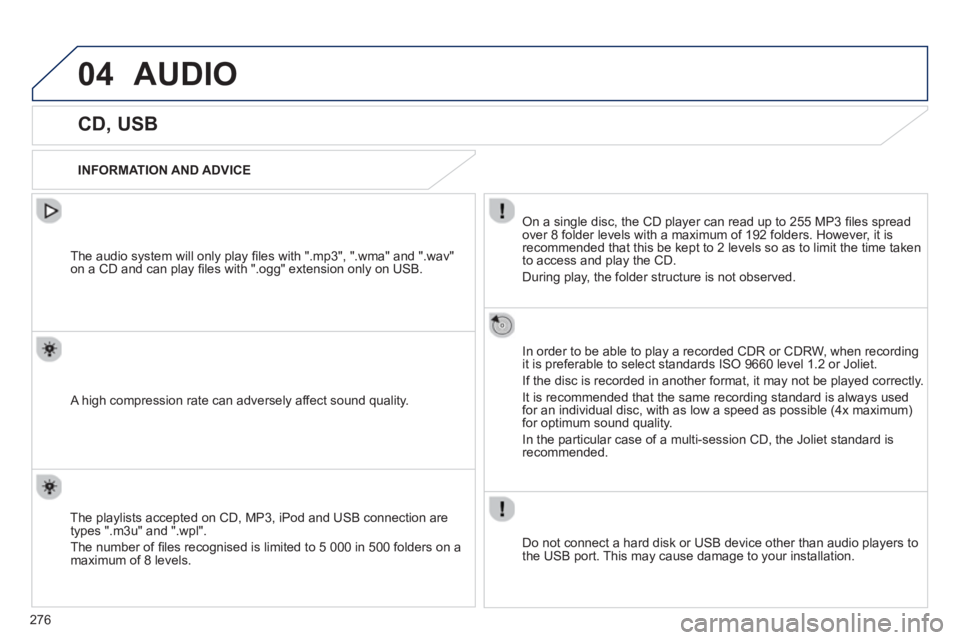
CD, USB
INFORMATION AND ADVICE
On a single disc, the CD player can read up to 255 MP3 fi les spread
over 8 folder levels with a maximum of 192 folders. However, it is
recommended that this be kept to 2 levels so as to limit the time taken
to access and play the CD.
Durin
g play, the folder structure is not observed.
In order to be able to pla
y a recorded CDR or CDRW, when recordingit is preferable to select standards ISO 9660 level 1.2 or Joliet.
If the disc is recorded in another format, it ma
y not be played correctly.
It is recommended that the same recording standard is always usedfor an individual disc, with as low a speed as possible (4x maximum)for optimum sound quality.
In the particular case o
f a multi-session CD, the Joliet standard is
recommended.
Do not connect a hard disk or U
SB device other than audio players to
the USB port. This may cause damage to your installation.
The audio s
ystem will only play fi les with ".mp3", ".wma" and ".wav"
on a CD and can play fi les with ".ogg" extension only on USB.
A high compression rate can adversely affect sound quality.
The pla
ylists accepted on CD, MP3, iPod and USB connection are
types ".m3u" and ".wpl".
The number of fi les reco
gnised is limited to 5 000 in 500 folders on a maximum of 8 levels.
Page 279 of 324
04
277
CD, USB
AUDIO
PLAYING A COMPILATION
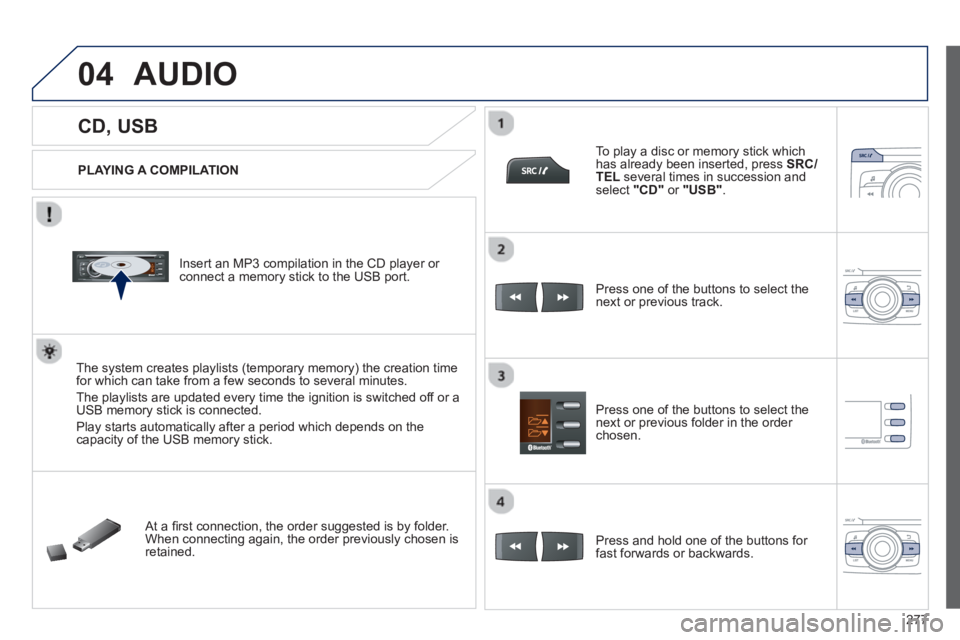
Insert an MP3 compilation in the CD pla
yer or connect a memory stick to the USB port.
The system creates playlists
(temporary memory) the creation timefor which can take from a few seconds to several minutes.
The pla
ylists are updated every time the ignition is switched off or aUSB memory stick is connected.
Pla
y starts automatically after a period which depends on the capacity of the USB memory stick.
At a fi rst connection, the order suggested is by folder.When connecting again, the order previously chosen is retained.
To pla
y a disc or memory stick whichhas already been inserted, press SRC/TELseveral times in succession and select" CD "or "
USB ".
Press one of the buttons to select the next or previous track.
Pr
ess one of the buttons to select the next or previous folder in the order chosen.
Pr
ess and hold one of the buttons for
fast forwards or backwards.
Page 280 of 324
04
278
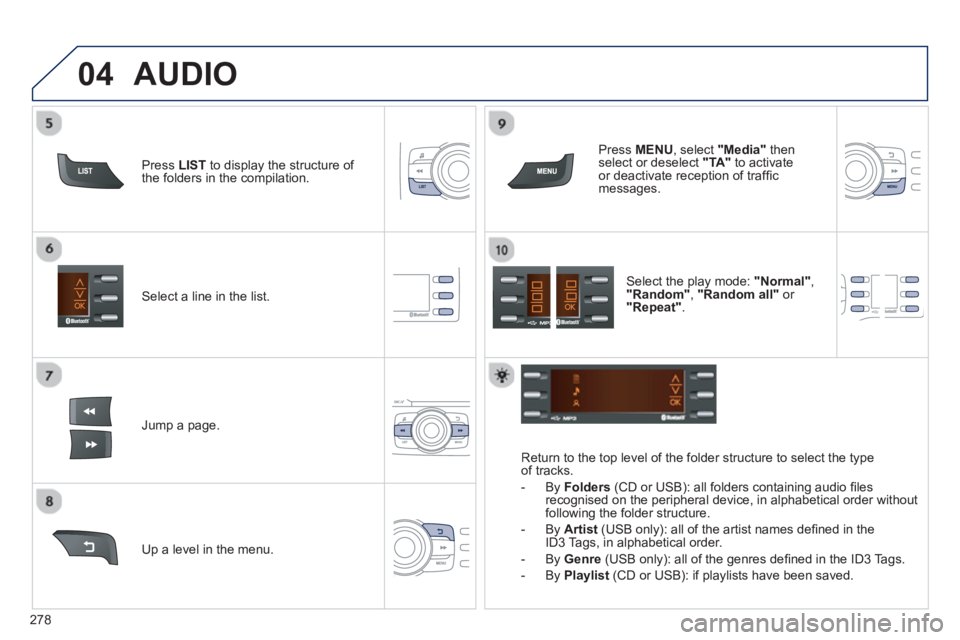
Select a line in the list.
Jump a page.
Pr
ess MENU
, select "Media"
thenselect or deselect "TA"
to activate or deactivate reception of traffi c messages.
U
p a level in the menu.
AUDIO
Return to the top level of the folder structure to select the typeof tracks.
-
By Folders
(CD or USB): all folders containing audio fi les recognised on the peripheral device, in alphabetical order withoutfollowing the folder structure.
- B
y Artist(USB only): all of the artist names defi ned in the
ID3 Tags, in alphabetical order.
- B
y Genre
(USB only): all of the genres defi ned in the ID3 Tags.
-
By Playlist
(CD or USB): if playlists have been saved.
Pr
ess LISTto display the structure of
the folders in the compilation.
Select the play mode: "Normal" ,"Random" , "Random all"or
"Repeat" .
Page 281 of 324
04AUDIO
iPod ®
or PORTABLE PLAYER
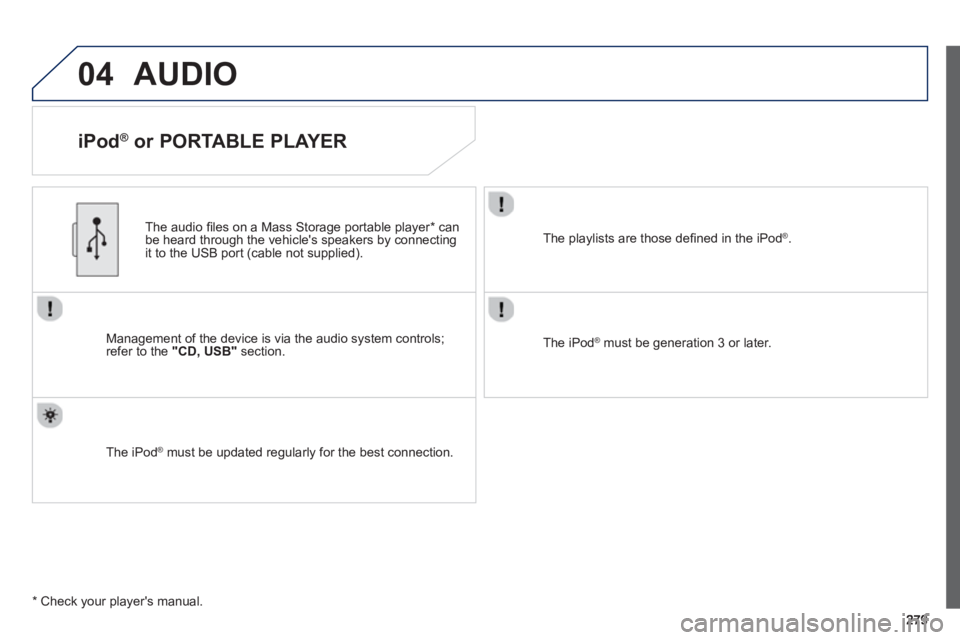
Management of the device is via the audio system controls; refer to the "CD, USB"section.
The audio
fi les on a Mass Storage portable player *
can
be heard through the vehicle's speakers by connectingit to the USB port (cable not supplied).
The iPod Æ must be updated regularly for the best connection. Æ
The playlists are those defi ned in the iPod®.
The iPod®
must be generation 3 or later.
®
*
Check your player's manual.
Page 294 of 324
292
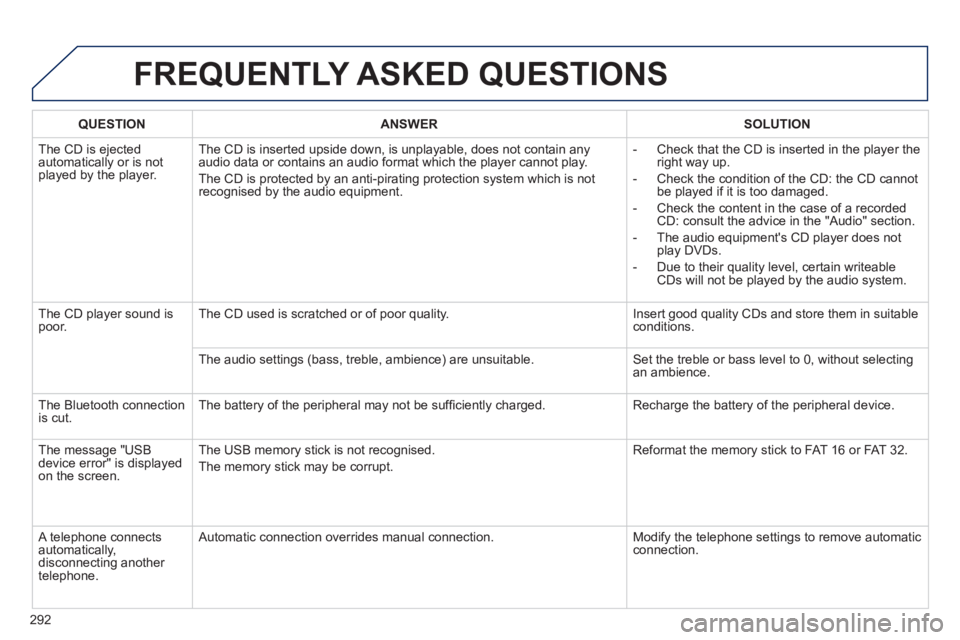
FREQUENTLY ASKED QUESTIONS
QUESTIONANSWERSOLUTION
The CD is ejected
automatically or is not played by the player. The
CD is inserted upside down, is unplayable, does not contain any audio data or contains an audio format which the player cannot play.
The
CD is protected by an anti-pirating protection system which is not recognised by the audio equipment.
-
Check that the CD is inserted in the player the
right way up.
-
Check the condition of the CD: the CD cannot
be played if it is too damaged.
-
Check the content in the case of a recordedCD: consult the advice in the "Audio" section.
- The audio equipment's CD pla
yer does not
play DVDs.
-
Due to their quality level, certain writeableCDs will not be played by the audio system.
The
CD player sound ispoor.The CD used is scratched or of poor quality. Insert good quality CDs and store them in suitable conditions.
The audio settin
gs (bass, treble, ambience) are unsuitable. Set the treble or bass level to 0, without selectingan ambience.
Th
e Bluetooth connection
is cut. The battery of the peripheral may not be suffi ciently charged. Recharge the battery of the peripheral device.
The messa
ge "USB
device error" is displayedon the screen.The USB memor
y stick is not recognised.
The memor
y stick may be corrupt. Reformat the memor
y stick to FAT 16 or FAT 32.
A telephone connects
automatically,
disconnecting another
telephone. A
utomatic connection overrides manual connection. Modify the telephone settings to remove automatic connection.
Page 295 of 324
293
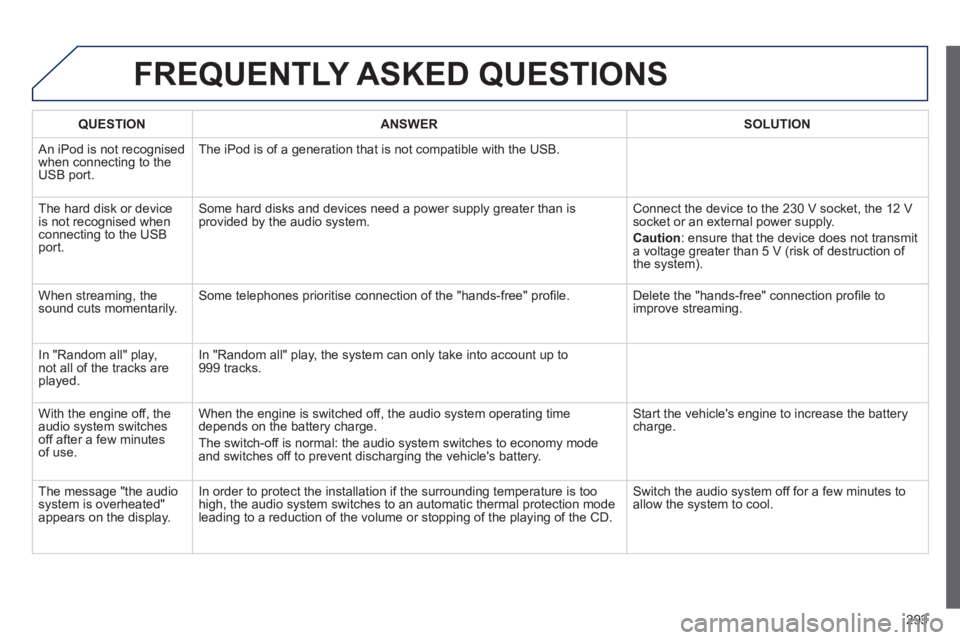
FREQUENTLY ASKED QUESTIONS
QUESTIONANSWERSOLUTION
An iPod is not recognisedwhen connecting to the
USB port.The iPod is o
f a generation that is not compatible with the USB.
Th
e hard disk or deviceis not recognised whenconnecting to the USBport. Some hard disks and devices need a power suppl
y greater than is
provided by the audio system. Connect the device to the 230 V socket, the 12 V socket or an external power supply.
Caution
:
ensure that the device does not transmit
a voltage greater than 5 V (risk of destruction of
the system).
When streaming, the
sound cuts momentarily. Some telephones prioritise connection of the "hands-free" profi le. Delete the "hands-free" connection profi le to
improve streaming.
In "Random all" pla
y,not all of the tracks areplayed.In "Random all" pla
y, the system can only take into account up to 999 tracks.
With the en
gine off, the
audio system switches off after a few minutes of use. When the en
gine is switched off, the audio system operating time
depends on the battery charge.
The switch-off is normal: the audio s
ystem switches to economy mode and switches off to prevent discharging the vehicle's battery. Start the vehicle's en
gine to increase the batterycharge.
The messa
ge "the audio system is overheated"
appears on the display. In order to protect the installation i
f the surrounding temperature is too
high, the audio system switches to an automatic thermal protection mode leading to a reduction of the volume or stopping of the playing of the CD.
Switch the audio system off for a few minutes to
allow the system to cool.
Page 315 of 324
.
313
Visual search
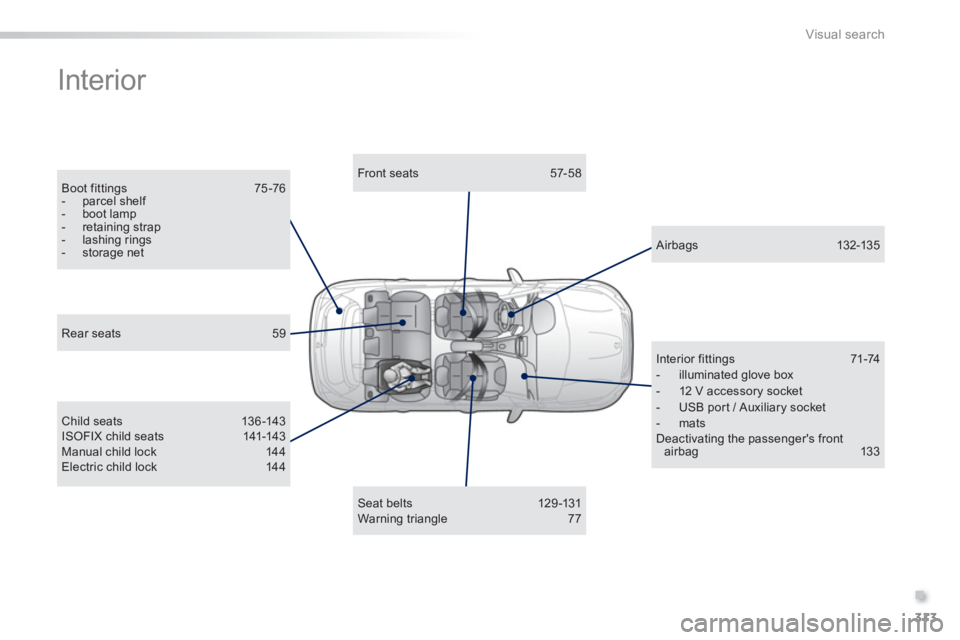
Interior
Boot fittings 75 -76- parcel shelf - boot lamp- retaining strap - lashing rings - storage net
Front seats 57-58
Child seats 136-143ISOFIX child seats 141-143Manual child lock 144 Electric child lock 144
Airbags 132-13 5
Interior fittings 71-74 - illuminated glove box - 12 V accessory socket- USB port / Auxiliary socket- mats
Deactivating the passenger's frontairbag 13 3
Seat belts 129-131Warning triangle 77
Rear seats 59