Page 255 of 444
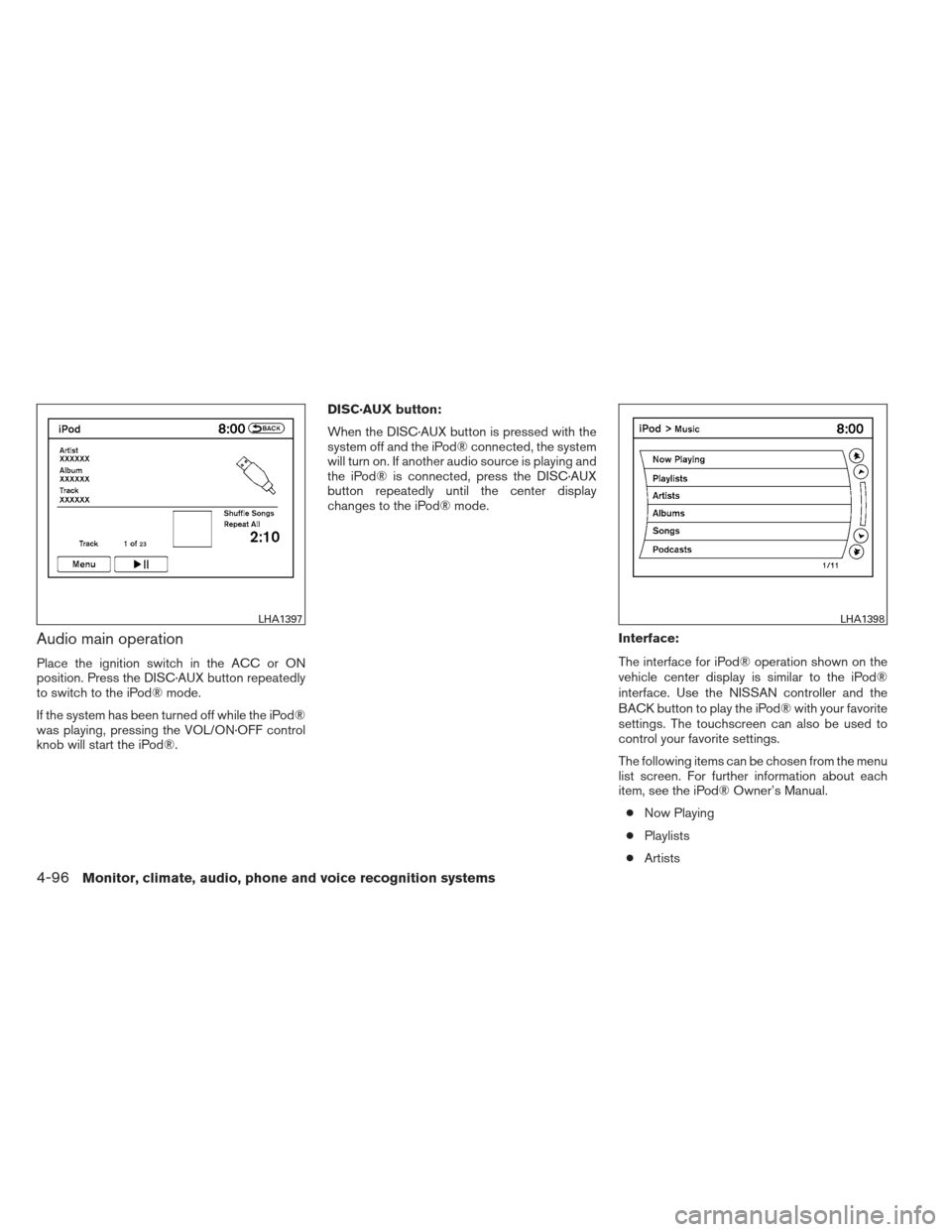
Audio main operation
Place the ignition switch in the ACC or ON
position. Press the DISC·AUX button repeatedly
to switch to the iPod® mode.
If the system has been turned off while the iPod®
was playing, pressing the VOL/ON·OFF control
knob will start the iPod®.DISC·AUX button:
When the DISC·AUX button is pressed with the
system off and the iPod® connected, the system
will turn on. If another audio source is playing and
the iPod® is connected, press the DISC·AUX
button repeatedly until the center display
changes to the iPod® mode.
Interface:
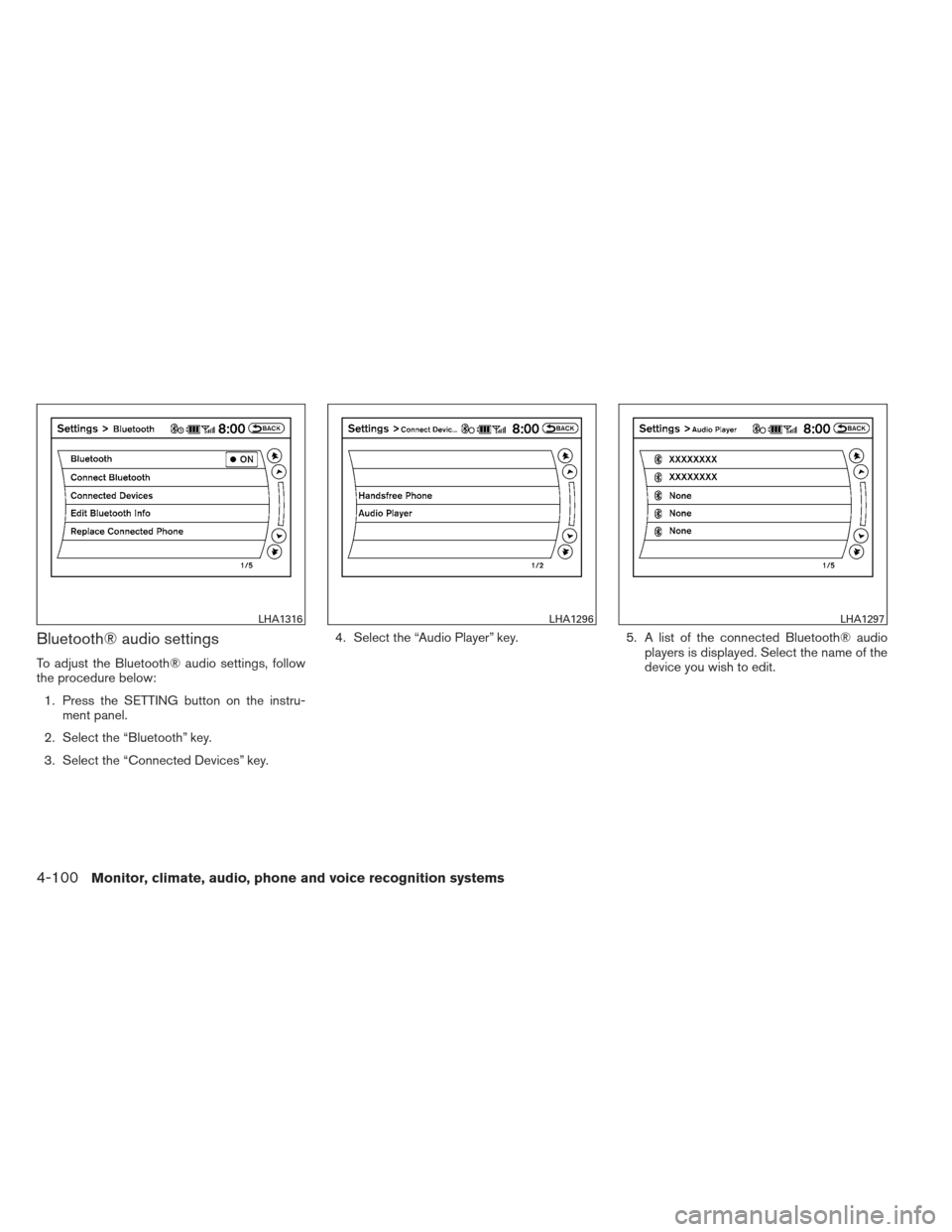
The interface for iPod® operation shown on the
vehicle center display is similar to the iPod®
interface. Use the NISSAN controller and the
BACK button to play the iPod® with your favorite
settings. The touchscreen can also be used to
control your favorite settings.
The following items can be chosen from the menu
list screen. For further information about each
item, see the iPod® Owner’s Manual.● Now Playing
● Playlists
● Artists
LHA1397LHA1398
4-96Monitor, climate, audio, phone and voice recognition systems
Page 256 of 444
●Albums
● Songs
● Podcasts
● Genres
● Composers
● Audiobooks
● Shuffle Songs
The following keys shown on the screen are also
available: ● MENU: returns to the previous screen.
●
: plays/pauses the music selected. Play mode:
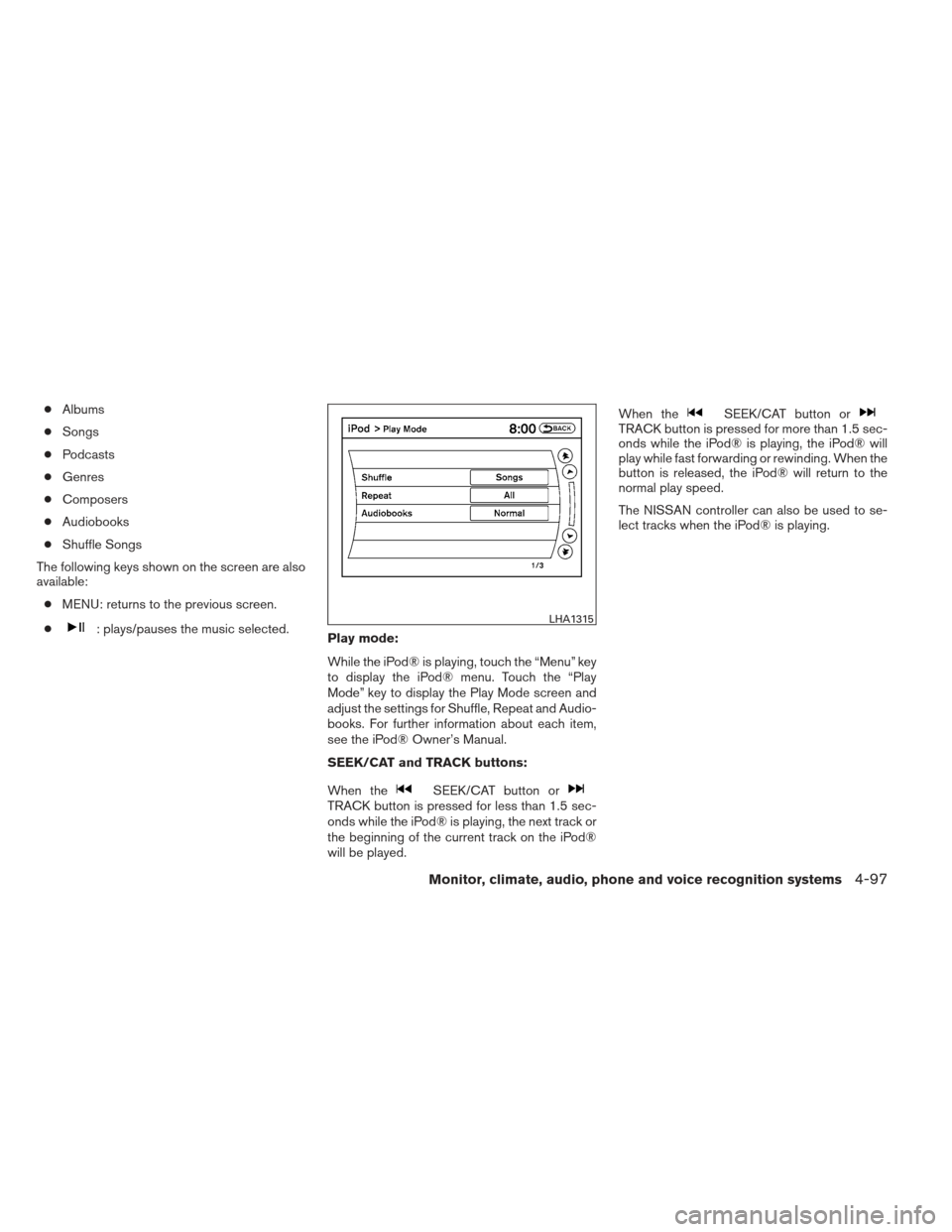
While the iPod® is playing, touch the “Menu” key
to display the iPod® menu. Touch the “Play
Mode” key to display the Play Mode screen and
adjust the settings for Shuffle, Repeat and Audio-
books. For further information about each item,
see the iPod® Owner’s Manual.
SEEK/CAT and TRACK buttons:
When the
SEEK/CAT button orTRACK button is pressed for less than 1.5 sec-
onds while the iPod® is playing, the next track or
the beginning of the current track on the iPod®
will be played. When the
SEEK/CAT button orTRACK button is pressed for more than 1.5 sec-
onds while the iPod® is playing, the iPod® will
play while fast forwarding or rewinding. When the
button is released, the iPod® will return to the
normal play speed.
The NISSAN controller can also be used to se-
lect tracks when the iPod® is playing.
LHA1315
Monitor, climate, audio, phone and voice recognition systems4-97
Page 259 of 444
Bluetooth® audio settings
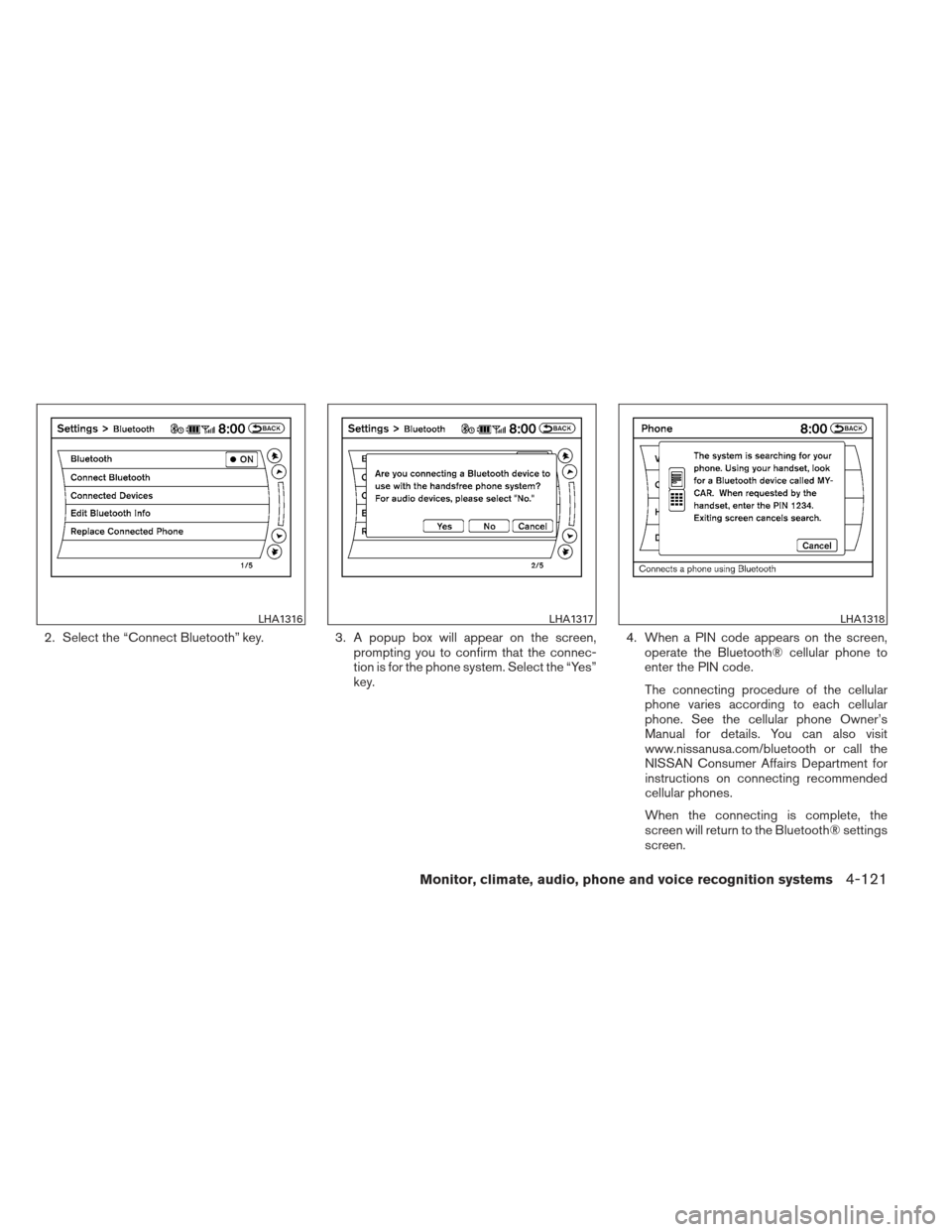
To adjust the Bluetooth® audio settings, follow
the procedure below:1. Press the SETTING button on the instru- ment panel.
2. Select the “Bluetooth” key.
3. Select the “Connected Devices” key. 4. Select the “Audio Player” key.
5. A list of the connected Bluetooth® audio
players is displayed. Select the name of the
device you wish to edit.
LHA1316LHA1296LHA1297
4-100Monitor, climate, audio, phone and voice recognition systems
Page 280 of 444
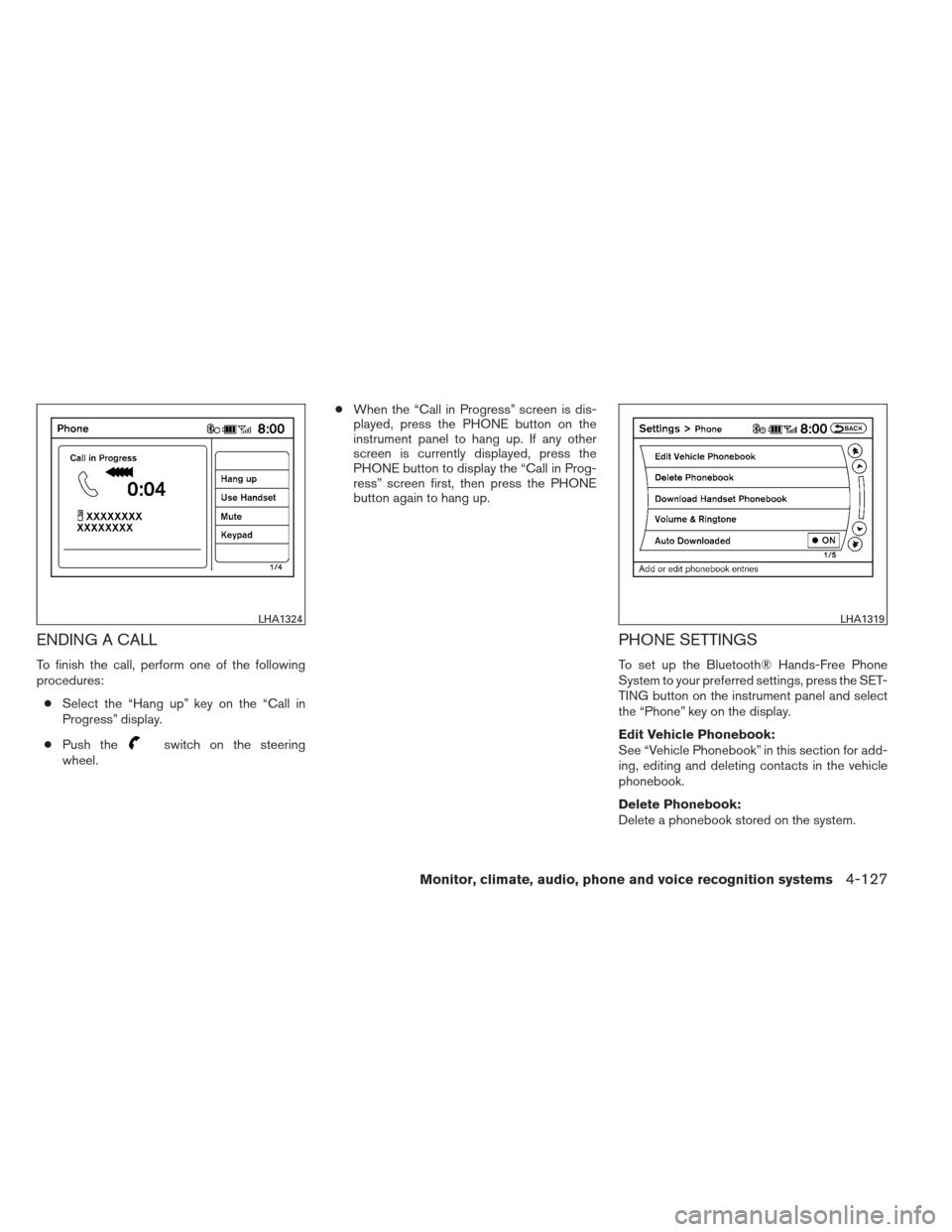
2. Select the “Connect Bluetooth” key.3. A popup box will appear on the screen,
prompting you to confirm that the connec-
tion is for the phone system. Select the “Yes”
key. 4. When a PIN code appears on the screen,
operate the Bluetooth® cellular phone to
enter the PIN code.
The connecting procedure of the cellular
phone varies according to each cellular
phone. See the cellular phone Owner’s
Manual for details. You can also visit
www.nissanusa.com/bluetooth or call the
NISSAN Consumer Affairs Department for
instructions on connecting recommended
cellular phones.
When the connecting is complete, the
screen will return to the Bluetooth® settings
screen.
LHA1316LHA1317LHA1318
Monitor, climate, audio, phone and voice recognition systems4-121
Page 286 of 444
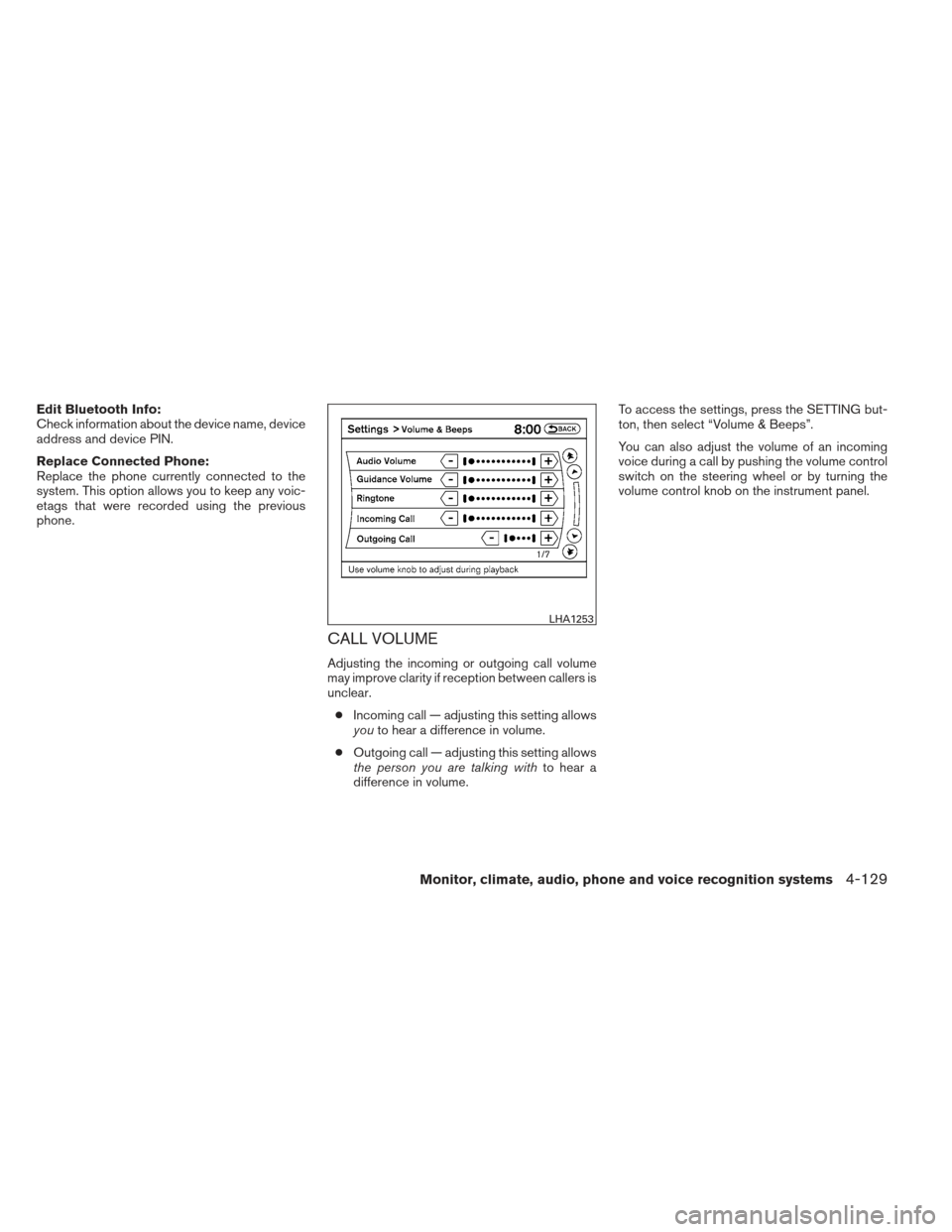
ENDING A CALL
To finish the call, perform one of the following
procedures:● Select the “Hang up” key on the “Call in
Progress” display.
● Push the
switch on the steering
wheel. ●
When the “Call in Progress” screen is dis-
played, press the PHONE button on the
instrument panel to hang up. If any other
screen is currently displayed, press the
PHONE button to display the “Call in Prog-
ress” screen first, then press the PHONE
button again to hang up.
PHONE SETTINGS
To set up the Bluetooth® Hands-Free Phone
System to your preferred settings, press the SET-
TING button on the instrument panel and select
the “Phone” key on the display.
Edit Vehicle Phonebook:
See “Vehicle Phonebook” in this section for add-
ing, editing and deleting contacts in the vehicle
phonebook.
Delete Phonebook:
Delete a phonebook stored on the system.
LHA1324LHA1319
Monitor, climate, audio, phone and voice recognition systems4-127
Page 287 of 444
Download Handset Phonebook:
See “Handset Phonebook” in this section for
adding, editing and deleting contacts in the
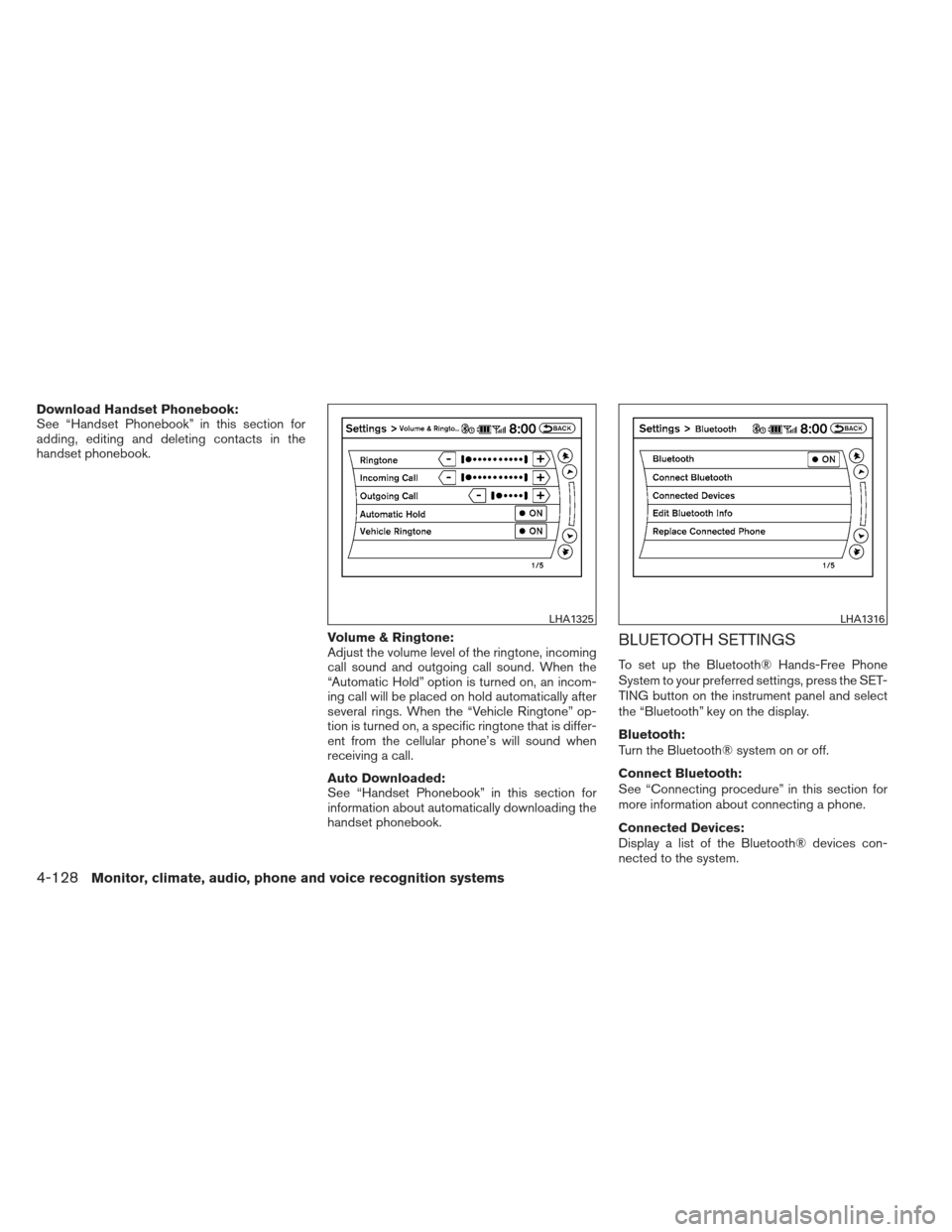
handset phonebook.Volume & Ringtone:
Adjust the volume level of the ringtone, incoming
call sound and outgoing call sound. When the
“Automatic Hold” option is turned on, an incom-
ing call will be placed on hold automatically after
several rings. When the “Vehicle Ringtone” op-
tion is turned on, a specific ringtone that is differ-
ent from the cellular phone’s will sound when
receiving a call.
Auto Downloaded:
See “Handset Phonebook” in this section for
information about automatically downloading the
handset phonebook.
BLUETOOTH SETTINGS
To set up the Bluetooth® Hands-Free Phone
System to your preferred settings, press the SET-
TING button on the instrument panel and select
the “Bluetooth” key on the display.
Bluetooth:
Turn the Bluetooth® system on or off.
Connect Bluetooth:
See “Connecting procedure” in this section for
more information about connecting a phone.
Connected Devices:
Display a list of the Bluetooth® devices con-
nected to the system.
LHA1325LHA1316
4-128Monitor, climate, audio, phone and voice recognition systems
Page 288 of 444
Edit Bluetooth Info:
Check information about the device name, device
address and device PIN.
Replace Connected Phone:
Replace the phone currently connected to the
system. This option allows you to keep any voic-
etags that were recorded using the previous
phone.
CALL VOLUME
Adjusting the incoming or outgoing call volume
may improve clarity if reception between callers is
unclear.● Incoming call — adjusting this setting allows
you to hear a difference in volume.
● Outgoing call — adjusting this setting allows
the person you are talking with to hear a
difference in volume. To access the settings, press the SETTING but-
ton, then select “Volume & Beeps”.
You can also adjust the volume of an incoming
voice during a call by pushing the volume control
switch on the steering wheel or by turning the
volume control knob on the instrument panel.
LHA1253
Monitor, climate, audio, phone and voice recognition systems4-129
Page 292 of 444
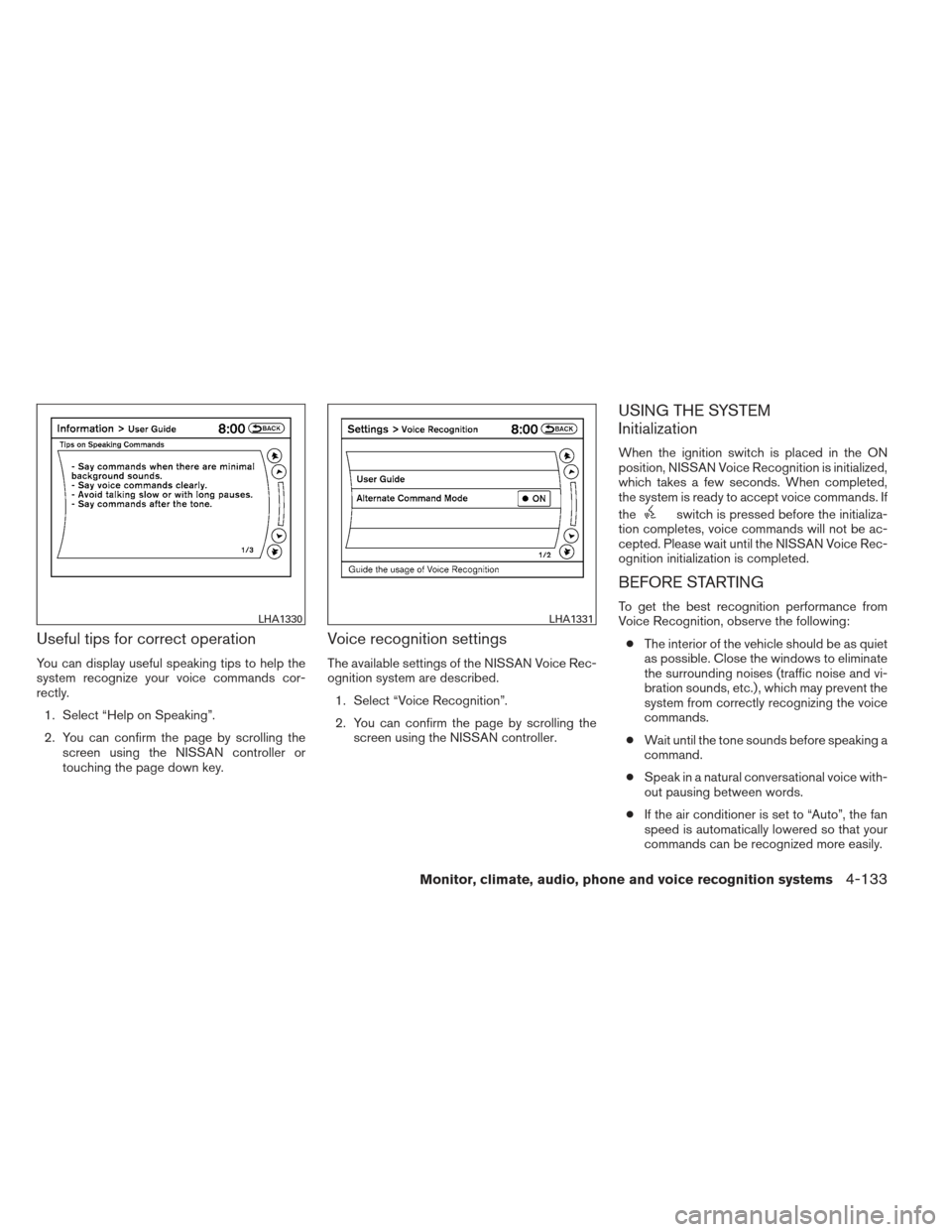
Useful tips for correct operation
You can display useful speaking tips to help the
system recognize your voice commands cor-
rectly.1. Select “Help on Speaking”.
2. You can confirm the page by scrolling the screen using the NISSAN controller or
touching the page down key.
Voice recognition settings
The available settings of the NISSAN Voice Rec-
ognition system are described.
1. Select “Voice Recognition”.
2. You can confirm the page by scrolling the screen using the NISSAN controller.
USING THE SYSTEM
Initialization
When the ignition switch is placed in the ON
position, NISSAN Voice Recognition is initialized,
which takes a few seconds. When completed,
the system is ready to accept voice commands. If
the
switch is pressed before the initializa-
tion completes, voice commands will not be ac-
cepted. Please wait until the NISSAN Voice Rec-
ognition initialization is completed.
BEFORE STARTING
To get the best recognition performance from
Voice Recognition, observe the following:
● The interior of the vehicle should be as quiet
as possible. Close the windows to eliminate
the surrounding noises (traffic noise and vi-
bration sounds, etc.) , which may prevent the
system from correctly recognizing the voice
commands.
● Wait until the tone sounds before speaking a
command.
● Speak in a natural conversational voice with-
out pausing between words.
● If the air conditioner is set to “Auto”, the fan
speed is automatically lowered so that your
commands can be recognized more easily.LHA1330LHA1331
Monitor, climate, audio, phone and voice recognition systems4-133