2013 NISSAN LEAF radio
[x] Cancel search: radioPage 250 of 275
10-24Troubleshooting guide/General system information
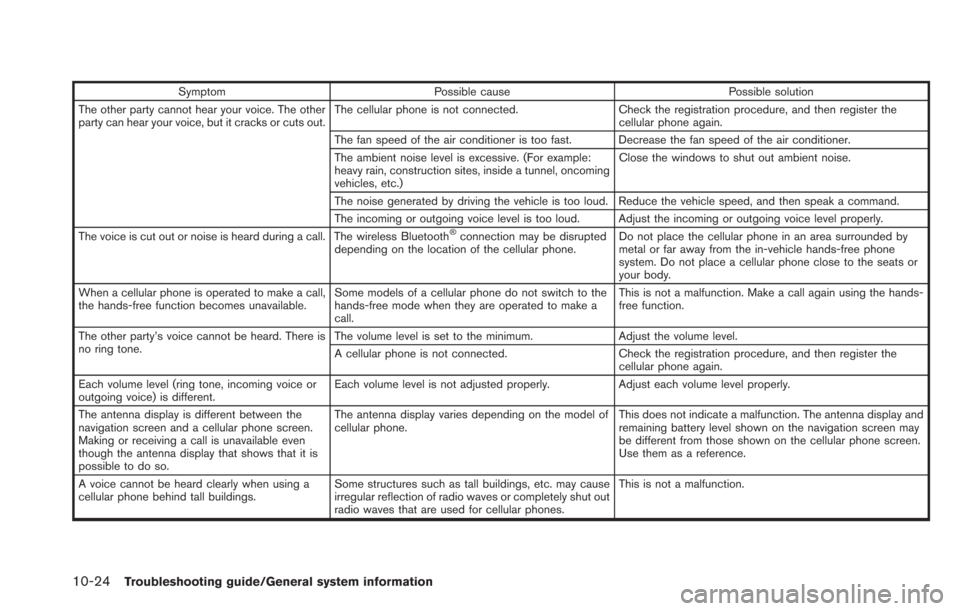
SymptomPossible cause Possible solution
The other party cannot hear your voice. The other
party can hear your voice, but it cracks or cuts out. The cellular phone is not connected.
Check the registration procedure, and then register the
cellular phone again.
The fan speed of the air conditioner is too fast. Decrease the fan speed of the air conditioner.
The ambient noise level is excessive. (For example:
heavy rain, construction sites, inside a tunnel, oncoming
vehicles, etc.) Close the windows to shut out ambient noise.
The noise generated by driving the vehicle is too loud. Reduce the vehicle speed, and then speak a command.
The incoming or outgoing voice level is too loud. Adjust the incoming or outgoing voice level properly.
The voice is cut out or noise is heard during a call. The wireless Bluetooth
®connection may be disrupted
depending on the location of the cellular phone. Do not place the cellular phone in an area surrounded by
metal or far away from the in-vehicle hands-free phone
system. Do not place a cellular phone close to the seats or
your body.
When a cellular phone is operated to make a call,
the hands-free function becomes unavailable. Some models of a cellular phone do not switch to the
hands-free mode when they are operated to make a
call. This is not a malfunction. Make a call again using the hands-
free function.
The other party’s voice cannot be heard. There is
no ring tone. The volume level is set to the minimum.
Adjust the volume level.
A cellular phone is not connected. Check the registration procedure, and then register the
cellular phone again.
Each volume level (ring tone, incoming voice or
outgoing voice) is different. Each volume level is not adjusted properly.
Adjust each volume level properly.
The antenna display is different between the
navigation screen and a cellular phone screen.
Making or receiving a call is unavailable even
though the antenna display that shows that it is
possible to do so. The antenna display varies depending on the model of
cellular phone.
This does not indicate a malfunction. The antenna display and
remaining battery level shown on the navigation screen may
be different from those shown on the cellular phone screen.
Use them as a reference.
A voice cannot be heard clearly when using a
cellular phone behind tall buildings. Some structures such as tall buildings, etc. may cause
irregular reflection of radio waves or completely shut out
radio waves that are used for cellular phones. This is not a malfunction.
Page 251 of 275
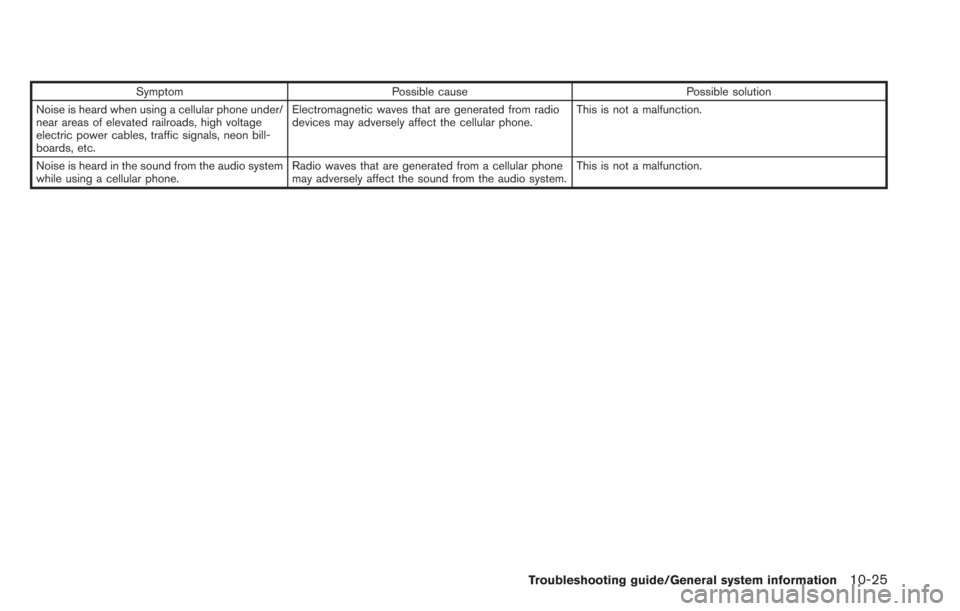
SymptomPossible cause Possible solution
Noise is heard when using a cellular phone under/
near areas of elevated railroads, high voltage
electric power cables, traffic signals, neon bill-
boards, etc. Electromagnetic waves that are generated from radio
devices may adversely affect the cellular phone.
This is not a malfunction.
Noise is heard in the sound from the audio system
while using a cellular phone. Radio waves that are generated from a cellular phone
may adversely affect the sound from the audio system. This is not a malfunction.
Troubleshooting guide/General system information10-25
Page 254 of 275
10-28Troubleshooting guide/General system information
CURRENT VEHICLE LOCATION
Display of current vehicle location
This navigation system combines the data
obtained from the vehicle (by gyro sensor) and
from GPS (Global Positioning System) satellites
to calculate the current location of the vehicle.
This position is then displayed throughout route
guidance to a destination.
What is GPS (Global Positioning
System)?
GPS is a position detecting system that uses
satellites deployed by the U.S. government. This
navigation system receives radio signals from
three or more different satellites that orbit
13,049 miles (21,000 km) above the earth in
space, and detects the position of the vehicle by
utilizing the principle of triangulation.
Positioning adjustment:
When the system judges that the vehicle
position is not accurate based on vehicle speed
and gyro sensor data calculations, the system
will automatically adjust the position of the
vehicle icon using GPS signals.
Receiving signals from GPS satellites:
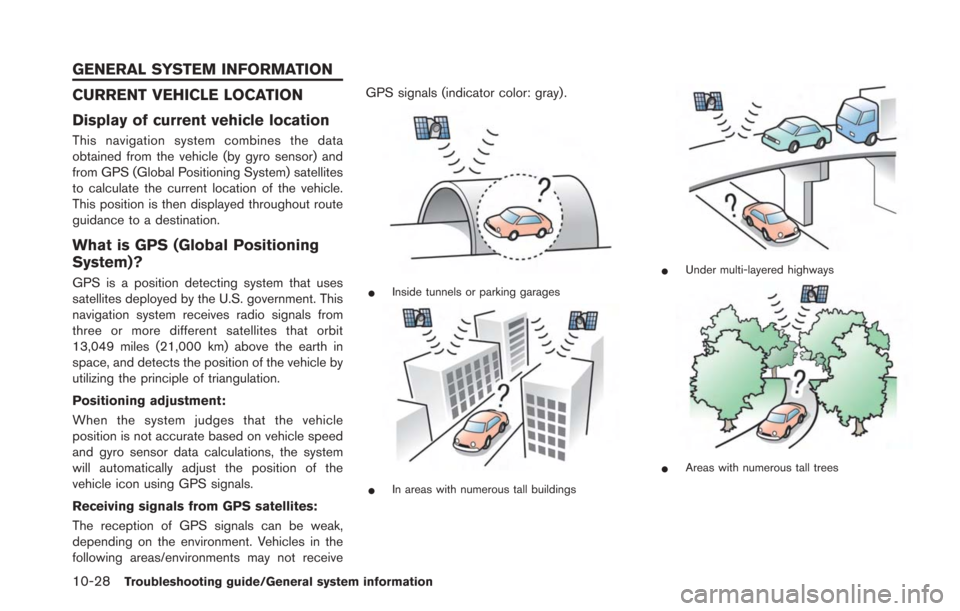
The reception of GPS signals can be weak,
depending on the environment. Vehicles in the
following areas/environments may not receiveGPS signals (indicator color: gray) .*Inside tunnels or parking garages
*In areas with numerous tall buildings
*Under multi-layered highways
*Areas with numerous tall trees
GENERAL SYSTEM INFORMATION
Page 263 of 275
where road data is not complete, voice
guidance may stop for long periods of time.
Be sure to follow the actual traffic restric-
tions while driving.
NOTES ON NAV TRAFFIC INFOR-
MATION
.The NavTraffic information service is not
provided for some cities. In addition, the
cities for which the traffic information service
is provided may be changed.
. In some cases, infrastructure problems may
prevent the complete display of the traffic
information. This is not a malfunction.
. Due to infrastructure problems, or due to the
time when the traffic information service
broadcast is received, the displayed infor-
mation may differ from the actual traffic
conditions.
. Depending on the traffic information, a
detour route may be slower than the original
route.
. NavTraffic is a service of SiriusXM Satellite
Radio. NavTraffic is only available in select
markets and is subject to data availability.
Reception of the XM
®signal may vary
depending on location. It requires a monthly
premium subscription. The service provider
is solely responsible for the quality and accuracy of the information provided. All
fees and programming are subject to
change. For more details on the NavTraffic
service, terms and conditions, please visit
www.siriusxm.com/navtraffic.
You can also contact SiriusXM Satellite
Radio at
1-866-635-2349.
. As of January 31, 2009, the NavTraffic
service covers 80 major metropolitan mar-
kets. For the most current list of markets
covered, please refer to
www.siriusxm.com/navtraffic, or call Sir-
iusXM Satellite Radio customer support at
1-866-635-2349.
. Due to road maintenance, infrastructure
problems (e.g. malfunction of road sensors,
outage of central computer of infrastructure)
or natural disasters, there are times when
some or all traffic information may not be
available.
. Incident information is based on human
collection. Not all incidents that have hap-
pened are collected and provided.
. Due to infrastructure problems, or transmis-
sion delay, there are times when the
information may differ from the actual con-
dition. Always observe safe driving practices
and follow all traffic regulations. .
Due to the coverage and quality of traffic
information and road conditions, it is not
always possible for the system to provide
the shortest time route even when traffic
information is considered.
. Traffic information that is displayed may
differ from information from other media
(e.g., radio) , as other media may use
different information sources.
MAP DATA
How to handle the Map SD card
In the right side slot, an SD card that includes
the map data is inserted. When handling the
Map SD card, please be careful and adhere to
the following instructions:
.An SD card is inserted in the slot on the
right side. This is the SDHC card that is
exclusively used for this device. This card
includes the map data. The SDHC card is
necessary to operate the device. Do not
remove this card except when update of the
map data is required.
. The device does not work even if the SDHC
card with the map data is inserted in the slot
on the left side.
. Never analyze, modify, delete or format the
map data. Doing so may cause an improper
operation of the device.
Troubleshooting guide/General system information10-37
Page 271 of 275
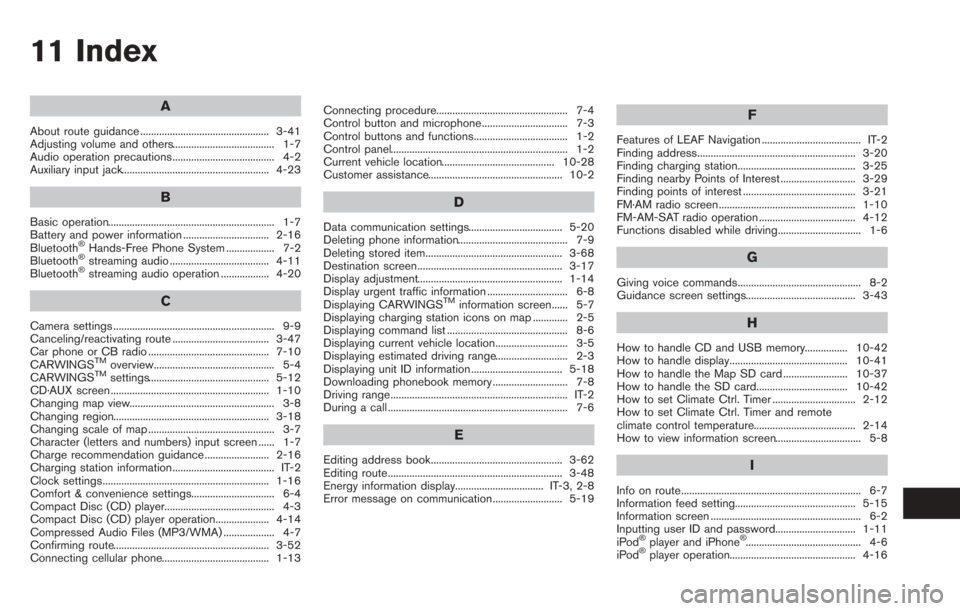
11 Index
A
About route guidance ................................................ 3-41
Adjusting volume and others...................................... 1-7
Audio operation precautions...................................... 4-2
Auxiliary input jack....................................................... 4-23
B
Basic operation.............................................................. 1-7
Battery and power information ................................ 2-16
Bluetooth
®Hands-Free Phone System .................. 7-2
Bluetooth®streaming audio ..................................... 4-11
Bluetooth®streaming audio operation .................. 4-20
C
Camera settings ............................................................ 9-9
Canceling/reactivating route .................................... 3-47
Car phone or CB radio ............................................. 7-10
CARWINGS
TMoverview............................................. 5-4
CARWINGSTMsettings............................................. 5-12
CD·AUX screen ........................................................... 1-10
Changing map view...................................................... 3-8
Changing region.......................................................... 3-18
Changing scale of map ............................................... 3-7
Character (letters and numbers) input screen ...... 1-7
Charge recommendation guidance ........................ 2-16
Charging station information...................................... IT-2
Clock settings.............................................................. 1-16
Comfort & convenience settings............................... 6-4
Compact Disc (CD) player......................................... 4-3
Compact Disc (CD) player operation.................... 4-14
Compressed Audio Files (MP3/WMA) ................... 4-7
Confirming route.......................................................... 3-52
Connecting cellular phone........................................ 1-13 Connecting procedure................................................. 7-4
Control button and microphone................................ 7-3
Control buttons and functions................................... 1-2
Control panel.................................................................. 1-2
Current vehicle location.......................................... 10-28
Customer assistance.................................................. 10-2
D
Data communication settings................................... 5-20
Deleting phone information......................................... 7-9
Deleting stored item................................................... 3-68
Destination screen...................................................... 3-17
Display adjustment...................................................... 1-14
Display urgent traffic information .............................. 6-8
Displaying CARWINGS
TMinformation screen...... 5-7
Displaying charging station icons on map ............. 2-5
Displaying command list ............................................. 8-6
Displaying current vehicle location........................... 3-5
Displaying estimated driving range........................... 2-3
Displaying unit ID information .................................. 5-18
Downloading phonebook memory ............................ 7-8
Driving range.................................................................. IT-2
During a call ................................................................... 7-6
E
Editing address book................................................. 3-62
Editing route................................................................. 3-48
Energy information display................................. IT-3, 2-8
Error message on communication.......................... 5-19
F
Features of LEAF Navigation ..................................... IT-2
Finding address........................................................... 3-20
Finding charging station............................................ 3-25
Finding nearby Points of Interest ............................ 3-29
Finding points of interest .......................................... 3-21
FM·AM radio screen................................................... 1-10
FM-AM-SAT radio operation .................................... 4-12
Functions disabled while driving............................... 1-6
G
Giving voice commands.............................................. 8-2
Guidance screen settings......................................... 3-43
H
How to handle CD and USB memory................ 10-42
How to handle display............................................ 10-41
How to handle the Map SD card ........................ 10-37
How to handle the SD card.................................. 10-42
How to set Climate Ctrl. Timer ............................... 2-12
How to set Climate Ctrl. Timer and remote
climate control temperature...................................... 2-14
How to view information screen................................ 5-8
I
Info on route................................................................... 6-7
Information feed setting............................................. 5-15
Information screen ........................................................ 6-2
Inputting user ID and password.............................. 1-11
iPod
®player and iPhone®........................................... 4-6
iPod®player operation............................................... 4-16
Page 272 of 275
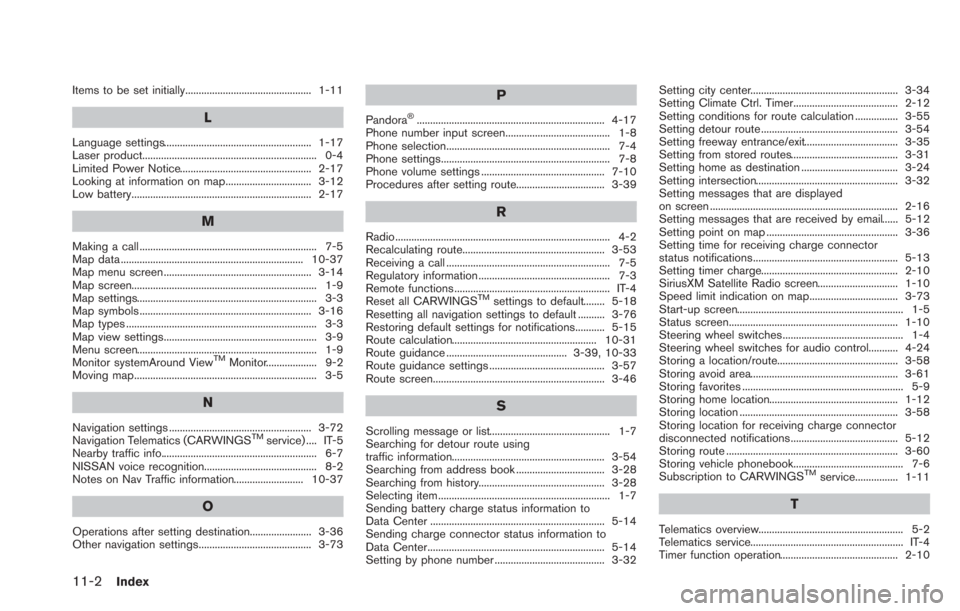
11-2Index
Items to be set initially............................................... 1-11
L
Language settings....................................................... 1-17
Laser product................................................................. 0-4
Limited Power Notice................................................. 2-17
Looking at information on map................................ 3-12
Low battery................................................................... 2-17
M
Making a call .................................................................. 7-5
Map data .................................................................... 10-37
Map menu screen ....................................................... 3-14
Map screen..................................................................... 1-9
Map settings................................................................... 3-3
Map symbols ................................................................ 3-16
Map types ....................................................................... 3-3
Map view settings......................................................... 3-9
Menu screen................................................................... 1-9
Monitor systemAround View
TMMonitor................... 9-2
Moving map.................................................................... 3-5
N
Navigation settings ..................................................... 3-72
Navigation Telematics (CARWINGSTMservice) .... IT-5
Nearby traffic info.......................................................... 6-7
NISSAN voice recognition.......................................... 8-2
Notes on Nav Traffic information.......................... 10-37
O
Operations after setting destination....................... 3-36
Other navigation settings.......................................... 3-73
P
Pandora®...................................................................... 4-17
Phone number input screen....................................... 1-8
Phone selection............................................................. 7-4
Phone settings............................................................... 7-8
Phone volume settings .............................................. 7-10
Procedures after setting route................................. 3-39
R
Radio................................................................................ 4-2
Recalculating route..................................................... 3-53
Receiving a call ............................................................. 7-5
Regulatory information ................................................. 7-3
Remote functions .......................................................... IT-4
Reset all CARWINGS
TMsettings to default........ 5-18
Resetting all navigation settings to default .......... 3-76
Restoring default settings for notifications........... 5-15
Route calculation...................................................... 10-31
Route guidance ............................................. 3-39, 10-33
Route guidance settings ........................................... 3-57
Route screen................................................................ 3-46
S
Scrolling message or list............................................. 1-7
Searching for detour route using
traffic information......................................................... 3-54
Searching from address book ................................. 3-28
Searching from history............................................... 3-28
Selecting item ................................................................ 1-7
Sending battery charge status information to
Data Center ................................................................. 5-14
Sending charge connector status information to
Data Center.................................................................. 5-14
Setting by phone number ......................................... 3-32 Setting city center....................................................... 3-34
Setting Climate Ctrl. Timer....................................... 2-12
Setting conditions for route calculation ................ 3-55
Setting detour route ................................................... 3-54
Setting freeway entrance/exit................................... 3-35
Setting from stored routes........................................ 3-31
Setting home as destination .................................... 3-24
Setting intersection..................................................... 3-32
Setting messages that are displayed
on screen ...................................................................... 2-16
Setting messages that are received by email...... 5-12
Setting point on map ................................................. 3-36
Setting time for receiving charge connector
status notifications...................................................... 5-13
Setting timer charge................................................... 2-10
SiriusXM Satellite Radio screen.............................. 1-10
Speed limit indication on map................................. 3-73
Start-up screen.............................................................. 1-5
Status screen............................................................... 1-10
Steering wheel switches............................................. 1-4
Steering wheel switches for audio control........... 4-24
Storing a location/route............................................. 3-58
Storing avoid area....................................................... 3-61
Storing favorites ............................................................ 5-9
Storing home location................................................ 1-12
Storing location ........................................................... 3-58
Storing location for receiving charge connector
disconnected notifications........................................ 5-12
Storing route ................................................................ 3-60
Storing vehicle phonebook......................................... 7-6
Subscription to CARWINGS
TMservice................ 1-11
T
Telematics overview...................................................... 5-2
Telematics service......................................................... IT-4
Timer function operation............................................ 2-10