2013 MERCEDES-BENZ S-Class reset
[x] Cancel search: resetPage 113 of 542

X
To adjust the side bolsters of the head
restraint: push or pull side bolsters 0002into
the desired position.
X To move forwards and backwards: pull
or push the NECK-PRO luxury head
restraints in the direction of arrow 0003.
Resetting
The NECK-PRO luxury head restraints are
moved forwards in the event of a rea rcollision
in the direction of travel and have to be reset
afterwards (Y page 60).
Rear seat head restraints G
WARNING
For safety reasons, always drive with the rear
head restraints in the upright position when
the rear seats are occupied.
Keep the area around head restraints clear of
articles (e.g. clothing) to not obstruct the
folding operation of the head restraints. G
WARNING
Make sure the rear seat head restraints
engage when placing them upright manually.
Otherwise their protective function cannot be
ensured.
The back of the head will not be supported in
the event of a collision. That could cause
serious or even fatal injuries. Rear seat
occupants can be seriously injured or killed.
Folding back the rear seat head restraints
from the front X
Make sure that the SmartKey is in position
1or 2in the ignition lock.
X Press button 0002.
Folding the rear seat head restraints into
position electrically (outer head
restraints)
X Press and hold button 0002until the head
restraints have folded into position.
i If a rear-seat passenger inserts the seat
belt into the buckle, the head restraint on
the corresponding outer seat folds up
automatically.
Folding the rear seat head restraints into
position manually
Only the center rear seat head restraint can
be folded into position manually. X
Pull the head restraint up until it engages.
Adjusting the luxury head restraints in the
rear compartment G
WARNING
When folding back the side cushions, never
reach between the side cushion and the
mounting post. You could otherwise be
trapped. Seats
111Seats, steering wheel and mirrors Z
Page 119 of 542

X
Press the mirror-folding button
(Y page 116) repeatedly until you hear the
mirror engage in position.
The mirror housing is engaged again and
you can adjust the exterior mirrors as usual
(Y page 116). Automatic anti-glare mirrors
G
WARNING
If inciden tlight fro mheadlamps is prevented
from striking the sensor in the rear-view
mirror, for instance, by luggage piled too high
in the vehicle, the mirror's automatic anti-
glare function will not operate.
Incident light could then blind you. This may
distract you from the traffic conditions and,
as a result, you may cause an accident.
The rear-view mirror and the exterior mirror
on the driver's side automatically go into anti-
glare mode if the ignition is switched on and
inciden tlight fro mheadlamps strikes the
sensor in the rear-view mirror.
The mirrors do not go into anti-glare mode if
reverse gear is engaged or the interior lighting
is switched on. Parking position for the exterior
mirror on the front-passenger side
Setting and storing the parking position You can position the front-passenger side
exterior mirror in such a way that you can see
the rear wheel on that side as soon as you
engage reverse gear. You can store this
position. X
Make sure that the vehicle is stationary and
that the SmartKey is in position 2in the
ignition lock.
X Press button 0026for the exterior mirror on
the front-passenger side.
X Engage reverse gear.
The exterior mirror on the front-passenger
side moves to the preset parking position.
X Use adjustment button 0003to adjust the
exterior mirror .You should see the rear
wheel and the curb in the exterior mirror.
The parking position is stored.
i If you shift the transmission to another
position, the exterior mirror on the front-
passenger side returns to the driving
position.
i You can also store the parking position
using memory button M0002.
X Make sure that the SmartKey is in
position 2in the ignition lock.
X With the exterior mirror on the front-
passenger side activated, use
adjustment button 0003to adjust the
exterior mirror. You should see the
rear wheel and the curb in the exterior
mirror on the front-passenger side.
X Press memory button M0002 and one of
the arrows on adjustment button 0003
within three seconds.
The parking position is stored if the
exterior mirror does not move.
If the mirror moves out of position, repeat
the steps. Mirrors
117Seats, steering wheel and mirrors Z
Page 120 of 542
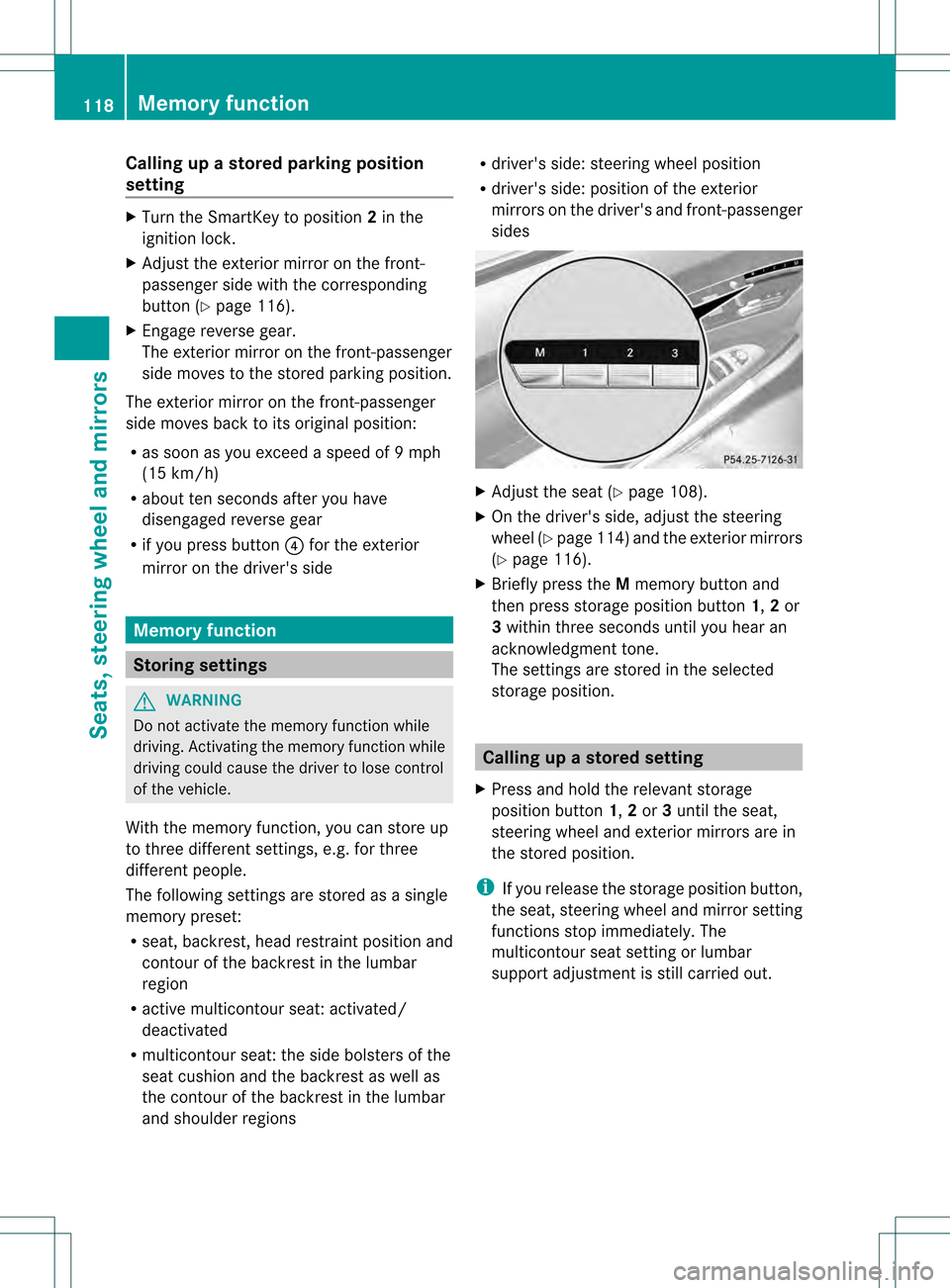
Calling up a stored parking position
setting X
Turn the SmartKey to position 2in the
ignition lock.
X Adjust the exterior mirror on the front-
passenger side with the corresponding
button (Y page 116).
X Engage reverse gear.
The exterior mirror on the front-passenger
side moves to the stored parking position.
The exterior mirror on the front-passenger
side moves back to its original position:
R as soon as you exceed a speed of 9mph
(15 km/h)
R about ten seconds after you have
disengaged reverse gear
R if you press button 0025for the exterior
mirror on the driver's side Memory function
Storing settings
G
WARNING
Do not activate the memory function while
driving. Activating the memory function while
driving could cause the driver to lose control
of the vehicle.
With the memory function, you can store up
to three different settings, e.g. for three
differen tpeople.
The following settings are stored as a single
memory preset:
R seat, backrest, head restraint position and
contour of the backrest in the lumbar
region
R active multicontour seat: activated/
deactivated
R multicontour seat: the side bolsters of the
seat cushion and the backrest as well as
the contour of the backrest in the lumbar
and shoulder regions R
driver's side: steering wheel position
R driver's side: position of the exterior
mirrors on the driver's and front-passenger
sides X
Adjust the seat (Y page 108).
X On the driver's side, adjust the steering
wheel (Y page 114)a nd the exterio rmirrors
(Y page 116).
X Briefly press the Mmemory button and
the npress storage position button 1,2or
3 withi nthree seconds until you hear an
acknowledgment tone.
The settings are stored in the selected
storage position. Calling up
astore dsetting
X Press and hold the relevant storage
position button 1,2or 3until the seat,
steering wheel and exterio rmirrors are in
the stored position.
i If you release the storage position button,
the seat, steering wheel and mirror setting
functions stop immediately. The
multicontour seat setting or lumbar
support adjustmen tis still carried out. 118
Memory functionSeats, steering wheel and mirrors
Page 131 of 542

Cleaning instructions
!
Do no ttouch the COMAND display .The
display has a very sensitive high-gloss
surface; there is a risk of scratching. If you
have to clean the screen, however, use a
mild cleaning agent and a soft, lint-free
cloth.
The display must be switched off and have
cooled down before you start cleaning. Clean
the display screen, when necessary, with a
commercially available microfiber cloth and
cleaning agent for TFT/LCD displays. Then,
dry the surface with a dry microfiber cloth.
Avoid using alcoholic thinners, gasoline or
abrasive cleaning agents. These could
damage the display surface. Do not apply
pressure to the display surface when cleaning
it, as this could cause irreversible damage. Remote control
Overview You can use the remote control to operate the
COMAND display, SPLITVIEWa nd either one
of the rear-compartment screens. 0002
To switch the screen on/off (Rea rSeat
Entertainment System only)
0003 To switch the button lighting on/off 0026
To select the screen for remote control
operation (COMAND ,SPLITVIEW ,L
REAR and REAR Rcan be selected)
0025 To select a menu or menu item
0023 To confirm a selection or setting
0024 Mute
0014 To adjust the volume (for corded
headphones only)
0015 COMAND: to set the station, skip track,
fast forward/rewind, for example. Rear
Seat Entertainment System: skip track,
fast forward/rewind
0016 COMAND: to select a station from
presets, select a track, enter directly,
enter a phone number, for example. Rear
Seat Entertainment System: to select a
track, enter directly
0017 To exit a menu (back)
X Point the remote control at the
corresponding screen and execute the
functions by pressing the corresponding
buttons.
i The remote control's function may be
restricted depending on the angle at which
it is pointed at the respective screen.
Selecting the screen for the remote
control X
Turn thumbwheel 0026until the desired
display is highlighted in the window.
Switching the screen on/off (Rear Seat
Entertainment System only) If the SmartKey is in the ignition lock in
position
0or 1or if the SmartKey is not in the
ignition lock, the rear screens will switch off
after 30 minutes. Before the screens switch
off, they show a message to this effect.
You can switch the screen sback on.
However, this will discharge the starter
battery. At
ag lance
129COMAND Z
Page 133 of 542

Functions with the
0001 and
0002 button
You can use the remote control to execute the same functions as the COMAND control panel.
Mode Function
Audio mode Selects a station using th
estation search functio n(Ypage 216) Selects a track by skipping to a track (Y
page 229)Fast forward/rewind (Y
page 230)Video mode Selects a scene or chapter (video DVD mode) (Y
page 247)Fast-forward/rewind (video DVD mode) (Y
page 247)Functions of the number keypad
You can use the remote control to execute the same functions as the COMAND control panel.
Mode Function
Audio mode Selects stations via the station presets (Y
page 216)Sets stations by entering the frequency manually (Y
page 217)Stores stations manually (Y
page 217) Selects a track (Y
page 229) Selects a data medium via the media list (Y
page 228)Telephone mode Telephone number entry (Y
page 204)Character entry Enters characters (direct entry) (Y
page 134)Operating COMAND
Selecting amain function Initial situation
You would like to change from the telephone
menu to the vehicle settings, for example.
X Slide 002A001Cthe COMAND controller and
switch to the main function bar.
X Select Vehicle in the mai
nfunction bar by
turning 0031001C0032the COMAND controller and
press 0021to confirm.
The "Vehicle" menu appears. 0002
"Vehicle" menu
0003 Display/selection window At
ag lance
131COMAND Z
Page 134 of 542

Calling up the menu of a main function
0002
To call up the audio menu
0003 Main function bar
If one of the main functions navigation, audio,
telephone or video is switched on,
triangle 0002appears next to the entry. You can
now selec tanassociated menu.
The following example illustrates how to call
up the audio menu.
X Press the 0010function button.
or
X Select Audio in the main function bar by
sliding 002A001Cthe COMAND controller and
press 0021to confirm.
The Audio menu appears. 0002
Current audio operating mode
0003 Main function bar
0026 Audio menu
The 002Cdot indicates the current audio mode.
X Select another audio mode, e.g. Radio , by
turning 0031001C0032the COMAND controller and
press 0021to confirm. Selecting
amenu item The following example describes how to
selec
tastation from the station presets in
radio mode.
X Press the 0010function button.
X Select Presets by sliding
001C0006and turning
0031001C0032 the COMAND controller and press
0021 to confirm.
The station preset memory appears. 0002
Selection bar
X Select a station by turning 0031001C0032the
COMAND controller and press 0021to
confirm.
The station is set.
Example of operation Initial situation
You would like to switch from the vehicle
function to the radio function and select a
station from the station list, for example.
The following operating example describes
how to:
R
call up the audio function
R switch on radio mode
R set a station. 132
At
ag lanceCOMAND
Page 156 of 542

change accordingly
.Ifthe selected language
is not supported by the Voice Control System,
"English" will be selected.
X Select Vehicle by turning
0031001C0032the
COMAND controller and press 0021to
confirm.
X Select System and press
0021to confirm.
X Select Language and press
0021to confirm.
The list of languages appears. The 002Cdot
indicates the current setting.
X Select the language by turning 0031001C0032the
COMAND controller and press 0021to
confirm.
COMAND loads the selected language and
sets it. Reset function
You can reset COMAND to the factory
settings. Amongst other things, this will
delete all personal data (e.g. station presets,
address book entries, entries in the
destination memory and in the list of previous
destinations in the navigation system).
Resetting is recommended before selling or
transferring ownership of your vehicle, for
example.
X Select Vehicle in the main function bar by
turning 0031001C0032the COMAND controller and
press 0021to confirm.
X Select System by turning
0031001C0032the
COMAND controller and press 0021to
confirm.
X Select Reset and press
0021to confirm.
Ap rompt appears asking whethe ryou wish
to reset.
X Select Yes or
No and press
0021to confirm.
If you select No , the process will be aborted.
If you select Yes , another prompt appears
asking whether you really wish to reset.
X Select Yes or
No and press
0021to confirm.
If you select Yes , a message will be shown.
COMAND is reset and restarted. If you select
No , the process will be aborted.
Navigation
Introduction
Safety notes G
WARNING
For safety reasons, only enter a destination
when the vehicle is stationary. When the
vehicle is in motion, apassenger should enter
the destination .Study manual and select
route before driving.
Bear in mind that at a speed of just 30 mph
(approximately 50 km/h), your vehicle is
covering a distance of 44 fee t(approximately
14 m) every second.
COMAND calculates the rout eto the
destination without taking account of the
following:
R Traffic lights
R Stop and right-of-way-signs
R Lane merging
R Parking or stopping prohibited areas
R Other road and traffic rules and regulations
R Narrow bridges G
WARNING
COMAND may give incorrect navigation
commands if the data in the digital map does
not correspond with the actual road/traffic
situation. Digital maps do not cover all areas
nor all routes within an area. For example, if
the traffic routing has been changed or the
direction of a one-way road has been
reversed.
For this reason, you must always observe
applicable road and traffic rules and
regulations during your journey. Road and
traffic rules and regulations always have
priority over the navigation commands
generated by the system. 154
NavigationCOMAND
Page 207 of 542

i
The redialing function is also available
using the on-board computer
(Y page 385).
Calling voicemail
This function is only available if it is supported
by the mobile phone network provider.
You can only call voicemail if the voicemail
number is stored as preset 1onthe SIM card.
X Press and hold the 0011button on the
telephone keypad.
or
X Use the COMAND controller to select 1and
confirm until dialing commences.
Connecting acall to an entry in acall list
or in the COMAND phone book
X Open a call lis tand select an entry
(Y page 213).
or
X Call up the COMAND phone book and
select an entry (Y page 209).
Functions available during acall Overview
Telephone operatio
nwith a single call
0002 Perso nyou are calling
0003 Icon for active telephone connection
0026 NEW to call other parties
8
0025 To switch hands-free microphone on/off 0023
To send DTMF tones (not possible with all
mobile phones)
0024 To end a call
Switching the hands-free microphone on/
off
This function is also available during an active
phone call.
X To call up the telephone basic menu
(Y page 202).
X To switch off: selectMike OFF and press
0021 to confirm.
or
X Press the 0029button on the multifunction
steering wheel.
If the microphone is switched off, the
display shows the 000Fsymbol and the The microphone is turned OFF message
appears for a short period.
X To switch on: selectMike ON and press
0021 to confirm.
or
X Press the 0029button on the multifunction
steering wheel.
The 000Fsymbol disappears. You will briefly
see the The microphone is ON message.
Ending an active call
X Select 001Fin the telephone basic menu
and press 0021to confirm.
or
X Press the 001Fbutton on the telephone
keypad or on the multifunction steering
wheel.
Call waiting, toggling and conference
connections with several people
These functions are only available if they are
supported by the mobile phone network
provider. Furthermore, they are only available
if the mobile phone supports HFP 1.5 or
higher.
8 This function is only available if the telephone supports HFP1. 5and above. Telephone
205COMAND Z